
合成鞍

有问题或疑问? -> 加入 Discord 服务器 | 或者在 GitHub 上创建 Issue
为鞍添加合成配方
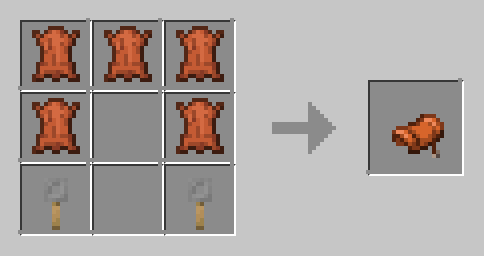
指南
如何在单人游戏中安装数据包
在世界创建时
如何在单人游戏中安装数据包
-
打开 Minecraft
启动游戏。 -
创建新世界
导航到“更多”,然后点击 “数据包”。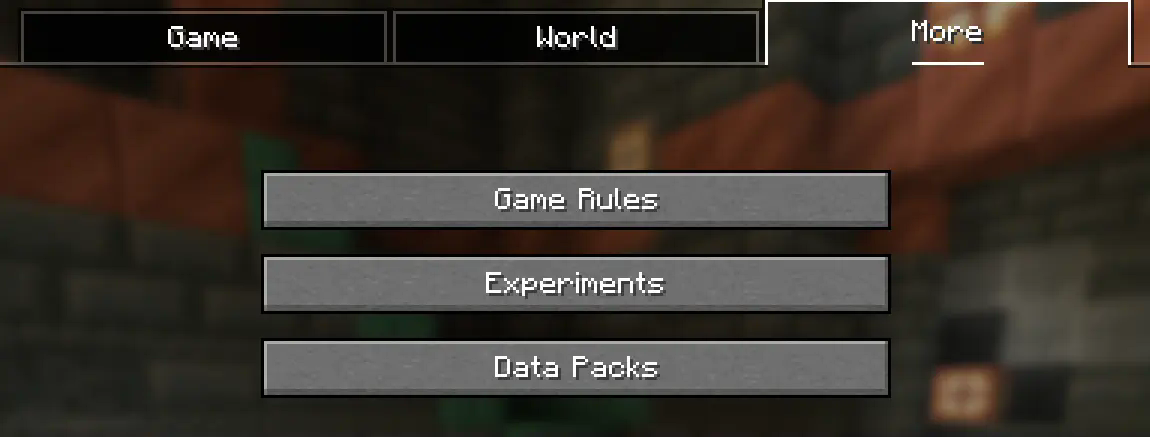
-
添加数据包
将数据包(一个.zip文件或目录)拖入 Minecraft 窗口。- 将出现确认屏幕。点击 “是”。
-
激活数据包
通过点击其图标上的三角形(悬停时可见),将数据包移动到屏幕右侧。
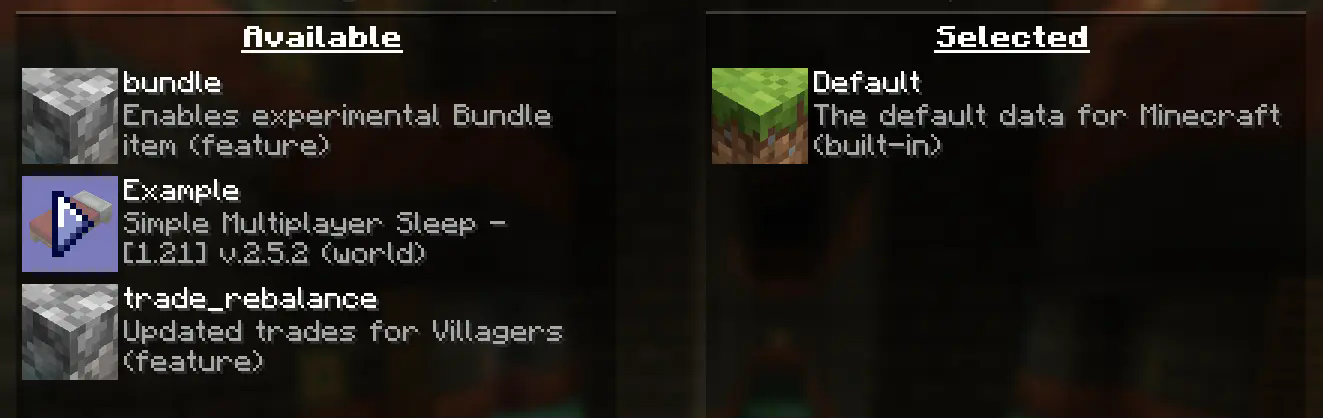
- 完成世界创建
- 点击屏幕底部的 “完成”。
- 继续创建你的世界并点击 “创建新世界”。
⚠️ 重要提示 ⚠️
该数据包仅在启用作弊的情况下生效。
您可以通过输入以下命令来验证数据包是否已激活:
/datapack list enabled
此命令应列出名为 [file/<您的数据包文件或目录名>] 的条目。
在已有世界中
如何在已有的单人世界安装数据包
-
打开 Minecraft
启动游戏。 -
选择你的世界
- 选择你要安装数据包的存档。
- 点击 "编辑",然后点击 "打开存档文件夹"。
-
添加数据包
- 打开名为
datapacks的文件夹。 - 将数据包放入此文件夹中。它应该是一个
.zip文件或者一个目录。
- 打开名为
-
重载世界
- 如果安装时你身处世界中,请在聊天栏输入
/reload或按下 F3 + T 以重载资源。
(请确保已启用作弊模式。)
- 如果安装时你身处世界中,请在聊天栏输入
⚠️ 重要提示 ⚠️
该数据包仅在启用作弊的情况下生效。
您可以通过输入以下命令来验证数据包是否已激活:
/datapack list enabled
如何在创建世界后永久启用作弊
如果您遇到此问题,以下是逐步指南,介绍如何在已经创建了 Minecraft 世界之后永久启用作弊/管理员命令。
⚠️ 在开始之前,你应该保存并备份你的世界,以防万一出现问题。
(我不会对任何损坏的世界承担任何责任。请自行承担风险!)
但别担心,这可以毫无问题地运行。
如果你不想永久更改它,请参阅此指南。
1. 你需要 NBTExplorer
NBTExplorer 是一个开源的 NBT 编辑器,适用于所有常见的 NBT 数据源。它主要用于编辑 Minecraft 游戏数据。
2. 打开 NBTExplorer 并打开你的 Minecraft 世界,在其中启用作弊/管理员命令。
3. 导航至:
<你的 Minecraft 世界>level.datDataallowCommands
4. 点击 "编辑标签值"
5. 将值从 0 改为 1,然后点击 "确定"
6. 现在点击 "保存所有已修改的标签"
完成。你现在可以加入你的世界,并检查是否拥有更改 gamemode(游戏模式)的权限,例如。
在世界创建后临时启用作弊的方法
在世界创建后临时启用作弊
如果遇到此问题,以下是在已创建 Minecraft 世界后临时启用作弊/管理员命令的分步指南。
-
加入你的世界
打开你的单人游戏世界并按下“Escape”键。 -
对局域网开放
点击 “对局域网开放”。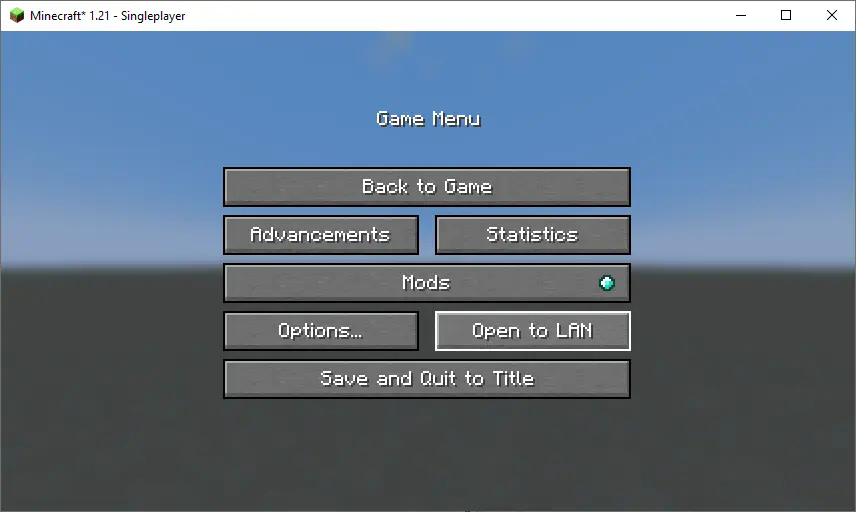
-
允许命令
将 “允许命令” 设置为 开启。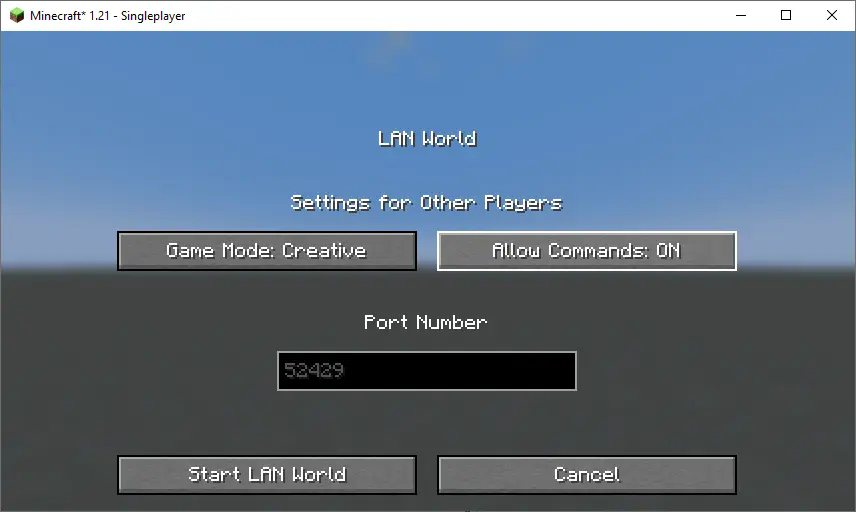
-
启动局域网世界
点击 “启动局域网世界” 以应用更改。
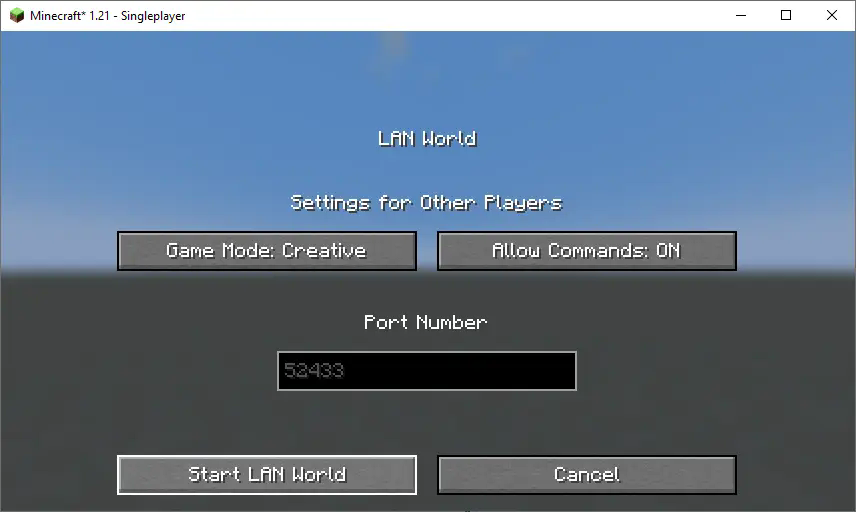
现在,你应该能够使用诸如更改游戏模式之类的命令了。请注意,这仅是临时生效,每次加入该世界时都需要重新进行此操作。
如何在多人游戏中安装数据包
如何在多人游戏中安装数据包
-
打开你的服务器文件夹
进入你的服务器文件夹,然后打开你希望安装数据包的存档文件夹(默认名称为world)。 -
添加数据包
- 数据包必须是一个
.zip文件。 - 将数据包放入世界文件夹中名为
datapacks的文件夹内。
- 数据包必须是一个
-
重载服务器
- 如果在安装期间服务器正在运行,请从控制台或作为 3 级操作员输入
/reload。
- 如果在安装期间服务器正在运行,请从控制台或作为 3 级操作员输入
如何卸载数据包
如何从单人世界或服务器中卸载数据包
-
运行卸载命令
对于我的数据包,请运行以下命令:
/function datapack_name:uninstall -
删除数据包
- 从您放置数据包的文件夹中删除该数据包。
- 或者,您可以运行以下命令:
/datapack disable [file/您的数据包文件名/目录名]
-
重载世界或服务器
在删除或禁用数据包后,运行:
/reload
如何在 Minecraft 服务器上安装模组
在 Minecraft 服务器上安装模组的逐步指南
-
下载模组
- 确保下载与服务器 Minecraft 版本匹配的正确版本的模组。
- 重要提示: 模组文件应为
.jar格式。
-
确保没有数据包或其他模组冲突
- 不要同时安装数据包和模组,因为它们可能会发生冲突。
- 根据服务器的设置,仅安装其中一种。
-
定位模组文件夹
- 打开服务器的根目录。
- 在该目录中找到名为
mods的文件夹。 - 如果不存在
mods文件夹,请创建一个。
-
安装模组
- 将下载的模组
.jar文件粘贴到mods文件夹中。
- 将下载的模组
-
重启服务器
- 将模组添加到
mods文件夹后,重启 Minecraft 服务器以激活模组。
- 将模组添加到
-
验证模组安装
- 服务器重启后,加入服务器并检查模组是否正常工作。
- 您可以使用
/mods或类似的命令(具体取决于模组)来确认模组是否已成功加载。
其他提示
- 备份服务器: 始终在安装模组前创建备份,以防出现问题导致数据丢失。
- 确保模组兼容性: 检查模组是否与您的 Minecraft 服务器版本以及已安装的其他模组兼容。
Craft Saddle
Questions or issues? -> discord server | or create an issue on github
Adds a crafting recipe for the saddle
Guides
How to Install a Datapack in Singleplayer
At the Creation of a World
How to install a datapack in singleplayer
-
Open Minecraft
Launch the game. -
Create a New World
Navigate to "More" and click on "Data Packs". -
Add the Datapack
Drag the datapack (a.zipfile or directory) into the Minecraft window.- A confirmation screen will appear. Click "Yes".
-
Activate the Datapack
Move the datapack to the right-hand side of the screen by clicking the triangle on its icon (visible when hovering over it).
- Complete World Creation
- Click "Done" at the bottom of the screen.
- Continue creating your world and click "Create New World".
⚠️ IMPORTANT ⚠️
The datapack only works if cheats are enabled.
You can verify the datapack is active by typing:
/datapack list enabled
This command should list an entry named [file/<your datapack file/directory name>].
In an Existing World
How to Install a Datapack in an Existing Singleplayer World
-
Open Minecraft
Launch the game. -
Select Your World
- Choose the world you want to install the datapack for.
- Click "Edit", then "Open World Folder".
-
Add the Datapack
- Open the folder named
datapacks. - Place the datapack into this folder. It should be a
.zipfile or a directory.
- Open the folder named
-
Reload the World
- If you are in the world during installation, type
/reloadin the chat or press F3 + T to reload resources.
(Make sure cheats are enabled.)
- If you are in the world during installation, type
⚠️ IMPORTANT ⚠️
The datapack only works if cheats are enabled.
You can verify the datapack is active by typing:
/datapack list enabled
How to Enable Cheats Permanently After World Creation
If you encounter this issue, here is a step by step guide on how to enable Cheats/Admincommands permanently after you have already created a Minecraft world.
⚠️ Before you begin, you should save and backup your world in case something goes wrong.
(I will not take any responsibility for any corrupt worlds. Do this at your own risk!)
But don't worry this works without any problems.
If you don't want to change this permanently check out this guide.
1. You need NBTExplorer
NBTExplorer is an open-source NBT editor for all common sources of NBT data. It's mainly intended for editing Minecraft game data.
2. Open NBTExplorer and open your Minecraft world, where you want to enable Cheats/Admincommands.
3. Navigate to:
<Your Minecraft World>level.datDataallowCommands
4. Click on "Edit Tag Value"
5. Change the Value from 0 to 1 and click "OK"
6. Now click on "Save All Modified Tags"
That's it. You are done. You can now join your world and check if you have permission to change your gamemode, for example.
How to Enable Cheats Temporarily After World Creation
Enabling Cheats Temporarily After World Creation
If you encounter this issue, here is a step-by-step guide on how to enable Cheats/Admin commands temporarily after you have already created a Minecraft world.
-
Join Your World
Open your single-player world and press "Escape". -
Open to LAN
Click on "Open to LAN". -
Allow Commands
Set "Allow Commands" to ON. -
Start LAN World
Click "Start LAN World" to apply the changes.
Now, you should be able to use commands like changing your gamemode. Keep in mind that this is only temporary and will need to be done every time you join the world.
How to Install a Datapack in Multiplayer
How to Install a Datapack in Multiplayer
-
Open Your Server Folder
Navigate to your server folder, then open the folder for the world you wish to install the datapack in (default:world). -
Add the Datapack
- The datapack should be a
.zipfile. - Place the datapack into a folder named
datapacksinside the world folder.
- The datapack should be a
-
Reload the Server
- Type
/reloadfrom the console or as a level 3 operator if the server was running during the installation.
- Type
How to Uninstall a Datapack
How to Uninstall a Datapack from Your Singleplayer World or Server
-
Run the Uninstall Command
For my datapacks, run the command:
/function datapack_name:uninstall -
Delete the Datapack
- Delete the datapack from the folder you placed it in.
- Alternatively, you can run:
/datapack disable [file/your data pack file/directory name]
-
Reload the World or Server
After deleting or disabling the datapack, run:
/reload
How to Install a Mod on a Minecraft Server
Step-by-Step Guide to Installing a Mod on a Minecraft Server
-
Download the Mod
- Make sure to download the correct version of the Mod that matches your server's Minecraft version.
- Important: The mod file should be a
.jarfile.
-
Ensure No Datapacks or Other Mods Conflict
- Do not have both a datapack and a mod installed at the same time, as they may conflict.
- Only install one or the other, depending on your server's setup.
-
Locate the Mods Folder
- Open your server's root directory.
- Inside this directory, find the folder named
mods. - If the
modsfolder doesn't exist, create one.
-
Install the Mod
- Paste the downloaded
.jarfile for the Mod into themodsfolder.
- Paste the downloaded
-
Restart the Server
- After adding the Mod to the
modsfolder, restart your Minecraft server for the mod to be activated.
- After adding the Mod to the
-
Verify Mod Installation
- Once the server has restarted, join the server and check if the Mod is working.
- You can use
/modsor a similar command (depending on the mod) to see if the Mod has been successfully loaded.
Additional Tips
- Backup Your Server: Always create a backup before installing the Mod to avoid data loss in case something goes wrong.
- Ensure Mod Compatibility: Check that the Mod is compatible with your Minecraft server version and any other mods you have installed.

下载 Craft Saddle
需要联机服务器吗?
稳定流畅、一键部署,几分钟即可和朋友联机开服
最低仅需 8 元/月 即可畅快联机
下载 Craft Saddle
下载 Craft Saddle
需要联机服务器吗?
稳定流畅、一键部署,几分钟即可和朋友联机开服
最低仅需 8 元/月 即可畅快联机
下载 Craft Saddle
下载 Craft Saddle
需要联机服务器吗?
稳定流畅、一键部署,几分钟即可和朋友联机开服
最低仅需 8 元/月 即可畅快联机
下载 Craft Saddle
需要联机服务器吗?
稳定流畅、一键部署,几分钟即可和朋友联机开服
最低仅需 8 元/月 即可畅快联机
下载 Craft Saddle
需要联机服务器吗?
稳定流畅、一键部署,几分钟即可和朋友联机开服
最低仅需 8 元/月 即可畅快联机
下载 Craft Saddle
暂无更新日志
关于这个资源的讨论、问题反馈与使用心得
还没有讨论,来发第一帖吧
你是这个资源的作者?登录后可认领此资源。
相似资源
 数据包

此数据包添加了属于阿瓦里海盗的独特结构,将他们的独特风格带入你的 Minecraft 世界!兼容性:1.20 至 26.3
 数据包
一个 Minecraft 光线投射库,能够精确检测玩家正在查看的方块,包括像台阶和楼梯这样的特殊方块形状。
 数据包

此数据包添加了新的“祝福模式”难度。
 数据包

添加了基于官方概念图的蓝蛙和红眼树蛙变体。
 数据包

为模组生物群系添加原版回溯特性!
 数据包

为下界添加了名为“贝尔泽布城堡”的新闻结构,以及新的 Boss、新工具、新物品、新敌人和新音乐唱片!
评论 0
登录后参与评分
还没有评论,来抢沙发吧