Building Blueprint
Building Blueprint 允许玩家保存建筑为蓝图物品,在世界中预览它们、旋转预览效果,并在之后放置保存的结构。
功能
- 将选定的建筑区域保存为蓝图
- 选择预设的蓝图风格:房屋(House)、桥梁(Bridge)、塔楼(Tower)或农场(Farm)
- 为蓝图设置自定义层级编号
- 可选择是否保存选定区域内的实体
- 保留方块实体数据,例如箱子内的物品
- 在放置前预览已保存的建筑
- 旋转预览中的建筑
- 潜行并右键点击以放置建筑
- 通过游戏内库界面管理已保存的蓝图条目
创造模式标签页
模组添加了一个名为 Building Blueprints 的新创造模式标签页。
其中包含:
- 蓝图工具(Blueprint Tool)
- 空蓝图样本
- 已保存的建筑蓝图
空样本蓝图不包含已保存的建筑。它主要用于创造模式使用、测试或整合包集成。
保存建筑
- 手持
蓝图工具。
- 右键点击建筑区域的第一个角。
- 右键点击建筑区域的第二个角。
- 潜行并右键点击任意方块以打开保存界面。
- 选择一种蓝图风格。
- 输入层级编号。
- 选择是否保存实体。
- 点击
Save(保存)。
保存后,玩家将获得一个可用的建筑蓝图物品。
如果已存在相同风格和层级的蓝图,再次保存将覆盖之前保存的蓝图数据。
使用蓝图
- 手持包含已保存建筑数据的蓝图。
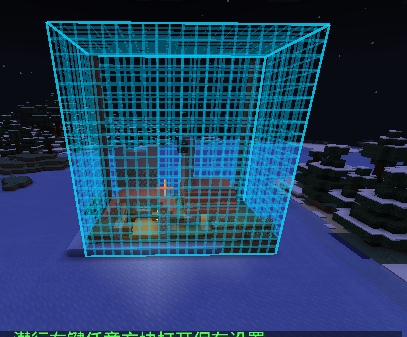
- 右键点击方块以显示建筑预览。
- 再次右键点击以旋转预览中的建筑。
- 在空中右键点击也可在预览激活时旋转它。
- 潜行并右键点击以放置建筑。
蓝图是可消耗品。成功放置其对应的建筑后,蓝图将会消失。
切换到其他物品会取消当前的预览。
蓝图库
默认按键:B
按下 B 键打开蓝图库界面。
库中显示已保存的蓝图条目,并允许玩家删除不再需要的条目。
删除条目会移除对应的已保存建筑数据文件。它不会移除玩家背包中已有的蓝图物品。
风格与层级
内置风格:
- 房屋(House)
- 桥梁(Bridge)
- 塔楼(Tower)
- 农场(Farm)
层级编号在保存蓝图时选择。它会渲染在物品图标上。
每种风格和层级的组合只保留一个已保存条目,因此创造模式标签页不会因重复的等级 1 蓝图而堆满。
整合包集成
该模组不包含内置的生存模式合成配方。
整合包作者应使用以下工具添加获取方式:
- KubeJS
- CraftTweaker
- 数据包(Data packs)
- 任务奖励
- 商店
- 战利品表(Loot tables)
推荐的集成思路:
- 为蓝图工具添加合成配方
- 为空蓝图样本添加合成配方或任务奖励
- 使用商店、NPC 或战利品容器分发特定风格和层级的蓝图
这使模组能够灵活适应不同的整合包经济系统和进度系统。
保存数据位置
已保存的建筑数据存储于:
config/building_blueprint/blueprints/
每个已保存的蓝图条目对应一个 .nbt 文件。
从蓝图库中删除条目会删除匹配的 .nbt 文件。
注意事项
- 在放置大型建筑前,请确保目标区域清空。
- 仅当启用“保存实体”选项时,才会保存实体数据。
- 如果已保存的
.nbt 文件丢失,蓝图物品将无法放置其建筑。
- 除非您确切知道自己在更改什么,否则不建议手动编辑蓝图
.nbt 文件。
Building Blueprint Changelog
1.0.2
新增
- 添加了蓝图文件的导入和共享支持。
- 已保存的蓝图现在按风格在配置文件夹中分组:
config/building_blueprint/blueprints/house/config/building_blueprint/blueprints/bridge/config/building_blueprint/blueprints/tower/config/building_blueprint/blueprints/farm/
- 导入的
.nbt 文件可直接作为蓝图物品出现在 Building Blueprints 创造模式标签页中。
如何共享蓝图 NBT 文件
- 使用蓝图工具保存一座建筑。
- 在保存界面选择风格和层级。
- 在配置文件夹中找到生成的
.nbt 文件。
示例:
- 房屋,等级 1:
config/building_blueprint/blueprints/house/house1.nbt
- 桥梁,等级 3:
config/building_blueprint/blueprints/bridge/bridge3.nbt
将该 .nbt 文件发送给另一位玩家。
接收者应将文件放入对应的风格文件夹中。例如:
config/building_blueprint/blueprints/house/house1.nbt
进入世界或刷新创造模式标签页后,导入的蓝图将作为可用蓝图物品出现。
注意事项
- 如果
.nbt 文件包含风格和层级元数据,模组将优先使用该数据。
- 如果缺少风格元数据,模组将从文件夹名称(如
house 或 bridge)读取风格。
- 如果缺少层级元数据,模组将尝试从文件名(如
house1.nbt)读取层级。
- 蓝图文件应保持在匹配的风格文件夹内,以免引起混淆。
Building Blueprint
Building Blueprint lets players save buildings as blueprint items, preview them in the world, rotate the preview, and place the saved structure later.
Features
- Save a selected building area as a blueprint
- Choose a preset blueprint style: House, Bridge, Tower, or Farm
- Set a custom level number for the blueprint
- Optionally save entities inside the selected area
- Preserve block entity data, such as chest contents
- Preview the saved building before placement
- Rotate the previewed building
- Place the building by sneaking and right-clicking
- Manage saved blueprint entries from an in-game library screen
Creative Tab
The mod adds a new creative tab named Building Blueprints.
It contains:
- Blueprint Tool
- Empty blueprint sample
- Saved building blueprints
An empty sample blueprint does not contain a saved building. It is mainly intended for creative use, testing, or modpack integration.
Saving A Building
- Hold the
Blueprint Tool.
- Right-click the first corner of the building area.
- Right-click the second corner of the building area.
- Sneak and right-click any block to open the save screen.
- Choose a blueprint style.
- Enter a level number.
- Choose whether entities should be saved.
- Click
Save.
After saving, the player receives a usable building blueprint item.
If a blueprint with the same style and level already exists, saving again will overwrite the previous saved blueprint data.
Using A Blueprint
- Hold a blueprint that contains saved building data.
- Right-click a block to show the building preview.
- Right-click again to rotate the previewed building.
- Right-clicking air also rotates the preview while it is active.
- Sneak and right-click to place the building.
Blueprints are consumable. A blueprint disappears after successfully placing its building.
Switching to another item cancels the current preview.
Blueprint Library
Default key: B
Press B to open the blueprint library screen.
The library shows saved blueprint entries and allows players to delete entries they no longer need.
Deleting an entry removes the saved building data file. It does not remove blueprint items that are already in player inventories.
Styles And Levels
Built-in styles:
The level number is chosen when saving a blueprint. It is rendered on the item icon.
Only one saved entry is kept for each style and level combination, so the creative tab will not fill up with duplicate level 1 blueprints.
Modpack Integration
The mod does not include built-in survival recipes.
Modpack authors are expected to add acquisition methods with tools such as:
- KubeJS
- CraftTweaker
- Data packs
- Quest rewards
- Shops
- Loot tables
Recommended integration ideas:
- Add a recipe for the Blueprint Tool
- Add recipes or quest rewards for empty blueprint samples
- Use shops, NPCs, or loot containers to distribute specific blueprint styles and levels
This keeps the mod flexible for different modpack economies and progression systems.
Saved Data Location
Saved building data is stored in:
config/building_blueprint/blueprints/
Each saved blueprint entry corresponds to one .nbt file.
Deleting an entry from the blueprint library deletes the matching .nbt file.
Notes
- Make sure the target area is clear before placing a large building.
- Entity data is only saved when the save-entities option is enabled.
- If the saved
.nbt file is missing, the blueprint item cannot place its building.
- Manual editing of blueprint
.nbt files is not recommended unless you know exactly what you are changing.
Building Blueprint Changelog
1.0.2
Added
- Added blueprint file import and sharing support.
- Saved blueprints are now grouped by style under the config folder:
config/building_blueprint/blueprints/house/config/building_blueprint/blueprints/bridge/config/building_blueprint/blueprints/tower/config/building_blueprint/blueprints/farm/
- Imported
.nbt files can appear directly as blueprint items in the Building Blueprints creative tab.
How To Share Blueprint NBT Files
- Save a building with the Blueprint Tool.
- Choose a style and level in the save screen.
- Find the generated
.nbt file in the config folder.
Example:
- House, level 1:
config/building_blueprint/blueprints/house/house1.nbt
- Bridge, level 3:
config/building_blueprint/blueprints/bridge/bridge3.nbt
Send that .nbt file to another player.
The other player should put the file into the matching style folder. For example:
config/building_blueprint/blueprints/house/house1.nbt
After entering the world or refreshing the creative tab, the imported blueprint will show up as a usable blueprint item.
Notes
- If the
.nbt file contains style and level metadata, the mod uses that data.
- If style metadata is missing, the mod reads the style from the folder name, such as
house or bridge.
- If level metadata is missing, the mod tries to read the level from the file name, such as
house1.nbt.
- Blueprint files should stay inside the matching style folder to avoid confusing players.


 模组

 模组
 模组

 模组
 模组
 模组
评论 0
登录后参与评分
还没有评论,来抢沙发吧