Tutla 的 CCS 编辑器
ClickCrystals Script 让你无需学习晦涩的 Java 即可构建强大的游戏内模组。利用此编辑器自动化任何操作。
需要 ClickCrystals >=1.4.0.
使用方法
- 下载模组: 从 Modrinth 下载该模组并将其放入你的
mods 文件夹
- 下载 ClickCrystals: 从网站或 Curseforge 下载,并将其放入你的
mods 文件夹
- 使用快捷键打开编辑器: 默认快捷键为
j
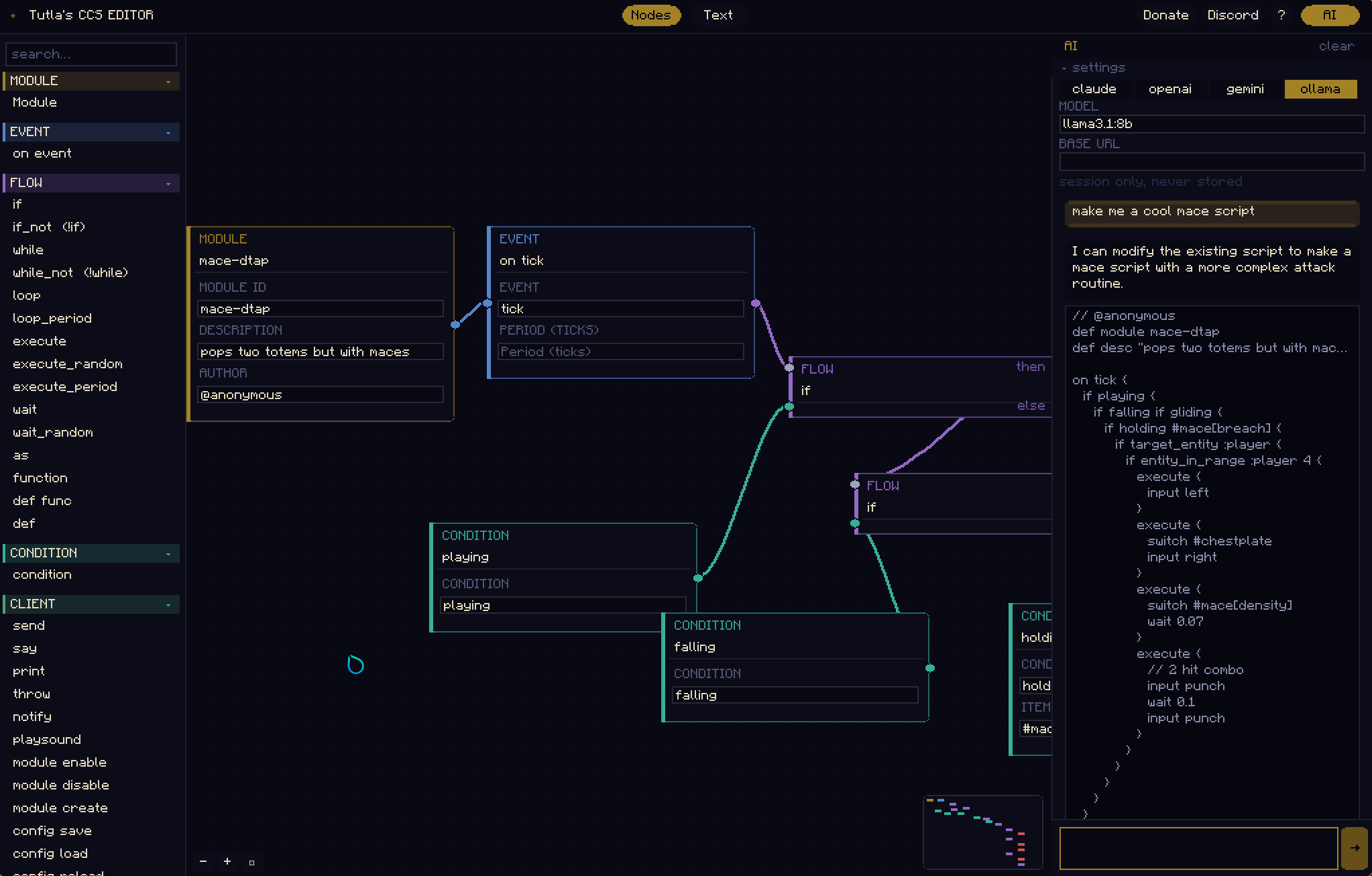
- 将节点从 调色板(Palette) 拖拽到 编辑器(Editor)
- 从文本模式复制脚本: 从屏幕顶部的文本模式复制脚本
- 粘贴到 ClickCrystals: 打开 ClickCrystals 菜单并进入 Scripting(脚本)。在那里点击 paste(粘贴) 以粘贴你的脚本。或者直接使用游戏内文件管理器保存它。
在编写脚本之前,你需要了解如何使用 CCS 来理解基本功能。
功能列表
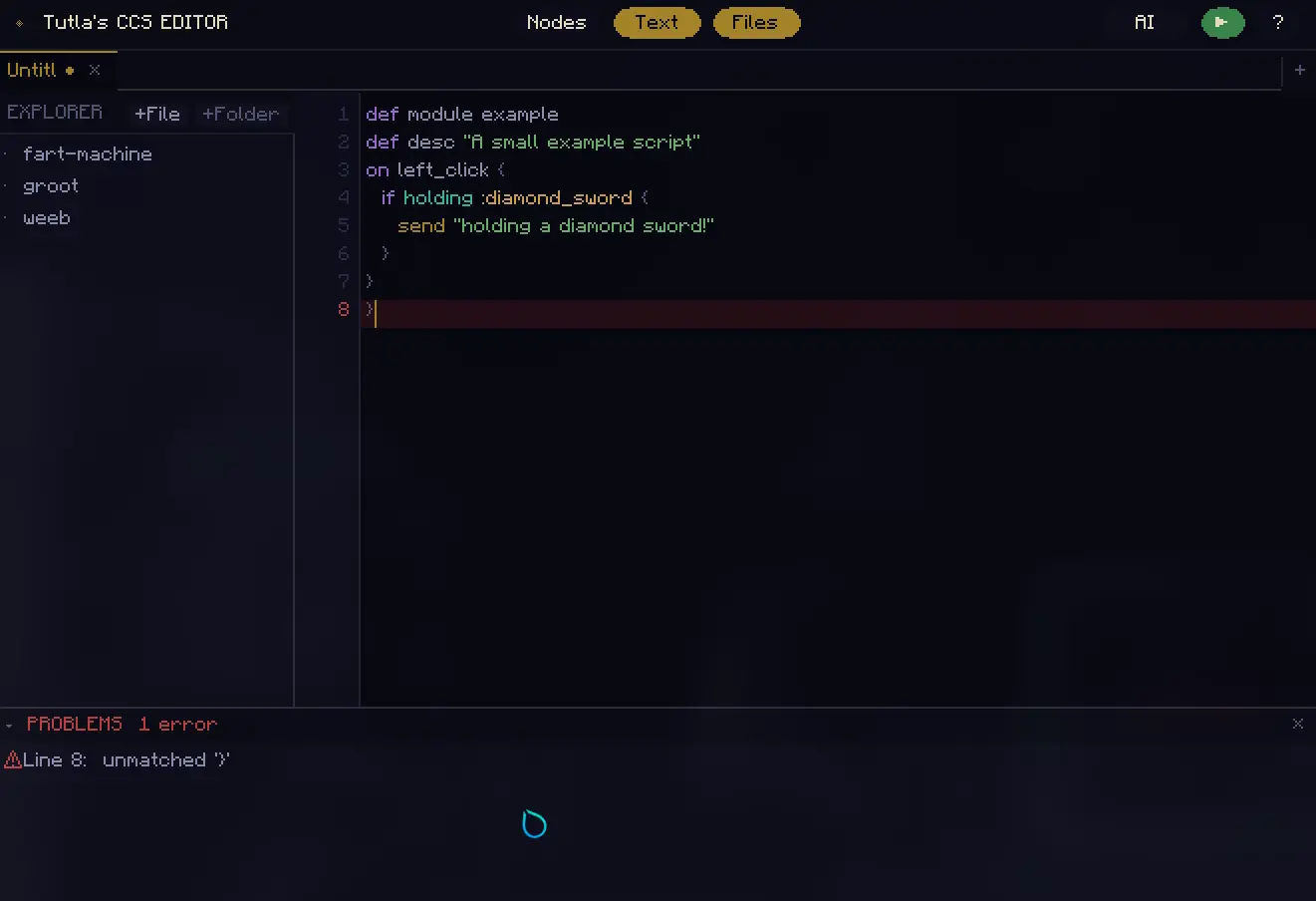
- 文本编辑器: 文本编辑器允许你编辑原始脚本。包括语法高亮和_基本_错误检测
- 节点编辑器: 从调色板拖拽节点到编辑器以起草你的脚本
- 生成式 AI: AI 标签页允许你通过描述来生成脚本。更多信息请阅读下面的部分
文本编辑器
- 语法高亮: 针对关键字、命令、条件、字符串、数字和注释
- 自动闭合括号 — 输入
{ 会插入 {},光标置于内部
- 括号对高亮 — 当光标靠近时,匹配的
{ / } 对会被高亮显示
- Tab 自动补全 — 按 Tab 键完成当前关键字或命令
- 查找 (
Ctrl+F) — 编辑器顶部有搜索栏;Enter / Shift+Enter 逐步浏览匹配项,Escape 关闭
- 查找与替换 (
Ctrl+H) — 添加替换栏;替换单个 (Enter) 或全部 (Ctrl+Enter) 出现项
- 保存时自动美化 (
Ctrl+S) — 在写入磁盘前,使用一致的 3 空格缩进重新格式化脚本,与 ccs.tutla.net 上的格式化程序匹配
- 问题面板 — 可折叠的底部栏,显示所有检测到的语法错误及其行号;点击任意错误可直接跳转到该行
文件管理器
- 完整的 VS Code 风格文件浏览器,用于你的
.clickcrystals/scripts 目录
- 创建、重命名和删除文件和文件夹——包括嵌套子文件夹
- 右键上下文菜单 — 新建文件、新建文件夹、重命名、删除任何项目
- 所有删除操作都需要确认对话框;删除文件夹会移除其所有内容
- 关闭文件会自动关闭其打开的编辑器标签页
- 标签页标题显示相对路径(例如
workflows/door 而不是仅 door)
布局与工作流
- 多标签编辑 — 同时打开多个脚本;标签页显示未保存更改指示器
- 未命名脚本 — 新文件在未首次使用
Ctrl+S 保存之前均为 Untitled(触发“另存为”)
- 运行按钮 (
▶) — 标题栏中的绿色按钮向聊天发送 ,ccs reload-scripts,在不离开编辑器的情况下在游戏内重新加载你的脚本
AI
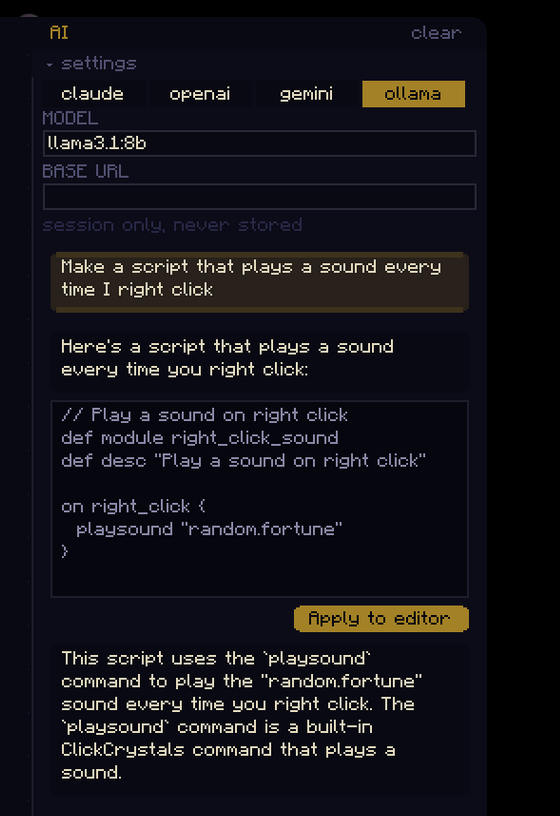
AI 标签页允许你通过描述来生成脚本。要使用它,请转到屏幕右上角并点击 “AI” 以打开菜单。
在菜单中,你将看到 4 个选项:
- Claude: 在此处获取你的 API 密钥 here。除非你付费,否则 Claude 允许你在严格的使用限制下免费使用 API。因此,只有在你愿意付费以获得更高质量脚本的情况下才使用它。
- GPT: 在此处获取你的 API 密钥 here
- Gemini: 在此处获取你的 API 密钥
- Ollama: 允许你在本地系统上离线运行 AI(需要性能较强的 GPU)。推荐的模型是
llama3.1:8b,但你绝对可以使用更好的模型。安装 ollama 并确保其正在服务(在终端中运行 ollama serve 以启动服务)。如果你的第一次响应耗时过长,请确保 llama3.1:8b 或你想要的模型 已经安装。通过 ollama run llama3.1:8b 安装它。
如果你不是通过 ollama 在本地运行,则将 API 密钥填入编辑器内 AI 面板中相应的输入框。
在使用 AI 时请记住:
- 保持简洁: 它是 AI,不是 ItzRealMe。把它想象成一位 47 岁的专业开发者,他在空闲时玩 Minecraft。当然,他不会知道什么是 “one-cycle” 或 “d-tap”!请指定分步操作,而不是给出模糊的解释,低端模型和大多数本地模型倾向于产生幻觉。 一些模型(如
gemini-2.5-flash)如果你不够具体,会直接拒绝你的请求。
- 完成任务后清空聊天记录: 过多的上下文积累会迅速消耗令牌,并以比 F1 赛车更快的速度达到使用限制。当你完成特定任务(例如脚本中打开门的部分)时,请确保清空聊天记录。只要脚本之前的部分不需要再处理,就清空它。你的当前脚本无论如何都会发送给 AI。
- “未知节点!我该怎么办?”- 不要惊慌: 如果 AI 生成了未知节点,请告诉它错误的名称并指定其未知。例如:
It shows "play_Sound" is unknown. Please fix it by using the correct defintion. Specify if it doesn't exist。如果经过多次提示后 AI 仍无法解决,则尝试自己查找该节点,毕竟:人类更胜一筹(但 Claude Opus 绝对能搞定)
Tutla's CCS Editor
ClickCrystals Script lets you build powerful in-game modules without having to learn goofy java. Automate anything within this editor.
Requires ClickCrystals >=1.4.0.
How to use
- Download the mod: Download the mod from Modrinth and put it into your
mods folder
- Download ClickCrystals: Download it from the website or Curseforge and put it in your
mods folder
- Open the editor with the keybind: The default keybind is
j
- Drag Nodes from the Palette onto the Editor
- Copy the script from Text Mode: Copy it from the text mode on the top of the screen
- Paste it into ClickCrystals: Open the ClickCrystals Menu and go to Scripting. From there click paste to paste your script. Or just save it using the in game file manager.
You need to know how to use CCS to understand basic functionality before writing scripts.
Feature List
- Text Editor: The text editor lets you edit the raw script. Includes syntax highlighting and basic error detection
- Node Editor: Drag nodes from the palette onto the editor to draft your script
- Generative AI: The AI tab lets you generate scripts by just describing it. For more information read the section below
Text Editor
- Syntax highlighting for keywords, commands, conditions, strings, numbers, and comments
- Auto-close brackets — typing
{ inserts {} with the cursor placed inside
- Bracket pair highlighting — matching
{ / } pairs are highlighted when the cursor is near one
- Tab autocomplete — press Tab to complete the current keyword or command
- Find (
Ctrl+F) — search bar at the top of the editor; Enter / Shift+Enter to step through matches, Escape to dismiss
- Find & Replace (
Ctrl+H) — adds a replace bar; replace one (Enter) or all (Ctrl+Enter) occurrences
- Auto-beautify on save (
Ctrl+S) — reformats the script with consistent 3-space indentation before writing to disk, matching the formatter at ccs.tutla.net
- Problems panel — collapsible bottom bar showing all detected syntax errors with line numbers; click any error to jump straight to that line
File Manager
- Full VS Code-style file explorer for your
.clickcrystals/scripts directory
- Create, rename, and delete files and folders — including nested subfolders
- Right-click context menu — New File, New Folder, Rename, Delete on any item
- All deletes require a confirmation dialog; deleting a folder removes all its contents
- Closing a file automatically closes its open editor tab
- Tab titles show the relative path (e.g.
workflows/door instead of just door)
Layout & Workflow
- Multi-tab editing — open several scripts at once; tabs show unsaved-change indicators
- Untitled scripts — new files are
Untitled until first saved with Ctrl+S (triggers Save As)
- Run button (
▶) — green button in the header sends ,ccs reload-scripts to chat, reloading your scripts in-game without leaving the editor
AI
The AI tab lets you generate scripts by just describing it. To use it, go to the top right of your screen and click "AI" to open up the menu.
In the menu you will be presented with 4 options:
- Claude: Get your API key here. Claude does let you use the API for free under strict usage limits unless your paying for it. Therefore, only use if you're willing to pay for it but get higher quality scripts.
- GPT: Get your API key here
- Gemini: Get your API key here
- Ollama: Let's you run AI locally on your system without the internet (requires a competent GPU). Preferred model is
llama3.1:8b but you can definetly use a better model. Install ollama and make sure its serving (serve by running ollama serve in terminal). If your first response is taking too long, make sure llama3.1:8b or the model you want is already installed. Install it via ollama run llama3.1:8b.
If you're not running it locally via ollama then put the API key in it's respective input in the AI panel within the editor.
While using AI keep in mind to:
- Be concise: It's an AI, not ItzRealMe. Think of it as a 47 year old professional developer who plays Minecraft whenever free. Of course he wouldn't know what a "one-cycle" or a "d-tap" is! Specify step by step what to do instead of giving a vague explanation, lower end models and most local models tend to hallucinate. Some models such as
gemini-2.5-flash will straight up reject your request if you don't be specific enough.
- Clear chat when you're done with a task: Too much context build up will use up tokens quickly and will hit usage limits faster than an F1 Car. Make sure to clear your chat whenever you're done with a specific task such as the part of your script where you open a door. Clear it out whenever everything previous in the script doesn't need to be worked on. Your current script is sent to the AI anyways.
- "Unknown node! What do I do?"- Don't panick: If AI generates an unknown node then tell it the name of what it got wrong and specify its unkown. For example:
It shows "play_Sound" is unknown. Please fix it by using the correct defintion. Specify if it doesn't exist. If AI can't resolve even after repeated prompting then try looking up the node yourself, afterall: Humans are superior (but Claude Opus can definitely get it done)

 模组

 模组

 模组
 模组

 模组
 模组
评论 0
登录后参与评分
还没有评论,来抢沙发吧