

ClickGuard 是一款适用于 Fabric 的自动点击器模组,允许你自动化按下任何键绑定,包括来自其他模组的键绑定。 它包含智能的 AFK(挂机)安全功能: 在以下场景中会自动停止、发送系统通知以及自动断开连接:
- 受到伤害时
- 生命值低于特定数值时
- 饥饿值低于特定数值时
- 武器耐久度低于特定数值时
- 由于过滤条件导致自动点击器未点击超过特定时间后
该模组还允许你仅对实体、方块或两者进行点击过滤,并且仅在使用手中持有特定物品时进行点击。
安装
本模组仅支持 Fabric 加载器。有关 Fabric 本身的安装指南,请使用官方 Fabric 玩家指南。
你可以从以下平台下载本模组:Modrinth、 CurseForge 或 Github 下的 releases。
本模组具有以下依赖项:
- 必需:Fabric API
- 可选:Mod Menu
使用模组
要使用本模组,你需要先创建一个预设。要创建预设,请按下“打开 ClickGuard 预设菜单”的默认键绑定 ,。
创建好预设后,只需在同一预设菜单中点击“OFF”即可启用它们。预设现已启用,但要使其真正开始点击,你需要点击
“开始点击”按钮或在游戏内按 .。
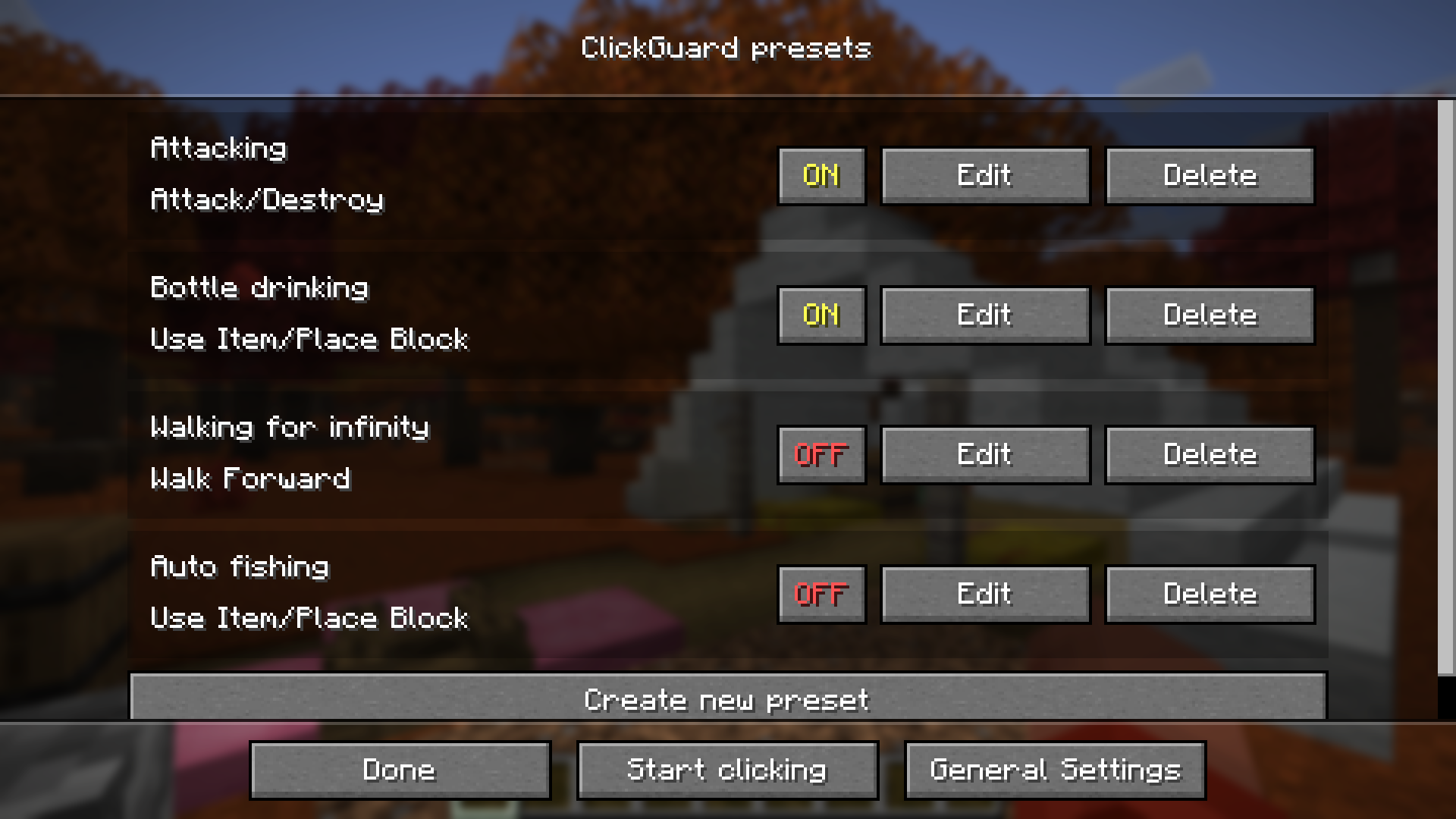 带有某些示例预设的预设菜单
HUD 会告诉你自动点击器已启用以及哪些预设处于启用状态:
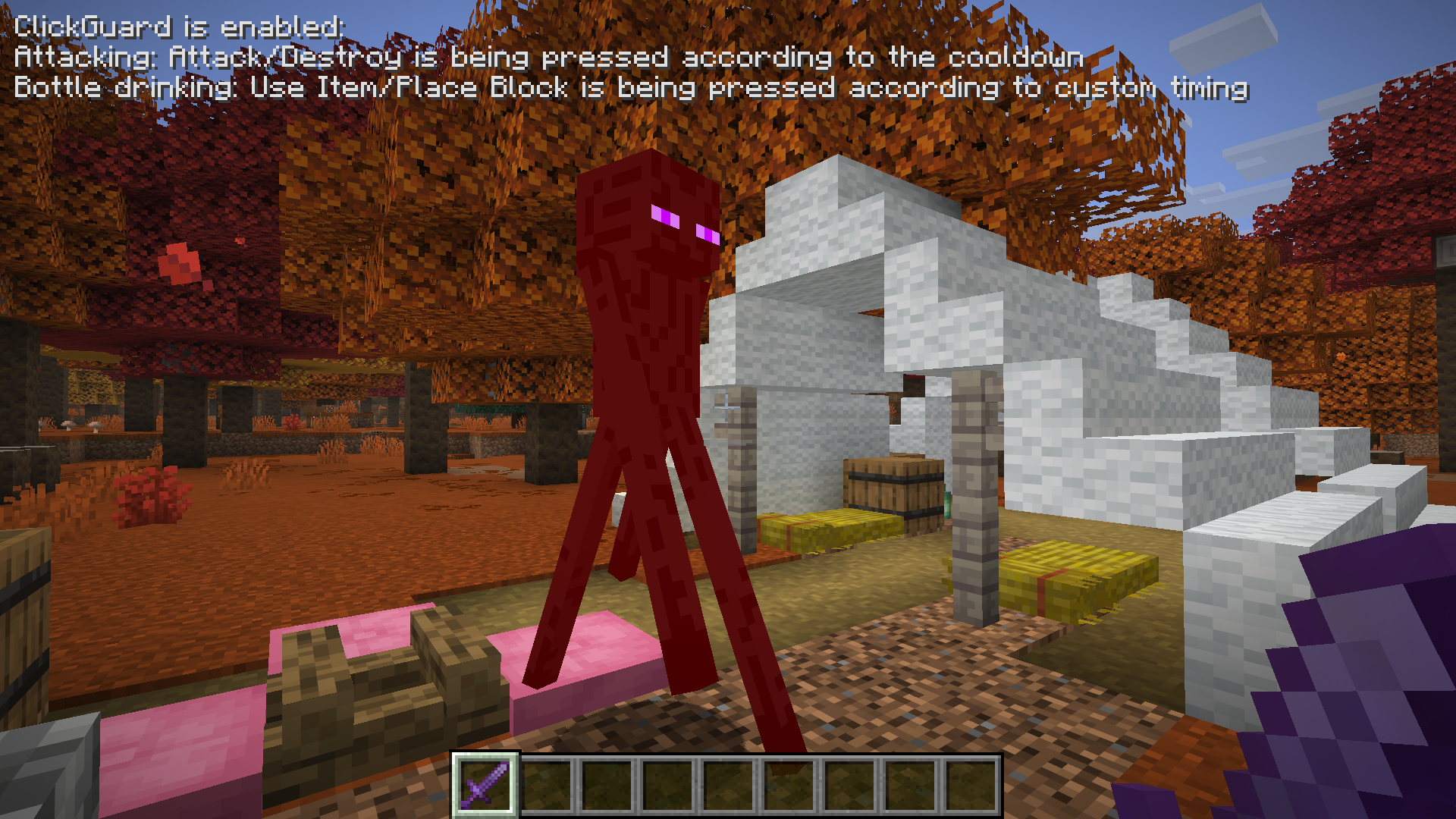 显示自动点击器启用时的活动预设的 HUD
请注意,某些服务器不允许使用此模组。建议你阅读你想在此模组上使用的服务器的规则。 对于因使用此模组造成的任何损害,我不承担任何责任。使用风险自负!
配置预设(功能说明)
创建预设时,你会被要求先选择一个键绑定,然后再配置其他内容。选择键绑定后, 你可以继续配置其他选项:
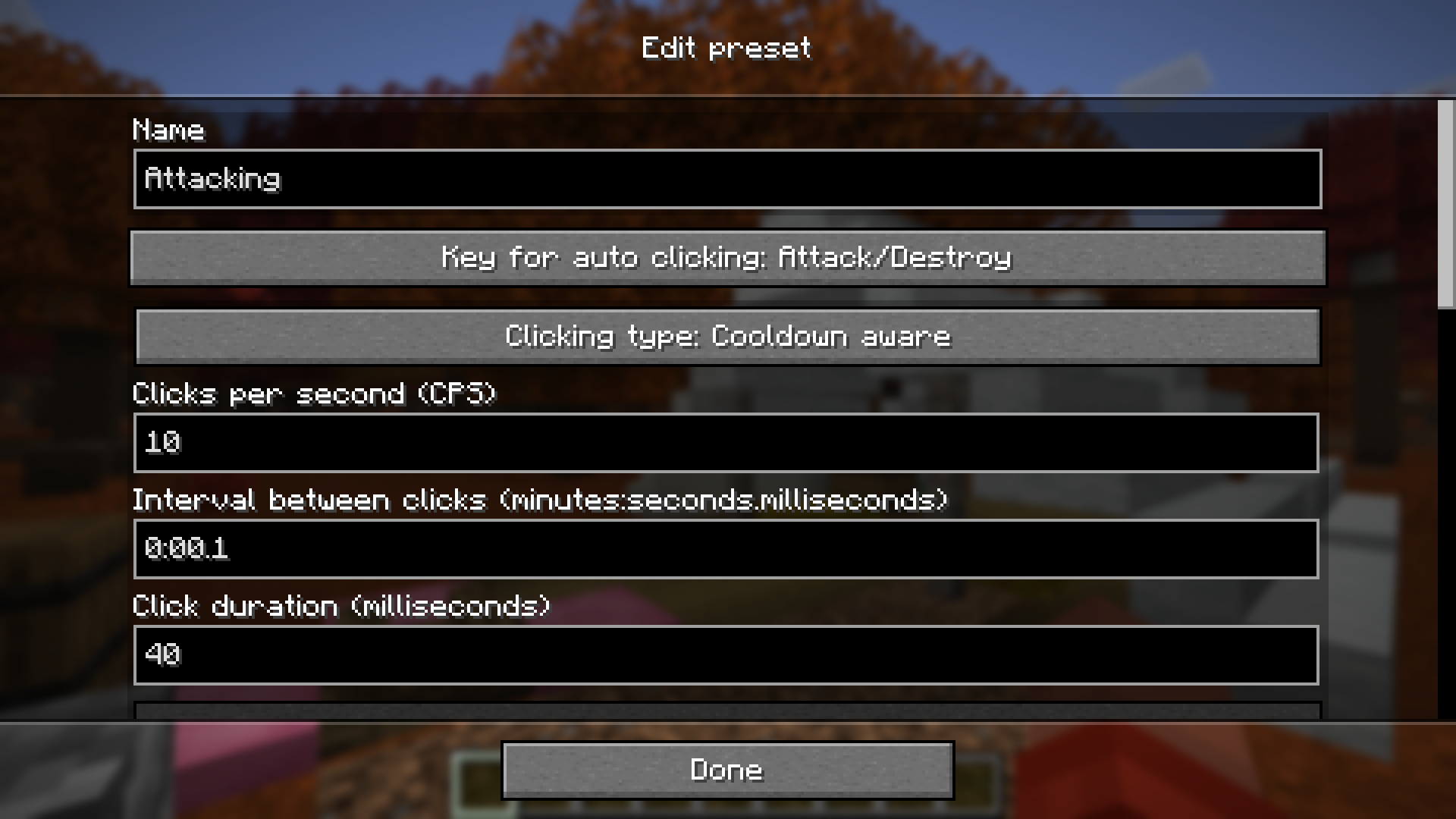 编辑预设的屏幕
名称

预设的名称。这只是为了让你能够在预设菜单、HUD 和自动断开连接后的屏幕上区分不同的预设。
自动点击的键

通过点击此按钮,你可以更改自动点击器应按下的键绑定。
点击类型和自定义计时
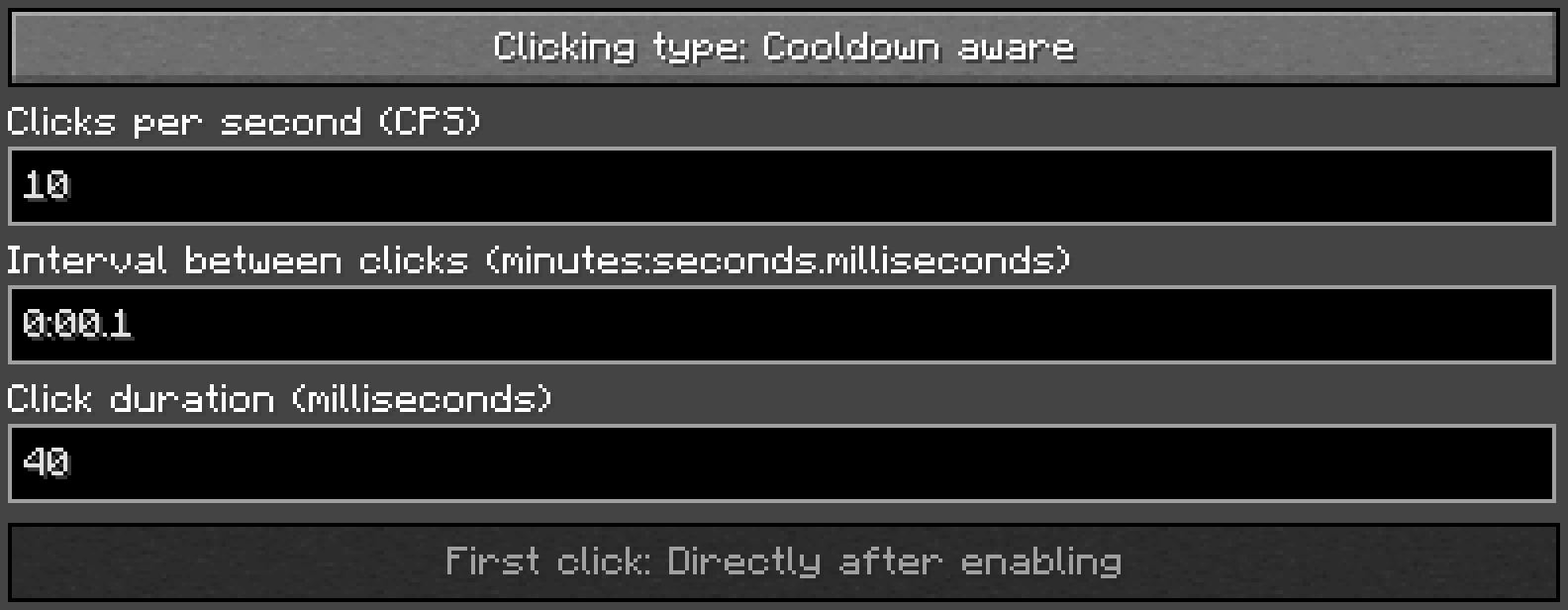
通过点击“点击类型”按钮,你可以循环切换以下点击类型:
- 连续:持续按住按键
- 自定义计时:根据下方设置的时间按下按键
- 冷却感知:一旦冷却结束就再次按下按键
只有选择了“自定义计时”,才能设置点击速度、持续时间以及首次点击执行的时机。“每秒点击次数”和“点击间隔”文本字段设置点击速度。这意味着当其中一个值改变时,另一个也会随之改变。你可以直接输入你偏好的单位来设定计时。“点击持续时间”文本字段可用于设置自动执行点击的持续时间。该值必须小于点击间隔。
通过点击“首次点击”按钮,你可以循环切换首次点击执行的时机:
- 启用后立即
- 等待一个间隔时长
过滤器
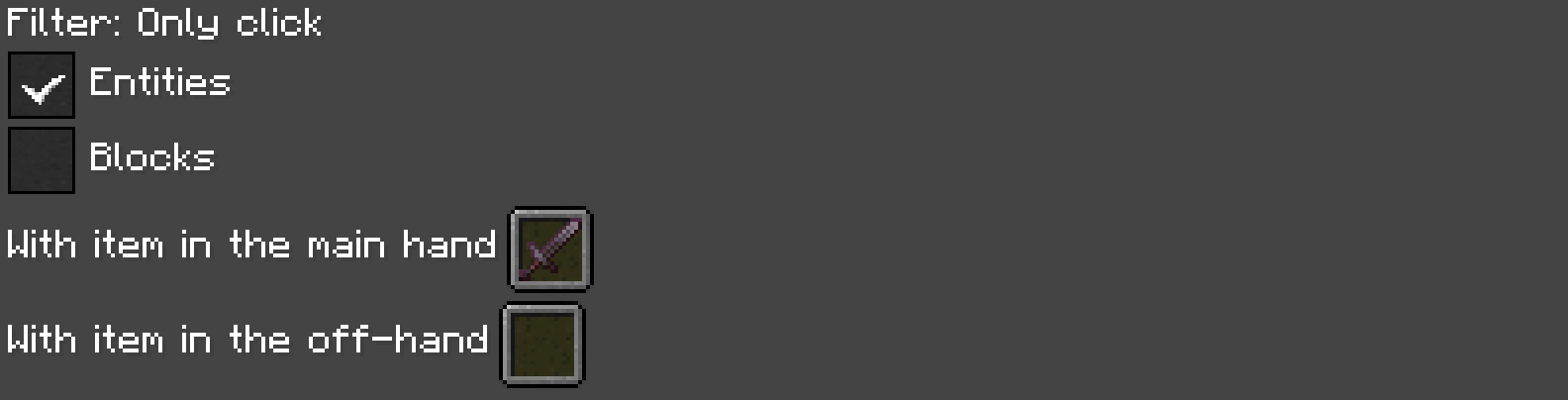
过滤器允许自动点击器仅在实体或方块在你的攻击范围内,或者你持有特定物品时才进行点击。如果同时选中“实体”和“方块”,则自动点击器仅在有东西在范围内时才会点击。你可以通过点击槽位或标签将多个物品设置为手持物品的过滤器。这将打开一个类似库存的菜单:
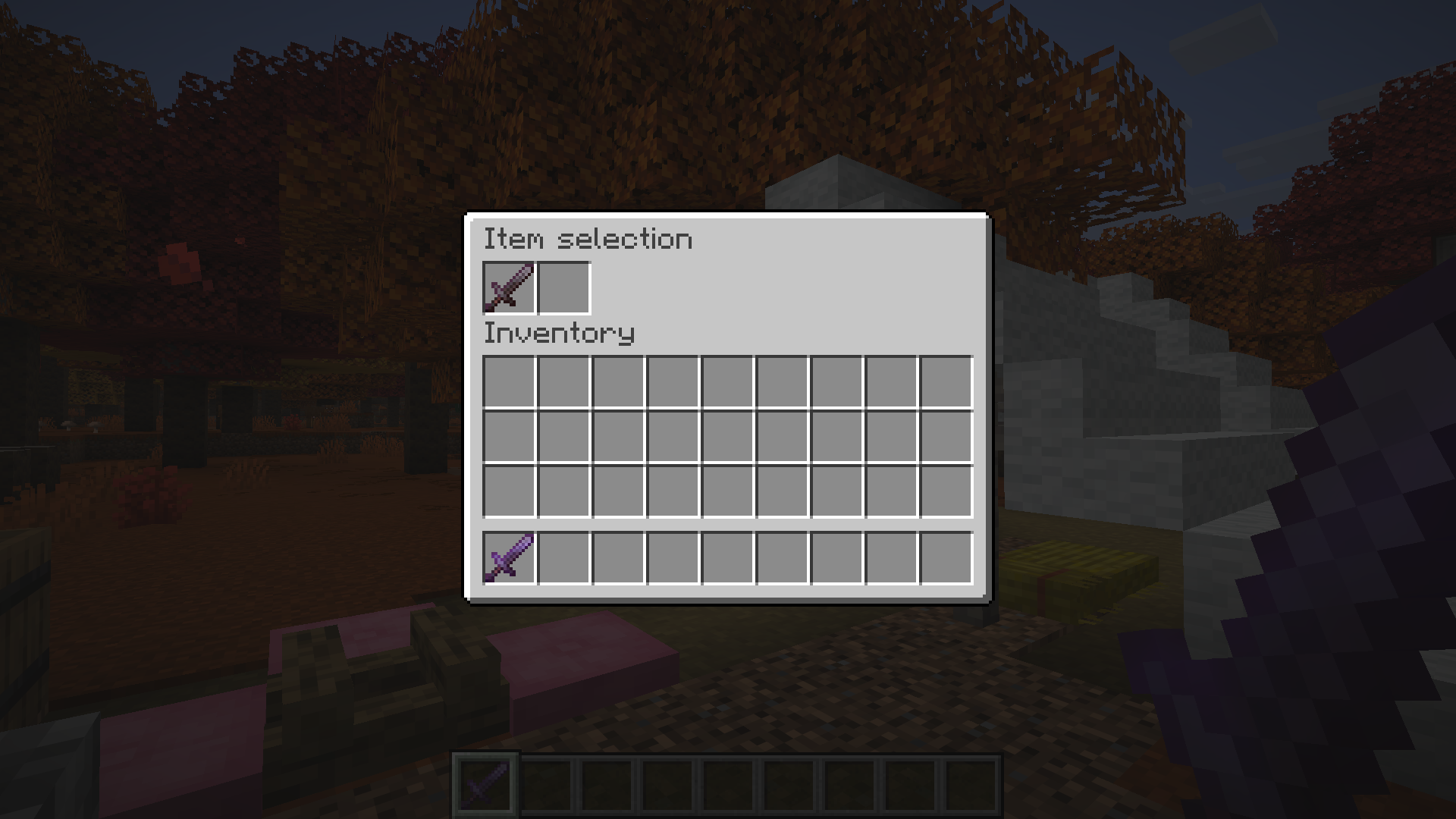 用于设置物品过滤器的类似库存的屏幕
通过点击背包中的物品,它会被复制到你的鼠标光标上。然后你可以左键单击将该物品放入过滤槽位。在空槽位放置物品后,会出现一个新的空槽位。你可以通过右键单击删除过滤器中的物品。可以通过左键单击过滤物品来编辑其数量并忽略信息(组件)。
如果未选择任何内容,即使你的攻击范围内没有东西且你持有任意或无物品,自动点击器仍会点击。此设置不影响其他预设。
动作处理
模组会检查多种“动作”。每个动作可能导致以下多种反应中的一种:
- 停止自动点击器:这将停止整个自动点击器,包括其他预设。
- 通知:这会发送系统通知。外观因操作系统而异。macOS 上的通知未经过测试。
- 离开世界:这将退出当前世界或服务器,并显示包含相关信息的此屏幕:
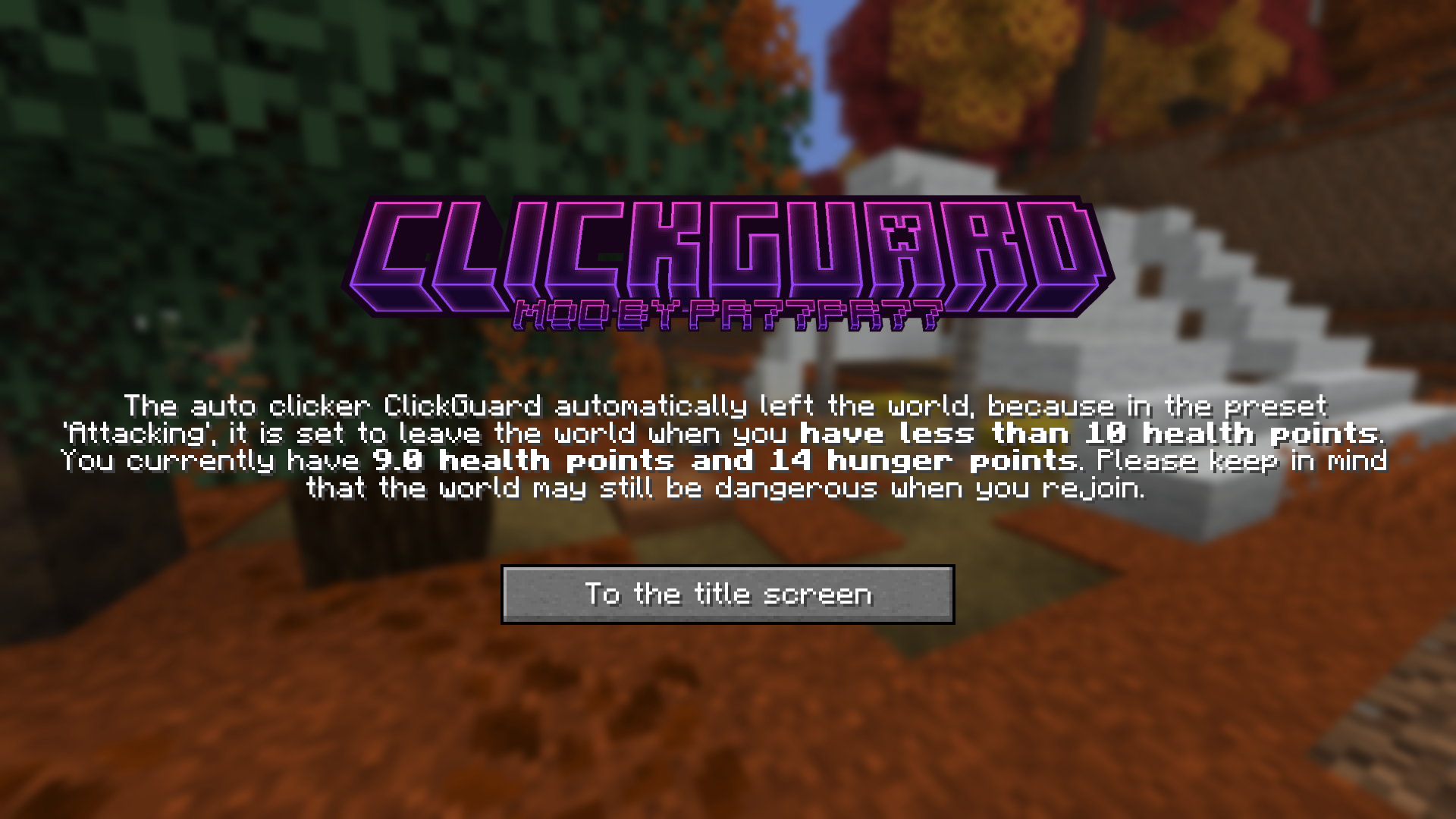 模组自动断开连接后显示的屏幕。
受到伤害时

当受到任何伤害时,将立即执行此操作的反应。反应可以按照上述方式进行配置。
在特定生命值等级
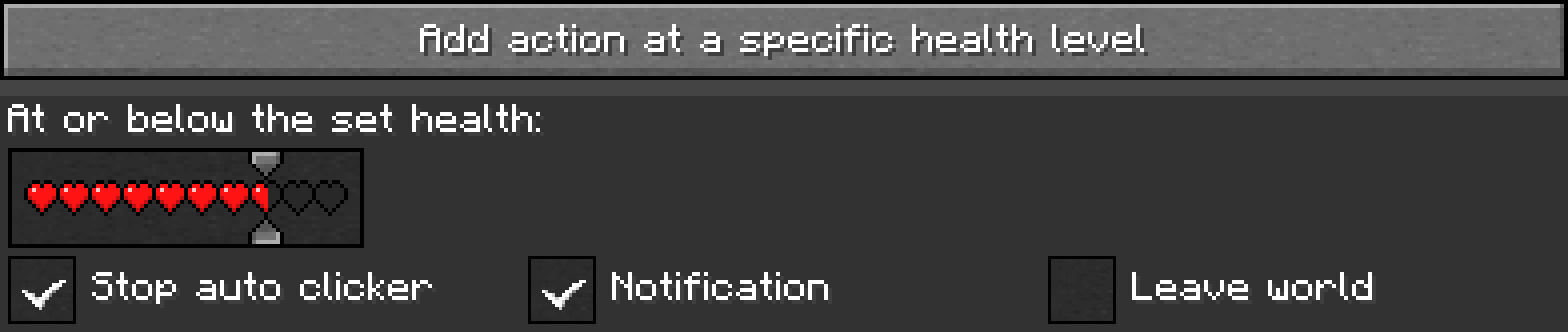
对于这种类型的操作,可以有多个相同类型。要创建一个操作,请点击“添加特定生命值等级的操作”按钮。使用带有心形的滑块,可以设置触发反应的阈值生命值(等于或低于该值)。
在特定饥饿值等级
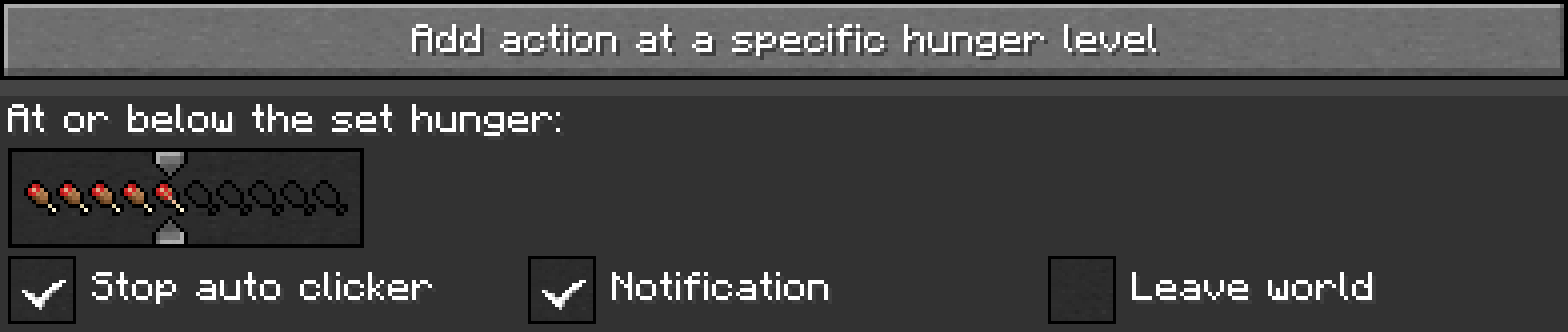
此操作类型的工作原理与特定生命值等级的操作完全相同,只是针对的是饥饿值而非生命值。
在武器特定耐久度等级

可以通过点击“添加特定耐久度等级的操作”按钮来创建耐久度类型的操作。使用滑块,可以设置触发选定反应的耐久度等级(等于或低于该值)。
在自动点击器未执行点击后
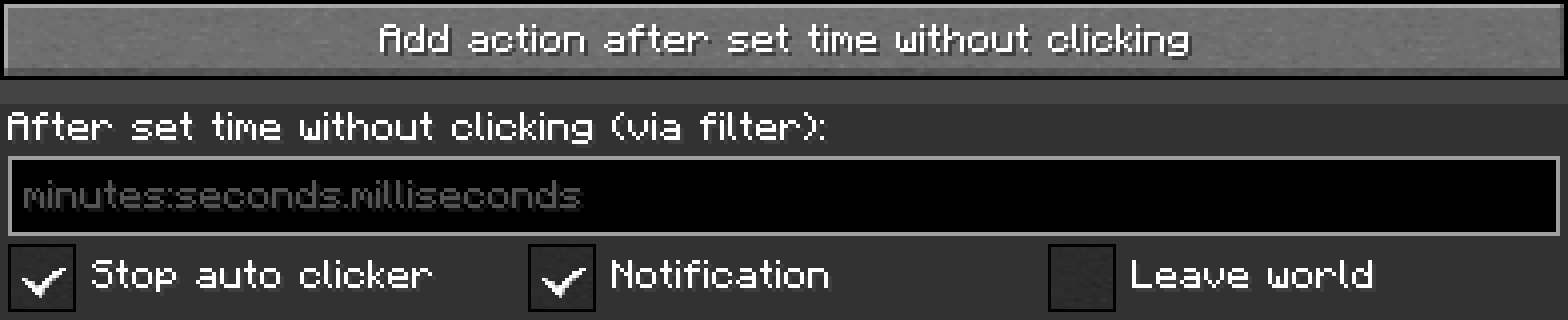
这些操作也是通过点击标有“添加设定时间无点击后的操作”的按钮创建的。在文本框中,您可以输入希望触发反应的时间,前提条件是自动点击器在此时间内未执行点击。自动点击器未执行点击可能是由于过滤器所致。此选项在计算等待时间时不考虑其他预设,但反应可能会影响其他预设。
常规设置
在预设菜单中点击“常规设置”按钮将打开以下屏幕:
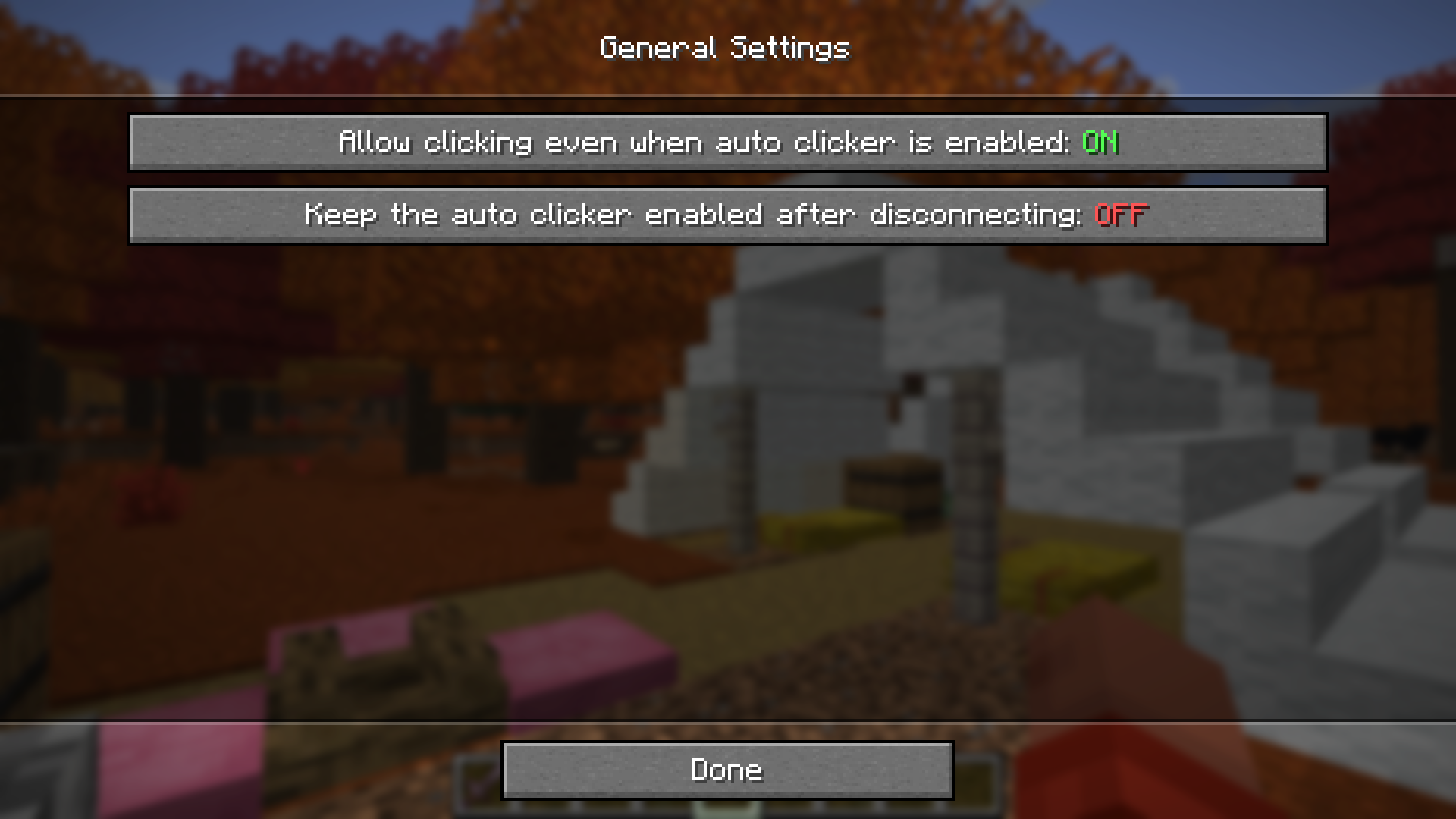 用于更改每个预设的常规设置的菜单
此屏幕包含两个开关:
- 启用自动点击器时允许点击:允许您按下会自动按下的按键,而不是阻止输入(默认:开启)
- 断开连接后保持自动点击器启用:断开连接并加入另一个或同一世界或服务器后,点击器仍保持活动状态。(默认:关闭)
报告问题、获取帮助和提议功能
如果您在使用模组时遇到困难,遇到错误,想建议实现某个功能,或者希望获得模组的旧版本移植版,请随时在 GitHub 上提交问题 或在 Discord 服务器 上打开工单。我会尽快回复,并可能会询问后续问题。
ClickGuard is an auto clicker mod for Fabric that lets you automate clicking any keybind, even keybinds from other mods. It includes smart AFK-safety features: automatic stopping, system notifications, and automatic disconnecting in the following scenarios:
- On damage
- At a specific health level
- At a specific hunger level
- At a specific weapon durability
- After a specific time of the auto clicker not clicking because of filters
The mod also lets you filter only clicking on entities, blocks or both and only clicking with specific items in your hands.
Installation
This mod is only supported by the Fabric mod loader. For installation guides regarding Fabric itself please use the official Fabric player guides.
You can download the mod from either Modrinth, CurseForge or on GitHub under releases.
This mod has the following dependencies:
- Required: Fabric API
- Optional: Mod Menu
Using the mod
To use the mod, you need to create a preset first. To create a preset, press the assigned keybind for "Open ClickGuard's
presets menu", which defaults to ,.
After creating your presets, simply enable them from the same presets menu by clicking on "OFF". The preset is now
enabled, but for it to actually start clicking, you need to either click on the
"Start clicking" button or press . while in-game.
The presets menu with some example presets
A HUD will tell you that the auto clicker is enabled and which presets are enabled:
The HUD showing active presets while the auto clicker is enabled
Please note that this mod is not allowed on some servers. I recommend reading the rules of the server you want to use this mod on. I accept no liability for any damages caused by using this mod. Use at your own risk!
Configuring presets (Feature explanation)
When creating a preset, you are asked to choose a keybind before configuring anything else. After choosing the keybind, you can proceed to configure the other options:
The screen to edit a preset
Name
The name of the preset. This is just for you to tell presets apart in the presets menu, the HUD and the screen after automatically disconnecting.
Key for auto clicking
By clicking on this button, you can change the keybind which should be pressed by the auto clicker.
Clicking type and custom timings
By clicking on the button "Clicking type", you can cycle through the following types of clicking:
- Continuous: Presses a key continuously
- Custom timing: Presses the key according to the times set below
- Cooldown aware: Presses the key again as soon as the cooldown is over
The clicking speed, duration and the moment the first click should be performed can only be set if "Custom timing" is selected. The "Clicks per second" and "Interval between clicks" text fields set the clicking speed. This means that when one of the values is changed, the other will be changed too. You can just enter the timing in your preferred unit. The "Click duration" text field can be used to set the duration of the automatically performed click. The value has to be less than the clicking interval.
By clicking on the button "First click", you can cycle through the moments, when the first click should be performed:
- Directly after enabling
- Wait for one interval duration
Filters
Filters let the auto clicker only click if an entity or a block is within your reach or if you are holding a specific item. If both "Entities" and "Blocks" are selected, the auto clicker will only click if something is within reach. You can set multiple items as a filter for held items by clicking on the slot or the label. This will open an inventory-like menu:
The inventory-like screen for setting item filters
By clicking an item from your inventory, it gets duplicated to your mouse cursor. You can then left-click to place the item into a filter slot. After placing an item in an empty slot, a new empty slot will appear. You can delete items from the filter by right-clicking. Their count can be edited and information (components) can be ignored by left-clicking on a filter item.
If nothing is selected, the auto clicker will click, even if there is nothing in your reach and you are holding any or no item. This setting doesn't affect other presets.
Handling of actions
There are multiple "actions" getting checked by the mod. Every action can result in multiple of the following reactions:
- Stop auto clicker: This stops the entire auto clicker, even other presets.
- Notification: This sends a system notification. The appearance differs between OSes. Notifications are not tested for macOS.
- Leave world: This leaves the current world or server and displays this screen with information about it:
The screen shown after the mod automatically disconnects from the server or world.
On damage
This action's reactions are executed as soon as you take any damage. The reactions can be configured as described above.
At specific health levels
For this type of action, there can be multiple of the same type. To create an action, click on the button "Add action at a specific health level". With the slider featuring hearts, you can set the health threshold at or below which the reactions will trigger.
At specific hunger levels
This action type works exactly like the actions for specific health levels, just with hunger instead of health.
At specific durability of the weapon
Actions of the durability type can be created with a click on the button "Add action at a specific durability level". With the slider, you can set the durability level at or below which the selected reactions should be triggered.
After the auto clicker did not perform a click
These actions are also created by clicking on the button labeled "Add action after set time without clicking". In the text box, you can enter the time after which you want the reactions to be triggered if the auto clicker did not perform a click. The auto clicker not performing a click can be due to filters. This option does not take other presets into account for the wait time, but reactions can have an impact on other presets.
General Settings
Clicking the "General Settings" button in the presets menu opens the following screen:
The menu for changing general settings regarding every preset
This screen contains two toggles:
- Allow clicking even when auto clicker is enabled: Allows you to press a key which is automatically pressed instead of blocking the input (Default: ON)
- Keep the auto clicker enabled after disconnecting: The clicker stays active after disconnecting and joining another or the same world or server. (Default: OFF)
Reporting issues, getting help and suggesting features
If you have trouble using the mod, if you stumble upon a bug, if you want to suggest a feature to be implemented or if you would like to have a backport of the mod, please don't hesitate to post an issue on GitHub or open a ticket on the Discord server. I will try to respond as soon as possible and maybe ask follow-up questions.

下载 ClickGuard
需要联机服务器吗?
稳定流畅、一键部署,几分钟即可和朋友联机开服
最低仅需 8 元/月 即可畅快联机
下载 ClickGuard
需要联机服务器吗?
稳定流畅、一键部署,几分钟即可和朋友联机开服
最低仅需 8 元/月 即可畅快联机
下载 ClickGuard
需要联机服务器吗?
稳定流畅、一键部署,几分钟即可和朋友联机开服
最低仅需 8 元/月 即可畅快联机
下载 ClickGuard
下载 ClickGuard
下载 ClickGuard
下载 ClickGuard
需要联机服务器吗?
稳定流畅、一键部署,几分钟即可和朋友联机开服
最低仅需 8 元/月 即可畅快联机
下载 ClickGuard
需要联机服务器吗?
稳定流畅、一键部署,几分钟即可和朋友联机开服
最低仅需 8 元/月 即可畅快联机
下载 ClickGuard
需要联机服务器吗?
稳定流畅、一键部署,几分钟即可和朋友联机开服
最低仅需 8 元/月 即可畅快联机
下载 ClickGuard
修复了一些错误,并添加了以下功能:
- 在自动点击时仍可手动按键
- 断开连接时保持自动点击器继续工作
- 主手和副手的物品过滤
- 可选择在间隔结束时点击,而不是启用后立即点击
完整更新日志:
关于这个资源的讨论、问题反馈与使用心得
还没有讨论,来发第一帖吧
你是这个资源的作者?登录后可认领此资源。
相似资源
 模组

一个用于收集生物掉落物的多区块模组。
 模组

显示你正在注视的方块的信息。(适用于 Minecraft 1.16+ 的 Hwyla/Waila 分支)
 模组

查看物品与配方
 模组
在游戏画面角落显示附近世界地形、玩家、生物和实体的地图。可创建路径点,帮助你找到标记过的位置。
 模组
使用 JavaScript 编辑配方、添加自定义物品、编写世界事件!
 模组
AE2:一款流行的自动化与存储模组
评论 0
登录后参与评分
还没有评论,来抢沙发吧