
ClientSort
多功能且易用的物品栏整理工具。
操作
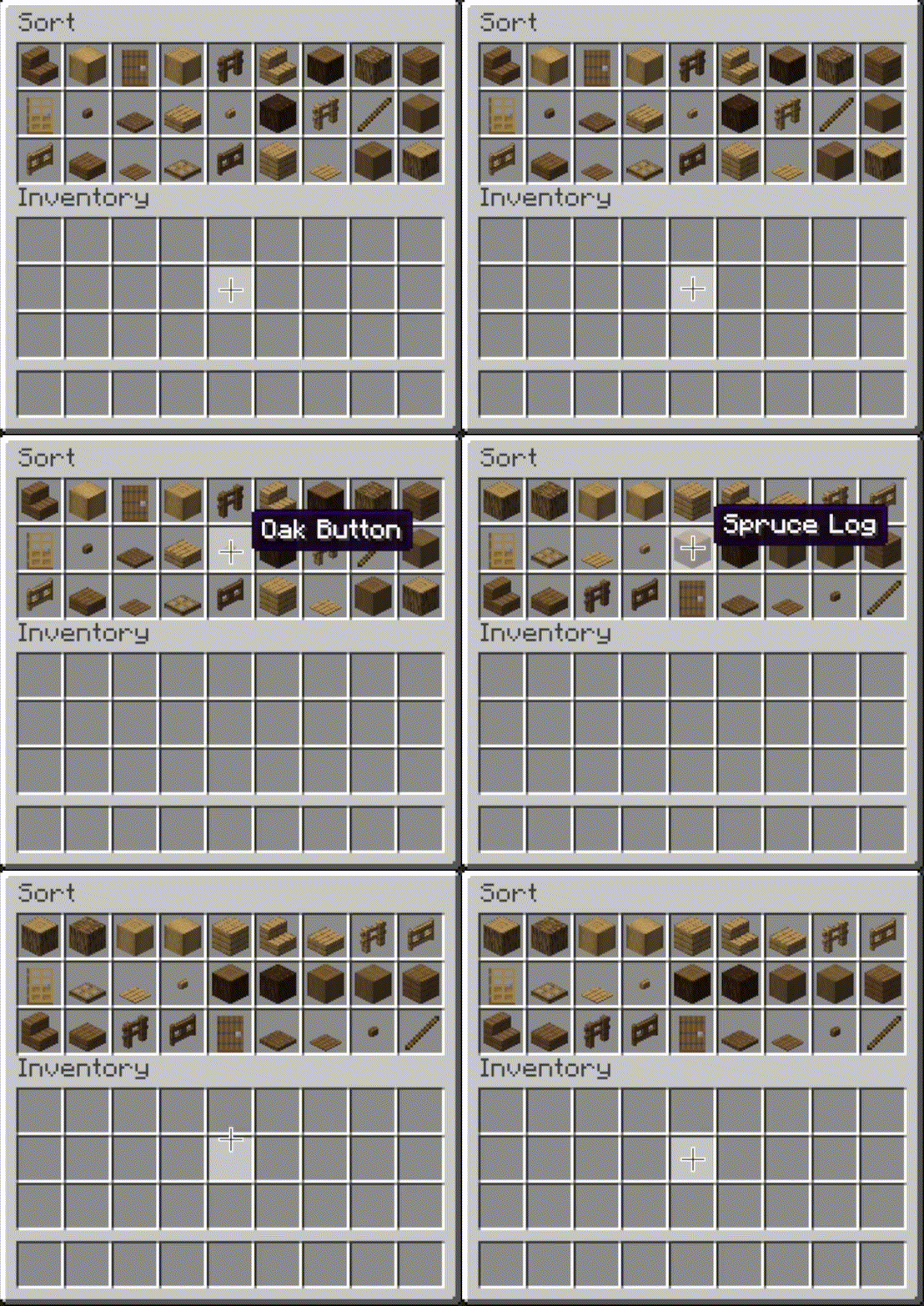
 排序
- 点击 按钮,或者将鼠标悬停在物品栏上并按下快捷键(默认:鼠标中键)。
- 激活后,物品将按照创意模式物品搜索标签页中的位置进行排序。
在排序时按住修饰键可以使用其他排序顺序。
Shift - 按数量降序排列。Control - 按字母顺序排列。Alt - 按物品 ID 升序排列。
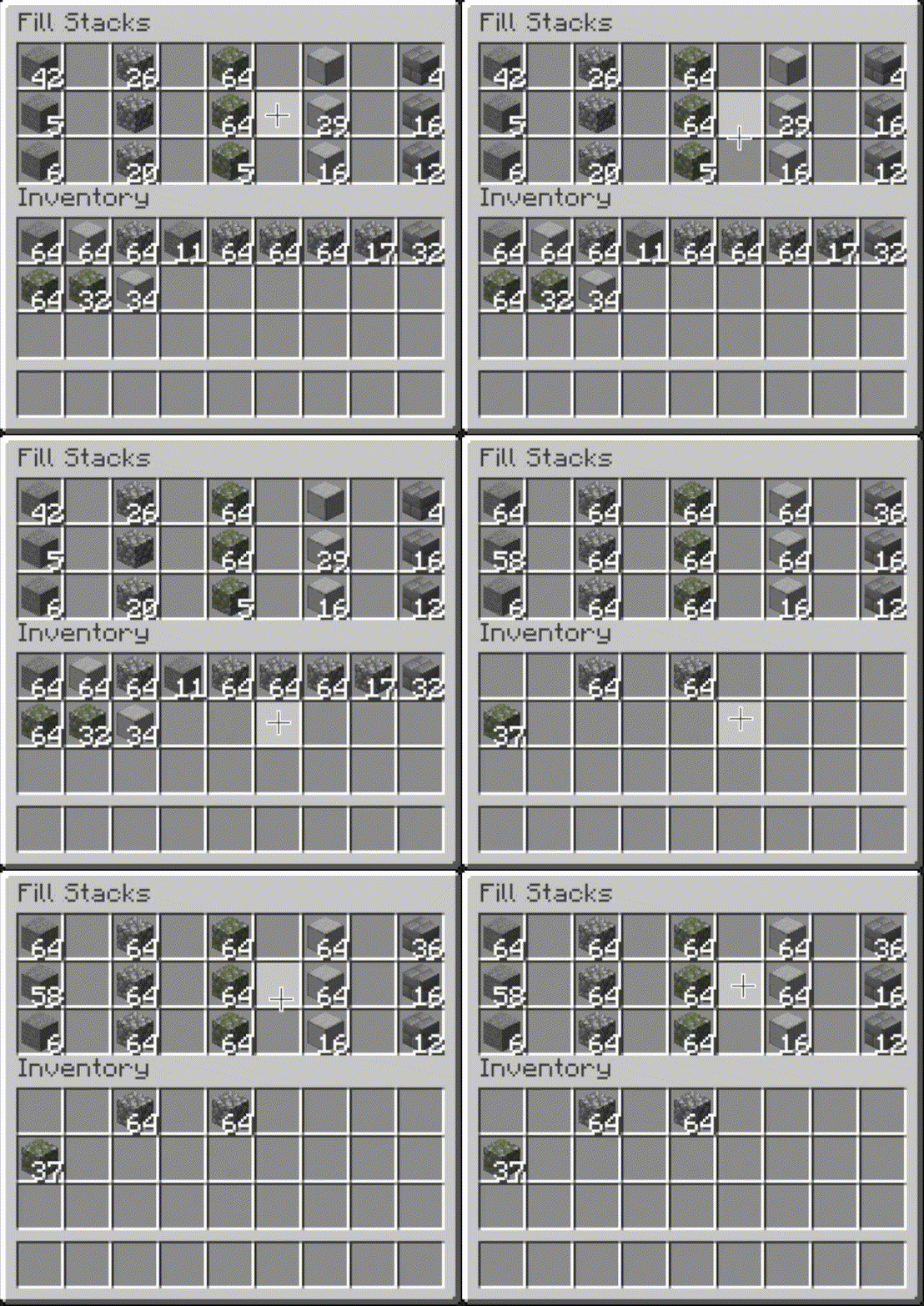
 堆叠填充
- 点击 按钮,或者将鼠标悬停在想要移出物品的物品栏上并按下快捷键(默认:未绑定)。
- 激活后,使用来源物品栏中的物品来补充另一个物品栏中的非满堆物品。
- 此按钮默认在玩家物品栏中被禁用,但可以通过编辑器启用(见下文)。
 补货
- 点击 按钮,或者将鼠标悬停在想要移出物品的物品栏上并按下快捷键(默认:未绑定)。
- 激活后,使用来源物品栏中的物品为另一个物品栏补货。不会向另一个物品栏添加新的物品类型。
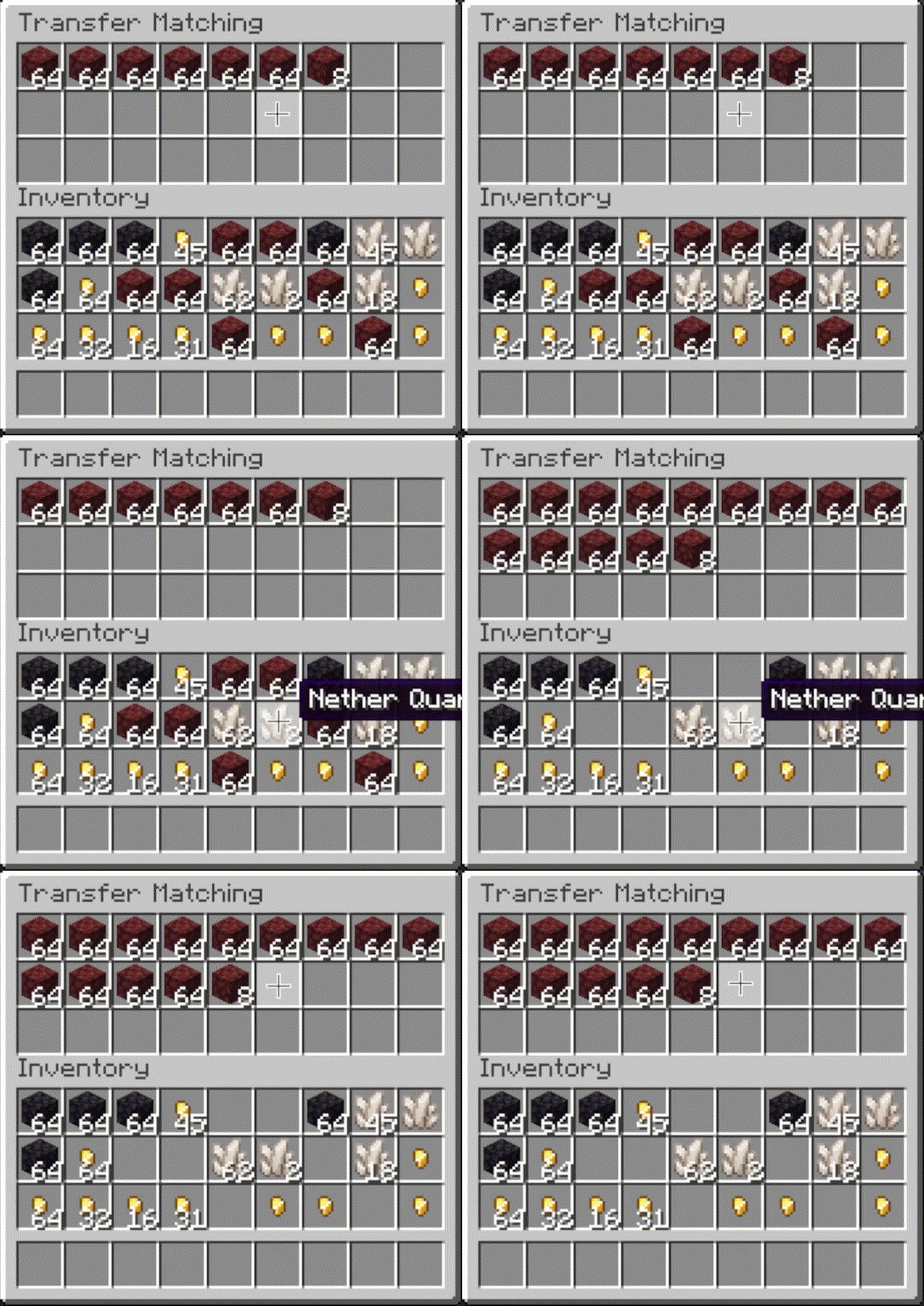
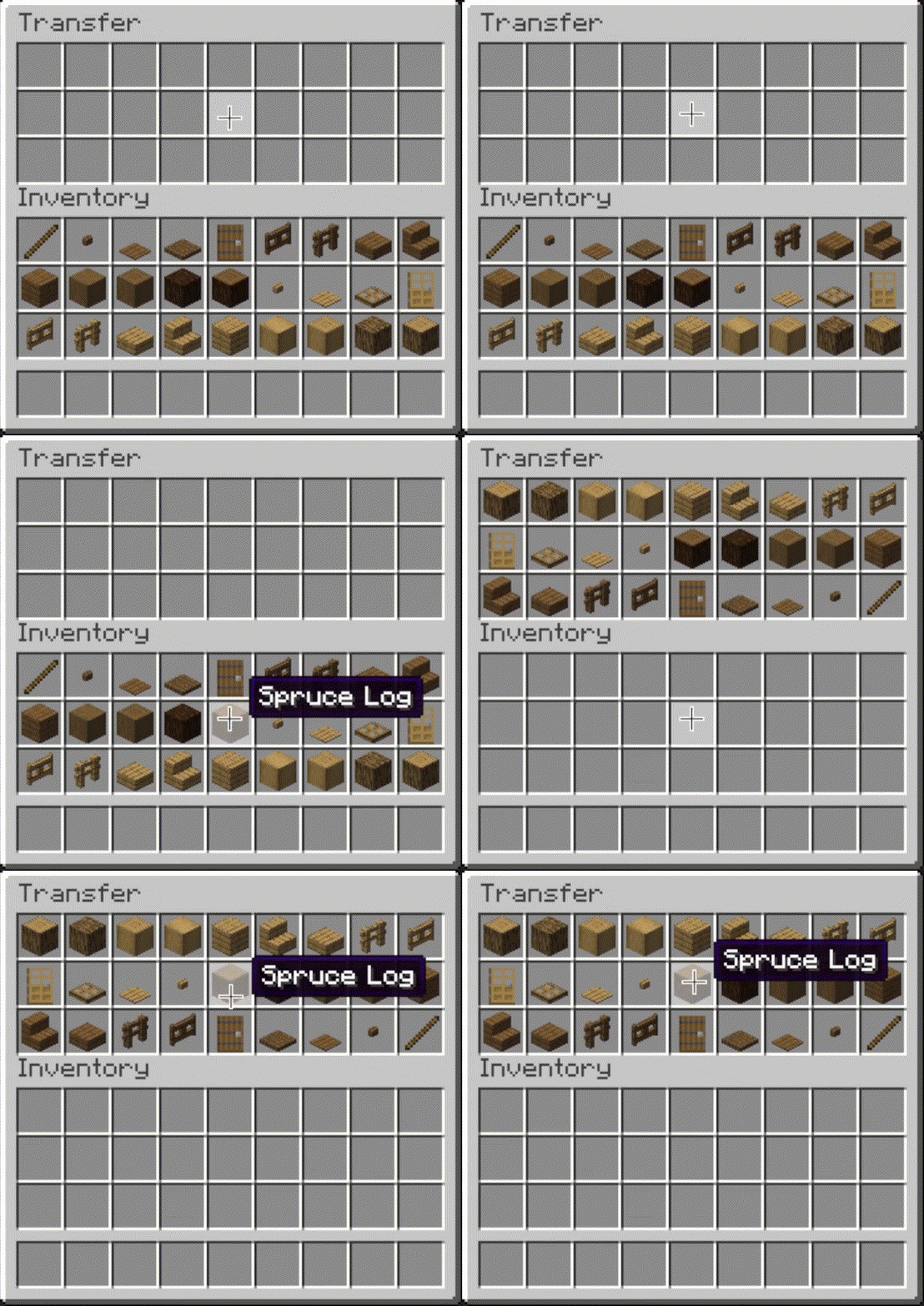
 转移
- 点击 按钮,或者将鼠标悬停在想要移出物品的物品栏上并按下快捷键(默认:未绑定)。
- 激活后,尽可能多地将物品从来源物品栏转移到另一个物品栏。
其他选项
- 槽位忽略:
- 排除某些槽位不参与操作处理。
- 可通过编辑器屏幕配置。
- 自动操作:
- 打开物品栏时自动执行操作(例如排序)。
- 可通过编辑器屏幕配置。
- 范围设置:
- 包含或排除快捷栏和额外槽位与物品栏一起处理。
- 可通过模组配置文件的
General 选项卡配置。
- 排序覆盖:
- 始终将特定物品排序到开头或结尾。
- 可通过模组配置文件的
Sorting 选项卡配置。
- 匹配覆盖:
- 在排序或补货操作中比较物品时忽略 NBT 数据(例如附魔)。
- 可通过模组配置文件的
Matching 选项卡配置。
- 交互音效:
- 在执行客户端操作点击时播放音效。
- 可通过模组配置文件的
Sounds 选项卡配置。
编辑器界面
- 编辑器有两种打开方式:
- 如果可见触发按钮,请右键点击它。
- 否则,绑定
Open Editor 快捷键(默认未绑定),并在查看物品栏时按下它。
- 打开编辑器后,将鼠标悬停在
Instructions 上以获取更多信息。
- 注意:填充和转移按钮仅在设置为同时显示在玩家物品栏和容器时才显示,因此你只需在玩家物品栏中隐藏它们即可轻松在所有地方隐藏它们。
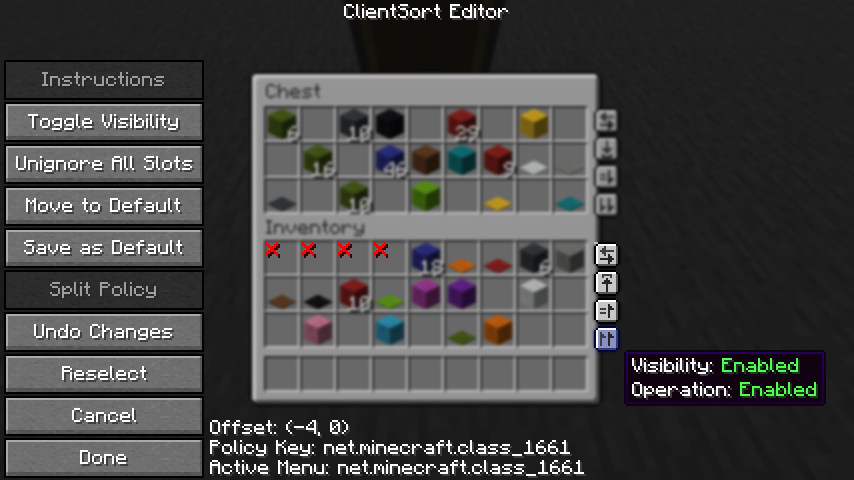
客户端策略
- ClientSort 使用策略系统来决定何时允许操作、何时显示触发按钮以及何时忽略槽位。策略可以通过编辑器界面或模组选项的
Policies 选项卡进行配置。
- 阅读游戏内说明以了解有关编辑策略的更多信息。
服务端策略
- 如果安装在专用服务器上,ClientSort 可以使用策略在检测到错误状态(例如物品复制)时自动禁用服务器加速操作。
- 策略列表存储在
clientsort-server.json 配置文件中,可以使用 /clientsort reload 命令手动编辑并重新加载。
服务器端策略不同步到客户端,因此如果客户端尝试执行服务器不允许的服务器加速操作,将会向客户端显示警告消息。然后玩家可以选择完全禁用该操作的客户端策略、禁用服务器加速,或启用自动回退到客户端操作。
服务器端配置文件
{
  "options": {
    // 当模组在专用服务器上使用时,是否启用验证和自动黑名单功能。
    "validationActiveServer": false,

    // 当槽位中发现物品类型错误时,是否将该容器加入黑名单。
    "validateItemType": true,

    // 当槽位中发现物品数量错误时,是否将该容器加入黑名单。
    "validateStackSize": true,
    // 预期值与实际值之间的最小差异阈值,超过此值即被视为无效。
    "validateStackSizeThreshold": 32,

    // 当结果与预期不完全一致时(即使验证已禁用、差异小于阈值等),是否始终记录日志消息。
    "alwaysLogUnexpectedResults": true,

    // 针对不同容器和容器类型的策略列表。
    "classPolicies": {
      // 示例条目。
      "com.simibubi.create.content.equipment.toolbox.ToolboxMenu": {
        "className": "com.simibubi.create.content.equipment.toolbox.ToolboxMenu",
        "sortEnabled": false,
        "stackFillEnabled": true,
        "transferEnabled": true,
        // 当容器被加入黑名单时自动更新。
        "lastAutoEditTime": "2025-09-20T14:58:41.1620876+08:00",
        "lastAutoEditReason": "排序操作在槽位映射 12->5 处失败:设置后目标位置期望为 '2 minecraft:spruce_slab',实际得到 '0 minecraft:air'!"
      }
    }
  }
}
安装
仅需客户端,服务器可选
顾名思义,ClientSort 仅在客户端安装时即可完全正常运行。
但如果同时在服务器上安装了该模组,连接了该模组的客户端将能够使用
由服务器加速的(近乎即时)操作,而非正常的限流操作。
依赖项
致谢
ClientSort 根据各自许可证的规定,使用了以下模组的代码(包括修改版和未修改版)。
相关模组
联系方式
ClientSort
Versatile and easy inventory sorting.
Operations
Sort
- Press the button, or hover over the inventory with
your mouse and press the keybind (default: middle mouse button).
- When activated, items are sorted by their position in the creative inventory search tab.
Alternative sort orders can be used by holding down a modifier key while sorting.
Shift - descending order of quantity.Control - alphabetical order.Alt - ascending order of item ID.
Fill Stacks
- Press the button, or hover over
the inventory that you want to move items out of and press the keybind (default: unbound).
- When activated, partial stacks in the other inventory are topped-up using items in the origin
inventory.
- This button is disabled on the player inventory by default, but can be enabled via the editor (see
below).
Restock
- Press the button, or
hover over the inventory that you want to move items out of and press the keybind (default:
unbound).
- When activated, the other inventory is restocked using items in the origin inventory. No new item
types are added to the other inventory.
Transfer
- Press the button, or hover over the
inventory that you want to move items out of and press the keybind (default: unbound).
- When activated, as many items as possible are moved from the origin inventory to the other
inventory.
Other Options
- Slot ignoring:
- Exclude slots from being processed by operations.
- Configurable via the editor screen.
- Auto operations:
- Automatically perform an operation (e.g. sorting) when opening an inventory.
- Configurable via the editor screen.
- Scoping:
- Include or exclude the hotbar and extra slots from being processed with the inventory.
- Configurable via mod config,
General tab.
- Sorting overrides:
- Always sort specific items to the start or end.
- Configurable via mod config,
Sorting tab.
- Matching overrides:
- Ignore NBT data (e.g. enchantments) when comparing items in sort or restock operations.
- Configurable via mod config,
Matching tab.
- Interaction sounds:
- Play a sound when clicking in client-side operations.
- Configurable via mod config,
Sounds tab.
Editor Screen
- The editor can be opened in two ways:
- If a trigger button is visible, right-click on it.
- Otherwise, bind the
Open Editor keybind (unbound by default) and press it while viewing an
inventory.
- When you've opened the editor, hover over
Instructions for more information.
- Note: fill and transfer buttons are only shown if set to show on both the player inventory and
the container, so you can easily hide them everywhere by hiding them on just the player inventory.
Client-Side Policies
- ClientSort uses a policy system to determine when to allow operations, when to show the trigger
buttons, and when to ignore slots. The policy can be configured either via the editor screen or via
the
Policies tab of the mod options.
- Read the in-game instructions for more information on editing policies.
Server-Side Policies
- If installed on a dedicated server, ClientSort can use policies to automatically disable
server-accelerated operations when it detects an incorrect state (such as item duplication).
- The policy list is stored in the
clientsort-server.json config file, which can be manually
edited and reloaded using the /clientsort reload command.
Serverside policies are not synced to clients, so if a client attempts to perform a
server-accelerated operation that the server does not allow, a warning message will be shown to the
client. The player can then opt to add a client-side policy to disable the operation entirely,
disable server acceleration, or enable automatically falling back to client operations.
Serverside Config File
{
  "options": {
    // Whether validation and automatic blacklisting should be enabled when the mod is used on a
    // dedicated server.
    "validationActiveServer": false,

    // Whether inventories should be blacklisted when the wrong type of item is found in a slot.
    "validateItemType": true,

    // Whether inventories should be blacklisted when the wrong number of items is found in a slot.
    "validateStackSize": true,
    // The minimum difference between expected and actual which should be considered invalid.
    "validateStackSizeThreshold": 32,

    // Whether to always log a message when the result is not exactly as expected (even if
    // validation is disabled, the difference is less than the threshold, etc.)
    "alwaysLogUnexpectedResults": true,

    // The list of policies for different inventory and container types.
    "classPolicies": {
      // An example entry.
      "com.simibubi.create.content.equipment.toolbox.ToolboxMenu": {
        "className": "com.simibubi.create.content.equipment.toolbox.ToolboxMenu",
        "sortEnabled": false,
        "stackFillEnabled": true,
        "transferEnabled": true,
        // Updated automatically when an inventory is blacklisted.
        "lastAutoEditTime": "2025-09-20T14:58:41.1620876+08:00",
        "lastAutoEditReason": "Sort operation failed at slot mapping 12->5: Expected '2 minecraft:spruce_slab' in destination after set, got '0 minecraft:air'!"
      }
    }
  }
}
Installation
Client Required, Server Optional
- As the name suggests, ClientSort is fully functional when it is only installed on the client.
However, if it is also installed on a server, connected clients with the mod will be able to use
server-accelerated (near-instant) operations instead of the normal rate-limited operations.
Dependencies
Credits
ClientSort uses code from the following mods, in both modified and unmodified form, in accordance
with their respective licenses.
Related Mods
- Mouse Tweaks - item scrolling, mouse dragging.
- More Mouse Tweaks - single-click crafting and trading,
quick-move and quick-drop.
- Tweakeroo - hand restock, auto tool-switch, tool break
prevention and more.
Contact


 模组

 模组
 模组

 模组
 模组
 模组
评论 0
登录后参与评分
还没有评论,来抢沙发吧