
借助 CraftTweaker GUI,你可以轻松创建新配方或编辑现有配方。完成后,你可以将你的配方导出到 CraftTweaker,并在简单重载后生效。你修改过的配方会被保存,因此你始终可以查看已修改配方的列表并再次对其进行编辑。CT GUI 完全在客户端运行,在服务器上不会执行任何操作。
它是如何工作的?
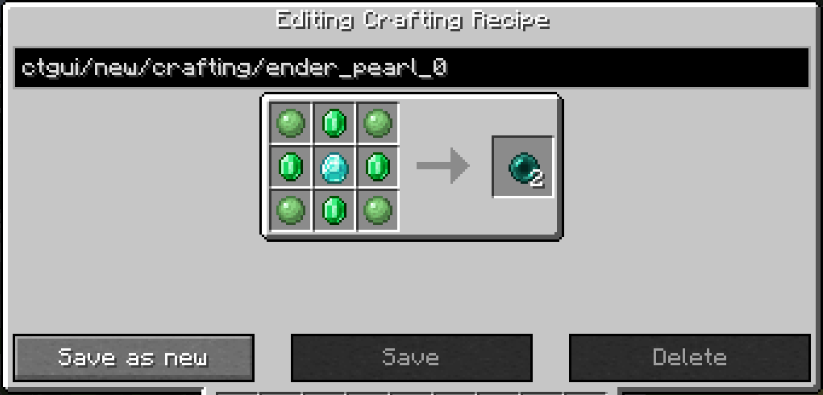
要开始编辑配方,你需要先打开 EMI(也可以使用 JEI,但推荐使用 EMI),然后点击类别名称旁边的加号图标以创建新配方,或者点击每个配方旁边的 CT GUI 图标以编辑该配方。在编辑界面中,你可以从 EMI 或配方本身拖放物品到配方的槽位中。你可以右键单击槽位以删除其中的物品,并在悬停时滚动以增加或减少数量。在左下角,你可以创建新的 Tag-Ingredient(标签成分)并将其拖入配方中。某些配方还具有额外的选项,你可以在侧面进行配置,例如在制作合成配方时的 无形状(shapeless)。在配方上方,你可以更改配方 ID;除非你提前更改了它,否则当你为配方指定输出时,它也会被自动分配。在配方下方,你可以选择删除你正在编辑的原始配方、用你制作的配方编辑/替换它,或者创建一个不影响原始配方的新配方。即使你尚未导出配方,它也会显示在 EMI 中但实际上并不起作用。
管理已更改的配方
编辑配方或在暂停菜单中点击 CT 按钮后,你将进入已更改的配方列表。在这里,你可以看到你所做的所有更改,并筛选出尚未导出的更改。这也是删除或编辑你所做的更改并将其导出到 CraftTweaker 的地方。你也可以在此处或配置文件中禁用编辑模式和暂停菜单按钮。
在此处 查看受支持的完整配方类型列表
标签编辑有点特殊,因为它不是实际的配方。你输入的是标签的名称而不是配方 ID,并且由于 Emi 不显示包含一个或零个物品的标签,你必须创建一个具有相同名称的新标签以向其中添加物品。
编辑界面中禁用的功能之一是标签折叠,因此例如在编辑铁门的配方时,你会发现它实际上接受铁锭的标签,而不仅仅是铁锭本身。你也可以在配置文件的任何位置启用此功能。这仅在 EMI 中有效。
Crafttweaker GUI 不是官方的 CraftTweaker 插件。你不应该向 CraftTweaker 团队寻求支持
With CraftTweaker GUI you can easily create new recipes or edit existing ones. When you are done, you can export your recipes to CraftTweaker and they will work after a simple reload. The recipes you changed are saved, so you can always see a list of changed recipes and also edit them again. CT GUI is completely client-side and does nothing on a server.
How does it work?
To start editing a recipe, you first need to open EMI (or JEI but EMI is recommended) and either click on the plus icon next to the category name, to create a new recipe, or click on the CT GUI icon next to each recipe to edit the recipe. In the editing screen, you can drag and drop items from EMI or the recipe itself into slots of the recipe. You can right-click slots to delete the item inside and scroll while hovering over them to increase or decrease the amount. On the bottom left, you can create a new Tag-Ingredient and drag it into the recipe. Some recipes also have extra options that you can configure on the side, for example shapeless when creating crafting recipes. Over the recipe itself you can change the recipe id, it will also be assigned automatically when you give the recipe an output unless you changed it before. Under the recipe you have the option to delete the original recipe you are editing, edit/replace it with the recipe you made or just create a new recipe without affecting the original one. Even when you have not exported your recipe, it will already be visible in EMI but not actually work.
Managing changed recipes
After editing a recipe or when clicking the CT button in the pause menu, you get to the changed recipes list. There you can see all changes you made and filter for the ones you have not exported yet. This is also the place to delete or edit changes you made and export them to CraftTweaker. You can also disable the edit mode and the pause menu button here or in the config.
View the full list of supported recipe types here
Tag editing is a bit special because it is not an actual recipe. Instead of the recipe id you enter the name of the tag and because Emi does not display tags with one or no items you have to create a new tag with the same name to add items to those.
One of the things that are disabled in the editing screen, is tag collapsing, so when editing the recipe for iron doors for example, you will see that it actually accepts the tag for iron ingots not just iron ingots themselves. You can also enable this everywhere in the config. This only works in EMI.
Crafttweaker GUI is not an offical CraftTweaker addon. You should not ask the CraftTweaker team for support

下载 CraftTweaker GUI
下载 CraftTweaker GUI
下载 CraftTweaker GUI
下载 CraftTweaker GUI
下载 CraftTweaker GUI
下载 CraftTweaker GUI
下载 CraftTweaker GUI
下载 CraftTweaker GUI
下载 CraftTweaker GUI
下载 CraftTweaker GUI
关于这个资源的讨论、问题反馈与使用心得
还没有讨论,来发第一帖吧
你是这个资源的作者?登录后可认领此资源。
相似资源
 模组

显示你正在注视的方块的信息。(适用于 Minecraft 1.16+ 的 Hwyla/Waila 分支)
 模组
在游戏画面角落显示附近世界地形、玩家、生物和实体的地图。可创建路径点,帮助你找到标记过的位置。
 模组

查看物品与配方
 模组
使用 JavaScript 编辑配方、添加自定义物品、编写世界事件!
 模组
AE2:一款流行的自动化与存储模组
 模组
那是什么?一个 Waila/Hwyla 的分支。
评论 0
登录后参与评分
还没有评论,来抢沙发吧