Create Track Map


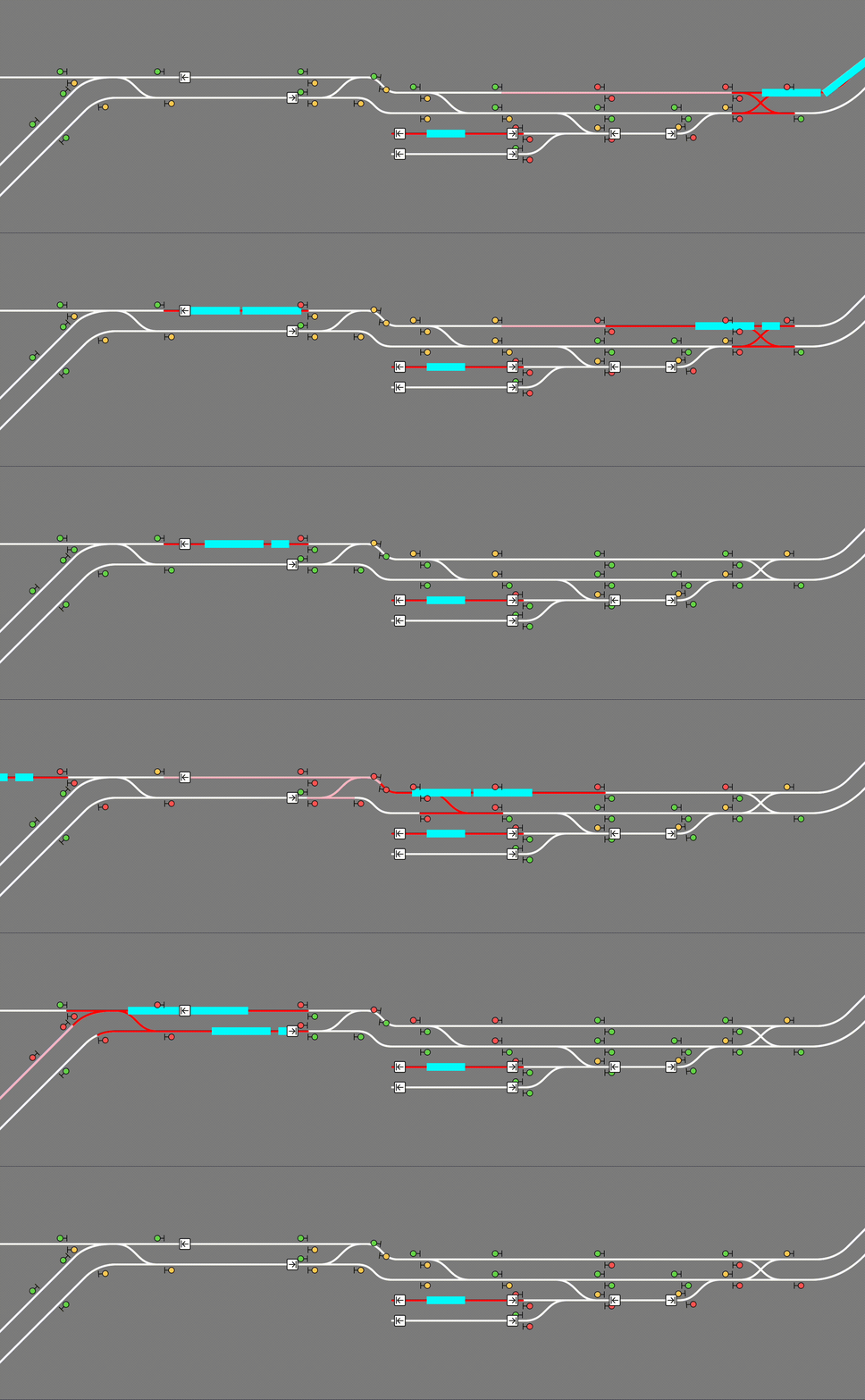
Create Track Map (CTM) 是一个多加载器模组,用于在您的世界中显示 Create 列车的轨道地图,包括所有轨道、信号、车站和列车。信号和列车信息以(近乎)实时方式更新。
使用方法
可以在 Modrinth 上下载 CTM。请确保您下载的版本与您的加载器、Minecraft 版本以及 Create 版本兼容。 以下是 Create 版本的兼容性图表:
|
CTM ≤1.3 |
CTM 1.4 |
CTM ≥1.5 |
| Create 6.0 |
❌ |
✅ |
✅ |
安装
只需将 .jar 文件放入您的 mods 文件夹(或使用模组加载器安装),就像安装其他模组一样!CTM 设计为服务端模组,但也可以在单人世界和局域网服务器中运行。它默认在端口 3876 上运行 Web 服务器,但 可以在此处配置。如果您希望查看地图,必须转发此端口。(我该怎么做?)
地图本身可通过根目录访问(默认为 http://localhost:3876/)。如果使用代理来提供地图服务,请确保配置允许 Server-Sent Events 通过。
单人游戏
地图托管在您自己的电脑上,因此当 Minecraft 运行时,请在浏览器中输入 http://localhost:3876/。
多人游戏
A) 本地(局域网)服务器
地图仍然托管在您自己的电脑上,因此当游戏运行时,请在浏览器中输入 http://localhost:3876/。
同家庭网络下的其他人可以通过在浏览器中输入 http://[您的计算机的 IPV4 地址]:3876/ 来查看地图。\
B) 服务器在我的 PC 上
地图仍然托管在您自己的电脑上,因此当服务器运行时,请在浏览器中输入 http://localhost:3876/。
同家庭网络下的其他人可以通过在浏览器中输入 http://[您的计算机的 IPV4 地址]:3876/ 来查看地图。
家庭网络以外的其他人可以通过在浏览器中输入 http://[您的公共 IPV4 地址]:3876/ 来查看地图。\
C) 服务器由托管服务提供商托管
地图随服务器一起托管在该服务上。当服务器在线时,您可以在 [您的服务器地址]:3876/ 查看地图。
注意:您的服务商必须支持额外的端口转发。 您可以联系支持团队或查阅文档,或者使用 Google 搜索。如果服务商不支持此功能,那您可能无能为力了。您可以更换服务商或尝试自行托管。
为了明确起见:请勿在 IPV4 地址周围包含方括号!例如:192.168.0.0:3876
在寻求帮助之前请阅读此内容!
要使用此模组,您必须能够打开一个额外的端口,除了您的 Minecraft 服务器之外,CTM 将在该端口上运行其 Web 服务器。如果您使用的是 Aternos,则无法做到这一点。如果您使用的是共享托管提供商,请联系您的主机以获得协助以打开端口。对于非模组错误引起的问题,或将协助打开端口,我们将不提供任何支持。
高级用法
CTM API
CTM 提供以下 API,也可通过同一端口访问:
/api/network, /api/network.rt: 所有轨道段和列车车站列表/api/signals, /api/signals.rt: 所有列车信号列表,包括它们的状态
(绿色、黄色、红色)/api/blocks, /api/blocks.rt: 所有信号控制块列表,以及它们是否被列车占用或预留/api/trains, /api/trains.rt: 所有已组装的列车列表,包括它们的名称和
位置/api/style.css: 根据配置的颜色和字体生成的 CSS 样式表/api/config.json: 地图配置
.rt 版本通过 Server-Sent Events (SSE) 实时更新。
配置
CTM 的配置选项位于服务器配置目录中的 create-track-map.json。如果不存在,它将在启动时自动创建。
以下选项可用:
{
  // 是否实际启动监视器和服务器。
  "enable": false,

  // 两次轨道数据更新之间等待的时间(秒)。
  "watch_interval_seconds": 0.5,
  // 内部 Web 服务器监听的端口。
  "server_port": 3876,

```json
"map_style": {
    // 用于地图 UI 的字体。必须是有效的 CSS 字体栈。
    "font": "ui-monospace, \"JetBrains Mono\", monospace",
    // 地图各个组件的颜色。必须是有效的 CSS 颜色值。
    // 任何 CSS 颜色格式均可,例如命名颜色和 rgb()。
    "colors": {
      "background": "#888",
      "track": {
        "occupied": "red",
        "reserved": "pink",
        "free": "white"
      },
      "signal": {
        "green": "#71db51",
        "yellow": "#ffd15c",
        "red": "#ff5f5c",
        "outline": "black"
      },
      "portal": {
        "primary": "purple",
        "outline": "white"
      },
      "station": {
        "primary": "white",
        "outline": "black"
      },
      "train": "cyan",
      "lead_car": "darkturquoise"
    }
  },

  "map_view": {
    "initial_dimension": "minecraft:overworld",
    "initial_position": { "x": 0, "z": 0 },

    // 缩放级别必须为整数,但可以为负数。
    // 每个缩放级别的尺寸是前一个级别的两倍。
    // 0 是一个合理的最低值,但对于大型网络可能不切实际。
    // 3 是查看双轨网络的合理默认值。
    "initial_zoom": 3,
    "min_zoom": 0,
    "max_zoom": 4,

    // 是否在屏幕上显示缩放控件。
    "zoom_controls": true,

    // 信号应显示在轨道的哪一侧。
    // 有效值为 LEFT 或 RIGHT(全大写)。
    "signals_on": "RIGHT"
  },

  "dimensions": {
    // 维度名称必须包含命名空间。
    "minecraft:overworld": {
      // 在图层切换器中显示的标签。
      "label": "Overworld"
    },
    "minecraft:the_nether": {
      "label": "Nether"
    },
    "minecraft:the_end": {
      "label": "End"
    }
  },

  "layers": {
    "tracks": {
      "label": "Tracks",
      "min_zoom": 0,
      "max_zoom": 4
    },
    "blocks": {
      "label": "Track Occupancy",
      "min_zoom": 0,
      "max_zoom": 4
    },
    "signals": {
      "label": "Signals",
      "min_zoom": 0,
      "max_zoom": 4
    },
    "portals": {
      "label": "Portals",
      "min_zoom": 0,
      "max_zoom": 4
    },
    "stations": {
      "label": "Stations",
      "min_zoom": 0,
      "max_zoom": 4
    },
    "trains": {
      "label": "Trains",
      "min_zoom": 0,
      "max_zoom": 4
    }
  }
}
无需重启服务器,通过运行 /ctm reload 重新加载配置(需要操作员权限)。
Create Track Map
Create Track Map (CTM) is a multi-loader mod that displays a track map of Create trains in your world, including all tracks, signals, stations, and trains. The signals and trains are updated in (practically) real time.
Usage
CTM is available for download on Modrinth. Please make sure you download the correct version for your loader, Minecraft version, and Create version. Below is the compatibility chart for Create versions:
|
CTM ≤1.3 |
CTM 1.4 |
CTM ≥1.5 |
| Create 6.0 |
❌ |
✅ |
✅ |
Installation
Simply place the .jar file in your mods folder (or install with a modloader) like any other mod! CTM is intended to be a server side mod, but can also run in single-player worlds and LAN servers. It runs a web server on port 3876 by default, but this can be configured. You must forward this port if you wish to see the map. (How do I do this?)
The map itself is visible at the root (by default http://localhost:3876/). If using a proxy to serve the map, make sure to configure it to let Server-Sent Events through.
Singleplayer
The map is hosted on your computer so while Minecraft is open, enter http://localhost:3876/ into your browser.
Multiplayer
A) Local (LAN) server
The map is still hosted on your computer so while the game is open, enter http://localhost:3876/ into your browser.
Those in your household can see the map by entering http://[your computer's IPV4 address]:3876/ into their browser.\
B) The server is on my PC
The map is still hosted on your computer so while the server is open, enter http://localhost:3876/ into your browser.
Those in your household can see the map by entering http://[your computer's IPV4 address]:3876/ into their browser.
Those outside your household can see the map by entering http://[your public IPV4 address]:3876/ into their browser.\
C) The server is hosted with a hosting service
The map is hosted with the server on that service. You can see the map at [your server address]:3876/ while the server is up.
NOTE: YOUR SERVICE MUST SUPPORT EXTRA PORT FORWARDING. You can check with support/the docs for the service or just good old Google. If the service doesn't support this, you are out of luck. You can switch services or try hosting your own.
Just so it's clear: Do not include the brackets around your IPV4 address! For example: 192.168.0.0:3876
READ THIS BEFORE ASKING FOR HELP!
To use this mod, you must be able to open a second port, in addition to your Minecraft server, which CTM will run its web server on. If you are using Aternos, this is not possible. If you are using a shared hosting provider, please contact your host for assistance in opening a port. No support will be provided to open a port or to diagnose issues which are not caused by a bug in the mod.
Advanced Usage
CTM API
CTM provides the following API, also accessible through the same port:
/api/network, /api/network.rt: List of all track pieces and train stations/api/signals, /api/signals.rt: List of all train signals, including their states
(green, yellow, red)/api/blocks, /api/blocks.rt: List of all signal control blocks, and whether they are occupied or reserved by a train/api/trains, /api/trains.rt: List of all assembled trains, including their names and
positions/api/style.css: CSS style sheet generated from configured colors and fonts/api/config.json: Map configuration
The .rt versions update in real time with Server-Sent Events (SSE).
Configuration
CTM's config options can be found at create-track-map.json in your server's config directory. It is automatically created at startup if it doesn't exist.
The following options are available:
{
  // Whether to actually start the watcher and the server.
  "enable": false,

  // How long to wait between track data updates.
  "watch_interval_seconds": 0.5,
  // The port the internal web server listens on.
  "server_port": 3876,

  "map_style": {
    // Font to use for the map's UI. Must be a valid CSS font stack.
    "font": "ui-monospace, \"JetBrains Mono\", monospace",
    // Colors for individual components of the map. Must be valid CSS colors.
    // Any CSS color format will work, such as named colors and rgb().
    "colors": {
      "background": "#888",
      "track": {
        "occupied": "red",
        "reserved": "pink",
        "free": "white"
      },
      "signal": {
        "green": "#71db51",
        "yellow": "#ffd15c",
        "red": "#ff5f5c",
        "outline": "black"
      },
      "portal": {
        "primary": "purple",
        "outline": "white"
      },
      "station": {
        "primary": "white",
        "outline": "black"
      },
      "train": "cyan",
      "lead_car": "darkturquoise"
    }
  },

  "map_view": {
    "initial_dimension": "minecraft:overworld",
    "initial_position": { "x": 0, "z": 0 },

    // Zoom levels must be integers, but may be negative.
    // Each zoom level is twice as big as the previous.
    // 0 is a decent minimum but may be impractical for large networks.
    // 3 is the sensible default for viewing double-tracked networks.
    "initial_zoom": 3,
    "min_zoom": 0,
    "max_zoom": 4,

    // Whether a zoom control should be visible on the screen.
    "zoom_controls": true,

    // Which side of the track a signal should be displayed on.
    // Valid values are LEFT or RIGHT (all uppercase).
    "signals_on": "RIGHT"
  },

  "dimensions": {
    // Dimension names must be namespaced.
    "minecraft:overworld": {
      // Label that shows up in the layer switcher.
      "label": "Overworld"
    },
    "minecraft:the_nether": {
      "label": "Nether"
    },
    "minecraft:the_end": {
      "label": "End"
    }
  },

  "layers": {
    "tracks": {
      "label": "Tracks",
      "min_zoom": 0,
      "max_zoom": 4
    },
    "blocks": {
      "label": "Track Occupancy",
      "min_zoom": 0,
      "max_zoom": 4
    },
    "signals": {
      "label": "Signals",
      "min_zoom": 0,
      "max_zoom": 4
    },
    "portals": {
      "label": "Portals",
      "min_zoom": 0,
      "max_zoom": 4
    },
    "stations": {
      "label": "Stations",
      "min_zoom": 0,
      "max_zoom": 4
    },
    "trains": {
      "label": "Trains",
      "min_zoom": 0,
      "max_zoom": 4
    }
  }
}
Reload the config without restarting the server by running /ctm reload (operator permissions required).


 模组

 模组
 模组

 模组
 模组
 模组
评论 0
登录后参与评分
还没有评论,来抢沙发吧