Create Track Map:非官方分支
分支说明
这是 jenchanws/create-track-map 的一个分支。虽然我已获得许可,可在单独的 Modrinth/CurseForge 页面上公开发布我的修改内容,但这并非 jenchanws 的官方背书——请勿就本分支的问题联系她,所有关于此版本模组的问题都应提交至此处,而不要在原始仓库中提交。
简介
Create Track Map (CTM) 是一个支持多加载器的模组,用于在你的世界中显示 Create 列车的轨道地图,包括所有轨道、信号、车站和列车。信号和列车状态会进行(近乎)实时同步更新。
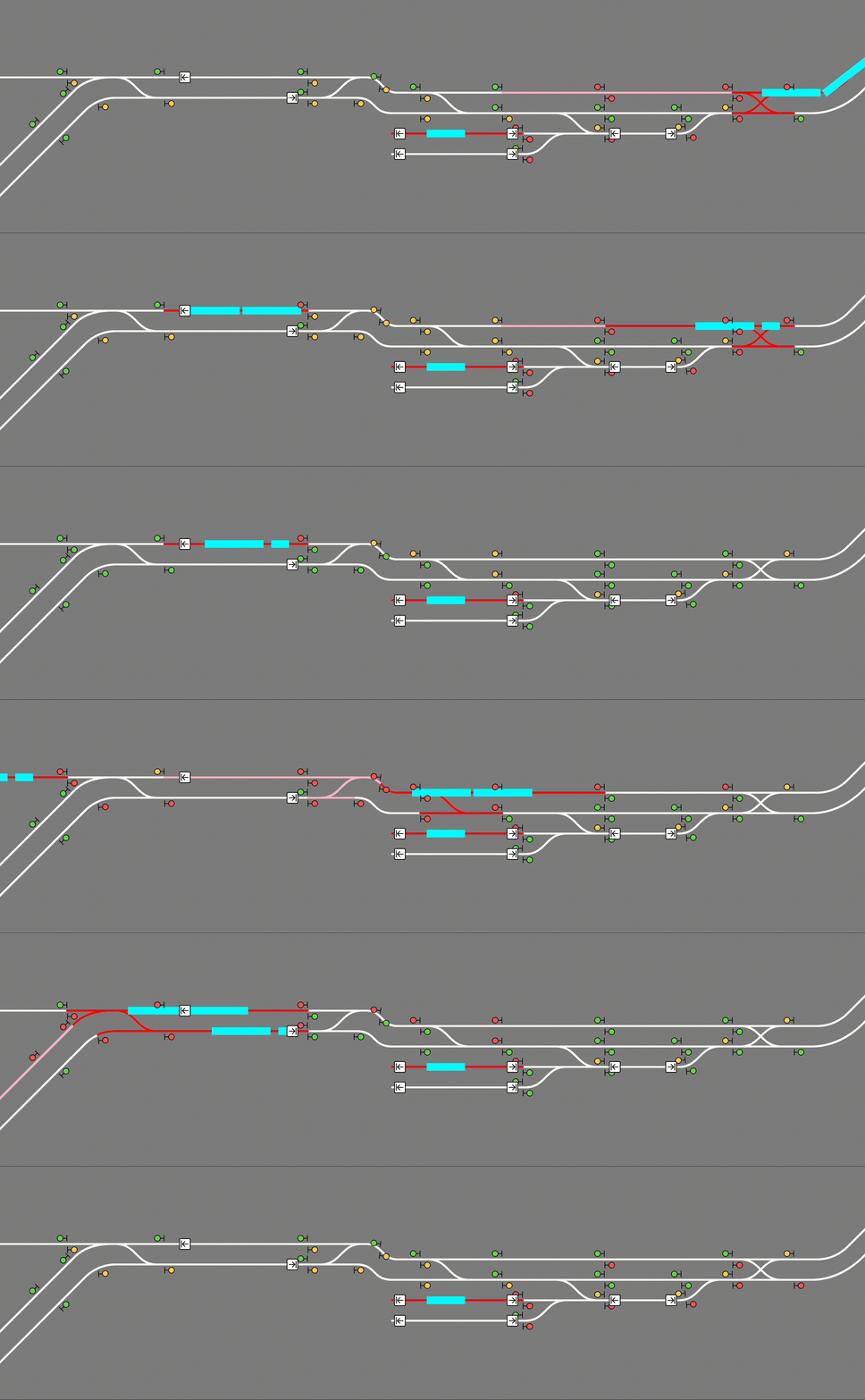
使用方法
你可以在 Modrinth 和 Curseforge 上下载 CTM。请确保你为正确的加载器、Minecraft 版本以及 Create 版本下载了相应的文件。 以下是 Create 版本的兼容性图表:
|
CTM 1.5 |
CTM 2.0 |
| Create 0.5.1 |
✅ |
❌ |
| Create 6.0.0 |
❌ |
✅ |
安装
只需像其他模组一样,将 .jar 文件放入你的 mods 文件夹中(或通过模组加载器安装即可!)。CTM 设计为服务端模组,但也可以在单人世界和局域网服务器中运行。它默认在端口 3876 上运行 Web 服务器,但可以在此配置。如果你希望查看地图,必须转发该端口。(我该怎么做?)
地图本身可通过根路径访问(默认为 http://localhost:3876/)。如果使用代理来提供地图服务,请确保配置允许 Server-Sent Events (SSE) 通过。
单人游戏
地图托管在你的电脑上,因此当 Minecraft 打开时,在浏览器中输入 http://localhost:3876/。
多人游戏
A) 本地(局域网)服务器
地图仍然托管在你的电脑上,因此当游戏运行时,在浏览器中输入 http://localhost:3876/。
你家庭网络中的其他人可以通过在他们的浏览器中输入 http://[你的电脑 IPV4 地址]:3876/ 来查看地图。\
B) 服务器在我的电脑上
地图仍然托管在你的电脑上,因此当服务器运行时,在浏览器中输入 http://localhost:3876/。
你家庭网络中的其他人可以通过在他们的浏览器中输入 http://[你的电脑 IPV4 地址]:3876/ 来查看地图。
你家庭网络之外的人可以通过在他们的浏览器中输入 http://[你的公网 IPV4 地址]:3876/ 来查看地图。\
C) 服务器由托管服务提供商托管
地图与服务器一起托管在该服务提供商处。当服务器在线时,你可以在 [你的服务器地址]:3876/ 查看地图。
注意:你的服务提供商必须支持额外的端口转发。 你可以咨询客服/文档或简单使用 Google 查询。如果服务商不支持此功能,那恐怕无能为力。你可以更换服务商或尝试自行托管。
为了清晰起见:不要在 IPV4 地址周围包含方括号!例如:192.168.0.0:3876
求助前必读!
要使用此模组,你必须能够打开一个额外的端口,除了你的 Minecraft 服务器之外,CTM 将在该端口上运行其 Web 服务器。如果你使用的是 Aternos,这是不可能的。如果你使用的是共享托管提供商,请联系你的主机商以协助打开端口。对于打开端口或诊断非模组漏洞导致的问题,我们将不提供任何支持。
高级用法
CTM API
CTM 提供了以下 API,也可通过同一端口访问:
/api/network, /api/network.rt: 所有轨道块和列车车站列表/api/signals, /api/signals.rt: 所有列车信号列表,包括其状态
(绿色、黄色、红色)/api/blocks, /api/blocks.rt: 所有信号控制方块列表,以及它们是否被列车占用或预留/api/trains, /api/trains.rt: 所有组装好的列车列表,包括它们的名称和
位置/api/style.css: 根据配置的颜色和字体生成的 CSS 样式表/api/config.json: 地图配置
.rt 版本会通过 Server-Sent Events (SSE) 实时更新。
配置
CTM 的配置选项位于服务器配置目录下的 create-track-map.json 文件中。如果不存在,它会在启动时自动创建。
可用选项如下:
{
  // 是否实际启动监视器和服务器。
  "enable": false,

  // 轨道数据更新之间的等待时间。
  "watch_interval_seconds": 0.5,
  // 内部 Web 服务器监听的端口。
  "server_port": 3876,

  "map_style": {
    // 用于地图 UI 的字体。必须是有效的 CSS 字体堆栈。
    "font": "ui-monospace, \"JetBrains Mono\", monospace",
    // 地图各个组件的颜色。必须是有效的 CSS 颜色。
    // 任何 CSS 颜色格式都可以,例如命名颜色和 rgb()。
    "colors": {
      "background": "#888",
      "track": {
        "occupied": "red",
        "reserved": "pink",
        "free": "white"
      },
      "signal": {
        "green": "#71db51",
        "yellow": "#ffd15c",
        "red": "#ff5f5c",
        "outline": "black"
      },
      "portal": {
        "primary": "purple",
        "outline": "white"
      },
      "station": {
        "primary": "white",
        "outline": "black"
      },
      "train": "cyan",
      "lead_car": "darkturquoise"
    }
  },

  "map_view": {
    "initial_dimension": "minecraft:overworld",
    "initial_position": { "x": 0, "z": 0 },

// 缩放级别必须是整数,但可以为负数。
// 每个缩放级别的大小是前一个的两倍。
// 0 是一个合理的最低值,但对于大型网络可能不切实际。
// 3 是查看双线轨道网络的合理默认值。
"initial_zoom": 3,
"min_zoom": 0,
"max_zoom": 4,

// 是否在屏幕上显示缩放控件。
"zoom_controls": true,

// 信号应显示在轨道的哪一侧。
// 有效值为 LEFT 或 RIGHT(全大写)。
"signals_on": "RIGHT"
},

"dimensions": {
// 维度名称必须带有命名空间。
"minecraft:overworld": {
// 在图层切换器中显示的标签。
"label": "Overworld"
},
"minecraft:the_nether": {
"label": "Nether"
},
"minecraft:the_end": {
"label": "End"
}
},

"layers": {
"tracks": {
"label": "Tracks",
"min_zoom": 0,
"max_zoom": 4
},
"blocks": {
"label": "Track Occupancy",
"min_zoom": 0,
"max_zoom": 4
},
"signals": {
"label": "Signals",
"min_zoom": 0,
"max_zoom": 4
},
"portals": {
"label": "Portals",
"min_zoom": 0,
"max_zoom": 4
},
"stations": {
"label": "Stations",
"min_zoom": 0,
"max_zoom": 4
},
"trains": {
"label": "Trains",
"min_zoom": 0,
"max_zoom": 4
}
}
}
无需重启服务器即可重新加载配置,运行 /ctm reload(需要操作者权限)。
Create Track Map: Unofficial fork
Fork notice
This is a fork of jenchanws/create-track-map. While I have been given permission to publicly release my changes under a separate modrinth/curseforge page, this is not endorsed by jenchanws - Please do not contact her regarding issues with this fork, and all issues regarding this version of the mod should go here and not in the original repository
Summary
Create Track Map (CTM) is a multi-loader mod that displays a track map of Create trains in your world, including all tracks, signals, stations, and trains. The signals and trains are updated in (practically) real time.
Usage
CTM is available for download on Modrinth and on Curseforge. Please make sure you download the correct version for your loader, Minecraft version, and Create version. Below is the compatibility chart for Create versions:
|
CTM 1.5 |
CTM 2.0 |
| Create 0.5.1 |
✅ |
❌ |
| Create 6.0.0 |
❌ |
✅ |
Installation
Simply place the .jar file in your mods folder (or install with a modloader) like any other mod! CTM is intended to be a server side mod, but can also run in single-player worlds and LAN servers. It runs a web server on port 3876 by default, but this can be configured. You must forward this port if you wish to see the map. (How do I do this?)
The map itself is visible at the root (by default http://localhost:3876/). If using a proxy to serve the map, make sure to configure it to let Server-Sent Events through.
Singleplayer
The map is hosted on your computer so while Minecraft is open, enter http://localhost:3876/ into your browser.
Multiplayer
A) Local (LAN) server
The map is still hosted on your computer so while the game is open, enter http://localhost:3876/ into your browser.
Those in your household can see the map by entering http://[your computer's IPV4 address]:3876/ into their browser.\
B) The server is on my PC
The map is still hosted on your computer so while the server is open, enter http://localhost:3876/ into your browser.
Those in your household can see the map by entering http://[your computer's IPV4 address]:3876/ into their browser.
Those outside your household can see the map by entering http://[your public IPV4 address]:3876/ into their browser.\
C) The server is hosted with a hosting service
The map is hosted with the server on that service. You can see the map at [your server address]:3876/ while the server is up.
NOTE: YOUR SERVICE MUST SUPPORT EXTRA PORT FORWARDING. You can check with support/the docs for the service or just good old Google. If the service doesn't support this, you are out of luck. You can switch services or try hosting your own.
Just so it's clear: Do not include the brackets around your IPV4 address! For example: 192.168.0.0:3876
READ THIS BEFORE ASKING FOR HELP!
To use this mod, you must be able to open a second port, in addition to your Minecraft server, which CTM will run its web server on. If you are using Aternos, this is not possible. If you are using a shared hosting provider, please contact your host for assistance in opening a port. No support will be provided to open a port or to diagnose issues which are not caused by a bug in the mod.
Advanced Usage
CTM API
CTM provides the following API, also accessible through the same port:
/api/network, /api/network.rt: List of all track pieces and train stations/api/signals, /api/signals.rt: List of all train signals, including their states
(green, yellow, red)/api/blocks, /api/blocks.rt: List of all signal control blocks, and whether they are occupied or reserved by a train/api/trains, /api/trains.rt: List of all assembled trains, including their names and
positions/api/style.css: CSS style sheet generated from configured colors and fonts/api/config.json: Map configuration
The .rt versions update in real time with Server-Sent Events (SSE).
Configuration
CTM's config options can be found at create-track-map.json in your server's config directory. It is automatically created at startup if it doesn't exist.
The following options are available:
{
  // Whether to actually start the watcher and the server.
  "enable": false,

  // How long to wait between track data updates.
  "watch_interval_seconds": 0.5,
  // The port the internal web server listens on.
  "server_port": 3876,

  "map_style": {
    // Font to use for the map's UI. Must be a valid CSS font stack.
    "font": "ui-monospace, \"JetBrains Mono\", monospace",
    // Colors for individual components of the map. Must be valid CSS colors.
    // Any CSS color format will work, such as named colors and rgb().
    "colors": {
      "background": "#888",
      "track": {
        "occupied": "red",
        "reserved": "pink",
        "free": "white"
      },
      "signal": {
        "green": "#71db51",
        "yellow": "#ffd15c",
        "red": "#ff5f5c",
        "outline": "black"
      },
      "portal": {
        "primary": "purple",
        "outline": "white"
      },
      "station": {
        "primary": "white",
        "outline": "black"
      },
      "train": "cyan",
      "lead_car": "darkturquoise"
    }
  },

  "map_view": {
    "initial_dimension": "minecraft:overworld",
    "initial_position": { "x": 0, "z": 0 },

    // Zoom levels must be integers, but may be negative.
    // Each zoom level is twice as big as the previous.
    // 0 is a decent minimum but may be impractical for large networks.
    // 3 is the sensible default for viewing double-tracked networks.
    "initial_zoom": 3,
    "min_zoom": 0,
    "max_zoom": 4,

    // Whether a zoom control should be visible on the screen.
    "zoom_controls": true,

    // Which side of the track a signal should be displayed on.
    // Valid values are LEFT or RIGHT (all uppercase).
    "signals_on": "RIGHT"
  },

  "dimensions": {
    // Dimension names must be namespaced.
    "minecraft:overworld": {
      // Label that shows up in the layer switcher.
      "label": "Overworld"
    },
    "minecraft:the_nether": {
      "label": "Nether"
    },
    "minecraft:the_end": {
      "label": "End"
    }
  },

  "layers": {
    "tracks": {
      "label": "Tracks",
      "min_zoom": 0,
      "max_zoom": 4
    },
    "blocks": {
      "label": "Track Occupancy",
      "min_zoom": 0,
      "max_zoom": 4
    },
    "signals": {
      "label": "Signals",
      "min_zoom": 0,
      "max_zoom": 4
    },
    "portals": {
      "label": "Portals",
      "min_zoom": 0,
      "max_zoom": 4
    },
    "stations": {
      "label": "Stations",
      "min_zoom": 0,
      "max_zoom": 4
    },
    "trains": {
      "label": "Trains",
      "min_zoom": 0,
      "max_zoom": 4
    }
  }
}
Reload the config without restarting the server by running /ctm reload (operator permissions required).


 模组

 模组
 模组

 模组
 模组
 模组
评论 0
登录后参与评分
还没有评论,来抢沙发吧