本模组是 Dreaming Codes 创建的 DiscordLoom 的一个分支。
此版本仅适用于 1.20.1,且不再计划更新或发布新版本。
如需创建你所需的版本,可以在 Discord 上联系 luciferrium。

该模组允许你基于 Luckperms 权限模组,实现 Discord 与 Minecraft 服务器的完全同步。
模组功能:
- 将 Discord 角色与 Luckperms 组进行同步
- 将 Discord 用户名更改为 Minecraft 中指定的名称
- 启用
mandatoryVCChannels = [] 功能,并在其中指定服务器语音频道的 ID(例如 mandatoryVCChannels = ['435457687658665856856']),玩家只有在加入该语音频道时才能登录并游玩服务器。
该模组已在以下整合包中经过全面测试:
- Forge - Craft to Exile 2
- Fabric - Prominence II
与其他模组或整合包的兼容性可能不稳定。
正确安装说明:
1. 机器人创建
你需要前往
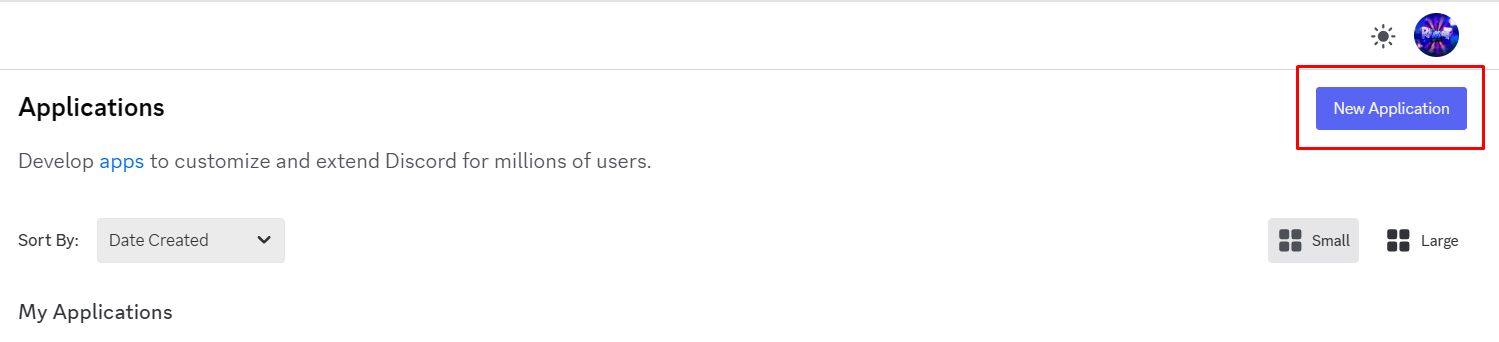
点击“New application”(新建应用)按钮
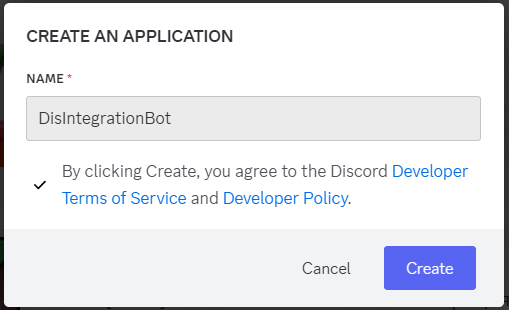
 为你的机器人起一个名字
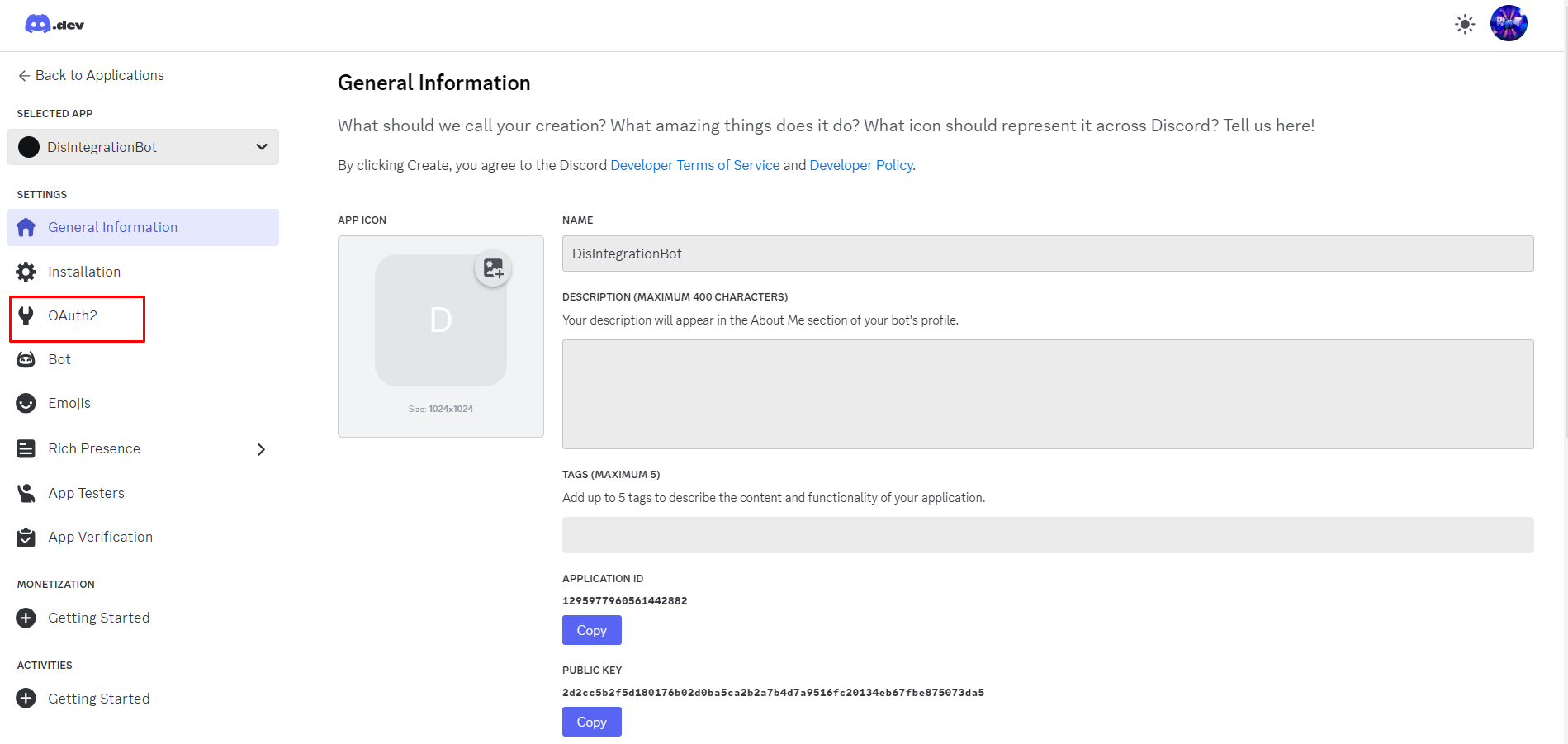
 机器人配置菜单将会打开,你需要进入 OAuth2 部分
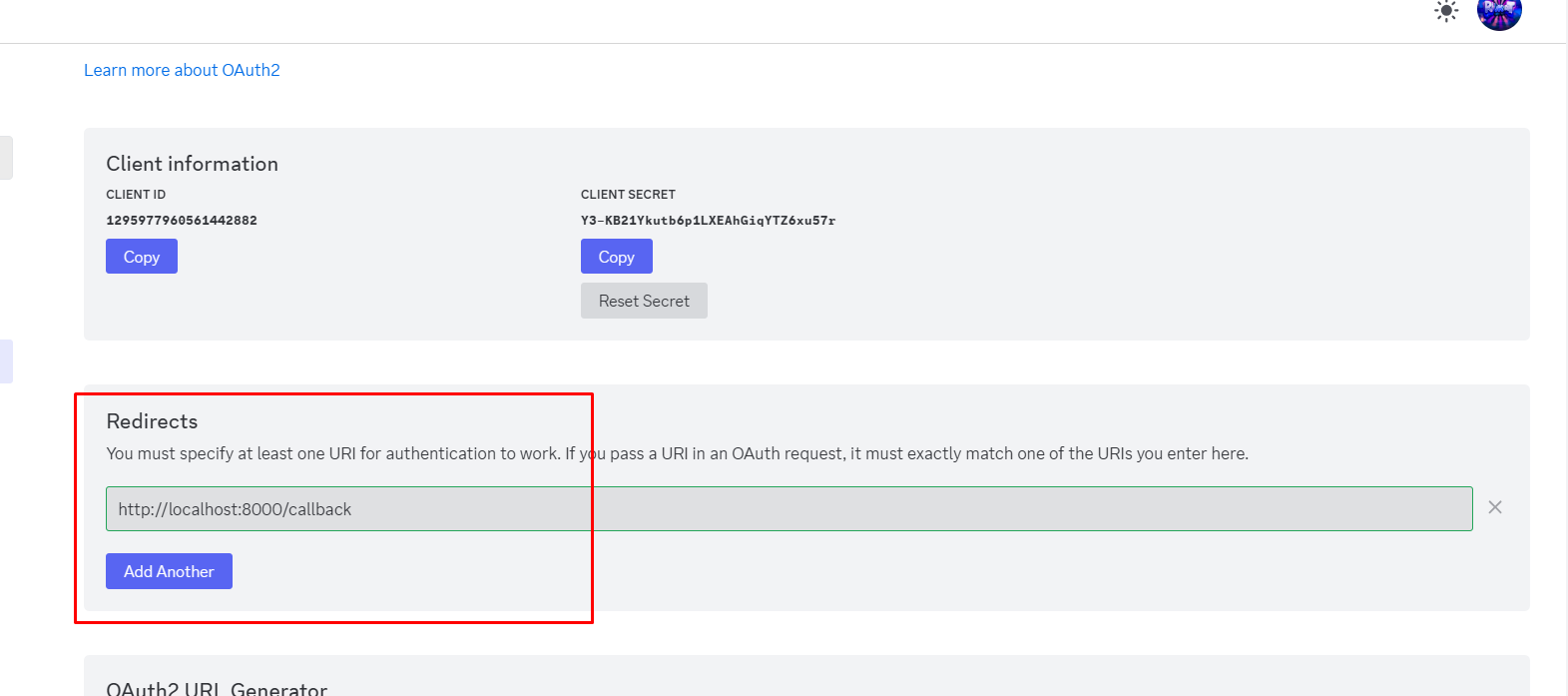
 获取 Client Id 和 Client Secret
 在 Redirects(重定向地址)行中添加以下链接:
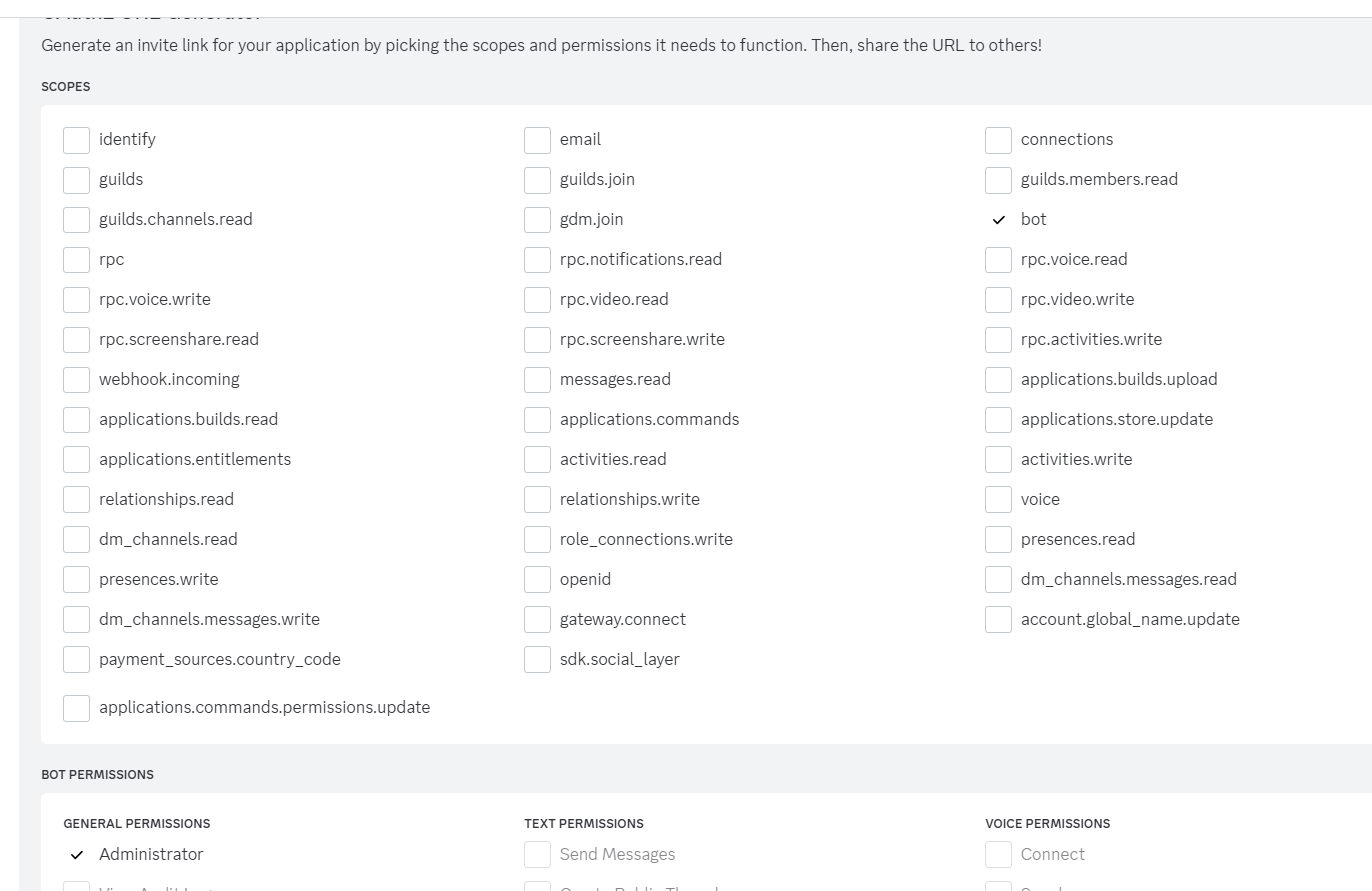
 通过设置 Bot 和 Administrator 参数生成机器人邀请链接
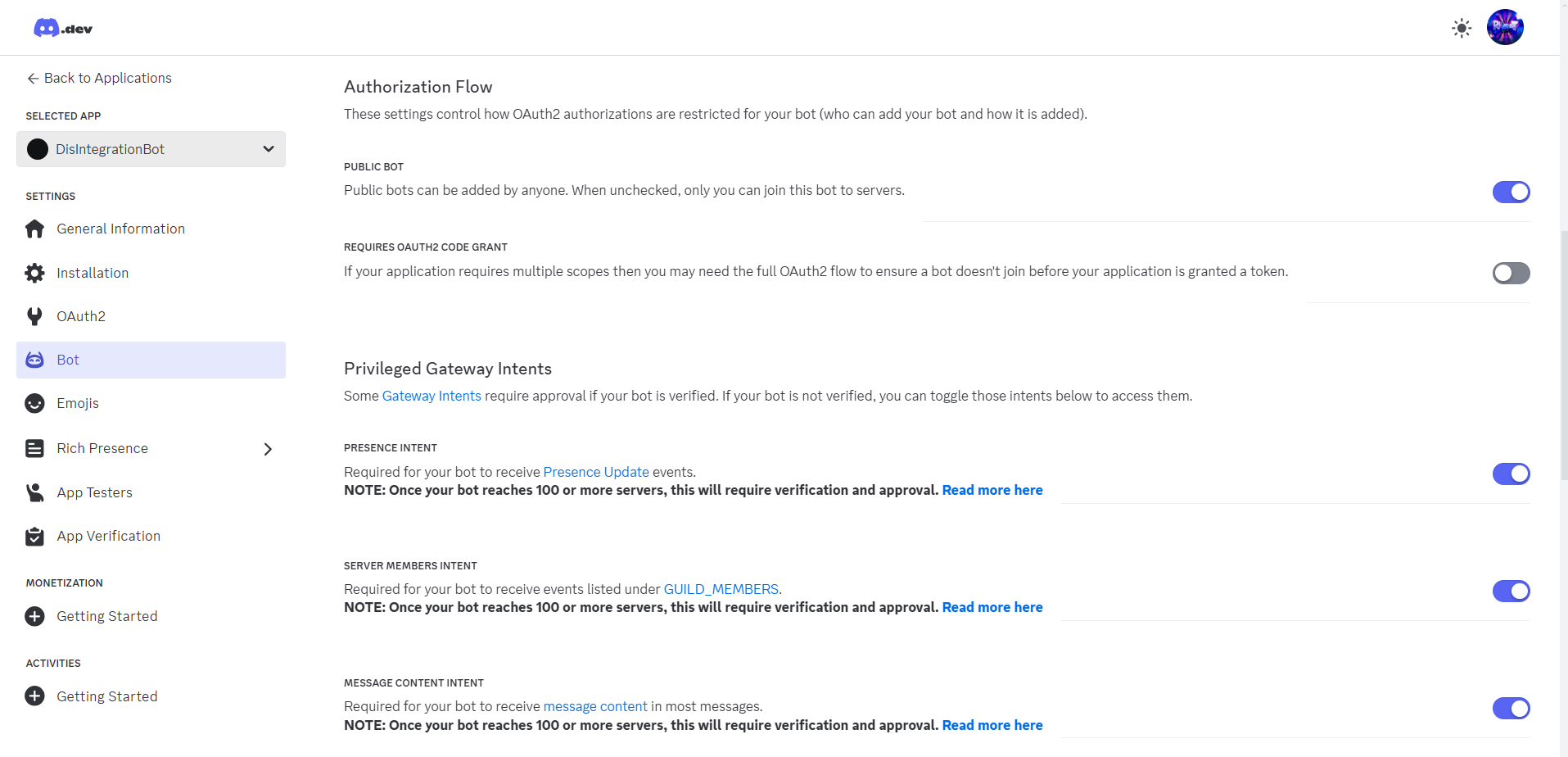
 然后进入 Bot 选项卡,按照图片所示设置参数
 恭喜!你已经成功创建并将机器人添加到了你的 Discord 服务器。现在让我们进入下一步。
2. 在服务器上安装模组、配置设置以及配置 Luckperms
下载模组后,将其添加到服务器并尝试运行,你会收到一个错误提示。这意味着配置文件已创建,但需要进行配置。
前往路径 config/discordloom-common.toml
使用任何文本编辑器打开此文件并开始填写内容。
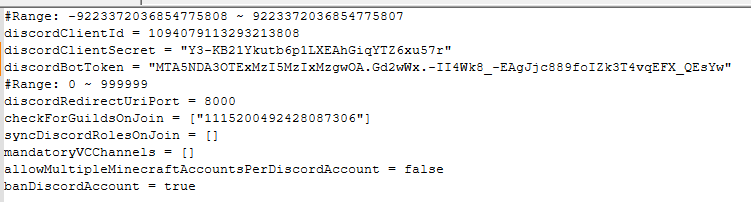
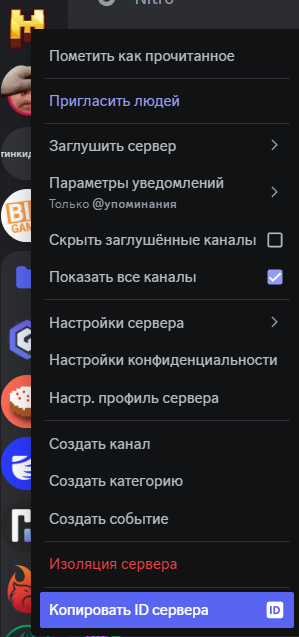
checkForGuildsOnJoin 参数是你的 Discord 社区 ID。要获取它,你必须是社区的管理员,点击社区图标并选择“Copy Server ID”(复制服务器 ID)。
别忘了将由机器人创建的角色设置为服务器角色列表中的第一个角色。
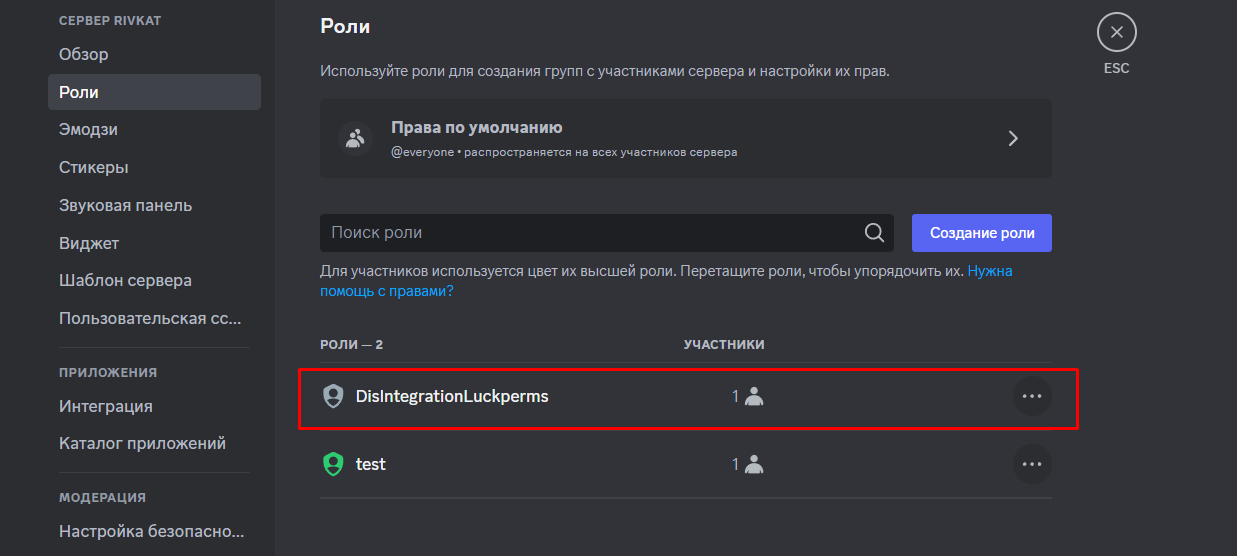
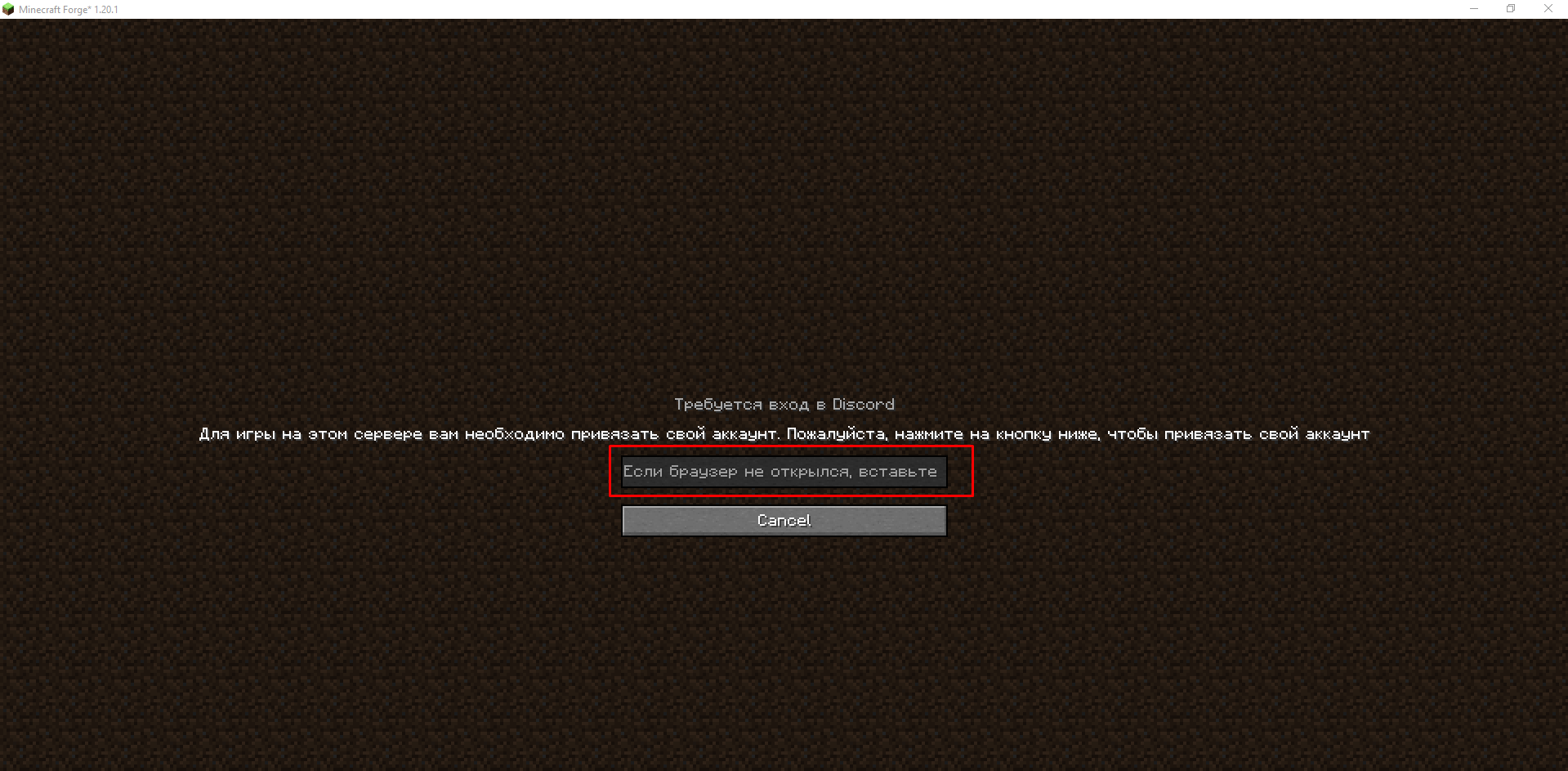
填写完配置文件后,如果所有参数输入正确,模组将允许你启动服务器。首次登录服务器时,系统会提示你将 Discord 账户与 Minecraft 账户绑定。
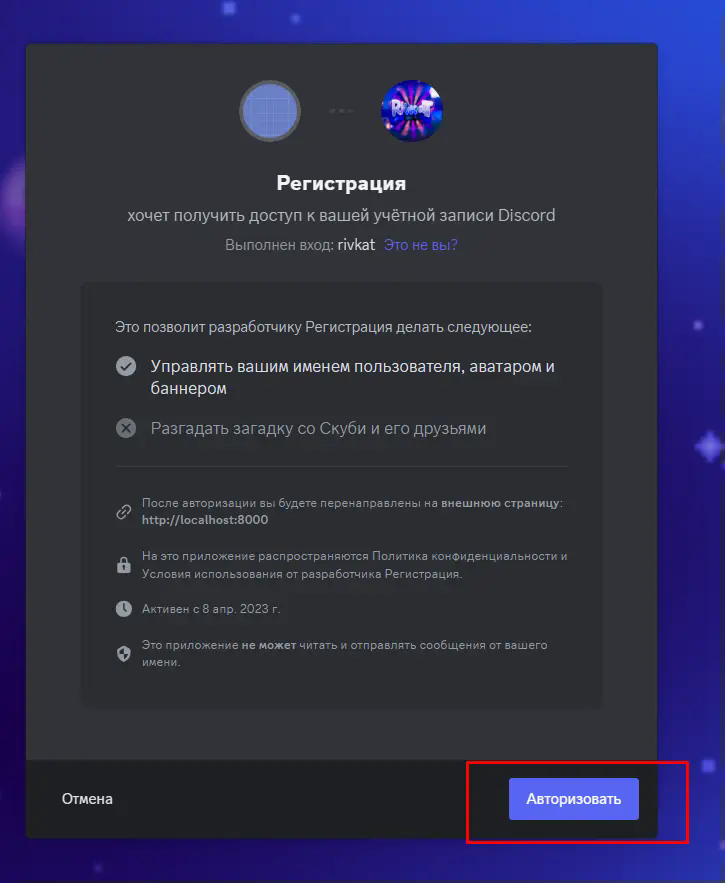
你会看到一个窗口,需要允许机器人管理你在服务器上的用户名并同步你的账户。
现在你的 Discord 名称将与 Minecraft 中相同,Luckperms 也将分配与 Discord 匹配的所有组。
接下来我将简要介绍如何创建一个与 Discord 匹配的 Luckperms 组。
为此,在服务器控制台中输入 lp editor 并通过提供的链接打开图形编辑器。

点击 Group 按钮旁边的 + 号。
在出现的窗口中,需要在组名中输入 discordloom:idrolediscord。
要获取 idrolediscord,你需要点击你创建的角色并选择“Copy role id”(复制角色 ID)。
你的 Luckperms 组名将如下所示:discordloom:3948293850239502395023509。
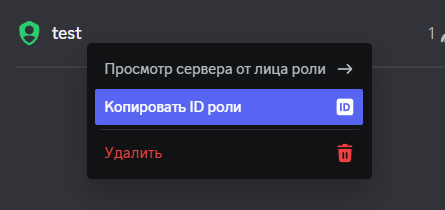
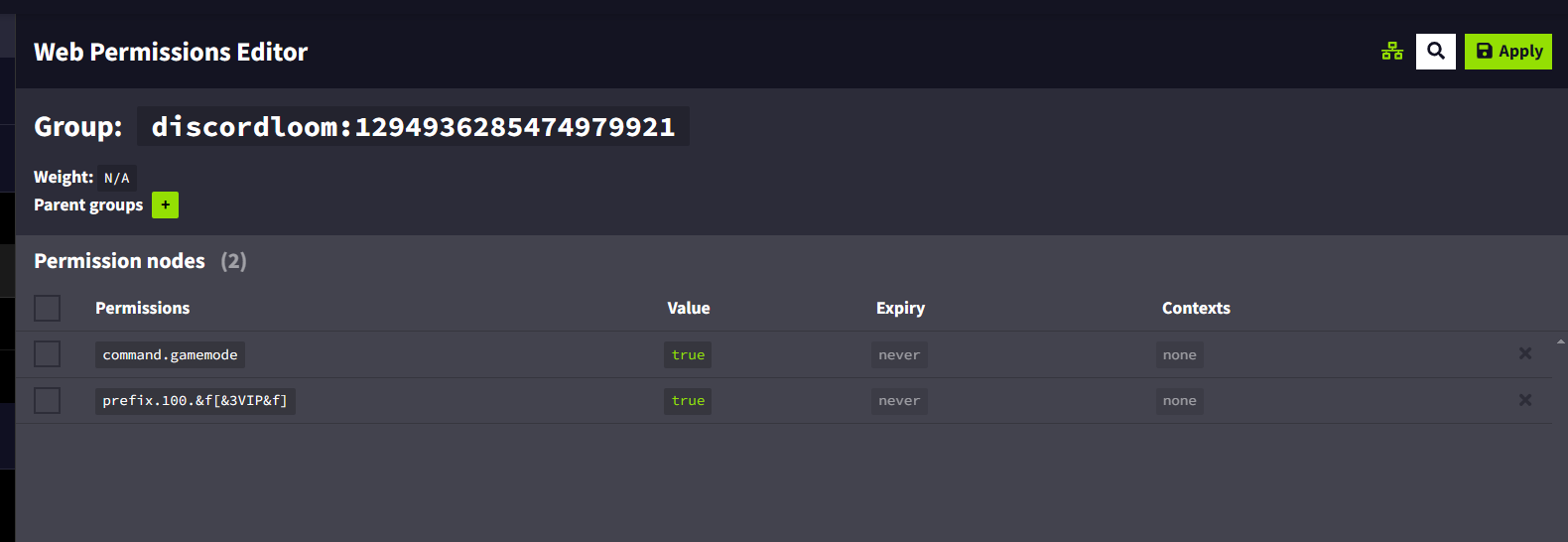
就这样,你已经成功将 Discord 与 Minecraft 服务器集成。如果你还有其他问题或需要帮助,请加入我的 Discord 社区:
This modification is a fork of DiscordLoom created by Dreaming Codes
This version was created only for 1.20.1 no updates and new versions are planned.
You can contact luciferrium in Discord to create the version you need.
The mod allows you to fully synchronise Discord and Minecraft server based on the Luckperms permissions modification.
What a mod can do:
- Synchronisation of Discord roles with Luckperms groups
- change Discord username to the name specified in Minecraft
- By enabling the function: mandatoryVCChannels = [] specifying in it the id of the voice chat of your server, for example mandatoryVCChannels = [‘435457687658665856856’], then players will be able to log in to the server and play on it while they are online in this voice chat.
The mod is fully tested on the following modpacks:
- Forge - Craft to Exile 2
- Fabric - Prominence II
Work with other mods and modpacks may not be stable.
Instructions for proper installation:
1. Bot creation
You need to go to
Click on the New application button
Come up with a name for the bot
The bot configuration menu will open, you need to go to the OAuth2 section
Get Client Id and Client Secret
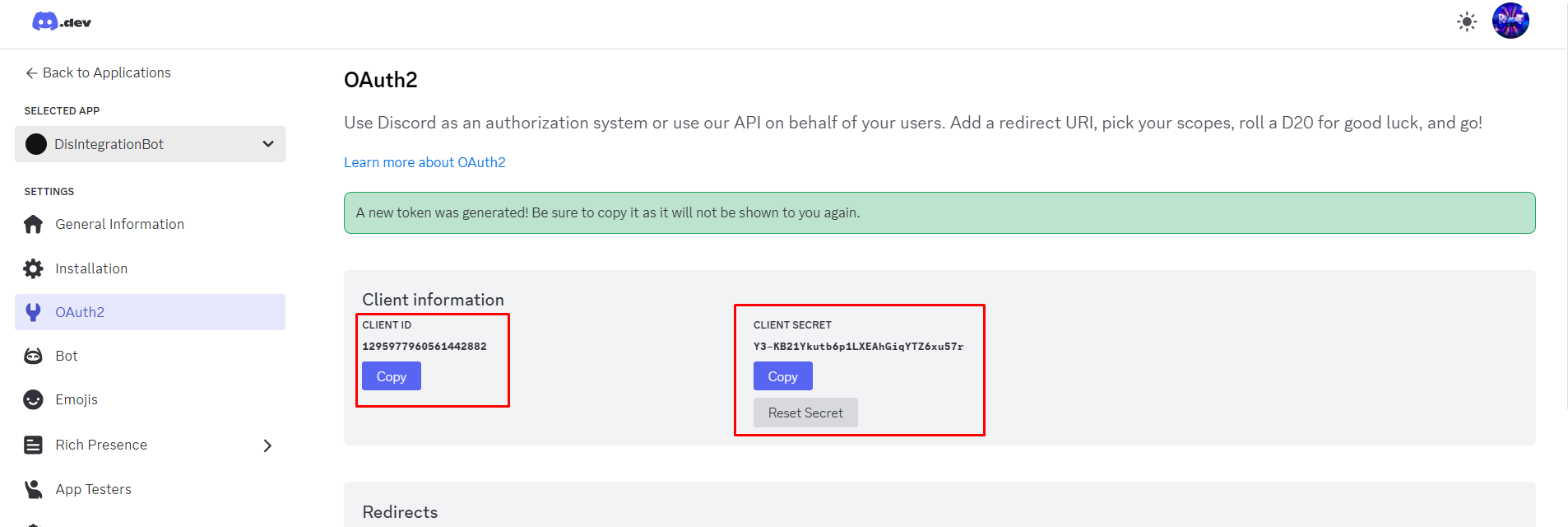 The following link should be added to the Redirects line:
Generate a link to the bot invitation by setting the Bot and Administrator parameters
Then go to the Bot tab and set the parameters as shown on the image
Congratulations! You have successfully created and added a bot to your Discord server. Now let's move on to the next step.
2. Installing the mod on the server, setting the configuration, configuring Luckperms
After you download the mod, add it to your server and try to run it, you will get an error. This means that the configuration has been created and it needs to be configured.
Go to the path config/discordloom-common.toml
Open this file with any text editor and start filling it in.
The checkForGuildsOnJoin parameter is the id of your Discord community, to get it you must be an administrator of the community, click the community icon and click Copy Server ID.
Don't forget to set the role created by the bot to the first role in the list of server roles.
After filling out the configuration file, if you have entered all the parameters correctly, the mod will allow you to start the server. After the first login to the server, you will be prompted to link your Discord account and Minecraft account.
You will see a window where you need to allow the bot to manage your usernames on the server and synchronise your accounts
Now your Discord name will become the same as in Minecraft, and Luckperms will give all groups matching Discord.
Now I will briefly tell you how to create a Luckperms group that will match Discord.
To do this in the server console type lp editor and open the graphical editor on the link given to you.
Click the + next to the Group button.
In the window that appears, you need to type discordloom:idrolediscord in the group name.
To get idrolediscord you need to click on the role you created and click Copy role id.
Your group name in Luckperms should look like this: discordloom:3948293850239502395023509.
That's it, you have successfully integrated your Discord with your Minecraft server. If you still have any questions or need help, join my Discord community:


 模组

 模组
 模组

 模组
 模组
 模组
评论 0
登录后参与评分
还没有评论,来抢沙发吧