Elytra Indicators
Elytra Indicators 是一款 Minecraft 模组,为鞘翅飞行提供原版风格的“仪表飞行”支持。
在原版 Minecraft 中使用鞘翅时,很难判断自己的飞行状态。尤其是在高空高速飞行且区块加载跟不上,或者在末地虚空中飞行时,很难判断自己是否处于安全的俯仰角——更不用说最佳俯仰角了。你可以按 F3 盯着调试屏幕看,但这并不方便,而且数字难以解读。本模组通过提供一组显示你飞行状态的仪表盘来解决这个问题。这些仪表盘的设计符合原版风格,并略微借鉴了真实飞机上的仪表。
截图
这是使用默认宽度设置时的效果:
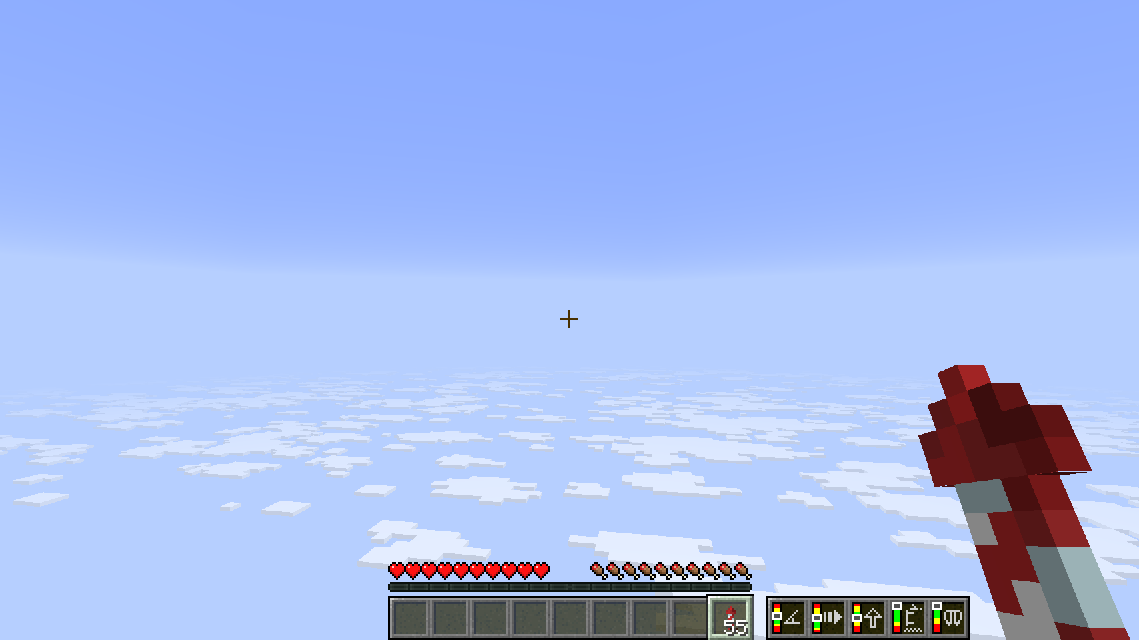
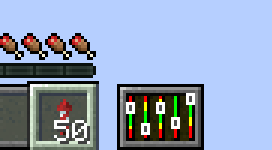
中等宽度下的效果如下:

紧凑模式下的效果如下:
配置
该模组只有一个可配置选项:指示器面板的宽度。可以设置为 wide(默认)、medium 或 compact。compact 设置不包含仪表图标,因此仅适用于你已经学会如何读取仪表并希望节省屏幕空间的情况。
可以通过 Mod Menu 或 Mod Settings 访问配置界面。你也可以直接编辑 Minecraft 实例 config 文件夹中的配置文件 elytraindicators.json。
仪表
当你使用鞘翅飞行时,Elytra Indicators 模组会在屏幕上添加五个仪表。这些仪表旨在帮助你跟踪飞行状态并避免坠毁。从左到右依次显示:俯仰角、速度、爬升率、高度和鞘翅耐久度。
其中一些比较直观,另一些则不然,因此建议阅读以下说明以了解如何正确使用仪表进行最优化的鞘翅飞行。
俯仰角 (Pitch)

第一个仪表显示你的俯仰角——即相对于地面的飞行角度。如果你向上转向,俯仰角会增加。这会将速度转化为高度增益,但坡度越陡,飞行的水平距离就越短。如果坡度太陡,有失速的风险——也就是说,如果速度耗尽,你会坠落而不是保持飞行。
如果低于绿色条区域,有撞地的风险。如果高于它,则有失速的风险。
速度 (Speed)

第二个仪表显示你的总速度。如果速度过慢,有撞地的风险。速度过快并没有太大问题,但由于 Minecraft 物理机制的原因,随着速度增加,提升速度所需的火箭数量不成比例地增多,因此在某个点之后,继续加速其实得不偿失。你仍然可以通过俯冲几乎无限制地增加速度。
绿色条显示了适合长距离飞行维持的建议速度。
爬升 (Climb)

第三个仪表显示你的爬升率——即你获得(或更常见的是失去)高度的速度。这本质上是你在 Y 轴方向上的速度。跟踪爬升率是成功进行鞘翅飞行的关键。如果你的俯仰角过陡或过低,高度损失会比必要情况更快,从而增加火箭消耗和坠毁风险。对于希望最小化火箭消耗的长途飞行,请调整角度以保持良好速度,同时尽可能保持较高的爬升率。
如果你在绿色条上方,意味着你飞行的角度过于陡峭,有速度耗尽并快速坠落的风险。如果你在绿色条下方,意味着你正在以潜在危险的速度下降。
高度 (Height)

第四个仪表显示你当前的高度与原版世界正常地面水平的对比。这是一个粗略估算,帮助你判断自己是否飞得足够高以避免撞到山峰或末地城。具体来说,它不查看实际地形,而是测量你当前的 Y 坐标。
绿色条显示了长途飞行建议维持的高度。如果在山区地形上空飞行,请保持在范围的上半部分。
耐久度 (Wear)

第五个仪表显示鞘翅剩余的耐久度。这不是线性刻度——它在很长时间内都会保持在绿色区域内,只有当鞘翅即将损坏时才会开始进入黄色和红色区域。在该阶段,仪表的变化会快得多,因此请保持警惕。
绿色条表示鞘翅仍有相当安全的剩余耐久度。
下载
你可以从以下任何站点下载该模组:
安装
像安装其他 Fabric 模组一样安装此模组。(推荐使用 Prism Launcher 作为模组版 Minecraft 启动器。)
支持
如果遇到任何问题,请在 Github 上提交 Issue。
其他模组
看看我的其他模组,它们同样提供了原版风格的可用性增强:
状态效果计时器

Status Effect Timer 是一款适用于 Fabric 的 Minecraft 模组,它会在原版状态效果 HUD 图标上叠加显示计时器。
模组设置

Mod Settings 是一款适用于 Fabric 的 Minecraft 模组,它为所有已安装的模组提供了一个易于访问的配置界面。
Elytra Indicators
Elytra Indicators is a Minecraft mod that provides Vanilla-style "fly by
instrument" support for elytra flight.
When using an elytra in Vanilla Minecraft, it can be difficult to judge how
well you're flying. Especially when traveling at high altitudes and speeds and
chunk loading struggles to keep up, or when flying over the void in the End, it
can be hard to tell whether you're flying at a safe pitch — let alone an
optimal one. You can press F3 and stare at the debug screen, but that's not
very convenient, and the numbers can be hard to interpret. This mod solves that
problem by giving you a set of gauges that show how your flight is going. The
gauges are designed to fit in with the Vanilla style and are slightly inspired
by those found in real aircraft.
Screenshot
This is what it looks like when you're using the mod using the default width
setting:
This is how it looks like with medium width:
And this is how it looks like in compact mode:
Configuration
There is a single option to configure the mod: the width of the indicator
panel. This can be set to wide (the default), medium, or compact.
The compact setting does not include icons for the gauges, so it’s only
useful if you’ve learned how to read the gauges and want to save screen space.
The configuration screen can be accessed using Mod Menu or Mod
Settings. You can also directly edit
the configuration file elytraindicators.json in the config folder of your
Minecraft instance.
Gauges
The Elytra Indicators mod adds five gauges to the screen when you're flying
with an elytra. These gauges are designed to help you keep track of your flight
and avoid crashing. They show, in order from left to right: pitch, speed, climb
rate, height, and elytra wear.
Some of these are more intuitive than others, so it is recommended to read the
descriptions below to understand how to use the gauges for optimal elytra
flight.
Pitch
The first gauge shows your pitch — that is, the angle at which you're flying
relative to the ground. If you turn upwards, your pitch increases. This
converts speed into altitude gain, but the steeper you go, the shorter the
distance you'll travel. If you go too steep, you risk "stalling" — that is,
falling to the ground if you run out of speed, instead of maintaining flight.
If you go below the green bar, you risk crashing into the ground. If you go
above it, you risk stalling.
Speed
The second gauge shows your total speed. If you go too slow, you risk crashing
into the ground. There’s no real issue with going too fast, but due to how
Minecraft’s physics work, it takes disproportionately more rockets to increase
your speed the faster you go, so at a certain point, it's not really worth it.
You can still increase speed almost without limit by diving.
The green bar shows a recommended speed that is reasonable to maintain for long
distances.
Climb
The third gauge shows your climb rate — that is, how fast you're gaining (or
more commonly, losing) height. This is essentially your speed along the Y axis.
Keeping track of your climb is key to successful elytra flight. If your pitch
is either too steep or too low, you will lose height faster than necessary,
increasing your rocket usage and crash risk. For long-term flights with minimal
rocket use, adjust your angle to maintain good speed while keeping the climb
rate as high as possible.
If you're above the green bar, you're flying at such a steep angle that you
risk running out of speed and falling rapidly. If you're below the green bar,
you're descending at a potentially dangerous rate.
Height
The fourth gauge shows your current height compared to the normal Vanilla world
ground level. This is a rough estimate to help you judge whether you're flying
high enough to avoid crashing into a mountain or End City. Specifically, it
does not look at the actual terrain, but just measures your current Y
coordinate.
The green bar shows a recommended height to maintain for long flights. Stay at
the upper part of this range if you're flying over mountainous terrain.
Wear
The fifth gauge shows how much durability your elytra has left. This is not a
linear scale — it will remain in the green area for a long time and only start
moving into the yellow and red bars when your elytra is seriously close to
breaking. The gauge will move much faster at that point, so stay alert.
The green bar shows that the elytra still has a fairly safe amount of
durability left.
Download
You can download the mod from any of these sites:
Installation
Install this as you would any other Fabric mod. (I recommend using Prism
Launcher as Minecraft launcher for modded
Minecraft.)
Support
Do you have any problems with the mod? Please open an issue on Github.
Other Mods
Check out my other mods, which also supplies vanilla-style usability enhancements:
Status Effect Timer
Status Effect Timer is a Minecraft mod for Fabric that overlays a timer on the Vanilla status effect HUD icons.
Mod Settings
Mod Settings is a Minecraft mod for Fabric that provides an easy to access configuration screen for all installed mods.

 模组

 模组
 模组

 模组
 模组
 模组
评论 0
登录后参与评分
还没有评论,来抢沙发吧