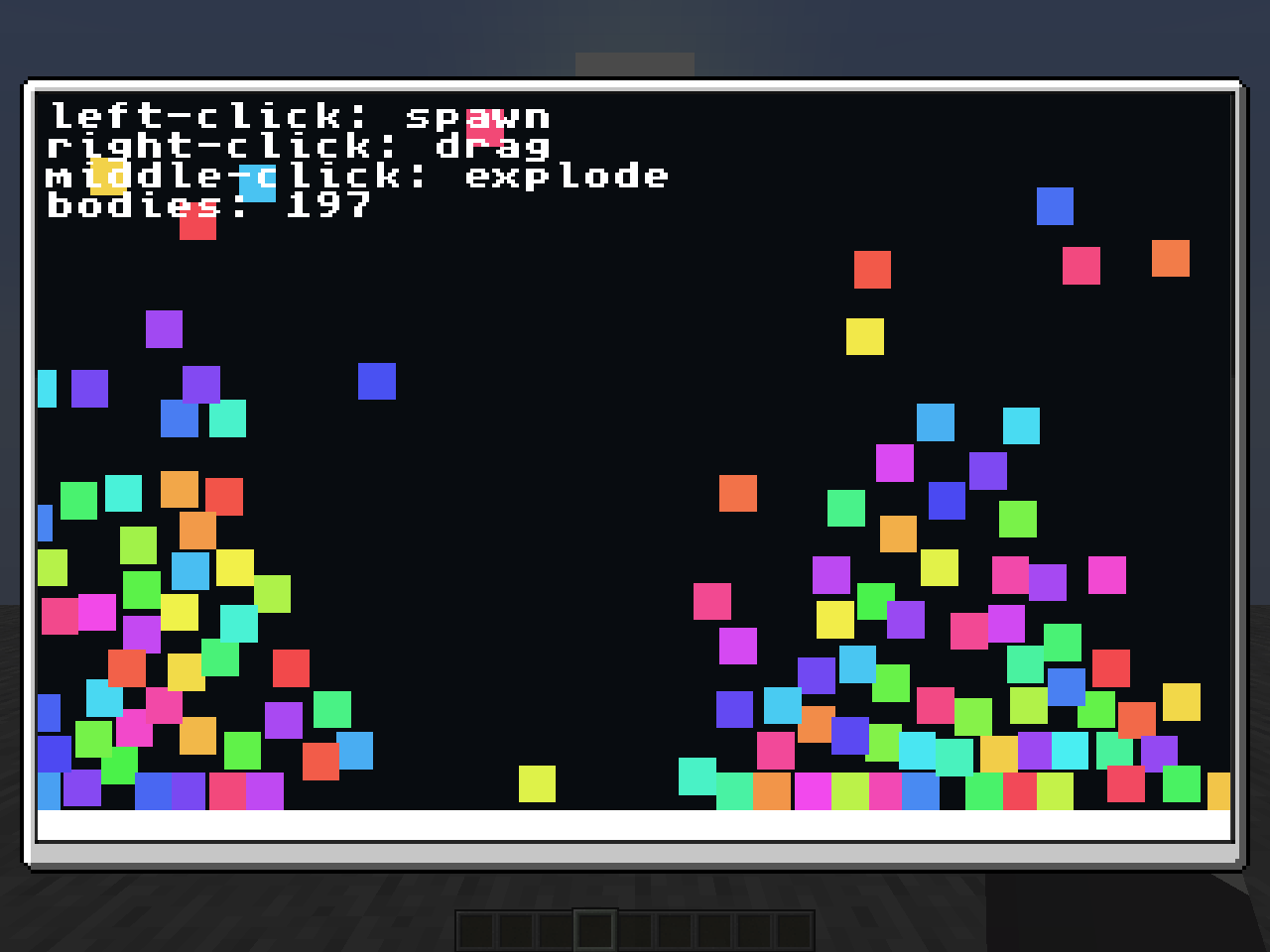
Gooseboy
Minecraft 内置的微型游戏主机
此模组允许你在客户端安全地运行 WebAssembly 脚本,从而创建游戏、程序以及任何你心仪的内容。
注意:在 Gooseboy 中,脚本被称为 crate(容器)
特性
- 在 Minecraft 内以极小的性能损耗运行游戏和应用
- 使用 Rust 和标准库制作游戏与应用
- 支持针对每个 crate 的权限控制与存储管理
- 支持播放任意音频,无需重载游戏
权限
默认情况下,每个 crate 仅拥有对控制台和鼠标的最低限度权限。你可以通过打开 crate 的设置来更改其权限。
完整的权限列表如下:
- CONSOLE:允许 crate 向控制台记录消息。
- AUDIO:允许 crate 播放声音和/或音乐,支持任意音频格式。
- INPUT_KEYBOARD:允许 crate 检测你是否按下了键盘按键。
- INPUT_MOUSE:允许 crate 检测你是否使用了鼠标点击。
- INPUT_MOUSE_POS:允许 crate 获取鼠标的位置,该位置已根据屏幕区域进行调整。
- INPUT_GRAB_MOUSE:允许 crate 隐藏鼠标并将其锁定在屏幕中心。
- STORAGE_READ:允许 crate 读取其自身的存储空间。
- STORAGE_WRITE:允许 crate 写入其存储空间。
- GPU:允许 crate 在框架内以 3D 模式渲染。
安全性
crate 通过 Java Chicory WASM 运行时环境执行。
出于安全考虑,crate 无法:
- 访问或修改 Minecraft 的状态(例如其他玩家在游戏内的位置)
- 访问或修改其他 crate 的存储空间
- 访问或修改你的文件
- 在世界中进行渲染
- 在后台运行
- 在游戏外读取你的键盘或鼠标输入
- 使用互联网或与任何服务器通信
- 运行 Java 代码
如果你发现了能绕过这些限制的 crate,请通过 GitHub 报告。
如何打开 crate 菜单
进入游戏后,按 M 键。(如果你喜欢,也可以在“控制”选项卡中更改此快捷键!)
在哪里寻找 crate
你可以在这里找到官方示例 crate。
如何添加 crate
你可以将 crate 移动到 crates 文件夹中。你可以在菜单中按下底部的“Open crates folder location”按钮来打开 crates 文件夹。
如何创建 crate
你可以使用任何编译为 WebAssembly 的语言来制作 crate(由于安全原因,不支持 WASI)。
推荐使用的语言是 Rust,因此标准库也是用 Rust 编写的。
一个示例 crate 如下所示:
#![no_main]
use gooseboy::framebuffer::{get_framebuffer_width, init_fb};
use gooseboy::text::{draw_text, get_text_width};
use gooseboy::{color::Color, framebuffer::clear_framebuffer};
// 每个 crate 都必须包含一个 main 函数,并确保使用
// gooseboy::main 进行装饰,否则 crate 将无法启动
#[gooseboy::main]
fn main() {
// 初始化帧缓冲,如果你计划绘制到屏幕(这很可能),
// 则必须在此处进行初始化
init_fb();
}
// 这也是每个 crate 所必需的,gooseboy::update 也必须在此处声明,
// 该函数每秒运行 X 次,其中 X 等于你在选项中设置的最大帧率
#[gooseboy::update]
fn update(nano_time: i64) {
// 清除屏幕,擦除之前存在的所有内容
clear_framebuffer(Color::BLACK);
// 初始化我们要绘制到屏幕上的字符串。你也可以在这里使用 Rust 的
// String 类型,但需要注意的是在 draw_text 时需要克隆它
let text = "Hello, world!";
// 将时间从纳秒转换为秒
let time_sec = nano_time as f64 / 1_000_000_000.0;
// 获取右边缘的位置并减去文本宽度,以使文本适应屏幕
// 如果文本超出帧缓冲区的末尾,你也可以使用 draw_text_wrapped 来自动换行
let right_corner = (get_framebuffer_width() - get_text_width(text)) as f64;
// 获取一个 X 坐标,使其利用正弦函数平滑地从左向右移动
let x_pos = ((time_sec.sin() * 0.5 + 0.5) * (right_corner - 1.0)) as usize;
// 最后,使用红色绘制文本(或使用 Color::new(r, g, b, a) 或 Color::new_opaque(r, g, b))
draw_text(x_pos, 0, text, Color::RED);
}
贡献
想要帮助改进 Gooseboy?欢迎贡献!你可以在此处找到标准库 here,CLI 工具 here 以及 Java 模组 here!
Gooseboy
A tiny game console inside Minecraft
This mod allows you to run WebAssembly scripts inside Minecraft on the client safely, allowing the creation of games, programs, and whatever your heart desires.
Note: Scripts are called crates in Gooseboy
Features
- Run games and applications inside Minecraft with minimal performance impact
- Make games and applications using Rust and the standard library
- Per-crate permission control and storage
- Crate support for playing any audio, without reloading the game
Permissions
Every crate by default has very minimal permissions to only the console and the mouse, you can change the permissions for each crate by opening the settings of the crate.
The full list of permissions are as follows:
- CONSOLE: Allows the crate to log messages to the console.
- AUDIO: Allows the crate to play sounds and/or music, with any audio.
- INPUT_KEYBOARD: Allows the crate to know if you pressed a key.
- INPUT_MOUSE: Allows the crate to know if you clicked with your mouse.
- INPUT_MOUSE_POS: Allows the crate to know the position of your mouse, adjusted to the region of the screen.
- INPUT_GRAB_MOUSE: Allows the crate to hide the mouse and lock it to the center
- STORAGE_READ: Allows the crate to read from that crate's storage.
- STORAGE_WRITE: Allows the crate to write to its storage.
- GPU: Allows the crate to render in 3D, only inside the frame.
Security
Crates are run using the Java Chicory WASM runtime.
For security, crates can't:
- access or modify Minecraft's state (e.g. where other players are in-game)
- access or modify other crates' storage
- access or modify your files
- render onto the world
- run in the background
- read your keyboard or mouse inputs outside of the game
- use your internet or communicate with any server
- run java code
If you’ve found a crate that can bypass these restrictions, please report it
via GitHub.
How-to open the crates menu
Go in-game, and press M. (you can change the keybinding in the Controls options if you'd like to!)
Where-to find crates
You can find the official example crates here
How-to add a crate
You can add crates by moving them to the crates folder. You can open the crates folder from the menu by pressing the "
Open crates folder location" button at the bottom.
How-to create crates
You can make crates in any language that compiles to WebAssembly (WASI is unsupported due to security concerns).
The recommended language to use is Rust, and so
the standard library is made in Rust as well.
An example crate is as follows:
#![no_main]
use gooseboy::framebuffer::{get_framebuffer_width, init_fb};
use gooseboy::text::{draw_text, get_text_width};
use gooseboy::{color::Color, framebuffer::clear_framebuffer};
// Every crate has to have a main function, make sure to decorate it
// with gooseboy::main though, or else the crate won't start
#[gooseboy::main]
fn main() {
// Initializes the framebuffer, you are required to initialize this
// here if you plan to draw to the screen (which is very likely)
init_fb();
}
// This is also required in every crate, the gooseboy::update is required
// here too, this function runs X times per second where X is equal to your
// maximum framerate in the options
#[gooseboy::update]
fn update(nano_time: i64) {
// Clear out the screen, erasing everything that was there previously
clear_framebuffer(Color::BLACK);
// Initialize the string we want to draw to the screen, You can also use Rust's
// String type here, with the caveat of having to clone it at draw_text
let text = "Hello, world!";
// Convert the time from nanoseconds to seconds
let time_sec = nano_time as f64 / 1_000_000_000.0;
// Get the position of the right corner and subtract the width of the text
// to make the text fit into the screen, You can also use draw_text_wrapped
// to automatically wrap text if it passes the end of the framebuffer
let right_corner = (get_framebuffer_width() - get_text_width(text)) as f64;
// Gets us an X position that smoothly moves from the left to the right using sine
let x_pos = ((time_sec.sin() * 0.5 + 0.5) * (right_corner - 1.0)) as usize;
// Finally, draw the text with the red color (or use Color::new(r, g, b, a) or Color::new_opaque(r, g, b))
draw_text(x_pos, 0, text, Color::RED);
}
Contributing
Want to help improve Gooseboy? Contributions are welcome! You can find the standard
library here and the
CLI here and the Java
mod here!
评论 0
登录后参与评分
还没有评论,来抢沙发吧