通过点击按钮即可整理和转移物品,还有更多实用功能。Inventory Management 为你的背包和容器添加了按钮,支持一键整理、转移和自动堆叠物品,并提供一系列提升生活质量的工具,让你的背包始终保持理想状态。在单人游戏中只需安装到客户端即可运行;在多人游戏中则需同时安装到客户端和服务端。
功能一览:
- 整理(Sort):一键按字母顺序或创造模式菜单顺序整理任意容器或你的背包。
- 全部转移(Transfer all):一键将当前整个背包的内容转移至另一个容器(放置所有或取出所有)。
- 自动堆叠(Auto-stack):在不影响其他物品的情况下,自动补充容器中已有的相同类型物品堆。
- 锁定槽位(Locked slots):按住
Ctrl/Cmd+点击可保护特定槽位,使整理、转移和自动堆叠操作跳过这些槽位。
- 快捷栏交换(Hotbar swapping):按住按键并滚动鼠标滚轮,可将主背包中的一整行物品即时交换至快捷栏。
- 物品耐久度提醒(Item durability):当装备耐久度低时发出提醒,并可选地在工具即将损坏前自动替换。
- 智能物品分组(Smart item grouping):整理时将变体家族(如所有羊毛颜色、所有木板等)保持在一起。
每项功能均可在配置文件中独立开启或关闭,因此你可以只启用所需的部分。
所有配置选项
你可以通过配置文件文件夹中的 inventorymanagement.toml 文件来配置模组的行为。如果你安装了 ModMenu,也可以通过 ModMenu 模组列表中的 UI 访问配置界面,将鼠标悬停在每个选项上时会显示描述提示。
通用设置(General)
modEnabled: true|false(默认 true)- 模组的总开关。关闭后,不显示任何按钮且不运行任何行为。
快捷栏交换(Hotbar Swapping)(位于 hotbarSwap 部分下)
hotbarSwap.enableHotbarSwap: true|false(默认 true)- 快捷栏交换功能的总开关。关闭后,**快捷栏交换(按住)**键绑定无效(滚动和数字键不再交换一行进入),且交换行的徽章会被隐藏。详见下方的“快捷栏交换”部分。
hotbarSwap.hotbarSwapNumberKeys: true|false(默认 true)- 按住 **快捷栏交换(按住)**键绑定时,允许使用数字键 1-3 选择主背包中的一行以交换至快捷栏(再次按下当前活动行的数字键可将其换回)。默认开启;若关闭,则在按住该键时数字键仍用于更改选定的快捷栏槽位。无论是否按住该键,滚动操作始终有效。
物品耐久度(Item Durability)(位于 durability 部分下)
durability.durabilityAlertEnabled: true|false(默认 true)- 当工具或已装备物品的耐久度低于阈值时,显示带有铁砧“叮”声的动作栏提醒。纯客户端功能:它读取已同步给你的耐久度数据,因此适用于任何服务器,包括原版服务器。详见下方的“物品耐久度”部分。
durability.durabilityAlertThreshold1: <Integer>(默认 10)- 第一个最大耐久度百分比阈值(0-99),触发提醒一次(当耐久度向下穿越该阈值时)。设置为 0 可跳过此阈值。
durability.durabilityAlertThreshold2: <Integer>(默认 5)- 第二个最大耐久度百分比阈值(0-99),触发提醒一次(当耐久度向下穿越该阈值时)。设置为 0 可跳过此阈值。
durability.durabilityAlertAtOne: true|false(默认 true)- 除百分比阈值外,还在剩余恰好 1 点耐久度时触发提醒。
durability.durabilityAlertSound: true|false(默认 true)- 在提醒时播放铁砧叮声。动作栏消息始终显示,不受此选项影响。
durability.durabilityAutoReplace: true|false(默认 false)- 在持有或穿戴的物品即将损坏前,从你的背包中交换一个匹配的物品进行替换。由客户端驱动:你的客户端检测 imminent break 并请求交换,因此在多人游戏中模组必须安装在服务端(无设置同步)。
durability.durabilityAutoReplaceSimilar: true|false(默认 false)- 放宽自动替换的匹配条件,从严格匹配(相同物品 + 附魔)改为相似匹配(相同类别,忽略材质/附魔):例如任意滑翔翼替换滑翔翼,任意物品替换同一护甲槽位的物品,任意共享破损工具标签(#minecraft:pickaxes、axes、shovels、hoes、swords)的工具。
整理/转移(Sorting/Transferring)(位于 sorting 部分下)
sorting.showSort: true|false(默认 true)- 是否显示整理按钮。
sorting.showTransfer: true|false(默认 true)- 是否显示全部转移(放置/取出)按钮。
sorting.showStack: true|false(默认 true)- 是否显示自动堆叠按钮。
sorting.sortMode: "alphabetical"|"creative"(默认 "alphabetical")- 整理时物品的排序方式。alphabetical 按物品名称排序;creative 使用创造模式菜单的顺序。
sorting.containersFirst: true|false(默认 false)- 将包含内容的物品(潜影盒、束口袋等)排在其他物品之前。仅在 alphabetical 模式下生效。
sorting.defaultPosition: "(<Integer>,<Integer>)" - 自定义按钮位置的默认值。
sorting.screenPositions: {"ID": "(<Integer>,<Integer>)"} - 按屏幕自定义按钮位置。虽然可以在配置文件中手动修改,但推荐的方式是通过配置 UI 进行修改。详见下文!
sorting.enableSlotLocking: true|false(默认 true)- 锁定玩家背包槽位的总开关。关闭后,Ctrl/Cmd+点击不再锁定槽位,不绘制标记或工具提示,且整理、自动堆叠和转移操作不再跳过已锁定的槽位。已锁定的槽位会在重新开启时保留记忆。详见下方的“锁定槽位”部分。
sorting.lockedSlotDisplay: "shown"|"hidden"|"hotkey"(默认 "shown")- 何时在锁定栏位上绘制标记(边框 + 深色背景)。shown 始终绘制;hidden 从不绘制;hotkey 仅在按住 Peek locked slots 键绑定(查看锁定栏位)时绘制。锁定本身(Ctrl/Cmd+点击)和悬停工具提示不受影响。
lockedPlayerSlots / sorting.serverLockedPlayerSlots: (默认为空)- 锁定的玩家主背包栏位索引,按世界分别记忆。在单人游戏中,它们位于该存档自己的配置文件(<save>/config/inventorymanagement.toml)下的 lockedPlayerSlots 中,因此会随存档一起保存;在多人服务器上,它们位于你的全局配置下的 sorting.serverLockedPlayerSlots 中,这是一个以服务器地址为键的表格。无论哪种情况,你都可以通过在游戏中按住 Ctrl/Cmd 并点击栏位来管理它们(无需 GUI 控制),但如果需要检查或清除它们,它们会保存在配置文件中。
排序组(位于 grouping 部分下)
grouping.itemGrouping: true|false(默认 true)- 变体分组的总开关:将相关的物品家族(所有羊毛颜色、所有木板等)聚类在一起,而不是仅按名称对每个变体进行排序。详见下方的“物品分组”部分。
grouping.dynamicGroups: true|false(默认 true)- 数据包定义的分组家族的总开关。详见下方的“数据包分组标签”部分。
grouping.disabledDynamicGroups: ["<tag id>", ...](默认为空)- 单独禁用的数据包分组家族,通过完整的标签 ID 指定。在配置文件中管理(无 GUI 控制)。
grouping.<family>: true|false(默认 true)- 每个内置变体家族一个开关;关闭其中一个将以普通名称对该家族进行排序,而不是将其聚类。家族包括:wool(羊毛)、wool_carpets(羊毛地毯)、beds(床)、candles(蜡烛)、banners(旗帜)、shulker_boxes(潜影盒)、dyes(染料)、terracotta(陶瓦)、glazed_terracotta(釉陶)、concrete(混凝土)、concrete_powder(混凝土粉末)、stained_glass(染色玻璃)、stained_glass_pane(染色玻璃板)、planks(木板)、wooden_slabs(木台阶)、wooden_stairs(木楼梯)、wooden_doors(木门)、wooden_trapdoors(木活板门)、wooden_fences(木栅栏)、fence_gates(栅栏门)、signs(告示牌)、hanging_signs(悬挂告示牌)、leaves(树叶)、saplings(树苗)、boats(船)、spawn_eggs(刷怪蛋)、pottery_sherds(陶器碎片)、horse_armor(马铠)、coral(珊瑚)。
修改按钮位置
为了与其他模组保持兼容,你现在可以调整库存管理按钮的位置了!要调整所有按钮的位置,请查看配置中的 sorting.defaultPosition 选项,或者如果你安装了 ModMenu,可以在配置 UI 中进行调整。如果你有特定屏幕需要调整(例如其他模组增加了更多库存空间),你可以按住 Ctrl/Cmd 并点击其中一个 UI 按钮以打开按屏幕位置编辑器!此编辑器仅调整当前屏幕的按钮位置,因此你可以随意调整位置以使其与你的炫酷背包模组的 UI 对齐!;)
一旦编辑器打开,只需使用鼠标单击并拖动按钮即可将它们滑动到位,它们会跟随光标一对一移动。追求精确?方向键仍然可以每次微调一个像素(按住 Shift 可进行更大幅度的跳跃),而 Ctrl/Cmd+R 可重置为默认值。配置 UI 中的 defaultPosition 编辑器也支持相同的拖放操作。
Ctrl/Cmd+点击是主要的进入方式,但也有专用的键绑定用于打开编辑器(一个用于玩家库存按钮,一个用于容器按钮)。Inventory Management 的所有键绑定默认均未绑定。 如果你想使用它们,请在“选项”,然后“控制”下的 Inventory Management 类别中分配按键。
排序
现在,所有容器(足够大的)和你的库存中都会出现一个排序按钮。点击此按钮将自动对库存进行排序!在大多数情况下,这种排序是按字母顺序进行的,只有少数手动输入的例外。排序会忽略你的快捷栏,因此你不必担心它会弄乱你的主要物品!
之前
之后
全部转移
放置/取出全部按钮会将一个完整的库存转移到另一个中!它从左上角的栏位开始,一直处理物品,直到另一个库存已满。类似于排序,此机制也会忽略你的快捷栏(以及已装备的物品)。
自动堆叠
类似于全部转移按钮,还会有用于向容器中堆叠或从容器中取出的按钮。点击此按钮后,它将获取源库存中的所有物品,并将它们堆叠到目标库存中任何未满的堆叠中,仅传输填满堆叠所需的物品!
之前
之后
锁定栏位
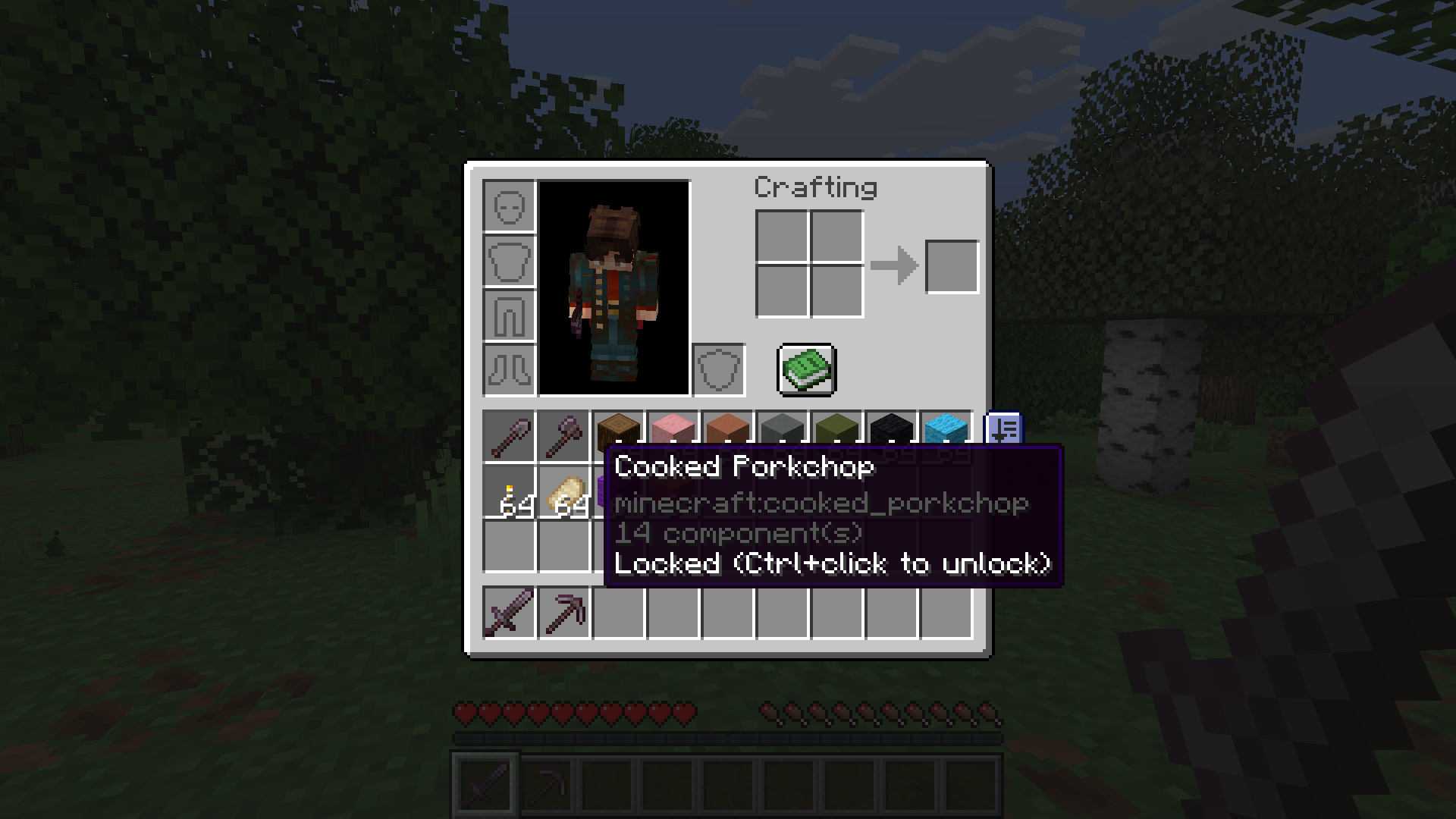
有没有某个栏位你希望永远不要被打扰,比如备用方块、食物,或者出于习惯总是放在同一位置的那一组物品?锁定它。 在主库存中按住 Ctrl/Cmd 并点击任意栏位即可切换其锁定状态。锁定栏位会被 排序、自动堆叠 和 全部转移(放置/取出) 跳过,因此这些操作永远不会移动、重新排序或从锁定栏位中提取物品。锁定和解锁的操作相同,均为 Ctrl/Cmd+点击,并且适用于鼠标左右键。
只有主库存网格可以被锁定。你的快捷栏、护甲栏、副手栏以及任何打开容器的栏位均不可锁定(无论如何,快捷栏已被所有操作忽略)。锁定状态按世界分别记忆:每个单人存档和每个多人服务器都保留自己的设置(单人存档的锁定甚至会在存档文件夹内传播),并且它们跨会话持久存在。空的锁定栏位仍会被保留,因此转移操作不会填充它。
默认情况下,锁定槽位会以轻微变暗的背景和物品下方的边框进行标记,悬停时会显示 Locked (Ctrl+click to unlock) 的提示。不喜欢这些标记?lockedSlotDisplay 配置选项允许你将其设置为 Always shown(默认)、Hidden 或 While hotkey held。最后一个选项仅在按住 Peek locked slots 键绑定期间绘制标记,从而在你想要检查锁定内容之前保持背包整洁。无论何种情况,悬停提示始终会显示,因此锁定槽位永远不会成为谜团。
提示: 与 Inventory Management 的所有键绑定一样,Peek locked slots 默认未绑定。如果你希望使用 hotkey 显示模式,请在“选项”->“控制设置”->“Inventory Management”类别中进行分配。
快捷栏交换
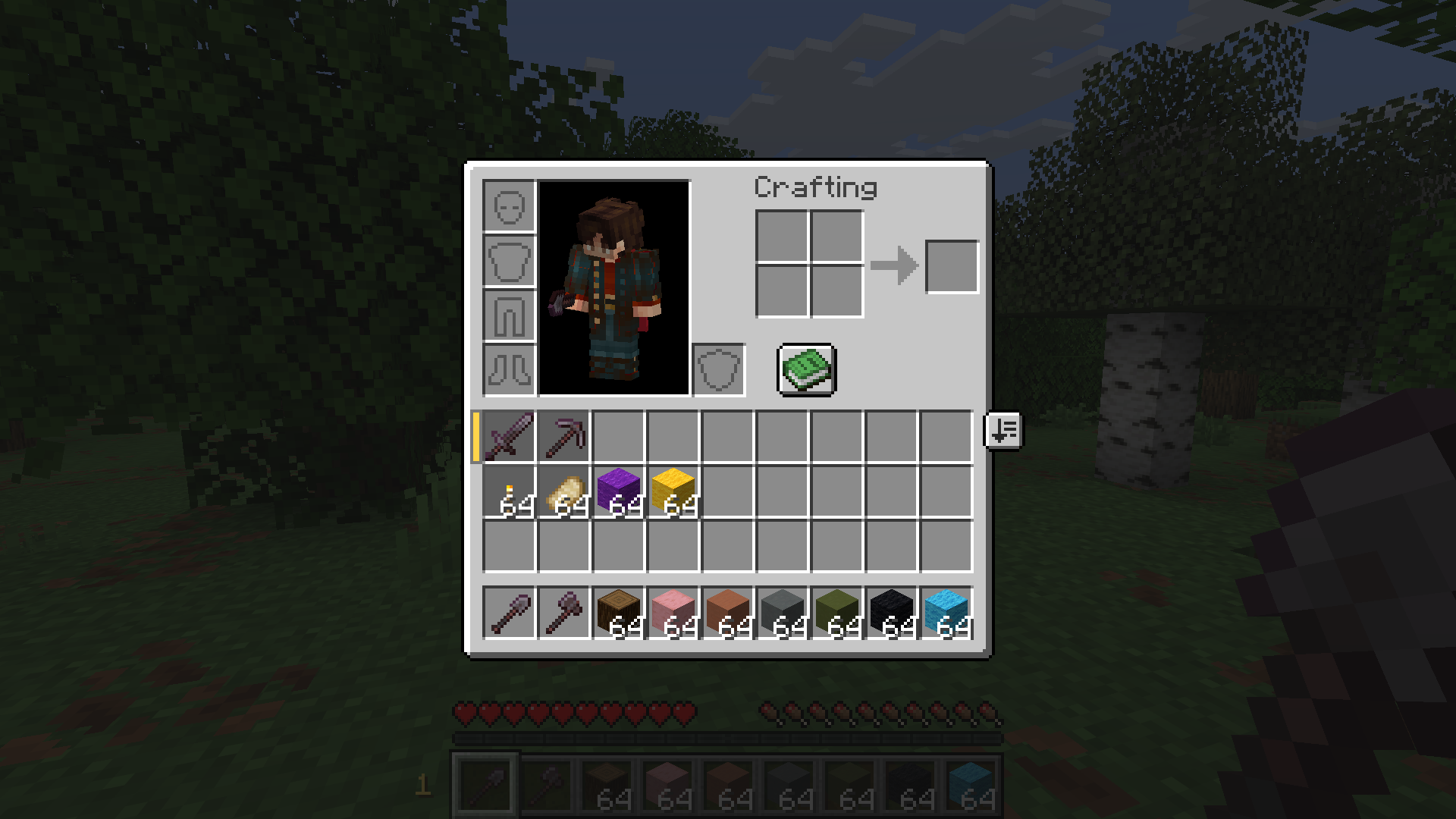
想要在无需打开背包的情况下将第二(或第三)排物品置于拇指可触及的范围吗?按住交换键并滚动鼠标滚轮。 每次滚动都会循环切换主背包中的哪一行与快捷栏交换,顺序为正常 -> 第 1 行 -> 第 2 行 -> 第 3 行 -> 回到正常,形成循环。物品会物理交换位置,因此快捷栏上的物品会进入该行,反之亦然。一次只会移动一行,滚动回正常状态会将所有物品归位。
更喜欢按键而不是滚动?启用 hotbarSwapNumberKeys 选项(默认开启),在按住交换键时,数字键 1-3 会直接跳转到对应行;再次按下当前激活行的数字键则将其恢复为正常状态。当按住交换键时,数字键不会改变选定的快捷栏槽位,因此 4-9 会被忽略。如果你希望即使按住交换键时数字键也始终保持正常行为,请关闭此选项。
一个小标记显示哪一行处于活动状态:在任何背包/容器屏幕中,交换行的左侧有一个彩色标签;在游戏 HUD 上,快捷栏左侧有一个不显眼的徽章,显示行号(1-3)。
在后台,每次交换都将一行的九个槽位与快捷栏的九个槽位逐一对换,其中第 1 行是主网格的顶部,第 3 行是最靠近快捷栏的行。这一移动通过数据包在服务端发生,与排序按钮的工作原理相同,并且切换行时总是先将被替换的行恢复原位,再应用新的交换。服务端信任客户端关于当前哪一行被移出的视图,因此如果在一行被交换期间快捷栏的内容发生变化(物品损坏、拾取物落入该处、/give 命令、其他模组),下一次交换可能会移动错误的槽位。在进行任何可能打乱已移出快捷栏的操作之前,请滚动回正常状态。
如果你不同步了,例如在交换过程中退出游戏,请按 Reset hotbar swap 键绑定。它会将模组的跟踪状态重置为“正常”,而不会移动任何物品,以当前快捷栏上的实际内容为基准重新校准。
注意: 由于物品会物理交换位置(且服务器会保存它们),如果在某行被交换期间退出游戏,当你重新登录时,那些物品仍处于错位状态,尽管指示器显示为“正常”。要将所有物品归位,请重新选择该行(通过滚动或数字键将其换入),然后滚动回正常状态。
提示: 与 Inventory Management 的所有键绑定一样,Hotbar swap (hold) 和 Reset hotbar swap 默认均未绑定。要在“选项”->“控制设置”->“Inventory Management”类别中分配它们以使用此功能。
物品耐久度
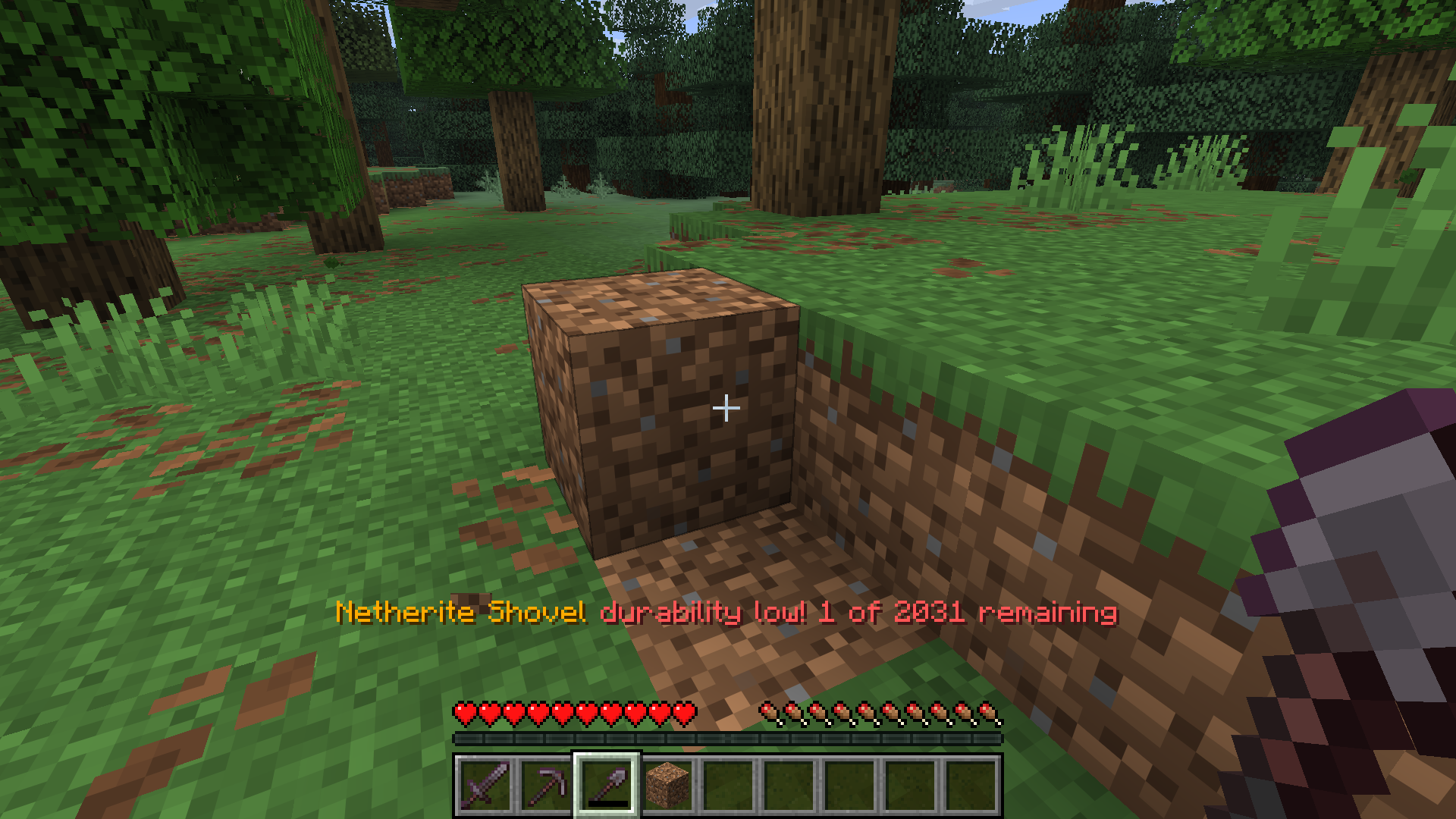
是否因未注意到工具即将损坏而导致辛苦获得的工具丢失而感到厌烦?Item Durability 选项提供了两种独立的保护装备方式。每种方式都在配置文件中单独切换;警报默认开启,自动替换默认关闭。
低耐久度警报。 当工具或装备物品(包括鞘翅)的耐久度降至阈值以下时,你会收到操作栏消息:“<item> durability low! <remaining> of <max> remaining”,并伴有铁砧的“叮”声。它会监控你的主手、副手和四个护甲槽,并在物品耐久度下降过程中每次跨越阈值时触发一次,旨在模仿 Vanilla Tweaks “Durability Ping” 数据包的机制。有两个可配置的百分比阈值(默认 10% 和 5%),以及一个单独的 alert at 1 remaining 选项,用于处理最后一点耐久度。这完全是客户端行为:它读取已经同步给你的耐久度数据,因此适用于任何服务器,甚至是原版服务器。如果你只想看到消息而不想听到声音,可以通过 durabilityAlertSound 关闭音效,或者在配置中调整两个阈值滑块(将任一值设为 0 即可跳过该阈值)。
损坏前自动替换。 在手持或穿戴的物品即将损坏之前,模组会从你的背包中替换出一个匹配的物品。磨损的物品会返回到替换物品来源的槽位,这样你几乎不会中断动作,也不会在中途丢失旧物品。默认情况下,匹配是严格的(相同的物品,相同的附魔),但 durabilityAutoReplaceSimilar 将其放宽为相似:任何滑翔翼替换滑翔翼,同一护甲槽位的任意护甲部件,或共享破损工具类别(镐、斧、锹、锄、剑)的任何工具。它会扫描你的主背包和副手,并选择剩余耐久度最多的候选物品。由于这仅仅是两个槽位的交换,它永远不会导致物品重复或丢失。
需要注意的一点是:自动替换会在物品的最后一格耐久度时触发,因此如果某个动作一次性消耗超过一点的耐久度,物品仍可能在交换发生前损坏。此时,警报和快速手动替换仍能为你提供保障。
多人游戏。 自动替换是由客户端驱动的:你的客户端已经能看到装备耐久度,当检测到某件物品即将损坏时,它会选择替代品并请求服务器执行交换,这与排序和转移按钮的工作原理完全相同。你的任何设置都不会同步,且该请求包含了服务器所需的一切信息。在多人游戏中,必须在服务器上安装此模组才能完成交换,服务器会验证并应用该操作。提示仅存在于客户端,服务器端无需任何配置。
所有耐久度选项均位于配置的 durability 部分。
物品分组
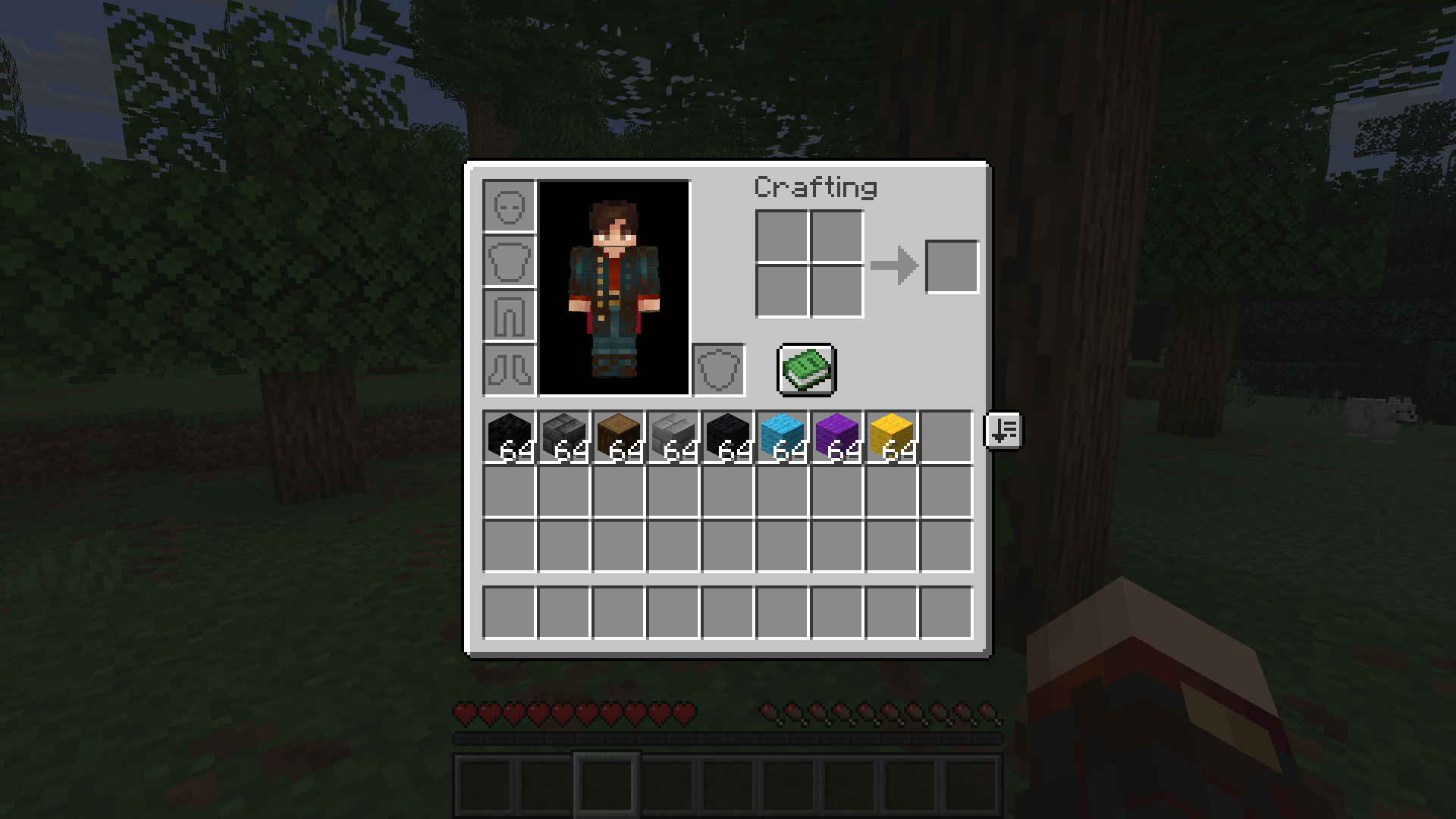
当启用 itemGrouping(默认开启)时,字母顺序排序会将相关物品家族聚集在一起,而不是按各自名称分散排列各个变体。因此,所有 16 种羊毛颜色会归为一类,所有木板类型会归为一类,以此类推。每个内置家族都有独立的 grouping.<id> 开关(默认全部开启);关闭某个开关即可让该家族回退到纯名称排序。
一个家族在排序结果中的“落点”位于其锚点(anchor)的显示名称位置(对于颜色家族而言,锚点即为白色变体,例如整个羊毛簇会排序在 White Wool 所在的位置)。内置家族列表见上方的配置部分。
分组查询遵循首次匹配优先原则,顺序如下:内置分组、模组注册分组、数据包分组。内置分组始终优先查询,因此模组或数据包添加的内容无法劫持原版家族。
针对模组和整合包开发者
Inventory Management 提供了一个小型、与加载器无关的 API,用于贡献自定义的物品变体组和排序比较器,此外还有一套无需编写任何代码的数据包约定——任何路径以 grouping/ 开头的物品标签都会自动成为变体家族。
完整参考文档(工厂表、优先级规则、注册时机及示例)请参见源码:
GitHub 上的模组和整合包开发者文档 →
链接
同时发布于 CurseForge · GitHub 源码 · 报告问题
Sort and transfer items with the click of a button, and a whole lot more. Inventory Management adds buttons to your inventory and containers that let you sort, transfer, and automatically stack your items, plus a handful of quality-of-life tools for keeping your inventory exactly how you want it. Works in single player by installing on your client, and in multiplayer by installing on both your client AND the server.
Features at a glance:
- Sort any container or your inventory with one click, alphabetically or in creative-menu order.
- Transfer all to dump one inventory into another (place all or take all) in a single click.
- Auto-stack to top up the matching stacks already in a container without disturbing anything else.
- Locked slots you protect with
Ctrl/Cmd+click, so sort, transfer, and stack all skip them.
- Hotbar swapping to hold a key and scroll a whole main-inventory row into your hotbar on the fly.
- Item durability alerts when gear runs low, plus optional auto-replace right before a tool breaks.
- Smart item grouping that keeps variant families (all wool colors, all planks, and so on) together when sorting.
Every feature can be turned on or off independently in the config, so you can run just the parts you want.
Every configuration option
You can configure the behavior of the mod from the inventorymanagement.toml file within your config folder. If you have ModMenu installed, you can also access the configuration through the UI in ModMenu's mod list, where each option shows a description tooltip when you hover it.
General
modEnabled: true|false (default true) - Master switch for the mod. When off, no buttons are shown and no behavior runs.
Hotbar Swapping (under the hotbarSwap section)
hotbarSwap.enableHotbarSwap: true|false (default true) - Master toggle for hotbar swapping. When off, the Hotbar swap (hold) key binding does nothing (scrolling and number keys no longer swap a row in) and the swapped-row badge is hidden. See the Hotbar swapping section below.
hotbarSwap.hotbarSwapNumberKeys: true|false (default true) - While holding the Hotbar swap (hold) key binding, let number keys 1-3 select a main-inventory row to swap into the hotbar (and re-pressing the active row's number swaps it back). On by default; turn it off to keep number keys changing your selected hotbar slot even while the key is held. Scrolling with the key held always works regardless.
Item Durability (under the durability section)
durability.durabilityAlertEnabled: true|false (default true) - Show a low-durability action-bar alert (with an anvil "ping") when a tool or equipped item drops past a threshold. Purely client-side: it reads durability that's already synced to you, so it works on any server, even vanilla. See the Item durability section below.
durability.durabilityAlertThreshold1: <Integer> (default 10) - First percent-of-max durability threshold (0-99) that triggers the alert, firing once as durability crosses it downward. Set to 0 to skip this threshold.
durability.durabilityAlertThreshold2: <Integer> (default 5) - Second percent-of-max durability threshold (0-99) that triggers the alert, firing once as durability crosses it downward. Set to 0 to skip this threshold.
durability.durabilityAlertAtOne: true|false (default true) - Also fire the alert at exactly 1 durability point remaining, in addition to the percentage thresholds.
durability.durabilityAlertSound: true|false (default true) - Play the anvil ping sound with the alert. The action-bar message always shows regardless.
durability.durabilityAutoReplace: true|false (default false) - Right before a held or worn item breaks, swap in a matching replacement from your inventory. Client-driven: your client detects the imminent break and requests the swap, so the mod must be installed on the server in multiplayer (no settings are synced).
durability.durabilityAutoReplaceSimilar: true|false (default false) - Relax auto-replace matching from strict (same item + enchantments) to similar (same category, ignoring material/enchantments): any glider for a glider, any item for the same armor slot, any item sharing the broken tool's tool tag (#minecraft:pickaxes, axes, shovels, hoes, swords).
Sorting/Transfering (under the sorting section)
sorting.showSort: true|false (default true) - Whether to show the sort buttons.
sorting.showTransfer: true|false (default true) - Whether to show the transfer-all (place/take) buttons.
sorting.showStack: true|false (default true) - Whether to show the auto-stack buttons.
sorting.sortMode: "alphabetical"|"creative" (default "alphabetical") - How items are ordered when sorting. alphabetical sorts by item name; creative uses the creative-menu ordering.
sorting.containersFirst: true|false (default false) - Place content-holding items (shulker boxes, bundles, etc.) before other items. Only applies in alphabetical mode.
sorting.defaultPosition: "(<Integer>,<Integer>)" - Customize a default for button position.
sorting.screenPositions: {"ID": "(<Integer>,<Integer>)"} - Customize button position on a per-screen basis. While this can be modified manually in the config file, the recommended way to modify this is through the configuration UI. See below!
sorting.enableSlotLocking: true|false (default true) - Master toggle for locking player-inventory slots. When off, Ctrl/Cmd+click no longer locks slots, no markers or tooltips are drawn, and locked slots are no longer skipped by sort, auto-stack, and transfer. Already-locked slots are remembered for when you turn it back on. See the Locked slots section below.
sorting.lockedSlotDisplay: "shown"|"hidden"|"hotkey" (default "shown") - When to draw the marker (border + darkened background) on locked slots. shown always draws it; hidden never does; hotkey only draws it while the Peek locked slots key binding is held. Locking itself (Ctrl/Cmd+click) and the hover tooltip are unaffected.
lockedPlayerSlots / sorting.serverLockedPlayerSlots: (default empty) - The locked player main-inventory slot indices, remembered per world. In single-player they live in that save's own config file (<save>/config/inventorymanagement.toml) under lockedPlayerSlots, so they travel with the save; on a multiplayer server they live in your global config under sorting.serverLockedPlayerSlots, a table keyed by server address. Either way they're managed for you by Ctrl/Cmd+clicking slots in-game (no GUI control), but live in the config file if you need to inspect or clear them.
Sorting Groups (under the grouping section)
grouping.itemGrouping: true|false (default true) - Master toggle for variant grouping: cluster related families of items (all wool colors, all planks, and so on) together instead of sorting each variant purely by name. See the Item grouping section below.
grouping.dynamicGroups: true|false (default true) - Master switch for datapack-defined grouping families (see the Datapack group tags section below).
grouping.disabledDynamicGroups: ["<tag id>", ...] (default empty) - Individually disabled datapack grouping families, by full tag id. Managed in the config file (no GUI control).
grouping.<family>: true|false (default true) - One toggle per built-in variant family; turn one off to sort that family by plain name instead of clustering it. Families: wool, wool_carpets, beds, candles, banners, shulker_boxes, dyes, terracotta, glazed_terracotta, concrete, concrete_powder, stained_glass, stained_glass_pane, planks, wooden_slabs, wooden_stairs, wooden_doors, wooden_trapdoors, wooden_fences, fence_gates, signs, hanging_signs, leaves, saplings, boats, spawn_eggs, pottery_sherds, horse_armor, coral.
Modifying the button positions
In order to maintain compatibility with other mods, you can now adjust the positions of your inventory management buttons! To adjust the position for all buttons, check out the option in the config for sorting.defaultPosition or if you have ModMenu installed, in the config UI. If you have a particular screen that needs adjusted (maybe another mod added more inventory space, for example), you can hold Ctrl/Cmd and click on one of the UI buttons to open up the per-screen position editor! This editor will adjust the button positions for the current screen only, so you can tweak the positions all you want to get it aligned with your shiny backpack mod's UI! ;)
Once the editor is open, just click and drag the buttons with your mouse to slide them into place, and they follow the cursor one-to-one. Prefer precision? The arrow keys still nudge them a pixel at a time (hold Shift for bigger jumps), and Ctrl/Cmd+R resets to the default. The same drag-and-drop works in the defaultPosition editor in the config UI.
Ctrl/Cmd+click is the primary way in, but there are also dedicated key bindings to open the editor (one for the player inventory buttons, one for the container buttons). All of Inventory Management's key bindings are unbound by default. If you'd like to use them, assign keys in Options, then Controls, under the Inventory Management category.
Sort
A sort button will now appear in all containers (that are large enough) and your inventory. Clicking this button will sort the inventory automatically! For the most part this sorting is alphabetical, with a few manually-entered exceptions. Sorting ignores your hotbar, so you don't have to worry about it messing up your main items!
Before
After
Transfer all
The place/take all buttons will transfer one entire inventory into the other! It starts at the top-left slot and works its way through the items until the other inventory is full. Similar to sorting, this mechanism will ignore your hotbar (and equipped items).
Automatically stack
Similar to the transfer all buttons, there will also be buttons for stacking into/from a container. When clicked, this button will take all the items in the source inventory and stack them into any non-full stacks in the other, transferring only items required to fill up the stacks!
Before
After
Locked slots
Got a slot you never want disturbed, like your spare blocks, food, or that one stack you keep in the same spot out of habit? Lock it. Hold Ctrl/Cmd and click any slot in your main inventory to toggle a lock on it. Locked slots are skipped by sort, auto-stack, and transfer-all (place/take), so those operations will never move, reorder, or pull items out of a locked slot. Locking and unlocking is the same Ctrl/Cmd+click, and it works with either mouse button.
Only the main inventory grid is lockable. Your hotbar, armor, off-hand, and any open container's slots aren't (the hotbar is already ignored by every operation anyway). Locks are remembered per world: each single-player save and each multiplayer server keeps its own set (single-player locks even travel inside the save folder), and they persist across sessions. An empty locked slot stays reserved, so a transfer won't fill it.
By default a locked slot is marked with a subtle darkened background and a border drawn beneath the item, and hovering it shows a Locked (Ctrl+click to unlock) tooltip. Don't like the markers? The lockedSlotDisplay config option lets you set them to Always shown (default), Hidden, or While hotkey held. That last one only draws them while you hold the Peek locked slots key binding, keeping your inventory clean until you want to check what's locked. The hover tooltip always shows regardless, so a locked slot is never a mystery.
Tip: like all of Inventory Management's key bindings, Peek locked slots is unbound by default. Assign it in Options, then Controls, under the Inventory Management category if you want to use the hotkey display mode.
Hotbar swapping
Want a second (or third) bar of items within thumb's reach without opening your inventory? Hold the swap key and scroll. Each scroll cycles which of your three main-inventory rows is exchanged with your hotbar, stepping from normal to row 1 to row 2 to row 3 and back to normal, wrapping around. The items physically swap places, so whatever was on your hotbar lands in that row and vice versa. Only one row is ever displaced at a time, and scrolling back to normal puts everything home.
Prefer pressing a key over scrolling? With the hotbarSwapNumberKeys option on (the default), while you hold the swap key, number keys 1-3 jump straight to that row; pressing the active row's number again swaps it back to normal. While the swap key is held the number keys won't change your selected hotbar slot, so 4-9 are simply ignored. Turn the option off if you'd rather number keys always behave normally even with the swap key held.
A small marker shows which row is active: a colored tab to the left of the swapped row in any inventory/container screen, and an unobtrusive badge with the row number (1-3) just left of the hotbar on the in-game HUD.
Behind the scenes, each swap exchanges a row's nine slots with the hotbar's nine, slot for slot, where row 1 is the top of the main grid and row 3 is the row nearest the hotbar. The movement happens server-side through a packet, the same way the sort button works, and switching rows always restores the previous one home before applying the new one. The server trusts the client's view of which row is currently out, so if the hotbar's contents change while a row is swapped in (an item breaks, a pickup lands there, a /give, another mod), the next swap can move the wrong slots. Scroll back to normal before doing anything that reshuffles a displaced hotbar.
If you ever get out of sync, for example after quitting the game mid-swap, press the Reset hotbar swap key binding. It clears the mod's tracking back to "normal" without moving any items, re-baselining to whatever is physically on your hotbar right now.
Note: because the items physically swap places (and the server saves them), quitting while a row is swapped in leaves those items displaced when you log back in, even though the indicator shows "normal". To put everything home, re-select that row (scroll or number-key it back in) and then scroll back to normal.
Tip: like all of Inventory Management's key bindings, both Hotbar swap (hold) and Reset hotbar swap are unbound by default. Assign them in Options, then Controls, under the Inventory Management category to use this feature.
Item durability
Tired of losing a hard-won tool because you didn't notice it was about to break? The Item Durability options give you two independent ways to look after your gear. Each is toggled separately in the config; the alert is on by default and auto-replace is off by default.
Low-durability alert. When a tool or equipped item (including an elytra) drops past a threshold, you get an action-bar message, "<item> durability low! <remaining> of <max> remaining", along with an anvil "ping". It watches your main hand, off-hand, and all four armor slots, and fires once each time an item crosses a threshold on the way down, in the spirit of the Vanilla Tweaks "Durability Ping" datapack. There are two configurable percentage thresholds (default 10% and 5%), plus a separate alert at 1 remaining option for that final point. It's purely client-side: it reads durability that's already synced to you, so it works on any server, even vanilla. Turn off the sound with durabilityAlertSound if you only want the message, or adjust the two threshold sliders in the config (set either to 0 to skip it).
Auto-replace before break. Right before a held or worn item would break, the mod swaps in a matching replacement from your inventory. The worn-out item lands back in the slot the replacement came from, so you barely skip a beat and never lose the old one mid-action. By default the match is strict (same item, same enchantments), but durabilityAutoReplaceSimilar relaxes it to similar: any glider for a glider, any piece for the same armor slot, or any tool sharing the broken one's category (pickaxe, axe, shovel, hoe, sword). It scans your main inventory and off-hand and picks the candidate with the most remaining durability. Because it's only ever a two-slot swap, it can never duplicate or lose items.
One thing to know: auto-replace kicks in at an item's very last durability point, so an action that burns more than one point at once can still break it before the swap happens. The alert, and a quick manual swap, still have your back there.
Multiplayer. Auto-replace is client-driven: your client, which already sees your gear's durability, notices an item is about to break, picks the replacement, and asks the server to perform the swap, exactly how the sort and transfer buttons work. Nothing about your settings is synced, and the request carries everything the server needs. The mod must be installed on the server in multiplayer for the swap to happen, where the server validates and applies it. The alert is purely client-side and needs nothing on the server.
All durability options live under the durability section of the config.
Item grouping
When itemGrouping is on (it is by default), the alphabetical sort clusters families of related
items together instead of scattering each variant by its own name, so all 16 wool colors land
together, all plank types land together, and so on. Each built-in family has its own
grouping.<id> toggle (all default on); turn one off to fall back to plain name sorting for just
that family.
A family "lands" in the sorted result at the display-name slot of its anchor (for the color
families that's the white variant, e.g. the whole wool cluster sorts where White Wool would).
Built-in families are listed in the Configuration section above.
Groups are consulted on a first-match-wins basis in this order: built-ins, then mod-registered
groups, then datapack groups. Built-ins are always consulted first, so nothing a mod or datapack
adds can hijack a vanilla family.
For mod and pack developers
Inventory Management exposes a small, loader-agnostic API for contributing your own item variant groups and sort comparators, plus a datapack convention that needs no code at all — any item tag whose path starts with grouping/ becomes a variant family automatically.
The full reference (factory tables, priority rules, registration timing, and worked examples) lives with the source:
Mod and pack developer documentation on GitHub →
Links
Also on CurseForge · Source on GitHub · Report an issue


 模组

 模组
 模组

 模组
 模组
 模组
评论 0
登录后参与评分
还没有评论,来抢沙发吧