
版本 3.X.X
有关该模组的旧版本,请查看 wiki。
此模组会将玩家上次在线/登录的日期记录到 Google 表格中。
它是一个辅助管理白名单的工具模组。
它仅在服务器端运行,客户端无法使用。
需要与朋友一起游玩的服务器?不知道如何搭建?直接租用一台已配置好的服务器吧!
点击上图,选择一个套餐(推荐至少 6 GB),
使用我的代码 agent 首月立减 25%,享受与好友同玩的乐趣!
支持
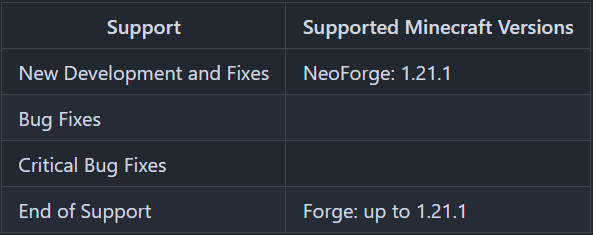
未发布该模组的 Minecraft 版本不受支持。
你可以在这里找到文本版本的支持列表 here。
服务器配置
配置文件位于“world”文件夹中的“serverconfig”文件夹内,文件名为“last_played_logger-server.toml”。世界文件夹的名称在“server.properties”文件中为服务器设置。
- active
是否启用该模组? - spreadsheetID
电子表格的 ID。 - tab_name
电子表格标签页的名称。
想知道如何获取这些数据吗?阅读“如何配置模组”。
如何配置模组
设置 Google Cloud 项目
“Last Played Logger”需要拥有一个独立的 Google Cloud 项目并启用 Google Sheets API。请按照下方列出的 Google Sheets Java 快速入门步骤操作。你只需要执行这些步骤,无需示例代码。
- 启用 API: 按照“Enable the API”下的步骤启用“Google Sheets API”。
- 配置 OAuth 同意屏幕: 按照“Configure the OAuth consent screen”下的步骤操作。
重要提示: 在“Audience”部分,选择 External。Google 的指南中说“Internal”,但这仅适用于组织的 Google Workspace 账户,不适用于普通 Google 账户。 - 创建凭据: 按照“Authorize credentials for a desktop application (Application type "Desktop app")”下的步骤操作。
在“config”文件夹旁边创建一个名为“last_played_logger”的文件夹,并将下载的 JSON 文件保存为该文件夹中的“credentials.json”。 - 发布应用: 打开你的 Google Cloud 项目的 Google Auth Platform > Audience 页面,点击“Publish app”,将发布状态从“Testing”更改为“In production”。
你无需提交应用进行审核,因为只有你自己在使用。在授权期间,Google 会显示一个“not verified”警告,你可以按照下文描述的方式跳过。
为什么要发布应用? 在“Testing”发布状态下会发生两件事:
- 只有被列为测试用户的 Google 账户才能授权该应用。其他用户在首次启动时会遇到“Access blocked: ... has not completed the Google verification process”(错误 403: access_denied)。
- Google 会在 7 天后使授权过期。之后,模组将无法再写入电子表格,你需要重新授权(参见下面的“再次授权模组”)。
如果你仍想保持“Testing”状态,你必须将自己的 Google 账户添加为测试用户:在 Audience 页面,点击“Test users”下的“Add users”,输入拥有电子表格的 Google 账户,然后点击“Save”。然后你每 7 天必须重新授权一次模组。
如何设置电子表格
你可以复制此示例电子表格以配合“Last Played Logger”使用。
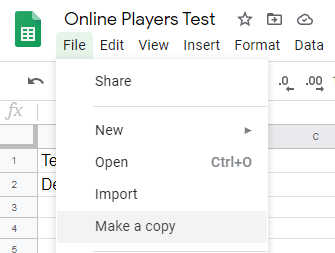
为此,你需要点击“File” > “Make a copy”。
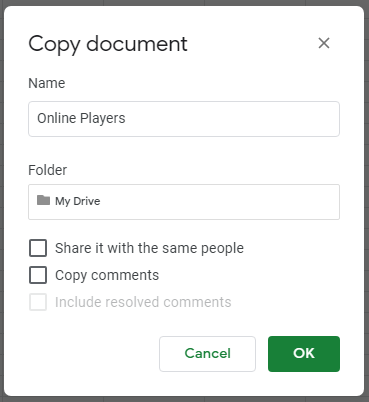
在复制窗口中,为其命名并点击“OK”。
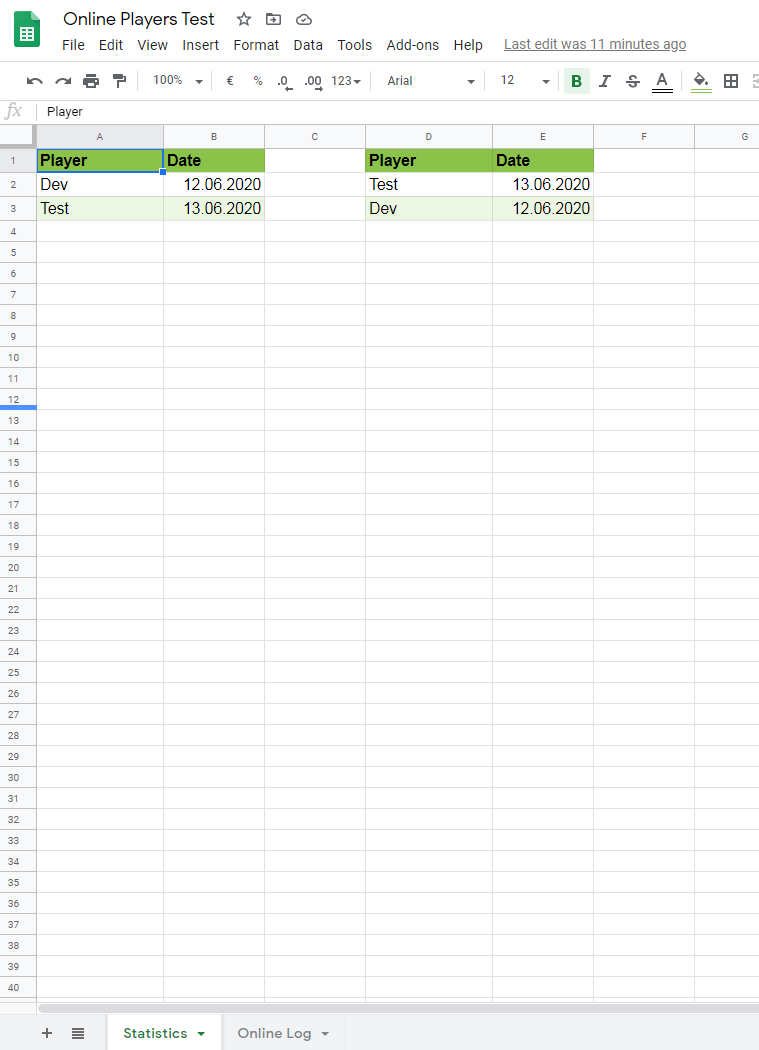
这个“示例电子表格”包含两个标签页。
在“Online Log”标签页中,“Last Played Logger”会为每个加入服务器的玩家添加一行。对于已经加入过服务器的玩家,仅更新日期。
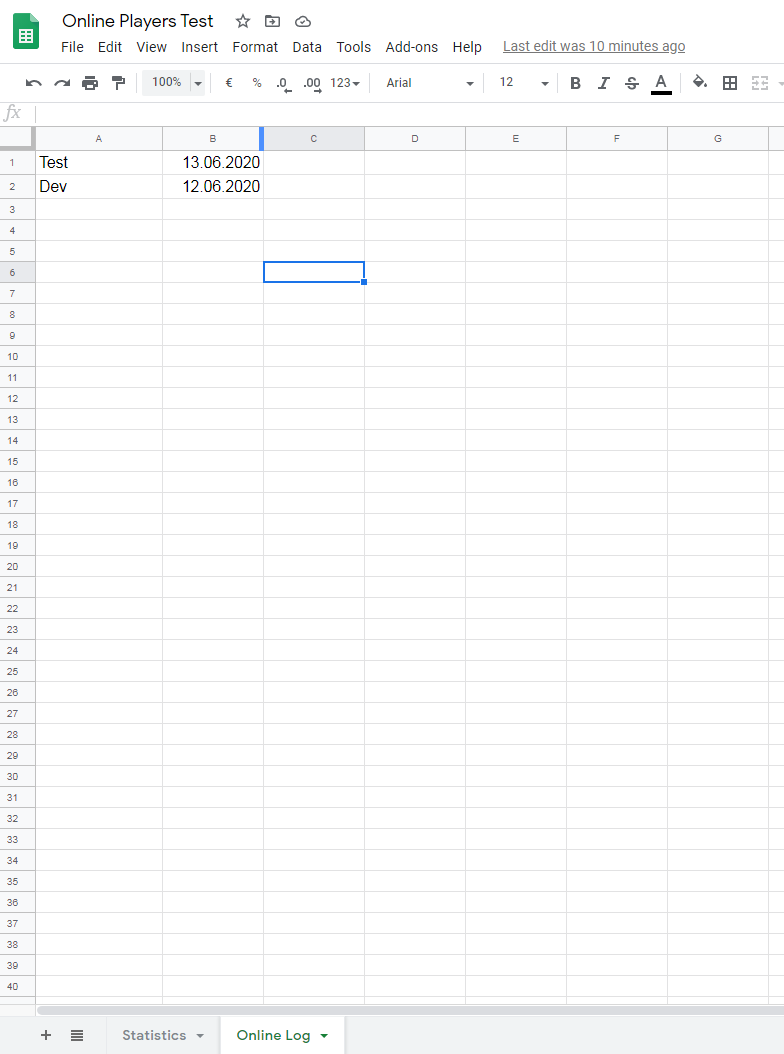
在“Statistics”标签页中,你有两个列表。左侧列表按名称显示所有玩家,右侧列表按日期显示所有玩家。最后在线的玩家位于此列表的第一位。
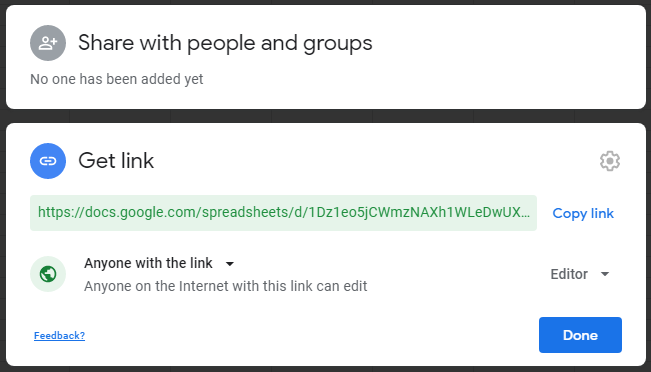
模组需要共享该电子表格。为此,你需要点击“Share”按钮。
在共享窗口中,你需要选择“Get Link”,并在“Anyone with the link”右侧选择“Editor”。
现在,在配置文件中,你需要将“active”设置为“true”,并设置“tab_name”。在此示例中,“tab_name”应为“Online Log”。
从 URL 中提取电子表格 ID。在此示例中,电子表格 ID 为“1dcoWy1ZOCEzf9wSqpsd731MKr8rBsazUVuUYafF4nzA”。

首次启动时需要做什么
在完成配置并执行完所有前期步骤后,将进入首次启动阶段以及服务器/模组的身份验证过程。
重要提示:服务器的首次启动必须在你的本地桌面电脑上进行。在后续步骤中,请勿停止服务器。
成功启动服务器且有玩家加入后,你可以在日志中找到包含以下内容的链接:
请在浏览器中打开以下地址:
*
正在尝试在默认浏览器中打开该地址…
链接可能会由你的默认浏览器自动打开。如果没有,请将链接复制到浏览器中并打开。
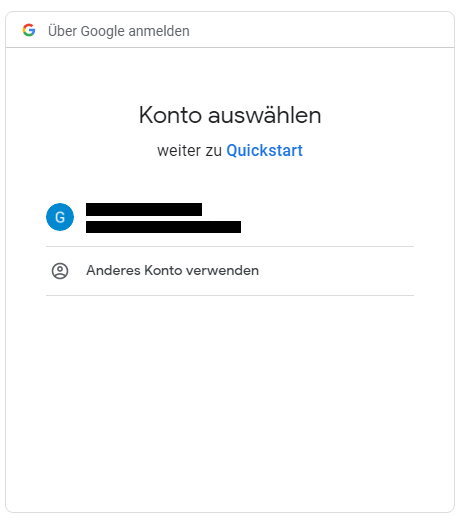
这将打开一个网站,你需要选择电子表格所有者的 Google 账户。
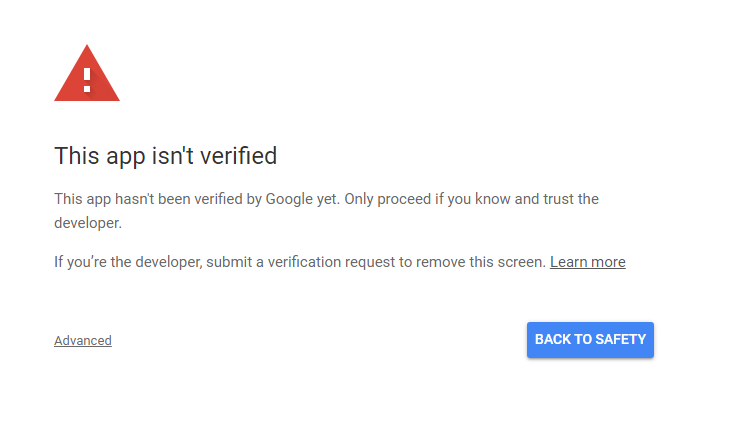
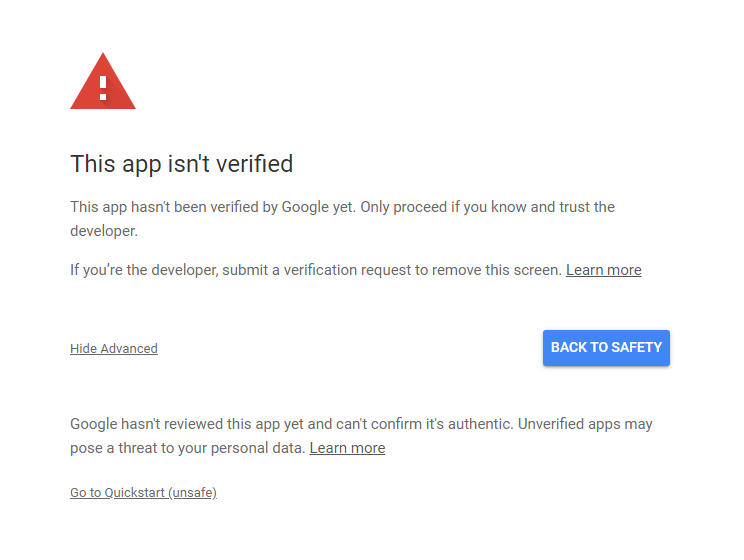
接下来,会出现一个警告,因为应用程序运行的项目尚未通过验证。你可以忽略该警告并点击“高级”。
接下来,点击「前往 <你的应用名称>」(在截图中,应用名为“Quickstart”)
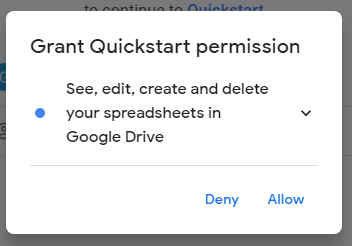
随后,会出现一个权限请求窗口,要求访问您的电子表格。点击“允许”即可授予此权限。
必须确认此权限请求。
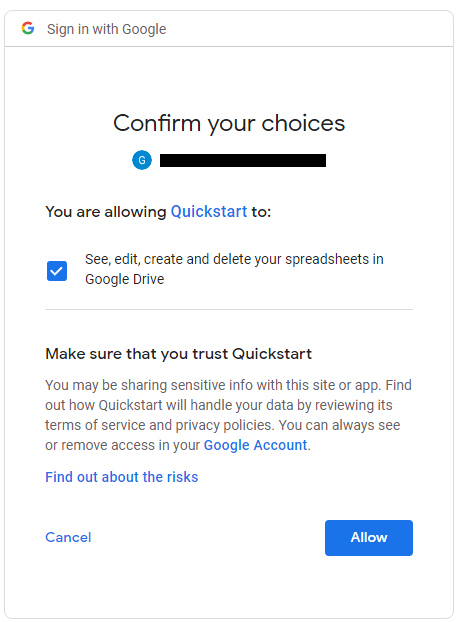
如果您授予并确认了该权限,“Last Played Logger” 将正常工作并将玩家添加到您的电子表格中。
如果您想扩大格式化区域,这里有一份教程:
授权信息保存在 “last_played_logger” 文件夹中的 “StoredCredential” 文件里。
无浏览器的服务器
授权仅在配有浏览器的计算机上有效,因为 Google 会将重定向返回到运行服务器的计算机。
如果您的服务器在未配备浏览器的租用或远程服务器上运行,请在您本地的桌面电脑上使用相同的模组、配置和 “credentials.json” 进行首次启动。
完成授权后,将本地 “last_played_logger” 文件夹中的 “StoredCredential” 文件复制到您的服务器上的 “last_played_logger” 文件夹中。
重新授权模组
如果授权已过期或被撤销,请停止服务器,删除 “last_played_logger” 文件夹中的 “StoredCredential” 文件,并重复首次启动的步骤。
感谢 Muse31 提供的 Logo。
您可以在非商业整合包中免费使用该模组,无需事先征得同意。
您可以在 CurseForge 和 Modrinth 上找到我制作的其他模组。

Version 3.X.X
For older versions of the mod, check the wiki.
This mod logs the last date a player was online/logged in into a Google spreadsheet.
It's a utility mod to help you moderate your whitelist.
It only works on the server side and won't work on the client side.
You need a server to play with friends? You don't know how to set up one? Just rent an already configured server!
Click on the picture above, select a plan (with recommended at least 6 GB),
use my code agent to get 25% off your first month and enjoy playing with your friends!
Support
Minecraft versions, for which the mod is not released, are not supported.
You can find a text version here.
Server Config
The config file can be found in the "serverconfig" folder in the "world" folder and is named "last_played_logger-server.toml". The name of the world folder is set for servers in the "server.properties" file.
- active
Shall the mod be active or not? - spreadsheetID
ID of the Spreadsheet. - tab_name
Name of the spreadsheet tab.
Wonder how do you get these data? Read the "How to configure the mod".
How to configure the mod
Set up the Google Cloud project
The "Last Played Logger" needs its own Google Cloud project with the Google Sheets API. Follow the steps of the Google Sheets Java quickstart listed below. You only need these steps, not the sample code.
- Enable the API: Follow the steps under Enable the API to enable the "Google Sheets API".
- Configure the OAuth consent screen: Follow the steps under Configure the OAuth consent screen.
Important: Under "Audience", select External. Google's guide says "Internal", but this only works with a Google Workspace account of an organization, not with a normal Google account. - Create the credentials: Follow the steps under Authorize credentials for a desktop application (Application type "Desktop app").
Create a folder named "last_played_logger" next to the "config" folder and save the downloaded JSON file as "credentials.json" in this folder. - Publish the app: Open the Google Auth Platform > Audience page of your Google Cloud project and click "Publish app", so the publishing status changes from "Testing" to "In production".
You don't have to submit your app for verification, because only you are using it. Google will show a "not verified" warning during the authorization, which you can skip as described below.
Why publishing the app? In the publishing status "Testing" two things happen:
- Only Google accounts listed as test users can authorize the app. All others get "Access blocked: ... has not completed the Google verification process" (Error 403: access_denied) during the first launch.
- Google lets the authorization expire after 7 days. After that, the mod can no longer write to the spreadsheet and you have to authorize it again (see "Authorize the mod again" below).
If you want to keep the status "Testing" anyway, you have to add your Google account as test user: On the Audience page, click "Add users" under "Test users", enter the Google account that owns the spreadsheet and click "Save". Then you have to authorize the mod again every 7 days.
How to set up the spreadsheet
You can copy this Example Spreadsheet to use it with the "Last Played Logger".
For that, you have to click "File" > "Make a copy".
In the copy window, you give it a name and click "OK".
This "Example Spreadsheet" has two tabs.
In the "Online Log" tab, the "Last Played Logger" adds lines for every player joining the server. For players already joint the server, only the date will be updated.
In the "Statistics" tab, you have two lists. The left list shows all players sorted by name and the right list shows all players sorted by the date. The player last online is the first player in this list.
For the mod it's needed, that the spreadsheet is shared. For that you have to click onto the "Share" button.
In the Share window you have to select "Get Link" and on the right side of "Anyone with the link" you have to select "Editor".
In the config, you now have to set "active" to "true" and set the "tab_name". In this example the "tab_name" has to be "Online Log".
From the URL, you have to extract the spreadsheet ID. In this example, the spreadsheet ID is "1dcoWy1ZOCEzf9wSqpsd731MKr8rBsazUVuUYafF4nzA".
What is to do on the first launch
When you have finished the config and done all previous steps, it gets to the first launch and the authentication of the server/mod.
Important: The first launch of the server has to be on your local desktop pc. During the following steps don't stop the server.
After you launched the server and a player joined, you find in the log a link with the following lines:
Please open the following address in your browser:
*
Attempting to open that address in the default browser now…
Maybe the link is opened by your default browser automatically. If not, copy the link to your browser and open it.
It opens a website where you have to choose the Google account, from the owner of the spreadsheet.
Next, there opens a warning because your project on which the application is running is not verified. You can ignore the warning and click "Advanced".
Next, you click on "Go to <Name of your app>" (in the screenshot the app is named "Quickstart")
After that, a permission request is showing up, that wants to access your spreadsheets. "Allow" clicking will grant this permission.
This permission request has to be confirmed.
If you grant the permission and confirmed it, the "Last Played Logger" will work and add players to your spreadsheet.
If you want to enlarge the formatted area, here is a tutorial:
The authorization is saved in the file "StoredCredential" in the "last_played_logger" folder.
Server without browser
The authorization only works on a computer with a browser, because Google redirects back to the computer, on which the server is running.
If your server runs on a rented or remote server without a browser, do the first launch with the same mod, config and "credentials.json" on your local desktop pc.
After the authorization, copy the "StoredCredential" file from the local "last_played_logger" folder into the "last_played_logger" folder of your server.
Authorize the mod again
If the authorization has expired or was revoked, stop the server, delete the "StoredCredential" file in the "last_played_logger" folder and do the steps of the first launch again.
Thanks for the logo to Muse31.
You can use this mod in non-commercial modpacks without asking.
You can find more mods from me on CurseForge and Modrinth.

下载 Last Played Logger
下载 Last Played Logger
下载 Last Played Logger
需要联机服务器吗?
稳定流畅、一键部署,几分钟即可和朋友联机开服
最低仅需 8 元/月 即可畅快联机
下载 Last Played Logger
下载 Last Played Logger
需要联机服务器吗?
稳定流畅、一键部署,几分钟即可和朋友联机开服
最低仅需 8 元/月 即可畅快联机
下载 Last Played Logger
下载 Last Played Logger
下载 Last Played Logger
下载 Last Played Logger
下载 Last Played Logger
- 支持 NeoForge 26.3.0.37 及更高版本:服务器配置文件已使用新的配置类型进行注册(Minecraft 26.1 - 26.2 的 jar 包在此版本下会崩溃)
- 已有的世界配置文件
<world>/serverconfig会被复制一次到<world>/syncedconfig,因为 NeoForge 26.3 仅从该位置读取世界配置文件(专用服务器;在单人游戏中请手动移动文件)
关于这个资源的讨论、问题反馈与使用心得
还没有讨论,来发第一帖吧
你是这个资源的作者?登录后可认领此资源。
相似资源
 模组

显示你正在注视的方块的信息。(适用于 Minecraft 1.16+ 的 Hwyla/Waila 分支)
 模组
在游戏画面角落显示附近世界地形、玩家、生物和实体的地图。可创建路径点,帮助你找到标记过的位置。
 模组

查看物品与配方
 模组
使用 JavaScript 编辑配方、添加自定义物品、编写世界事件!
 模组
AE2:一款流行的自动化与存储模组
 模组
那是什么?一个 Waila/Hwyla 的分支。
评论 0
登录后参与评分
还没有评论,来抢沙发吧