LittleVecX 1.12.2 
LittleVecX 1.12.2 是专为 LittleTiles 1.12.2 打造的附加模组,基于其 API 构建。它为旧版游戏扩展了 LittleTiles 的功能,并添加了一些原创理念,同时重新实现了新版 LittleTiles 中的部分特性。与此同时,本版本也作为 LittleVecX 1.21.1 背后设计理念的展示——后者是一个针对更新版 LittleTiles 的大型、更完善的模组,除了核心功能外,还支持任意角度建造,并整合了许多建造相关的创意,以及众多其他新功能与改进。
LittleVecX 的开发得到了 KharkivTiles 项目的大力支持——该项目致力于在 Minecraft 中以 1:1 的比例使用 LittleTiles 重建一座真实城市。未来,这些重建的现实地点将在 KharkivTiles 的主题资源包(RP)服务器中供玩家探索。
此附加模组需要 Forge 14.23.5.2855,以及 CreativeCore v1.10.71 和 LittleTiles v1.5.87。
LittleVecX 1.12.2 提供哪些内容?
建造与配置的质量生活体验优化
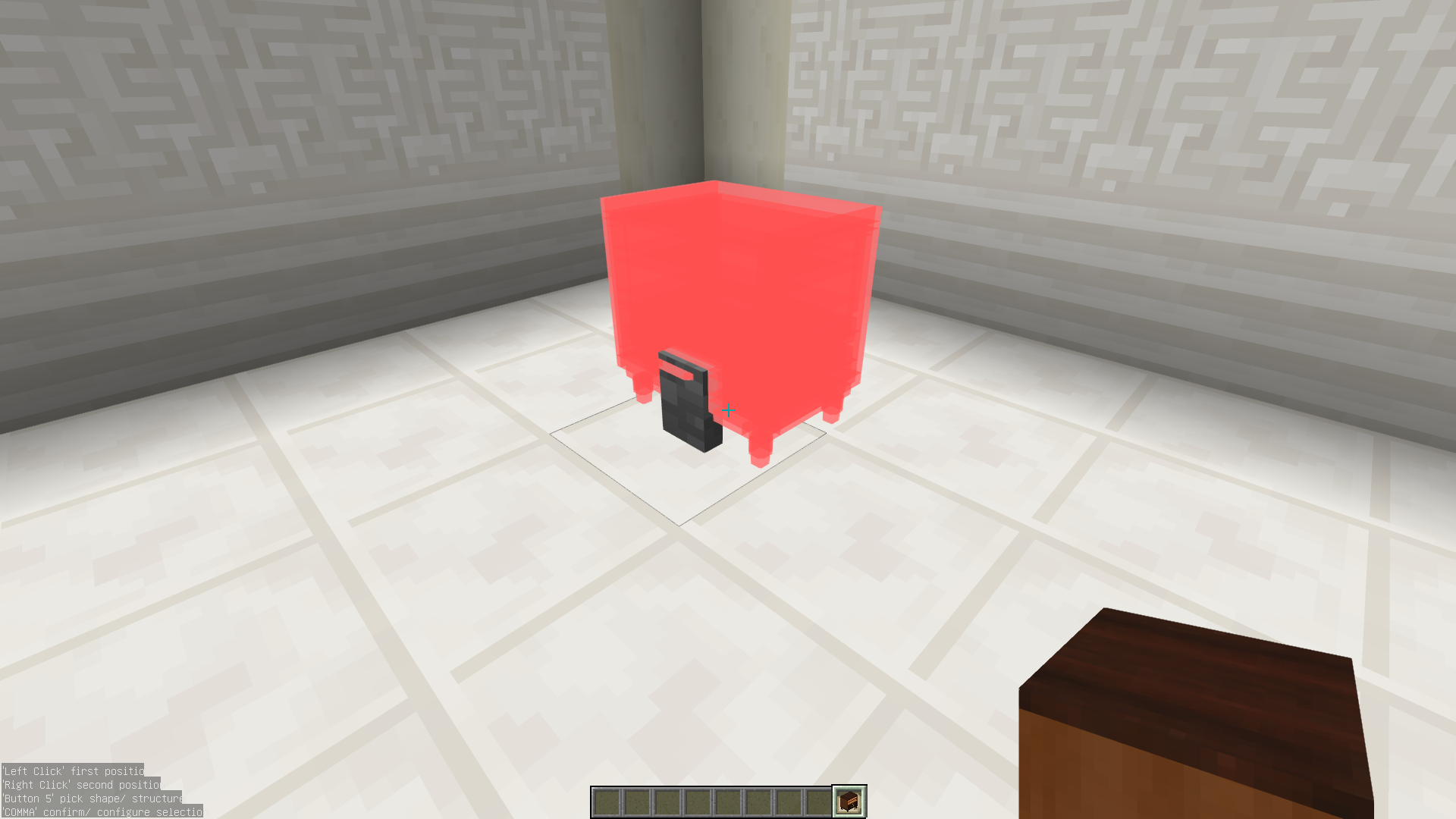
- 红色放置预览。 当结构无法放置时,其预览会变为红色。这让你在实际尝试放置之前就能立即明确该结构无法放置于此。
- 信号配置界面中的搜索功能。 放大镜按钮可打开对可用输入源的搜索:输入名称的一部分即可将所需的信号直接添加到表达式中。对于拥有大量信号列表的大型建筑尤为实用。

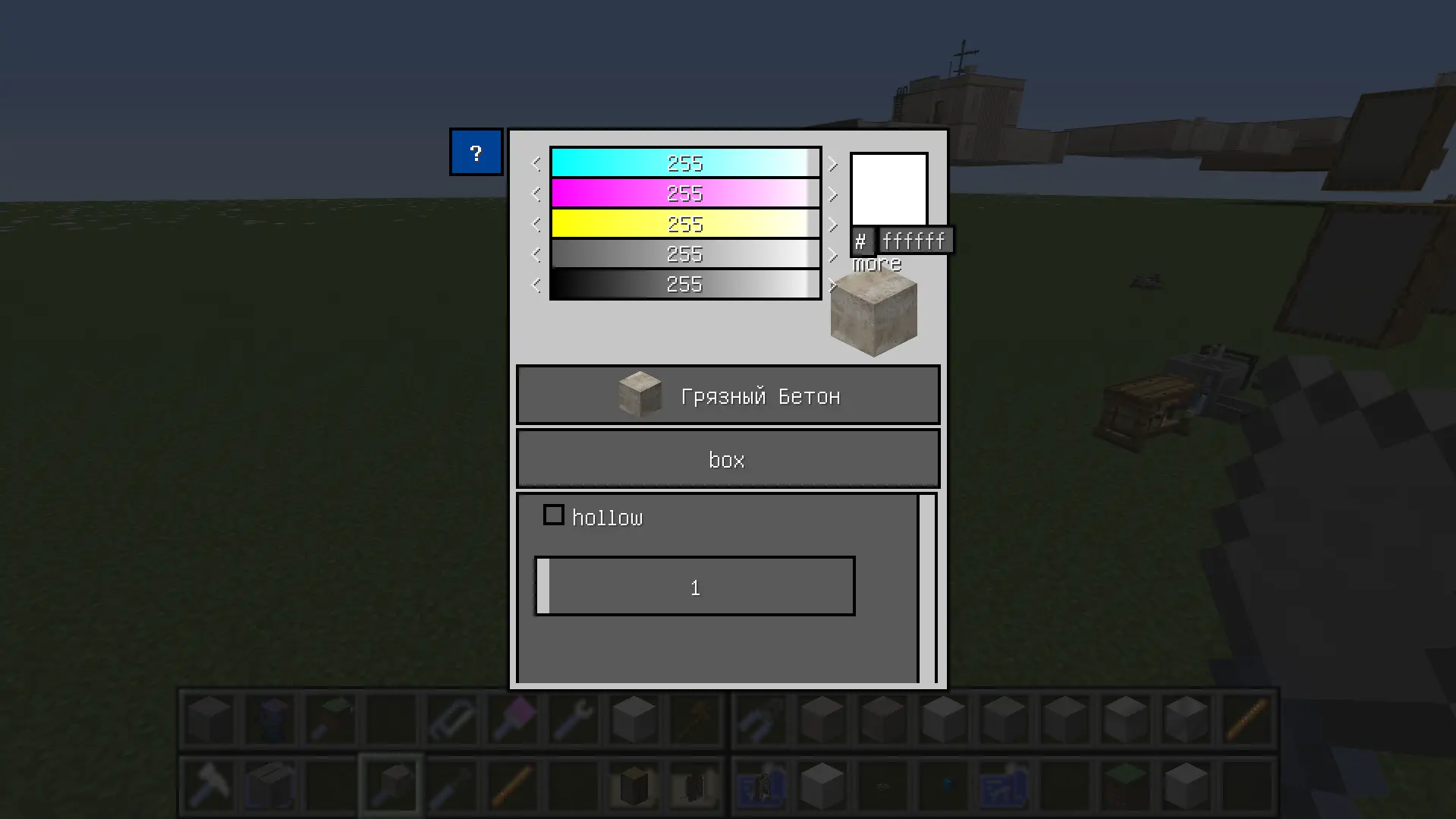
- HEX 颜色输入。 HEX 功能已回溯移植至 1.12.2,工作方式与新版的 LittleTiles 相同。# 按钮几乎在所有拾色器中都会打开一个 HEX 输入框。输入或粘贴六位 RGB 代码即可即时更改颜色,或者复制代码以便在其他工具中使用相同的颜色。
- ALT + 鼠标滚轮自定义缩放。 缩放时不会出现 OptiFine 缩放常见的“漂浮”感,且滚动滚轮可调整缩放距离——让你能够更精确地建造和处理极小的方块。
工业配方 
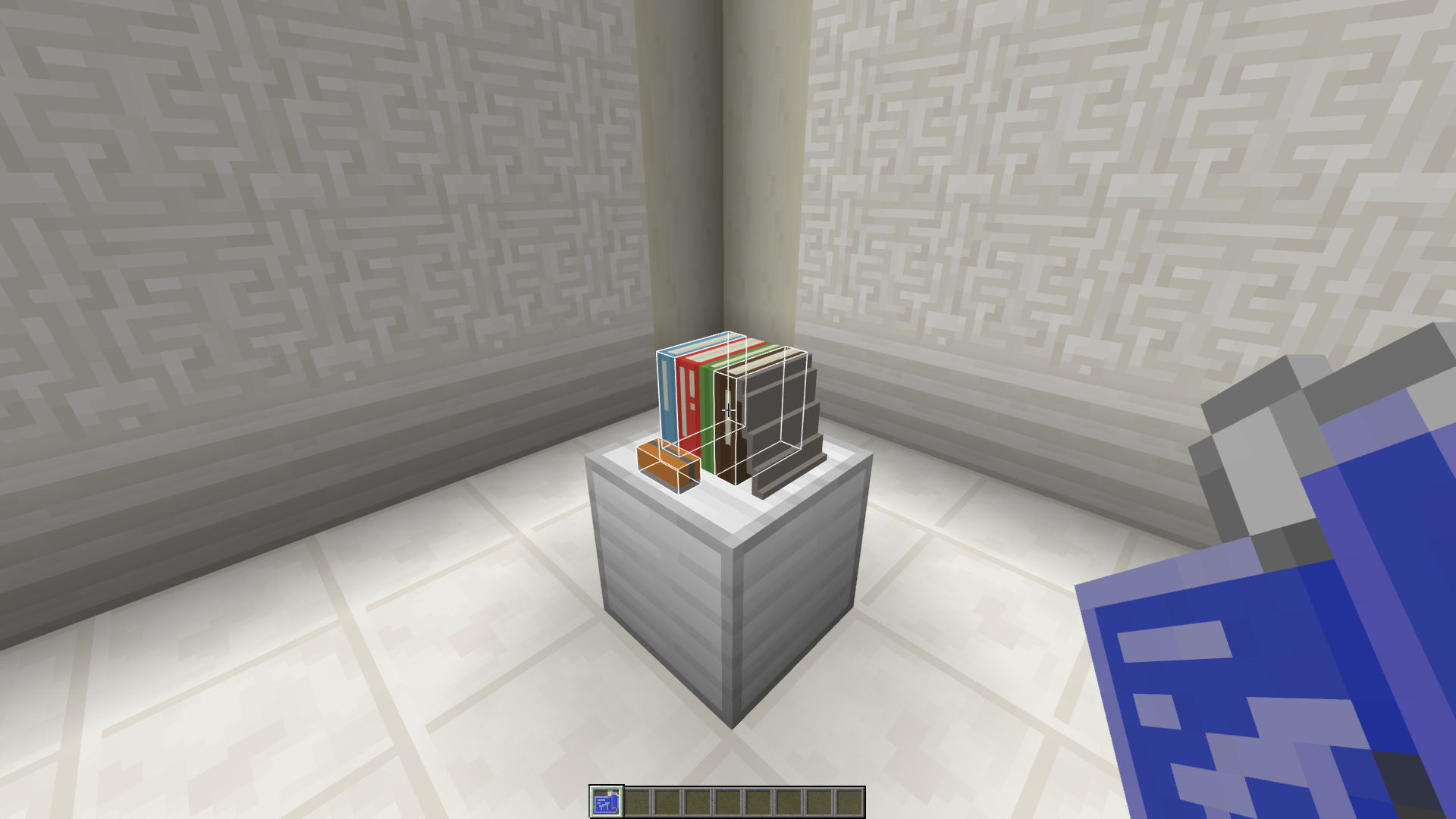
LittleTiles 创造模式标签页中的一个独立物品,它添加了多区域选择功能,并结合了新版的提取选择特性。通过该配方,你可以在一个小网格上一次性选择多个区域,并将所有选中的内容存储到配方中以供编辑。例如,在装饰室内时,你可以一次性选中房间不同角落的三个相同架子,然后一次性复制它们,而不必单独处理每一个。
- [ — 将当前选择复制到配方中,并立即在原先选择的位置放置预览以便进行放置。
- ] — 以与 [ 相同的方式放置预览,但会移动内容而非复制,从而移除原始内容。
- X — 删除当前选择区域内的所有内容(方块)。
- Shift + 左键点击 — 默认清除所有区域。
- Z / Y — 撤销上一次选择的区域 / 重做该操作。
- M — 当存在已有区域时,使用方向键微调世界范围内最后一个选择点的位置。
这对于快速建造尤其有用:在 1.12.2 中,你以前必须将小细节复制到配方中,放置它们,清理多余部分,再次复制,最后才能放置结果。现在,你可以一次性选择多个小型物体,并通过单个按键复制或移动所需内容。
Z 和 Y 在此无需配合 Ctrl 键即可工作——Z 撤销上一次选择的区域,Y 可重做该操作,且这些键仅在手握工业配方时对自身的选择区域生效。
工业配方还内置了一把“工业螺丝刀”,配有扩展过滤器——当手握配方时,默认按 V 键打开,它使用与配方相同的区域选择逻辑。
工业螺丝刀

此工具不会改变原版 LittleTiles 1.12.2 的普通螺丝刀。相反,它添加了一个独立的“工业螺丝刀”——本质上仍是同一把螺丝刀,但增加了额外的颜色过滤器。配合微网格多区域选择功能,它可以让你更精确地更改颜色或替换方块。
该工具还将重型选择的处理分散到多个刻(ticks)中进行,因此当在处理重型操作时,游戏不会出现卡顿。螺丝刀的处理速度可在配置文件中调整:screwdriverBlocksPerTick(每刻处理的方块数)、screwdriverBoxesPerTick(每刻处理的箱子数)等。
钳子 
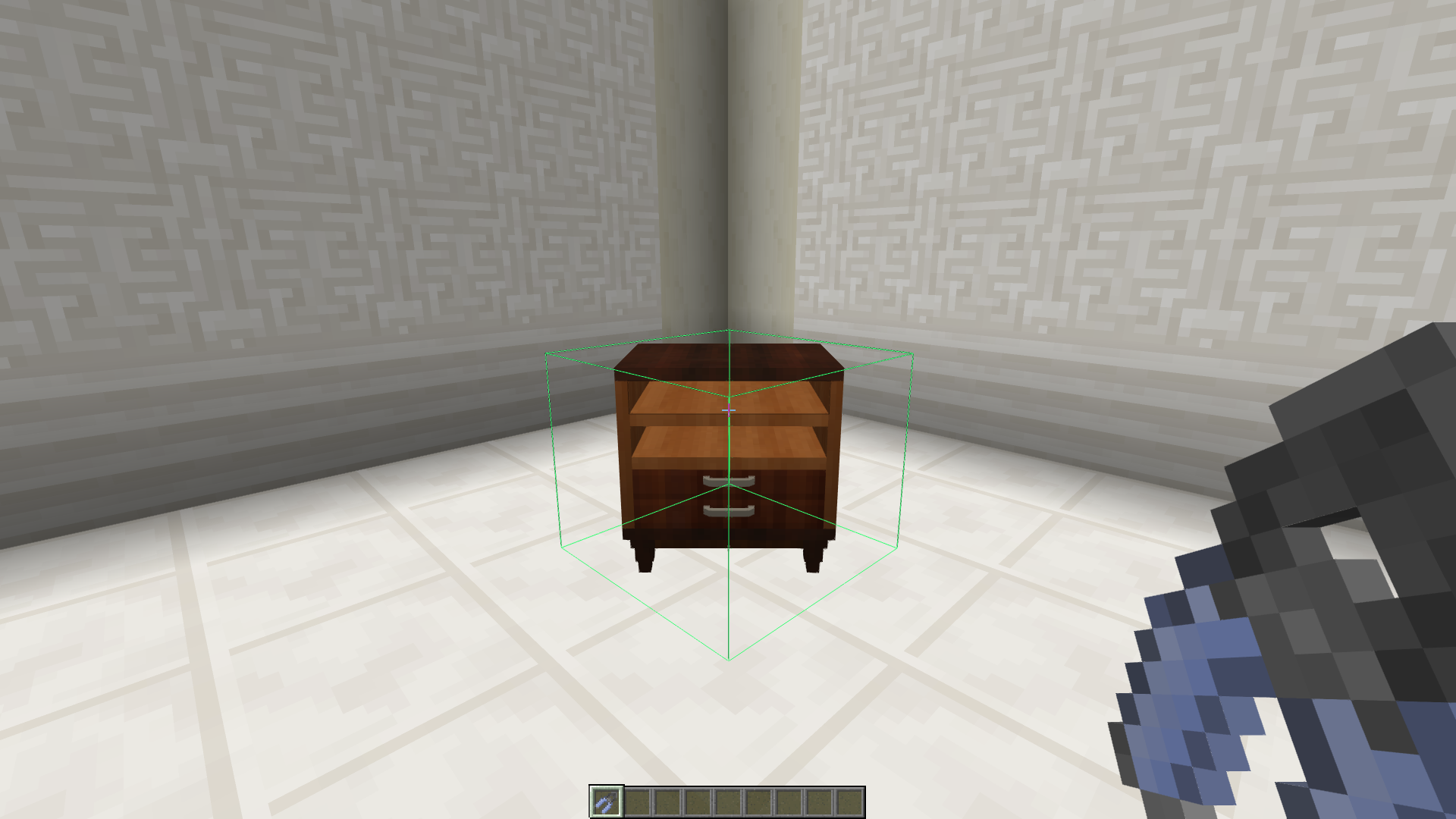
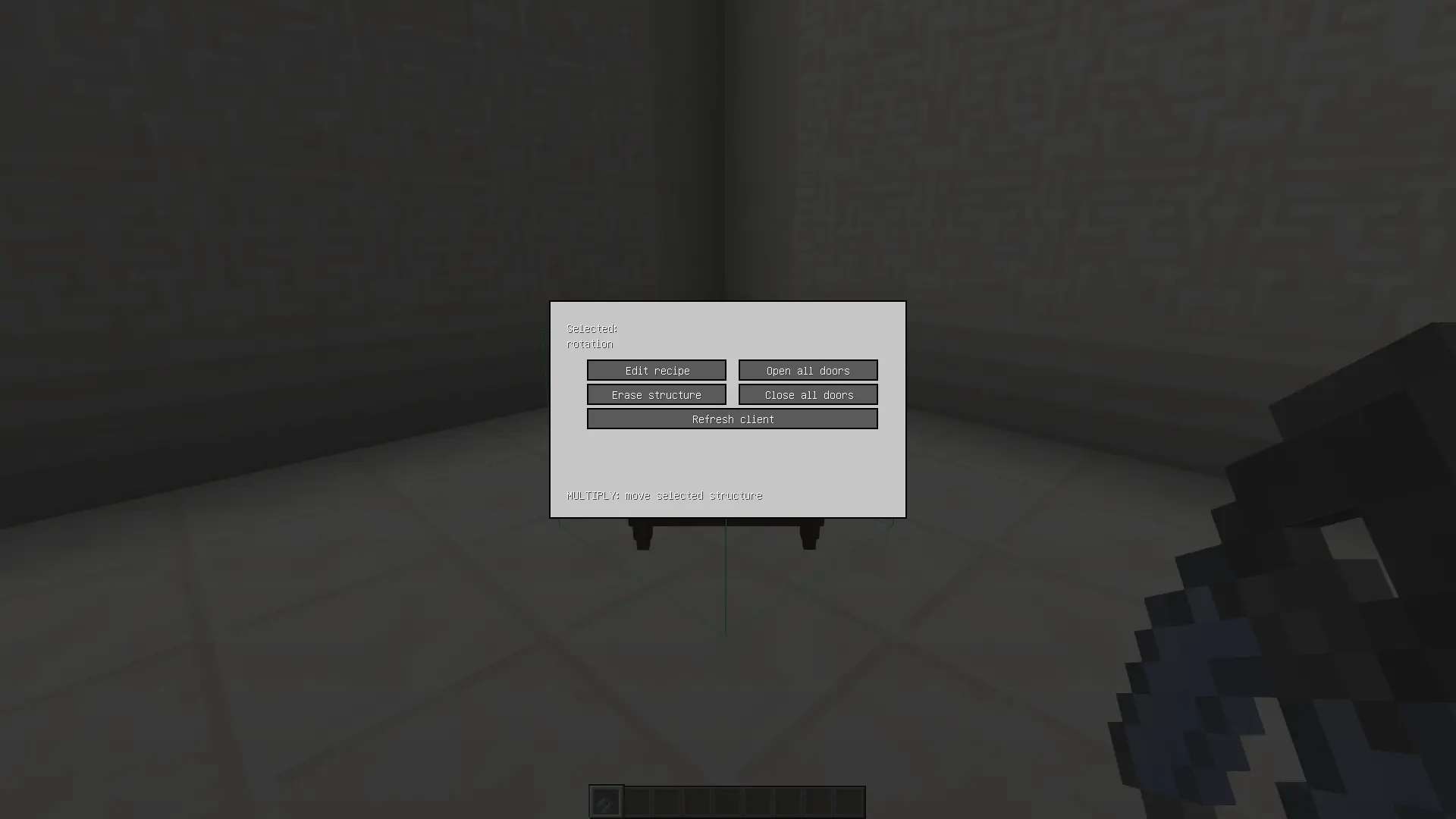
主要用于配置和定位旋转结构。右键点击一个旋转结构以选择它进行编辑,然后按 C 打开其设置菜单,或按 M 使用方向键移动它。对于任何其他具有自己设置的结构(动画、固定结构),使用钳子右键点击它会打开其配方,并允许你直接在世界中配置该结构,即使它已经被放置。
激活器 
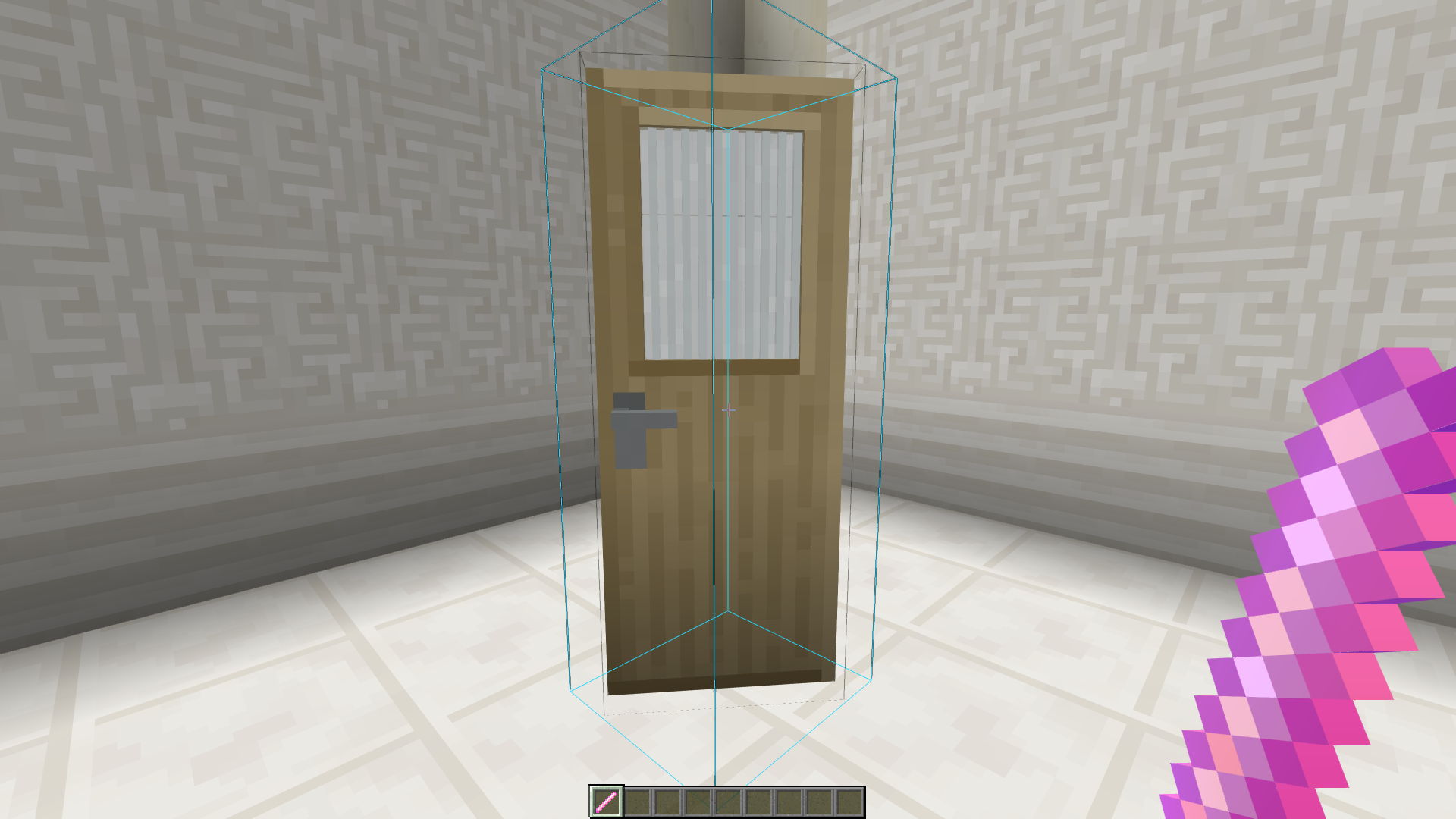
用于激活和停用在其设置中禁用了右键点击激活的动画。激活器主要用于调试和测试复杂设置中的动画——有了它,你不需要为了快速测试而在动画旁边放置拉杆或按钮。
基于 LittleTiles 动画系统构建的结构(Animator)
旋转
一种将准备好的建筑转变为具有选定轴线的旋转结构的独立配方。配置方式与高级门相同。
在使用 工业配方 放置结构时,你可以旋转放置预览以确切查看结构的位置。
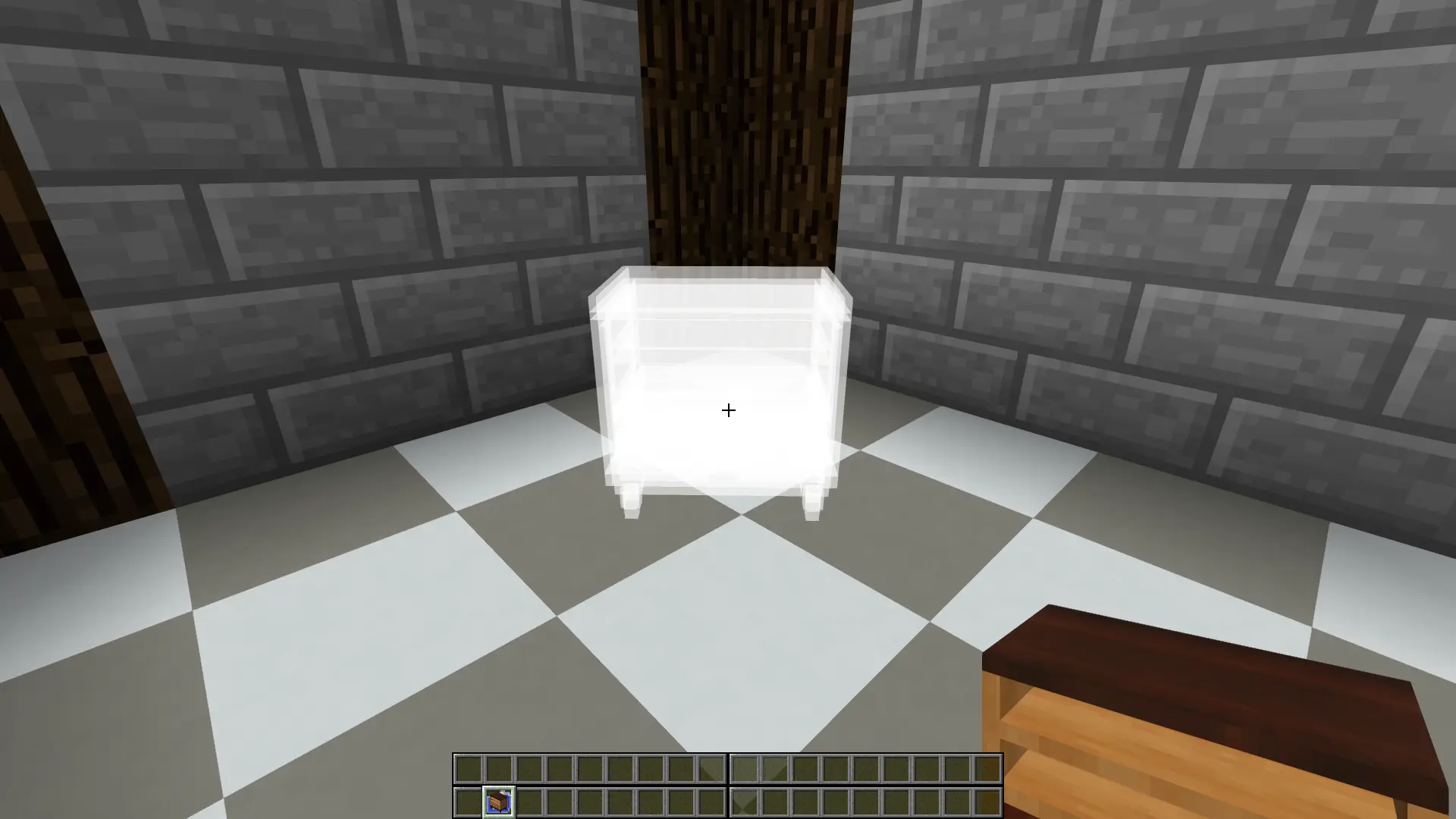 借助它,你可以放置一个始终旋转到你设定的角度的结构——例如风向标、指针箭头或倾斜的标志牌。适用于小型装饰甚至整个旋转房屋,但请注意——这更有可能导致问题而非值得这样做。
多重动画
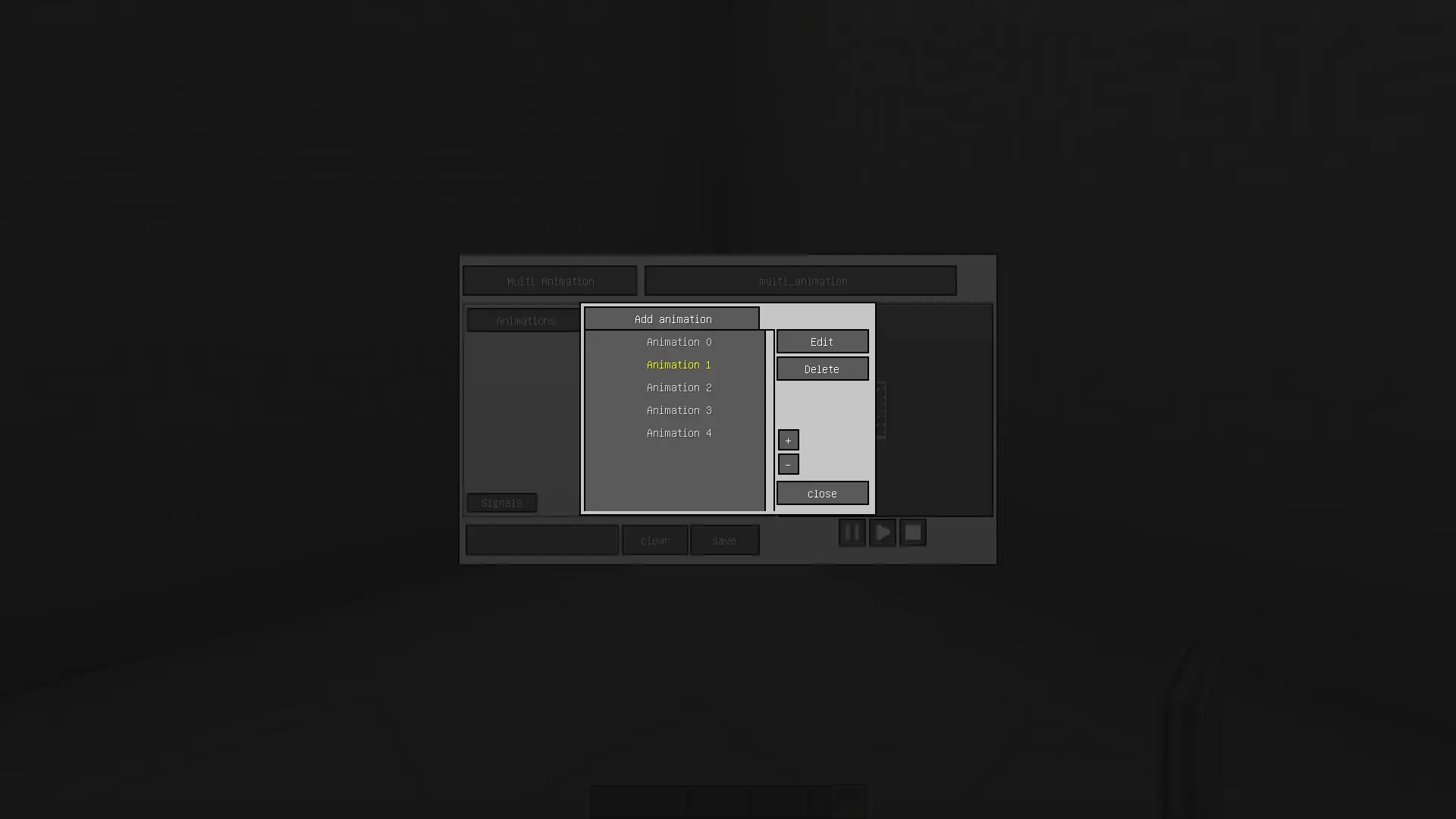
多重动画允许你用不同的场景激活动画,并一次性为单个结构添加多个动画。例如,你可以制作一个窗户,除了主要的开启运动外,还可以倾斜打开以通风——这种风格在欧洲尤为常见。
多重动画提供了一个方便的界面来配置每个单独的动画——配方允许你设置每个场景,包括为每个动画单独设置轴线。
特定动画的激活可以绑定到 右键点击、Shift + 右键点击,或者完全禁用以便通过信号控制。结构暴露了索引端口 animation_0、animation_1 等。它们的数量是可配置的。
叠加动画
多重动画的一种变体,用于单个结构上的分层运动。它几乎使用了与多重动画相同的配置界面。区别在于,当结构关闭时,它不是在特定动画之间切换,而是叠加所有已激活动画的组合偏移量,对重叠的数量没有限制。例如,你可以取一个小人物或任何其他结构,将几个动画绑定到不同的按钮上——前进、后退、左、右——并通过按下这些按钮来移动它。这个原理可用于构建简单的迷你游戏。动画设置中的“障碍物”设置在这里也很有用——如果块或瓦片已经在路上,它可以防止步骤发生。
检查点动画
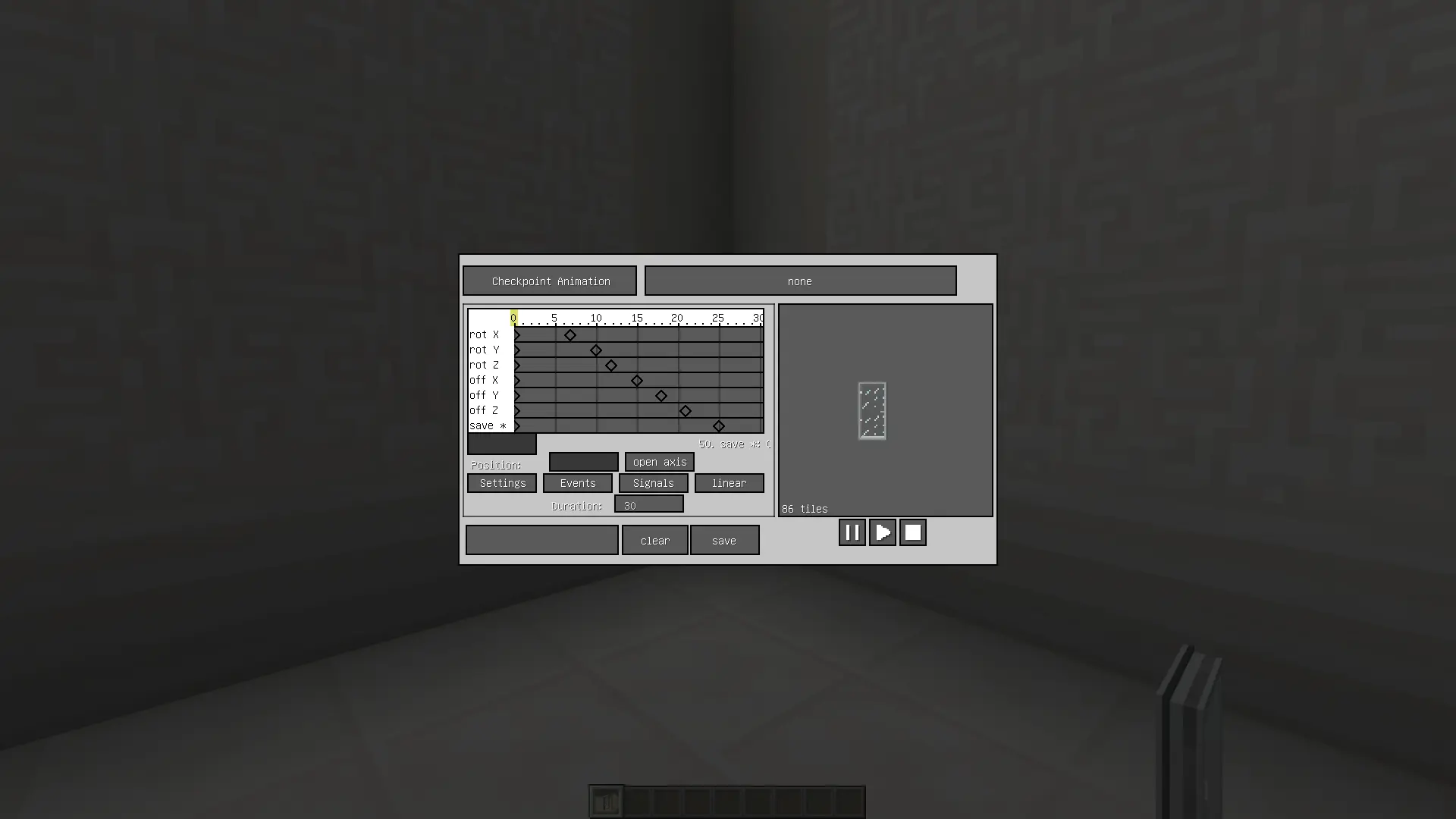
沿单个运动时间线添加逐步移动通过保存的点。你在轨道上添加一个点,激活后结构会移动到该点。默认情况下,右键点击 使结构向前通过这些点,而 Shift + 右键点击 使其返回到上一个点。
检查点动画具有 checkpoint_N 信号:它们将结构从其当前位置移动到选定的点,包括沿时间线的平滑反向移动。
循环动画
一种用于连续重复运动的配方——例如风扇叶片、齿轮或传送带。循环增加了加速和减速参数(以刻为单位),使运动开始和停止更加平滑;值为 0 则保持瞬间启动/停止。加速和减速在配方的设置中进行配置。
电梯
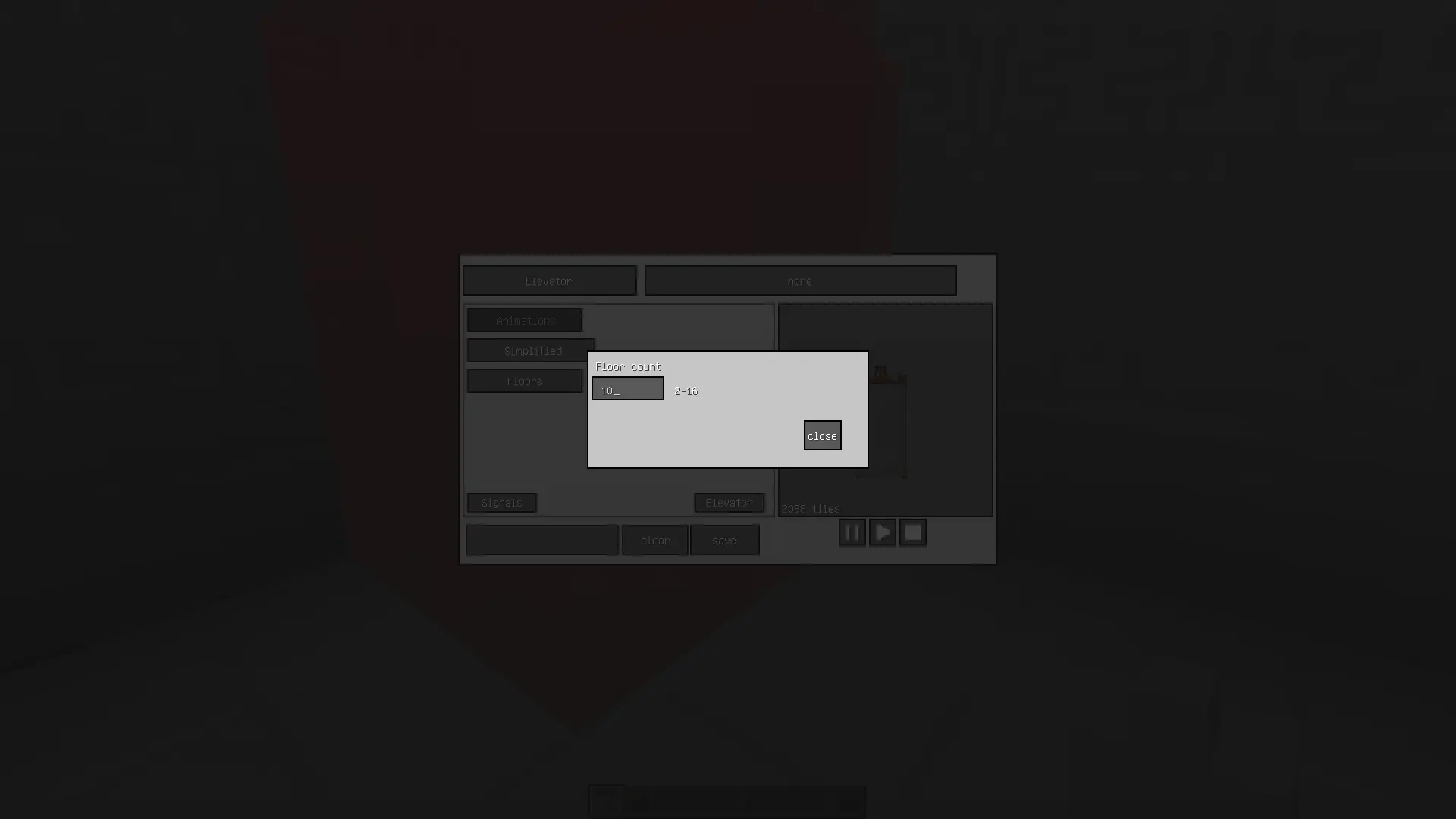
电梯是一个多层电梯,具备广泛的设置和信号功能。楼层数量通过在配方内结构设置中的“楼层”按钮进行设定。
有两种配置模式:
- 简化模式(默认)—— 设置楼层间距和轿厢速度。
- 自定义动画(在配方的设置菜单中通过“电梯”按钮启用)—— 允许分别配置上升和下降的移动动画,并为每个方向设置自定义动画。
同一个设置菜单还允许启用“轿厢移动时忽略呼叫信号”。默认情况下,电梯会在移动过程中记住收到的下一个呼叫信号,并在到达后前往该楼层。此外,电梯还可以在触发 stop 信号后的任意时刻停止其运动。
⚠️ 重要警告: 在与嵌套在电梯轿厢内的任何动画进行交互之前,请使用“激活器”——只需用激活器点击轿厢,电梯将上升一层。这是为了让电梯提前进入动画状态,避免在激活嵌套动画时出错。另外,首次激活嵌套动画时,站在轿厢区域内的玩家可能会被向上弹射——在每次嵌套动画被激活一次后,一切将恢复正常。
电梯信号
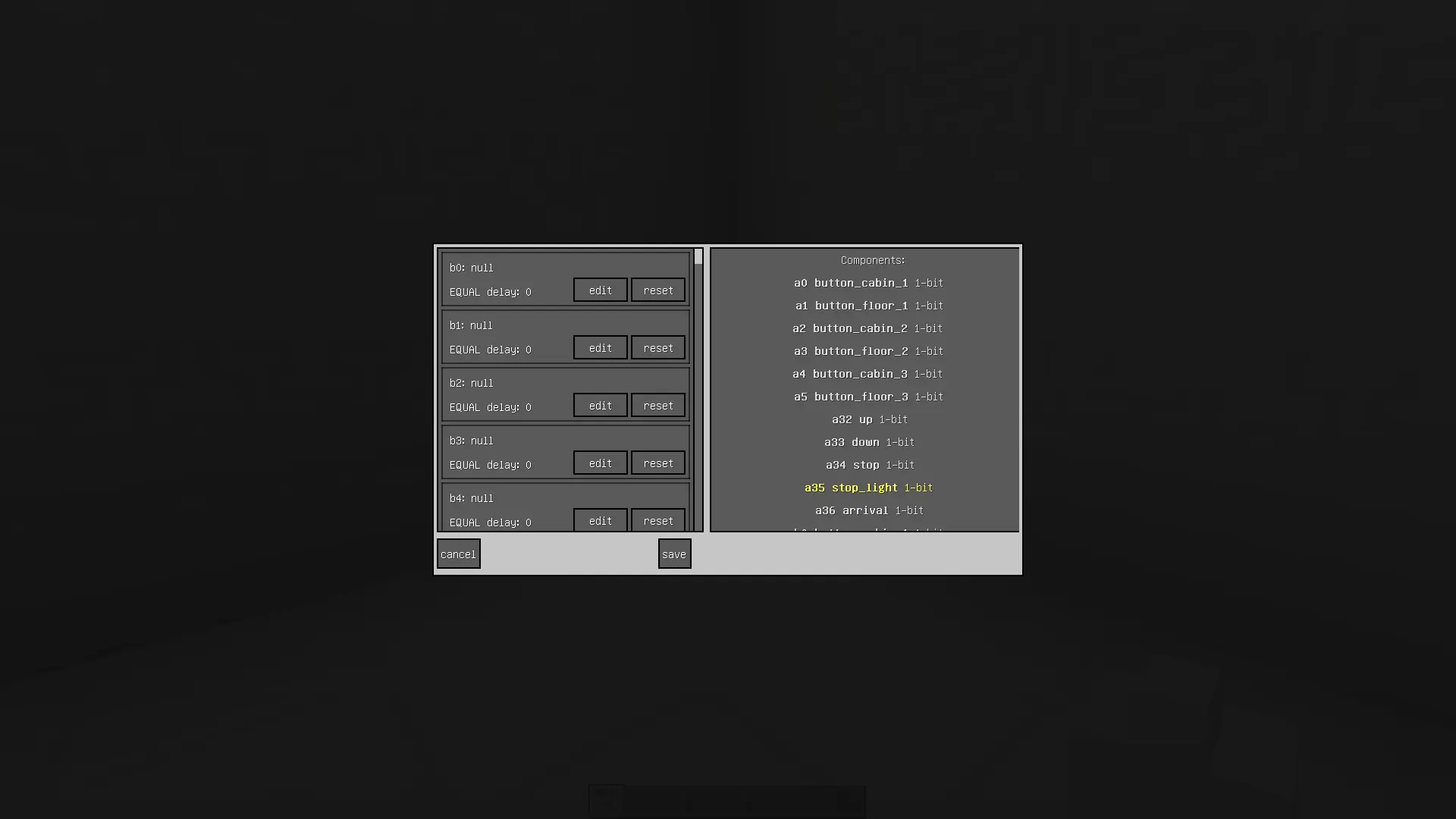
电梯拥有许多专属信号,以便便捷使用和自定义逻辑。
button_cabin_N 和 button_floor_N 用于呼叫轿厢前往特定楼层——每个信号都有编号,你可以将任何需要触发轿厢呼叫的设备(如门、按钮或其他触发器)连接到这些信号上。为了方便起见,这里提供了两个信号:button_cabin_N 用于轿厢内部的按钮,button_floor_N 用于轿厢外部的按钮。当轿厢停在特定楼层时,current_floor_N 信号处于激活状态——这对于触发门或在到达时设置特殊条件非常有用。
楼层信号的数量在配置文件中设定,默认为 16。对于每一层 N,提供以下信号:
附加信号:
up 将轿厢向上移动一层。down 将轿厢向下移动一层。stop 在轿厢移动时立即停止它;需要再次触发该信号才能使轿厢恢复移动。stop_light —— 与 stop 相同,但可以通过再次触发 stop_light、stop、up/down 或任何其他轿厢呼叫来恢复移动。arrival 只要轿厢位于任意楼层就会激活——适用于只关心“轿厢已到达”这一事实,而不关心具体是哪一层的情况。
附加结构体
创意存储
一个独立的存储空间,不受结构体中存储方块数量的限制——相反,你可以设置任意数量的槽位。
可见性
切换 visible 信号可以使结构体中的方块变得不可见或重新可见——让你能够在触发器激活时显示装饰物。将可见性结构体与任何存储结合使用,可以根据存储中是否有物品来使物品在视觉上出现或消失。ALET 的修改器也可以实现类似的方块变化,但这种模式更专门用于此目的。
壁纸
通过右键点击壁纸,将链接方块的材质更改为玩家手持的任何方块。非常适合快速重绘大面积表面——例如更换房间内的壁纸或建筑的外立面——而无需重建结构体。支持方块物品 (ItemBlock)。允许和禁止的方块在配置文件中设置;默认启用黑名单,其中包含 minecraft:grass,因为该特定方块会导致奇怪的行为。当 Blacklist mode = true(黑名单模式 = 真)时,白名单和允许的模组 ID 列表将被完全忽略——仅应用 Blocked block ids(禁止的方块 ID)。
家具
一种专门用于家具的结构体,最初设计用于服务器——它可以吸附到角落,并且只能放置在平坦的表面上。
配置
LittleVecX 提供了一个 Mods → LittleVecX → Config(模组 → LittleVecX → 配置)界面。其中包括:
- 动画和电梯端口的数量——更改此设置需要重启游戏;
- 壁纸方块的白名单或黑名单;
- 工业螺丝刀的队列设置;
- 详细的诊断日志记录。
日志记录默认关闭,旨在用于诊断动画、电梯、选择和网络操作。
LittleVecX 适合谁
LittleVecX 适合那些已经在使用 LittleTiles 构建,并希望超越基础功能的任何人。如果你曾经希望更精确地编辑微小细节,想要建造一个真正功能齐全的多层电梯,通过分层动画让建筑栩栩如生,或者赋予建筑更灵活的内部逻辑——这个模组正是为此而设计的。它也适合那些希望在 1.12.2 版本上使用较新 LittleTiles 版本部分功能的任何人。
背景故事
LittleVecX 的想法源于我自己的需求:我使用的是 1.12.2 版本进行建造,因为这是我的主要项目所在的版本,而 LittleTiles 的基础功能对我来说不够用。随着时间的推移,对 1.12.2 模组的开发搁置了很长一段时间——我将地图迁移到了更新的游戏版本,并转而继续为 1.21.1 开发 LittleVecX。
但随着时间的推移,很明显有些人仍然在 1.12.2 上进行建造——有些人是因为其他仅限该版本且从未移植到更新版本的模组,另一些人则单纯是因为那个版本让他们感到更熟悉和舒适。因此,我决定将 1.12.2 的模组正式发布第一个公开版本。我试图修复我所知的每一个 bug 和问题,但该模组仍远非完美。未来不太可能看到重大更新——但如果我有时间,我会回来修复堆积如山的 bug。
鸣谢
感谢 CreativeTeam 开发了 LittleTiles 和 CreativeCore <3
还要感谢 Docvin 创建了 ALET 1.12.2,我从其中的一些解决方案中汲取了灵感。
特别感谢所有关注开发的人——没有你们,LittleVecX 就不会登上主要的模组页面。
链接
LittleVecX 1.12.2
LittleVecX 1.12.2 is an addon for LittleTiles 1.12.2, built through its API, that extends LittleTiles' functionality for the old game version and adds several original ideas along with some reimplementations of features from newer versions of LittleTiles. At the same time, this version serves as a showcase for part of the ideas behind LittleVecX 1.21.1 — a larger, more polished mod for newer LittleTiles versions that, on top of its core features, adds support for building at any angle and brings together many ideas for building, along with various other new features and improvements.
LittleVecX is developed with support from the KharkivTiles project — an effort to recreate a real city in Minecraft at a 1:1 scale using LittleTiles. In the future, the recreated real-world locations will be explorable on KharkivTiles' themed RP server.
The addon requires Forge 14.23.5.2855, along with CreativeCore v1.10.71 and LittleTiles v1.5.87.
What does LittleVecX 1.12.2 offer?
Building and configuration quality-of-life
- Red placement preview. When a structure can't be placed, its preview turns red. This makes it immediately obvious, before you even attempt placement, that a structure can't go there.
- Search in the signal configuration screen. A magnifying-glass button opens a search over the available inputs: type part of a name and add the signal you need straight into the expression. Handy in large builds with a long list of signals.
- HEX color input. HEX was backported and works the same way as in newer versions of LittleTiles. The # button opens a HEX field in almost every color picker. Enter or paste a six-digit RGB code to change the color instantly, or copy the code to use the same color in another tool.
- Custom zoom on ALT + mouse wheel. Zooms in without the "floating" typical of OptiFine's zoom, and scrolling the wheel lets you adjust the zoom distance — letting you build and work with very small tiles more precisely.
Industrial Recipe
A separate item in LittleTiles' creative tab that adds multi-selection and combines it with the Extract selection feature from newer LittleTiles versions. The recipe lets you select several areas at once on a small grid and store everything selected inside the recipe for editing. For example, when decorating an interior, you can select three identical shelves in different corners of a room in one motion and copy them all in a single pass, instead of handling each one separately.
- [ — copy the current selection into the recipe and immediately place the preview for placement exactly where the selection was.
- ] — places the preview the same way as [, but moves the content instead of copying it, removing the original.
- X — delete the contents (tiles) inside the current selections.
- Shift + Left Click — clears all areas by default.
- Z / Y — undo the last selected area / redo it.
- M — with an existing area, use the arrow keys to fine-tune the position of the last selection point in the world.
This is especially useful for fast building: previously in 1.12.2 you had to copy small details into a recipe, place them, clean up anything extra, copy again, and only then place the result. Now you can select several small objects at once and copy or move what you need with a single key.
Z and Y work here without Ctrl — Z undoes the last selected area, Y can redo it, and these keys only apply to the Industrial Recipe's own selection areas while it's in hand.
The Industrial Recipe also comes with a built-in "Industrial Screwdriver" with extended filters — by default it opens with the V key while the recipe is in hand, and it uses the same selection areas as the recipe.
Industrial Screwdriver
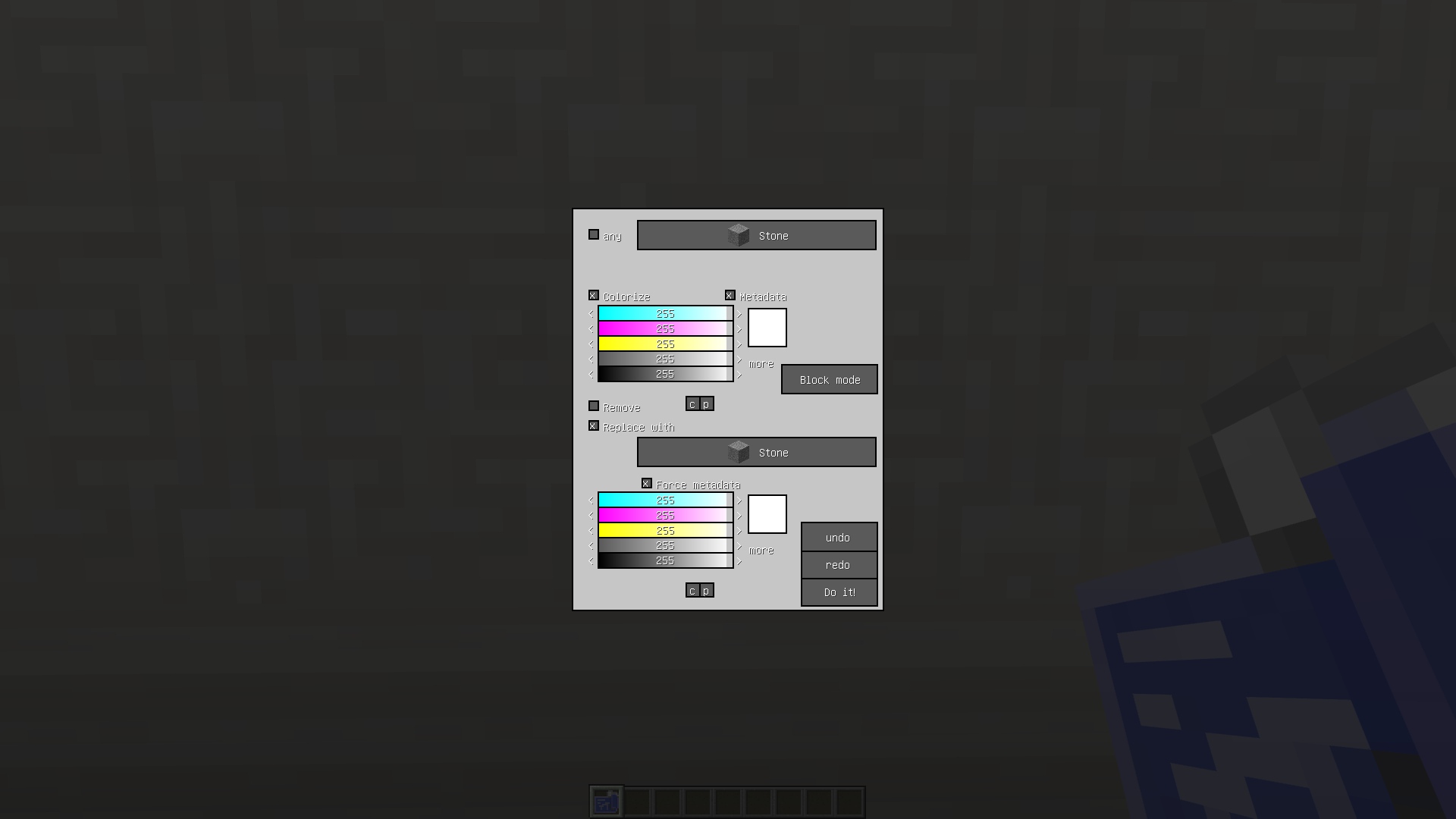
This tool doesn't change the regular LittleTiles 1.12.2 screwdriver. Instead, a separate "Industrial Screwdriver" is added — essentially the same screwdriver, but with additional color filters. Paired with micro-grid multi-selection, it lets you change colors or replace tiles far more precisely.
The tool also spreads processing of heavy selections across several ticks, so the game doesn't stutter when handling a heavy operation in a single tick. The screwdriver's processing speed can be tuned in the config: screwdriverBlocksPerTick, screwdriverBoxesPerTick, etc.
Pliers
Mainly used for configuring and positioning rotated structures. Right-click a rotated structure to select it for editing, then press C to open its settings menu, or M to move it with the arrow keys. For any other structure with its own settings (animations, fixed structures), right-clicking it with the Pliers opens its recipe and lets you configure the structure directly in the world, even after it's been placed.
Activator
Used to activate and deactivate animations that have right-click activation disabled in their settings. The Activator is mainly meant for debugging and testing animations in complex setups — with it, you don't need to place a lever or button alongside the animation just to test it quickly.
Structures built on LittleTiles' animation system (Animator)
Rotation
A separate recipe for turning a prepared build into a rotating structure with a chosen axis. Configured the same way as an advanced door.
When placing a structure with the Industrial Recipe, you can rotate the placement preview to see exactly how the structure will be positioned.
With it you can place a structure that's always rotated to an angle you set — for example, a weather vane, a pointer arrow, or an angled sign. Works for small decorations and even for an entire rotated house, though be warned — that's more likely to cause problems than be worth it.
Multi-animation
Multi-animations let you activate an animation with different scenarios and add several animations to a single structure at once. For example, you could make a window that, besides its main opening motion, can also tilt open for ventilation — a style especially common in Europe.
Multi-animation has a convenient interface for configuring each individual animation — the recipe lets you set up every scenario, down to a separate axis for each animation.
Activating a specific animation can be bound to right-click, Shift + right-click, or disabled entirely in favor of signal control. The structure exposes indexed ports animation_0, animation_1, … . Their number is configurable.
Overlay-animation
A variant of multi-animation for layered movement on a single structure. It uses almost the same configuration interface as multi-animation. The difference is that instead of switching between specific animations once a structure closes, Overlay animation lets you stack the combined offset from every activated animation, with no limit on how many can overlap. For example, you could take a little figure or any other structure, bind several animations to different buttons — forward, back, left, right — and move it around by pressing those buttons. This principle can be used to build simple mini-games. The "Obstacle" setting in the animation settings is useful here too — it prevents a step from happening if a block or tile is already in the way.
Checkpoint-animation
Adds step-by-step movement through saved points along a single motion's timeline. You add a point to the track, and after activation the structure moves to that point. By default, right-click moves the structure forward through the points, and Shift + right-click moves it back to the previous point.
Checkpoint animation has checkpoint_N signals: they move the structure to the chosen point from its current position, including smooth reverse movement along the timeline.
Loop animation
A recipe for continuous, repeating motion — for example, fan blades, gears, or a conveyor belt. The cycle adds acceleration and deceleration parameters in ticks, letting the motion start and stop more smoothly; a value of 0 keeps the instant start/stop. Acceleration and deceleration are configured in the recipe's settings.
Elevator
The Elevator is a multi-floor elevator with a wide range of settings and signals. The number of floors is set with the "Floors" button in the structure's settings inside the recipe.
There are two configuration modes:
- Simplified (default) — sets the distance between floors and the cabin's speed.
- Custom animations (enabled from the recipe's settings menu, "Elevator" button) — lets you configure the up and down movement animations separately, with a custom animation for each direction.
The same settings menu also lets you enable "Ignore call signals while the cabin is moving." By default, the elevator remembers the next call signal it receives while moving and travels to that floor once it arrives. The elevator can also stop its movement at any point after the
stop signal is triggered.
⚠️ Important warning: before interacting in any way with the animations nested inside the elevator cabin, use the "Activator" — just click the cabin with the Activator and the elevator will rise one floor. This is needed so the elevator becomes animated in advance and doesn't break once the nested animations are activated. Also, the very first time the nested animations are activated, a player standing inside the cabin's area may get launched upward — after each nested animation has been activated once, everything returns to normal.
Elevator signals
The Elevator has many of its own signals for convenient use and logic customization.
button_cabin_N and button_floor_N are used to call the cabin to a specific floor — every signal is numbered, and you connect to them anything that should call the cabin: doors, buttons, or any other triggers. There are two signals for convenience: button_cabin_N is meant for buttons inside the cabin, button_floor_N for buttons outside it. The current_floor_N signal is active while the cabin is sitting on that specific floor — useful for triggering doors or setting up special conditions on arrival.
The number of floor signals is set in the config, 16 by default. For each floor N, the following are available:
Additional signals:
up sends the cabin one floor up.down sends the cabin one floor down.stop stops the cabin instantly while it's moving; the signal needs to be triggered again for the cabin to resume moving.stop_light — the same as stop, but movement can resume by triggering stop_light, stop, up/down again, or any other cabin call.arrival is active whenever the cabin is at any floor — useful when what matters is the fact that the cabin has arrived, not which specific floor.
Additional structures
Creative storage
A separate storage that isn't limited by the number of storage blocks in the structure — instead, you can set any number of slots.
Visibility
Toggling the visible signal makes the tiles in a structure invisible or visible again — letting you create decorations that appear once a trigger is activated. Pairing the Visibility structure with any storage lets you make items visually appear or disappear depending on whether the storage contains anything. A similar tile change can also be achieved with ALET's mutator, but this mode is more convenient for that specific purpose.
Wallpaper
Changes the material of linked tiles to whatever block the player is holding, via right-click on the wallpaper. Handy for quickly repainting large surfaces — for example, changing the wallpaper in a room or a building's facade — without rebuilding the structure. Works with block items (ItemBlock). Allowed and blocked blocks are set in the config; by default a blacklist is enabled containing minecraft:grass, since that particular block causes odd behavior. When Blacklist mode = true, the whitelist and the list of allowed mod IDs are ignored entirely — only Blocked block ids applies.
Furniture
A specialized structure for furniture, originally designed for use on servers — it can snap the structure into corners and can only be placed on a flat surface.
Configuration
LittleVecX adds a Mods → LittleVecX → Config screen. It includes:
- the number of animation and elevator ports — changing this requires a restart;
- a whitelist or blacklist of blocks for Wallpaper;
- the Industrial Screwdriver's queue settings;
- detailed diagnostic logging.
Logging is off by default and is meant for diagnosing animations, elevators, selections, and network actions.
Who is LittleVecX for
LittleVecX is for anyone already building with LittleTiles who wants to go beyond the base functionality. If you've ever wished for more precision editing tiny details, wanted to build a genuinely functional multi-floor elevator, bring a build to life with layered animations, or give a building more flexible internal logic — this addon is built for exactly that. It also suits anyone who'd like some of the features from newer LittleTiles versions while staying on 1.12.2.
Backstory
The idea for LittleVecX grew out of my own needs: I was building on 1.12.2, since that was the version my main project lived on, and LittleTiles' base functionality wasn't enough for me. Over time, development of the 1.12.2 addon went on hold for a long while — I moved my map over to newer game versions, and work on LittleVecX continued for 1.21.1 instead.
But over time it became clear that some people are still building on 1.12.2 — some because of other mods exclusive to that version that never made it to newer ones, others simply because that version feels more familiar and comfortable to them. So I decided to bring the 1.12.2 addon to a proper first release and put it out publicly. I've tried to close out every bug and issue I know about, but the mod is still far from perfect. It's unlikely to see any major updates going forward — but if I ever find the time, I'll come back and fix whatever bugs have piled up.
Credits
Thanks to CreativeTeam for developing LittleTiles and CreativeCore <3
Also thanks to Docvin for creating ALET 1.12.2, some of whose solutions I drew on.
And a special thanks to everyone who followed the development — without you, LittleVecX wouldn't have made it onto the major mod pages.
Links


 模组

 模组
 模组

 模组
 模组
 模组
评论 0
登录后参与评分
还没有评论,来抢沙发吧