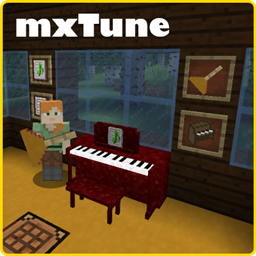
此模组添加了乐器,允许你以 MML 格式播放音乐。这是一种在一些流行在线游戏中已经使用的格式,因此有许多现成的曲目可供使用,或者你可以创建自己的曲目。你可以单人演奏,也可以最多八名玩家一起合奏。
Java Profiler  由 ej-technologies GmbH 提供
如果遇到崩溃,请务必提交 issue 并附上崩溃日志。
适用于 1.16.5 的 mxTune 已发布。与 1.12.2 版本的主要区别如下:
- Jam(即兴演奏)现在支持最多 16 名玩家/声部。
- 加入 Jam 时,加入者必须在主手持有乐器,并对主持 Jam 的玩家执行右键点击操作。如果是开放派对,该玩家将被添加到群组中;否则,他们将被要求输入一个 4 位数的 PIN 码。


- 新增了音乐场地(Music Venues)。场地是一个在世界中定义长方体体积的区域,作为 mxTune 音乐的声学封闭空间。处于场地外的玩家听不到场地内正在播放的 mxTune 音乐,反之亦然。游戏内新增了一种“音乐场地工具”用于定义这些区域。由玩家创建的场地不能被其他玩家移除。服务器管理员可以移除任何玩家的场地。仅当“音乐场地工具”位于快捷栏时,场地才可见。

- 移除了可放置在世界的钢琴。
- 可以根据插入的乐谱自动选择乐器。

视频
基本用法
mxTune Spotlight by LeKoopa
新的 MML Simple Editor Dialog 演示
合成配方
使用方法
从创造模式中获取一些乐谱纸,或用四张纸和一个墨囊合成制作。

在主手持有乐谱纸并在空气中右键点击以打开对话框。如果你持有一整组乐谱纸,将会生成一组相同的曲目。在上方的文本框中输入标题,并在中间的文本框中粘贴或输入格式正确的 MML。如果输入的 MML 不包含正确的头部 "MML@" 和结尾的分号 ";",“完成”按钮将不会激活。MML 会实时解析,如果存在错误则无法保存。错误将以红色显示。点击错误项,编辑器中的光标将移动到该错误处。如果 MML 解析无误,可以使用左侧的“播放”按钮来播放 MML。左侧列出了可选的乐器。
GUI 的外观取决于你使用的版本。

点击确定后,物品将变为一张乐谱。

单人演奏
要播放包含的 MML,必须将乐谱放入乐器的库存槽中。手持乐器,然后潜行并右键点击。将乐谱放入槽位并关闭库存界面。

演奏乐器时,请将其握在主手中并右键点击以激活。演奏期间将无法移动。若想停止演奏,可按 ESC 键。手持乐器时,屏幕左上角会显示标题和状态。目前这是硬编码实现的,但我打算在可能的情况下配置 HUD 布局。
钢琴使用方法
钢琴交互方式。钢琴没有像手持乐器那样的物品栏 GUI。一旦将其放置在世界中,其操作如下:
- 将乐谱放置在钢琴架上:在主手中持有乐谱,然后右键点击钢琴。
- 坐在钢琴前:在主手中右键点击钢琴。注意,除非琴架上放置了乐谱,否则无法坐下。按左 Shift 键离开座位。要移除乐谱,需按住 Shift 键并右键点击钢琴。
- 演奏钢琴:琴架上必须有乐谱,且你必须坐在钢琴前,然后右键点击钢琴开始演奏。
由于我最近才添加了这种新的方块乐器,这里可能会有一些 Bug。这让我意识到需要审查当前系统并进行重构,使其更清晰。各种交互中存在明显的漏洞,看看你能否找到它们。
音乐选项
最新开发版本 - 添加了静音选项。目前绑定在 “P” 键上。

当然,这主要是为多人模式设计的。目前,玩家必须在线才能将他们移动到所需的列表中。
以下是静音选项的简要说明(每次点击按钮时会切换):
- 关闭静音 - 你可以听到所有声音。
- 静音其他人 - 只能听到自己的声音。其他人仍然可以听到你,但你无法加入合奏(JAM)。
- 黑名单静音 - 除了黑名单成员外,你可以听到所有人的声音。如果他们是合奏的成员,你仍能听到他们的声音;但如果他们是合奏的领导者,则听不到。
- 允许白名单 - 只能听到自己的声音以及白名单玩家的音乐。如果某位成员是合奏的领导者,你将听到该合奏中所有成员的声音。
- 全部静音 - 实际上禁用了所有 MML 音乐。
这些选项都不会停止当前正在播放的音乐,但会阻止你听到新启动的曲目。
其他控制功能:
- 箭头按钮 “>”, “<” - 位于列表之间,用于在列表间移动玩家。先点击选中一名玩家,然后点击相应的箭头按钮。
- 调整 HUD - 更改屏幕上状态小部件的位置。
- 完成 - 请务必点击此按钮以保存更改。
- 取消 - 放弃更改并返回游戏。
再次提醒,我预计仍会有一些遗漏的情况。我已经注意到其中一些,并将继续努力填补这些空白。
派对系统
创建了一个基本的派对系统,不依赖原版队伍系统。一个派对最多可容纳八名玩家。成员可以被移除或提升为领导者。成员可以随时退出。如果成员死亡或断开游戏连接,他们将被自动踢出派对。派对成员无法睡觉。
创建派对
按 “J” 键创建或打开现有派对。如果是新派对,你就是领导者,点击创建后你的名字将显示在列表顶部。


加入派对
目前派对尚未加密,任何人都可以加入。稍后会添加安全机制。要加入派对,请寻找头顶有音符标牌的玩家,并对他们进行右键点击。系统将弹出一个对话框,提供加入领导者派对的选项。

要加入派对,请右键点击领导者。

点击 “Yes” 以加入派对。

欢迎加入群组!

群组成员。注意左上角的派对 HUD。领导者的标牌上有一颗星星。

领导者派对对话框(按 J 打开)。注意第二个成员右侧的小按钮。领导者可以 (D)elete(删除)或将成员提升为 (L)eader(领导者)。

成员派对对话框(按 J 打开)
在派对中演奏音乐(合奏会话)
组队演奏的目的是确保玩家在演奏时保持同步。由领导者发起会话的开始,但在此之前,所有其他成员需要先准备好各自的声部。过程与单人演奏相同:将乐谱放入乐器物品栏,然后在手持乐器时右键点击空气。在群组中作为非领导者,你的标牌会变绿,但你不会开始演奏。当所有人都准备就绪后,领导者只需像往常一样开始演奏,所有成员便会同时开始演奏。
This mod adds musical instruments that allow you to play music in MML format. This is a format already used in some popular online games so there are many tunes available or you can create your own. You can play solo or in groups of up to eight players.
Java Profiler provided by ej-technologies GmbH
If you experience a crash, PLEASE open an issue and include crash logs.
mxTune for 1.16.5 is released. Main differences with the 1.12.2 version
- Jams now allow up to 16 players/parts.
- To join a JAM the player joining must hold an instrument in their MAIN hand and Right-Click the player hosting the JAM. If it's an open party the player will be added to the group, if not they will be challenged to enter a 4 digit PIN.
- Music Venues have been added. A venue is a cuboid volume defined in the world and acts as a sound enclosure for mxTune music. Players outside can't hear the mxTune music being played inside, and conversely players inside can't hear mxTune music played outside of a venue. A Music Venue Tool is added to that game to define these areas. Areas created by a player can't be removed by other players. Server owners can remove any players' venues. Venues are visible only when the Music Venue Tool is on the toolbar.
- The world placeable piano has been removed.
- Instrument can be auto selected based on the sheet music inserted.
Videos
Basic Usage
mxTune Spotlight by LeKoopa
Demo of the new MML Simple Editor Dialog
Recipes
How to use it
Grab some Music Paper from Creative mode or craft it from four pieces of paper and one ink sack.
Hold the Music Paper in your main hand and right click air to open the dialog. If you hold an entire stack you will create a stack of the same piece of music. Enter a title in the upper text box and paste or type well formed MML into the center text box. The Done button will not activate if the MML entered does not contain a proper header "MML@" and and ending semi-colon ";". The MML is parsed in real time and it cannot be saved it there are errors. Errors will be displayed in red. Click on an error and the cursor in the editor will move to the error. If the MML parses without error the Play button on the left can be used to play the MML. A choice of instruments is listed on the left.
GUI appearance depends on the version you are using.
Click OK and the item changes into a piece of Sheet Music.
Play Solo
To play the enclosed MML, the Sheet Music must be placed into the inventory of an instrument. Hold an instrument, then SNEAK and Right Click. Place the Sheet Music into the slot and close the inventory.
To play the instrument, hold it in your main hand and simply Right Click to activate. While playing you will be unable to move. If you want to stop playing you can press the ESC key. While holding an instrument the HUD will display the title and status in the upper left hand corner of the screen. This is currently hardcoded, but I intend to make if possible to configure the HUD layout.
Piano Usage
Piano Interactions. The piano does not have a inventory GUI like the handheld instrument. Once it's placed into the world it works like this
- To place Sheet Music on the Piano Rack, hold a piece of Sheet Music in your main hand and right click the the piano.
- To sit at the piano, right click it with your main hand. Note you can't sit at a piano unless there is a piece of Sheet Music on the rack. To dismount press the left shift key. To REMOVE a piece of Sheet Music SNEAK and right click the piano.
- To play the piano there must be Sheet Music on the rack and your must be sitting at the piano, then right click the piano to begin playing.
This is going to be a bit buggy since I just added this new block instrument recently. It made me realize I need to review the current system and refactor it to make it cleaner. There are blatant holes in various interactions. See if you can find them.
Music Options
Latest development release - Mute Options added. Currently on the "P" keybind.
Intended for multiplayer mode of course. At the moment players must be online for you to move them to the desired list.
Here's a run down of the Mute options (Changes with each click of the button):
- Mute Off - You can hear everything.
- Mute Others - Just hear yourself. Others can still hear you though. You can't JOIN a JAM.
- Mute Blacklist - Hear everyone except members on the Blacklist. You can still hear them if they are a member of a JAM, but not if they are the leader of the JAM.
- Allow Whitelist - Only hear yourself and music from players on the Whitelist. If a member is the leader of the JAM then you will hear ALL the members of the JAM.
- Mute All - effectively disables all MML Music.
None of the options will STOP currently playing music, but they will prevent you from hearing newly launched tunes.
Other controls:
- Arrow Buttons ">", "<" - Situated between the lists, these are used to move players between the lists. Click on a player to select them, then click the appropriate arrow button.
- Adjust HUD - Change the location of the on-screen status widget.
- Done - Make sure to click this to save your changes.
- Cancel - Abort changes and return to the game.
Once again I expect there will be some missed cases. I'm already aware of a few and will keep working to fill in the gaps.
Parties
A basic party system was created that does not rely on the vanilla teams system. A party can have up to eight players. Members can be removed or promoted to leader. A member may leave at will. If a member dies or they leave the game they are ejected from the party automatically. Members of a party cannot sleep.
Create a Party
Press "J" to create or open an existing party. If it's a new party you are the leader and your name will be at the top of the list once you click Create.
Join a Party
Parties are not secure at this time so anyone can join. Security will be added later. To join a party look for a player with music note placard over their head and Right Click on them. You will be presented with a dialog that gives you the options to join the leaders party
To Join the party Right-Click the leader.
Click Yes to join the party.
Welcome to the Group!
Group Members. Note the Party HUD upper left. The leaders placard has a star.
Leaders Party Dialog (J to open). Note the small buttons to the right of the 2nd member. The leader can (D)elete, or promote the member to (L)eader.
Members Party Dialog (J to open)
Playing Music while in a Party (Jam Session)
The purpose of the group play is to ensure players are synchronized when they play. The leader initiates the start of the session, but before that can happen all the other members need to queue up their parts. The process is the same as playing solo: Place the music in the instrument inventory, then while holding the instrument right-click the air. While in a group as a non-leader your placard will turn green, but you will not begin to play. Once everyone is ready, the leader just starts to play the usual way and all the member start to play.


 模组

 模组

 模组
 模组
 模组
 模组
评论 0
登录后参与评分
还没有评论,来抢沙发吧