Neo's Meshes - 完整功能指南
Neo's Meshes 是一款适用于 Minecraft Java Edition 26.1.2 的 Fabric 模组,允许玩家在世界中直接构建持久的、带有纹理的、可碰撞的 3D 多边形网格。
它还可以在游戏中导入完整的 glTF 2.0 .glb 和 .gltf 模型,在生成的必需资源包中保留其 UV 映射的基础颜色纹理,将结果转换为可重复使用的“已保存网格模板”,并将完全相同的三角形网格注册为可通过命令选择的 Minecraft 物品模型。
常规创建工作流程
- 使用顶点工具放置顶点。
- 使用面工具按边界顺序选择这些顶点。
- 鼠标中键点击以将选区转换为网格上的面。
- 使用渲染工具选择资源包纹理(自定义添加或原版)。
- 将该纹理应用到面或整个网格。
- 使用碰撞工具启用碰撞。
- 可选:配置碰撞行为。
- 可选:将完成的网格捕获为可重复使用的模板。
网格按维度独立存储,并在保存和重新打开世界后保持不变。
包含的物品与控制
| 物品 |
控制与行为 |
VertexTool
 |
显示实时的绿色放置预览。右键单击放置一个顶点。潜行 + 鼠标中键点击选择你所看向的面或顶点所属的网格;如果未瞄准任何目标,则完成当前网格并创建一个单独的空白网格。 |
Mesh Delete Tool
 |
右键单击被瞄准的顶点以移除该顶点及其依赖的拓扑结构,或右键单击一个面以移除该完整的多边形,同时保留其其他顶点。蹲下 + 左键单击任意面或顶点以永久删除其整个网格。 |
FaceTool
 |
按边界顺序右键单击顶点进行选择。左键单击已选中的顶点以取消选中。至少选中三个顶点时,鼠标中键点击以创建面。潜行 + 双击某个面以删除该面而保留其顶点。 |
RenderTool
 |
鼠标中键点击,或右键单击空白处,打开纹理浏览器。右键单击面以应用所选纹理。潜行 + 右键单击将其应用于该网格中的所有面。 |
CollisionTool
 |
左键单击面以启用碰撞。右键单击移除该面的碰撞。潜行 + 左键单击网格面或顶点以启用该网格中所有面的碰撞。 |
Collision Settings Tool
 |
右键单击面以配置类楼梯或光滑斜坡或冰模式(摩擦滑块),前提是面是完全平坦的。设置可应用于单个面或整个网格。 |
Mesh Template
 |
看向网格面或顶点时右键单击以捕获整个网格。被瞄准的顶点将成为原点;被瞄准的面将使用在其表面上点击的确切点。 |
Saved Mesh Template
 |
捕获后产生的独特物品。右键单击放置副本;潜行 + 右键单击打开精确草稿放置。 |
Model Import Tool
 |
右键单击以打开响应式文件导入界面。浏览查找 glTF 2.0 .glb 或 .gltf,检查其顶点/三角形/纹理摘要,并创建“已保存网格模板”以及包含转换后完整模型的 nmesh:<filename> 物品模型。 |
Selection Tool
 |
右键单击两次,使用顶点工具的放置规则放置两个临时填充样式的选区角点。当两个角点存在后,鼠标中键点击以打开对封闭顶点和面的批量操作。 |
创造模式标签页暴露了所有编辑工具、空白网格模板和模型导入工具。已保存网格模板是通过捕获或模型导入生成的,而不是直接列出。
每种物品的堆叠上限为一,且没有耐久度系统。
顶点放置与网格选择
常规顶点放置位于相机方向前方三个方块的中心位置。
当未蹲下时:
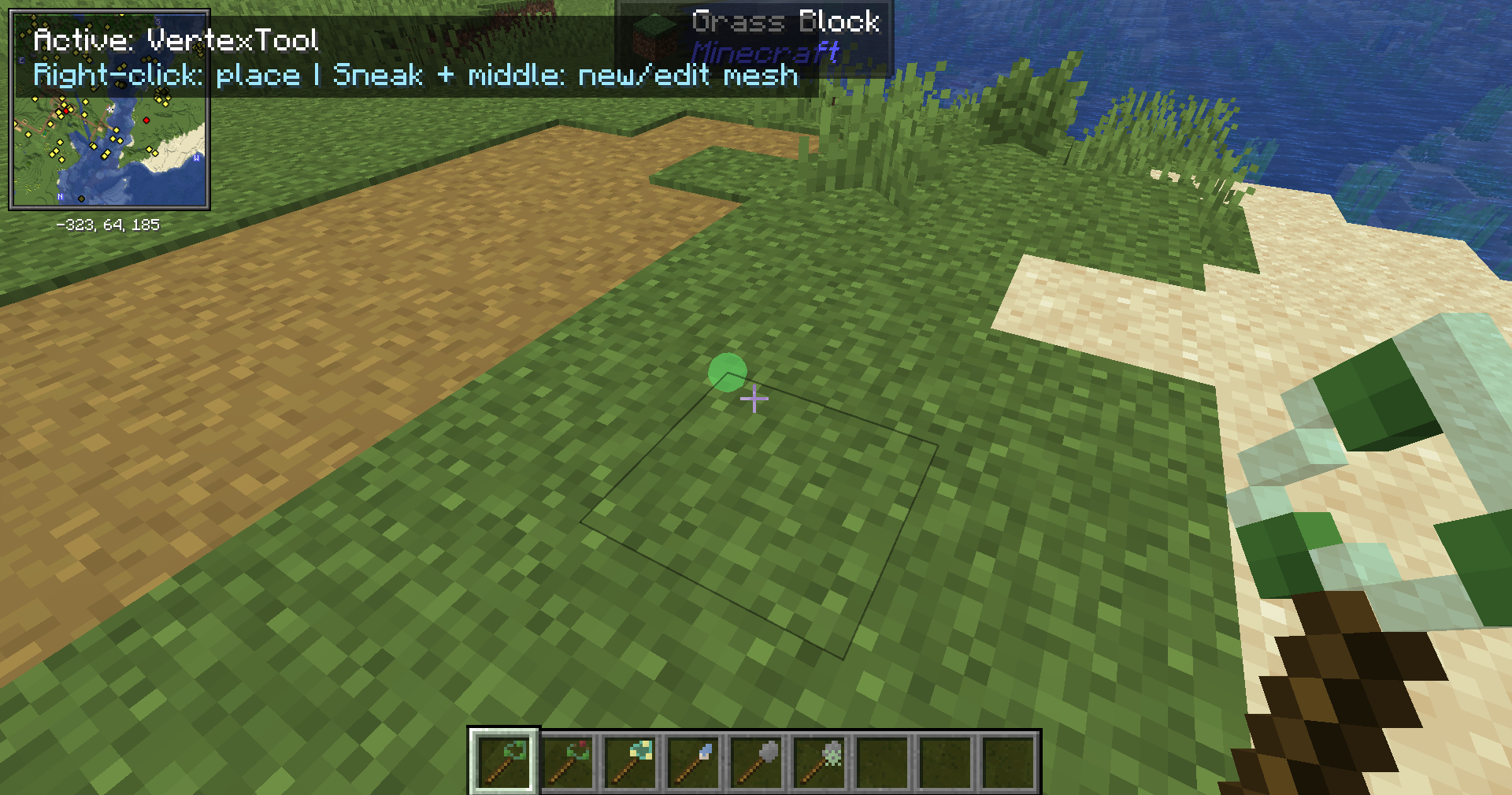
- 如果准星下方有可到达的方块,放置位置会移动到该方块的真实轮廓面上。
- 它从该面上的 3x3 锚点网格中选择最近的点:四个角、四个边的中点和面中心。
- 尊重确切的方块轮廓,包括部分形状如台阶。
- 更近的方块会导致顶点停留在该方块上,而不是保持在三个方块远处。
- 如果没有击中任何方块,三个方块的端点会吸附到其所在方块空间的中心。
当蹲下时:
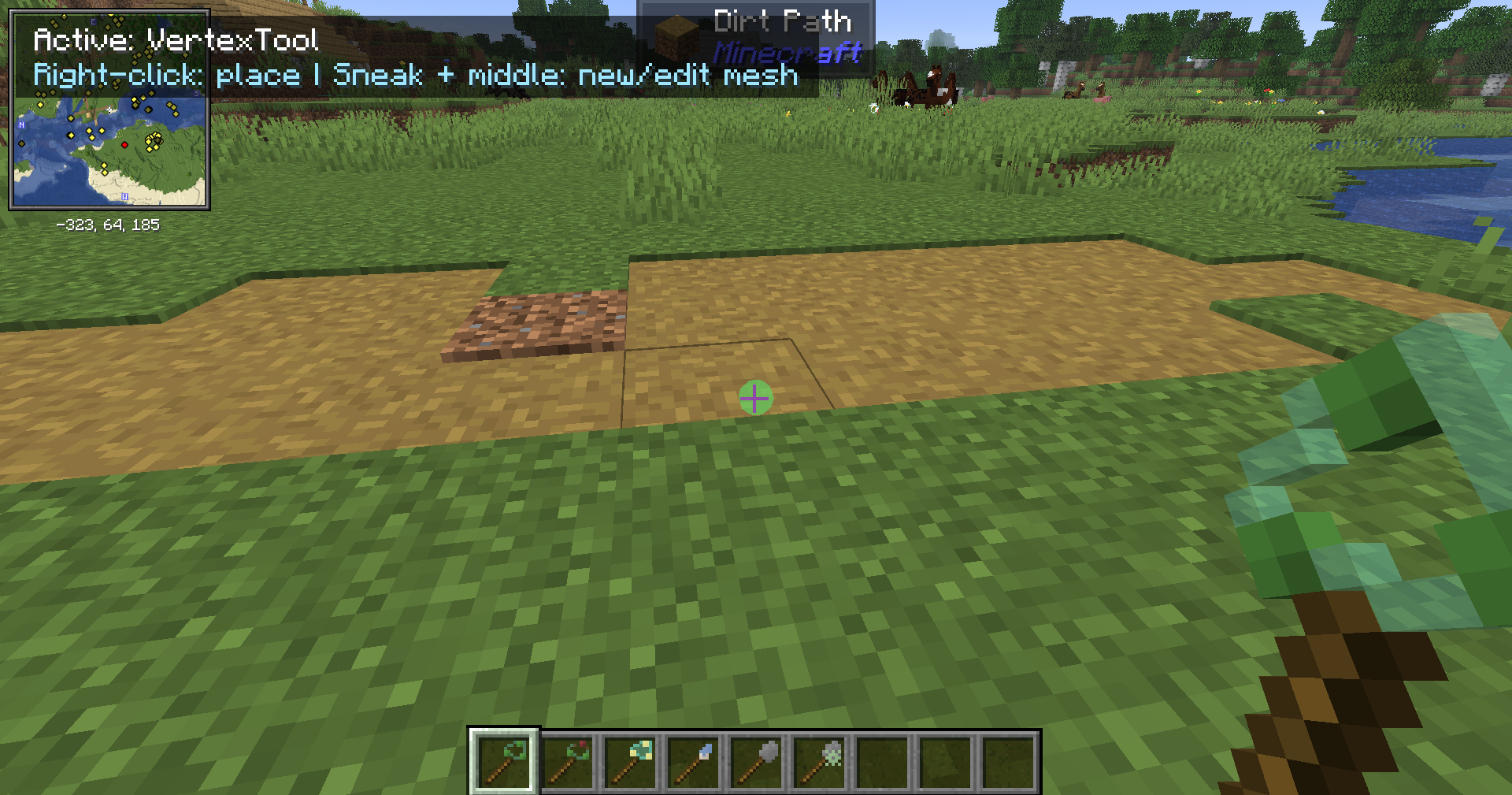
- 放置位置正好位于相机方向前方三个方块处。
- 不应用任何方块、网格或方块中心的吸附。
客户端预览和服务端放置使用相同的计算逻辑。
若尚未选中任何网格,第一个顶点会自动创建并选中一个网格。网格的选择基于相机射线所指向的面或顶点,而非放置预览是否与其重叠。注视某个面或顶点并按住潜行键 + 中键,可将编辑切换至该部分的网格,并清除来自其他网格的面选择。
选择工具与填充样式区域操作
选择工具为玩家提供临时的、独立的矩形编辑体积,用于批量编辑网格。
- 右键点击放置第一个角。
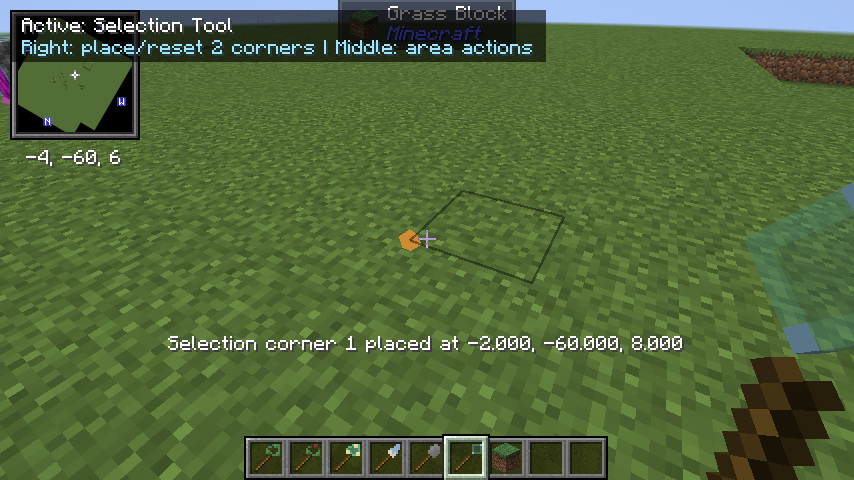
- 再次右键点击放置第二个角并完成方框。
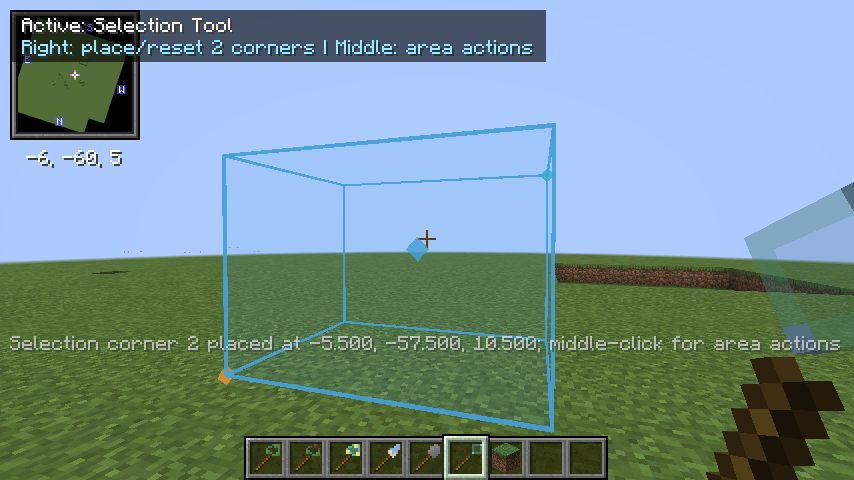
- 第三次右键点击将替换上一个方框,并成为新选择的第一个角。
- 两个角均使用与顶点工具相同的三格交互距离、潜行行为、方块面放置以及 3x3 面锚点吸附机制。
- 蓝色的放置预览会显示下一个角将落下的位置。
- 第一个和第二个角以不同颜色的标记显示。
- 中键打开响应式区域操作菜单。
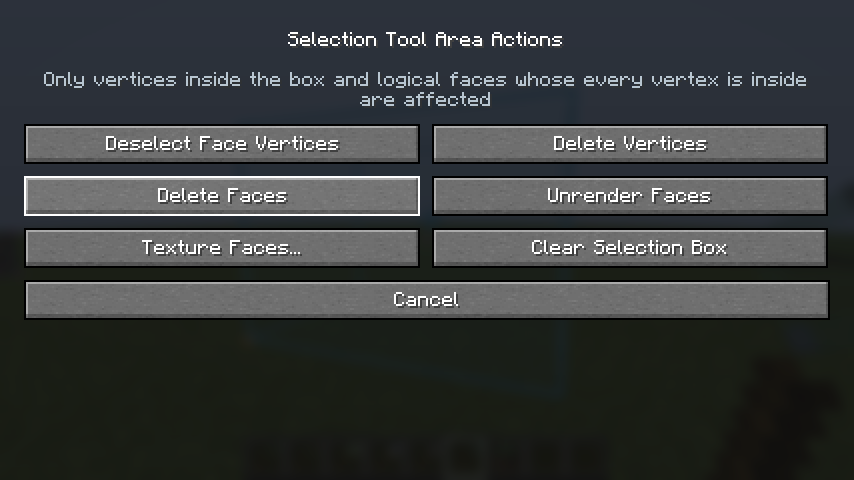
可用的操作包括:
- 取消选中的面顶点: 从当前面工具的边界选择中移除被包围的顶点,但不删除它们。
- 删除顶点: 删除维度内所有网格中方框内的每一个实际网格顶点。依赖被删除顶点的面和边会被安全移除,其他玩家的编辑器索引会被重新映射。
- 删除面: 删除每个完全封闭的逻辑多边形,同时保留其剩余的顶点。
- 隐藏面: 使每个完全封闭的逻辑多边形不可见,同时保留其纹理分配、碰撞、顶点和拓扑结构。
- 纹理化面: 打开正常的可搜索纹理浏览器,然后将所选纹理应用于每个完全封闭的逻辑多边形。应用纹理也会渲染该面。
- 清除选择框: 移除两个虚拟角和方框,且不更改任何网格。
选择边界是包含性的。仅当一个逻辑面的所有内部三角形所属的顶点都在方框内时,才被视为被包围。因此,仅仅穿过方框边界的面不会被意外删除、隐藏或重新贴纹。在操作期间,三角化的四边形和更大的多边形仍保持为一个原子的逻辑面。
多边形面
面的顶点必须按照预期的边界顺序进行选择。工具不会在三个顶点后自动完成;你可以选择多达 256 个顶点
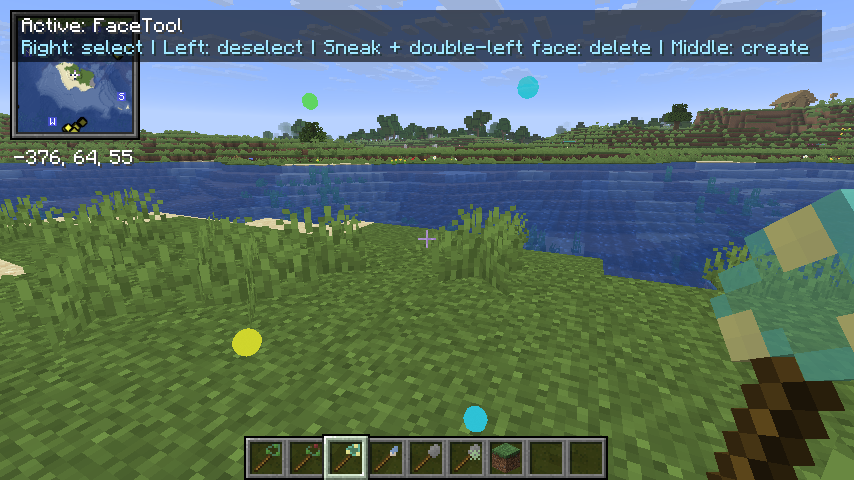
然后显式中键点击。
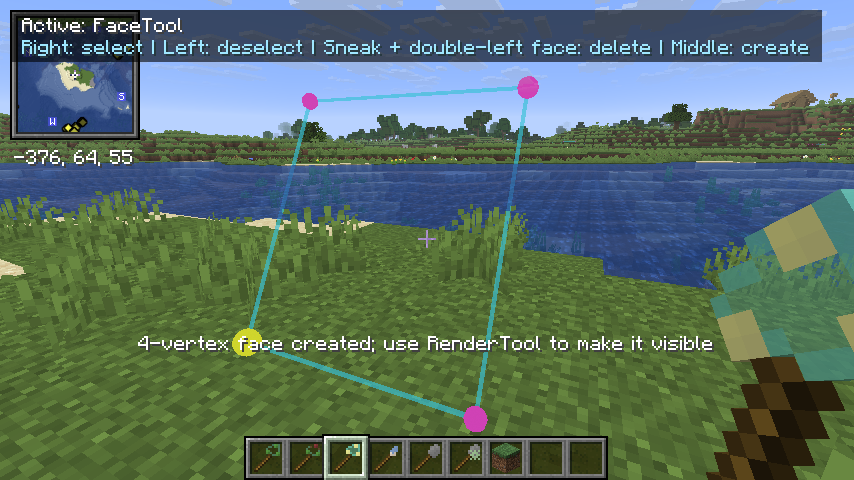
多边形系统支持三角形、四边形、更大的多边形以及有效的凹多边形。在内部,多边形会被耳切法分解为三角形,但所有三角形共享一个面组标识。因此:
- 一次纹理操作会影响整个多边形。
- 一次碰撞操作会影响整个多边形。
- 删除任何部分都会移除完整的逻辑多边形。
- 内部三角化边缘不被视为单独的碰撞边界。
- 纹理坐标在内部三角形之间保持连续。
新创建的面仅作为拓扑存在:在未使用相应工具之前,它既不会渲染也不具备碰撞属性。
一个网格最多支持 16,384 个顶点和 32,768 个内部面三角形。
网格和部分删除
- 右键点击顶点以删除该顶点。任何依赖它的面和边都会被安全移除。
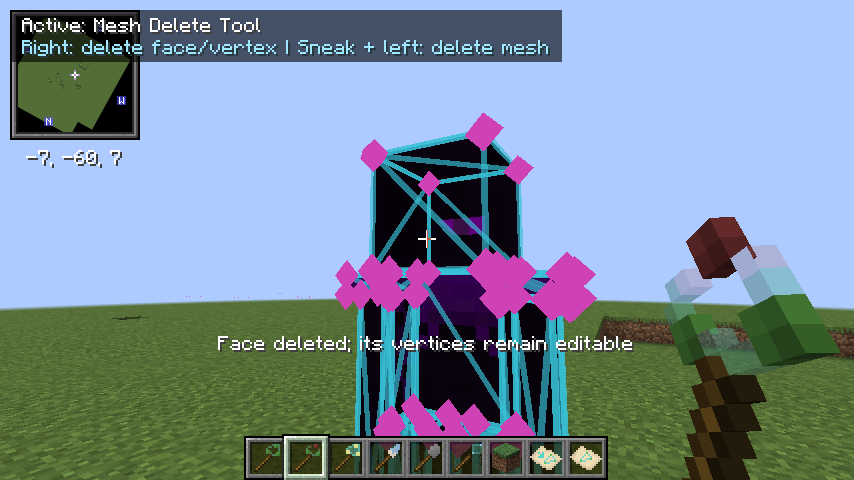
- 右键点击面以删除完整的逻辑多边形面,包括其所有内部三角形、纹理、碰撞及其碰撞设置。操作中未移除的顶点仍可继续编辑。
- 潜行 + 左键点击任意顶点或面以删除包含它的整个网格。
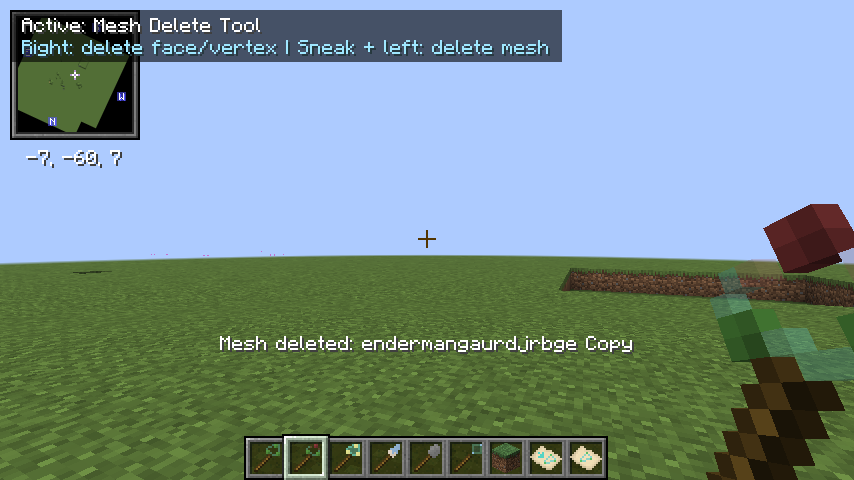
整网删除会移除该网格的所有顶点、面、渲染几何体、碰撞几何体、保存的世界数据以及活动的编辑器选择。此移除操作会立即同步到该维度内的每位玩家。
纹理系统
RenderTool 打开了一个响应式、可搜索、可滚动的纹理浏览器。它会枚举以下来源中 textures/ 下的有效 PNG 资源:
- 原版资源。
- 启用的资源包。
- 模组资源,包括在
assets/nmesh/textures/ 下添加的纹理。
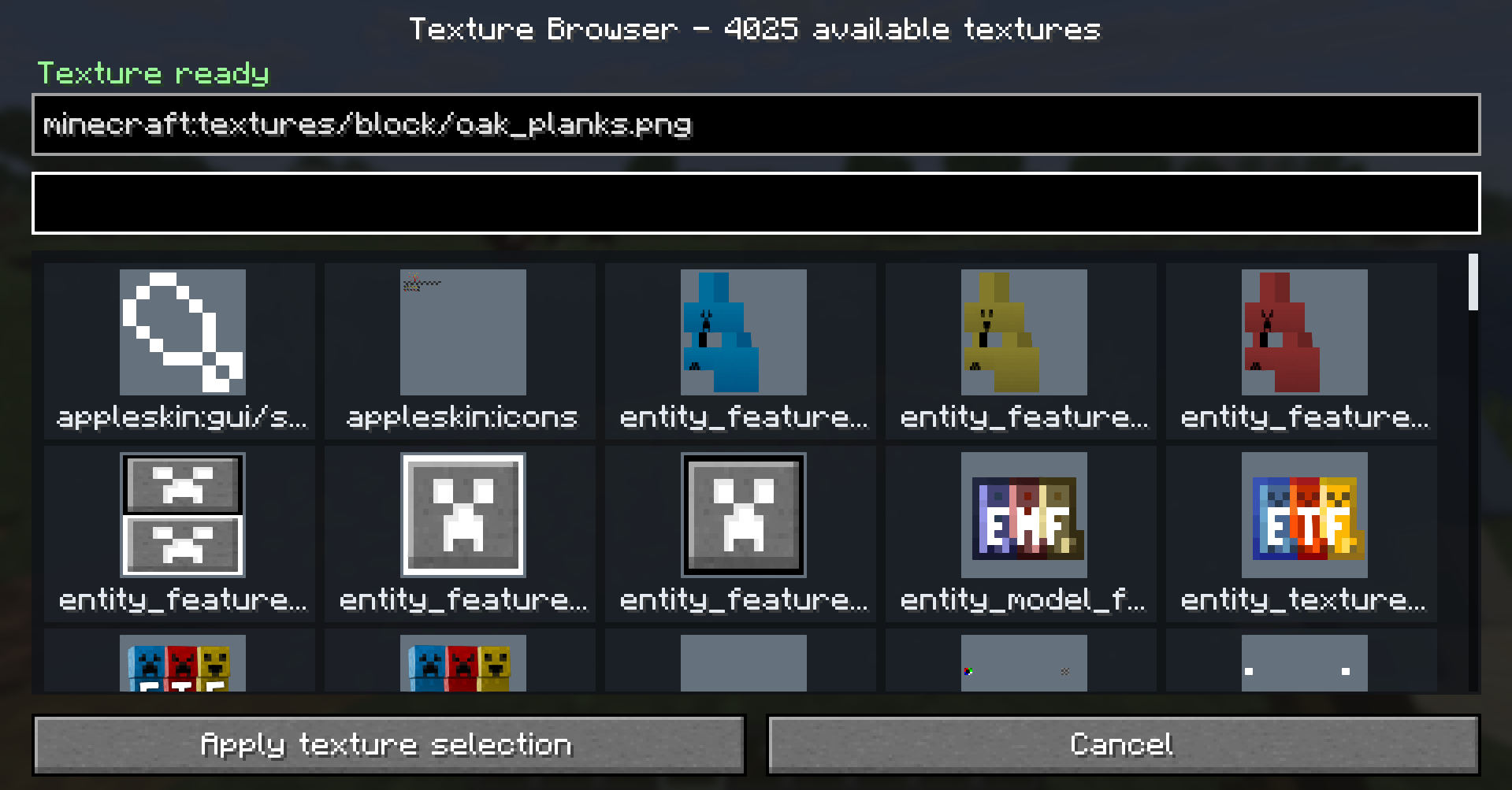
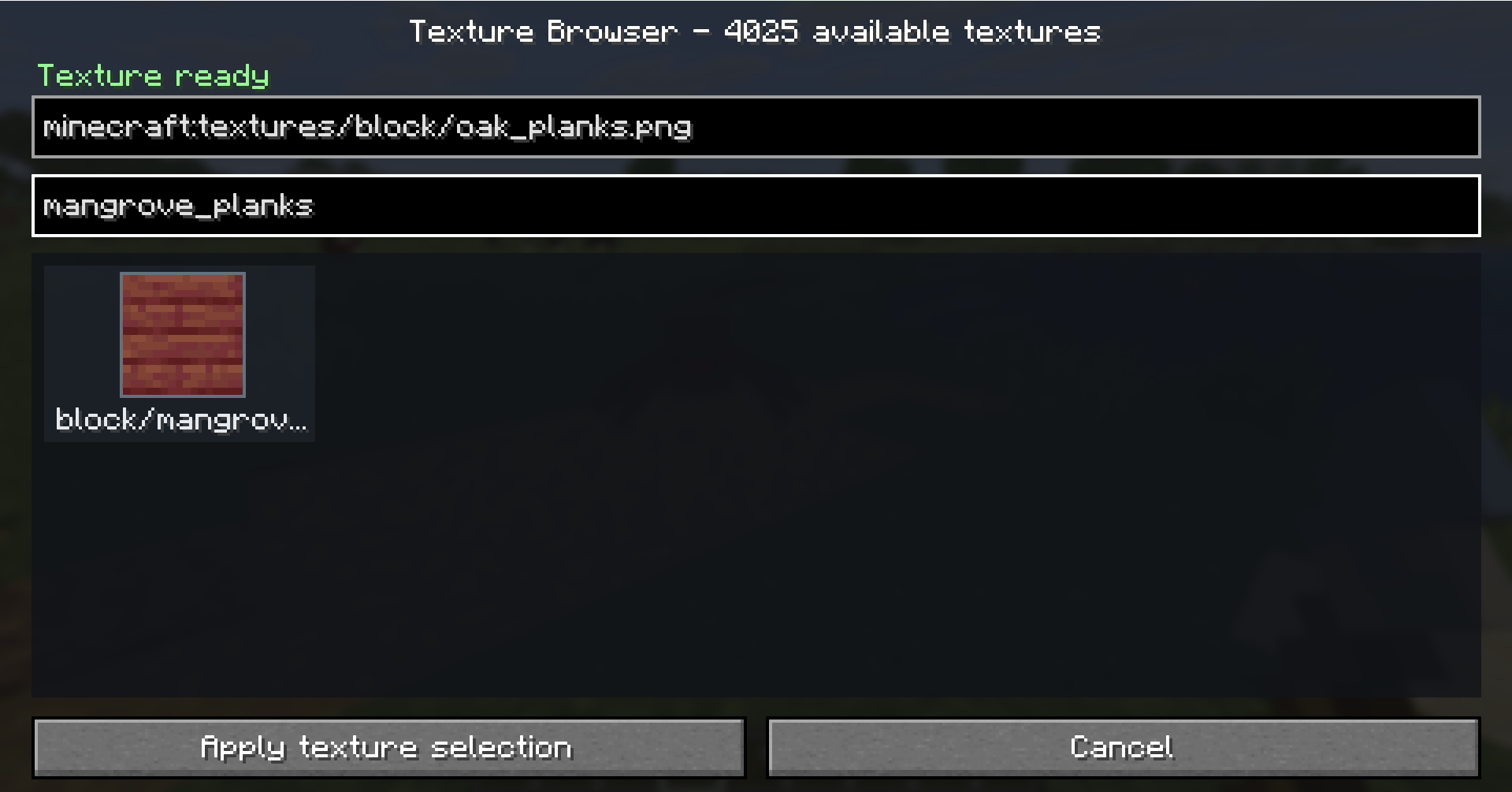
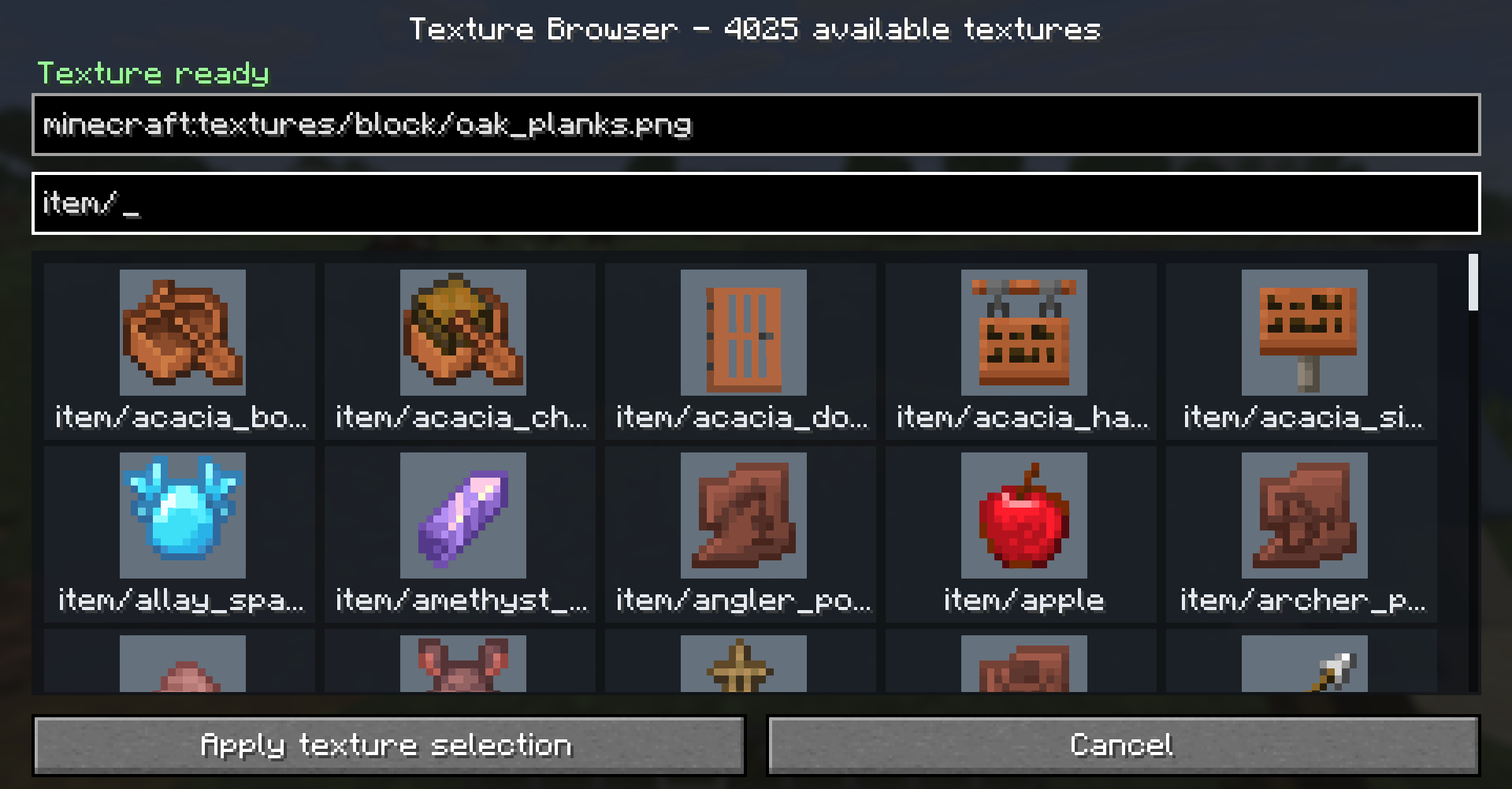
每个纹理都有预览图和完整资源标识符的工具提示。也可以手动输入资源标识符,例如:
minecraft:block/oak_planks
minecraft:textures/block/oak_planks.png
nmesh:item/example
标识符会被规范化为其实际的纹理资源路径。缺失的纹理会使字段变红并禁用“应用”按钮。如果已保存的纹理后来消失,渲染将回退到橡木木板,而不是让网格消失。
应用纹理:
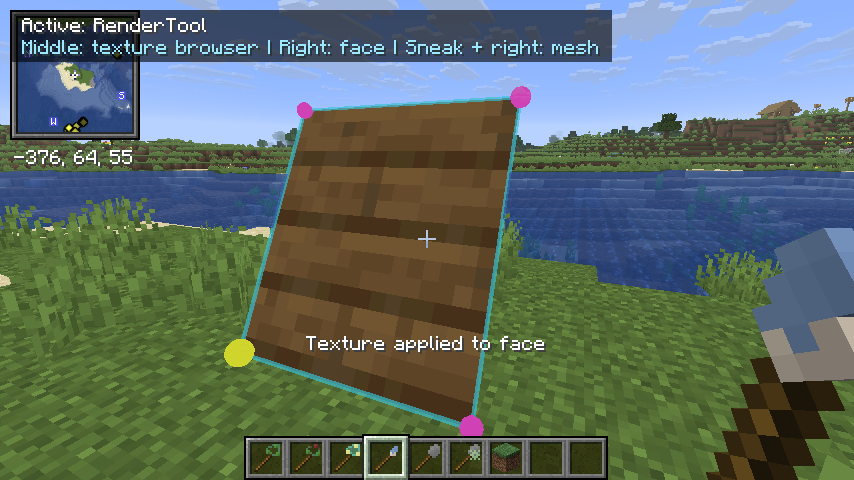
- 标记该面为渲染状态。
- 在该面组上独立存储纹理。
- 将整个多边形投影到 2D 空间。
- 将多边形的边界归一化至完整的 0-1 UV 范围。
- 在整个多边形上拉伸一张适配的纹理副本。
- 在所有内部三角形之间保持一致的 UV 坐标。
每个三角形都作为退化四边形(degenerate quad)单独提交,以防止 Minecraft 意外地将相邻三角形连接成细长且扭曲的纹理楔形。
新网格默认以白色、不透明、双面渲染,并采用正常的世界光照。共面网格表面使用前置深度层(forward depth layer),因此在与方块完全齐平时,网格在视觉上优先于方块,从而避免 Z-fighting(Z 轴冲突)。
网格并非 Minecraft 实体。它们是自定义的世界几何体,通过 Fabric 的世界渲染阶段进行提交。其实现借用了 Minecraft 实体裁剪/半透明管线来进行材质渲染,但会采样周围世界表面的光照,因此与方块相交的网格不会像处于方块内部的实体那样变暗。
编辑器可视化
当手持编辑工具时:
- 顶点显示为发光的 3D 球体,可穿透方块看到。
- 选中的网格边缘呈更亮的青色。
- 选中网格的顶点呈洋红色。
- 当前选中的顶点呈黄色且尺寸更大。
- 面草稿的第一个顶点呈绿色。
- 其他面草稿顶点呈青色。
- 准星下的面会高亮显示为黄色。
- 未渲染的面具有淡蓝色的编辑器预览效果。
- 在手持 CollisionTool 时,可碰撞的面呈红色。
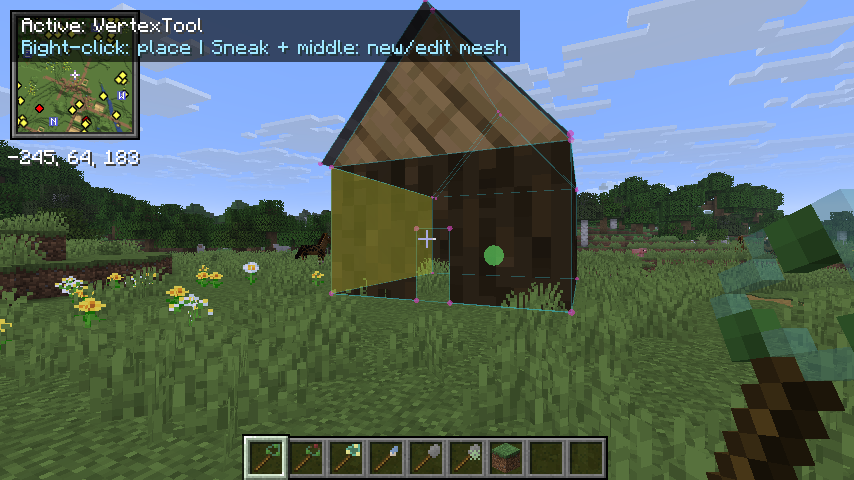
这些标记仅用于编辑辅助,不会作为最终外观的一部分存储。
顶点标记使用轻量级的八三角八面体代替高分段球体。作者绘制的编辑边使用两三角的面向相机的带状结构代替十二三角的实心棱柱。这在不改变颜色、穿墙可见性、目标高亮以及法线/细节大小的前提下,将标记几何体减少了 92%,边缘几何体减少了约 83%。带有纹理的网格面几何体保留修订缓存,除非该网格发生更改,否则不会重新构建。
对于密集或导入的模型,按住 F1 可暂时将编辑器辅助视图切换为高细节模式。在此视图中,顶点标记变得非常小,且作者绘制的网格边缘被隐藏,以便更容易检查纹理模型。释放 F1 将恢复当前的持久视图状态。按一次 F4 可保持高细节视图启用,再次按 F4 则返回正常的标记和边缘尺寸。选择框边界仍然可见,因为它们描述的是活动编辑区域而非网格拓扑结构。
左上角的紧凑 HUD 显示所持有工具的控件。精确模板草稿模式故意不显示 HUD 覆盖层、屏幕或世界变暗效果。
精确碰撞系统
碰撞与渲染相互独立。一个面可能可见但无碰撞,可碰撞但无纹理,两者皆有,或两者皆无。
启用的多边形不会转换为方块或阶梯状的体素盒子。模组会持续将实体的真实包围盒扫过作者绘制的三角形平面和多边形边界。
求解器包括:
- 连续碰撞检测以减少高速隧道效应。
- 精确的三角形平面和多边形边界。
- 在同一多边形所属的三角形间无缝移动。
- 内部三角划分对角线上无隐形墙壁。
- 方块与网格、网格与方块之间的平滑过渡。
- 沿倾斜表面的运动投影。
- 空间区块索引,以便仅检查附近的碰撞三角形。
- 在原版方块碰撞解析前后进行碰撞集成。
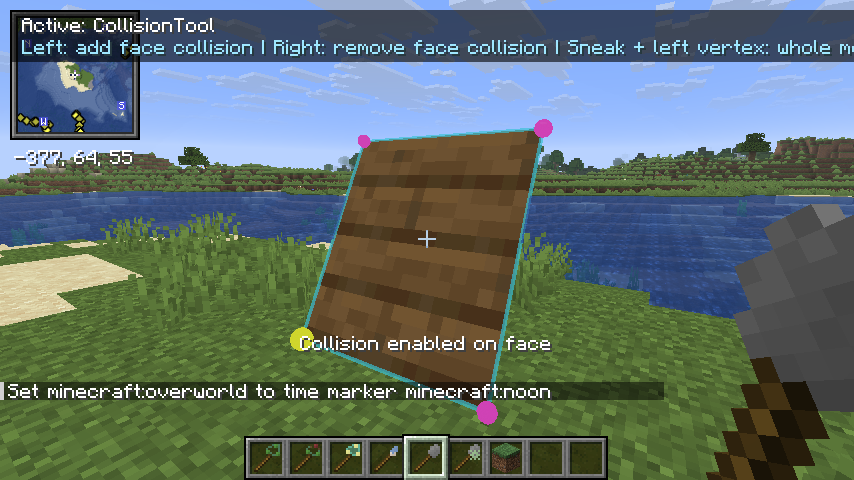
碰撞边界在多边形外缘周围故意向内缩进最多 0.001 个方块。这一微小的缩减可防止位于地板下方或旁边的垂直面卡住试图走出地板的实体。内部三角形接缝不进行缩进。
由于碰撞混合(mixin)应用于 Minecraft 的基础 Entity 碰撞方法,网格碰撞可以影响使用正常移动碰撞的玩家和其他实体。
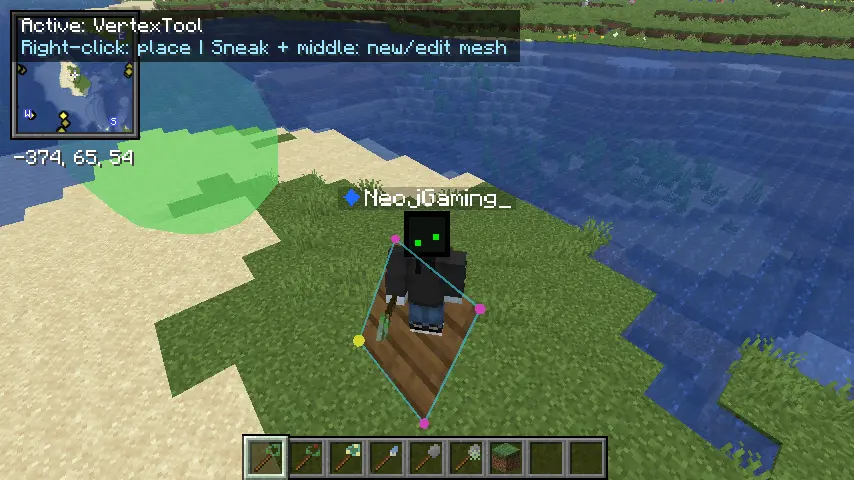
碰撞移动设置
Collision Settings Tool 提供以下选项:
- 阶梯状斜坡。
- 光滑斜坡。
- 平面冰模式。
- 滑动系数从
0.00 到 1.00。
- 应用到面。
- 应用到网格。
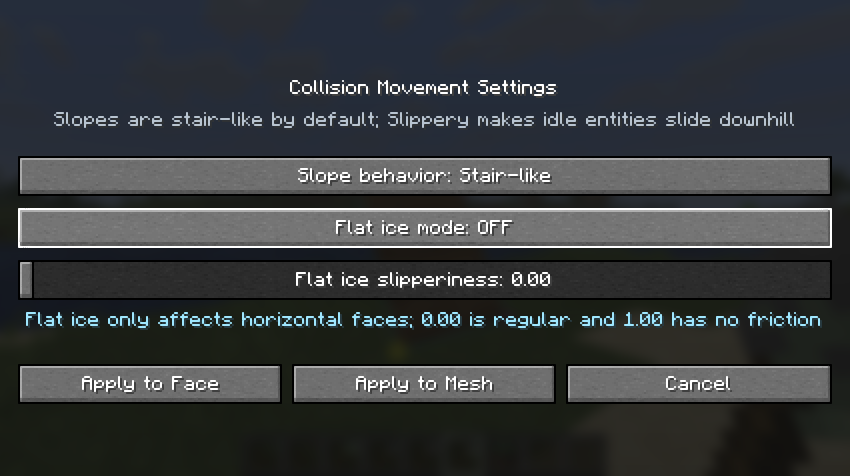
阶梯状是默认的斜坡模式。它保留请求的水平行程,并计算沿斜坡所需的垂直移动。仅靠重力不会使静止的实体滑动。
光滑模式允许重力沿非水平斜坡投影,导致实体沿下坡方向滑动。方向和速率自然取决于面的陡峭程度。此设置对完全水平的面无效。
平面冰模式仅影响水平碰撞面。它将实体请求的方向与其之前的水平运动进行混合:
0.00 表现正常。- 中间值逐步保留更多的动量。
1.00 完全保留之前的水平方向,阻止普通的地面转向,直到通过跳跃等其他机制改变运动状态。
glTF 和 GLB 模型导入
右键点击模型导入工具会打开一个游戏内的导入界面,其中包含可编辑的文件路径字段以及原生浏览对话框,后者已过滤为仅显示 .glb 和 .gltf 文件。模型的读取与验证过程在渲染线程之外进行,因此解析大型模型时不会导致界面卡死。
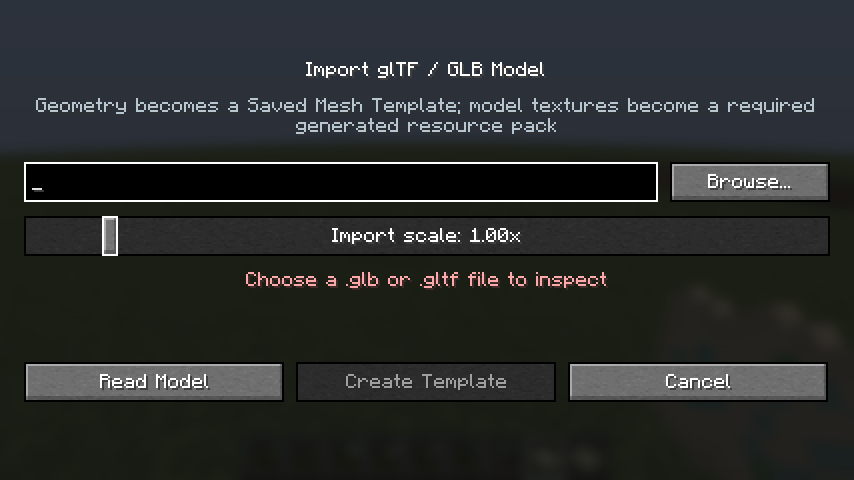
导入器包含一个统一的导入缩放滑块。默认值为 1.00x,范围从 0.01x 到 10.00x,并以精确的 0.01x 为步长进行量化。所选倍率同时影响“已保存网格模板”的世界空间顶点和生成的物品模型的渲染大小。面拓扑结构、UV 坐标、材质和嵌入纹理保持不变,因此可以放大非常小的模型而无需更改其纹理映射。
导入器支持普通建模所需的 glTF 2.0 功能:
- 文本格式
.gltf 文件和二进制 .glb 版本 2 文件。
- 嵌入的 GLB 二进制块、base64/百分号编码的数据 URI,以及同文件夹相对路径的外部缓冲区或图像。
- 选定的场景、节点层级、重复的网格实例、4x4 节点矩阵以及平移/旋转/缩放变换。
- 带索引或无索引的三角形列表、三角形条带和三角形扇形。
- 浮点位置坐标以及浮点或归一化整数纹理坐标。
- 通过
texCoord 选择的任意材质 UV 集。
KHR_texture_transform 的偏移、缩放、旋转和 UV 集覆盖。- PBR 基础色纹理和基础色因子。颜色/Alpha 因子会被烘焙到生成的 PNG 中,以确保每个导入的面保留其原始外观。
- 嵌入的 PNG 和 JPEG 图像,这些图像经过验证并转换为 PNG。
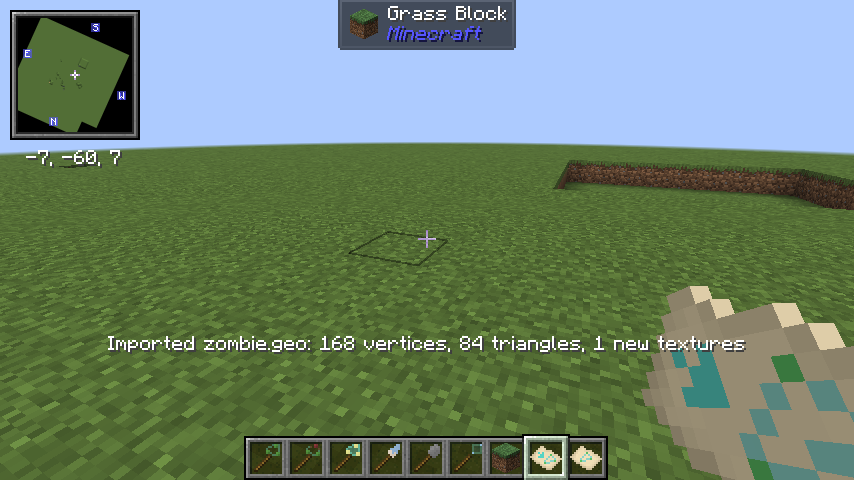
在模型摘要准备就绪后,导入网格会将经过验证的网格/模板数据和转换后的纹理资产发送到服务器。服务器在接受数据之前会独立检查每一个坐标、索引、UV、纹理尺寸、PNG 头信息、图像尺寸和 SHA-256 内容标识符。随后,它会为玩家提供一个正常的“已保存网格模板”,并将相同的几何体注册到世界导入的物品模型目录中。导入的三角形初始渲染时使用其原始 UV,但在使用碰撞工具之前,碰撞检测保持禁用状态。成功结果将通过与前文相同的紧凑操作栏摘要报告;导入过程不会添加聊天消息。
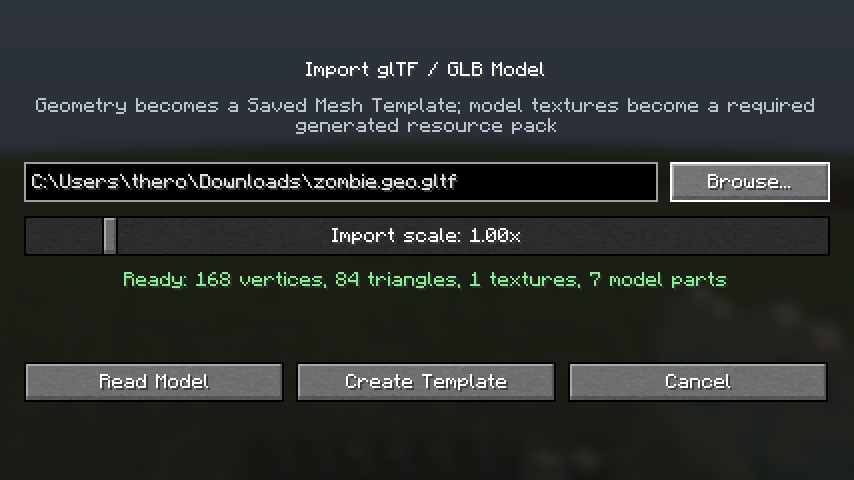
导入模型的坐标是相对于 glTF 模型原点存储的,其中 1 个 glTF 单位等于 1 个 Minecraft 方块。场景和节点的变换已经应用。放置或草稿放置生成的模板时,模型的原点将位于所选的放置点上。
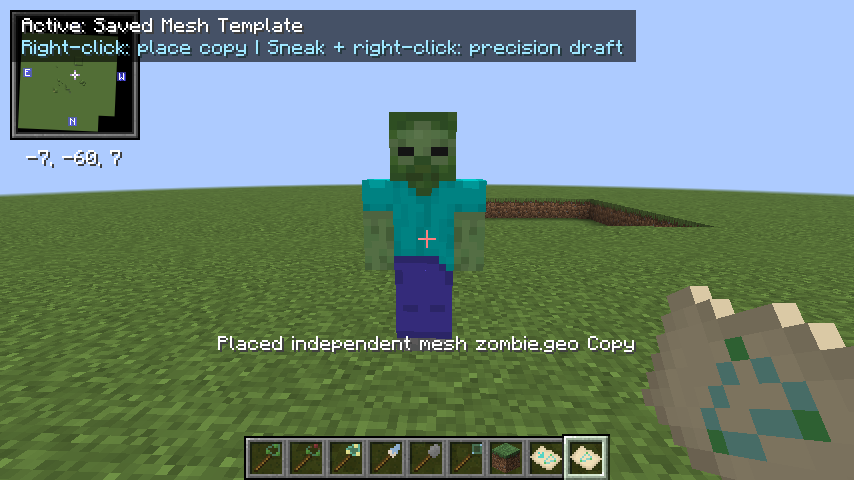
导入的物品模型
文件名前缀将成为 nmesh 命名空间中可读的物品模型标识符。大写字母变为小写,空格和不支持的字符变为下划线。重新导入具有相同规范化名称的文件会更新该 ID。属于 Neo's Meshes 自身工具模型的名称会附加 _model 后缀,以防止导入替换编辑器工具的外观。
例如,导入 Detailed Robot.glb 会注册为 nmesh:detailed_robot。可以使用标准的 Minecraft 物品模型组件将其放置在任何物品堆栈上:
/give @s minecraft:zombie_spawn_egg[minecraft:item_model="nmesh:detailed_robot"]
生成的堆栈会在库存、手持物品、掉落物实体、物品展示框、头颅槽和架子显示中绘制原始的导入三角形和映射了 UV 的纹理。Neo's Meshes 通过 Minecraft 常规的 minecraft:item_model 查找机制解析同步后的 ID,并通过特殊的物品渲染器提交任意三角形几何体,因为原版立方体模型 JSON 无法编码通用的 glTF 网格。在 1.00x 缩放比例下,完整模型居中并均匀适配到标准物品空间。随后应用选定的导入倍率,因此 2.00x 会使物品模型变大两倍,而 0.50x 会使其变小一半,然后再应用正常的上下文特定 Minecraft 物品变换。
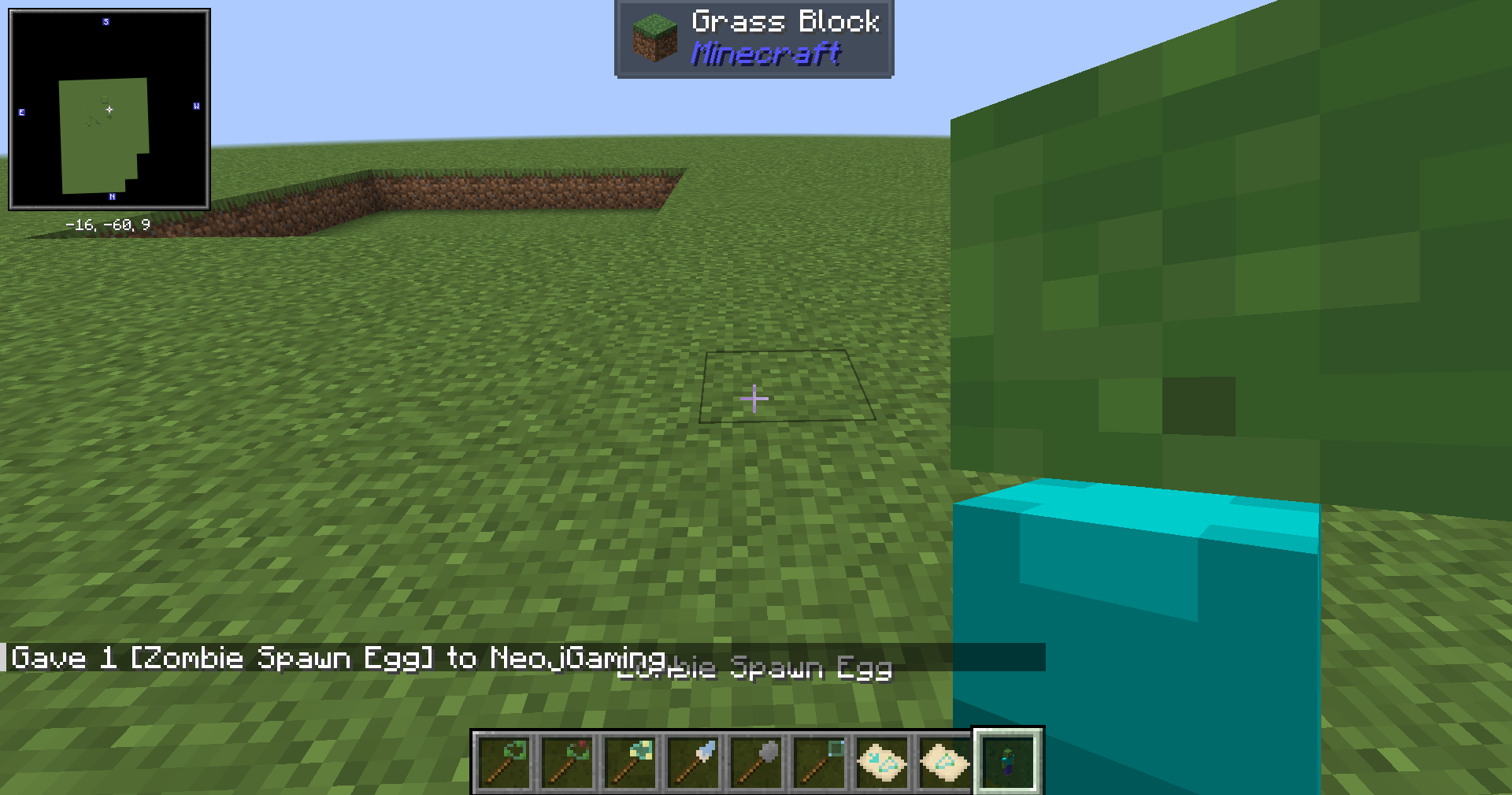
物品模型不包含大型自定义物品数据:堆栈仅存储普通的较小 minecraft:item_model 标识符。几何体及其导入缩放倍率作为世界持久数据存储在服务器上,并作为导入模型目录的一部分进行一次性同步,因此任何数量的物品都可以引用它而无需在 NBT 中复制模型。
生成的必需资源包
每种材质图像都变成如下不可变资源:
nmesh_imported:textures/models/<sha256>.png
SHA-256 名称用于去重相同的图像,并防止一次导入覆盖另一次导入。这些 PNG 字节和命名的物品模型目录存储在世界的 Neo's Meshes 保存数据中。加入游戏的客户端会接收完整的集合,并且导入操作会广播给所有连接的玩家。
在客户端侧,Neo's Meshes 通过一个名为 Neo's Meshes - Imported Models 的真实内存中 Minecraft PackResources 实现暴露这些字节。其包选择始终存在、必需、固定且优先级最高,因此它是模组端控制的,无法从资源包菜单中禁用——即使当前它不包含任何导入的纹理。
新同步的 PNG 文件会被解码并直接注册到 Minecraft 的纹理管理器中。因此,导入模型、加入服务器或断开连接都不会切换资源包或执行完整的资源包重载。更改过的纹理会逐个替换,未更改的纹理会保留而无需再次上传,属于前一个服务器的纹理会在断开连接时释放。
每次导入的数据源限制为 128 MiB,转换后的纹理限制为 128 张图像/32 MiB,图像尺寸限制为 4096x4096,顶点数限制为 16,384,三角形数量限制为 32,768。世界同步生成的数据包上限为 64 MiB。物品模型目录上限为 128 个模型、总计 131,072 个顶点和总计 262,144 个三角形。不支持 Draco 压缩的基本图元、稀疏访问器以及无法解码为 PNG/JPEG 的图像编码将被拒绝,并显示屏幕上的具体原因,而不是生成损坏的模板。
网格模板
在目标面或顶点上使用空白网格模板可捕获:
- 每个顶点相对于选定原点的位置。
- 面拓扑和边界边。
- 每个面的纹理和适配的 UV 坐标。
- 渲染/非渲染状态。
- 碰撞启用状态。
- 坡度和冰材质设置。
- 原始网格名称及保留的兼容性设置。
当选中一个顶点时,该顶点将成为模板的确切原点。当选中一个面时,面上精确的光线命中点将成为原点,允许使用位于该表面上任意位置的锚点放置复制的网格。
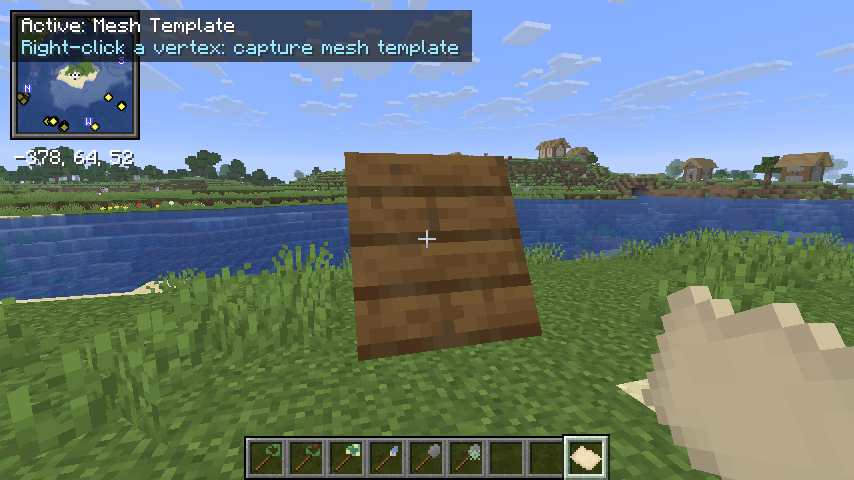
空白物品将变为独立的已保存网格模板;原始世界网格仍可进行编辑。
已保存网格模板物品仅包含一个小 UUID 引用,从不包含完整的面和顶点快照。每个捕获或导入的模板都会作为独立的压缩文件写入以下位置:
<world save>/nmesh_templates/<template UUID>.nbt
该文件包含相对顶点、边、面、UV、纹理、渲染和碰撞状态、移动材质、渲染设置、来源名称和放置原点信息。写入操作使用临时文件,并在文件系统支持时进行原子替换,以防止部分保存成为引用的模板。成功加载的模板会在服务器运行期间保持缓存,因此重复放置同一模板不会重复读取磁盘。
即使对于详细的导入,这也保持了库存和物品同步的大小较小。来自早期 Neo's Meshes 版本且包含嵌入式 nmesh_template 或 meshmod_template 数据的已保存模板物品在其首次使用时进行迁移:创建世界文件,物品获得其 UUID 引用,并移除嵌入的几何数据。
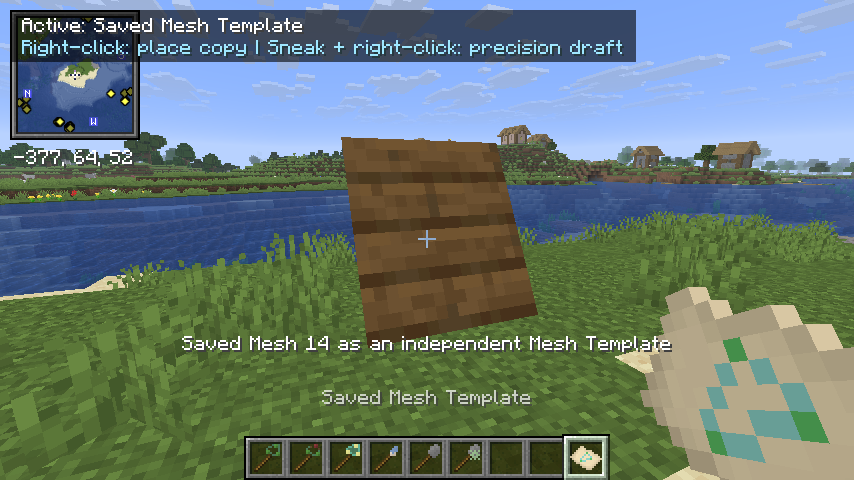
普通右键点击会放置一个独立副本。每个副本都会获得新的网格、顶点和面组标识符,因此编辑一个副本不会修改源或其他副本。放置原点落在当前吸附的顶点放置点上。
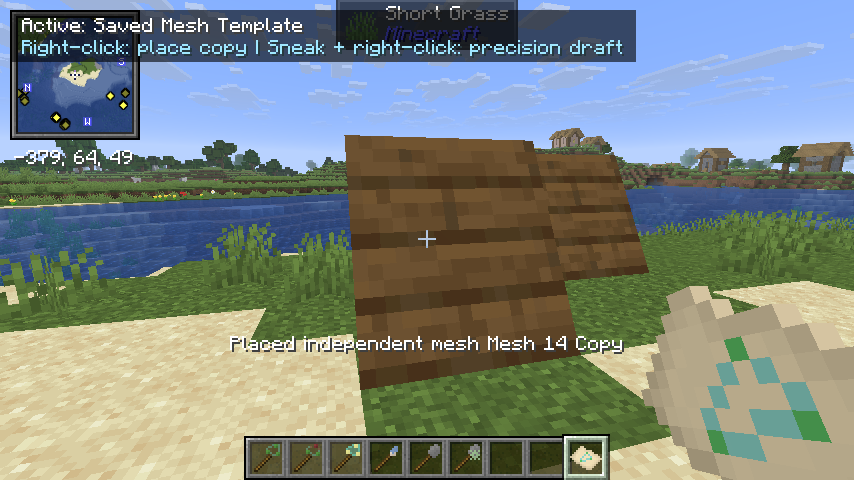
通常放置的副本名为“Original Name Copy”。重命名模板物品将为放置的网格提供名称。
精准草图模式
按住 Shift + 右键点击已保存网格模板会启动临时预览,而不会打开界面或使世界变暗。
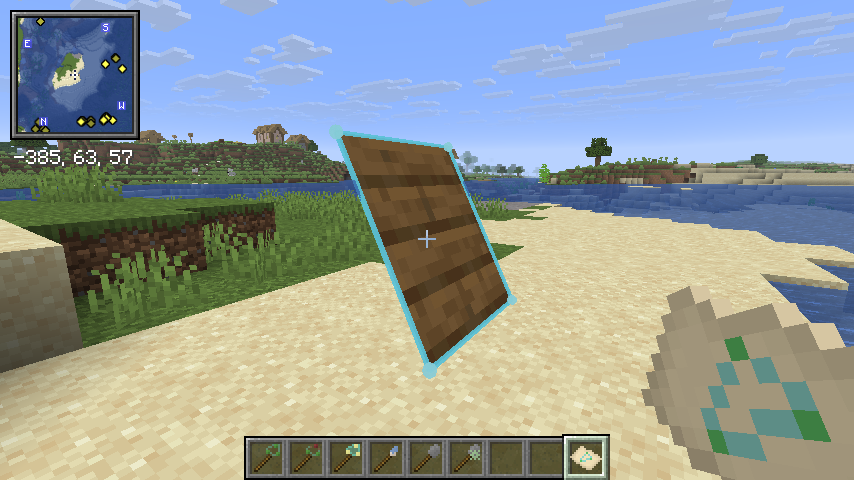
在草图模式下:
- 鼠标移动继续控制摄像机。
- 方向键提供普通的玩家移动。
- 空格键仍然跳跃。
- Q 向上移动草图。
- Z 向下移动草图。
- W 向北移动草图。
- S 向南移动草图。
- A 向西移动草图。
- D 向东移动草图。
- 移动使用固定的世界轴,不会随玩家或摄像机方向改变。
- 每个移动步长为
0.01 方块。
- Shift + Q/Z 以 +/-1 度旋转俯仰角。
- Shift + A/D 以 +/-1 度偏航角旋转。
- Shift + W/S 以 +/-1 度旋转滚转角。
- 左键点击确认放置。
- 右键点击取消且不创建任何内容。
- 打开其他界面也会取消。
直到确认之前,不会创建永久网格。
持久性、同步与多人游戏
服务器拥有并验证编辑内容。客户端处理输入、菜单、预览和渲染。
- 每个维度都有独立的持久化网格数据。
- 每个网格都有一个 UUID 和版本号。
- 每个顶点都有一个持久的 UUID 和双精度世界坐标。
- 加入的玩家会收到其当前维度的完整快照。
- 随后的编辑仅同步更改过的网格。
- 切换维度会清除玩家的当前选择,并发送新维度的网格。
- 每个玩家都有独立的编辑器选择和面草图。
- 每个玩家也有独立的临时选择工具框和批量操作菜单。
- 维度内的所有玩家都会接收更新后的几何图形。
- 导入的纹理资产和命名为
nmesh:<filename> 的物品模型随世界全局持久化,并作为必需的生成数据包/目录同步到每个客户端。
- 已保存网格模板的几何图形在全局一个不可变的
nmesh_templates 文件中持久化;物品仅同步其 UUID 引用。
- 目前没有任何操作员或所有权限制;任何获得工具的人都可以编辑任何可目标的网格。
因此,正确的分发分类是:
遗留兼容性
(曾经命名空间为 meshmod,但后来改为 nmesh 以用于 Neo's Meshes,因此它仅为了兼容之前使用该命名空间的世界而支持 meshmod。)
兼容性包括:
- 隐藏遗留的
meshmod:* 物品注册。
- 旧版物品模型已重定向至当前纹理。
- 自动将
meshmod:meshes 世界数据迁移至 nmesh:meshes。
- 读取旧的
meshmod_template 模板数据。
- 将带有数据的旧版空白模板物品转换为已保存的网格模板(Saved Mesh Templates)。
- 在首次使用时,将遗留的嵌入式
nmesh_template 和 meshmod_template 物品几何体移动至按 UUID 命名的世界文件中。
- 尽可能迁移旧的渲染面与碰撞面。
- 有意舍弃已过时的碰撞镂空(collision-cutout)表示法。
生存模式合成配方
(这并非真正用于生存模式的用途,编写此功能的 AI 只是以防万一添加了它。这是唯一非我构思的部分。)
| 物品 |
图案及材料 |
| VertexTool |
A / C / S - 紫水晶碎片、铜锭、木棍 |
| Mesh Delete Tool |
FI / S - 燧石、铁锭、木棍 |
| FaceTool |
E / C / S - 回声碎片、铜锭、木棍 |
| RenderTool |
GL / S - 玻璃、青金石、木棍 |
| CollisionTool |
IR / S - 铁锭、红石粉、木棍 |
| Collision Settings Tool |
CR / S - 铜锭、红石粉、木棍 |
| Mesh Template |
P / PAP / P - 四个纸张围绕一个紫水晶碎片 |
已保存的网格模板没有单独的合成配方。
元数据与兼容性
该 JAR 文件包含:
- Neo's Meshes Mod Menu 的描述信息。
- 内置的 256x256 示例图标。
- 英文的物品、界面、提示框、状态和错误文本。
- 专用的物品纹理和模型。
- Sodium 和 Iris 的可选声明。
- 模型/持久化存储、每个模板的世界文件存储、编辑器几何体、精确碰撞、区域选择、任意三角形物品适配,以及由 Gradle
check 任务使用的嵌入式 .gltf/.glb 导入自测试。
当前限制与缺失的验证
- 现有的顶点目前无法直接移动;它们只能被放置或删除。
- 没有明确的“停止渲染此面”操作。
- 纹理菜单目前仅更改纹理选择。持久化的全局颜色、透明度、双面渲染、全亮度、UV 缩放和偏移字段目前没有游戏内编辑器。
- 遗留的碰撞分辨率和厚度值保留在数据和模板中,但当前的精确三角形求解器不使用这些值。
- 光影包的外观取决于该光影包是否支持 Minecraft 的实体风格镂空/半透明渲染管线。
- 导入器有意拒绝 Draco 压缩、稀疏访问器、KTX2/Basis Universal 图像以及非三角形绘制图元。
- 基于文件的已保存网格模板与其世界存档绑定。仅将物品复制到另一个世界不会复制引用的文件。
- 当物品消失时,模板文件不会被自动删除,因为未加载的库存和复制的物品使得证明不再存在任何引用变得不安全。
- 当前的
README.md 包含过时的对“五种工具”和两格放置距离的引用。实现使用的是本指南中描述的功能集。
- 自动化夹具验证了模板文件的往返传输、文本
.gltf 和二进制 .glb 解析、嵌入式 PNG 转换、UV 坐标、节点变换以及缩减的编辑器几何体预算。完整的遗留物品迁移、从选择器到多人资源重载的工作流程,以及由此产生的实时帧率仍需在游戏内进行验证。
空白物品会转变为独特的已保存网格模板;原始世界网格仍可进行编辑。
已保存的网格模板物品仅包含一个小巧的 UUID 引用,绝不包含完整的面和顶点快照。每个捕获或导入的模板都会作为独立的压缩文件写入以下位置:
<world save>/nmesh_templates/<template UUID>.nbt
该文件包含相对顶点、边、面、UV 坐标、纹理、渲染和碰撞状态、移动材质、渲染设置、来源名称以及放置原点信息。写入操作使用临时文件,并在文件系统支持时进行原子替换,以防止部分保存成为被引用的模板。成功加载的模板会在服务器生命周期内被缓存,因此重复放置同一模板不会重复读取磁盘。
即使对于详细的导入内容,这也保持了库存和物品同步的小型化。来自早期 Neo's Meshes 版本且包含嵌入式 nmesh_template 或 meshmod_template 数据的已保存模板物品会在其首次使用时进行迁移:创建世界文件,物品获得其 UUID 引用,并移除嵌入式几何体。
正常右键点击可放置一个独立副本。每个副本都会获得新的网格、顶点和面组标识符,因此编辑其中一个副本不会修改源文件或另一个副本。放置原点落在当前吸附的顶点放置点上。
正常放置的副本名为 Original Name Copy。重命名模板物品将为放置的网格提供名称。
精准草稿模式
按住 Shift + 右键点击已保存的网格模板即可启动临时预览,而无需打开屏幕或使世界变暗。
在草稿模式期间:
- 鼠标移动继续控制摄像机。
- 方向键提供普通玩家移动。
- 空格键仍然用于跳跃。
- Q 将草稿向上移动。
- Z 将其向下移动。
- W 将其向北移动。
- S 将其向南移动。
- A 将其向西移动。
- D 将其向东移动。
- 移动使用固定的世界坐标轴,不会随玩家或摄像机方向而改变。
- 每次移动步长为
0.01 个方块。
- Shift + Q/Z 按 +/-1 度调整俯仰角(pitch)。
- Shift + A/D 按 +/-1 度调整偏航角(yaw)。
- Shift + W/S 按 +/-1 度调整翻滚角(roll)。
- 左键点击确认放置。
- 右键点击取消且不创建任何内容。
- 打开另一个屏幕也会取消操作。
在确认之前不会创建永久网格。
持久化、同步与多人游戏
服务器拥有并验证编辑内容。客户端处理输入、菜单、预览和渲染。
- 每个维度拥有独立的持久化网格数据。
- 每个网格都有一个 UUID 和版本号。
- 每个顶点都有一个持久化的 UUID 和双精度世界坐标位置。
- 加入游戏的玩家会收到其当前维度的完整快照。
- 后续的编辑仅同步发生更改的网格。
- 切换维度会清除玩家的当前选中状态,并发送新维度的网格。
- 每位玩家拥有独立的编辑器选区和面草稿。
- 每位玩家还拥有独立的临时“选择工具”框和批量操作菜单。
- 该维度内的所有玩家都会收到更新的几何体信息。
- 导入的纹理资产以及命名为
nmesh:<filename> 的物品模型作为世界的一部分全局持久化,并作为必需的生成包/目录同步给每个客户端。
- 已保存的网格模板几何体在全球范围内持久化存储在每个模板一个不可变的
nmesh_templates 文件中;物品仅同步其 UUID 引用。
- 目前没有任何操作员或所有权限制;任何获得工具的人都可以编辑任何可目标的网格。
旧版兼容性
(曾经命名空间为 meshmod,但后来改为 nmesh 以代表 Neo's Meshes,因此它仅为那些此前使用该命名空间的世界保留对 meshmod 的支持。)
兼容性包括:
- 隐藏的旧版
meshmod:* 物品注册。
- 重定向到当前纹理的旧物品模型。
- 从
meshmod:meshes 世界数据自动迁移至 nmesh:meshes。
- 读取旧的
meshmod_template 模板数据。
- 将带有数据的旧版空白模板物品转换为已保存的网格模板。
- 在首次使用时,将旧版嵌入的
nmesh_template 和 meshmod_template 物品几何体移动至以 UUID 命名的世界文件中。
- 尽可能迁移旧版的渲染面和碰撞面。
- 有意丢弃过时的碰撞裁剪表示法。
生存模式配方
(这并非真正面向生存模式设计,编写此部分的 AI 只是以防万一添加了它。这是唯一不是我构思的部分。)
| 物品 |
图案与材料 |
| VertexTool |
A / C / S - 紫水晶碎片、铜锭、木棍 |
| Mesh Delete Tool |
FI / S - 燧石、铁锭、木棍 |
| FaceTool |
E / C / S - 回声碎片、铜锭、木棍 |
| RenderTool |
GL / S - 玻璃、青金石、木棍 |
| CollisionTool |
IR / S - 铁锭、红石、木棍 |
| Collision Settings Tool |
CR / S - 铜锭、红石、木棍 |
| Mesh Template |
P / PAP / P - 四个纸张围绕一个紫水晶碎片 |
已保存的网格模板没有单独的合成配方。
元数据与兼容性
JAR 文件包含:
- Neo's Meshes Mod Menu 描述。
- 内置的 256x256 示例图标。
- 英文物品、界面、提示、状态和错误文本。
- 专用的物品纹理和模型。
- Sodium 和 Iris 的可选声明。
- 模型/持久化、每模板世界文件存储、编辑器几何体、精确碰撞、区域选择、任意三角形物品适配,以及由 Gradle
check 任务使用的嵌入式 .gltf/.glb 导入自测试。
当前限制与未验证项
- 现有的顶点目前无法直接移动;它们只能被放置或删除。
- 没有明确的“停止渲染此面”操作。
- 纹理菜单目前仅更改纹理选择。持久化的全局颜色、透明度、双面、全亮、UV 缩放和偏移字段目前没有对应的游戏内编辑器。
- 旧版碰撞分辨率和厚度值在数据和模板中得以保留,但当前的精确三角形求解器不使用它们。
- 光影包的外观取决于该光影包是否支持 Minecraft 实体风格的裁剪/半透明渲染管线。
- 导入器有意拒绝 Draco 压缩、稀疏访问器、KTX2/Basis Universal 图像以及非三角形绘图图元。
- 基于文件的已保存网格模板与其世界存档绑定。仅将物品复制到另一个世界并不会复制所引用的文件。
- 模板文件在物品消失时不会被自动删除,因为卸载的库存和复制的物品使得证明不再存在引用变得不安全。
- 当前的
README.md 包含过时的关于“五种工具”和两格放置距离的引用。实际实现使用的是本指南中描述的功能集。
- 自动化夹具验证了模板文件的往返、文本型
.gltf 和二进制 .glb 解析、嵌入式 PNG 转换、UV、节点变换以及缩减后的编辑器几何体预算。完整的旧版物品迁移、从选择器到多人游戏资源重载的工作流程,以及由此产生的实时帧率仍需在游戏中进行验证。
Neo's Meshes - Complete Feature Guide
Neo's Meshes is a Fabric mod for Minecraft Java Edition 26.1.2 that lets players construct persistent, textured, collidable 3D polygon meshes directly inside a world.
It can also import complete glTF 2.0 .glb and .gltf models in-game, preserve their UV-mapped base-color textures in a generated required resource pack, turn the result into a reusable Saved Mesh Template, and register the same exact triangle mesh as a command-selectable Minecraft item model.
Normal Creation Workflow
- Place vertices with the Vertex Tool.
- Select those vertices in boundary order with the Face Tool.
- Middle-click to turn the selection into a face on the mesh.
- Pick a resource-pack texture (added or vanilla) with the Render Tool.
- Apply that texture to the face or entire mesh.
- Enable collision with the Collision Tool.
- Optionally configure the collision behavior.
- Optionally capture the finished mesh as a reusable template.
Meshes are stored independently per dimension and remain after saving and reopening the world.
Included Items and Controls
| Item |
Controls and behavior |
VertexTool
|
Shows a live green placement preview. Right-click places a vertex. Sneak + middle-click selects the mesh belonging to the face or vertex you are looking at, or finishes the current mesh and creates a separate empty one when neither is targeted. |
Mesh Delete Tool
|
Right-click a targeted vertex to remove that vertex and its dependent topology, or right-click a face to remove that complete polygon while keeping its other vertices. Crouch + left-click any face or vertex to permanently delete its entire mesh. |
FaceTool
|
Right-click vertices in boundary order to select them. Left-click a selected vertex to deselect it. Middle-click with at least three selected vertices to create the face. Sneak + double-left-click a face to delete a face while keeping its vertices. |
RenderTool
|
Middle-click, or right-click empty space, opens the texture browser. Right-click a face to apply the selected texture. Sneak + right-click applies it to every face in that mesh. |
CollisionTool
|
Left-click a face to enable collision. Right-click removes that face's collision. Sneak + left-click a mesh face or vertex to enable collision for every face in that mesh. |
Collision Settings Tool
|
Right-click a face to configure stair-like or slippery slopes or ice mode, with a friction slider, if the face is perfectly flat. Settings can be applied to one face or the whole mesh. |
Mesh Template
|
Right-click while looking at a mesh face or vertex to capture the entire mesh. A targeted vertex becomes the origin; a targeted face uses the exact point clicked on its surface. |
Saved Mesh Template
|
The distinct item produced after capture. Right-click places a copy; sneak + right-click opens precision draft placement. |
Model Import Tool
|
Right-click to open a responsive file-import screen. Browse for a glTF 2.0 .glb or .gltf, inspect its vertex/triangle/texture summary, and create both a Saved Mesh Template and an nmesh:<filename> item model containing the transformed full model. |
Selection Tool
|
Right-click twice to place two temporary fill-style selection corners using the Vertex Tool placement rules. Middle-click after both corners exist to open bulk actions for enclosed vertices and faces. |
The creative tab exposes all editing tools, the blank Mesh Template, and the Model Import Tool. Saved Mesh Templates are produced through capture or model import rather than directly listed.
Every item stacks to one and has no durability system.
Vertex Placement and Mesh Selection
Normal vertex placement is centered three blocks along the camera direction.
When not crouching:
- If a reachable block is under the crosshair, placement moves onto the actual outline face of that block.
- It selects the closest point from a 3x3 anchor grid on that face: four corners, four edge midpoints, and the face center.
- Exact block outlines are honored, including partial shapes such as slabs.
- A closer block causes the vertex to rest on that block rather than staying three blocks away.
- If no block is hit, the three-block endpoint snaps to the center of its containing block space.
When crouching:
- Placement is exactly three blocks along the camera direction.
- No block, grid, or block-center snapping is applied.
The client preview and server placement use the same calculation.
The first vertex creates and selects a mesh automatically if one is not already selected. Mesh selection is based on the face or vertex under the camera ray, not whether the placement preview overlaps it. Looking at a face or vertex and using sneak + middle-click switches editing to that part's mesh and clears any face selection from another mesh.
Selection Tool and Fill-Style Area Actions
The Selection Tool provides a temporary, per-player rectangular editing volume for mass-editing meshes.
- Right-click places the first corner.
- Right-click again places the second corner and completes the box.
- A third right-click replaces the previous box and becomes corner one of a new selection.
- Both corners use the same three-block reach, crouching behavior, block-face placement, and 3x3 face-anchor snapping as the Vertex Tool.
- A blue placement preview shows where the next corner will land.
- The first and second corners appear as differently colored markers.
- Middle-click opens the responsive area-action menu.
The available actions are:
- Deselect Face Vertices: removes enclosed vertices from the current Face Tool boundary selection without deleting them.
- Delete Vertices: deletes every actual mesh vertex inside the box across every mesh in the dimension. Faces and edges that depend on a deleted vertex are removed safely, and other players' editor indices are remapped.
- Delete Faces: deletes every fully enclosed logical polygon while preserving its remaining vertices.
- Unrender Faces: makes every fully enclosed logical polygon invisible while preserving its texture assignment, collision, vertices, and topology.
- Texture Faces: opens the normal searchable texture browser, then applies the chosen texture to every fully enclosed logical polygon. Applying a texture also renders that face.
- Clear Selection Box: removes both fake corners and the box without changing any mesh.
Selection boundaries are inclusive. A logical face is considered enclosed only when every vertex belonging to all of its internal triangles is inside the box. A face that merely crosses the box boundary is therefore not unexpectedly deleted, unrendered, or retextured. Triangulated quads and larger polygons remain one atomic logical face during these operations.
Polygon Faces
Face vertices must be selected in the intended boundary order. The tool does not automatically finish after three vertices; you may select up to 256 vertices
and then explicitly middle-click.
The polygon system supports triangles, quads, larger polygons, and valid concave polygons. Internally, polygons are ear-clipped into triangles, but all triangles share one face-group identity. Consequently:
- One texture operation affects the entire polygon.
- One collision operation affects the entire polygon.
- Deleting any part removes the complete logical polygon.
- Internal triangulation edges are not treated as separate collision borders.
- Texture coordinates remain continuous between the internal triangles.
A new face begins as topology only: it is neither rendered nor collidable until the corresponding tools are used.
A mesh supports up to 16,384 vertices and 32,768 internal face triangles.
Mesh and Part Deletion
- Right-click a vertex to delete that vertex. Any faces and edges that require it are removed safely.
- Right-click a face to delete the complete logical polygon face, including all of its internal triangles, texture, collision, and collision settings. Vertices not removed by the operation remain available for editing.
- Crouch + left-click any vertex or face to delete the entire mesh containing it.
Whole-mesh deletion removes all of the mesh's vertices, faces, rendered geometry, collision geometry, saved world data, and active editor selection. The removal is synchronized immediately to every player in that dimension.
Texture System
The RenderTool opens a responsive, searchable, scrollable texture browser. It enumerates effective PNG resources under textures/ from:
- Vanilla's resources.
- Enabled resource packs.
- Mod resources, including textures added under
assets/nmesh/textures/.
Each texture has a preview and full resource identifier tooltip. A resource identifier can also be entered manually, such as:
minecraft:block/oak_planks
minecraft:textures/block/oak_planks.png
nmesh:item/example
Identifiers are normalized to their actual texture resource path. Missing textures make the field red and disable the Apply button. If an already-saved texture later disappears, rendering falls back to oak planks instead of making the mesh vanish.
Applying a texture:
- Marks the face as rendered.
- Stores the texture independently on that face group.
- Projects the complete polygon into 2D.
- Normalizes the polygon's bounds to the full 0-1 UV range.
- Stretches one fitted copy of the texture across the whole polygon.
- Preserves consistent UV coordinates across all internal triangles.
Each triangle is submitted separately as a degenerate quad so Minecraft cannot accidentally connect neighboring triangles into long, distorted texture wedges.
Fresh meshes render white, opaque, double-sided, and with normal world lighting. Coplanar mesh surfaces use a forward depth layer, so the mesh takes visual precedence over a block when they are exactly flush, avoiding z-fighting.
Meshes are not Minecraft entities. They are custom world geometry submitted through Fabric's world-rendering phase. The implementation borrows Minecraft's entity cutout/translucent pipelines for material rendering, but samples surrounding world-surface light so a mesh intersecting a block does not become dark like an entity inside that block.
Editor Visualization
While an editing tool is held:
- Vertices appear as glowing 3D spheres visible through blocks.
- Selected mesh edges are brighter cyan.
- Selected-mesh vertices are magenta.
- The currently selected vertex is yellow and larger.
- The first vertex of a face draft is green.
- Other face-draft vertices are cyan.
- The face under the crosshair is highlighted yellow.
- Unrendered faces have a faint blue editor preview.
- Collidable faces appear red while holding the CollisionTool.
These markers are editing aids only and are not stored as part of the finished appearance.
Vertex markers use lightweight eight-triangle octahedra instead of high-segment spheres. Authored editor edges use a two-triangle camera-facing ribbon instead of a twelve-triangle solid prism. This reduces marker geometry by 92% and edge geometry by about 83% while keeping the same colors, through-wall visibility, target highlighting, and normal/detail sizes. Textured mesh face geometry remains revision-cached and is not rebuilt unless that mesh changes.
For dense or imported models, hold F1 to momentarily switch the editor aids into high-detail view. In this view, vertex markers become much smaller and authored mesh edges are hidden so the textured model is easier to inspect. Releasing F1 restores the current persistent view state. Press F4 once to keep high-detail view enabled, and press F4 again to return to the normal marker and edge sizes. Selection-box boundaries remain visible because they describe the active editing area rather than mesh topology.
A compact top-left HUD shows the controls for the held tool. Precision template draft mode intentionally has no HUD overlay, screen, or world darkening.
Exact Collision System
Collision is independent of rendering. A face may be visible without collision, collidable without a texture, both, or neither.
Enabled polygons are not converted into blocks or stair-stepped voxel boxes. The mod continuously sweeps an entity's real bounding box against the authored triangle planes and polygon boundaries.
The solver includes:
- Continuous collision detection to reduce high-speed tunneling.
- Exact triangle planes and polygon boundaries.
- Seamless movement across triangles belonging to the same polygon.
- No invisible walls along internal triangulation diagonals.
- Flush block-to-mesh and mesh-to-block transitions.
- Movement projection along sloped surfaces.
- Spatial section indexing so only nearby collision triangles are checked.
- Collision integration before and after vanilla's block collision resolution.
The collision boundary is intentionally inset by at most 0.001 blocks around a polygon's outer edge. This tiny reduction prevents a vertical face underneath or beside a floor from catching an entity trying to walk off the floor. Internal triangle seams are not inset.
Because the collision mixin applies to Minecraft's base Entity collision method, mesh collision can affect players and other entities using normal movement collision.
Collision Movement Settings
The Collision Settings Tool provides:
- Stair-like slopes.
- Slippery slopes.
- Flat ice mode.
- Slipperiness from
0.00 to 1.00.
- Apply to Face.
- Apply to Mesh.
Stair-like is the default slope mode. It preserves requested horizontal travel and calculates the necessary vertical movement along the slope. Gravity by itself does not make an idle entity slide.
Slippery mode allows gravity to project along a non-horizontal slope, causing the entity to slide downhill. The direction and rate naturally depend on the face's steepness. This setting does nothing to a perfectly horizontal face.
Flat ice mode only affects horizontal collision faces. It blends the entity's requested direction with its previous horizontal movement:
0.00 behaves normally.- Intermediate values preserve progressively more momentum.
1.00 completely preserves the previous horizontal direction, preventing ordinary ground steering until movement is changed through another mechanism such as jumping.
glTF and GLB Model Import
Right-clicking the Model Import Tool opens an in-game import screen with both an editable file-path field and a native Browse dialog filtered to .glb and .gltf files. Reading and validating the model happens away from the render thread so a larger model does not freeze the interface while it is parsed.
The importer includes a uniform Import scale slider. It defaults to 1.00x, ranges from 0.01x to 10.00x, and is quantized in exact 0.01x increments. The selected multiplier affects both the Saved Mesh Template's world-space vertices and the generated item model's rendered size. Face topology, UV coordinates, materials, and embedded textures are unchanged, so a very small model can be enlarged without altering its texture mapping.
The importer supports glTF 2.0 features needed for ordinary authored mesh models:
- Text
.gltf files and binary .glb version 2 files.
- Embedded GLB binary chunks, base64/percent-encoded data URIs, and same-folder relative sidecar buffers or images.
- The selected scene, node hierarchy, repeated mesh instances, 4x4 node matrices, and translation/rotation/scale transforms.
- Indexed or unindexed triangle lists, triangle strips, and triangle fans.
- Floating-point positions and floating-point or normalized integer texture coordinates.
- Any material UV set selected through
texCoord.
KHR_texture_transform offset, scale, rotation, and UV-set override.- PBR base-color textures and base-color factors. Color/alpha factors are baked into the generated PNG so each imported face keeps its authored appearance.
- Embedded PNG and JPEG images, which are validated and converted to PNG.
After the model summary is ready, Import Mesh sends only validated mesh/template data and converted texture assets to the server. The server independently checks every coordinate, index, UV, texture size, PNG header, image dimensions, and SHA-256 content identifier before accepting it. It then gives the player a normal Saved Mesh Template and registers the same geometry in the world's imported item-model catalog. Imported triangles start rendered with their original UVs, but collision stays disabled until the Collision Tool is used. Success is reported through the same compact actionbar summary as before; importing does not add chat messages.
Imported model coordinates are stored relative to the glTF model origin, with one glTF unit equal to one Minecraft block. Scene and node transforms are already applied. Placing or draft-placing the resulting template therefore puts the model's authored origin on the chosen placement point.
Imported Item Models
The filename stem becomes a readable item-model identifier in the nmesh namespace. Uppercase letters become lowercase, while spaces and unsupported characters become underscores. Reimporting a file with the same normalized name updates that same ID. Names belonging to Neo's Meshes' own tool models receive a _model suffix so an import cannot replace an editor tool's appearance.
For example, importing Detailed Robot.glb registers nmesh:detailed_robot. It can be placed on any item stack with the standard Minecraft item-model component:
/give @s minecraft:zombie_spawn_egg[minecraft:item_model="nmesh:detailed_robot"]
The resulting stack draws the original imported triangles and UV-mapped textures in inventories, hands, dropped-item entities, item frames, head slots, and shelf displays. Neo's Meshes resolves the synchronized ID through Minecraft's normal minecraft:item_model lookup and submits the arbitrary triangle geometry through a special item renderer because vanilla cuboid model JSON cannot encode a general glTF mesh. At 1.00x, the full model is centered and uniformly fitted into normal item space. The selected import multiplier is then applied around that center, so 2.00x makes the item model twice as large and 0.50x makes it half-sized before the normal context-specific Minecraft item transforms are applied.
The item model contains no large custom item data: the stack stores only the ordinary small minecraft:item_model identifier. The geometry and its import-scale multiplier remain world-persistent on the server and are synchronized once as part of the imported model catalog, so any number of items can reference it without duplicating the model in NBT.
Generated Required Resource Pack
Every material image becomes an immutable resource such as:
nmesh_imported:textures/models/<sha256>.png
The SHA-256 name deduplicates identical images and prevents one import from overwriting another. These PNG bytes and the named item-model catalog are stored in the world's Neo's Meshes saved data. Joining clients receive the complete sets, and imports are broadcast to every connected player.
On the client, Neo's Meshes exposes those bytes through a real in-memory Minecraft PackResources implementation named Neo's Meshes - Imported Models. Its pack selection is always present, required, fixed, and top priority, so it is mod-side and cannot be disabled from the resource-pack menu—even when it currently contains no imported textures.
Newly synchronized PNGs are decoded and registered directly with Minecraft's texture manager. Importing a model, joining a server, or disconnecting therefore does not toggle the pack or perform a full resource-pack reload. Changed textures are replaced individually, unchanged textures are retained without another upload, and textures belonging to the previous server are released on disconnect.
Per import, source data is limited to 128 MiB, converted textures to 128 images/32 MiB, images to 4096x4096, vertices to 16,384, and triangles to 32,768. A world's synchronized generated pack is capped at 64 MiB. The item-model catalog is capped at 128 models, 131,072 total vertices, and 262,144 total triangles. Draco-compressed primitives, sparse accessors, and image encodings not decodable as PNG/JPEG are rejected with an on-screen reason instead of producing a broken template.
Mesh Templates
Using a blank Mesh Template on a targeted face or vertex captures:
- Every vertex as a position relative to the chosen origin.
- Face topology and boundary edges.
- Per-face textures and fitted UV coordinates.
- Rendered/unrendered state.
- Collision-enabled state.
- Slope and ice material settings.
- The original mesh name and retained compatibility settings.
When a vertex is targeted, that vertex becomes the template's exact origin. When a face is targeted, the precise ray-hit point on the face becomes the origin, allowing the copied mesh to be placed using an anchor anywhere on that surface.
The blank item transforms into a distinct Saved Mesh Template; the original world mesh remains editable.
The Saved Mesh Template item contains only a small UUID reference, never the full face and vertex snapshot. Each captured or imported template is written as its own compressed file at:
<world save>/nmesh_templates/<template UUID>.nbt
That file contains the relative vertices, edges, faces, UVs, textures, rendered and collision states, movement materials, render settings, source name, and placement-origin information. Writes use a temporary file followed by an atomic replacement when the filesystem supports it, preventing a partial save from becoming the referenced template. Successfully loaded templates are cached for the life of the server, so repeatedly placing the same template does not repeatedly read the disk.
This keeps inventory and item synchronization small even for detailed imports. Saved Template items from earlier Neo's Meshes versions that contain embedded nmesh_template or meshmod_template data are migrated on their first use: a world file is created, the item receives its UUID reference, and the embedded geometry is removed.
Normal right-click places an independent copy. Every copy receives new mesh, vertex, and face-group identities, so editing one copy does not modify the source or another copy. The placement origin lands at the current snapped vertex-placement point.
A normally placed copy is named Original Name Copy. Renaming the template item provides the placed mesh's name instead.
Precision Draft Mode
Sneak + right-click a Saved Mesh Template starts a transient preview without opening a screen or darkening the world.
During draft mode:
- Mouse movement continues controlling the camera.
- Arrow keys provide ordinary player movement.
- Space still jumps.
- Q moves the draft up.
- Z moves it down.
- W moves it north.
- S moves it south.
- A moves it west.
- D moves it east.
- Movement uses fixed world axes and never changes with player or camera direction.
- Each movement step is
0.01 blocks.
- Shift + Q/Z rotates pitch by +/-1 degree.
- Shift + A/D rotates yaw by +/-1 degree.
- Shift + W/S rotates roll by +/-1 degree.
- Left-click confirms placement.
- Right-click cancels without creating anything.
- Opening another screen also cancels.
No permanent mesh is created until confirmation.
Persistence, Syncing, and Multiplayer
The server owns and validates edits. Clients handle input, menus, previews, and rendering.
- Each dimension has separate persistent mesh data.
- Every mesh has a UUID and revision.
- Every vertex has a persistent UUID and double-precision world position.
- Joining players receive a complete snapshot for their current dimension.
- Later edits synchronize only the changed mesh.
- Changing dimensions clears the player's active selection and sends the new dimension's meshes.
- Each player has an independent editor selection and face draft.
- Each player also has an independent transient Selection Tool box and bulk-action menu.
- All players in the dimension receive updated geometry.
- Imported texture assets and named
nmesh:<filename> item models persist globally with the world and synchronize to every client as a required generated pack/catalog.
- Saved Mesh Template geometry persists globally in one immutable
nmesh_templates file per template; items synchronize only its UUID reference.
- There is currently no operator or ownership restriction; anyone who obtains the tools can edit any targetable mesh.
Therefore, the correct distribution classification is:
- Client and server
- Required on both
- Works in singleplayer too
Legacy Compatibility
(At one point the namespace was meshmod, but was since then changed to nmesh for Neo's Meshes, so it does support meshmod just for compatibility on worlds that used that before.)
Compatibility includes:
- Hidden legacy
meshmod:* item registrations.
- Old item models redirected to the current textures.
- Automatic migration from
meshmod:meshes world data to nmesh:meshes.
- Reading old
meshmod_template template data.
- Converting older data-bearing blank template items into Saved Mesh Templates.
- Moving legacy embedded
nmesh_template and meshmod_template item geometry into UUID-named world files on first use.
- Migrating old rendered and collision faces where possible.
- Intentionally discarding the obsolete collision-cutout representation.
Survival Recipes
(This isn't really meant for survival so that AI that coded this just added it in just in case. This is the only part that wasn't my idea.)
| Item |
Pattern and ingredients |
| VertexTool |
A / C / S - amethyst shard, copper ingot, stick |
| Mesh Delete Tool |
FI / S - flint, iron ingot, stick |
| FaceTool |
E / C / S - echo shard, copper ingot, stick |
| RenderTool |
GL / S - glass, lapis lazuli, stick |
| CollisionTool |
IR / S - iron ingot, redstone, stick |
| Collision Settings Tool |
CR / S - copper ingot, redstone, stick |
| Mesh Template |
P / PAP / P - four paper surrounding an amethyst shard |
Saved Mesh Templates have no separate crafting recipe.
Metadata and Compatibility
The JAR contains:
- The Neo's Meshes Mod Menu description.
- A bundled 256x256 example icon.
- English item, interface, tooltip, status, and error text.
- Dedicated item textures and models.
- Optional Sodium and Iris declarations.
- Model/persistence, per-template world-file storage, editor-geometry, exact-collision, area-selection, arbitrary-triangle item fitting, and embedded
.gltf/.glb import self-tests used by the Gradle check task.
Current Limitations and Missing Verification
- Existing vertices cannot currently be moved directly; they can only be placed or deleted.
- There is no explicit "stop rendering this face" operation.
- The texture menu currently changes texture selection only. Persisted global color, alpha, double-sided, full-bright, UV scale, and offset fields do not have a current in-game editor.
- Legacy collision-resolution and thickness values are preserved in data/templates, but the current exact-triangle solver does not use them.
- Shader-pack appearance depends on the pack supporting Minecraft's entity-style cutout/translucent render pipelines.
- The importer intentionally rejects Draco compression, sparse accessors, KTX2/Basis Universal images, and non-triangle drawing primitives.
- A file-backed Saved Mesh Template is tied to its world save. Copying only the item into another world does not copy the referenced file.
- Template files are intentionally not automatically deleted when an item disappears, because unloaded inventories and copied items make it unsafe to prove that no reference remains.
- The current
README.md contains stale references to "five tools" and a two-block placement distance. The implementation uses the feature set described in this guide.
- Automated fixtures verify template-file round trips, textual
.gltf and binary .glb parsing, embedded PNG conversion, UVs, node transforms, and the reduced editor-geometry budgets. The complete legacy-item migration, picker-to-multiplayer-resource-reload workflow, and resulting live frame rate still require in-game verification.
The blank item transforms into a distinct Saved Mesh Template; the original world mesh remains editable.
The Saved Mesh Template item contains only a small UUID reference, never the full face and vertex snapshot. Each captured or imported template is written as its own compressed file at:
<world save>/nmesh_templates/<template UUID>.nbt
That file contains the relative vertices, edges, faces, UVs, textures, rendered and collision states, movement materials, render settings, source name, and placement-origin information. Writes use a temporary file followed by an atomic replacement when the filesystem supports it, preventing a partial save from becoming the referenced template. Successfully loaded templates are cached for the life of the server, so repeatedly placing the same template does not repeatedly read the disk.
This keeps inventory and item synchronization small even for detailed imports. Saved Template items from earlier Neo's Meshes versions that contain embedded nmesh_template or meshmod_template data are migrated on their first use: a world file is created, the item receives its UUID reference, and the embedded geometry is removed.
Normal right-click places an independent copy. Every copy receives new mesh, vertex, and face-group identities, so editing one copy does not modify the source or another copy. The placement origin lands at the current snapped vertex-placement point.
A normally placed copy is named Original Name Copy. Renaming the template item provides the placed mesh's name instead.
Precision Draft Mode
Sneak + right-click a Saved Mesh Template starts a transient preview without opening a screen or darkening the world.
During draft mode:
- Mouse movement continues controlling the camera.
- Arrow keys provide ordinary player movement.
- Space still jumps.
- Q moves the draft up.
- Z moves it down.
- W moves it north.
- S moves it south.
- A moves it west.
- D moves it east.
- Movement uses fixed world axes and never changes with player or camera direction.
- Each movement step is
0.01 blocks.
- Shift + Q/Z rotates pitch by +/-1 degree.
- Shift + A/D rotates yaw by +/-1 degree.
- Shift + W/S rotates roll by +/-1 degree.
- Left-click confirms placement.
- Right-click cancels without creating anything.
- Opening another screen also cancels.
No permanent mesh is created until confirmation.
Persistence, Syncing, and Multiplayer
The server owns and validates edits. Clients handle input, menus, previews, and rendering.
- Each dimension has separate persistent mesh data.
- Every mesh has a UUID and revision.
- Every vertex has a persistent UUID and double-precision world position.
- Joining players receive a complete snapshot for their current dimension.
- Later edits synchronize only the changed mesh.
- Changing dimensions clears the player's active selection and sends the new dimension's meshes.
- Each player has an independent editor selection and face draft.
- Each player also has an independent transient Selection Tool box and bulk-action menu.
- All players in the dimension receive updated geometry.
- Imported texture assets and named
nmesh:<filename> item models persist globally with the world and synchronize to every client as a required generated pack/catalog.
- Saved Mesh Template geometry persists globally in one immutable
nmesh_templates file per template; items synchronize only its UUID reference.
- There is currently no operator or ownership restriction; anyone who obtains the tools can edit any targetable mesh.
Legacy Compatibility
(At one point the namespace was meshmod, but was since then changed to nmesh for Neo's Meshes, so it does support meshmod just for compatibility on worlds that used that before.)
Compatibility includes:
- Hidden legacy
meshmod:* item registrations.
- Old item models redirected to the current textures.
- Automatic migration from
meshmod:meshes world data to nmesh:meshes.
- Reading old
meshmod_template template data.
- Converting older data-bearing blank template items into Saved Mesh Templates.
- Moving legacy embedded
nmesh_template and meshmod_template item geometry into UUID-named world files on first use.
- Migrating old rendered and collision faces where possible.
- Intentionally discarding the obsolete collision-cutout representation.
Survival Recipes
(This isn't really meant for survival so that AI that coded this just added it in just in case. This is the only part that wasn't my idea.)
| Item |
Pattern and ingredients |
| VertexTool |
A / C / S - amethyst shard, copper ingot, stick |
| Mesh Delete Tool |
FI / S - flint, iron ingot, stick |
| FaceTool |
E / C / S - echo shard, copper ingot, stick |
| RenderTool |
GL / S - glass, lapis lazuli, stick |
| CollisionTool |
IR / S - iron ingot, redstone, stick |
| Collision Settings Tool |
CR / S - copper ingot, redstone, stick |
| Mesh Template |
P / PAP / P - four paper surrounding an amethyst shard |
Saved Mesh Templates have no separate crafting recipe.
Metadata and Compatibility
The JAR contains:
- The Neo's Meshes Mod Menu description.
- A bundled 256x256 example icon.
- English item, interface, tooltip, status, and error text.
- Dedicated item textures and models.
- Optional Sodium and Iris declarations.
- Model/persistence, per-template world-file storage, editor-geometry, exact-collision, area-selection, arbitrary-triangle item fitting, and embedded
.gltf/.glb import self-tests used by the Gradle check task.
Current Limitations and Missing Verification
- Existing vertices cannot currently be moved directly; they can only be placed or deleted.
- There is no explicit "stop rendering this face" operation.
- The texture menu currently changes texture selection only. Persisted global color, alpha, double-sided, full-bright, UV scale, and offset fields do not have a current in-game editor.
- Legacy collision-resolution and thickness values are preserved in data/templates, but the current exact-triangle solver does not use them.
- Shader-pack appearance depends on the pack supporting Minecraft's entity-style cutout/translucent render pipelines.
- The importer intentionally rejects Draco compression, sparse accessors, KTX2/Basis Universal images, and non-triangle drawing primitives.
- A file-backed Saved Mesh Template is tied to its world save. Copying only the item into another world does not copy the referenced file.
- Template files are intentionally not automatically deleted when an item disappears, because unloaded inventories and copied items make it unsafe to prove that no reference remains.
- The current
README.md contains stale references to "five tools" and a two-block placement distance. The implementation uses the feature set described in this guide.
- Automated fixtures verify template-file round trips, textual
.gltf and binary .glb parsing, embedded PNG conversion, UVs, node transforms, and the reduced editor-geometry budgets. The complete legacy-item migration, picker-to-multiplayer-resource-reload workflow, and resulting live frame rate still require in-game verification.
 模组

 模组

 模组
 模组

 模组
 模组
评论 0
登录后参与评分
还没有评论,来抢沙发吧