免责声明:本项目完全由我使用 ChatGPT 进行“氛围编码”(vibe-coded)。 虽然提供的功能不太可能引发问题,但在大型整合包或服务器中使用之前请三思。
介绍 NeoStructureMapper
NeoStructureMapper 是一个模组,允许你预览、标注并导出多方块结构。你可以使用选择法杖创建选区。创建完成后,可以将结构图放置于其上,并通过它来预览、标注和导出该结构。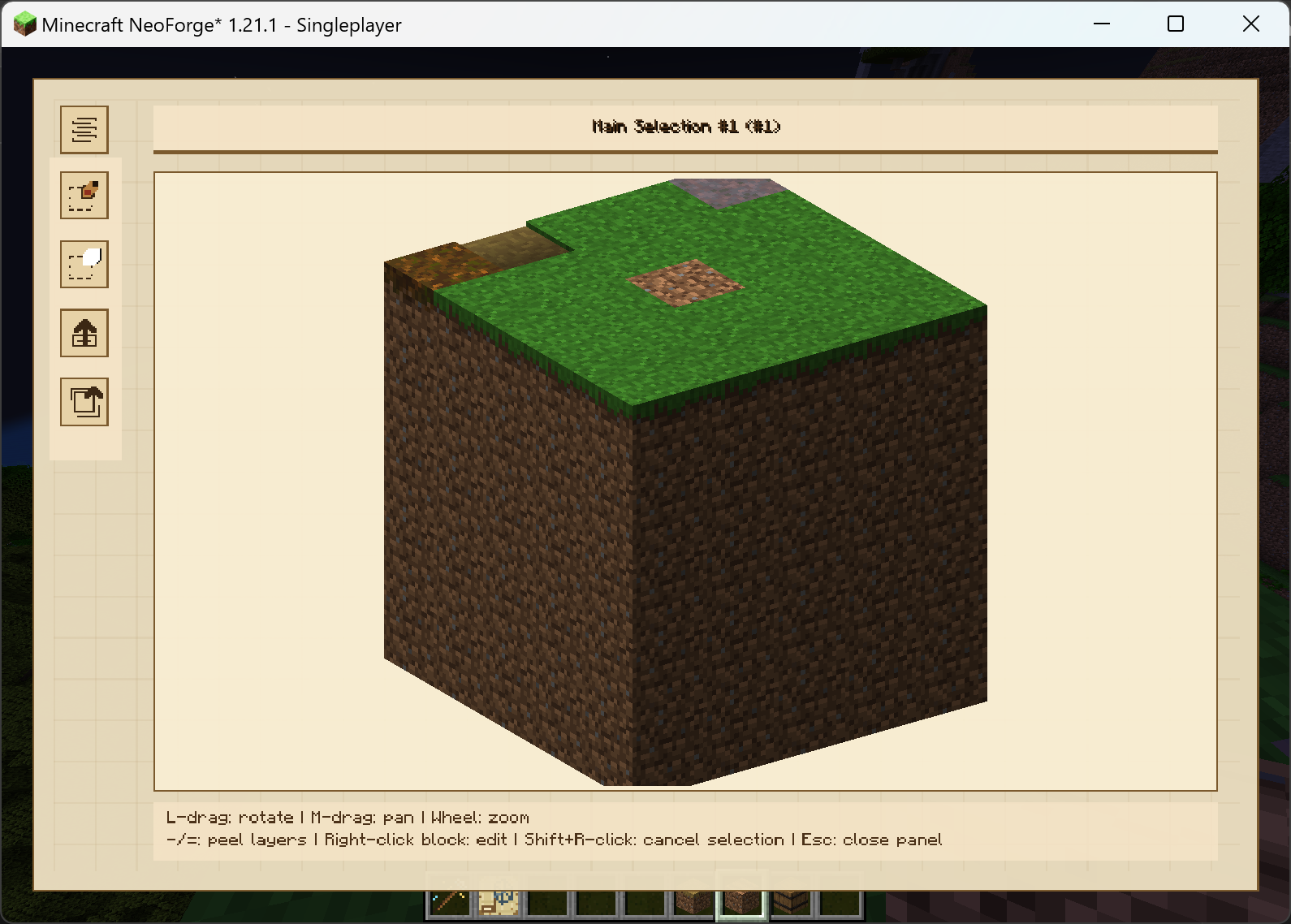
预览
GUI 中央是选区的 3D 模型,你可以旋转、缩放和平移。此外,你可以按下“-”或“=”来剥离最外层,从而让你能够与内部层进行交互。外层的透明度是可配置的。在某些罕见情况下,该功能可能无法按你的意愿显示内部方块(例如被空气包围的内部方块),或者你想要不同的视角,可以随时通过点击左上角的按钮切换到分层模式。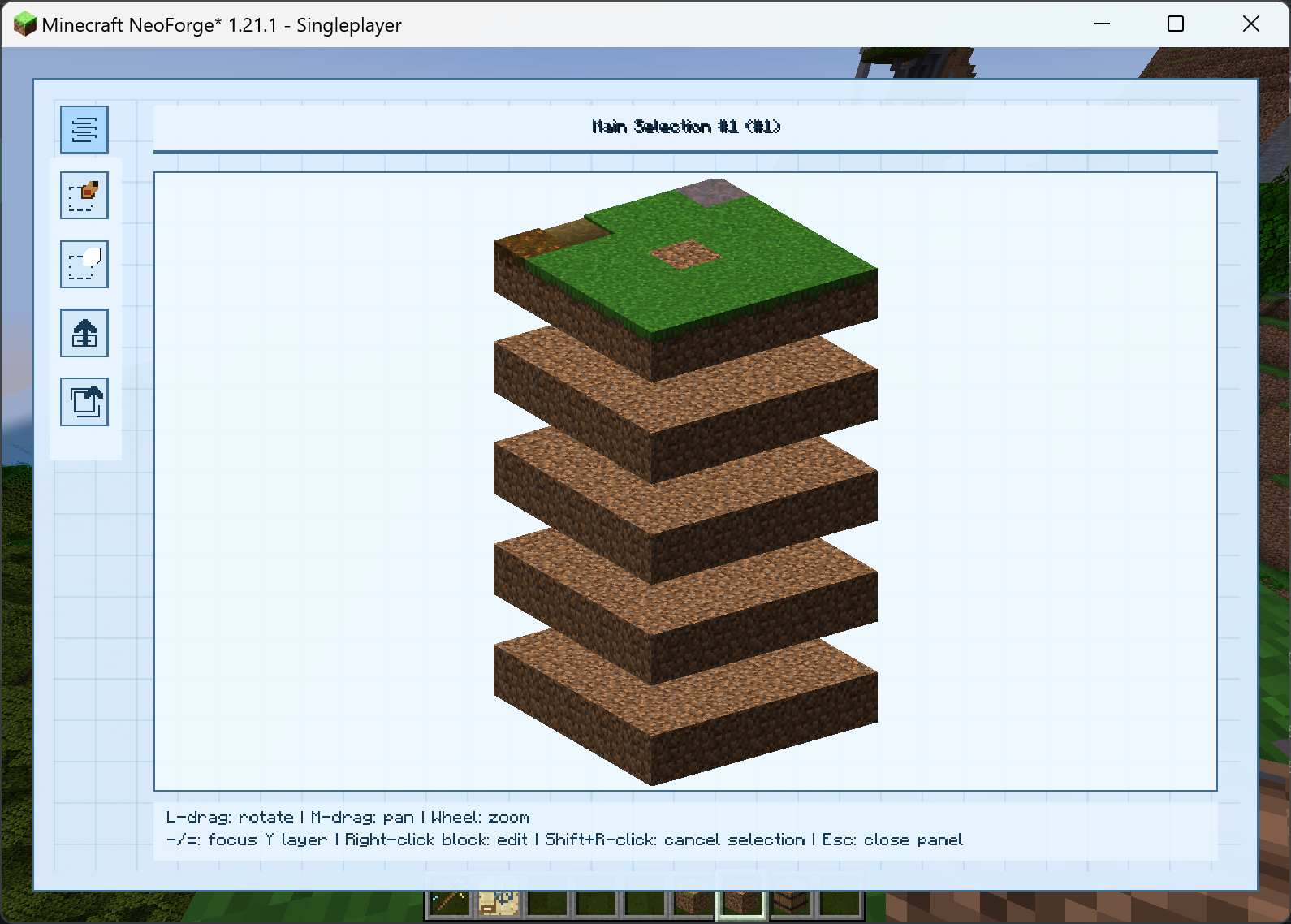 你可以使用“-”或“=”高亮显示不同的层。层之间的间距是可配置的。GUI 左侧有一个工具栏。第一个按钮允许你在 3D 模型中创建子选区,并提供 16 种颜色可供选择(两个具有相同颜色的连接子选区在 3D 预览中会合并,因此如果你不想让它们合并,可能需要使用不同的颜色)。第二个按钮用于删除子选区。第三个按钮用于导出,稍后会详细介绍,最后一个按钮用于重置 3D 模型。
标注
右键点击方块将打开一个面板,允许你进行标注。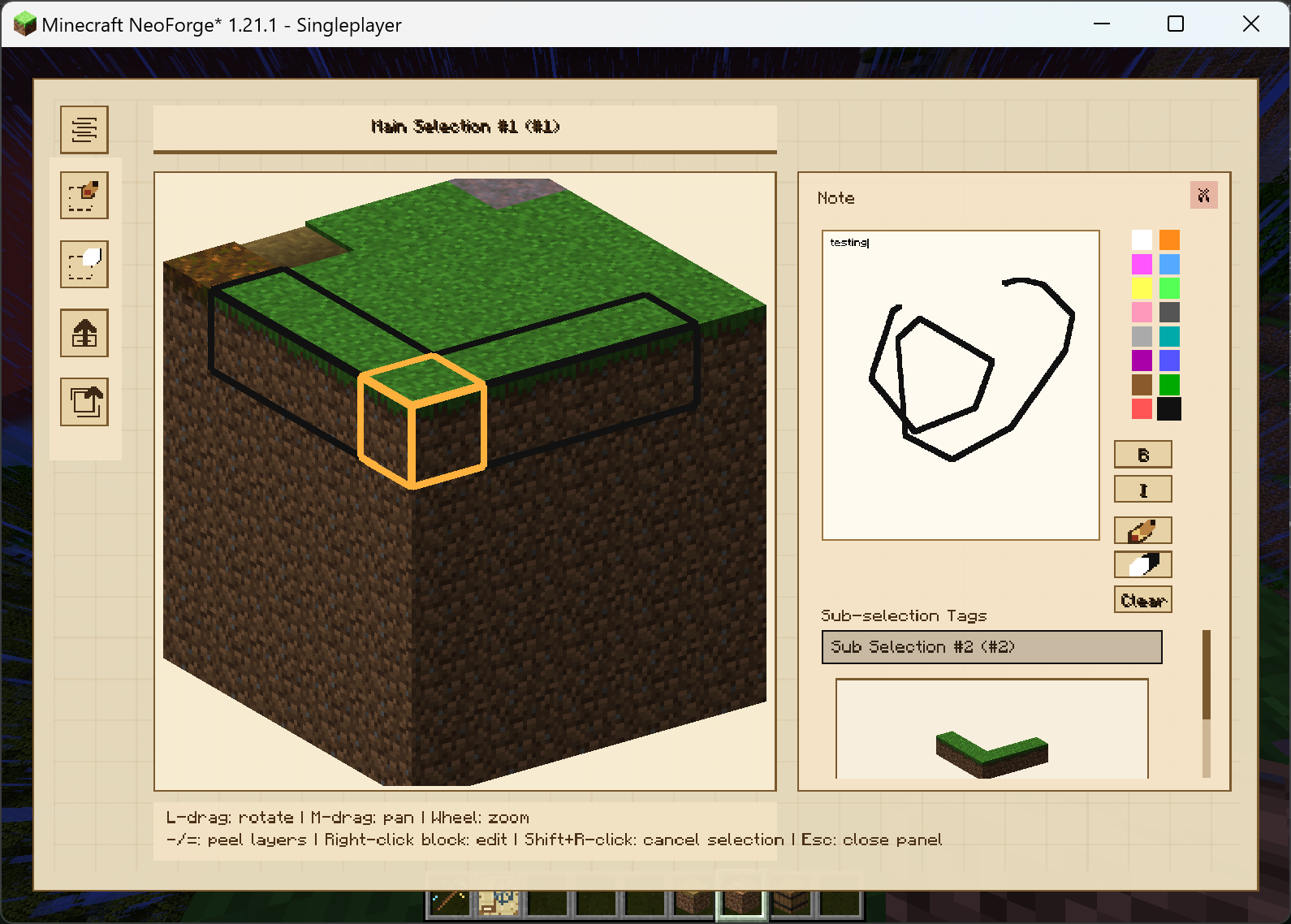 你可以输入文字或使用 16 种颜色绘制。你还可以预览该方块所属的子选区的 3D 模型。主选区和子选区都可以通过右键点击来重命名。当鼠标悬停在方块上时,它会显示其标注文本及其物品栏。
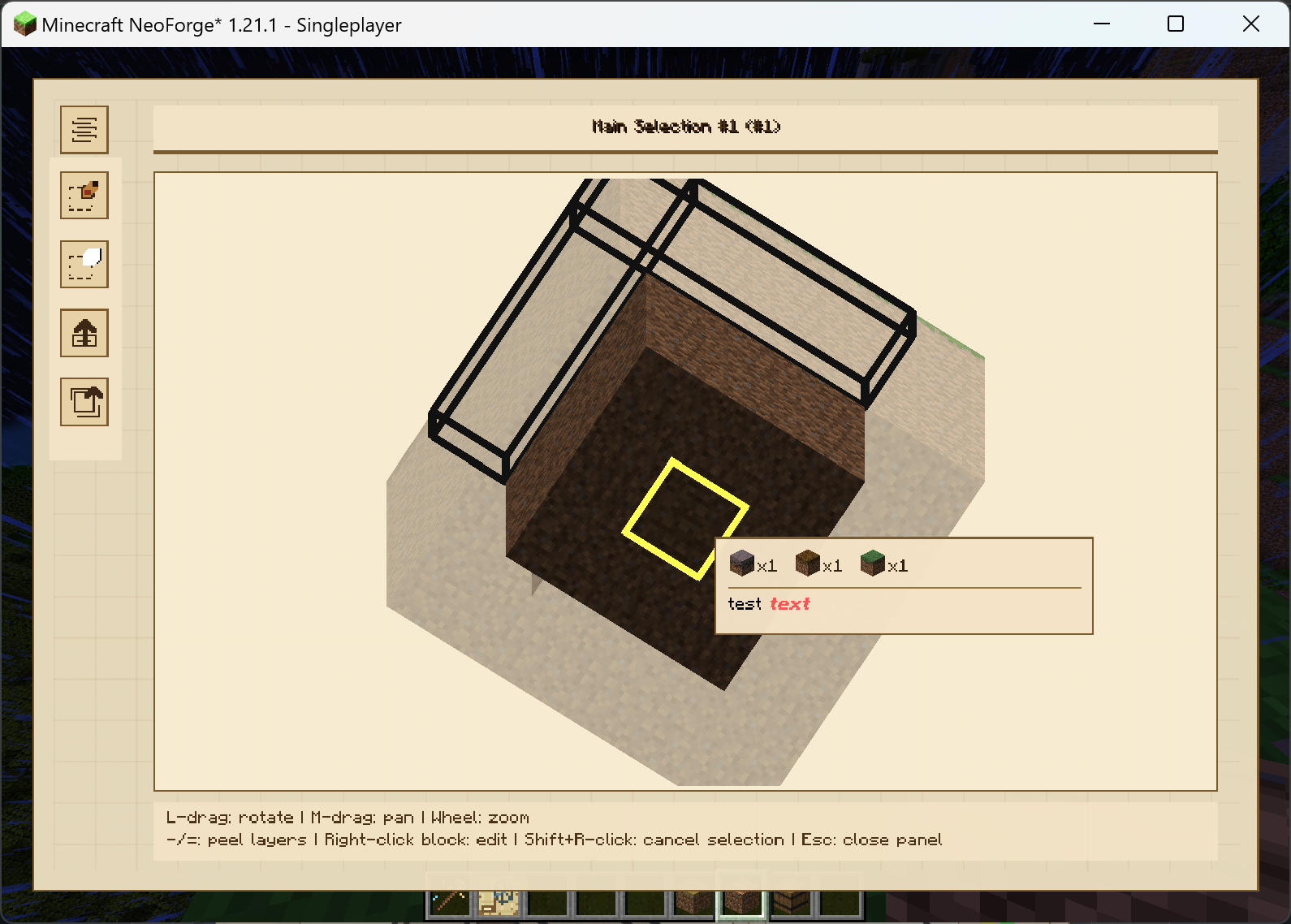 (这是主要功能,简介写得比较简略 lol)
导出
便携式格式 & .ess 文件
选区可以导出为便携式图表以便使用。一旦导出,便携式图表就不再与原始选区关联,并且可以单独编辑。你也可以将选区导出为 .ess 文件。手持结构图时,蹲下 + 右键点击即可导入 .ess 文件并创建便携式图表,从而实现跨世界共享。
PNG 文件
选区还可以导出为图片。此功能高度(也许)可配置。你可以在两种 3D 视图模式下进行导出。有 3 种导出模式:不透明(Opaque)、标注(Noted)和洋葱(Onion)。不透明模式仅导出不透明的 3D 模型。标注模式使所有方块变为透明,除了已标注的方块。洋葱模式使模型逐层显示。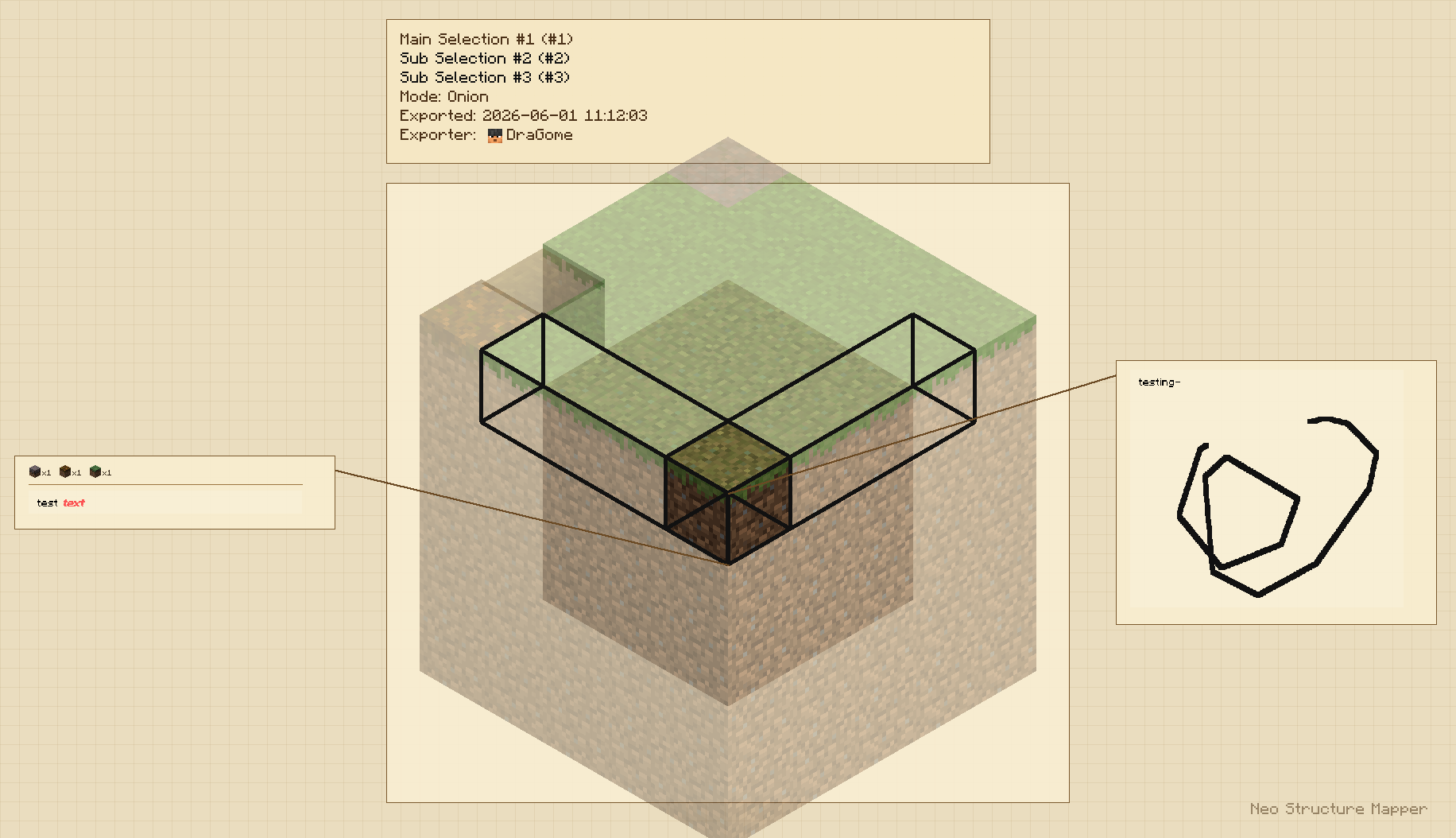 你还可以配置模型的旋转角度,“fixed”表示等轴测视图,“custom”则在导出时使用当前的旋转角度。标注、绘图和物品栏将显示在 3D 模型的侧面。你可以根据需要关闭此功能。
配置
客户端
[diagram]
	#悬停预览中显示的最大备注字符数。
	# 默认值: 25
	# 范围: 1 ~ 512
	notePreviewCharacters = 25
	#悬停预览中显示的最大物品栏物品类型数量。
	# 默认值: 5
	# 范围: 1 ~ 64
	contentPreviewItems = 5
	#PNG 标注中显示的最大物品栏物品类型数量。
	# 默认值: 64
	# 范围: 1 ~ 256
	pngContentItems = 64
	#PNG 标注框是否包含捕获的方块物品栏内容。
	showPngBlockContents = true
	#分层蓝图模式中 Y 层之间的额外垂直方块间隙。
	# 默认值: 1.0
	# 范围: 0.0 ~ 16.0
	layerModeGap = 1.0
	#应用于聚焦 Y 层上方和下方方块的额外垂直方块位移。
	# 默认值: 1.0
	# 范围: 0.0 ~ 16.0
	layerModeFocusShift = 1.0
	#剥离和透明模型图层使用的 Alpha 值。
	# 默认值: 0.35
	# 范围: 0.05 ~ 0.95
	peeledLayerTransparency = 0.35
	#PNG 导出渲染模式。
	#允许值: OPAQUE, NOTED, ONION
	pngMode = "ONION"
	#PNG 导出相机模式。FIXED 使用等轴测视图;CUSTOM 使用当前 GUI 旋转角度。
	#允许值: FIXED, CUSTOM
	pngViewMode = "FIXED"
	#PNG 导出是否绘制标注框和引出线。
	showPngAnnotations = true
服务端 (1.0.1+)
[server]
	#是否允许客户端列出并导入存储在服务器 expstrsch 文件夹中的 .ess 文件。
	allowClientServerEssImport = true
	#是否只有操作员才能使用选择法杖创建或删除主选区。
	requireAdminSelectionWand = true
	#是否只有操作员才能打开放置的结构标注。
	requireAdminStructureDiagramOpen = true
	#是否启用 ESS 导入。禁用此项将阻止客户端本地和服务端文件夹的 ESS 导入。
	enableEssImport = false
DISCLAIMER: The project is ENTIRELY vibe-coded by me using ChatGPT. Although the features provided are not likely to cause trouble, think twice before using it in a large modpack/server.
Introducing NeoStructureMapper
NeoStructureMapper is a mod allows you to preview, annotate, and export a multi-block structure. You can create a selection using the selection wand. Once created, a structure diagram can be placed on it and you can preview, annotate, and export the structure with it.
Preview
In the center of the GUI is a 3D model of the selection, you can rotate, zoom, and pan. Additionally, you can press "-""=" to peel the outmost layer, which allows you to interact with inner layers. The transparency of outer layers are configurable. In some rare cases, the function might not shows you the inner blocks as you wish (such as a inner block surrounded by air), or you just want a different view, feel free to swap to the layered mode by clicking the top-left button. You can highlight different layer using "-""=". The distance between layers are configurable. In the left of the GUI is a toolbar. The first button allows you to create a sub-selection in the 3D model with 16 colors available (two connecting sub-selections with the same color will merge in a 3D preview, so you might want to use different colors if you don't want to merge them). The second button allows you to delete sub-selections. The third one is for exporting, which will introduce later, and the last one is to reset the 3D model.
Annotate
Right-clicking on a block will open a panel that allows you to annotate. You can type words or draw in 16 colors. You can also preview the 3D model of sub-selections the block belongs to. Both main-selections and sub-selections can be renamed by right-clicking on them. When you hover a mouse on a block, it'll show its annotation text and its inventory. (this is the main function with the briefest introduction lol)
Export
Portable & .ess file
A selection can be exported to a portable diagram for convenience. Once exported, the portable diagram no longer relates to the original selection and can be edited seperately. You can also export a selection to a .ess file. When holding a structure diagram, crouch + right-click to import a .ess file and create a portable diagram, which allows cross-world sharing.
PNG file
A selection can also be exported to a picture. This function is highly(maybe) configurable. You can export in both 3D view modes. There are 3 export modes: opaque, noted, and onion. Opaque mode just export a solid 3D model. Noted mode let all blocks go transparent except noted ones. Onion mode let the model shows layer by layer. You can also configure the rotate angle of the model, "fixed" means isometric views and "custom" uses your current rotation when exporting. Annotations, drawings and inventories will be shown by the side of the 3D model. You can close this function as you wish.
Config
Client-side
[diagram]
	#Maximum note characters shown in hover previews.
	# Default: 25
	# Range: 1 ~ 512
	notePreviewCharacters = 25
	#Maximum inventory item types shown in hover previews.
	# Default: 5
	# Range: 1 ~ 64
	contentPreviewItems = 5
	#Maximum inventory item types shown in PNG annotations.
	# Default: 64
	# Range: 1 ~ 256
	pngContentItems = 64
	#Whether PNG annotation boxes include captured block inventory contents.
	showPngBlockContents = true
	#Extra vertical block gap between Y layers in layered blueprint mode.
	# Default: 1.0
	# Range: 0.0 ~ 16.0
	layerModeGap = 1.0
	#Extra vertical block shift applied to layers above and below the focused Y layer.
	# Default: 1.0
	# Range: 0.0 ~ 16.0
	layerModeFocusShift = 1.0
	#Alpha used for peeled and transparent model layers.
	# Default: 0.35
	# Range: 0.05 ~ 0.95
	peeledLayerTransparency = 0.35
	#PNG export rendering mode.
	#Allowed Values: OPAQUE, NOTED, ONION
	pngMode = "ONION"
	#PNG export camera mode. FIXED uses an isometric view; CUSTOM uses the current GUI rotation.
	#Allowed Values: FIXED, CUSTOM
	pngViewMode = "FIXED"
	#Whether PNG exports draw annotation boxes and callout lines.
	showPngAnnotations = true
Server-side (1.0.1+)
[server]
	#Whether clients may list and import .ess files stored in the server expstrsch folder.
	allowClientServerEssImport = true
	#Whether only operators may create or delete main selections with the selection wand.
	requireAdminSelectionWand = true
	#Whether only operators may open placed structure annotations.
	requireAdminStructureDiagramOpen = true
	#Whether ESS importing is enabled at all. Disabling this blocks both client-local and server-folder ESS imports.
	enableEssImport = false


 模组

 模组
 模组

 模组
 模组
 模组
评论 0
登录后参与评分
还没有评论,来抢沙发吧