Patchwork 提供了一种清晰且灵活的方式来管理方块交互,其内置了基于数据驱动的节点图编辑器。
使用 Patchwork,你可以创建由方块(例如机器)组成的 SF 网络(模拟工厂),并几乎可以路由它们的行为。你甚至可以通过 Patchwork 编辑器完全远程与它们的 GUI 进行交互。你可以选择使用 SF 接口将物理放置的方块连接到你的网络中,或者将这些方块上传到编辑器中,让 SF 网络为你全权管理,而无需你在任何地方放置它们。
Patchwork 有点像 AE2 和 Compact Machines 的结合体,但基于数据驱动。
入门指南
要开始使用,你需要一个提供能源的模组,因为 Patchwork 本身不提供能源。
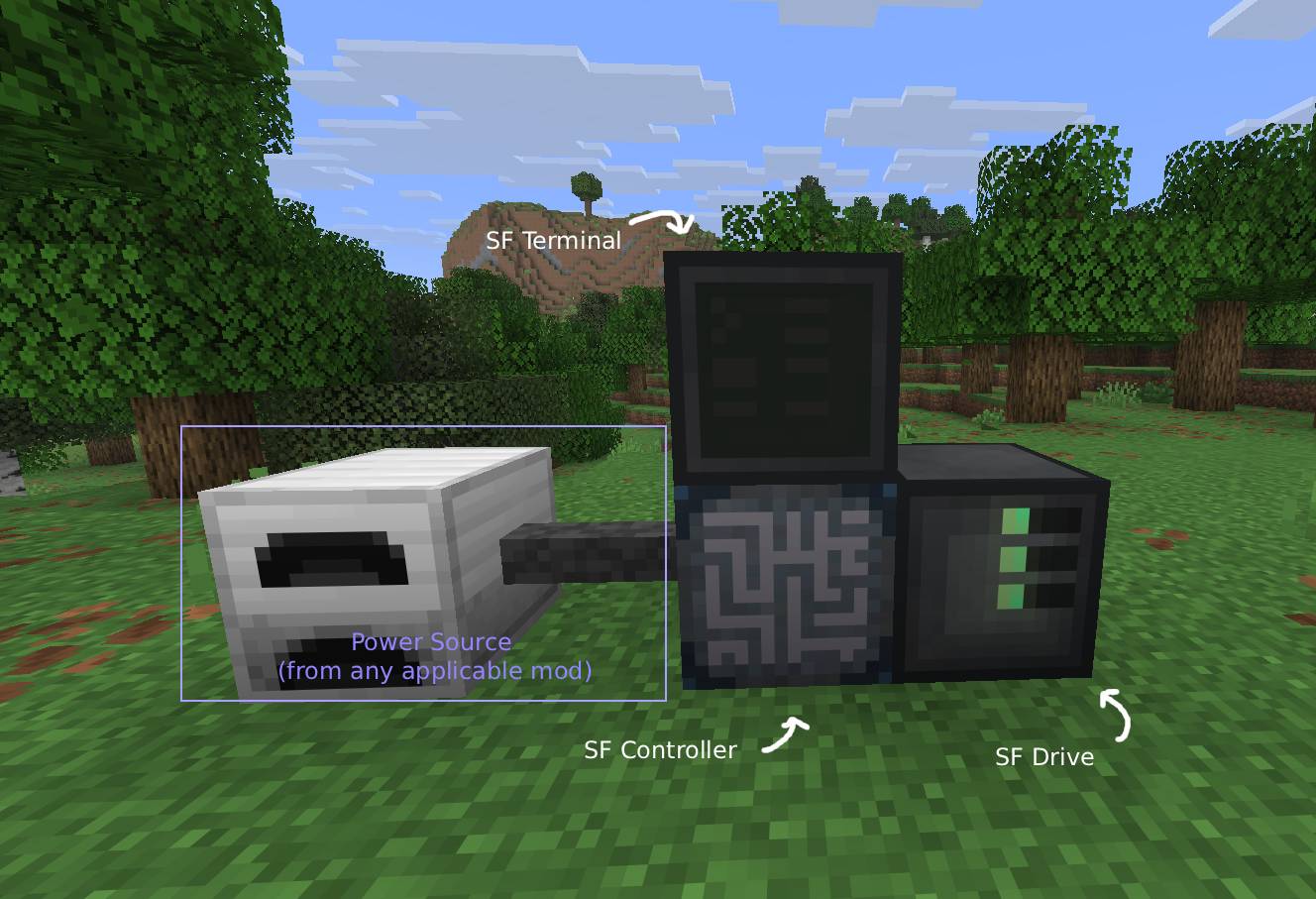
所有 SF 网络至少需要以下五样东西:
- SF 控制器,用于接收网络的电力
- SF 控制器的电源
- SF 驱动器,用于存储存储模块
- 虚拟存储模块,用于存储配置
- 最后是 SF 终端,用于编辑配置。技术上讲,一旦配置完成,网络功能并不强制要求它存在,但移除它可能没有意义,因此实际上这总是必需的。
目前有三个存储层级。每个层级的能力如下所示:
| 层级 |
最大补丁数 |
最大虚拟化方块数 |
| 1 |
1 |
4 |
| 2 |
2 |
16 |
| 3 |
8 |
64 |
不过,你可以向网络中添加无限数量的 SF 接口,不受存储限制。
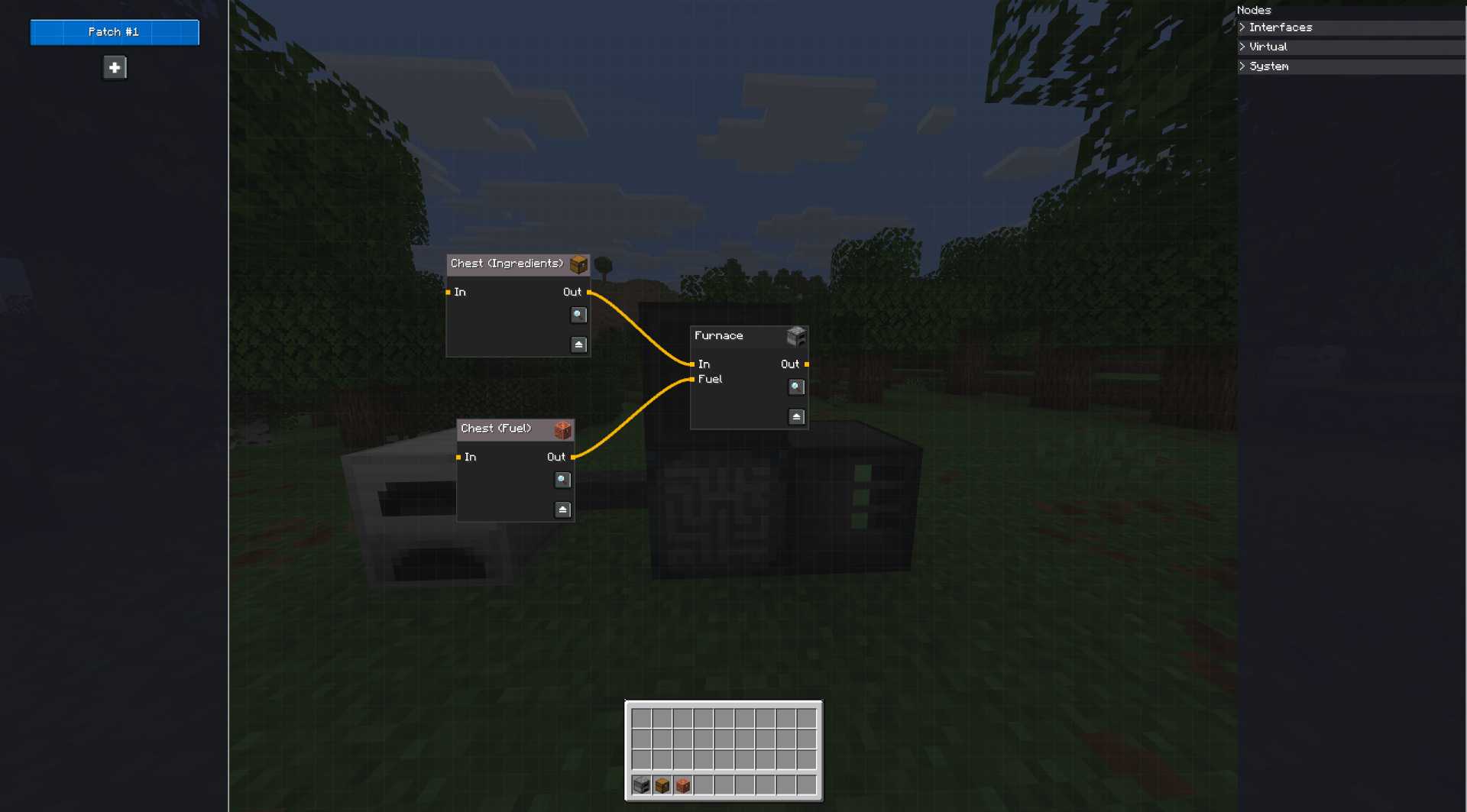
将存储放入 SF 驱动器后,你可以打开 SF 终端并点击加号按钮。然后按住 Shift 键从物品栏中点击一个方块将其上传到系统,接着在右侧打开“Virtual”(虚拟)标签页,将它们拖入编辑器。现在你就可以以虚拟方式管理该方块了!通过点击节点上的放大镜图标,你可以远程打开它的 GUI 并在必要时与其交互。双击节点可以重命名它,也可以手动修改节点的输入和输出。记得在关闭编辑器之前按下左上角的 CTRL+S(或保存按钮)来保存更改!一旦保存,SF 控制器就会开始执行该图表。
SF 接口
或者,除了虚拟化节点外,你还可以使用 SF 电缆和 SF 接口手动将方块接入网络并进行配置。这些选项出现在“Interfaces”(接口)标签页下,但工作方式与虚拟化方块完全相同。这是你将资源从世界引入网络以及从网络导出的方式。请注意,SF 接口和 ME 接口的工作方式不同。SF 接口更像是一个 ME 存储总线而不是 ME 接口。SF 网络本身不会向网络提供任何库存,因此无法直接向世界中的其他方块暴露库存。你必须自带物品存储,要么通过上传到编辑器进行虚拟化,要么通过 SF 接口附加,从而允许你路由存储。
模组兼容性
SF 控制器应接受任何能够通过 NeoForge 的 EnergyHandler 能力提供电力的方块的电力。该模组还明确支持 Mekanism,并且会自动配置大多数连接到网络的 Mekanism 机器,这意味着你除了添加升级或启用自动排序外,无需担心其他方块配置。
Patchwork adds a way to manage block interactions in a clear and flexible way using a data-driven node graph editor built right into the mod.
Using Patchwork, you can create an SF Network (Simulated Factory) of blocks, (such as machines), and virtually route their behavior. You can even interact with their GUIs fully remotely from within the Patchwork editor. You have the choice of connecting physically placed blocks to your network using an SF Interface, or alternatively to upload the blocks into the editor, allowing the SF Network to fully manage it for you without you having to place it anywhere.
Patchwork is sort of like a data-driven mix of AE2 and Compact Machines.
Getting started
To get started you need a mod that provides a power source, as Patchwork doesn't provide this.
All SF networks require at least five things;
- An SF Controller, to accept power into the network
- A power source for the SF Controller
- An SF Drive, to store the storage modules
- Virtual Storage Modules, to store the configurations
- and finally, an SF Terminal, to edit the configuration. Technically doesn't have to be present for the network to function once you've configured it, but it probably doesn't make sense to remove it ever, so effectively this is always required.
There are currently three storage tiers. The abilities of each tier are provided below.
| Tier |
Max patches |
Max virtualized blocks |
| 1 |
1 |
4 |
| 2 |
2 |
16 |
| 3 |
8 |
64 |
You can, however, add an unlimited amount of SF Interfaces to a network, regardless of storage.
Once the storage has been placed into the SF Drive, feel free to open the SF Terminal and click the plus button. You can then shift click a block from your inventory to upload it to the system, and then open the "Virtual" tab on the right to drag them into the editor. You can now manage the block virtually! By clicking on the magnifying glass on a node, you can open it's GUI remotely and interact with it if necessary. By double clicking on a node, you can rename it, as well as manually modify the nodes inputs and outputs. Make sure you press CTRL+S (or the Save Button) on the top left to save your changes before you close the editor! As soon as you have saved, the SF Controller will begin executing the graph.
SF Interfaces
Alternatively, instead of virtualizing nodes, you can use SF Cables and SF Interfaces to manually plug a block into the network and configure it that way. Those appear under the "Interfaces" tab, but otherwise work just the same as virtualized blocks. This is how you get resources in and out of the world and into the network. Do keep in mind that SF Interfaces and ME Interfaces do not function the same way. An SF Interface is more akin to an ME Storage Bus than an ME Interface. SF Networks provide no inventories on their own to the network, and as such cannot expose directly an inventory to other blocks in the world. You must bring your own item storage and either virtualize it by uploading it into the editor, or attaching it with the SF Interface, thus allowing you to route the storage.
Mod Compatibility
SF Controllers should accept power from any block that can provide it using NeoForge's EnergyHandler capability. The mod also has explicit support for Mekanism and will automatically configure most Mekanism machines that are attached to the network, meaning you shouldn't have to bother with any block configurations other than adding upgrades or enabling Auto-sort.


 模组

 模组

 模组

 模组
 模组
 模组
评论 0
登录后参与评分
还没有评论,来抢沙发吧