
为 Create 机械打造的智能控制面板。
Link Tablet 是一款手持式触摸屏,可远程驱动 Create 的红石链路。为你的灯光、门、火车和机器命名并赋予图标,然后在链路范围内的任意屏幕上进行切换。它启动后显示为 应用程序的主屏幕——包括信号控制、仪表盘、时钟、实时网络监控,甚至支持 Twitch 聊天 和 画布绘图。它可以安装在墙上,多个平板在此处 合并成一个大型显示屏,还可以将 迷你平板固定在 HUD 上。
? 口袋操作系统
平板打开后进入由你自定义排列的 主屏幕;内置的 应用商店(支持搜索)可按需为每个平板安装或移除应用:
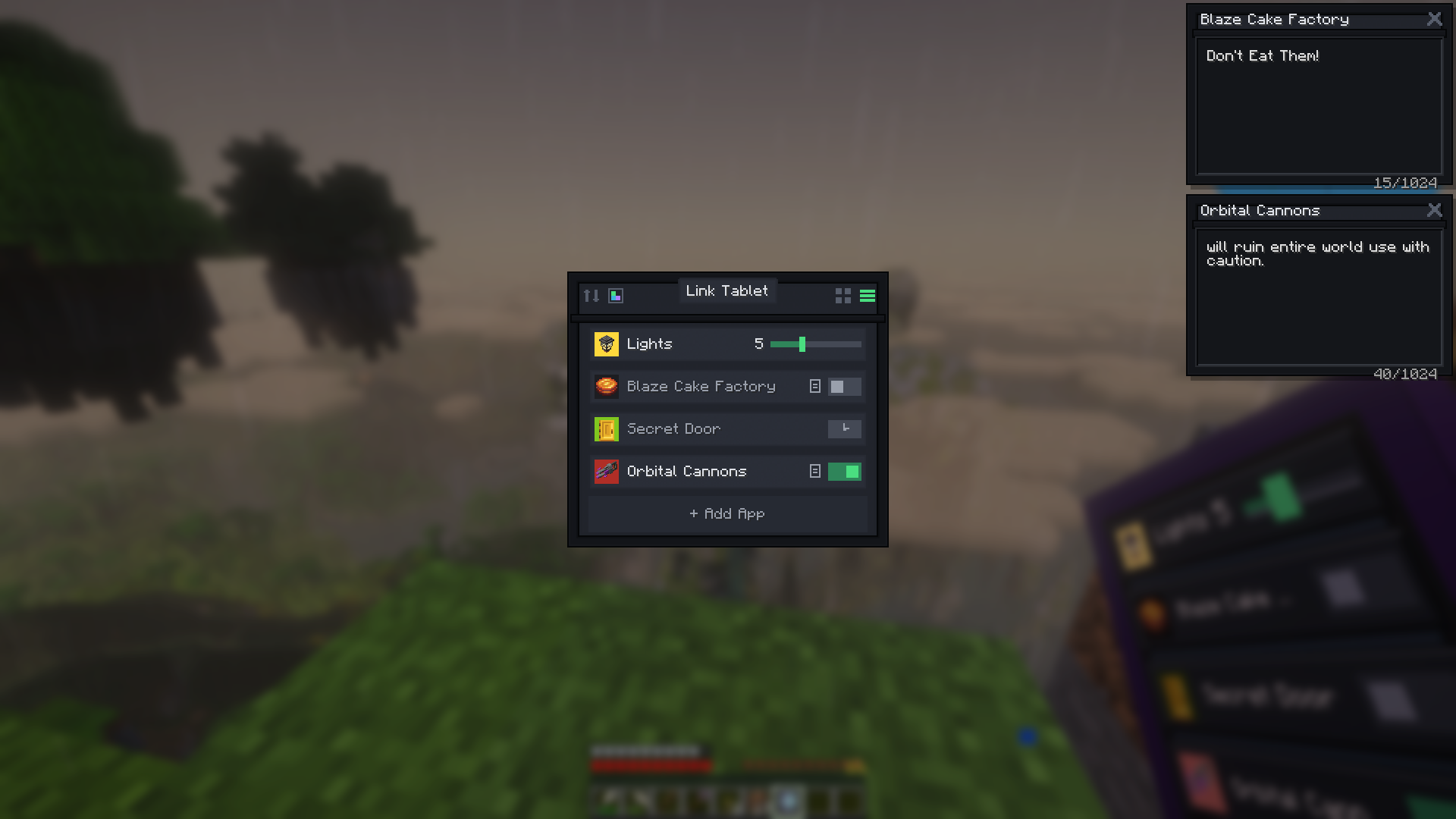
- Signals(信号) —— 下方的控制面板网格;每个平板默认自带此功能。
- Clock(时钟) —— 闹钟、可搜索的世界时钟、计时器、秒表。即使平板合上它们也会响铃;放置后的 Clock 平板可作为 挂钟 使用。
- Calculator(计算器) —— 点击按钮或手动输入;放置后的平板会在墙上显示其 实时计算记录。
- Gauges(仪表盘) —— Signals 的反向操作:实时表盘监听 链路频率并显示接收到的 0–15 数值。合并的墙面非常适合打造 工厂仪表盘。
- Monitor(监控) —— 你的链路网络的 X 光透视(见下文)。
- Twitch Chat(Twitch 聊天) —— 直播聊天室,包含表情符号,无需登录账号(见下文)。
- Paint(绘画) —— 持久的像素画布,可在墙上显示(见下文)。
已放置的平板会直接在玻璃表面显示其应用内容——点击即可打开,点击边框返回主屏幕——且墙面会跟随你的 GUI 导航变化。
?️ 信号控制,而非拉杆
- 每个平板最多支持 32 个信号(合并墙面上每个平板额外增加 +32 个),每个信号均可设置名称、颜色、物品图标和状态——支持网格或列表视图,拖拽即可重新排列。
- 四种类型:Toggle(切换)(开/关)、Hold(按住)(仅在按住时传输信号——断开连接时绝不会导致信号卡死在开启状态)、Slider(滑块)(0–15)、Timer(计时器)(传输 0.1–30 秒后自动关闭)。
- 场景(Scenes) —— 一个信号可同时驱动多达 8 个频率(例如“关闭整个工厂”)。
- 信号链接(Signal links) —— 信号之间可以互相驱动:每个目标最多 8 个,可设置为 开启、关闭 或 跟随。链接可以串联,环路是安全的,且被链接的信号不需要拥有自己的频率——纯天然的 场景主控按钮。
- 按信号强度排序 —— 最强者胜出,逻辑与堆叠的红石链路完全一致。
? 真实的 Create 频率
信号调谐至 Create 的物品对频率——任何红石链路能触发的,平板也能做到:
- 编辑器中包含 你的真实物品栏(槽位仅复制物品——不会消耗任何东西)以及支持搜索的全物品选择器。
- JEI/EMI:直接从配方面板拖拽物品到频率槽位。
- 单物品频率有效,且频率携带 完整物品信息,包括组件——带有频率卡模组、染色或重命名的物品均被视为独立频道,这与 Create 自身的链路行为完全一致。
? 提示 —— 快速添加: 手持平板时右键任意红石链路——编辑器将打开并自动填入该频率。只需点击保存即可。
? 谁在这个频率上?
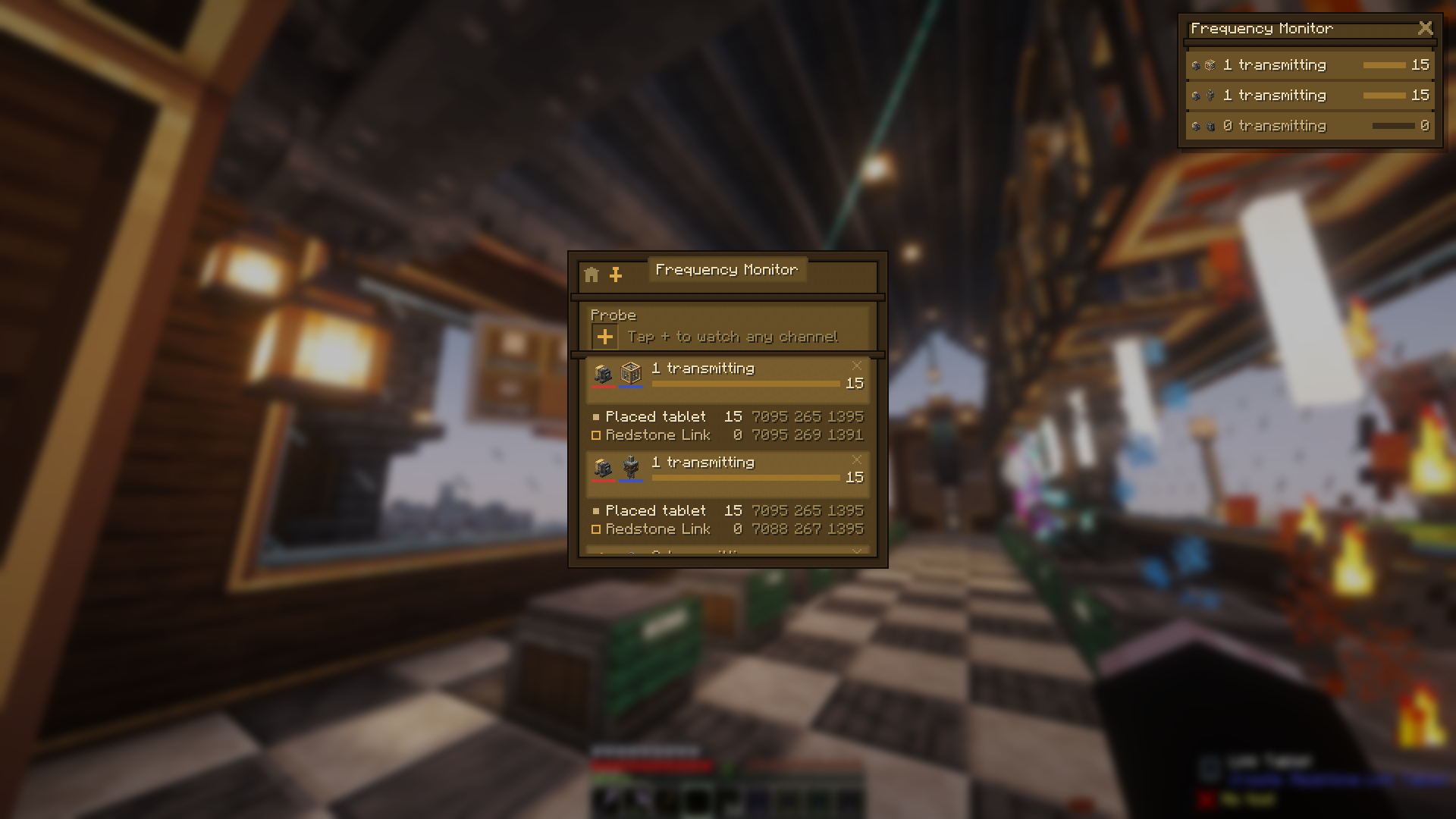
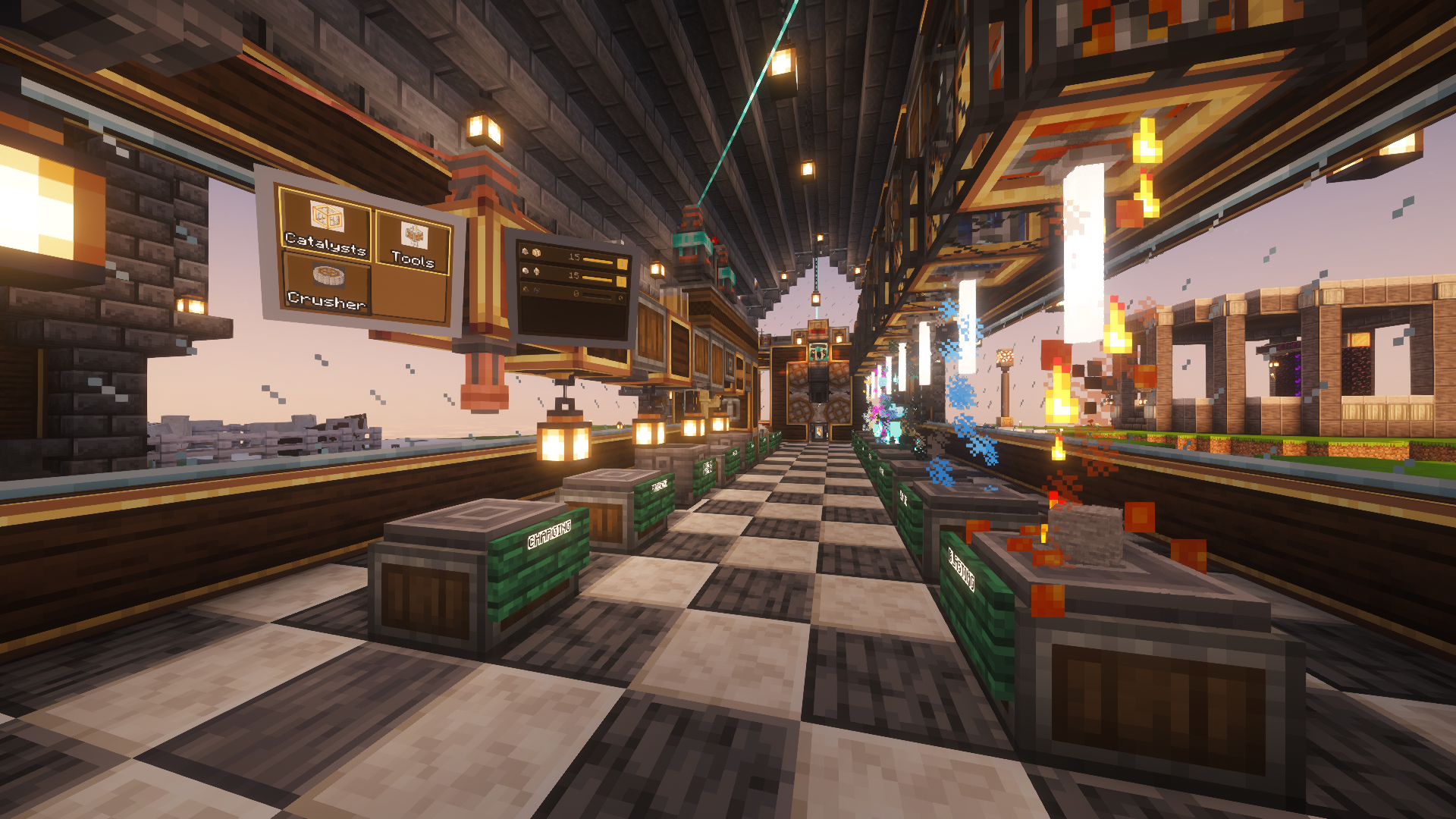
Monitor(监控) 应用列出你的平板所接触的所有频道——加上你 探测 的频道(最多 8 个)——并显示实时功率以及 所有正在发送或监听成员的名单:红石链路、已放置的平板、掉落或装框的平板,甚至是 "某人背包里的平板"。当某个接收端神秘地卡在 15 时,Monitor 会指出你口袋里多余的平板。超出范围的成员会佩戴徽章;墙面平板将其变为 状态看板,而叠加层图钉则将其固定在 HUD 上。
?️ 可感知的滑块
滑块在 GUI 中实时拖拽,而在放置的平板上,你可以直接在玻璃表面点击并滑动。每个滑块都会显示其数值等级,而可选的最小/最大范围意味着机器永远不会完全关闭。
? 工厂的便利贴
每个信号都可以携带一条附注,显示在浮动窗口中:将其拖到任意位置,保持多个窗口打开,它们会跟随你移动——无论是在平板上方、物品栏上方,甚至是以只读形式固定在 HUD 上。非常适合用于“启用前清空分拣器”之类的警告——上方的截图中就固定了两个这样的便签。
? 固定到 HUD
按固定按钮可以在你游戏时让浮动迷你平板保留在屏幕上——针对每个应用:实时切换行、抬头显示器仪表组、时钟、工作用的迷你计算器,或作为应用启动坞的启动器。按下**“使用固定平板”键(默认为 B)**以解放鼠标,采用类似聊天的方式轻点切换、拖动滑块或按住按钮——无需打开任何 GUI。右键单击任意行即可跳转至完整界面;该窗口会在跨会话时记住其位置。
✨ 屏幕是真实的
物理屏幕并非贴图——它实时渲染你手持或放置时的实际信号。图块会根据信号数量自动调整大小,活跃的信号会发光,而在放置的平板上玻璃是可触控的:轻点以切换,按住保持按钮,滑动滑块——无需 GUI。轻点边框即可进入完整界面。
? 将其放置在墙上
潜行 + 右键单击任意表面即可将平板挂载在墙壁、地板或天花板上——它会从自身位置传输信号,且当有信号运行时屏幕会发光。潜行 + 空手右键单击可将其收回;所有数据在此过程中均完好无损。Create 扳手可以旋转屏幕内容(玻璃),或在垂直和水平方向之间物理翻转平板(边缘)。
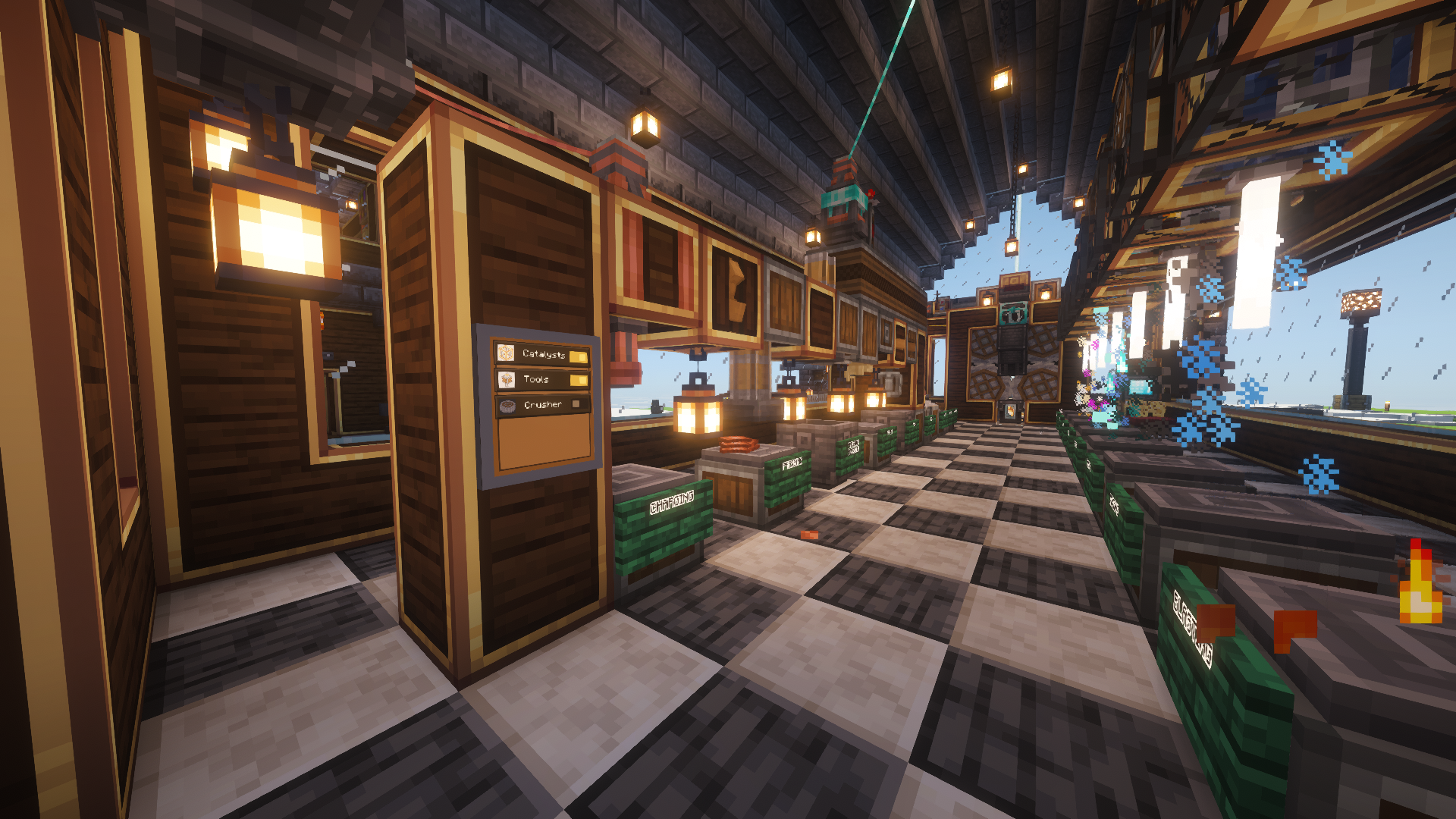
? 指向任意方向
制作一个万向支架——两个黄铜板上面放一个铁粒——将支架放置在任意表面上,然后将平板点击到其球关节上。用扳手敲击玻璃,它就会摆动以正对你的眼睛,无论你站在哪里——只需一次点击,角度完美。用扳手敲击边框可切换为水平模式;潜行 + 右键单击可交换平板,并留下支架作为家具。倾斜的玻璃仍然完全可触控。
还有它的派对特技:用红石供电给支架,屏幕会跟随你,像附魔台的书一样滑向最近的玩家。切断电源后,它会精确冻结在当前指向的位置——站在正确的位置瞄准,用拉杆锁定。
?️ 一块屏幕,多块平板
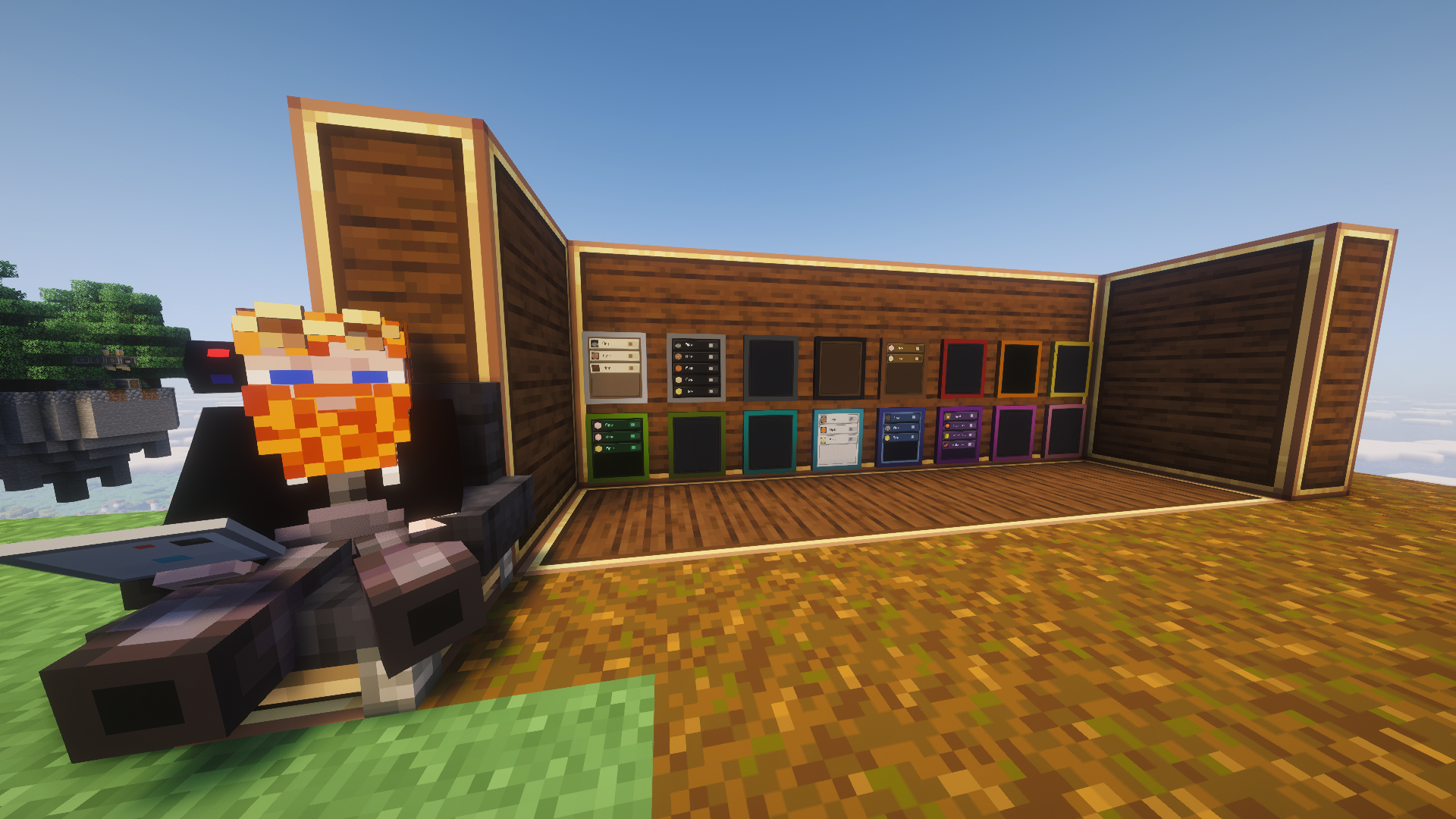
并排安装平板,它们会合并成一个大显示屏,最大可达宽 4 高 3:一整块连续的玻璃面板,无缝隙。信号在大图块下分布在整个表面,点击和点击滑动在玻璃的任何位置都有效——并且每合并一块平板,信号上限就再增加 32。染色主平板,整个框架都会变色。
? 一面 4×3 的墙 = 12 块合并的平板 — 一块屏幕上容纳 384 个信号
合并始终安全——每块平板都保留自己的信号,并在拆分瞬间取回它们——而且始终是你的选择:链式链接按钮可以让平板保持独立,或将墙面拆散。
? 你的直播聊天,在游戏中
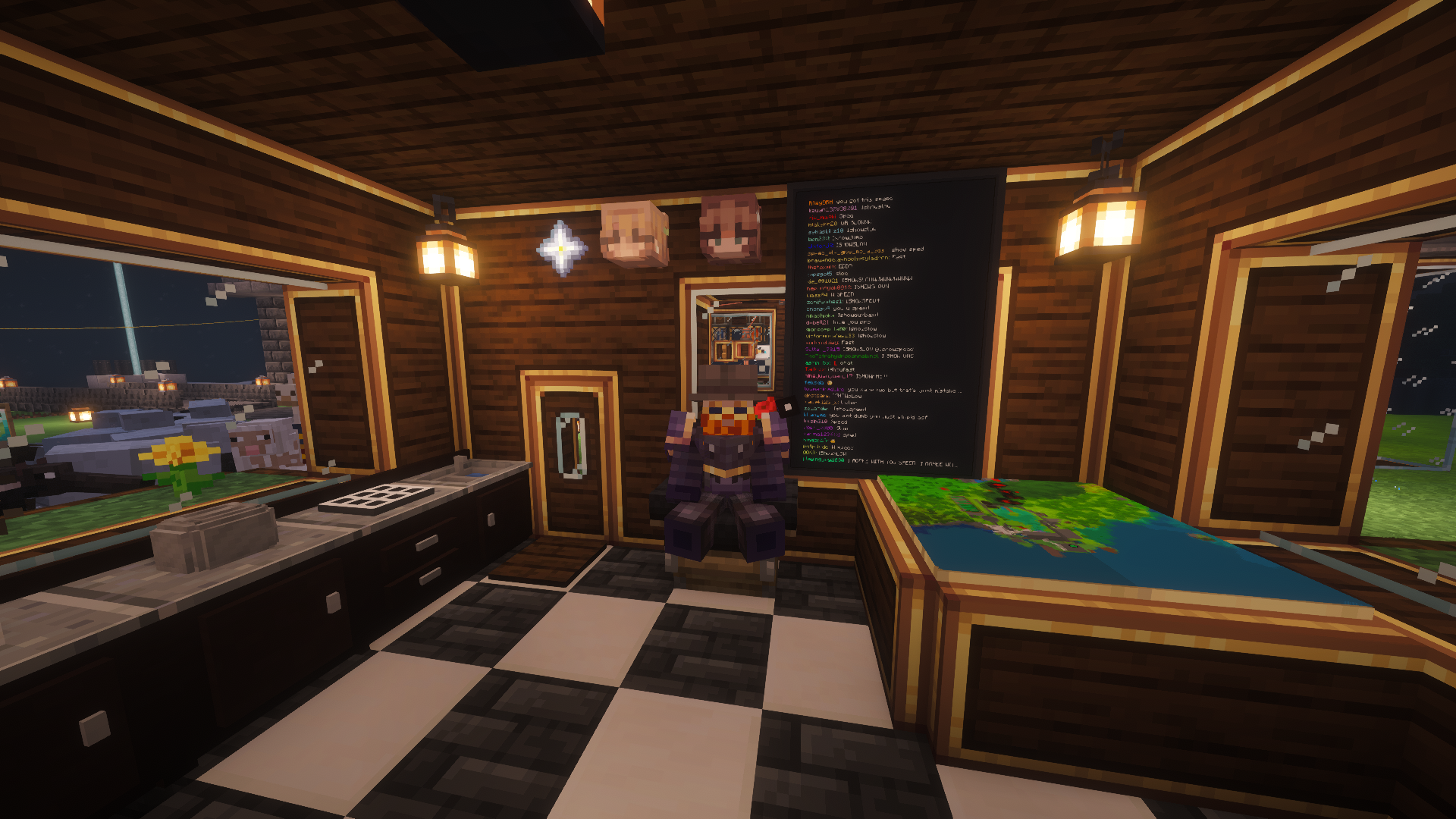
输入频道名称,其实时聊天流就会出现在你手持的平板、HUD 或放置的聊天墙上,每位观众都能看到——合并的墙面会给它大屏幕般的待遇。无需账户,无需登录,不存储任何内容:这是公共聊天的匿名、严格只读视图,仅当聊天实际上在某块屏幕上时才连接。
这就是真正的聊天:表情符号渲染为实际图像——包括 Twitch 自带的以及 7TV、BetterTTV 和 FrankerFaceZ,动态表情还会动画播放(标题切换开关可切回纯文本)。将 Twitch 设为最后使用的应用,你手中的平板就变成了口袋聊天屏幕,即使在第三人称视角下也是如此。
共享服务器注意事项:聊天是实时的、未过滤的互联网内容,任何能够打开已放置平板 GUI 的人都可以更改其频道——这与信号的信任规则相同。
?️ 在墙上绘画
平板上的像素画布:涂鸦、放置,图片就会直接显示在玻璃上。配套的工具箱随之而来——画笔、填充、直线、矩形、吸管工具以及 32 步撤销功能,每项操作都有键盘快捷键。合并的墙面变成壁画——在接缝处作画,同时观众可以实时观看你的笔触落下;拆分墙面后,每块平板保留其部分;重新合并后,壁画会重新组装。破坏、放入箱子、赠送——艺术品随平板一同移动。
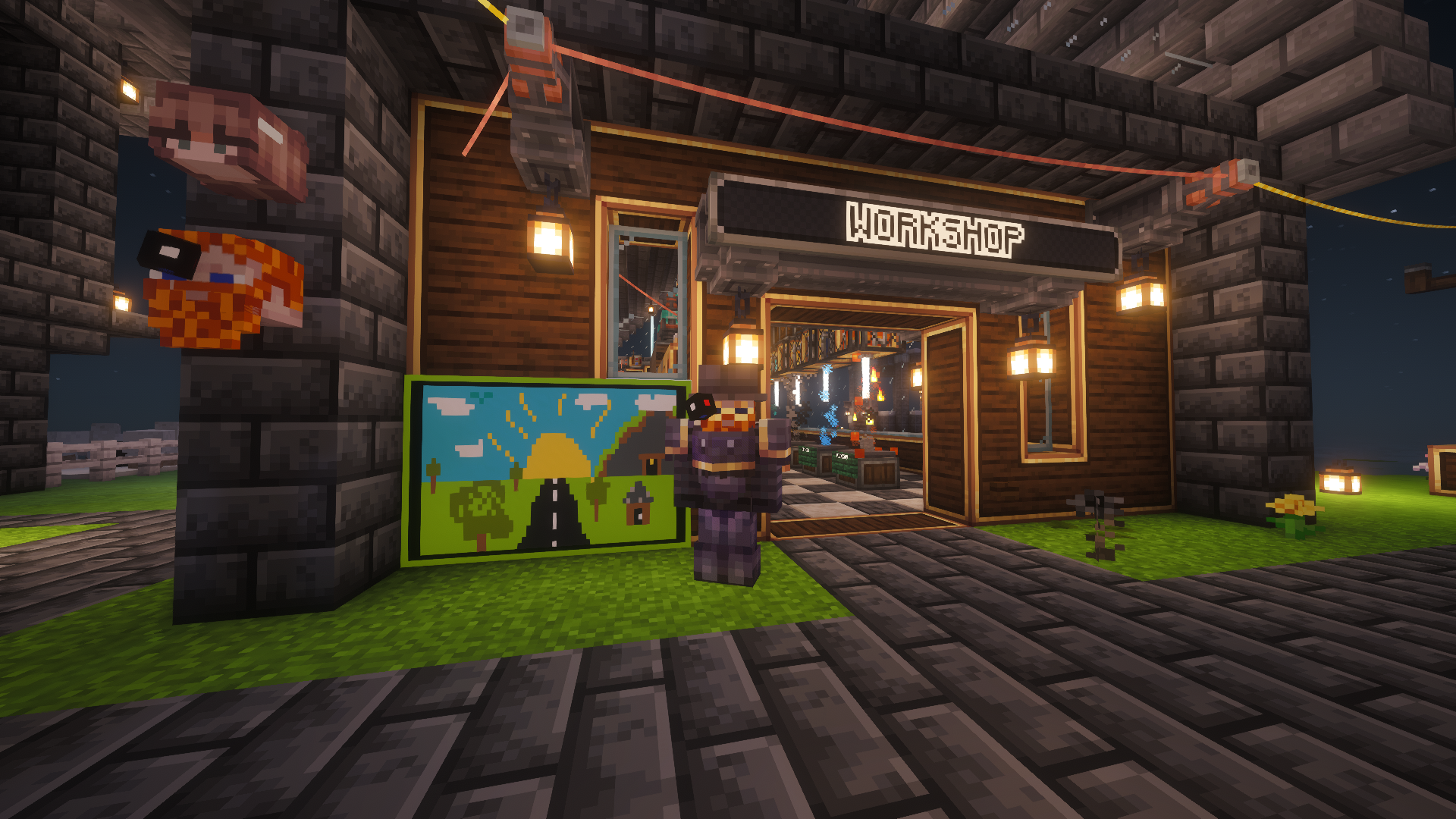
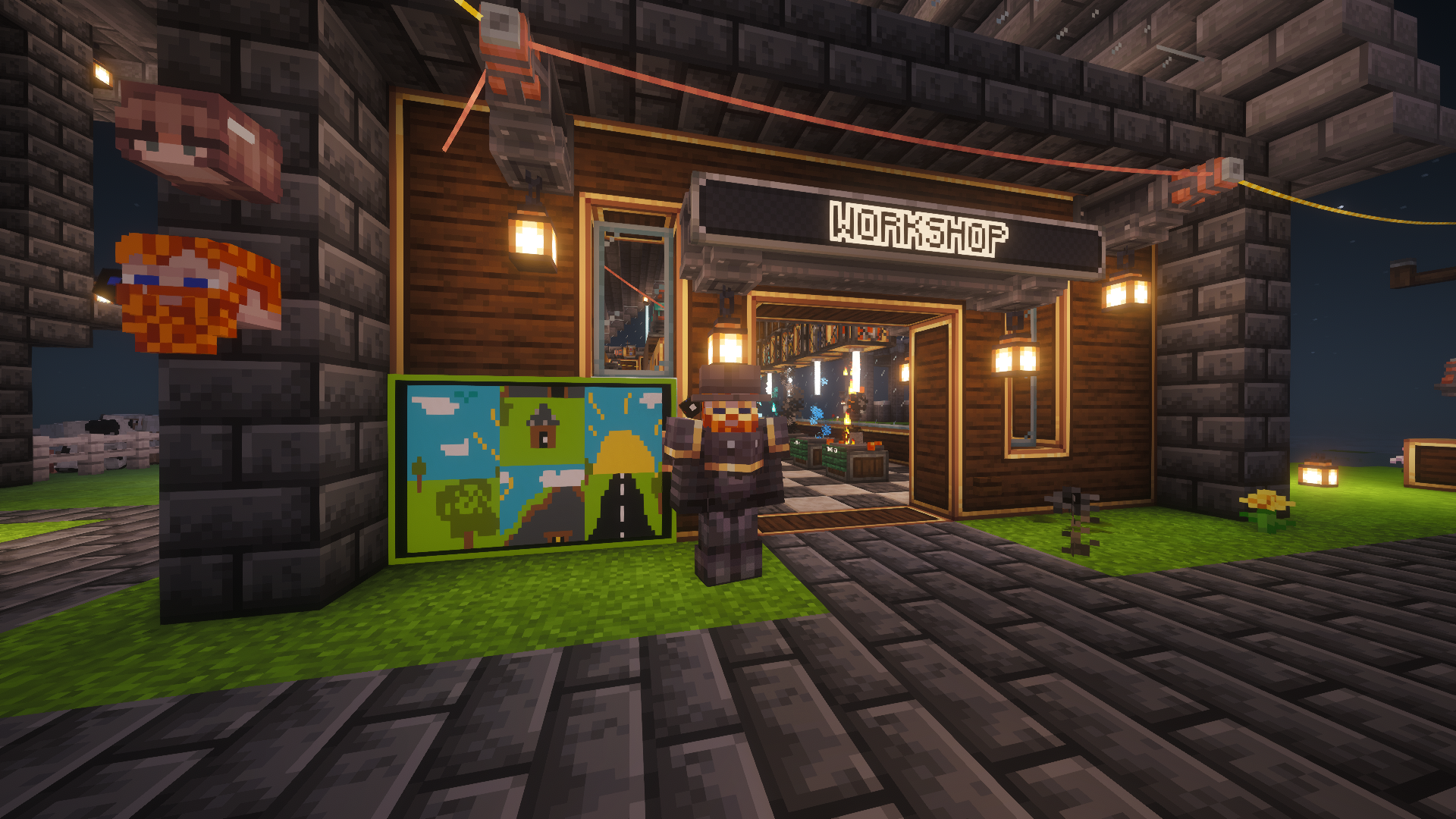
每个面板都保留其切片——重新排列墙面,混编画作。
? 锁定设置
在共享服务器上,点击已放置的面板 GUI 中的挂锁图标即可将其锁定:所有人仍可以翻转信号、拖动滑块并使用应用——但重新配置任何内容(信号、通道、壁画)以及解锁都需要手持Create 扳手。锁定合并后的墙面会锁定其中的所有面板,即使将墙面拆分,各部分也会保持锁定状态。非常适合用作公共信息亭——也能保护你的壁画安全。
? 打造专属风格
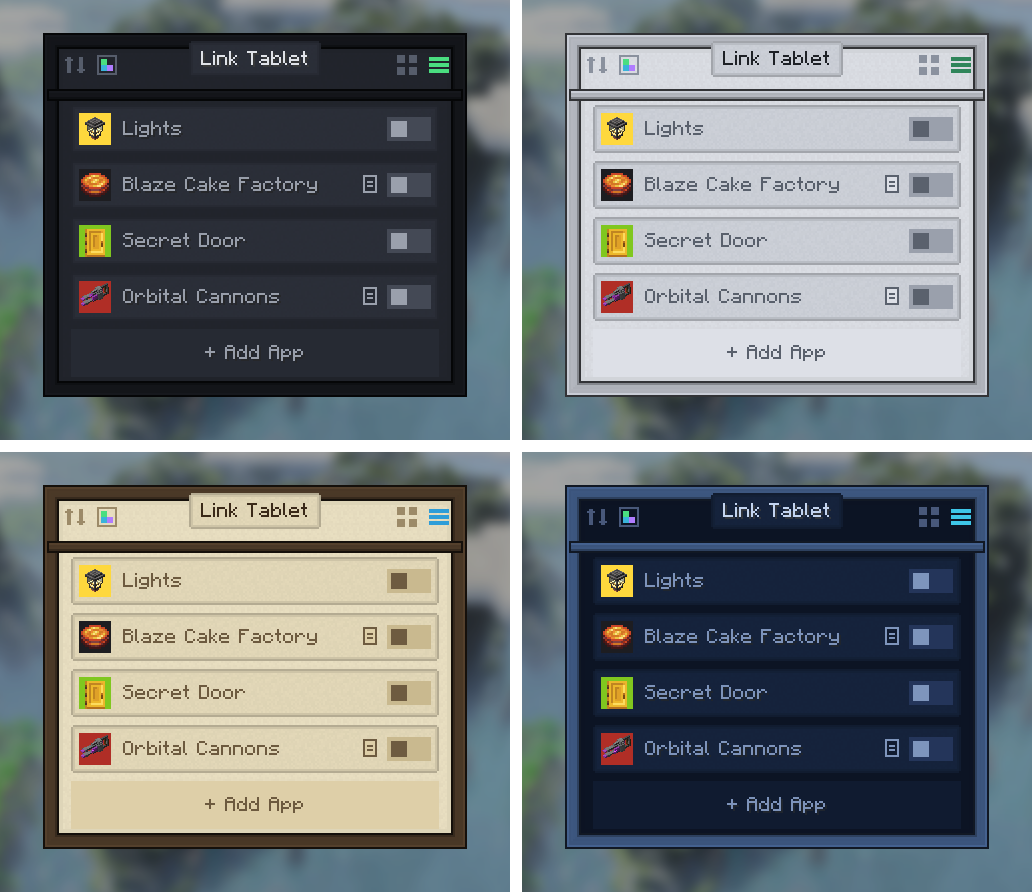
- 8 种 UI 主题 —— Dark、Light、AMOLED、Brass、Terminal、PurpleFox、Parchment、Avionics —— 按单个面板存储,以 Create 自身的视觉语言同时美化 GUI 和玻璃外观。
- 16 种染色外壳 —— 使用任意染料制作;可在锅或风扇的洗涤流中洗掉颜色。
- 完整的 UI 音效集,包括当有人翻转信号时附近玩家听到的微弱点击声。
- 在铁砧上为面板命名 —— 名称会显示在 GUI 标题和覆盖层上,并在放置和拾取后保留。
? 快速上手
该面板来自真实的生产线——属于黄铜时代制造,而非合成。用五张黄铜板塑造一个Tablet Case,然后将其送入传送带,经过三个部署器:Link Logic Board(无线电)、Clockwork Cell(电源)和Quartz Display(屏幕)。进行中的面板会 visibly 获得各个部件,JEI/EMI 会显示整个流程。
接着:
- 右键点击打开面板,点击 + 创建信号。
- 选择频率物品(类似调整 Redstone Link),Add,Save。
- 将接收端的 Redstone Links 设置为相同频率。
- 左键点击切换,右键点击编辑。
还有 Ponder 教程场景 —— 按住 W 键悬停在面板物品上方即可查看。背包中任意位置的面板都能像 Create 的手持 Linked Controller 一样传输信号;放置后的面板从方块处传输信号;而掉落的面板或置于物品展示框中的面板,也会从其所在位置持续传输信号。
? 兼容性
- Minecraft 1.21.1 · NeoForge · Java 21 · 需要 Create 6.x(服务端与客户端均需安装)。
- 完整多人游戏支持:服务器权威编辑,每位玩家拥有独立的发射器。
- 与其他链接网络发送器兼容良好;频率卡模组开箱即用;可选的 JEI/EMI 拖拽集成。
- Twitch Chat 是客户端功能且可选 —— 匿名且只读,仅在聊天界面开启时连接;不发送任何数据,不存储任何信息,在服务端完全不执行任何操作。
- MIT 许可证,可自由用于任何整合包。
❤️ 鸣谢
衷心感谢 Create 团队 —— 本模组依托于他们的 Redstone Link 网络与视觉语言。请支持原版模组!
横幅文字使用了社区提供的 Minecraft Ten 字体艺术,由 xllifi 创作(CC-BY 4.0)。
喜欢这个面板吗?你可以打赏一杯咖啡 ☕ —— 谢谢!
由 FryD42 制作 · MIT 许可证 —— 可自由用于任何整合包。
A smart-home control panel for your Create contraptions.
The Link Tablet is a handheld touchscreen that drives Create's Redstone Links remotely. Name your lights, doors, trains, and machines, give them icons, and flip them from one screen anywhere in link range. It boots to a Home screen of apps — signals, gauges, a clock, a live network monitor, even Twitch chat and a paint canvas — mounts on walls where tablets merge into one big display, and pins a mini-tablet to your HUD.
? A pocket OS
The tablet opens to a Home screen you arrange yourself; the built-in App Store (searchable) installs and removes apps per tablet:
- Signals — the control grid below; every tablet starts with it.
- Clock — alarms, a searchable world clock, timer, stopwatch. They ring even with the tablet closed; a placed Clock tablet is a wall clock.
- Calculator — click buttons or type; a placed tablet shows its live tape on the wall.
- Gauges — the reverse of Signals: live dials that listen on link frequencies and show the received 0–15. Merged walls make great factory dashboards.
- Monitor — an X-ray for your link network (below).
- Twitch Chat — live stream chat, emotes included, no account (below).
- Paint — a persistent pixel canvas that shows on walls (below).
Placed tablets show their app right on the glass — tap to open it, tap the bezel to go Home — and the wall follows your GUI navigation.
?️ Signals, not levers
- Up to 32 signals per tablet (+32 per tablet on merged walls), each with a name, color, item icon, and state — grid or list view, drag to rearrange.
- Four types: Toggle (on/off), Hold (transmits only while held — a disconnect can never leave it stuck on), Slider (0–15), Timer (transmits for 0.1–30 s, then switches off by itself).
- Scenes — one signal drives up to 8 frequencies at once ("Shut down the factory").
- Signal links — signals drive each other: up to 8 targets each, set to turn ON, turn OFF, or follow. Links chain, loops are safe, and a linked signal needs no frequency of its own — pure scene master buttons.
- Per-signal strength — strongest wins, exactly like stacked Redstone Links.
? Real Create frequencies
Signals tune to Create's item-pair frequencies — anything a Redstone Link can trigger, the tablet can too:
- The editor includes your real inventory (slots take a copy — nothing is consumed) plus a searchable all-items picker.
- JEI/EMI: drag straight from the ingredient panel onto a frequency slot.
- One-item frequencies work, and frequencies carry the full item, components included — frequency-card mods, dyed and renamed items all count as distinct channels, exactly like Create's own links.
? Tip — quick-add: right-click any Redstone Link while holding the tablet — the editor opens with that frequency pre-filled. Just hit Save.
? Who's on this frequency?
The Monitor app lists every channel your tablet touches — plus any you probe (up to 8) — with live power and every member transmitting or listening: Redstone Links, placed tablets, dropped or framed tablets, even "a tablet in someone's inventory". When a receiver is mysteriously pinned at 15, the Monitor points at the spare tablet in your pocket. Out-of-range members wear a badge; wall tablets make it a status board, and the overlay pin puts it on your HUD.
?️ Sliders you can feel
Sliders drag live in the GUI, and on a placed tablet you click-and-slide right on the glass. Every slider shows its numeric level, and an optional min/max range means a machine never fully turns off.
? Sticky notes for your factory
Every signal can carry a note in a floating window: drag it anywhere, keep several open, and they follow you — over the tablet, over your inventory, even pinned read-only on your HUD. Perfect for "flush the sorter before enabling" warnings — two of them are pinned in the screenshot up top.
? Pin it to your HUD
The pin button keeps a floating mini-tablet on your screen while you play — per app: live switch rows, a heads-up gauge cluster, the clock, a working mini calculator, or the launcher as an app dock. Press the "Use Pinned Tablet" key (default B) to free your mouse chat-style and tap toggles, drag sliders, or hold buttons mid-mining — no GUI ever opens. Right-click any row to jump into the full interface; the window remembers its spot across sessions.
✨ The screen is real
The physical screen isn't a texture — it renders your actual signals live, held or placed. Tiles size themselves to the signal count, active signals glow, and on a placed tablet the glass is touchable: tap to toggle, hold a Hold button, slide a slider — no GUI needed. Tap the bezel for the full interface.
? Place it on the wall
Sneak + right-click any surface to mount the tablet on a wall, floor, or ceiling — it transmits from its own position and its screen glows while a signal runs. Sneak + right-click with an empty hand picks it back up; everything survives the trip. A Create wrench rotates the screen content (glass) or physically flips the tablet between portrait and landscape (edge).
? Aim it anywhere
Craft a Swivel Mount — an iron nugget atop two brass sheets — place the stand on any surface, and click a tablet onto its ball joint. Wrench the glass and it swings around to aim straight at your eyes, wherever you're standing — one click, perfect angle. Wrench the bezel for landscape; sneak + right-click swaps tablets and leaves the stand as furniture. The tilted glass stays fully touchable.
And the party trick: power the mount with redstone and the screen follows you, gliding after the nearest player like the enchanting table's book. Cut the power and it freezes exactly where it points — aim by standing in the right spot, lock with a lever.
?️ One screen, many tablets
Mount tablets side by side and they merge into one big display, up to 4 wide by 3 tall: a single continuous glass panel, no seams. Signals spread across the whole surface at bigger tiles, taps and click-and-slide work anywhere on the glass — and every merged tablet raises the signal cap by another 32. Dye the lead tablet and the whole frame dyes.
? A 4×3 wall = 12 merged tablets — 384 signals on one screen
Merging is always safe — every tablet keeps its own signals and gets them back the moment it's split off — and always your choice: a chain-link button keeps a tablet standalone or breaks a wall back apart.
? Your stream chat, in the game
Type a channel name and its live chat flows onto your held tablet, your HUD, or a placed chat wall every viewer sees — merged walls give it the big-screen treatment. No account, no login, nothing stored: an anonymous, strictly read-only view of public chat, connected only while chat is actually on a screen somewhere.
And it's real chat: emotes render as actual images — Twitch's own plus 7TV, BetterTTV, and FrankerFaceZ, animated ones animating (a header toggle switches back to plain text). Keep Twitch as your last-used app and the tablet in your hand becomes a pocket chat screen, even in third person.
Shared-server note: chat is live, unfiltered internet, and anyone who can open a placed tablet's GUI can change its channel — same trust rules as its signals.
?️ Paint on the walls
A pixel canvas that lives on the tablet: doodle, place it, and the picture shows right on the glass. A proper toolbox rides along — brush, fill, line, rectangle, an eyedropper, and a 32-step undo, each with a keyboard shortcut. Merged walls become murals — paint across the seams while viewers watch your strokes land live, split the wall and each tablet keeps its slice, merge back and the mural reassembles. Break it, chest it, gift it — the art travels with the tablet.
Every tablet keeps its slice — rearrange the wall, remix the painting.
? Lock it down
On a shared server, tap the padlock in a placed tablet's GUI and it locks: everyone can still flip its signals, drag its sliders, and use its apps — but reconfiguring anything (signals, channels, the mural) and unlocking again take a Create wrench in hand. Locking a merged wall locks every tablet in it, and the pieces stay locked if the wall is split. Perfect for public kiosks — and for keeping your mural safe.
? Make it yours
- 8 UI themes — Dark, Light, AMOLED, Brass, Terminal, PurpleFox, Parchment, Avionics — stored per tablet, styling GUI and glass alike in Create's own visual language.
- 16 dyed cases — craft with any dye; wash it off in a cauldron or a fan's washing stream.
- A full set of UI sounds, including a faint click nearby players hear when someone flips a signal.
- Name your tablets on an anvil — the name titles the GUI and overlay and survives placing and picking up.
? Getting started
The tablet comes off a real assembly line — brass-age manufacturing, not crafting. Shape a Tablet Case from five brass sheets, then send it down a belt past three Deployers: the Link Logic Board (the radio), the Clockwork Cell (the power), and the Quartz Display (the screen). The in-progress tablet visibly gains each part, and JEI/EMI shows the whole sequence.
Then:
- Right-click to open the tablet, tap + to create a signal.
- Pick the frequency items (like tuning a Redstone Link), Add, Save.
- Set your receiving Redstone Links to the same frequency.
- Left-click toggles, right-click edits.
There's a Ponder scene too — hold W over the tablet item. A tablet anywhere in your inventory transmits like Create's handheld Linked Controller; placed tablets transmit from the block — and a dropped tablet, or one sitting in an item frame, keeps transmitting right from where it lies.
? Compatibility
- Minecraft 1.21.1 · NeoForge · Java 21 · requires Create 6.x (server and client).
- Full multiplayer support: server-authoritative edits, per-player transmitters.
- Plays nicely with other link-network senders; frequency-card mods work out of the box; optional JEI/EMI drag integration.
- Twitch Chat is client-side and optional — anonymous and read-only, connected only while chat is on a screen; nothing sent, nothing stored, and it does nothing at all on the server side.
- MIT licensed, free to use in any modpack.
❤️ Credits
Huge thanks to the Create team — this addon stands on their Redstone Link network and visual language. Go support the original mod!
Banner lettering uses the community Minecraft Ten font art by xllifi (CC-BY 4.0).
Enjoying the tablet? You can drop a tip ☕ — thank you!
Created by FryD42 · MIT licensed — free to use in any modpack.

下载 Create: Redstone Link Tablet
需要联机服务器吗?
稳定流畅、一键部署,几分钟即可和朋友联机开服
最低仅需 8 元/月 即可畅快联机
下载 Create: Redstone Link Tablet
需要联机服务器吗?
稳定流畅、一键部署,几分钟即可和朋友联机开服
最低仅需 8 元/月 即可畅快联机
下载 Create: Redstone Link Tablet
需要联机服务器吗?
稳定流畅、一键部署,几分钟即可和朋友联机开服
最低仅需 8 元/月 即可畅快联机
下载 Create: Redstone Link Tablet
需要联机服务器吗?
稳定流畅、一键部署,几分钟即可和朋友联机开服
最低仅需 8 元/月 即可畅快联机
下载 Create: Redstone Link Tablet
需要联机服务器吗?
稳定流畅、一键部署,几分钟即可和朋友联机开服
最低仅需 8 元/月 即可畅快联机
下载 Create: Redstone Link Tablet
需要联机服务器吗?
稳定流畅、一键部署,几分钟即可和朋友联机开服
最低仅需 8 元/月 即可畅快联机
下载 Create: Redstone Link Tablet
需要联机服务器吗?
稳定流畅、一键部署,几分钟即可和朋友联机开服
最低仅需 8 元/月 即可畅快联机
下载 Create: Redstone Link Tablet
需要联机服务器吗?
稳定流畅、一键部署,几分钟即可和朋友联机开服
最低仅需 8 元/月 即可畅快联机
下载 Create: Redstone Link Tablet
需要联机服务器吗?
稳定流畅、一键部署,几分钟即可和朋友联机开服
最低仅需 8 元/月 即可畅快联机
下载 Create: Redstone Link Tablet
需要联机服务器吗?
稳定流畅、一键部署,几分钟即可和朋友联机开服
最低仅需 8 元/月 即可畅快联机
1.14.0 — 2026-08-24
新增
- 插件应用。其他模组现在可以构建应用,从应用商店安装到平板电脑上,与内置应用的安装方式相同。一个插件应用能够识别它运行在哪一台平板电脑上——是你手中的那台、墙上挂的那台,还是合并墙上的某一台特定成员——并且可以在该平板电脑上保留一小块专属内存:无论放置、破坏、拾取、物品展示框还是箱子中的任何操作,保存的数据都会随之携带,并在墙面显示给所有人查看,且在重载后依然保留。两个应用的内存互不干扰,锁定的平板电脑对其的保护也与其他数据一样严格。首个基于此构建的插件是 Link Tablet: Refined Storage,它会在你的平板上打开一个真正的精炼存储合成界面。
变更
- 网络协议版本未变(仍为 24),但平板电脑现在携带新的数据字段,因此 1.14.0 仅兼容 1.14.0 ——请同时更新服务器和所有客户端。来自 1.13.0 的世界和平板电脑数据可无损加载。
关于这个资源的讨论、问题反馈与使用心得
还没有讨论,来发第一帖吧
你是这个资源的作者?登录后可认领此资源。
相似资源
 模组

一个用于收集生物掉落物的多区块模组。
 模组

显示你正在注视的方块的信息。(适用于 Minecraft 1.16+ 的 Hwyla/Waila 分支)
 模组
在游戏画面角落显示附近世界地形、玩家、生物和实体的地图。可创建路径点,帮助你找到标记过的位置。
 模组

查看物品与配方
 模组
使用 JavaScript 编辑配方、添加自定义物品、编写世界事件!
 模组
AE2:一款流行的自动化与存储模组
评论 0
登录后参与评分
还没有评论,来抢沙发吧