
截图设置
ScreenshotSettings 是一款适用于 Quilt/Fabric 的模组,允许你配置有关游戏内截图的各种选项。
“各种选项”包括选择截图在磁盘上的保存位置,以及你希望如何命名它们。 可选地,可以将与截图相关的信息嵌入到文件名或元数据中,例如玩家位置、 旋转角度、当前激活的资源包或光影包、截取截图的世界或服务器名称,以及在单人游戏中,世界种子。
这应该能够方便地通过相关元数据对截图进行排序/搜索,同时也让截图更易于管理。(说真的,我讨厌在 Windows 上玩游戏时还要去 AppData 文件夹里找东西。这非常令人烦恼。)
自定义文件命名系统可以做的事。
目前的文件命名系统相对基础,仅支持 8 种模板。
<datetime>- Minecraft 默认的截图命名格式。
- (未来可能会更改以支持更灵活的格式化,例如拥有单独的
<month> <day> <hour> <minute> <second>标签)
<world>- 单人模式下的世界名称,或多人模式下的服务器名称。
<version>- 截取截图时的 Minecraft 版本。(例如 1.19.2)
<x>,<y>, 和<z>- 截取截图时的相应坐标。
<shader>- 当前激活的光影包。(需要 Iris Shaders)
<player>- 你的 Minecraft 用户名。如果你想将多个账号的截图放在同一位置但保持有序,这将很有用。(我不太确定为什么有人想这么做,但这个模组的宗旨就是给你提供选项,见鬼!)
自动创建子目录
通过在命名方案中包含 /,你可以基于上述模板创建目录结构。
你可以根据截图是在哪个世界/服务器上截取的,或者当时使用了什么光影包,自动将截图整理到文件夹中。
我个人使用的命名方案是 <world>/<datetime>,因为它让我更容易根据截图地点来浏览截图,同时仍能防止文件名冲突。
这将产生如下目录结构:
~/Pictures/minecraft
----------------------------------------------------------------
    ├── annier server
    │   ├── 2022-11-29_19.42.52.png
    │   ├── 2022-11-29_19.45.30.png
    │   ├── 2022-11-30_14.08.32.png
    │   ├── 2022-11-30_14.21.56.png
    │   ├── 2022-11-30_17.11.26.png
    │   ├── 2022-11-30_21.07.27.png
    │   ├── 2022-11-30_21.07.53.png
    │   ├── 2022-11-30_21.35.16.png
    │   ├── 2022-11-30_21.39.00.png
    │   ├── 2022-11-30_21.39.20.png
    │   ├── 2022-11-30_21.46.19.png
    │   └── 2022-11-30_23.42.15.png
    ├── Example Server
    │   ├── 2022-11-28_19.42.15.png
    │   └── 2022-11-28_19.30.06.png
    └── Quilt Test
        └── 2022-11-28_18.36.38.png
但是,如果你有很多服务器都保存为“Minecraft Server”,并且有很多单人世界都命名为“New World”,那么这对帮助你就没什么大用了。
关于 PNG 元数据的一点说明
Windows 资源管理器无法显示此模组包含的元数据。你需要获取一个专用的 Windows 程序才能查看它。
查看元数据:命令行
如果你习惯使用命令行工具,你可以使用 ImageMagick 的 identify -verbose 命令来查看它。
ImageMagick 有适用于 Windows、Mac 和 Linux 的版本,如果你使用的是 Linux,很可能已经安装了它。
这是我推荐的方式,因为它允许你设置脚本来搜索或组织你的截图,但如果你对 查看 元数据感兴趣,也许你会更倾向于使用图形界面。
查看元数据:图形界面
如果你 不 习惯使用命令行工具……我发现的最佳方法(至少在 Windows 上)是使用 exiftoolgui。
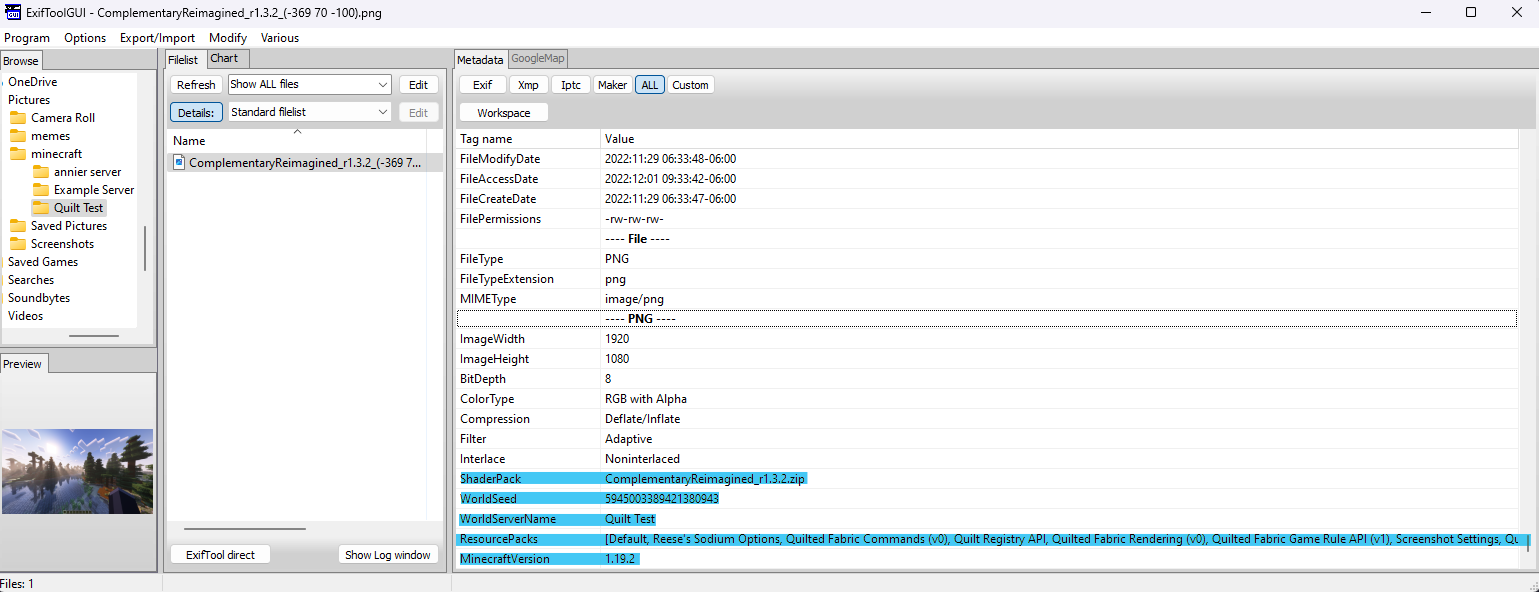
它要求你已安装基本的 exiftool,但其“默认”安装过程对用户并不友好。 对于安装基本工具,我推荐 Oliver Betz 的 exiftool for windows。 它附带了 GUI 安装程序,总体上更方便。
安装完成后,你需要导航到你的截图并查看 All 选项卡以查看所有元数据。
此模组附加的元数据应出现在底部,如上面的截图所示。
这实际上可以在 WSL 中使用。
因为 Minecraft 使用 URI 来解析 Windows 上的文件路径,你可以使用已安装的 WSL 发行版的路径作为有效的保存位置,从而使通过 WSL 操作截图集合稍微更方便一些。
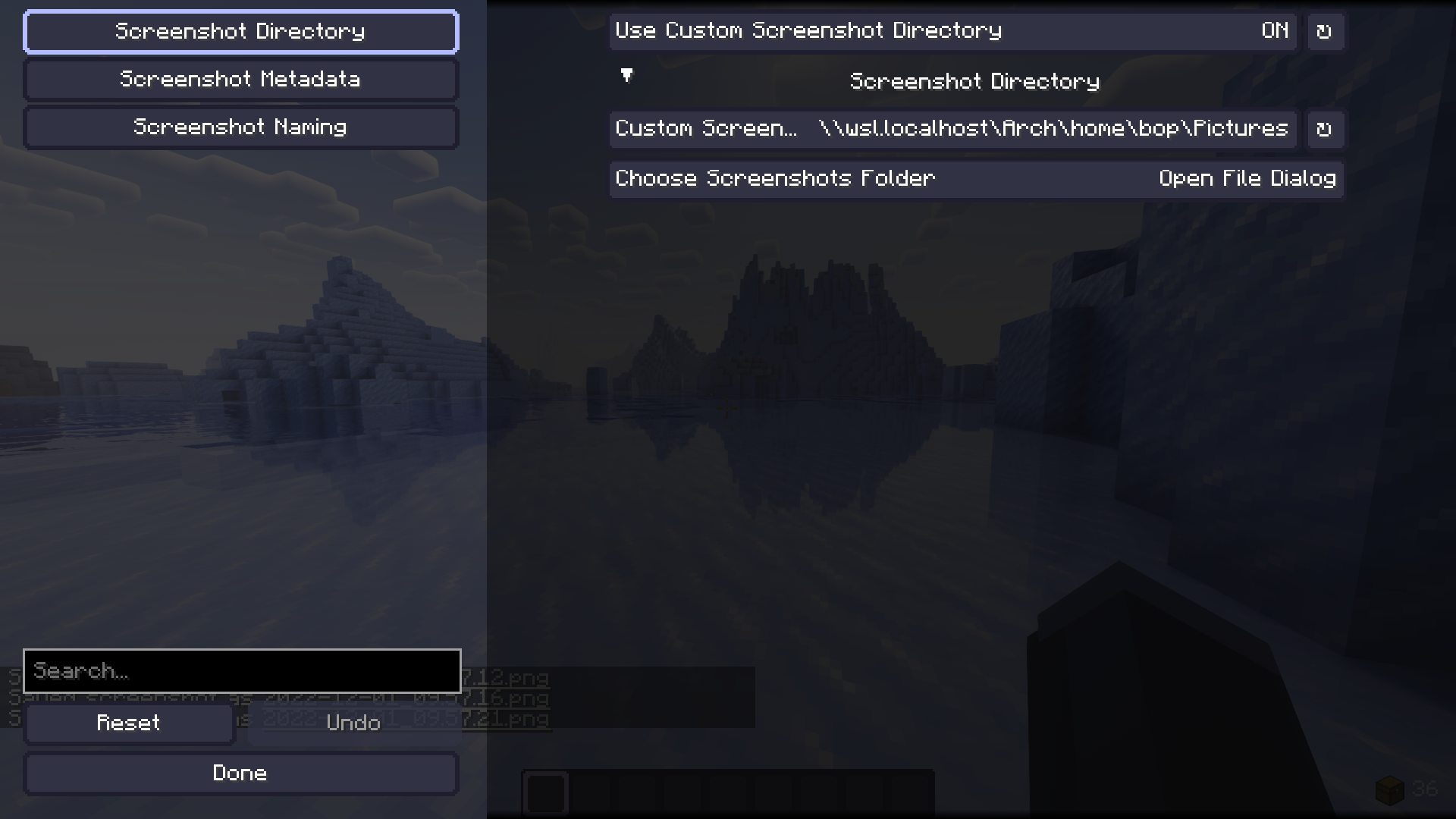
Screenshot Settings
ScreenshotSettings is a mod for Quilt/Fabric that allows you to configure various things about in-game screenshots.
"Various Things" includes choosing where screenshots are saved to on-disk, as well as how you'd like them to be named. Relevant information to a screenshot can be optionally embedded into the filename or metadata, such as player position, rotation, active texture or shader packs, the name of the world or server the screenshot was taken on, and if on singleplayer, the world seed.
This should allow for convenient sorting/searching through screenshots by relevant metadata, and is also nice just for making your screenshots more accessible. (Seriously, I hate having to go into my AppData folder when I'm playing on Windows. It's terribly annoying.)
Things you can do with the custom File Naming system.
The file naming system is somewhat bare bones at the moment, only supporting 8 templates.
<datetime>- Minecraft's default screenshot naming format.
- (This may be changed in the future to support more customizable formatting, like having separate tags for
<month> <day> <hour> <minute> <second>)
<world>- The name of the world in Single Player, and the name of the server in Multiplayer.
<version>- The version of Minecraft the screenshot was taken on. (Ex. 1.19.2)
<x>,<y>, and<z>- The respective coordinates of where the screenshot was taken.
<shader>- The active Shader pack. (requires Iris Shaders)
<player>- Your Minecraft username. Useful for if you want to put screenshots from multiple accounts in the same place but keep them organized. (Not entirely sure why you would want to do that, but the point of this mod is to give you options, damnit!)
Automatically Creating Subdirectories
By including a / in your naming scheme, you can create a directory structure based on the templates above.
You can automatically organize your screenshots into folders according to what world/server they were taken on, or what shaderpack was in use at the time of the screenshot.
The naming scheme I personally use is <world>/<datetime> because it makes it easier to go through my screenshots based on where I took them, and still prevents name collisions.
This results in a directory structure like the following
~/Pictures/minecraft
----------------------------------------------------------------
    ├── annier server
    │   ├── 2022-11-29_19.42.52.png
    │   ├── 2022-11-29_19.45.30.png
    │   ├── 2022-11-30_14.08.32.png
    │   ├── 2022-11-30_14.21.56.png
    │   ├── 2022-11-30_17.11.26.png
    │   ├── 2022-11-30_21.07.27.png
    │   ├── 2022-11-30_21.07.53.png
    │   ├── 2022-11-30_21.35.16.png
    │   ├── 2022-11-30_21.39.00.png
    │   ├── 2022-11-30_21.39.20.png
    │   ├── 2022-11-30_21.46.19.png
    │   └── 2022-11-30_23.42.15.png
    ├── Example Server
    │   ├── 2022-11-28_19.42.15.png
    │   └── 2022-11-28_19.30.06.png
    └── Quilt Test
        └── 2022-11-28_18.36.38.png
If you, however, were to have many servers saved as "Minecraft Server" and many singleplayer worlds named "New World", this wouldn't do much to help you.
A note on PNG Metadata
The Windows Explorer cannot display the metadata included by this mod. You will need to get a dedicated program for windows to be able to see it.
Viewing Metadata: CLI
If you're comfortable using a command-line tool, you can use ImageMagick's identify -verbose command to see it.
ImageMagick has releases for Windows, Mac, and Linux, and if you're on Linux chances are you already have it installed anyway.
This is the way I'd recommend, because it allows you to set up scripts for searching through or organizing your screenshots, but if all you're interested in is viewing metadata, perhaps you'd be more interested in a GUI.
Viewing Metadata: GUI
If you aren't comfortable using a command-line tool... the best way I've found (on Windows, at least) is exiftoolgui.
It requires that you have the base exiftool installed, but the "default" installation process for it isn't very user-friendly. For installing the base tool, I recommend Oliver Betz's exiftool for windows. It comes packaged with a GUI installer and is just generally more convenient.
Once installed, you'll want to navigate to your screenshot and view the All tab to see all of its metadata.
The metadata attached by this mod should appear at the bottom, as it does in the screenshot above.
This actually works with WSL.
Because Minecraft uses URIs to resolve file paths on Windows, you can actually use the path to an installed WSL distribution as a valid save location to make manipulating your screenshot collection via WSL slightly more convenient.

下载 ScreenshotSettings
下载 ScreenshotSettings
下载 ScreenshotSettings
下载 ScreenshotSettings
下载 ScreenshotSettings
下载 ScreenshotSettings
下载 ScreenshotSettings
下载 ScreenshotSettings
下载 ScreenshotSettings
下载 ScreenshotSettings
暂无更新日志
关于这个资源的讨论、问题反馈与使用心得
还没有讨论,来发第一帖吧
你是这个资源的作者?登录后可认领此资源。
相似资源
 模组

显示你正在注视的方块的信息。(适用于 Minecraft 1.16+ 的 Hwyla/Waila 分支)
 模组
使用 JavaScript 编辑配方、添加自定义物品、编写世界事件!
 模组

查看物品与配方
 模组
在游戏画面角落显示附近世界地形、玩家、生物和实体的地图。可创建路径点,帮助你找到标记过的位置。
 模组
AE2:一款流行的自动化与存储模组
 模组
那是什么?一个 Waila/Hwyla 的分支。
评论 0
登录后参与评分
还没有评论,来抢沙发吧