
Sound Visualizer
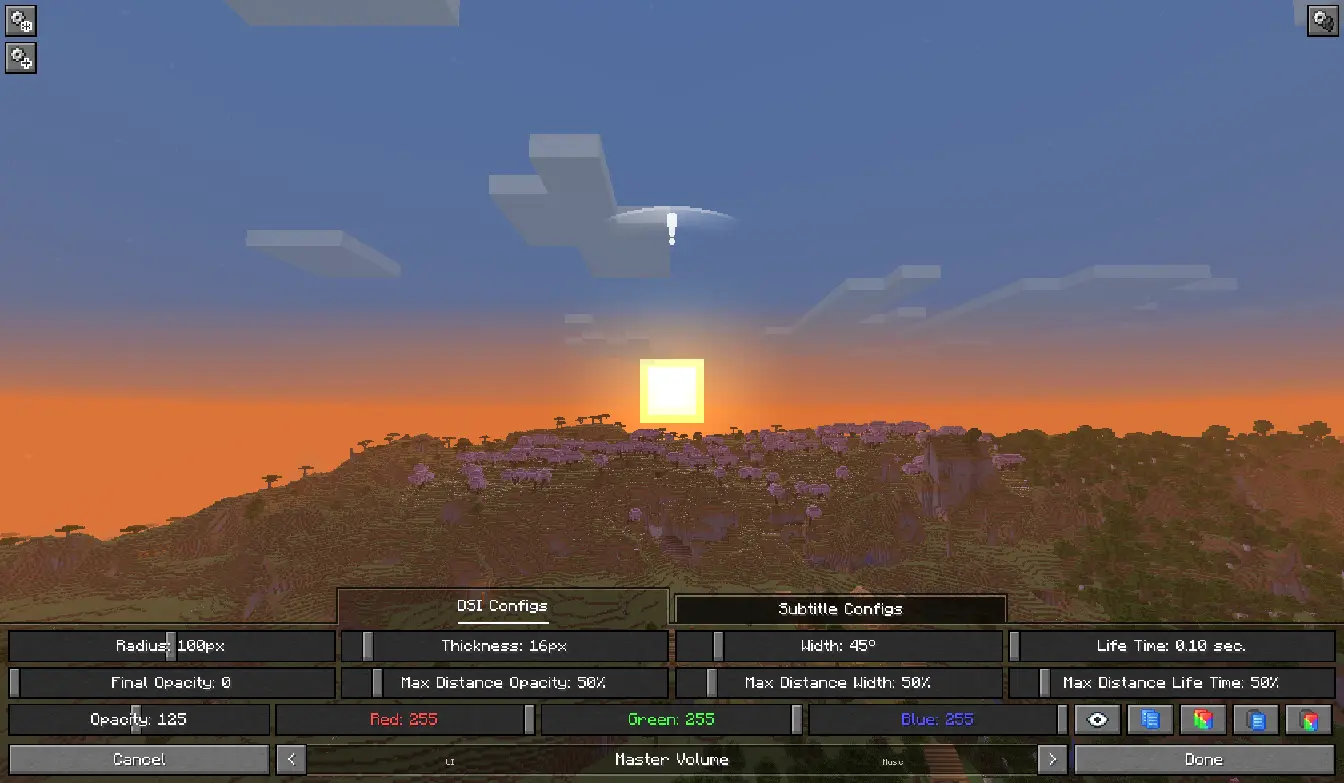
Sound Visualizer 允许你提升对游戏的感知能力,特别是你对声音方向的判断。
该模组支持对其添加的所有内容进行非常精细的自定义设置。 你可以为特定来源(例如方块)以及单个声音自定义所有指示器的显示效果。 你既可以在带有预览选项的专用菜单中配置所有内容,也可以在配置文件中完成设置。
功能

方向性声音指示器
当附近播放声音时出现。该指示器会提醒玩家并显示声音的方向。 对于每个来源或特定声音,指示器的半径、宽度、颜色、不透明度等均可自定义。
增强型字幕
本质上,它们是原版字幕的修改版。 与 DSI 类似,它们也支持为每个来源或特定声音自定义颜色、背景透明度、文字透明度等。 你还可以更改它们在屏幕上的位置、大小,甚至其中的文本内容 (添加前缀和后缀,或者将文本完全更改为你自己的内容)。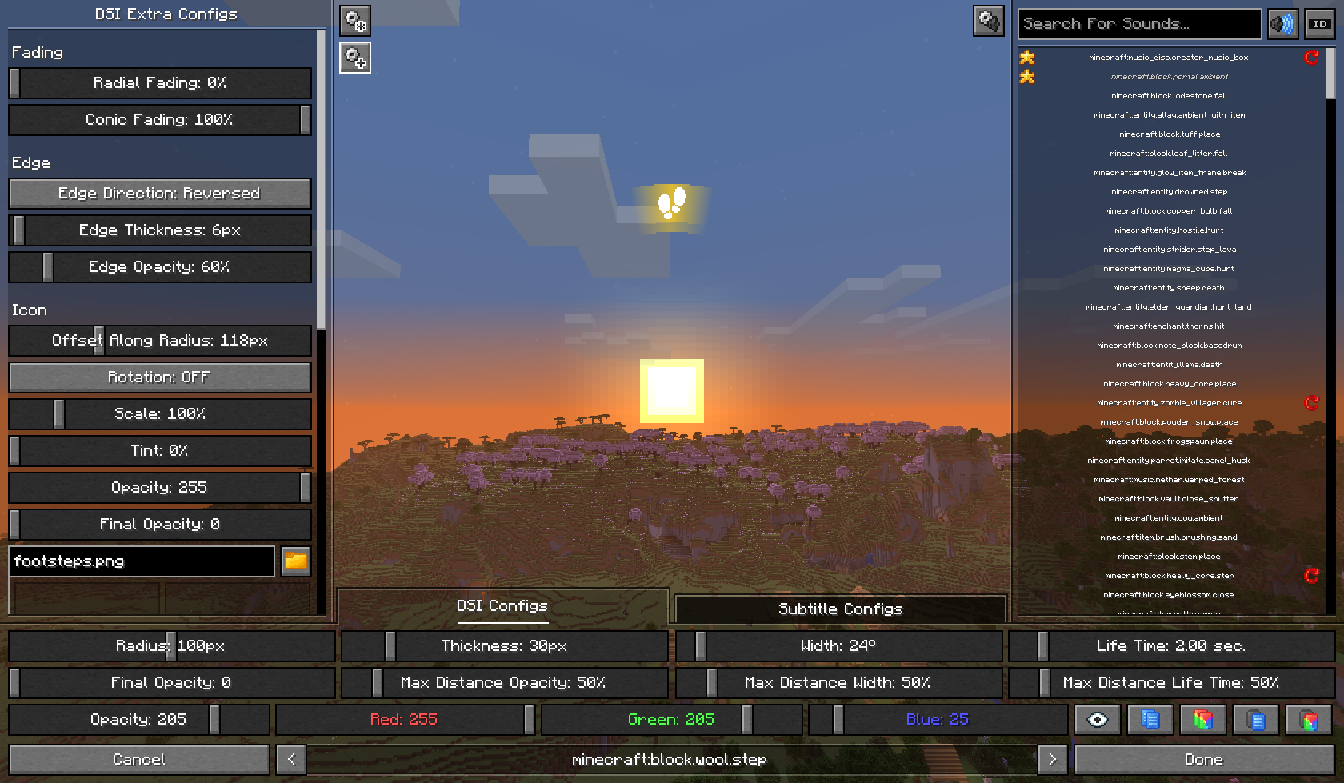
配置界面
一个允许你自定义指示器和字幕的菜单。 要打开菜单,请进入“选项”并点击“音乐与声音选项”旁边的按钮,或使用键盘快捷键 [ALT + V]。 建议使用热键和一些功能以进行更快、更便捷设置。如需更多信息,你可以阅读指南:
配置界面指南
如何开始
当你进入菜单时,首先应注意屏幕底部的主体面板。 在该面板的底部中央,显示当前选定的声音来源——即你将调整各种参数的来源。 当游戏世界中播放声音时,指示器和字幕参数将反映该声音来源的参数。 你可以使用箭头按钮或通过热键切换正在调整的声音来源。接下来,请注意右上角的按钮——它打开声音列表, 你可以在其中搜索、选择并为每个声音单独调整参数,而在播放时忽略其来源。 为此,请在列表中选择一种声音(或通过按住 [Ctrl] 或 [Shift] 选择多种声音),并按需更改参数。 如有必要,你可以通过点击右侧的红色按钮或使用热键来删除特定声音的参数。
接下来是关于实际调整:它通过主体面板上的滑块和按钮执行。 每个控件控制一个单独的参数,你可以将鼠标悬停在上面以在工具提示中读取其值, 也可以更改并在屏幕中央的屏幕上指示器/字幕上看到变化。
还需要提到的是附加参数和全局参数——你可以通过点击左上角的相应按钮打开它们的列表。 虽然附加参数与主体面板上的参数相同,但重要性较低且未能放入其中, 而全局参数则是那些对所有声音具有相同值的参数。
最后值得一提的是右下角的按钮,即:
-
可见性切换按钮 - 切换选定声音来源或特定声音的指示器/字幕的可见性。
-
复制所有非颜色参数按钮 - 复制选定声音来源或特定声音的所有非颜色参数的值 (这些参数不影响指示器或字幕文本的颜色), 从而允许将所有复制的非颜色参数粘贴到其他声音来源或特定声音上。
-
复制所有颜色参数按钮 - 复制选定声音来源或特定声音的所有颜色参数的值 (这些参数会影响指示器或字幕文本的颜色), 从而允许将所有复制的颜色参数粘贴到其他声音来源或特定声音上。
-
粘贴所有非颜色参数按钮 - 将复制的所有非颜色参数的值 (这些参数不影响指示器或字幕文本的颜色) 粘贴到选定的声音来源或特定声音中。
-
粘贴所有颜色参数按钮 - 将复制的所有颜色参数的值 (这些参数会影响指示器或字幕文本的颜色) 粘贴到选定的声音来源或特定声音中。
所有这些按钮都有对应的热键替代方案。
热键
你可以在“控制”下的“Sound Visualizer”类别中更改热键绑定(在 Fabric 上,仅从游戏版本 1.21.11 起可用)。
-
[A] - 将正在编辑参数的声音来源切换到左侧的一个。
-
[D] - 将正在编辑参数的声音来源切换到右侧的一个。
-
[S] - 设置滑块的最低值及其参数。
-
[W] - 设置滑块的最高值及其参数。
-
[C] - 复制悬停控件的参数的值。
-
[V] - 将复制的值粘贴到悬停控件的参数中。
-
[Shift + C] - 复制所选音源或特定音效的所有非颜色参数(即那些不影响指示器或副标题文本颜色的参数)的值。
-
[Shift + V] - 将复制的所有非颜色参数(即那些不影响指示器或副标题文本颜色的参数)的值粘贴到所选音源或特定音效中。
-
[Alt + C] - 复制所选音源或特定音效的所有颜色参数(即那些影响指示器或副标题文本颜色的参数)的值。
-
[Alt + V] - 将复制的所有颜色参数(即那些影响指示器或副标题文本颜色的参数)的值粘贴到所选音源或特定音效中。
-
[X] - 切换所选音源或特定音效的指示器/副标题的可见性。
-
[F] - 将声音列表中所有选中的音效添加至/从收藏夹中移除。
-
[R] - 移除声音列表中所有选中音效的独立设置。
实用功能
-
您可以使用鼠标滚轮来调整滑块值及其参数的增量,或在按住 [Shift] 键时以十为单位进行步进调整。
-
您可以按住 [Ctrl] 键并在不操作其中滑块的情况下浏览列表,同时按住 [Shift] 键可将滚动速度提高 10 倍。
联系方式
如果您遇到任何问题、有改进建议或对模组有任何疑问,您可以在 Issue Tracker(CurseForge - )上提交。
Sound Visualizer
Sound Visualizer allows you to improve your perception of the game, in particular your orientation towards sounds.
The mod supports quite fine-grained customization of everything it adds. You can customize the display of all indicators for specific sources, such as Blocks, as well as for individual sounds. You can configure everything both in a dedicated menu with a preview option and in the configuration file.
Features
Directional Sound Indicator
Which appears when a sound is played nearby. The indicator alerts the player and shows the direction of the sound. The indicator can have a customizable radius, width, color, opacity, etc. for each source or specific sound.
Enhanced Subtitles
Essentially, they're vanilla subtitles with the ability to be modified. Like DSI, they feature customizable color, background transparency, text transparency, and more for each source or specific sound. You can also change their position on the screen, their size, and even the text within them (add prefixes and suffixes, or completely change the text to your own).
Configuration Screen
A menu that allows you to customize indicators and subtitles. To open the menu, go to "Options" and click the button next to the "Music & Sound Options", or use the keyboard shortcut [ALT + V]. Recommend using hotkeys and some features for faster and more convenient setup.For more information, you can read the guide:
Configuration Screen Guide
How to get started
When you enter the menu, the first thing you should pay attention to is the main panel at the bottom of the screen. At the bottom center of that panel the currently selected sound source is shown - the source for which you will adjust various parameters. When sound is playing in the game world, the indicator and subtitle parameters will reflect the parameters for that sound source. You can switch the sound source being adjusted using the arrow buttons or by using hotkeys.Next, pay attention to the button at the top right - it opens the sounds list, where you can search for, select, and adjust patameters for each sound individually, ignoring its source during playback. To do this, choose a sound in the list (or select multiple sounds by holding [Ctrl] or [Shift]) and change the parameters as you like. If necessary, you can remove an individual sound's parameters by clicking the red button to the right or by using hotkey.
Next, about the actual adjustment: it is performed using the sliders and buttons on the main panel. Each widget controls a separate parameter whose value you can read in a tooltip when you hover over it, or change and see on the on-screen indicator/subtitle in the center of the screen.
It's also important to mention the additional and global parameters - you can open their lists by clicking the corresponding buttons in the top-left corner. While additional parameters are the same as those on the main panel but less important and didn't fit there, global parameters are those whose values are identical for all sounds.
The last thing worth mentioning is the buttons in the bottom-right corner, namely:
-
Visibility toggle button - Switches the visibility of the indicators/subtitles for the selected sound source or a specific sound.
-
Copy all non-color parameters button - Copies the values of all non-color parameters (those parameters that do not affect the color of the indicator or subtitle text) of the selected sound source or a specific sound, which allows pasting all these copied non-color parameters to other sound sources or specific sounds.
-
Copy all color parameters button - Copies the values of all color parameters (those parameters that do affect the color of the indicator or subtitle text) of the selected sound source or a specific sound, which allows pasting all these copied color parameters to other sound sources or specific sounds.
-
Paste all non-color parameters button - Pastes the copied values of all non-color parameters (those parameters that do not affect the color of the indicator or subtitle text) into the selected sound source or into a specific sound.
-
Paste all color parameters button - Pastes the copied values of all color parameters (those parameters that do affect the color of the indicator or subtitle text) into the selected sound source or into a specific sound.
All of these buttons have an alternative in the form of hotkeys.
Hotkeys
You can change the hotkey bindings in the "Controls" under the "Sound Visualizer" category (on Fabric, only from game version 1.21.11 onward).
-
[A] - Changes the sound source whose parameters are being edited to the left one.
-
[D] - Changes the sound source whose parameters are being edited to the right one.
-
[S] - Sets the minimum value for the slider and its parameter.
-
[W] - Sets the maximum value for the slider and its parameter.
-
[C] - Copies the value of the hovered widget's parameter.
-
[V] - Pastes the copied value into the hovered widget's parameter.
-
[Shift + C] - Copies the values of all non-color parameters (those parameters that do not affect the color of the indicator or subtitle text) of the selected sound source or a specific sound.
-
[Shift + V] - Pastes the copied values of all non-color parameters (those parameters that do not affect the color of the indicator or subtitle text) into the selected sound source or into a specific sound.
-
[Alt + C] - Copies the values of all color parameters (those parameters that do affect the color of the indicator or subtitle text) of the selected sound source or a specific sound.
-
[Alt + V] - Pastes the copied values of all color parameters (those parameters that do affect the color of the indicator or subtitle text) into the selected sound source or into a specific sound.
-
[X] - Switches the visibility of the indicators/subtitles for the selected sound source or a specific sound.
-
[F] - Adds/Removes all sounds selected in the sounds list in/from favorites.
-
[R] - Removes the individual setup of all sounds selected in the sounds list.
Useful features
-
You can use the mouse wheel to adjust the slider value and its parameter incrementally, or in steps of ten while holding down the [Shift] key.
-
You can hold down the [Ctrl] key and scroll through the list without interacting with the sliders in it, and hold down the [Shift] key to increase the scrolling speed by 10 times.
Contact
If you have any issues, suggestions for improvement, or questions regarding the mod, you can add them on the Issue Tracker (CurseForge - ).

下载 Sound Visualizer
下载 Sound Visualizer
下载 Sound Visualizer
下载 Sound Visualizer
下载 Sound Visualizer
下载 Sound Visualizer
下载 Sound Visualizer
下载 Sound Visualizer
下载 Sound Visualizer
下载 Sound Visualizer
修复
- 与“Music and Melody”模组(可能还有其他一些模组)的冲突,该冲突在尝试启动播放列表时会导致崩溃。
关于这个资源的讨论、问题反馈与使用心得
还没有讨论,来发第一帖吧
你是这个资源的作者?登录后可认领此资源。
相似资源
 模组

显示你正在注视的方块的信息。(适用于 Minecraft 1.16+ 的 Hwyla/Waila 分支)
 模组
使用 JavaScript 编辑配方、添加自定义物品、编写世界事件!
 模组

查看物品与配方
 模组
在游戏画面角落显示附近世界地形、玩家、生物和实体的地图。可创建路径点,帮助你找到标记过的位置。
 模组
AE2:一款流行的自动化与存储模组
 模组
那是什么?一个 Waila/Hwyla 的分支。
评论 0
登录后参与评分
还没有评论,来抢沙发吧