请勿将此模组与 XaeroPlus 一起使用!它与我无关,会导致无法追踪的严重错误/崩溃。据称它还与一个服务器破坏组织有关联,这可能会让你的服务器建筑面临风险。
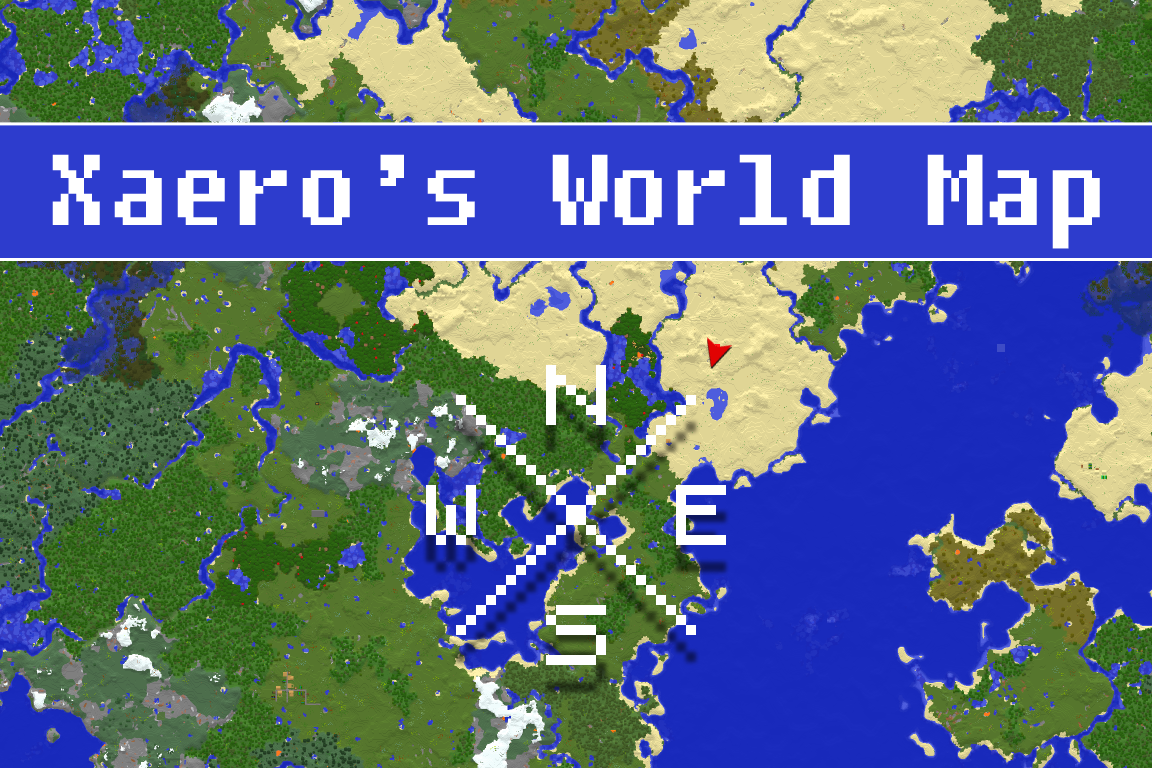
Xaero 的世界地图模组为你的 Minecraft 客户端添加了一张自动绘制的全屏地图。它可以作为独立模组使用,但与 Xaero 的小地图搭配效果更佳。它之所以单独提供,是为了尽可能保持 Xaero 的小地图轻量。此模组主要是客户端模组。在服务端安装它是可选的,可用于世界识别等一些附加功能。
该模组仍在开发中!请报告你遇到的任何错误,否则它们很可能不会被修复。
请确保你的世界针对你所玩的 Minecraft 版本进行了优化(单人游戏 - 编辑 - 优化世界)(每次 Minecraft 更新后都要重复此操作)。从未优化的世界存档生成单人游戏地图所需时间会长得多。
谢谢!
功能
- 自动绘制的世界地图(相对于手动纸质地图)。你可以在同一服务器地址上创建多张地图,并手动或自动在它们之间切换。
- 适用于单人游戏、多人游戏和 Realms。
- 直观的界面。通过按下 M 键打开地图界面。用鼠标移动地图,使用鼠标滚轮放大/缩小,类似于 Google Maps。所有相关控制项都列在地图界面的工具提示中,你可以对其中许多进行自定义。
- 可选的服务器自动多世界识别。
- 服务端配置,带有游戏内 UI 界面,让你可以实时控制服务器上的玩家如何使用该模组。你可以基于等级/权限来设置(xaero.world_map.enforced_server_profile)。支持 FTB Ranks、Odyssey Roles、LuckPerms 以及通用权限 API。
- 显示来自 Open Parties and Claims 模组的区块认领和盟友玩家。让你可以直接从地图上认领或强制加载区块。
- 支持资源包。更换资源包会导致整个世界地图重新生成。
- 支持洞穴维度(例如下界)。
- 可选的原版地图模式,使世界地图看起来像原版纸质地图。
- 地形阴影自定义。
- “足迹”,向你展示你最近走过的路径。
- 在必要时可帮助提升模组性能的设置。不过大多数情况下,模组默认性能应该就很出色。
- 与 Xaero 的小地图集成。小地图模组将显示世界地图提供的区块。世界地图模组将显示来自 Xaero 的小地图模组的路径点。同样兼容 Better PVP 模组。你可以在不离开地图界面的情况下创建、编辑以及传送到路径点。
- 用于控制服务器/地图上玩家使用世界地图的药水效果。截至撰写本文时,存在以下药水效果:xaeroworldmap:no_world_map。效果默认是中性类型,但你也可以通过将 _harmful 附加到效果 ID 末尾来指定有害类型,例如 xaeroworldmap:no_world_map_harmful。
- 自模组 1.14.0 版本起,你可以通过点击地图界面右下角的图标来打开地图内路径点菜单。在路径点菜单中,你可以看到来自已渲染集合的所有地图路径点列表,用鼠标光标与它们交互,在文本字段中按名称筛选它们。该菜单还允许你切换已禁用路径点的可见性、切换渲染所有集合以及更改当前路径点集合。将鼠标悬停在菜单中的路径点上,效果等同于在地图上悬停在它们上面:它们会在地图上高亮显示,你可以使用右键或悬停控制来与它们交互。
- 可将地图导出为 PNG 图像文件的选项。该模组会尝试导出整张地图,因此如果地图长达数百万个方块,可能无法正常工作。我计划在未来提供更多地图导出选项!
- 通过将地图访问权限绑定到快捷栏中所需的物品或需要装备的物品来限制访问的选项。例如,在配置文件的任意位置添加 mapItemId:minecraft:compass 即可将其绑定到指南针物品。这样,除非你的快捷栏中或已装备指南针,否则地图无法使用。
获取 Xaero 的小地图
常见问题
如果我将多人游戏中的下界地图还原到 1.30 更新之前的状态,如何让它们以“完整”洞穴模式类型显示?
首先,退出服务器,并找到你用来在服务器上游玩的 Minecraft 游戏目录。在游戏目录中,进入 xaero/world-map/Multiplayer_[server_address]/DIM-1/[map_folder]。在较旧的版本中,xaero/world-map 就是 XaeroWorldMap。如果这样的文件夹尚不存在,请创建一个名为“caves”的文件夹(不带引号),并进入其中。在 caves 文件夹内,创建一个名为“-2147483648”的文件夹(不带引号)(如果尚不存在)。回到包含“caves”文件夹的那个文件夹,将所有“.zip”文件移动到 caves/-2147483648 文件夹中。你可以随意删除缓存文件夹,或者将它们与“.zip”文件一起移动。
如何将洞穴模式设置为在 1.30 引入洞穴模式之前的那种行为?
只有使用普通版本的小地图,或者完全不用小地图时,你才能完全实现这一点。公平游玩版本的小地图现在会在下界禁用世界地图的洞穴模式,而且你无法切换该设置,因此它不会与以前完全一样。
如果你有 1.30 之前的下界地图数据,请先按照本页“如何将多人游戏中 1.30 更新前的下界地图恢复为以“完整”洞穴模式类型显示?”下所述,将其移动到正确的文件夹中。
完成之后,加入一个世界/服务器并打开世界地图设置。找到“Default Cave Mode Type”(默认洞穴模式类型),将其设置为 OFF,然后将“Legible Cave Maps”(清晰洞穴地图)设置为 ON。接下来,打开世界地图界面,点击屏幕左下角的洞穴图标。在打开的菜单中,将“Cave Mode Top Y”(洞穴模式顶部 Y)设置为任意数字。如果你在主世界,将“Cave Mode Type”(洞穴模式类型)设置为 OFF。之后当你身处下界时,将“Cave Mode Type”(洞穴模式类型)设置为 Full。洞穴模式类型按维度分别存储,因此你可以将任何类似下界的维度设置为 Full,而其他维度保持 OFF。你也可以通过切换来在显示基岩层下方和上方之间切换。
为什么右键传送对我来说不起作用?
该模组会发送一条聊天命令,将你传送到特定坐标,默认是 /tp @s x y z,因此需要相应的权限。原版 /tp 命令需要 OP 状态(启用作弊),但在安装了某些插件的非原版服务器上,可以为命令设置单独的权限。使用的命令可以在世界地图设置中通过“Map Teleport Command”(地图传送命令)更改。非原版传送命令通常不支持 @s 这类选择器,因此你可能需要将其从配置的命令中移除。还有一个名为“Player Teleport Command”(玩家传送命令)的选项,当你右键点击已追踪的玩家(例如来自 Open Parties and Claims 的你的队伍)时会使用它。传送到路径点使用小地图模组中自己的设置。你可以在小地图说明页面的 FAQ 下了解相关内容。
如何在不手动行走的情况下探索地图?
在单人游戏中,地图直接从世界存档加载。这意味着你可以使用自己喜欢的任何工具预生成世界,重新登录并使用世界地图设置中的“Reload Regions”(重新加载区域)选项来修复地图缓存中的任何冲突。在多人游戏中,情况就没那么简单了。但是,如果你能下载服务器世界存档并在单人游戏中进入该世界,那么你可以使用自己选择的方法预生成世界,重新登录,然后使用世界地图设置中的“Convert All Regions”(转换所有区域)将整个世界存档转换为兼容多人游戏的地图实例,并保存到 xaero->world-map->World->null->cm$converted。在较旧的版本中,xaero/world-map 就是 XaeroWorldMap。你可以将该地图实例文件夹复制/移动到 xaero/world-map 文件夹中的服务器地图实例中。
为什么同一服务器地址/IP 上的多个世界会使用并写入同一张地图?
该模组允许你在同一服务器地址上拥有多张地图。你可以随时在多张地图之间自由切换并创建新地图。通过为你游玩的服务器类型选择合适的“Map Selection”(地图选择)模式,可以防止地图被覆盖。地图选择在一个特殊菜单中完成,点击世界地图界面左下角的图标即可打开(如果菜单默认未打开)。在菜单中,你可以在 Manual(手动)、World Spawn(世界出生点)和 Single(单一)模式之间切换,并使用顶部中央的下拉菜单选择/创建地图。如果你将鼠标悬停在 Map Selection(地图选择)选项上,就可以阅读关于每种地图选择模式(包括 Server 模式)你需要了解的所有内容。World Spawn(世界出生点)模式相当于 1.6 之前世界地图所使用的模式。因此你不必降级模组就能继续使用它。在大多数情况下,Server 模式是最佳选择,因为服务器会根据服务器端的世界 ID 自动控制你的地图选择。这需要服务器端也安装该模组。如果更改地图选择模式后你的地图切换到了一张空地图,你随时可以通过从下拉菜单中选择你想要使用的地图并确认来重新绑定。
为什么世界地图会请求确认?
一个服务器地址可以拥有多个主世界、下界等。这可能是由于多个子服务器或多个世界存档造成的,例如一个“大厅”世界和一个“游戏”世界。不同世界在客户端侧没有任何唯一标识符,因此无法可靠地区分它们。正因如此,世界地图模组允许你在同一服务器地址下为每个维度设置多个世界地图。在较旧的模组版本中,默认情况下地图选择为手动,这意味着每次你切换维度/世界/子服务器时,都会要求你确认使用哪个地图。你也可以选择两种自动模式之一。地图选择在一个特殊菜单中进行,通过点击世界地图屏幕左下角的图标(如果菜单默认未打开)来进入。在菜单中,你可以在手动、世界出生点和单一模式之间切换,并通过顶部中央的下拉菜单选择/创建地图。如果你将鼠标悬停在地图选择选项上,你可以阅读关于每种地图选择模式(包括服务器模式)的所有必要信息。世界出生点模式相当于1.6之前世界地图所使用的模式。因此你不必降级模组就能继续使用它。服务器模式在大多数情况下是最佳选项,因为服务器会根据服务端的世界等级ID自动控制你的地图选择。这需要服务端也安装该模组。如果更改地图选择模式将你的地图切换到了一个空白地图,你随时可以通过从下拉菜单中选择你想要使用的地图并确认来重新绑定。
为什么安装世界地图后我在服务器上看不到小地图路径点?
你当前确认的地图会影响小地图模组中哪个路径点子世界被视为自动。这允许每个创建的地图拥有独立的路径点数据。在任何时候,你都可以通过进入路径点菜单(按U键)并从右上角下拉菜单中选择来查看任何非自动路径点子世界。你可以通过选择选项 -> 设为子世界自动来将任何子世界设为当前确认地图的自动子世界。
为什么我的世界地图在某个特定服务器上“重置”了?
不要惊慌。几乎可以肯定它实际上并没有被删除。旧版世界地图使用基于世界出生点的系统将服务器划分为多个地图。这个系统经常失效,原因是服务器通过向你的游戏客户端发送伪造的世界出生点坐标,为原版指南针物品添加了自定义功能。请确保将模组更新到最新版本。现在有多种地图选择模式可供选择,其中手动为默认模式。你现在可以查看当前服务器地址上的任何世界地图。如果地图选择菜单默认未打开,点击世界地图左下角的图标即可打开。 顶部中央的下拉菜单允许你选择现有的世界地图或创建新的世界地图。你可以将鼠标悬停在地图选择模式设置(左下角)上,了解每种模式的运作方式。服务器模式在大多数情况下是最佳选择,因为服务器会根据服务端的世界等级 ID 来控制你的地图选择。这需要服务端也安装该模组。手动模式是最安全的备选方案,应该适用于其他所有服务器。当服务器模式不可用时,还有 2 种额外的自动地图选择模式。在设置的提示信息中阅读更多关于它们的内容。
旧地图不在菜单中?这可能意味着两种情况:服务器地址已更改,或者维度 ID 已更改。
我们先从维度 ID 变更说起。服务器上的每个维度在游戏目录 -> xaero -> world-map 目录下都有单独的文件夹。在较旧的版本中,xaero/world-map 就是 XaeroWorldMap。在开始对xaero/world-map目录进行任何操作之前,请先备份该目录。在较旧的模组版本中,维度文件夹名称包含服务器地址和维度键,例如XaeroWorldMap/Multiplayer_127.0.0.1_DIM1。在较新的版本中,维度文件夹是一个子文件夹,类似xaero/world-map/Multiplayer_127.0.0.1/DIM1。出于兼容性原因,默认的主世界、下界和末地维度分别命名为null、DIM-1 和 DIM1。其他维度应基于原始维度 ID 来命名,例如Multiplayer_127.0.0.1/minecraft$overworld_creative。在 1.16+ 中,你可以在游戏内的 F3 界面上看到当前维度 ID,从而确定哪个文件夹对应哪个维度(例如 "minecraft:overworld")。在编辑文件/文件夹之前,请先退出到游戏标题界面或关闭游戏。
每个维度文件夹都包含子文件夹,维度中的每张地图对应一个子文件夹(例如mw$default或mw-4,0,-4),以及一个名为dimension_config.txt 的文件,其中包含地图的实际显示名称。你可以利用该文件来帮助你找到想要的具体地图文件夹。在维度文件夹之间移动/复制地图文件夹,即可在维度之间移动/复制地图。你可以稍后在游戏内为其命名。最常见的情况是将地图从/null移动到/minecraft$overworld_survival之类的位置。当 1.16+ 服务器开始为每个子世界使用唯一的维度 ID 时,就需要这样做。
对于服务器地址变更的情况,你需要先删除游戏目录 -> xaero -> world-map内所有包含新服务器地址的文件夹。如果你使用的是最新版模组,通常只有 1 个这样的文件夹。在执行此操作之前,请备份整个xaero/world-map目录。另外,请至少退出到游戏标题界面。 然后你需要将每个旧服务器地址文件夹(位于 xaero/world-map 中)重命名为新地址,仅替换地址部分。
如有疑问,请给我发消息或留言!
如果你无法将模组更新到 1.6.1 或更新版本,以下是旧的说明:
不要惊慌。几乎可以肯定它实际上并没有被删除(据我所知这从未发生过)。这很可能是由于服务器插件改变了原版指南针物品的行为,干扰了模组的"多世界"检测。在大多数此类情况下,指南针物品会指向你的床而非全局出生点。如果睡在另一张床上是导致地图"重置"的原因,那么再次睡在正确的床上应该能为你恢复一切。
如果地图"重置"是因为添加了新插件(并且你无法选择移除它),那么以下是如何恢复你的地图(并祈祷该插件不会再次这样做):
确保 Minecraft 未在运行。
1. 前往游戏目录
2. 前往XaeroWorldMap目录
3. 找到代表你在服务器上访问过的维度的文件夹。这些文件夹的名称中包含服务器地址。以_null结尾的是主世界,_dim-1是下界,等等。
4. 打开主世界文件夹(_null)。
5. 你应该会看到多个以 mw 开头的目录。
6. 找到其中文件大小最大的那个。把它的名字复制到某个地方,以免丢失。
7. 现在找到最新的 mw 目录(可能是最空的,或者直接查看创建日期)。把这个目录移到别处。 先不要删除它。
8. 把第 6 步中的目录重命名为第 7 步中备份目录的名称。
9. 打开 Minecraft,测试主世界地图是否恢复了。
10. 如果还没有恢复,退出 Minecraft,把你重命名过的目录恢复为原来的名称,并还原备份的文件夹。重新阅读所有步骤,确保每一步都做对了。
如果主世界现在已修复,继续第 11 步。
11. 对于你想恢复的其他每个维度,将与主世界同名的目录进行重命名并备份。
如有疑问,请联系我!
为什么恢复地图后我的路径点没有恢复?
请阅读 小地图描述 页面上的 "为什么我的路径点在特定服务器上不再显示?" 部分。它应该涵盖了大多数情况。如果它没有帮助,请联系我。
如何禁止在我的服务器上使用洞穴模式?
要做到这一点,请在服务器端安装该模组(截至撰写本文时,需要 NeoForge/Forge/Fabric/Quilt 服务器)。
如果你的世界地图版本至少为 1.40.0,那么请设置并使用"Open Server Settings"按键绑定来打开服务器设置。你可以在那里强制执行几乎任何选项,包括洞穴模式。
在较旧的模组版本上,当你启动服务器时,服务器目录(不是世界文件夹)中会创建一个新的"common"配置文件,通常位于"config"文件夹中。在配置文件中,你可以获得多个选项,用于为你的玩家禁用某些模组功能。更改需要重启服务器。
或者,如果你无法安装该模组,你可以在发送给玩家(登录时)的服务器/系统消息中包含以下字符串,它们的作用如下:
§f§a§i§r§x§a§e§r§o - 使客户端禁用洞穴模式。
§x§a§e§r§o§w§m§n§e§t§h§e§r§i§s§f§a§i§r - 使世界地图洞穴模式在下界中工作,尽管启用了公平游玩模式。小地图有一个单独的代码用于此目的,看起来几乎完全相同。
§r§e§s§e§t§x§a§e§r§o - 重置所有系统消息标志。
这里有一个第三方 Spigot 插件可以为你简化此操作(与我无关,也非我创建):XMMForceFairPlay
以及一个具有类似功能的第三方数据包(与我无关,也非我创建):Xaero's Map Server Utils
使用任何第三方附加组件风险自负。
如何让原版客户端玩家加入我安装了该模组的服务器?
在服务器目录(不是世界文件夹)中的 config 文件夹里寻找"common"配置文件,通常位于 config/xaero/world-map。其中一个选项可以让你禁用状态效果的注册,正是它阻止了玩家加入。更改需要重启服务器。对小地图模组也做同样的操作。
面向开发者
要将你自己的模组接入此模组,首先将以下仓库添加到你的构建脚本中:
repositories {
    maven {
        url "https://chocolateminecraft.com/maven"
        name "Xaero's Maven"
    }
}
如果你使用的是 Forge,请确保你的项目中应用了 MixinGradle 插件(org.spongepowered.mixin),除非你使用的是 1.12.2。
最后,添加以下一个或多个依赖声明,将 <minecraft version> 和 <mod version> 替换为你可以在 上看到的实际值。
1.21.1 之前使用官方 Mojang 映射的 Forge:
implementation "xaero.map:xaeroworldmap-forge-<minecraft version>:<mod version>:dev"//purposely no deobfuscation!
1.21.1 或之后使用官方 Mojang 映射的 Forge:
implementation "xaero.map:xaeroworldmap-forge-<minecraft version>:<mod version>"
使用其他映射的 Forge:
implementation fg.deobf("xaero.lib:xaerolib-forge-<minecraft version>:+")
implementation fg.deobf("xaero.map:xaeroworldmap-forge-<minecraft version>:<mod version>")
Fabric:
modImplementation "xaero.map:xaeroworldmap-fabric-<minecraft version>:<mod version>"
NeoForge:
implementation "xaero.map:xaeroworldmap-neoforge-<minecraft version>:<mod version>"
在多加载器设置的"common"项目中:
compileOnly "xaero.map:xaeroworldmap-common-<minecraft version>:<mod version>"
整合包及其他
你可以使用此模组制作视频。
在以下条件下允许在你的整合包中使用它:
- 仅允许通过 CurseForge 或 Modrinth 对整合包进行变现(包括整合包描述中的赞助链接/横幅),除非我已书面授权你在其他地方变现。欢迎给我发私信讨论此事。我授权给你的可能性更大。
- 如果整合包在 CurseForge 和 Modrinth 之外分发,那么你必须向 CurseForge 和 Modrinth 之外的用户署名,提供指向我官方模组页面之一的可轻松访问的链接。
- 整合包的名称和/或描述不得轻易与我模组的名称/描述混淆。
- 如果我已书面授权你在 CurseForge 和 Modrinth 之外对整合包变现,那么,如果我要求你,你必须移除 CurseForge 和 Modrinth 之外的变现。
Do not use XaeroPlus with this mod! It is not affiliated with me and causes critical untrackable bugs/crashes. It is also allegedly affiliated with a server griefing group, which can put your server builds at risk.
Xaero's World Map mod adds a self-writing fullscreen map to your Minecraft client. Works as a separate mod but is a lot better with Xaero's Minimap. The reason why it's available separately is to keep Xaero's Minimap as light-weight as possible. This mod is mostly client-sided. Installing it on the server side is optional for some additional features like world identification.
The mod is still in development! Please report any bugs that you encounter or otherwise they probably won't get fixed.
Make sure your world is optimized (Singleplayer - Edit - Optimize World) for the Minecraft version you're playing (repeat after every Minecraft update). It takes A LOT longer to generate singleplayer maps from unoptimized world saves.
Follow me on Mastodon (Twitter alternative)? mas.to/@xaero96
Thank you!
Features
- A self-writing world map (as opposed to manual paper maps). You can create multiple maps on the same server address and switch between them either manually or automatically.
- Works in Singleplayer, Multiplayer and on Realms.
- Intuitive interface. Open the map screen by pressing M. Move the map around with your mouse and zoom in/out using the mouse wheel, similar to Google Maps. All relevant controls are listed in a tooltip on the map screen and you can customize a lot of them.
- Optional automatic multiple world detection on servers.
- Server-sided configs with an in-game UI screen that let you control in real time how players on your server are able to use the mod. You can base it on ranks/permission (xaero.world_map.enforced_server_profile). Supports FTB Ranks, Odyssey Roles, LuckPerms and general permission APIs.
- Displays chunk claims and ally players from the Open Parties and Claims mod. Lets you claim or forceload chunks directly from the map.
- Resource pack support. Changing the resource packs causes the whole world map to regenerate.
- Cave dimensions support (for example the Nether).
- Optional vanilla maps mode, which makes the world map look like the vanilla paper maps.
- Terrain shading customization.
- "Footsteps" that show you your most recent path taken.
- Settings that can help improve the performance of the mod when necessary. Although in most cases the mod should perform great by default.
- Xaero's Minimap integration. The minimap mod will display chunks provided by the world map. The world map mod will display waypoints from the Xaero's Minimap mod. Also works with the Better PVP mod. You can create, edit and teleport to the waypoints without leaving the map interface.
- Potion effects to control the usage of the world map for the players on your server/map. The following potion effects exist as of writing this: xaeroworldmap:no_world_map. The effects are of the neutral type by default, but you can also specify a harmful type by appending _harmful to the end of the effect ID, for example xaeroworldmap:no_world_map_harmful.
- Since version 1.14.0 of the mod, you can open an on-map waypoint menu by clicking the icon in the bottom right corner of the map screen. In the waypoint menu, you can see a list of all your map waypoints from the rendered sets, interact with them with the mouse cursor, filter them by name in a text field. The menu also lets you toggle the visibility of disabled waypoints, toggle rendering all sets and change the current waypoint set. Hovering over the waypoints in the menu also acts as hovering over them on the map: they are highlighted on the map and you can use the right-click or hover controls to interact with them.
- An option to export a map as a PNG image file. The mod tries to export the whole map, so it might not work, if the map is millions of blocks in length. I'm planning to give more options for exporting the map in the future!
- Option to limit your map access by binding it to an item required in your hotbar or to be equipped. For example, add mapItemId:minecraft:compass anywhere in the config file to bind it to the compass item. This way the map will not work unless you have the compass in your hotbar or equipped.
Get Xaero's Minimap
FAQ
How do I restore pre 1.30 update Nether maps in multiplayer to be displayed in the "full" cave mode type?
First, exit the server and locate the Minecraft game directory that you're using to play on the server. In the game directory, go into xaero/world-map/Multiplayer_[server_address]/DIM-1/[map_folder]. In older versions, xaero/world-map is simply XaeroWorldMap. If such doesn't exist already, create a folder called "caves", without the quotation marks, and go into it. Inside the caves folder, create a folder called "-2147483648", without the quotation marks, if such doesn't exist already. Go back into the folder that contains the "caves" folder and move all ".zip" files to the caves/-2147483648 folder. Feel free to delete the cache folders or also move them with the ".zip" files.
How do I set up cave mode to behave like it used to pre 1.30 before cave mode was introduced?
You can fully achieve this only when using the normal version of the minimap or no minimap at all. The fair-play version of the minimap now disables world map cave mode in the Nether and you can't toggle that, so it won't be exactly like it used to be.
If you have Nether map data from before 1.30, please start by moving it in the correct folder as explained under "How do I restore pre 1.30 update Nether maps in multiplayer to be displayed in the "full" cave mode type?" on this page.
After you're done with that, join a world/server and open the world map settings. Locate "Default Cave Mode Type" and set it to OFF and then set "Legible Cave Maps" to ON. Next, open the world map screen and click the cave icon in the bottom left of the screen. In the menu that opens, set the "Cave Mode Top Y" to absolutely any number. If you are in the overworld, set the "Cave Mode Type" to OFF. When you are in the Nether later, set "Cave Mode Type" to Full. The cave mode type is stored per dimension, so you can set it to Full for any nether-like dimension and keep it on OFF for anything else. You can also switch between displaying below and above bedrock roof by toggling it.
Why does right-click teleportation not work for me?
The mod sends a chat command to teleport you to specific coordinates, which is /tp @s x y z by default, so appropriate permission is necessary. The vanilla /tp command requires OP status (cheats enabled) but it's possible to have separate permissions for commands on a non-vanilla server with certain plugins installed. The used command can be changed in the world map settings with "Map Teleport Command". Non-vanilla teleportation commands often don't support the selectors such as @s, so you might have to remove it from the configured command. There is also an option called "Player Teleport Command" which is used when you right click tracked players (e.g. your party from Open Parties and Claims). Teleportation to waypoints uses its own setting in the minimap mod. You can read about it on the minimap description page under FAQ.
How do I discover the map without manually walking?
In singleplayer, the map is loaded directly from the world save. This means that you can pregenerate the world using whatever tools you prefer, relog and use the "Reload Regions" option in the world map settings to fix any conflicts in the map cache. In multiplayer, it isn't as simple. However, if you can download the server world save and enter the world in singleplayer, then you can pregenerate the world using a method of your choice, relog and then use the "Convert All Regions" in the world map settings to convert the whole world save to a multiplayer-compatible map instance saved to xaero->world-map->World->null->cm$converted. In older versions, xaero/world-map is simply XaeroWorldMap. You can copy/move that map instance folder to your server map instances in the xaero/world-map folder.
Why are multiple worlds on the same server address/IP using and writing to the same map?
This mod lets you have multiple maps on the same server address. You can freely switch between maps and create new ones at any time. Map overwriting can be prevented by choosing the right "Map Selection" mode for the type of server that you are playing on. Map selection is done in a special menu by clicking the bottom left icon on the world map screen (if the menu isn't open by default). In the menu you can switch between Manual, World Spawn and Single modes and select/create maps by using the top-center dropdown menu. If you hover over the Map Selection option, you can read everything you need to know about each map selection mode, including Server mode. World Spawn mode is the equivalent of what was used by the world map pre 1.6. So you don't have to downgrade the mod to still use it. Server mode is the best option for most cases because the server automatically controls your map selection based on server-side level IDs. It requires the mod to be installed on the server side. If changing the map selection mode switches your map to an empty one, you can always rebind the map that you want to be used by selecting it from the dropdown menu and confirming.
Why does the world map ask for confirmation?
A single server address can have multiple overworlds, nethers etc. It can be due to multiple sub-servers or just multiple world saves, for example a "Lobby" world and a "Game" world. Different worlds don't have any unique identifiers on the client side, which makes it impossible to reliably differentiate between them. Because of this, the world map mod lets you have multiple world maps for each dimension on the same server address. In older mod versions, by default, map selection is Manual, which means that you are asked to confirm which map to use every time you switch dimensions/worlds/sub-servers. You can also choose one of the 2 automatic modes. Map selection is done in a special menu by clicking the bottom left icon on the world map screen (if the menu isn't open by default). In the menu you can switch between Manual, World Spawn and Single modes and select/create maps by using the top-center dropdown menu. If you hover over the Map Selection option, you can read everything you need to know about each map selection mode, including Server mode. World Spawn mode is the equivalent of what was used by the world map pre 1.6. So you don't have to downgrade the mod to still use it. Server mode is the best option for most cases because the server automatically controls your map selection based on server-side level IDs. It requires the mod to be installed on the server side. If changing the map selection mode switches your map to an empty one, you can always rebind the map that you want to be used by selecting it from the dropdown menu and confirming.
Why can't I see my minimap waypoints on a server after the installation of the world map?
Your currently confirmed map affects which waypoints sub-world in the minimap mod is considered automatic. This allows each created map to have separate waypoints data. At any point in time, you can select and view any non-automatic waypoints sub-world by going to the waypoints menu (press U) and selecting it from top-right dropdown menu. You can make any sub-world automatic for your currently confirmed map by selecting Options -> Make Sub-World Auto.
Why has my world map "reset" for a specific server?
Do not panic. It's almost certainly not actually deleted. Old world map versions use a world spawn-based system to separate a server into multiple maps. This system often breaks because of servers adding custom functionality to the vanilla compass item by sending fake world spawn coordinates to your game client. Make sure you update the mod to the latest version. There are now multiple map selection modes you can choose between, Manual being the default one. You can now view any world map you have on the current server address. Click the bottom left icon on the world map to open the map selection menu, if it's not open by default. The top center dropdown menu allows you to select existing or create new world maps. You can hover over the map selection mode setting (bottom left) to read about how each mode works. Server mode is the best option for most cases because the server controls your map selection based on server-side level IDs. It requires the mod to be installed on the server side. Manual mode is the safest alternative and should work on every other server. There are also 2 additional automatic map selection modes when Server mode isn't an option. Read more about them in the tooltip of the setting.
Old map is not in the map menu? This can mean 2 things: the server address has changed or the dimension IDs have changed.
Let's start with the dimension ID change. Each dimension on the server has a separate directory in the game directory -> xaero -> world-map directory. In older versions, xaero/world-map is simply XaeroWorldMap. Please backup the xaero/world-map directory before you begin doing anything with it. In older mod versions, the dimension directory name contains the server address and the dimension key, for example XaeroWorldMap/Multiplayer_127.0.0.1_DIM1. In newer versions the dimension directory is a sub-directory, so something like xaero/world-map/Multiplayer_127.0.0.1/DIM1. For compatibility reasons, default overworld, nether and the end dimensions are named null, DIM-1 and DIM1. Other dimensions should have their name be based on the original dimension ID, for example Multiplayer_127.0.0.1/minecraft$overworld_creative. In 1.16+, you can see your current dimension ID on the F3 screen ingame to figure out which directory is meant for which dimension (for example "minecraft:overworld"). Please exit to the game title screen or close the game before editing files/directories.
Each dimension directory contains sub-directories, one for each map that you have in the dimension (for example mw$default or mw-4,0,-4) as well as a file named dimension_config.txt that contains the actual display names of the maps. You can use the file to help you find a specific map directory that you want. Moving/copying a map directory between dimension directories should move/copy it between dimensions. You can give it a name later ingame. The most common case would be something like moving a map from /null to /minecraft$overworld_survival. It is needed when a 1.16+ server starts using a unique dimension ID for each sub-world.
For server address changes, you would first have to remove all directories inside game directory -> xaero -> world-map that contain the new server address. There is usually only 1 such directory if you are using the latest mod version. Please backup the whole xaero/world-map directory before you do that. Also, exit the game at least to the title screen. Then you would have to rename each old server address directory (in xaero/world-map) to the new address, replacing ONLY the address part.
Message me or leave a comment if you have questions!
Here's the old explanation if you can't update the mod to 1.6.1 or newer:
Do not panic. It's almost certainly not actually deleted (this has never happened as far as I know). It's likely caused by a server plugin changing the behavior of the vanilla compass item and interfering with the mod's "multiworld" detection. In most such cases the compass item points to your bed instead of the global spawn point. Sleeping in the right bed again should bring everything back for you if sleeping in another one was the cause of the map "resetting".
If the map "reset" because of a new plugin being added (and if removing it is not an option for you), then here's how you can restore your map (and hope the plugin doesn't do it again):
Make sure Minecraft is NOT RUNNING.
1. Go to the game directory
2. Go to the XaeroWorldMap directory
3. Find directories that represent the dimensions you have visited on the server. These directories contain the address of the server in their name. The one that ends with _null is the overworld, _dim-1 is Nether etc.
4. Open the overworld directory (_null).
5. You should see multiple directories that start with mw.
6. Find the one that is the biggest in file size. Copy the name of it somewhere so you don't lose it.
7. Now find the newest mw directory (likely the emptiest or just check the creation date). Move this directory somewhere else. Don't delete it just yet.
8. Rename the directory from step 6 to the name of the backed up directory from step 7.
9. Open Minecraft and test if the overworld world map is back.
10. If it's not, exit Minecraft and restore the old name of the directory that you have renamed + restore the backed up folder. Reread all the steps to make sure you're doing everything right.
If overworld is now fixed, proceed to step 11.
11. Rename and backup the directories with the same names as overworld for every other dimension that you'd like to restore.
Contact me if you have questions!
Why have my waypoints not restored after restoring the map?
Please read the "Why are my waypoints no longer shown for a specific server?" section on the minimap description page. It should cover most cases. Contact me, if it doesn't help.
How do I prohibit the use of cave mode on my server?
To do that, please install the mod on the server side (requires a NeoForge/Forge/Fabric/Quilt server as of writing this).
If your world map version is at least 1.40.0, then set and use the "Open Server Settings" key binding to open server settings. You can enforce almost any option there, including Cave Mode.
On older mod versions, when you start your server, a new "common" config file will be created in the server directory (not the world folder), usually in the "config" folder. In the config file, you get multiple options that let you disable certain mod features for your players. Changes require a server restart.
Alternatively, if you can't install the mod, you can include the following strings in a server/system message sent to players (on login), which do the following:
§f§a§i§r§x§a§e§r§o - causes the client to disable cave mode.
§x§a§e§r§o§w§m§n§e§t§h§e§r§i§s§f§a§i§r - causes world map cave mode to work in the nether despite the fair-play mode. The minimap has a separate code for this that looks almost identical.
§r§e§s§e§t§x§a§e§r§o - reset all the system message flags.
Here's a third-party Spigot plugin that simplifies this for you (not affiliated with or created by me): XMMForceFairPlay
And a third-party datapack with similar functionality (not affiliated with or created by me): Xaero's Map Server Utils
Use any third-party addons at your own risk.
How do I let vanilla client players join my server that has the mod installed?
Look for the "common" config file in the config folder directly in your server directory (not the world folder), usually config/xaero/world-map. One of the options lets you disable the registration of status effects, which is what prevents players from joining. Changes require a server restart. Do the same for the minimap mod.
For Developers
To hook into this mod with your own, first add the following repository to your build script:
repositories {
    maven {
        url "https://chocolateminecraft.com/maven"
        name "Xaero's Maven"
    }
}
If you're on Forge, make sure the MixinGradle plugin is applied in your project (org.spongepowered.mixin), unless you're on 1.12.2.
Finally, add one or more of the following dependency declarations, replacing <minecraft version> and <mod version> with actual values you can see at .
Forge with official Mojang mappings before 1.21.1:
implementation "xaero.map:xaeroworldmap-forge-<minecraft version>:<mod version>:dev"//purposely no deobfuscation!
Forge with official Mojang mappings on 1.21.1 or after:
implementation "xaero.map:xaeroworldmap-forge-<minecraft version>:<mod version>"
Forge with other mappings:
implementation fg.deobf("xaero.lib:xaerolib-forge-<minecraft version>:+")
implementation fg.deobf("xaero.map:xaeroworldmap-forge-<minecraft version>:<mod version>")
Fabric:
modImplementation "xaero.map:xaeroworldmap-fabric-<minecraft version>:<mod version>"
NeoForge:
implementation "xaero.map:xaeroworldmap-neoforge-<minecraft version>:<mod version>"
In "common" projects in multi-loader setups:
compileOnly "xaero.map:xaeroworldmap-common-<minecraft version>:<mod version>"
Modpacks and Other
You are allowed to make videos using this mod.
Using it in your modpacks is allowed with the following conditions:
- Only monetization of the modpack through CurseForge or Modrinth is allowed (which includes sponsored links/banners in your modpack description), unless I have given you written permission to monetize it elsewhere. Feel free to private message me about it. I'm more likely to give you permission than not.
- If the modpack is distributed outside of CurseForge and Modrinth, then you must credit me by providing an easily accessible link to one of my official pages for the mod, to the users outside of CurseForge and Modrinth.
- The name and/or description of the modpack must not be easily confused with the names/descriptions of my mods.
- If I have given you written permission to monetize the modpack outside of CurseForge and Modrinth, then, if I request you to, you must remove monetization outside of CurseForge and Modrinth.


 模组

 模组
 模组

 模组
 模组
 模组
评论 0
登录后参与评分
还没有评论,来抢沙发吧