概览
本整合包专为简单的分屏多人游戏而设计。它以 Create 模组及其附属模组为核心,同时也包含多种结构类模组以鼓励玩家探索。
该整合包支持最多 4 名玩家使用手柄在单个(最好是大型)屏幕上游玩。可选地,其中一名玩家可以使用键盘/鼠标。对于使用手柄的玩家,如果某个模组需要鼠标/键盘操作,可以将输入切换至另一个窗口。
性能表现
由于 Minecraft 处理服务器(主机世界)和客户端(其他玩家)的方式不同,本整合包的运行效率(TPS/CPU)远高于运行 4 个独立的实例。不过,渲染 4 个客户端确实会占用额外的 GPU 资源(FPS)。因此,建议降低游戏分辨率,因为每个窗口的尺寸已缩减为原来的四分之一。
使用方法
共同游玩
请使用 PrisimMC(或 MultiMC)启动器从 Modrinth 导入此整合包。PrisimMC 允许你创建独立的 Minecraft 实例(或多个同时运行的副本)。你需要为每个将要运行的实例下载此整合包。
若要在外部服务器上游玩,服务器必须关闭在线模式,或者每位玩家都必须使用不同的 Minecraft 账号。你也可以安装 E4MC 模组,使局域网世界像服务器一样对任何人开放加入。
对于本地游玩,请在主实例中托管一个局域网服务器。所有其他实例都需要加入该局域网服务器。
如果你只有一个账号可用,则需要使用 AuthMe 模组来启用 离线模式,以便用于 在线 和 本地 多人游戏。点击 多人游戏 菜单中的锁图标即可进入 离线 模式。如果输入 Minecraft 账号的名称,将使用该账号的皮肤。
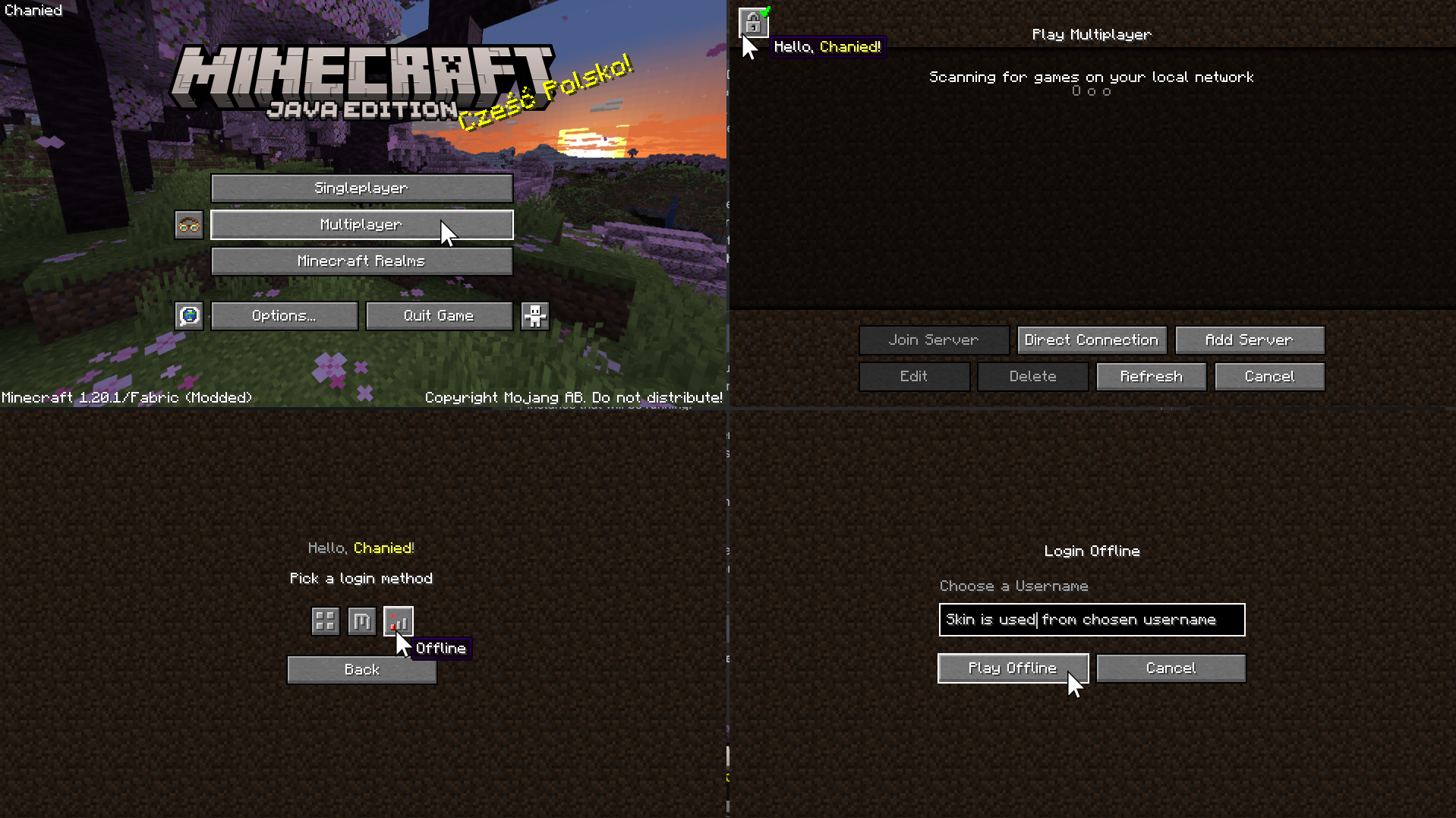
使用分屏功能
要将窗口设置为 分屏显示,请按 F11。这将循环切换各个实例的不同位置和大小。
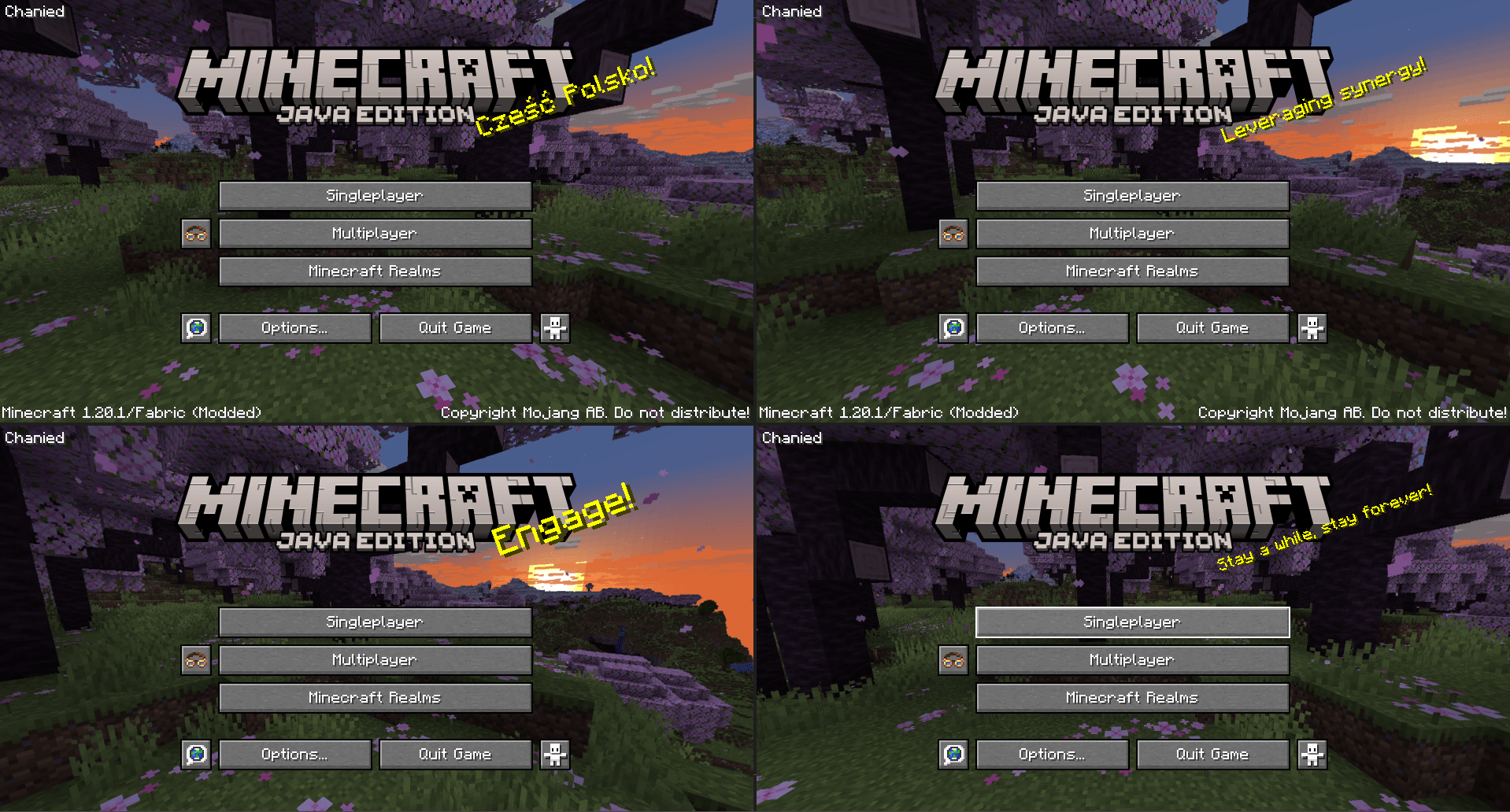
你可能需要隐藏任务栏才能看到屏幕底部。
为防止退出菜单自动弹出,请按 F3+P 禁用
pauseOnLostFocus(失去焦点时暂停)。
options.txt
除了使用快捷键,你还可以先运行一次每个实例以生成 **options.txt** 文件。打开整合包文件夹并编辑 **options.txt**。将 **pauseOnLostFocus** 的值从 **true** 改为 **false**。

分配控制设备
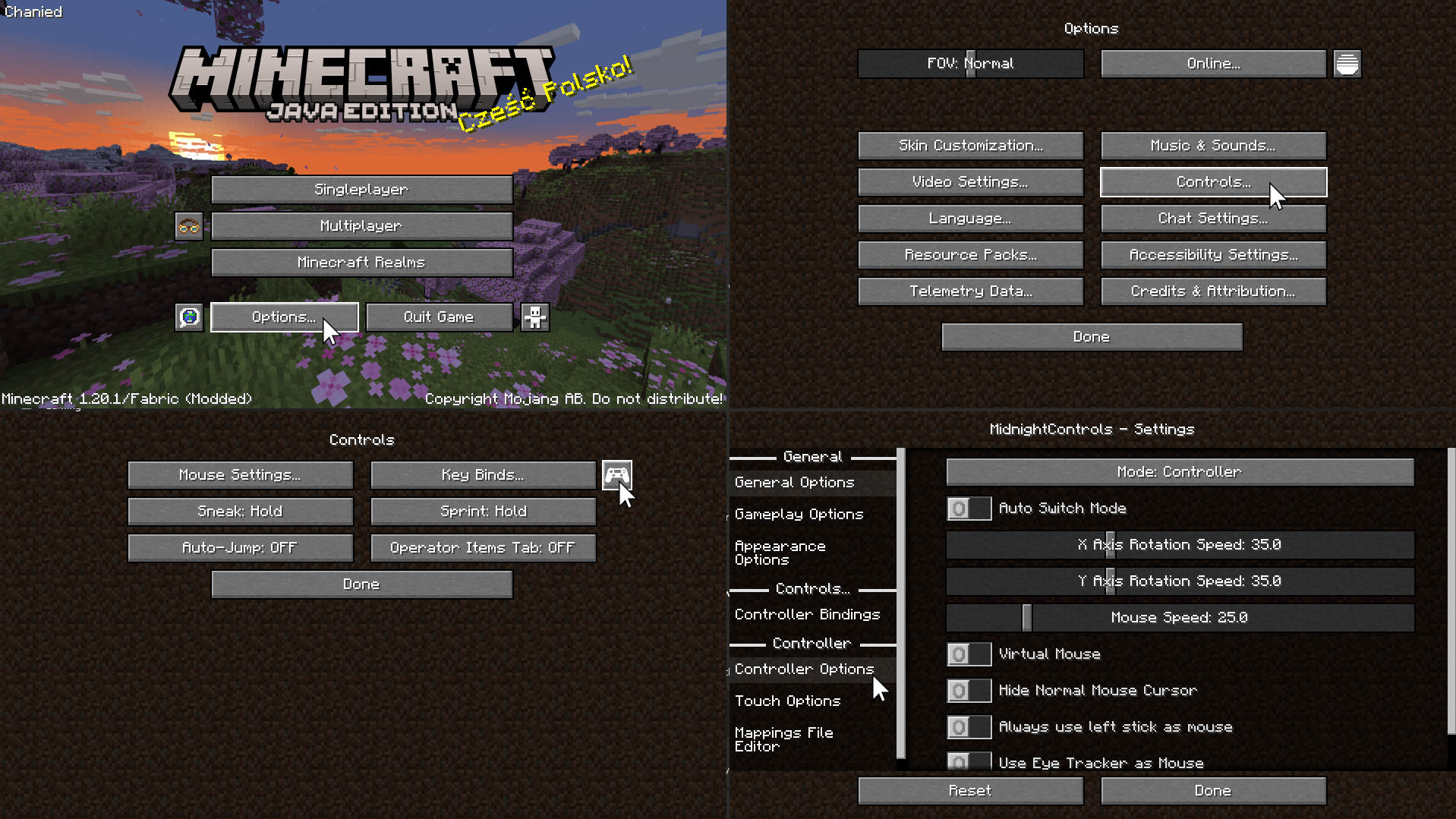
在 Minecraft 菜单中,点击 选项 -> 控制 -> 以及 控制器图标 以进入 Midnight Controls 菜单。
如果该实例将使用键盘/鼠标,请关闭 Auto Switch Mode(自动切换模式)。
如果该实例将使用手柄,请开启 Virtual Mouse(虚拟鼠标)。然后,打开侧边栏中的 Controller Options(控制器选项)以启用非聚焦状态下的输入。
如果你只打算使用 1 个手柄游玩,可以跳过此步骤。我们需要为每个 Minecraft 实例分配一个控制器。在 Controller Options 顶部切换所选控制器,将其对应到该实例的手柄。
高级控制器选项
若要获取更多控制器选项(例如映射),你需要下载 GamepadTool。复制你的映射代码,并将其粘贴到 Moonlight Controls 内的 Mappings File Editor(映射文件编辑器)中。
其他指南
Midnight Controls Website
GamepadTool
Midnight Controls Settings
options.txt
仅限 1 个控制器
Overview
This modpack is designed for easy split-screen multiplayer. It focuses on the Create mod and its add-ons. This pack also includes various structure mods to encourage exploration.
The pack is playable with up to 4 players using controllers on a single (preferably large) screen. Optionally, one player can use the keyboard/mouse. For controller players, the mouse/keyboard can be swapped to focus on another window if a mod requires them.
Performance
Because of the way Minecraft handles running the server (Host World) and client (Other Players), this pack runs much faster (TPS/CPU) than 4 separate instances. It does, however, still take additional power from the GPU (FPS) to render 4 clients. Because of this, it is recommended to lower the resolution of the game since each window is reduced to a quarter of the original size.
How to use
Playing Together
Use the PrisimMC (or MultiMC) launcher to import this pack from Modrinth. PrisimMC allows you to create separate instances (or multiple running copies) of Minecraft. You will need to download this pack for each instance that will be running.
To play on an external server, either the server must disable online mode or each player must use a different Minecraft account. You can also install the E4MC mod, which makes LAN worlds joinable by anyone like a server.
For local play, host a LAN server on the main instance of the pack. All of the other instances will need to join that local server.
If you only have one account to use, you will need to use the AuthMe mod to enable Offline Mode for both online and local multiplayer. Click on the lock icon in the Multiplayer menu to enter Offline mode. If you enter the name of a Minecraft Account, their skin will be used.
Using Splitscreen
To put the windows into Split Screen, press F11. This cycles between different positions and sizes for each instance.
You may need to hide the taskbar to see the bottom of the screen.
To prevent the escape menu from automatically appearing, press F3+P to disable
pauseOnLostFocus.
options.txt
Instead of using the shortcut, you can run each instance once to generate the **options.txt** file. Open the modpack folder and edit **options.txt**. Change the value of **pauseOnLostFocus** from **true** to **false**.
Assigning Controls
On the Minecraft menu, click Options -> Controls -> and the Controller Icon to enter the Midnight Controls menu.
If that instance will be using a keyboard/mouse, turn off Auto Switch Mode.
If that instance will be using a controller, turn on Virtual Mouse. Then, open Controller Options on the sidebar to enable unfocused input.
If you only plan on playing with 1 controller, you can skip this step. We need to assign a controller to each instance of Minecraft. Switch the selected controller at the top of Controller Options to the controller for that instance.
Advanced Controller Options
For more controller options (such as mappings), you will need to download GamepadTool. Copy your mapping code and paste it into the Mappings File Editor inside Moonlight Controls
Other Guides
Midnight Controls Website
GamepadTool
Midnight Controls Settings
options.txt
1 controller only


 整合包
 整合包

 整合包

 整合包
 整合包

 整合包

评论 0
登录后参与评分
还没有评论,来抢沙发吧