Camera Circles
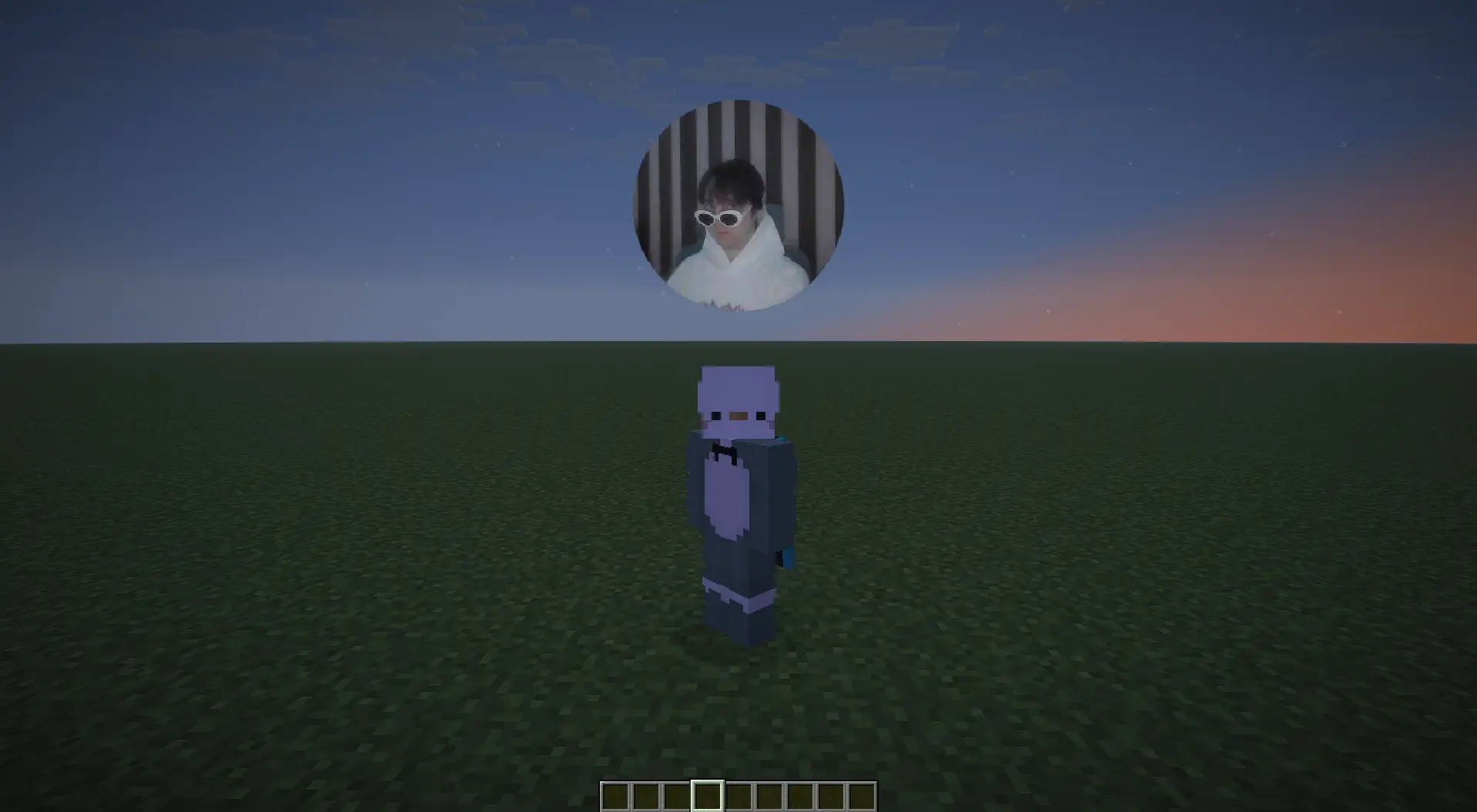
在《Minecraft》中查看好友的面容。Camera Circles 会将你的网络摄像头画面以实时视频圆圈的形式投射到你头顶上方,发送给其他玩家——就像 Telegram 的视频消息,但存在于游戏之中。
功能介绍
- 你的网络摄像头会显示为一个悬浮在你头顶的小圆形实时画面,这样其他玩家在游玩时就能看到你的脸。
- 提供两种显示样式可供选择:悬浮圆圈(位于头顶上方)或将其烘焙到玩家面部(类似肖像画效果)。
- 无需额外的网络设置——无需开放防火墙端口,也无需独立的 VoIP 服务器。视频流通过你正常的 Minecraft 连接传输。
- 摄像头不会自动开启。由你决定何时进行广播。
安装
你需要在两个地方安装该模组:客户端(用于广播和观看他人)以及服务端(用于将视频中继给其他玩家)。如果只有一方安装了,则无法正常工作。
1. 在你的 Minecraft 客户端 (Fabric)
- 从 发布页面 下载
fabric-1.0.0+26.1.2.jar。
- 将其放入 Fabric 配置文件的
mods/ 文件夹中。
- 确保你也已安装 Fabric API。
- 启动游戏。
2. 在你的服务器上
选择符合你服务器架构的版本。
独立服务器(无代理): 将 bukkit-1.0.0+26.1.2.jar 放入 plugins/ 文件夹。适用于 Paper、Spigot、Bukkit、Purpur 和 Folia。
位于 Velocity 代理背后的服务器网络: 将相同的 bukkit-1.0.0+26.1.2.jar 放入 Velocity 的 plugins/ 文件夹。完成——你不再需要单独在后端服务器上安装它了。摄像头现在可以在整个网络中工作:在 Lobby 广播的人可以被在 Survival 服的朋友看到。
如果你在 Velocity 和后端都安装了插件,Velocity 版本的优先级更高,后端的副本将处于闲置状态。你可以安全地移除它们。
Java 版本
服务端 Jar 包需要 Java 25 或更高版本。现代 Minecraft 26.1+ 已经要求此版本,因此在大多数情况下你无需担心。
使用方法
默认情况下,所有内容都会保持静默,直到你按下其中一个按钮。
- 按 K 打开 Camera Circles 设置界面(可在常规控制菜单中重新绑定按键)。
- 点击设置屏幕右上角的 OFF 按钮以开启摄像头。它会变为绿色并显示 ON。
- 就是这样——此时你周围的其他玩家会在你头顶看到一个包含你摄像头的圆圈。
再次按下切换键即可停止。如果你在游戏过程中关闭了游戏,Camera Circles 会记住该状态,并在下次加入服务器时自动重新开启摄像头。你可以更改此行为——详见下方的“自动启动”。
设置
使用 K 打开设置界面(或者在 选项 → 控制 → 按键绑定 → Camera Circles 下将其绑定为你想要的任意按键)。
设置分为四个标签页:
Camera(摄像头) — 选择使用哪个设备、发送画面的分辨率以及帧率。
- Camera — 如果你有多个摄像头,请选择特定的一个。保持 auto(自动)将使用第一个可用的摄像头。
- Target FPS — 每秒发送的帧数。数值越高越流畅,但对网络和 CPU 的负担也越重。
- Width / Height — 画面分辨率。
- JPEG quality — 画面清晰度。数值越低画面越模糊,但对网络的负担越轻。
如果服务器对这些参数的限制低于你的设置值,滑块旁边会出现一个小的黄色 ⚠️ 图标——你在该服务器广播时,你的设置值会被静默限制,但你的偏好设置在其他服务器上仍会保留。
Display(显示) — 摄像头在世界中的显示方式。
- Display —
Disabled(不绘制任何内容)、Above the player(悬浮圆圈,默认)或 On the player's face(摄像头烘焙到头模型上)。
- Show self — 你是否能在游戏中看到自己的圆圈。
Off、Third-person only(默认,仅当你按 F5 切换到第三人称视角时可见)或 Always。
- Auto-start — 当你加入服务器时的行为:
Never(始终从摄像头关闭状态开始)、If was on(记住上一次的状态——默认)或 Always(始终开始广播)。
- Circle size — 屏幕上悬浮圆圈的大小。
Hotkeys(热键) — 更改切换摄像头、打开设置界面以及切换圆圈可见性的按键。
Hidden(隐藏) — 当前正在广播的玩家列表。点击其中任意一名玩家,即可仅对你自己隐藏其圆圈(个人静音——不影响其他任何人)。
服务器管理员须知
服务端配置文件位于 plugins/CameraCircles/server.json(或在 Velocity 上为 plugins/cameracircles/server.json)。首次运行插件时会自动生成带有合理默认值的配置文件。
你可以限制:
- 允许玩家广播的最大分辨率
- 最大帧率
- 每个广播者的最大带宽(kbps)
- 同时广播的人数上限
- 视距——仅在此距离内的玩家能看到圆圈(设置为
0 表示无限制)
代码中还内置了硬性绝对上限(640×480 分辨率、30 FPS、2000 kbps)。配置错误的服务器无法突破这些限制——即使你将 JSON 编辑为荒谬的数字,它们在启动时也会被强制钳制。这是有意为之:这使插件能够防止 DoS 攻击。
要控制谁可以广播,请使用 cameracircles.use 权限。默认情况下它授予所有人(在 plugin.yml 中为 default: true)。若要限制,请使用任何标准的权限插件(如 LuckPerms、PermissionsEx 等),并为特定玩家或组撤销该权限。
故障排除
加入服务器时聊天栏出现 “Camera Circles is not installed on this server”。
服务器未安装该插件。要么请管理员安装它,要么它被安装在了无法检测到你的位置(例如仅安装在代理上,而你是直接连接的)。
即使我设置了“If was on”,我的摄像头也不会自动开启。
确保你上次游玩时将摄像头留在了开启状态。断开与服务器的连接会保留你的“我想广播”偏好;按下切换键将其设为 OFF 则会清除该偏好。
其他玩家上方不会显示任何内容。
请确保:
- 对方正在广播(其圆形图标必须处于开启状态,而不仅仅是已安装)。
- 你的“显示”设置未设为禁用。
- 对方不在你的隐藏列表中(请在设置的“隐藏”标签页中检查)。
- 你处于服务器的最大视距范围内。
在“位于玩家面部”模式下,我的摄像头画面没有出现在其他人的脸上。
此模式将摄像头渲染为头部模型上的高分辨率叠加层。它仅从正面可见——从侧面或背面时,你会看到朋友原本的皮肤。这是设计如此(摄像头物理上无法位于他人头部后方)。此外,服务器端需要 Java 25 或更高版本。
开启摄像头后帧率下降。
尝试在“摄像头”选项卡中降低分辨率、帧率或 JPEG 质量。流媒体数据量越轻,对你的客户端和网络造成的负担就越小。
隐私
以下是一些注意事项:
- 除非你有操作,否则摄像头绝不会自动开启。“自动启动”功能仅在恢复你之前选择开始的会话。
- 视频帧通过正常的 Minecraft 连接传输。它们未单独加密,因此其私密性与到服务器本身的连接相当。请将其视为任何未加密的网络摄像头流来处理。
- 视频帧绝不会上传至 Mojang、Microsoft 或任何外部服务。它们仅通过你自己的游戏服务器传输,并发送给该服务器上的其他玩家。
- 你客户端的偏好设置(摄像头选择、隐藏的玩家等)存储在本地机器上,永远不会发送到服务器。
Camera Circles
See your friends' faces in Minecraft. Camera Circles streams your webcam to other players as a live video circle above your head — like Telegram's video messages, but inside the game.
What it does
- Your webcam shows up as a small live circle floating above your head, so other players can see your face while you play.
- Two display styles to pick from: a floating circle above the head, or the video baked into the player's face (like a portrait).
- Zero extra setup for the network — no firewall ports, no separate VoIP server. Video rides along with your normal Minecraft connection.
- Your camera doesn't turn on by itself. You decide when to broadcast.
Install
You need the mod in two places: on your client (to broadcast and see others), and on your server (to relay the video to other players). If only one side has it, nothing works.
1. On your Minecraft client (Fabric)
- Download
fabric-1.0.0+26.1.2.jar from the releases page.
- Drop it into the
mods/ folder of your Fabric profile.
- Make sure you have Fabric API installed too.
- Launch the game.
2. On your server
Pick the one that matches your setup.
Single server (no proxy): drop bukkit-1.0.0+26.1.2.jar into the plugins/ folder. Works on Paper, Spigot, Bukkit, Purpur, and Folia.
Server network behind a Velocity proxy: drop the same bukkit-1.0.0+26.1.2.jar into Velocity's plugins/ folder. Done — you don't need it on the backend servers individually anymore. Cameras now work across the whole network: someone broadcasting on Lobby is visible to a friend on Survival.
If you install on both Velocity and the backends, Velocity wins and the backend copies sit idle. You can safely remove them.
Java version
The server jar needs Java 25 or newer. Modern Minecraft 26.1+ already requires this, so on most setups you're fine.
How to use it
By default everything sits quietly until you press one button.
- Press K to open the Camera Circles settings (rebindable in the regular controls menu).
- Click the OFF button in the top-right of the settings screen to turn your camera on. It turns green and says ON.
- That's it — other players around you now see your camera as a circle above your head.
Press the toggle again to stop. If you closed the game while broadcasting, Camera Circles remembers and turns the camera back on the next time you join a server. You can change that — see "Auto-start" below.
Settings
Open the settings screen with K (or bind it to whatever you want under Options → Controls → Key Binds → Camera Circles).
The settings are split into four tabs:
Camera — what device to use, how big a picture to send, and how fast.
- Camera — pick a specific webcam if you have more than one. Leave on auto and the first available one is used.
- Target FPS — how many frames per second to send. More = smoother, but heavier on the network and CPU.
- Width / Height — picture resolution.
- JPEG quality — how sharp the picture is. Lower = blurrier but lighter on the network.
If a server caps any of these lower than your setting, a small yellow ⚠️ icon appears next to the slider — your value will be quietly capped down while you broadcast there, but your preference is preserved for other servers.
Display — how the camera shows up in the world.
- Display —
Disabled (don't draw anything), Above the player (a floating circle, default), or On the player's face (camera baked into the head model).
- Show self — whether you see your own circle in your game.
Off, Third-person only (default, only when you press F5 to see yourself), or Always.
- Auto-start — what happens when you join a server:
Never (always start with camera off), If was on (remember last time — the default), or Always (always start broadcasting).
- Circle size — how big the floating circle is on screen.
Hotkeys — change the keys for toggling the camera, opening settings, and toggling circle visibility.
Hidden — a list of players who are currently broadcasting. Click any of them to hide their circle just for you (a personal mute — it doesn't affect anyone else).
For server admins
The server-side config lives at plugins/CameraCircles/server.json (or plugins/cameracircles/server.json on Velocity). It's created with sensible defaults the first time the plugin runs.
You can cap:
- Maximum resolution your players are allowed to broadcast
- Maximum frame rate
- Maximum bandwidth (kbps) per broadcaster
- How many people can broadcast at the same time
- A view distance — only show circles to players within this many blocks (set to
0 for unlimited)
There are also hard absolute ceilings baked into the code (640×480, 30 FPS, 2000 kbps). A misconfigured server cannot exceed them — even if you edit the JSON to ridiculous numbers, they get clamped down on startup. This is intentional: it makes the plugin DoS-safe.
To control who can broadcast, use the cameracircles.use permission. By default it's granted to everyone (default: true in plugin.yml). To restrict it, use any standard permissions plugin (LuckPerms, PermissionsEx, etc.) and revoke it for specific players or groups.
Troubleshooting
"Camera Circles is not installed on this server" appears in chat when you join.
The server doesn't have the plugin. Either ask the admin to install it, or it's installed somewhere it can't see you (e.g. only on the proxy when you're connected directly).
My camera doesn't turn on automatically even though I set "If was on".
Make sure you left the camera on the last time you played. Disconnecting from a server keeps your "I want to broadcast" preference; pressing the toggle to OFF clears it.
Nothing shows up above other players.
Make sure:
- They're broadcasting (their circle has to be ON, not just installed).
- Your Display setting isn't on Disabled.
- They aren't in your Hidden list (check the Hidden tab in settings).
- You're within the server's max view distance.
My camera image isn't appearing on faces in "On the player's face" mode.
This mode renders the camera as a high-resolution overlay on the head model. It only shows from the front — from the side or back you'll see your friend's original skin. That's by design (the camera physically can't be on the back of someone's head). It also requires Java 25+ on the server.
FPS drops when I turn the camera on.
Try lowering the resolution, frame rate, or JPEG quality in the Camera tab. The lighter your stream, the less work for your client and your network.
Privacy
A few things to know:
- Your camera never turns on without your input. Auto-start only resumes a session you previously chose to start.
- Video frames travel inside the normal Minecraft connection. They are not separately encrypted, so they're only as private as the connection to the server itself. Treat this as you would any unencrypted webcam stream.
- Frames are never uploaded to Mojang, Microsoft, or any external service. They go through your own game server and only to other players on it.
- Your client-side preferences (camera choice, hidden players, etc.) are stored locally on your machine and never sent to the server.

 插件

 插件
 插件
 插件
 插件
 插件
评论 0
登录后参与评分
还没有评论,来抢沙发吧