CineFrame
在 Minecraft Java 服务器上的物品展示框中播放带有同步音频的真实视频片段。
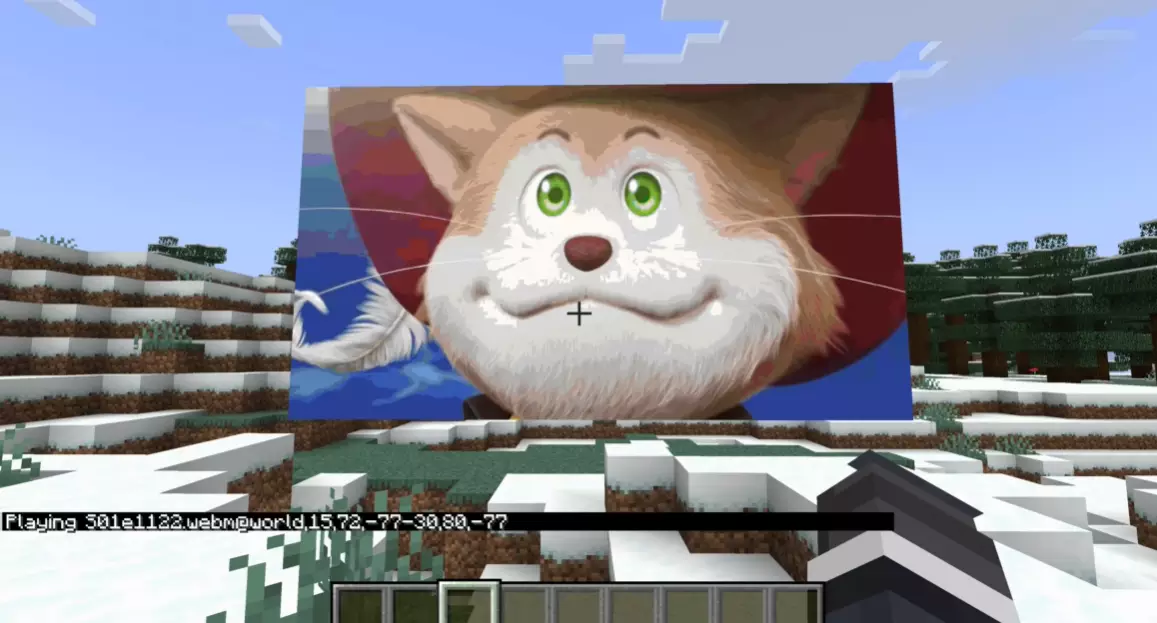
如需预览视频,请点击此处
功能特性
- 将一整面墙的物品展示框变成视频屏幕
- 以最高 20 FPS 的速度播放地图视频
- 通过 CineFrame 构建并托管的资源包实现同步音频
- 支持暂停和恢复,音频会从暂停时间点重新构建
- 支持自动重播
- 基于命令的屏幕放置功能,适用于命令方块和设置工具
- 使用 PacketEvents 进行地图更新,因此玩家仅接收他们所需的地图数据
- 基于距离的数据包范围限制,远离屏幕的玩家将不再接收屏幕数据包
- 支持 Folia 调度器
环境要求
- 运行 Paper 26.2 或兼容分支的 Minecraft Java 服务器
- Java 25
- 已安装 PacketEvents
- 已安装 CineFrame
- 位于
plugins/CineFrame/media/ 中的视频文件
经测试的服务端类型包括 Paper、Purpur、Pufferfish、Leaf 和 Folia,只要其构建版本支持与 CineFrame 构建时相同的 API 版本即可。
目前 Windows 是最稳妥的设置方案。Linux 也可以工作;如果 Linux ARM 架构下播放不稳定,可配置帧格式选项。
安装步骤
- 将 PacketEvents 26.2 放入你的
plugins/ 文件夹。
- 将 CineFrame 放入你的
plugins/ 文件夹。
- 重启一次服务器,以便 CineFrame 创建其所需文件夹。
- 将视频文件放入
plugins/CineFrame/media/。
支持的 video 文件格式:
.mp4.mov.webm.mkv.avi
之后,编辑 plugins/CineFrame/config.yml 配置文件,以便玩家可以下载音频资源包。修改配置后请重启服务器。
升级说明
如果你是从旧版 CineFrame 构建进行更新,请检查你的 config.yml。
旧版配置可能缺少较新的设置项,例如调试级别(debug level)、数据包范围(packet range)、地图 FPS 以及 Linux ARM 帧格式。你可以手动添加以下键值,或者备份旧配置并让 CineFrame 生成一份全新的配置。
配置说明
这些配置键用于控制 CineFrame 托管资源包 zip 文件以及视频数据包的发送行为。
# 用户下载数据包所使用的端口
datapack-port: 25564

# 远程玩家的公共 URL 或 IP
# 请勿包含 http:// 或 https://
# 你可以在 https://whatismyipaddress.com/ 找到你的公共 IP
# 如果你已经设置了域名,也可以使用域名
datapack-public-host: "mydomain.com"
datapack-scheme: "http"
datapack-public-port: 25564

# 与服务器处于同一局域网内的玩家的 LAN URL
# 这应该是服务器的局域网 IP,而不是 localhost
# 在 Windows 上:
# 按 Win + R,输入 cmd,回车,输入 ipconfig,回车,
# 然后找到当前网络适配器的 IPv4 地址。
datapack-local-host: "10.0.0.42"
datapack-local-scheme: "http"
datapack-local-port: 25564
来自 127.0.0.1 或 ::1 连接客户端的回环 URL
datapack-loopback-host: "localhost"
datapack-loopback-scheme: "http"
datapack-loopback-port: 25564
资源包选择调试日志
显示发送给每位玩家的资源包 URL
datapack-debug-pack-url: false
HTTP 服务器调试日志
显示资源包下载请求和响应
datapack-http-debug: false
datapack-http-log-headers: false
调试日志级别
0 = 关闭
1 = 基础信息
2 = 正常
3 = 更多日志
4 = 非常详细
5 = 极度冗长
cineframe-debug-level: 0
CineFrame 停止发送地图数据包前,玩家距离屏幕的最大距离
范围以从屏幕中心计算的方块数为单位
cineframe-packet-range-blocks: 64
CineFrame 检查哪些玩家足够接近以接收数据包的频率
单位为毫秒
cineframe-packet-range-check-ms: 1000
用于地图图像更新的帧率
必须在 1 到 20 之间
cineframe-map-fps: 20
Linux ARM 实时播放的帧格式
png = 在 ARM 上更安全
mjpeg = 在某些系统上可能更快,但如果解码不稳定则可能不太稳定
linuxarm-frame-format: "mjpeg"
## 命令

所有命令都需要 `cineframe.use` 权限。默认情况下,该权限对所有人启用。

### 开始放置视频屏幕

```md
/media <filename>
示例:
/media trailer.mp4
如果文件名包含空格,请输入完整名称。
示例:
/media my video file.mp4
运行 /media 后,左键点击屏幕的第一个角,然后左键点击对角。这两个角必须位于同一面平整的墙上,并且它们必须共享相同的 X 值或相同的 Z 值。
CineFrame 将生成物品展示框并显示视频的第一帧。
使用坐标放置屏幕
/mediacorners <x1> <y1> <z1> <x2> <y2> <z2> [north|south|east|west]
此命令仅在运行过 /media <filename> 后才能生效。
示例:
/media trailer.mp4
/mediacorners 10 65 20 14 62 20 south
如果你以玩家身份执行该命令,可以省略朝向参数。CineFrame 会尝试根据你站立的位置自动选择朝向。
可用的朝向包括:
north(北)south(南)east(东)west(西)
对于命令方块和控制台使用,请包含玩家名称:
/mediacorners <player> <x1> <y1> <z1> <x2> <y2> <z2> [north|south|east|west]
示例:
/mediacorners Steve 10 65 20 14 62 20 south
该玩家必须已经有一个待处理的 /media <filename> 选择。
播放或继续屏幕
/play [id]
如果只有一个活动显示,可以使用:
/play
如果有多个活动显示,请使用 Tab 补全来选择显示 ID。
暂停屏幕
/pause [id]
如果只有一个活动显示,可以使用:
/pause
暂停带有音频的视频可能需要一些时间,因为 CineFrame 会从暂停的时间点重新构建资源包。
切换自动重播
/autoreplay [id] [on|off]
示例:
/autoreplay
/autoreplay on
/autoreplay trailer.mp4@world,10,65,20-14,62,20 on
/autoreplay trailer.mp4@world,10,65,20-14,62,20 off
如果只有一个活动显示,/autoreplay 将切换该显示。如果有多个活动显示,请使用 Tab 补全来选择显示 ID。
自动重播会在视频播放结束后重新开始播放。
移除屏幕
通过显示 ID 移除:
/delmedia <id>
通过坐标移除:
/delmedia <x> <y> <z>
坐标移除功能主要是为玩家设计的,因为 CineFrame 在匹配屏幕时会使用玩家当前所在的维度。
Tab 补全
CineFrame 支持以下内容的 Tab 补全:
plugins/CineFrame/media/ 中的媒体文件- 活动显示的 ID
- 自动重播的开启和关闭值
/mediacorners 的坐标建议/mediacorners 的方向值
显示 ID
显示 ID 由文件名和屏幕坐标组成。
格式如下:
filename.mp4@world,x1,y1,z1-x2,y2,z2
对 /play、/pause、/autoreplay 和 /delmedia 命令使用 Tab 补全,这样你就不需要手动输入完整的 ID。
音频注意事项
CineFrame 会构建一个资源包用于音频,并将其发送给玩家。如果资源包主机设置错误,玩家将能看到视频但听不到音频。
插件会根据玩家的连接类型选择资源包 URL:
- 回环(Loopback)玩家获得回环 URL
- 局域网(LAN)玩家获得局域网 URL
- 远程玩家获得公共 URL
如果需要远程玩家能听到音频,请确保 datapack-public-port 中指定的端口已开放。
当视频暂停或恢复播放时,CineFrame 可能会重新构建并发送音频资源包。直到玩家收到资源包更新后,音频才会就绪。
当前限制
- 音频最好视为同一时间只能有一个活动的音频显示。
- 多个屏幕可以同时用于视频播放,但多个音频屏幕可能会发生冲突,因为资源包的音效键是共享的。
- 较大的视频需要更长的准备时间。
- 暂停带有音频的视频所需时间更长,因为需要从暂停时间点重新构建音频资源包。
- 如果没有玩家在屏幕附近,CineFrame 可能会停止向该屏幕发送数据包,直到有玩家重新进入范围。
- Linux ARM 用户如果遇到
mjpeg 播放解码问题,可以尝试设置 linuxarm-frame-format: "png"。
支持
如果遇到任何问题,请在 Discord 中报告。
请提供以下信息:
- 服务器类型及版本
- Java 版本
- CineFrame 版本
- PacketEvents 版本
- 操作系统
- 视频文件类型
- 任何控制台错误
CineFrame
Play real video clips on item frames with synced audio on a Minecraft Java server.
For video preview go here
Features
- Turns a wall of item frames into a video screen
- Plays map video at up to 20 FPS
- Synced audio through a resource pack that CineFrame builds and hosts
- Pause and resume support, with audio rebuilt from the paused time
- Auto replay support
- Command based screen placement for command blocks and setup tools
- PacketEvents map updates, so players only get the map data they need
- Distance based packet range, so far away players stop getting screen packets
- Folia scheduler support
Requirements
- A Minecraft Java server running Paper 26.2 or a compatible fork
- Java 25
- PacketEvents installed
- CineFrame installed
- A video file in
plugins/CineFrame/media/
Tested server types can include Paper, Purpur, Pufferfish, Leaf, and Folia, as long as the build supports the same API version CineFrame was built for.
Windows is the safest setup right now. Linux can work, and Linux ARM has a config option for frame format if playback is flaky.
Install
- Drop PacketEvents 26.2 into your
plugins/ folder.
- Drop CineFrame into your
plugins/ folder.
- Restart the server once so CineFrame can make its folders.
- Put videos in
plugins/CineFrame/media/.
Supported video files:
.mp4.mov.webm.mkv.avi
After that, edit plugins/CineFrame/config.yml so players can download the audio resource pack. Restart the server after changing the config.
Upgrade note
If you are updating from an older CineFrame build, check your config.yml.
Older configs may be missing the newer settings for debug level, packet range, map FPS, and Linux ARM frame format. You can add the keys below by hand, or back up your old config and let CineFrame create a fresh one.
Config
These keys are used by CineFrame to host the resource pack zip and control video packet sending.
# Port used for datapack download for users
datapack-port: 25564

# Public URL or IP for remote players
# Do not include http:// or https://
# You can find your public IP at https://whatismyipaddress.com/
# You can also use a domain if you already have one set up
datapack-public-host: "mydomain.com"
datapack-scheme: "http"
datapack-public-port: 25564

# LAN URL for players on the same network as the server
# This should be the server's LAN IP, not localhost
# On Windows:
# Press Win + R, type cmd, press enter, type ipconfig, press enter,
# then find the IPv4 for the current network adapter.
datapack-local-host: "10.0.0.42"
datapack-local-scheme: "http"
datapack-local-port: 25564

# Loopback URL for clients connected from 127.0.0.1 or ::1
datapack-loopback-host: "localhost"
datapack-loopback-scheme: "http"
datapack-loopback-port: 25564

# Debug logging for pack choice
# Shows which resource pack URL was sent to each player
datapack-debug-pack-url: false

# Debug logging for the HTTP server
# Shows pack download requests and responses
datapack-http-debug: false
datapack-http-log-headers: false

# Debug log level
# 0 = off
# 1 = basic info
# 2 = normal
# 3 = more logs
# 4 = very chatty
# 5 = spammy
cineframe-debug-level: 0

# How far away a player can be from a screen before CineFrame stops sending map packets
# Range is measured in blocks from the center of the screen
cineframe-packet-range-blocks: 64

# How often CineFrame checks which players are close enough to receive packets
# Value is in milliseconds
cineframe-packet-range-check-ms: 1000

# The frame rate used for map image updates
# Must be between 1 and 20
cineframe-map-fps: 20

# Linux ARM frame format for live playback
# png = safer on ARM
# mjpeg = can be faster on some systems, but can be less stable if decoding is flaky
linuxarm-frame-format: "mjpeg"
Commands
All commands use the cineframe.use permission. This permission is enabled for everyone by default.
Start placing a video screen
/media <filename>
Example:
/media trailer.mp4
If the file name has spaces, type the full name.
Example:
/media my video file.mp4
After running /media, left click the first corner of the screen, then left click the opposite corner. The two corners must be on the same flat wall. They must share either the same X or the same Z value.
CineFrame will spawn item frames and show the first frame of the video.
Place a screen with coordinates
/mediacorners <x1> <y1> <z1> <x2> <y2> <z2> [north|south|east|west]
This only works after /media <filename> has been run.
Example:
/media trailer.mp4
/mediacorners 10 65 20 14 62 20 south
You can leave the facing out if you are running the command as a player. CineFrame will try to pick the facing from where you are standing.
The facing can be:
For command blocks and console use, include the player name:
/mediacorners <player> <x1> <y1> <z1> <x2> <y2> <z2> [north|south|east|west]
Example:
/mediacorners Steve 10 65 20 14 62 20 south
The player must already have a pending /media <filename> selection.
Play or resume a screen
/play [id]
If there is only one active display, you can use:
/play
If there is more than one active display, use tab complete to pick the display ID.
Pause a screen
/pause [id]
If there is only one active display, you can use:
/pause
Pausing a video with audio can take a little time because CineFrame rebuilds the resource pack from the paused time.
Toggle auto replay
/autoreplay [id] [on|off]
Examples:
/autoreplay
/autoreplay on
/autoreplay trailer.mp4@world,10,65,20-14,62,20 on
/autoreplay trailer.mp4@world,10,65,20-14,62,20 off
If there is only one active display, /autoreplay toggles it. If there is more than one active display, use tab complete to pick the display ID.
Auto replay starts the video again after it reaches the end.
Remove a screen
Remove by display ID:
/delmedia <id>
Remove by coordinates:
/delmedia <x> <y> <z>
Coordinate removal is meant for players because CineFrame uses the player's current world when matching the screen.
Tab completion
CineFrame has tab completion for:
- Media files in
plugins/CineFrame/media/
- Active display IDs
- Auto replay on and off values
- Coordinate suggestions for
/mediacorners
- Facing values for
/mediacorners
Display IDs
Display IDs are made from the file name and the screen coordinates.
They look like this:
filename.mp4@world,x1,y1,z1-x2,y2,z2
Use tab complete for /play, /pause, /autoreplay, and /delmedia so you do not have to type the full ID by hand.
Audio notes
CineFrame builds a resource pack for audio and sends it to players. If the resource pack host is set up wrong, players will see the video but will not hear audio.
The plugin picks a pack URL based on the player's connection:
- Loopback players get the loopback URL
- LAN players get the LAN URL
- Remote players get the public URL
Make sure the port in datapack-public-port is open if remote players need audio.
When a video is paused or resumed, CineFrame may rebuild and resend the audio pack. Audio is not ready until the player gets the resource pack update.
Current limits
- Audio is best treated as one active audio display at a time.
- Multiple screens can work for video, but multiple audio screens can conflict because the resource pack sound key is shared.
- Larger videos take longer to prepare.
- Pausing a video with audio takes longer because the audio pack is rebuilt from the paused time.
- If no players are close enough to a screen, CineFrame can stop sending packets for that screen until players come back into range.
- Linux ARM users can try
linuxarm-frame-format: "png" if mjpeg playback has decoding issues.
Support
If you run into any issue, report it in the discord.
Please include:
- Server type and version
- Java version
- CineFrame version
- PacketEvents version
- Operating system
- The video file type
- Any console errors


 插件

 插件
 插件
 插件
 插件
 插件

评论 0
登录后参与评分
还没有评论,来抢沙发吧