
EasyArmorStands
盔甲架与展示实体编辑器。
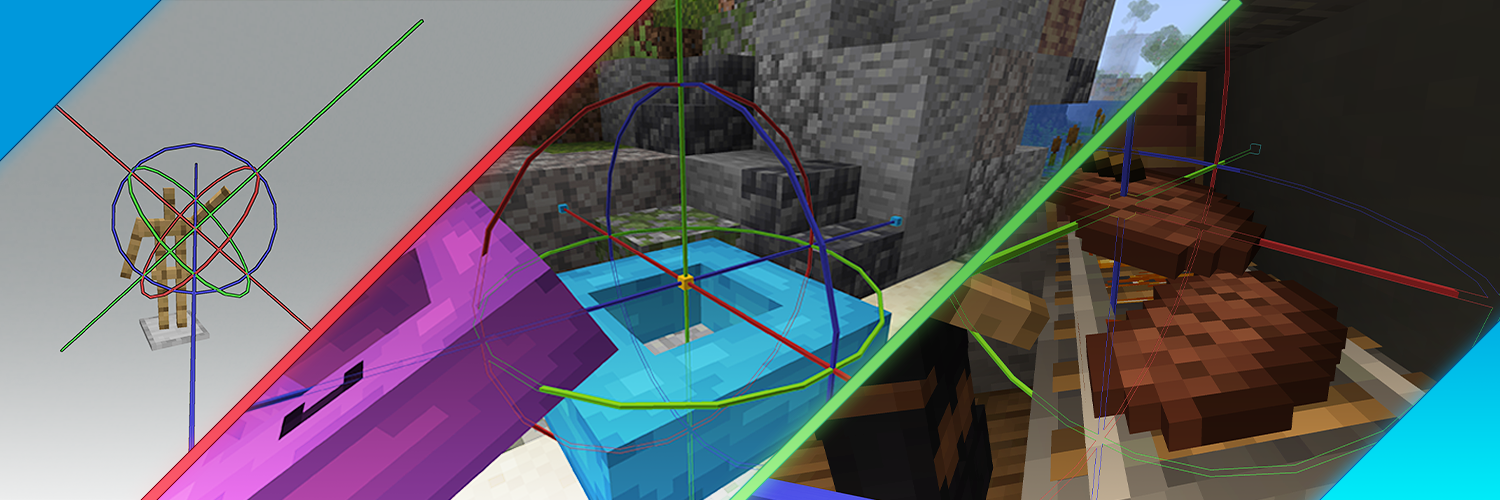
安装
下载 .jar 文件并将其放入你的 plugins 文件夹中。
用法
使用 /eas give 并按照提示操作。
如果你卡住了,请参考下面的详细说明。
编辑实体
手持工具并右键点击一个实体以选中它。
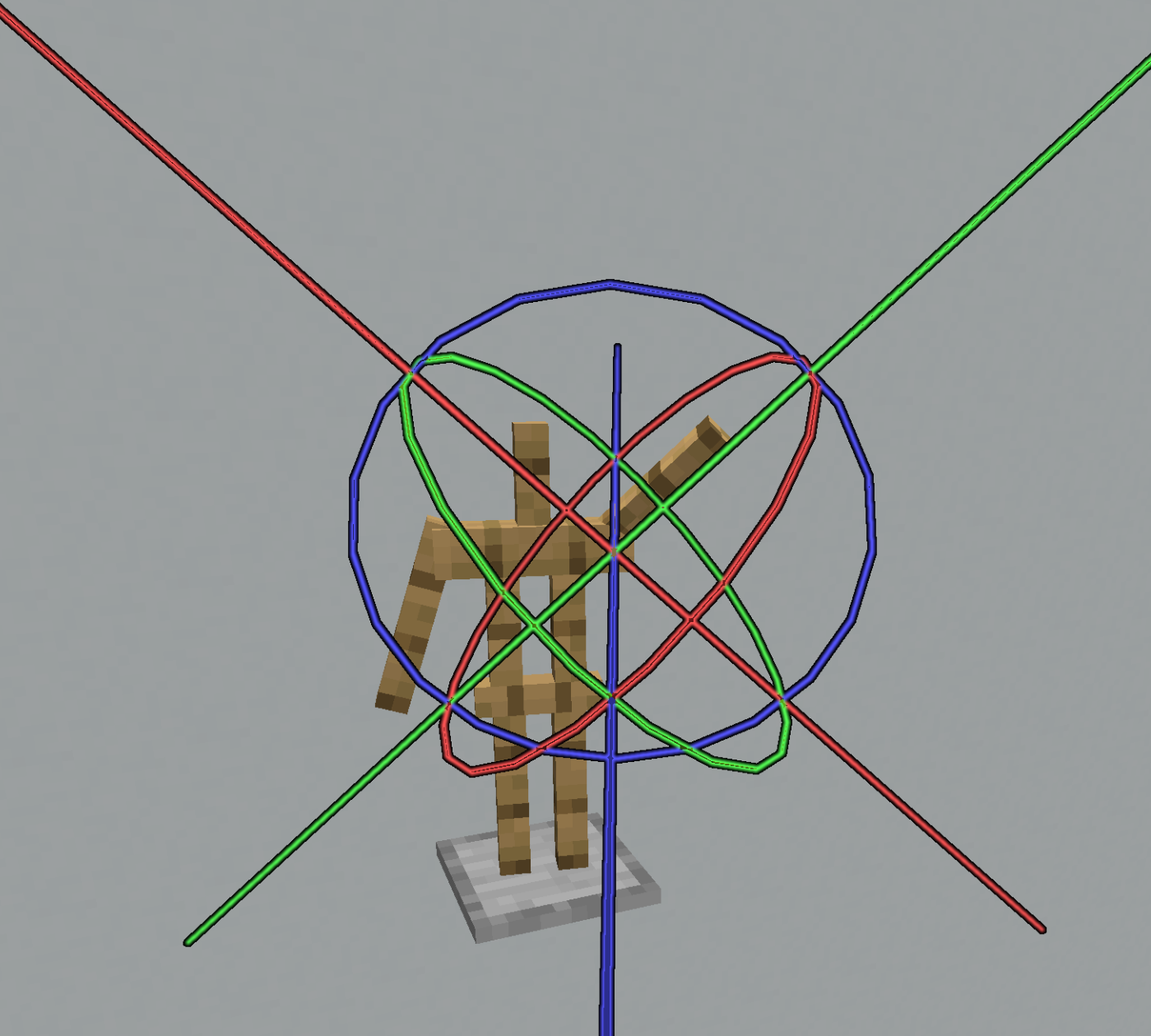
右键点击一条线以使用移动工具。 通过行走或环顾四周来移动光标,然后右键点击确认更改。 你可以改为左键点击来中止更改并恢复之前的位置。
右键点击一个圆圈以使用旋转工具。 其工作方式与移动工具相同。
某些实体允许你在局部和全局模式之间切换。 局部模式受旋转影响,例如,你可以用它沿着盔甲架的手臂移动它。 全局模式使用全局坐标。
使用 /eas undo 和 /eas redo 来撤销/重做你的更改。
你可以撤销任何使用 EasyArmorStands 执行的操作,以及手动放置或破坏盔甲架的操作。
盔甲架
盔甲架有 7 个骨骼:
- 头部
- 身体
- 左臂
- 右臂
- 左腿
- 右腿
- 位置
选中一个盔甲架后,你还必须选择要编辑的骨骼。 位置骨骼是中间(头部下方)的黄色点,其他骨骼是白色线条。
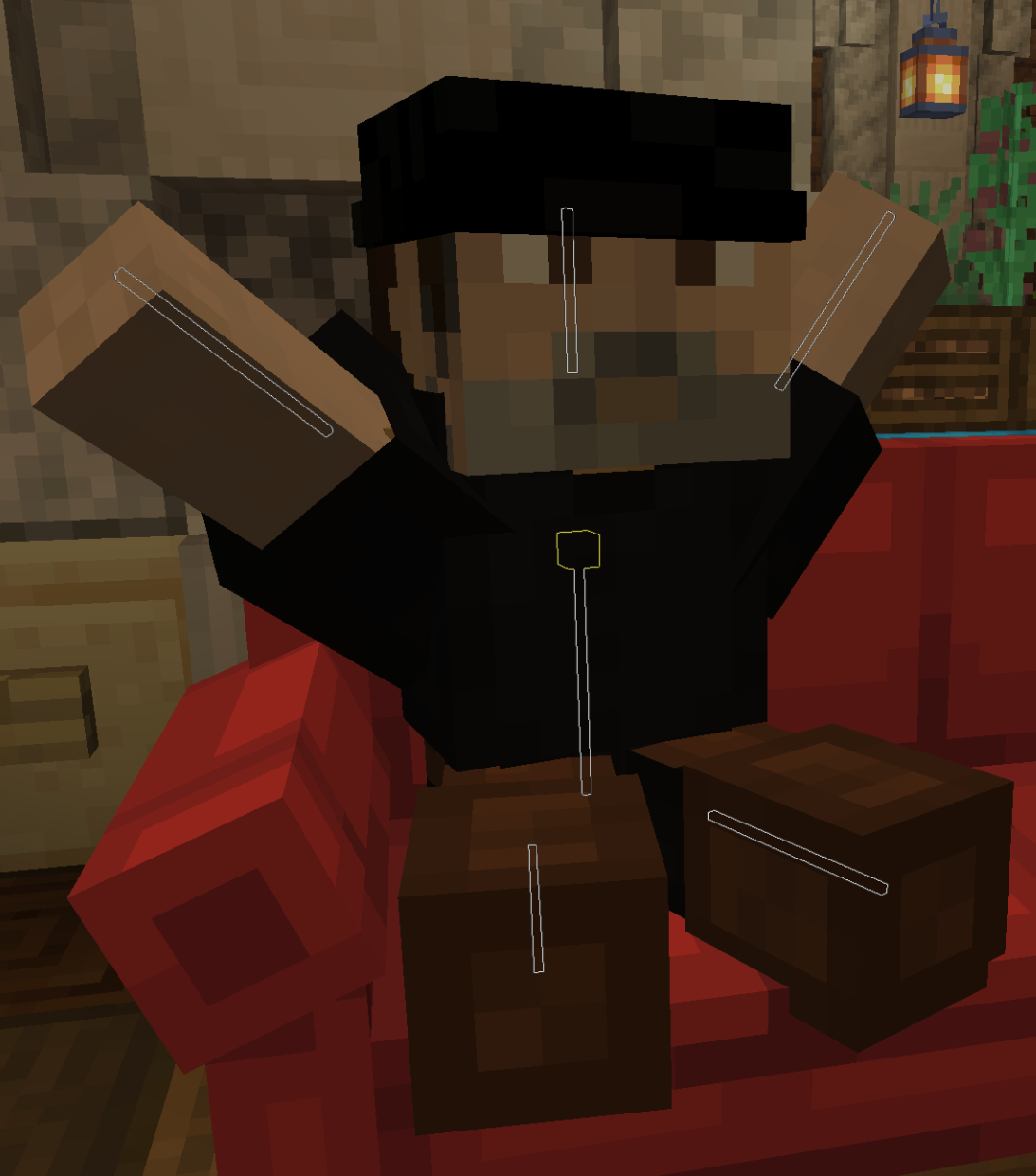
通过选择位置骨骼,然后在中间(线条交汇处)选择拾取工具,你可以拿起并携带该盔甲架。
使用 /eas name 编辑盔甲架的自定义名称。
这通常用于全息图。
使用 MiniMessage 格式化名称。
提示: 如果你在 1.19.4+ 版本上,应该使用文本显示来制作全息图,见下文。
展示实体
展示实体可以移动、旋转和缩放。
使用菜单将物品放入物品展示中。
使用 /eas text 编辑文本显示的文本。
使用 MiniMessage 格式化文本。
此命令还有一些子命令,如 /eas text background,可用于更改背景颜色。
提示: 在菜单中将广告牌模式设置为 center 并重置旋转
(/eas reset) 以创建一个始终面向玩家的全息图。
按住 Shift 并左键点击方块,或使用 /eas block,可在方块展示中放置一个方块。
此命令还支持方块状态,如 minecraft:birch_stairs[facing=east]。
使用 /eas box 调整或移动边界框。
设置边界框对于客户端渲染性能很重要。
如果边界框在屏幕上不可见,客户端将不渲染展示实体。
默认情况下,展示实体没有边界框,因此它们总是被渲染。
使用 /eas brightness 设置展示实体的自定义亮度(光照等级)。
FancyHolograms 集成
可以使用 EasyArmorStands 移动和缩放 FancyHolograms 全息图。
群组选择
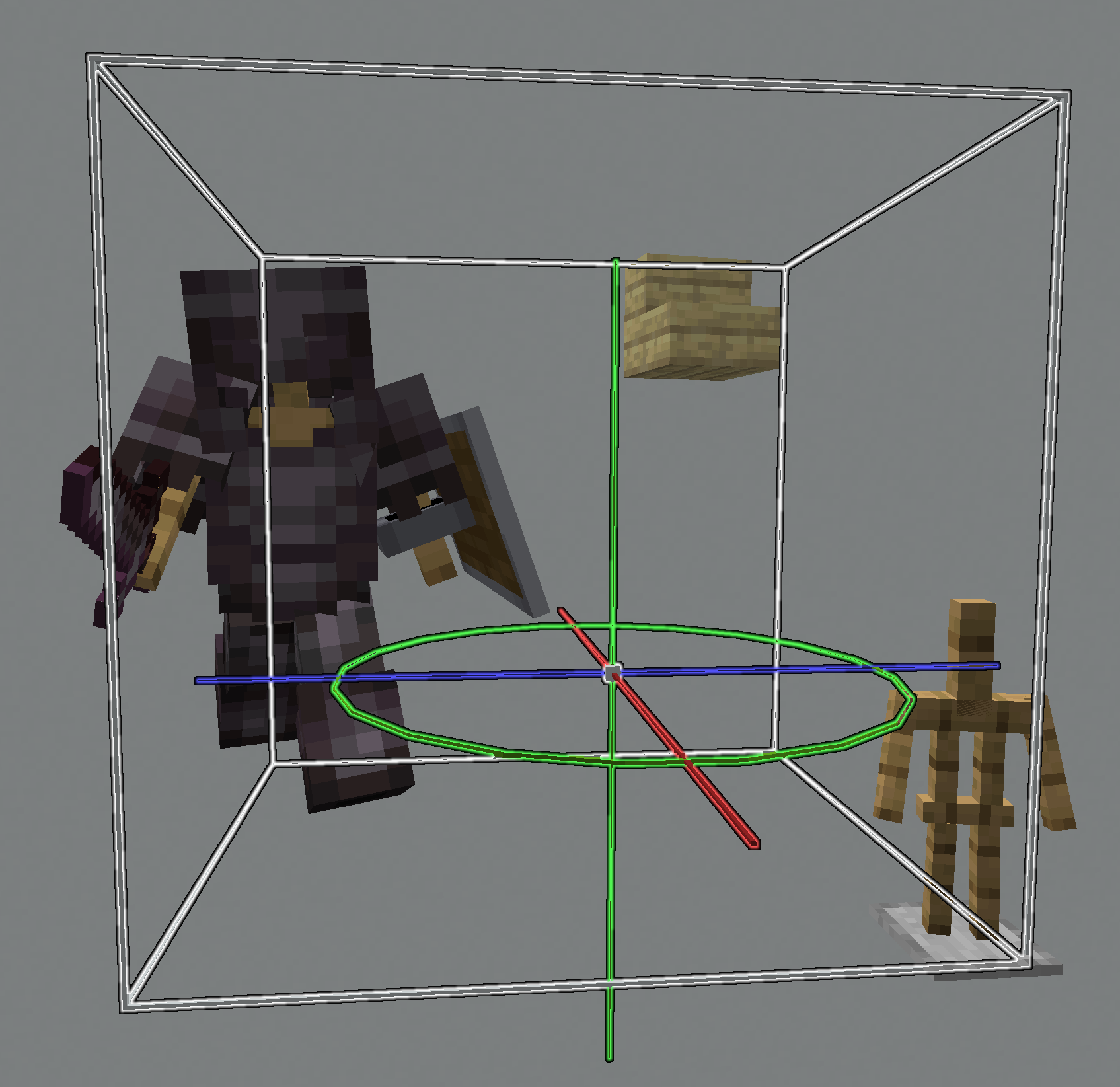
右键点击实体时按住 Shift 可将其添加到你的群组选择中。 选中要编辑的实体后,在不按住 Shift 的情况下右键点击任意位置以开始编辑群组。
菜单
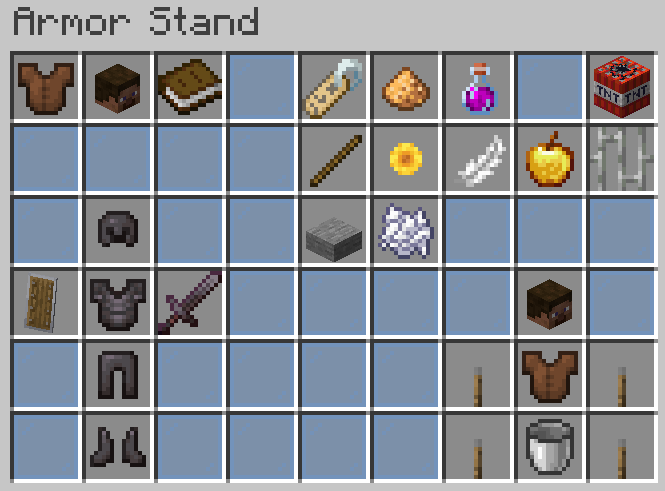
按 F 键可以访问菜单。 群组选择不支持菜单。
在左下角,你可以编辑实体装备槽位(盔甲、手持物品)。
右下角包含快捷按钮,用于快速选择特定骨骼。
盔甲架设置(如可见性)可以通过右上角的按钮进行更改。
Head Database 集成
如果安装了 Head Database 并且你拥有使用它的权限, 你可以点击左上角的按钮打开其菜单。 选中一个头颅后,你将返回到 EasyArmorStands 菜单,并可以快速将其放入装备槽位中。
权限:headdb.open
TrainCarts 集成
如果安装了 TrainCarts,左上角会添加一个按钮以打开 TrainCarts 模型浏览器。
权限:easyarmorstands.traincarts.model
命令
此列表包含一些无法通过菜单访问的重要命令。
使用 /eas help 查看完整的命令列表及其完整用法。
/eas give: 给予你自己编辑器工具/eas align: 将选中的实体移动到其方块的中央/eas clone: 复制选中的实体/eas snap angle: 切换角度吸附(或指定增量)/eas snap move: 切换位置吸附(或指定增量)/eas reset <property>: 重置某个属性
权限
有两个权限包,包含推荐用于生存服或创造服服务器的权限。
| Permission | Description |
|---|---|
easyarmorstands.survival |
允许编辑盔甲架及其基本属性 |
easyarmorstands.creative |
允许生成和编辑盔甲架及展示实体 |
例如,要在创造服上允许玩家使用 EasyArmorStands,只需给他们
easyarmorstands.creative 权限即可。
完整的权限列表位于维基。
PlotSquared 集成
如果安装了 PlotSquared v6/v7,玩家只能在允许他们建造的领地内编辑实体。
拥有 easyarmorstands.plotsquared.bypass 权限的玩家可绕过此限制。
WorldGuard 集成
如果安装了 WorldGuard,玩家只有在被允许建造的情况下才能编辑实体。
拥有 easyarmorstands.worldguard.bypass 权限的玩家可绕过此限制。
GriefDefender 集成
如果安装了 GriefDefender,只有受信任的建造者才能在领地内编辑实体。
拥有 easyarmorstands.griefdefender.bypass 权限的玩家可绕过此限制。
GriefPrevention 集成
如果安装了 GriefPrevention,玩家只有在被允许建造的情况下才能编辑实体。
拥有 easyarmorstands.griefprevention.bypass 权限的玩家可绕过此限制。
HuskClaims 集成
如果安装了 HuskClaims,玩家只有在被允许执行 easyarmorstands:edit 操作时才能编辑实体。
easyarmorstands:edit 操作(标志)应在 HuskClaims 配置 中进行配置。
- 将其添加到
config.yml中的wilderness_rules以允许在荒野中使用 EasyArmorStands。 - 将其添加到
trust_levels.yml中的allowed_owner_operations以允许玩家在自己的领地中使用 EasyArmorStands。 - 将其添加到
trust_levels.yml中特定trust_levels的flags以配置哪些信任等级可以在领地中使用 EasyArmorStands。
拥有 easyarmorstands.huskclaims.bypass 权限的玩家可绕过此限制。
Towny 集成
如果安装了 Towny,只有受信任的居民才能在领地内编辑实体。
拥有 easyarmorstands.towny.bypass 权限的玩家可绕过此限制。
Residence 集成
如果安装了 Residence,只有拥有 build 标志的玩家才能在领地内编辑实体。
拥有 easyarmorstands.residence.bypass 权限的玩家可绕过此限制。
Lands 集成
如果安装了 Lands,可以使用角色标志 easyarmorstands_edit(在菜单中:Edit entities)来限制编辑实体。
将标志添加到 plugins/Lands/roles.yml 中的 land.display 以在菜单中显示它。
拥有 easyarmorstands.lands.bypass 权限的玩家可绕过此限制。
BentoBox 集成
如果安装了 BentoBox,编辑实体需要 ARMOR_STAND 标志。
拥有 easyarmorstands.bentobox.bypass 权限的玩家可绕过此限制。
配置
配置文件会在插件文件夹中自动生成。
最重要的选项已在 Wiki 中记录。
使用 /eas reload 重新加载配置文件。
本地化

请在 Weblate 提交翻译。 如果您想开始翻译成新语言,请在 Discord 上询问。
使用您自己的翻译
- 复制
默认消息
到
plugins/EasyArmorStands/lang/XX_YY.json。 - 将
XX_YY替换为 中列出的游戏内区域设置代码。 这会使文件仅适用于具有该语言的玩家。
使用 /eas reload 重新加载所有消息。
EasyArmorStands
Armor stand and display entity editor.
Installation
Download the .jar file and place it in your plugins folder.
Usage
Use /eas give and follow the instructions.
If you get stuck, refer to the detailed instructions below.
Editing entities
Hold the tool and right-click an entity to select it.
Right-click a line to use the Move tool. Move your cursor by walking or looking around, then right-click to confirm your changes. You can abort your changes and restore the previous position by left-clicking instead.
Right-click a circle to use the Rotate tool. This works just like the Move tool.
Some entities let you switch between local and global mode. Local mode is affected by the rotation, for example, you can use it to move an armor stand along its arms. Global mode uses global coordinates.
Use /eas undo and /eas redo to undo/redo your changes.
You can undo any operation performed using EasyArmorStands, as well as manually placing or destroying armor stands.
Armor stands
Armor stands have 7 bones:
- Head
- Body
- Left arm
- Right arm
- Left leg
- Right leg
- Position
After selecting an armor stand, you will also have to select which bone you want to edit. The Position bone is the yellow point in the middle (below the head), the other bones are the white lines.
You can pick up and carry the armor stand by selecting the position bone and then selecting the Pick up tool in the middle (where the lines meet).
Use /eas name to edit the custom name of an armor stand.
This is often used for holograms.
Format the name using MiniMessage.
Hint: If you are on 1.19.4+, you should use text displays for holograms, see below.
Display entities
Display entities can be moved, rotated and scaled.
Use the menu to place an item into an item display.
Use /eas text to edit the text of a text display.
Format the text using MiniMessage.
This command also has some subcommands such as /eas text background, which can be used to change the background color.
Hint: Set the billboard mode to center in the menu and reset the rotation
(/eas reset) to create a hologram which always looks at the player.
Place a block in a block display by holding Shift and left-clicking it, or use /eas block.
This command also supports block states like minecraft:birch_stairs[facing=east].
Use /eas box to resize or move the bounding box.
Setting up a bounding box is important for client-side rendering performance.
The client will not render display entities if the bounding box is not visible on the screen.
By default, display entities do not have a bounding box, so they are always rendered.
Use /eas brightness to set a custom brightness (light level) of a display entity.
FancyHolograms integration
FancyHolograms holograms can be moved and scaled using EasyArmorStands.
Group selection
Hold Shift while right-clicking an entity to add it to your group selection. After selecting the entities you want to edit, right-click anywhere without holding Shift to begin editing the group.
Menu
The menu can be accessed by pressing F. Group selections do not support the menu.
On the bottom left, you can edit the entity equipment slots (armor, held items).
The bottom right contains shortcut buttons to quickly select a certain bone.
Armor stand settings such as visibility can be changed using the buttons in the top right.
Head Database integration
If Head Database is installed and you have permission to use it, you can click the button in the top left to open its menu. After selecting a head, you are returned to the EasyArmorStands menu and can quickly place it into an equipment slot.
Permission: headdb.open
TrainCarts integration
If TrainCarts is installed, a button to open the TrainCarts model browser is added to the top left.
Permission: easyarmorstands.traincarts.model
Commands
This list contains some important commands for features which cannot be accessed using the menu.
Use /eas help to see the full list of commands and their full usage.
/eas give: Give yourself the editor tool/eas align: Move the selected entity to the middle of its block/eas clone: Duplicate the selected entity/eas snap angle: Toggle angle snapping (or specify an increment)/eas snap move: Toggle position snapping (or specify an increment)/eas reset <property>: Reset a property
Permissions
There are two permission packs which contain permissions which are recommended for survival or creative mode servers.
| Permission | Description |
|---|---|
easyarmorstands.survival |
Allow editing armor stands and their basic properties |
easyarmorstands.creative |
Allow spawning and editing armor stands and display entities |
For example, to allow players to use EasyArmorStands on a creative server, simply give them
the easyarmorstands.creative permission.
The full list of permissions is located in the wiki.
PlotSquared integration
If PlotSquared v6/v7 is installed, players can only edit entities on plots where they are allowed to build.
Players with the easyarmorstands.plotsquared.bypass permission bypass this restriction.
WorldGuard integration
If WorldGuard is installed, players can only edit entities if they are allowed to build.
Players with the easyarmorstands.worldguard.bypass permission bypass this restriction.
GriefDefender integration
If GriefDefender is installed, only trusted builders can edit entities in a claim.
Players with the easyarmorstands.griefdefender.bypass permission bypass this restriction.
GriefPrevention integration
If GriefPrevention is installed, players can only edit entities if they are allowed to build.
Players with the easyarmorstands.griefprevention.bypass permission bypass this restriction.
HuskClaims integration
If HuskClaims is installed, players can only edit entities if they are allowed to perform the easyarmorstands:edit
operation.
The easyarmorstands:edit operation (flag) should be configured in the
HuskClaims config.
- Add it to
wilderness_rulesinconfig.ymlto allow using EasyArmorStands in the wilderness. - Add it to
allowed_owner_operationsintrust_levels.ymlto allow players ot use EasyArmorStands in their own plots. - Add it to
flagsof certaintrust_levelsintrust_levels.ymlto configure which trust levels can use EasyArmorStands in claims.
Players with the easyarmorstands.huskclaims.bypass permission bypass this restriction.
Towny integration
If Towny is installed, only trusted residents can edit entities in a claim.
Players with the easyarmorstands.towny.bypass permission bypass this restriction.
Residence integration
If Residence is installed, only players with the build flag can edit entities in a claim.
Players with the easyarmorstands.residence.bypass permission bypass this restriction.
Lands integration
If Lands is installed, the role flag easyarmorstands_edit (in the menu: Edit entities)
can be used to restrict editing entities.
Add the flag to land.display in plugins/Lands/roles.yml to show it in the menu.
Players with the easyarmorstands.lands.bypass permission bypass this restriction.
BentoBox integration
If BentoBox is installed, the flag ARMOR_STAND is required to edit entities.
Players with the easyarmorstands.bentobox.bypass permission bypass this restriction.
Configuration
The configuration file is automatically generated in the plugin folder.
The most important options are documented in the wiki.
Use /eas reload to reload the configuration file.
Localization
Please submit translations on Weblate. If you would like to start translating to a new language, please ask on Discord.
Use your own translations
- Copy the
default messages
into
plugins/EasyArmorStands/lang/XX_YY.json. - Replace
XX_YYwith the in-game locale code listed in . This makes the file only apply to players with that language.
Use /eas reload to reload all messages.

下载 EasyArmorStands
需要联机服务器吗?
稳定流畅、一键部署,几分钟即可和朋友联机开服
最低仅需 8 元/月 即可畅快联机
下载 EasyArmorStands
下载 EasyArmorStands
下载 EasyArmorStands
下载 EasyArmorStands
下载 EasyArmorStands
下载 EasyArmorStands
下载 EasyArmorStands
需要联机服务器吗?
稳定流畅、一键部署,几分钟即可和朋友联机开服
最低仅需 8 元/月 即可畅快联机
下载 EasyArmorStands
下载 EasyArmorStands
修复
- 防止在合成器方块中使用该工具
关于这个资源的讨论、问题反馈与使用心得
还没有讨论,来发第一帖吧
你是这个资源的作者?登录后可认领此资源。
相似资源
 插件

PacketEvents 是一款专为 Minecraft Java 版打造的协议库,旨在简化数据包的处理与传输。
 插件
ExyliaPlugins 的库。
 插件
通过对话框或铁砧界面帮助你的 Anthme
 插件
自定义你的Minecraft头像!
 插件
重新定义服务器上的生物运输方式。使用高度可定制的口袋道具,安全地捕获、存储和释放任何实体。
 插件
为基于 Spigot/Paper/Folia 的服务器添加对 Vivecraft 的支持
评论 0
登录后参与评分
还没有评论,来抢沙发吧