? 项目概述
InvBackup 是一款 Minecraft 插件,为服务器管理员提供强大的物品栏备份与恢复功能。该插件具备直观的用户图形界面(GUI),便于交互操作,允许管理员管理和恢复玩家物品栏、配置自动备份以及应用世界专属设置。这确保了即使在服务器崩溃或其他问题发生时,也能无缝保护玩家的进度。
? 功能特性
- 图形用户界面 (GUI):通过易于使用的 GUI 管理并浏览插件的设置、玩家物品栏及备份版本。
- 玩家物品栏备份:支持手动或自动备份玩家物品栏。
- 物品栏恢复:通过 GUI 或命令从最新或特定备份版本中恢复玩家物品栏。
- 世界专属控制:定义哪些世界允许进行物品栏备份或恢复。
- 基于时间间隔的备份:按可配置的时间间隔自动备份玩家物品栏。
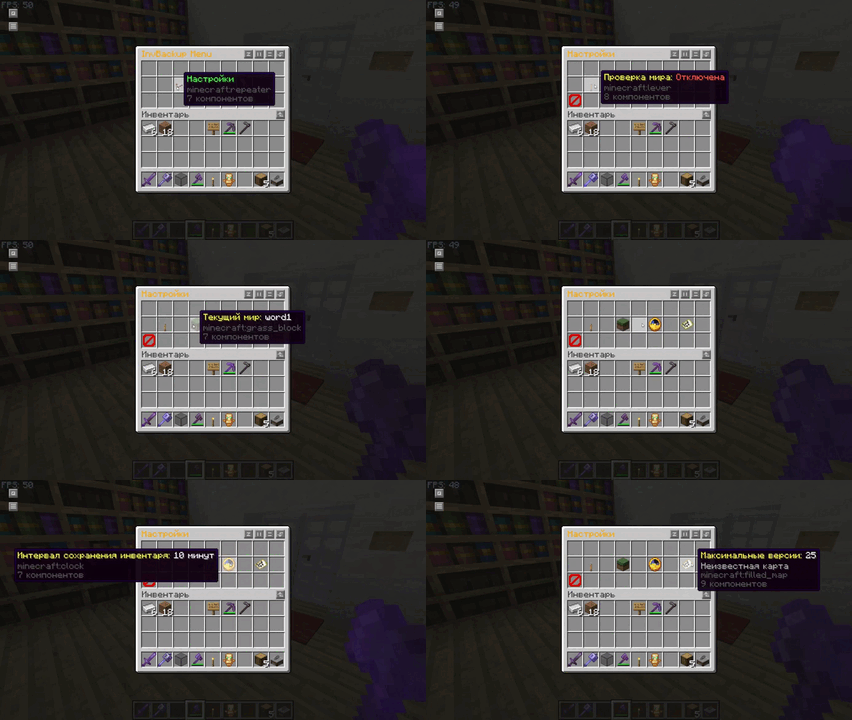
- 可定制界面:管理员可以直接通过插件的 GUI 更改备份设置,如间隔时间、最大备份版本数,以及切换世界专属功能。
- 分页显示:通过分页菜单浏览玩家物品栏备份和版本历史,确保在多个备份版本间流畅导航。
以下是更新后的命令表,新增了用于打开菜单界面的命令:
?️ 命令
InvBackup 插件提供了多种命令,用于管理和控制玩家物品栏备份以及打开菜单:
| 命令 |
描述 |
用法 |
别名 |
| /invbackup save |
手动保存指定玩家的物品栏。 |
/invbackup save <player> |
/ib save |
| /invbackup restore |
从备份副本中恢复指定玩家的物品栏。(如果未指定版本,则加载最新的存档) |
/invbackup restore <player> <version> |
/ib restore |
| /invbackup toggleworldcheck |
切换世界检查功能,以限制按世界进行物品栏备份/恢复。 |
/invbackup toggleworldcheck |
/ib toggleworldcheck |
| /invbackup setworld |
设置用于物品栏备份操作的世界。 |
/invbackup setworld <world> |
/ib setworld |
| /invbackup setinterval |
设置自动备份的时间间隔(秒)。 |
/invbackup setinterval <time> |
/ib setinterval |
| /invbackup reload |
重新加载插件的配置设置。 |
/invbackup reload |
/ib reload |
| /invbackup saveall |
手动保存所有在线玩家的物品栏。 |
/invbackup saveall |
/ib saveall |
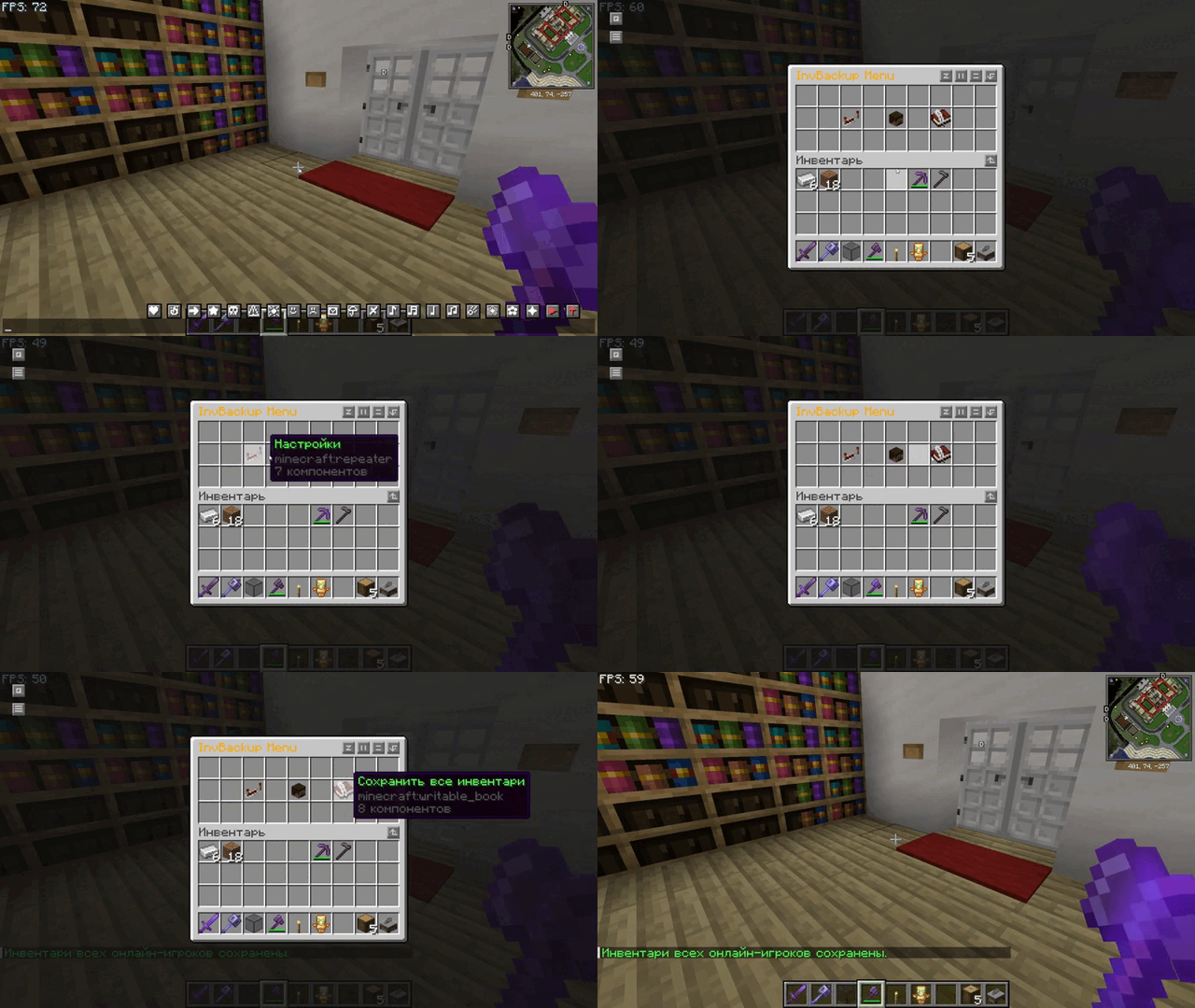
| /invbackup menu |
打开主 InvBackup 菜单界面,管理员可以在其中导航各种选项,如设置、玩家物品栏等。 |
/invbackup menu |
/ib menu |
亮点:
- 备份间隔:定期自动创建备份,以确保数据完整性。
- 世界专属行为:启用或禁用特定世界的备份功能。
- 手动控制:管理员可以根据需要为单个玩家发起备份和恢复操作。
? 权限
该插件使用简单的权限系统来控制对 GUI 和命令中各种功能的访问。
| 权限 |
描述 |
默认值 |
invbackup.admin |
完全访问所有备份和恢复功能,包括 GUI 设置。 |
OP (管理员) |
权限详解:
invbackup.admin:此权限授予对插件的完全控制权,拥有此角色的玩家可以管理物品栏、备份、恢复以及通过命令和 GUI 进行的设置。
⚙️ 配置文件
InvBackup 插件会生成一个配置文件 (config.yml),允许服务器管理员自定义关键设置,如备份间隔和世界检查。更改可以直接在文件中完成,也可以通过 GUI 进行。
示例配置:
save-interval: 600
check-world: true
world-name: world
max-versions: 100
关键配置选项:
save-interval: 定义自动备份的频率(以秒为单位)。默认值为 600 秒(10 分钟)。可通过 /invbackup setinterval <time> 进行修改。check-world: 启用或禁用针对特定世界的库存备份与恢复检查。默认值为 true。可使用 /invbackup toggleworldcheck 进行切换。world-name: 设置允许进行库存备份和恢复的世界名称。默认值为 world。可通过 /invbackup setworld <world> 进行修改。max-versions: 为每位玩家存储的最大备份版本数量。达到此限制后,将删除最旧的版本。默认值为 100。
管理员可以直接在配置文件中修改这些值,也可以通过相应的命令进行修改。对配置做出更改后,请使用 /invbackup reload 使其生效。
?️ 图形界面概览
-
主菜单:
- 通过
/invbackup menu 访问,提供指向玩家库存、设置的链接,以及保存所有玩家库存的选项。
-
设置菜单:
- 使用可切换的 GUI 界面修改关键设置,如备份间隔、世界检查和最大备份版本数量。
-
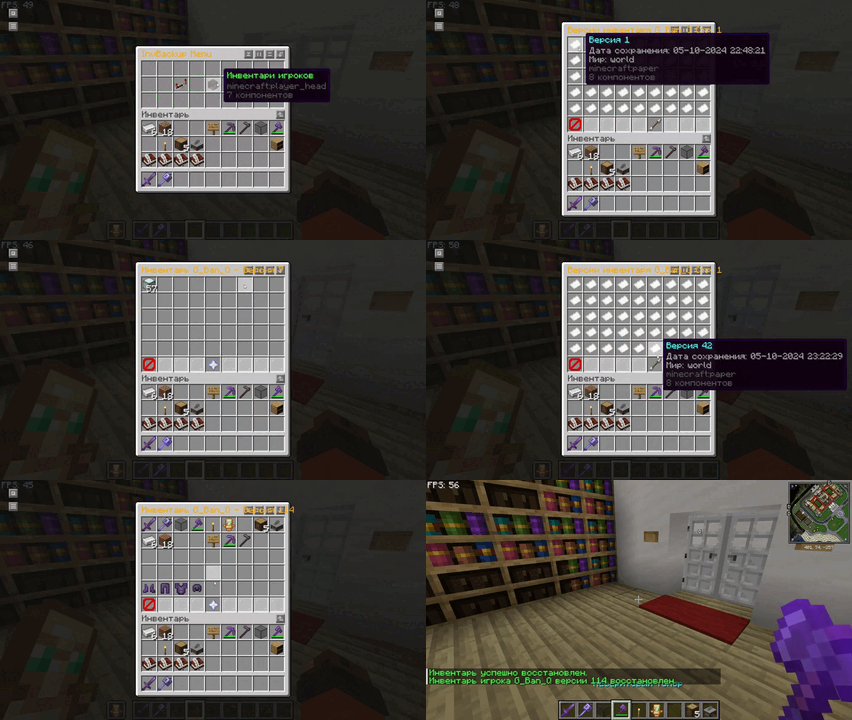
玩家库存菜单:
- 查看玩家头像并选择一位玩家,以查看或管理其库存备份。查看和恢复玩家存档,在不同的已保存设置之间切换,并在易于使用的界面中整理玩家的库存备份。
-
库存版本:
- 查看玩家库存的历史版本,并选择要恢复的版本,支持分页功能,便于浏览大型备份历史记录。
-
恢复菜单:
- 通过 GUI 选择相应选项,直接从选定的版本恢复玩家的库存。
? 快速入门指南
-
安装插件:下载 .jar 文件并将其放入服务器的 plugins 文件夹中。
-
启动或重启服务器:重启服务器以激活插件。
-
设置备份间隔:使用 /invbackup setinterval <time> 或通过 /invbackup menu 配置备份设置,以确定自动保存库存的频率。
-
备份与恢复:使用 /invbackup save <player> 手动保存库存,或等待自动备份,并通过 /invbackup restore <player> 进行恢复。
-
自定义世界行为:根据需要,使用 /invbackup toggleworldcheck 切换针对特定世界的检查功能。
? Project Overview
InvBackup is a Minecraft plugin that provides robust inventory backup and recovery functionality for server administrators. The plugin features an intuitive graphical interface (GUI) for easy interaction, allowing administrators to manage and restore player inventories, configure automatic backups, and apply world-specific settings. This ensures seamless protection of player progress, even in the event of server crashes or other issues.
? Features
- Graphical User Interface (GUI): Manage and navigate through the plugin's settings, player inventories, and backup versions via an easy-to-use GUI.
- Player Inventory Backup: Allows manual or automatic backups of player inventories.
- Inventory Restoration: Restore a player's inventory from the latest or a specific backup version through the GUI or commands.
- World-Specific Controls: Define which worlds should allow inventory backups or restorations.
- Interval-based Backups: Automatically back up player inventories at configurable time intervals.
- Customizable Interface: Admins can change backup settings such as intervals, maximum backup versions, and toggle world-specific features directly from the plugin’s GUI.
- Pagination: Navigate player inventory backups and version history through paginated menus, ensuring smooth browsing of multiple backup versions.
Вот обновлённая таблица команд с добавлением команды для открытия интерфейса меню:
?️ Commands
The InvBackup plugin offers several commands for managing and controlling player inventory backups and opening menus:
| Command |
Description |
Usage |
Aliases |
| /invbackup save |
Manually save the inventory of a specified player. |
/invbackup save <player> |
/ib save |
| /invbackup restore |
Restore the specified player's inventory from a backup copy. (if no version is specified, the latest save is loaded) |
/invbackup restore <player> <version> |
/ib restore |
| /invbackup toggleworldcheck |
Toggle the world check feature to restrict inventory backups/restores by world. |
/invbackup toggleworldcheck |
/ib toggleworldcheck |
| /invbackup setworld |
Set the world for inventory backup operations. |
/invbackup setworld <world> |
/ib setworld |
| /invbackup setinterval |
Set an automatic backup interval in seconds. |
/invbackup setinterval <time> |
/ib setinterval |
| /invbackup reload |
Reload the plugin’s configuration settings. |
/invbackup reload |
/ib reload |
| /invbackup saveall |
Manually save the inventories of all online players. |
/invbackup saveall |
/ib saveall |
| /invbackup menu |
Opens the main InvBackup menu interface where admins can navigate various options such as settings, player inventories, and more. |
/invbackup menu |
/ib menu |
Highlights:
- Backup Intervals: Automatically create backups at regular intervals to ensure data integrity.
- World-Specific Behavior: Enable or disable backups for specific worlds.
- Manual Control: Admins can initiate backups and restores as needed for individual players
? Permissions
The plugin uses a straightforward permission system that controls access to various features, both in the GUI and via commands.
| Permission |
Description |
Default |
invbackup.admin |
Full access to all backup and restore features, including GUI settings. |
OP |
Permission Breakdown:
invbackup.admin: This permission grants full control over the plugin, allowing players with this role to manage inventories, backups, restores, and settings through both commands and the GUI.
⚙️ Configuration File
The InvBackup plugin generates a configuration file (config.yml), allowing server administrators to customize key settings such as backup intervals and world checks. Changes can be made directly in the file or through the GUI.
Example configuration:
save-interval: 600
check-world: true
world-name: world
max-versions: 100
Key Configuration Options:
save-interval: Defines how often (in seconds) automatic backups are made. Default is 600 seconds (10 minutes). Can be changed with /invbackup setinterval <time>.check-world: Enables or disables world-specific checks for inventory backups and restores. Default is true. Can be toggled using /invbackup toggleworldcheck.world-name: Sets the name of the world where inventory backups and restores are allowed. Default is world. Can be changed with /invbackup setworld <world>.max-versions: The maximum number of backup versions to store for each player. Once this limit is reached, the oldest versions are deleted. Default is 100.
Admins can modify these values either directly in the configuration file or through the corresponding commands. After making changes to the configuration, use /invbackup reload to apply them.
?️ Graphical Interface Overview
-
Main Menu:
- Accessible via
/invbackup menu, providing links to player inventories, settings, and the option to save all players inventories.
-
Settings Menu:
- Modify key settings such as backup intervals, world checks, and the maximum number of backup versions using a toggleable GUI interface.
-
Player Inventory Menu:
- View player heads and select a player to view or manage their inventory backups. View and restore player saves, switch between different saved settings, and organize player inventory backups in an easy-to-use interface.
-
Inventory Versions:
- View previous versions of a player's inventory and select versions to restore, with pagination for easy navigation of large backup histories.
-
Restore Menu:
- Restore a player's inventory directly from the selected version via the GUI by selecting the appropriate option.
? Quick Start Guide
-
Install the Plugin: Download the .jar file and place it in your server's plugins folder.
-
Start or Restart the Server: Restart or restart the server to activate the plugin.
-
Set Backup Intervals: Use /invbackup setinterval <time> or /invbackup menu to configure backup settings to determine how often inventories are automatically saved.
-
Backup and restore: Save inventories manually with /invbackup save <player> or wait for automatic backup and restore them with /invbackup restore <player>.
-
Customize World Behavior: Toggle world-specific checks as needed with /invbackup toggleworldcheck.


 插件

 插件

 插件
 插件
 插件
 插件
评论 0
登录后参与评分
还没有评论,来抢沙发吧