ItemSorter 允许玩家将物品从箱子(或其他任何库存方块,如漏斗)自动分类到任意数量的目标箱子(或其他任何库存方块,如木桶)中。
在将物品从源箱子转移到目标箱子时,插件会查看目标箱子中已存在的物品,并将物品移入已包含特定物品类型的箱子中。
配置
以下选项可以在插件的 config.yml 中进行配置(首次加载时创建):
allow-cross-world-connections - 允许跨世界连接告示牌(即从下界传输物品到主世界)(true 或 false,默认值:false)max-distance - 源箱子和目标箱子之间的最大距离(0 = 无限制,默认值:100)max-names-per-player - 每个玩家的不同名称的最大数量(0 = 无限制,默认值:0)max-signs-per-name - 每个名称对应的告示牌的最大数量(0 = 无限制,默认值:0)allow-multi-chests - 允许多个箱子连接到单个目标告示牌(默认值:true)max-multi-chests-blocks - 用于多箱子功能的箱子方块的最大数量(0 = 无限制,默认值:0)transfer-single-item-per-interval - 控制每次间隔是只传输单个物品(true)还是整个堆叠(false)(默认值:true)transfer-interval - 检查并传输物品的间隔时间(以刻为单位)(默认值:10)
权限
itemsorter.create - 允许创建和销毁自己的 ItemSorter 告示牌(默认:所有人)itemsorter.persistent - 允许管理自己目标告示牌的持久化物品(默认:所有人)itemsorter.destroyAny - 允许销毁任何 ItemSorter 告示牌(不仅仅是自己的)(默认:管理员)itemsorter.command - 允许执行 /itemsorter 命令(默认:管理员)itemsorter.* - 允许访问所有功能(默认:管理员)
如何使用?
只需在任何你想用作源箱子(即你把物品投入其中供插件分类的箱子)的库存方块(箱子、木桶、漏斗等)侧面放置一个告示牌,内容如下:
- 第一行:
[ItemSource]
- 第二行:其他连接箱子使用的任何唯一名称
这将把该箱子定义为物品源。
之后,在任何你想用作目标箱子(即你的物品将被移动到的箱子)的库存方块(箱子、木桶、漏斗等)侧面放置一个告示牌,内容如下:
- 第一行:
[ItemTarget]
- 第二行:其他连接箱子使用的任何唯一名称
这将把该箱子定义为物品目标。
接下来,将你想要分类的任何物品放入目标箱子中。例如,如果你想把圆石移动到箱子中,只需在箱子中至少放入一个圆石物品。
之后,你就可以使用了。现在你可以将玩家背包中的任何物品移动到源箱子中,插件将尝试为每种物品找到正确的目标箱子。
任何无法分类到目标箱子的剩余物品将保留在源箱子中。
这里有一个演示该插件的短视频:
持久化物品
通常,目标箱子仅接受当前存在于其中的物品类型。一旦箱子被清空(例如下方的漏斗将其抽空),它就不再知道应该接收哪些物品。
在目标告示牌的第四行添加 p("Persistent" 的缩写)可以使箱子记住它所包含过的物品类型。记住的物品类型存储在数据库中,当箱子为空时仍会被接受。右键点击告示牌可以查看记住的物品类型。
- 第四行:
p(可以与其他选项组合,例如 o:10,mc,p)
每当玩家关闭箱子时(以及在放置告示牌时一次),物品类型就会被记住。它们永远不会自动遗忘,即使最后一个物品被取出也是如此。由漏斗移动的物品不会改变列表。仅比较物品类型,不比较耐久度或其他物品数据。
要手动管理列表,请查看目标告示牌并使用以下命令(除非你拥有 itemsorter.destroyAny 权限,否则仅限你自己的告示牌):
/itemsorter persistent list - 列出记住的物品类型/itemsorter persistent add <material> - 添加物品类型/itemsorter persistent remove <material> - 移除物品类型/itemsorter persistent clear - 清除所有物品类型
目标顺序
在某些情况下,你可能对某种物品类型(如圆石或泥土)有多个箱子。在这种情况下,你可能还希望定义在尝试下一个箱子之前,哪个箱子应该先被填满。
要实现这种目标箱子顺序,只需在连接到目标箱子的告示牌的第四行使用 o:任意数字 来定义顺序:

示例:
- 第一行:
[ItemTarget]
- 第二行:其他连接箱子使用的任何唯一名称
- 第三行:保持空白(将被替换为你的玩家名称)
- 第四行:
o:10
较小的数字表示该箱子会在具有较大数字的箱子之前被使用。默认情况下,任何没有设置顺序选项的目标箱子其顺序号都为 0。
如果你定义了多个具有相同顺序号的箱子,这些箱子的顺序可能是随机的。
单个目标告示牌对应多个箱子
有时,你可能会发现放置大量告示牌非常耗时,并且可能会降低客户端渲染性能(例如,如果你的储物间里有数百个告示牌)。
考虑以下设置:
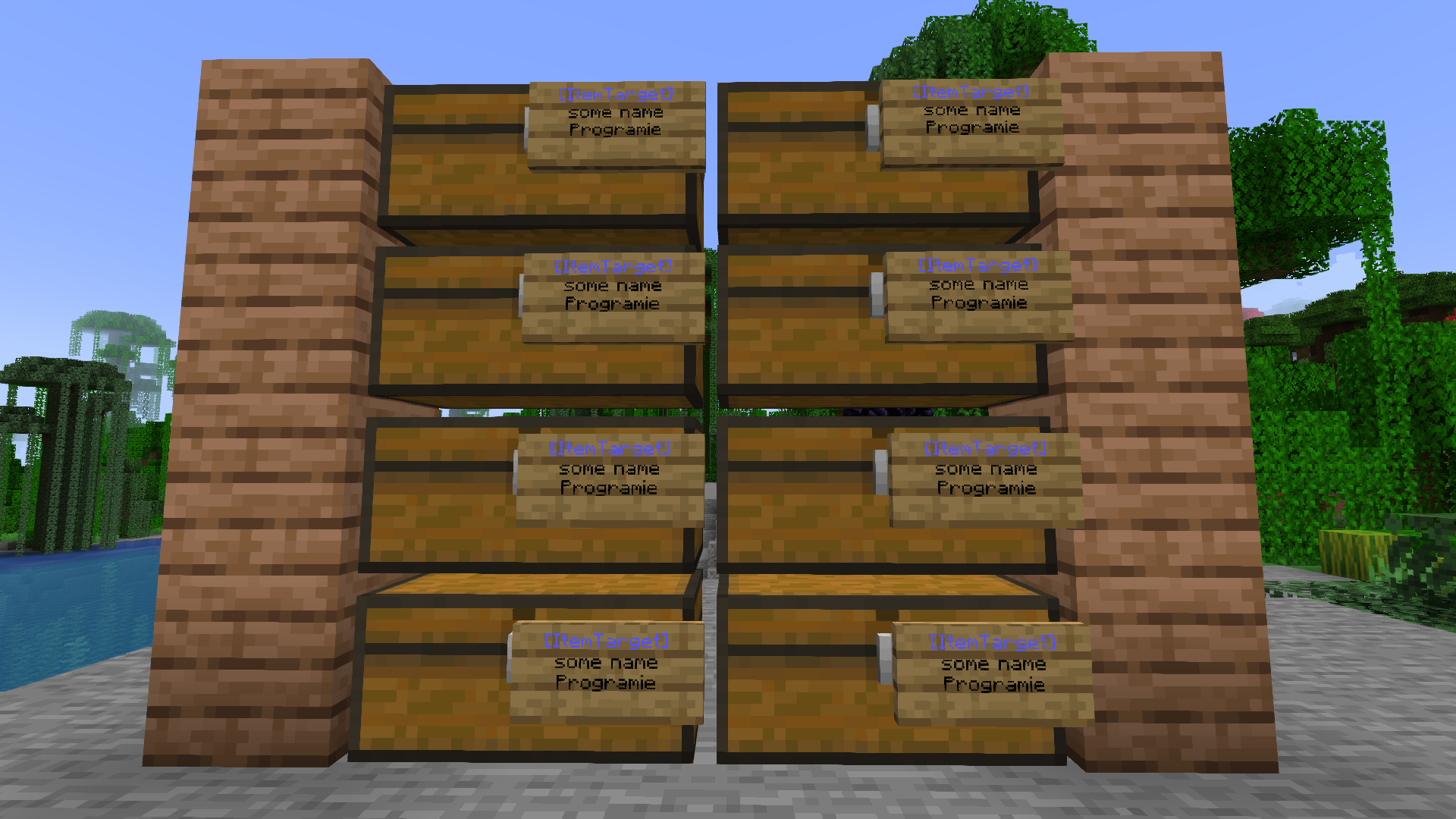
在这种情况下,你可以使用该插件内置的另一项功能。只需在任意箱子旁放置一个目标告示牌,并在其第四行添加 mc(“Multi Chests”的缩写)。这样,所有与该告示牌直接相连的箱子现在都通过这个目标告示牌实现了等距连接。
示例:
- 第一行:
[ItemTarget]
- 第二行:其他已连接箱子使用的唯一名称
- 第三行:保持为空(将被替换为你的玩家名称)
- 第四行:
mc
你还可以通过用逗号分隔来指定其他选项,例如目标顺序。
示例:
- 第一行:
[ItemTarget]
- 第二行:其他已连接箱子使用的唯一名称
- 第三行:保持为空(将被替换为你的玩家名称)
- 第四行:
o:10,mc
在箱子上放置该告示牌后,你可以连接任意数量的箱子(受 max-multi-chests-blocks 配置选项限制)。你只需要确保它们在任何一个方块侧面相互接触即可。
之前的设置看起来如下所示:
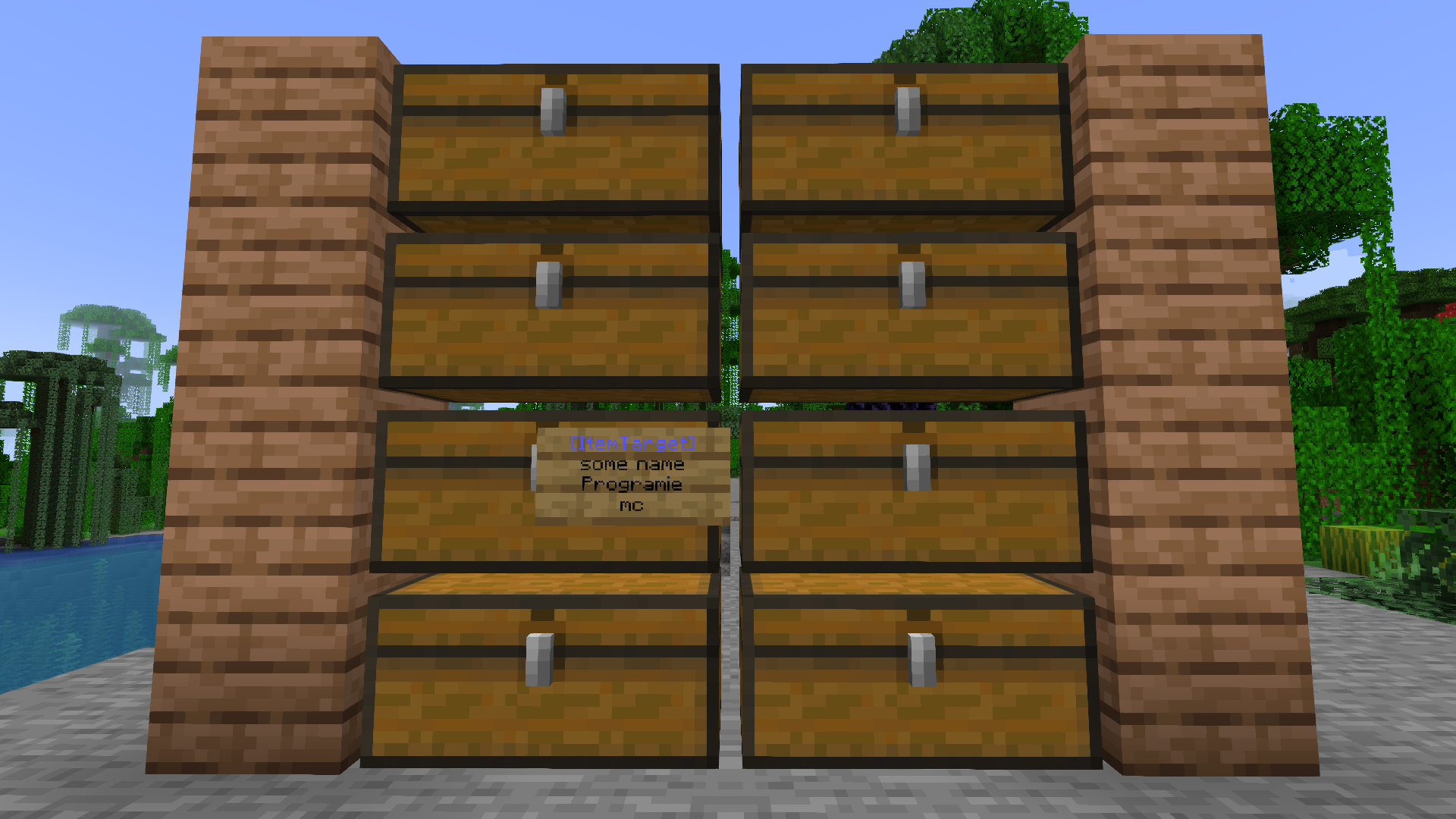
这八个箱子全部使用相同的名称 some name 进行连接,就像在每个箱子上放置目标告示牌一样。
显示告示牌信息
单击 ItemSorter 告示牌(左键或右键单击)将显示关于该告示牌的一些信息,以及它与其他告示牌/箱子的连接情况。
命令
该插件只有一个命令 /itemsorter,包含多个子命令(操作)。
可用操作:
remove-signs <player name> <sign name>:移除指定玩家的所有具有指定名称的告示牌
我的其他插件
你可以在 我的网站 上找到它们。
ItemSorter allows players to automatically sort items from a chest (or any other inventory block like hoppers) into any number of target chests (or any other inventory blocks like barrels).
When transferring the items from the source chest into the target chests, the plugin takes a look of already existing items in the target chests and moves items into the chest already containing the specific item type.
Configuration
The following options can be configured in the config.yml of the plugin (created on the first load):
allow-cross-world-connections - Allow to connect signs between worlds (i.e. transfer items from the Nether to the Overworld) (true or false, default: false)max-distance - The maximum distance between source and target chests (0 = unlimited, default: 100)max-names-per-player - The maximum number of different names per player (0 = unlimited, default: 0)max-signs-per-name - The maximum number of signs per name (0 = unlimited, default: 0)allow-multi-chests - Allow multiple chests connected to a single target sign (default: true)max-multi-chests-blocks - The maximum number of chest blocks used for the multi chest feature (0 = unlimited, default: 0)transfer-single-item-per-interval - Controls whether only a single item (true) or the whole stack (false) is transferred per interval (default: true)transfer-interval - Interval (in ticks) at which items are checked and transferred (default: 10)
Permissions
itemsorter.create - Allow to create and destroy your own ItemSorter signs' (Default: everyone)itemsorter.persistent - Allow to manage the persistent items of your own target signs (Default: everyone)itemsorter.destroyAny - Allow to destroy any ItemSorter signs (not just your own) (Default: op)itemsorter.command - Allow to execute the /itemsorter command (Default: op)itemsorter.* - Allow access to all features (Default: op)
How to use it?
Simply place a sign at the side of any inventory block (chest, barrel, hopper, etc.) you would like to use as the source chest containing the following content:
- First line:
[ItemSource]
- Second line: Any unique name used by the other connected chests
This will define the chest as an item source (i.e. the chest you will throw in your items for the plugin to sort them for you).
After that, place a sign at the side of any inventory block (chest, barrel, hopper, etc.) you would like to use as the target chest containing the following content:
- First line:
[ItemTarget]
- Second line: Any unique name used by the other connected chests
This will define the chest as an item target (i.e. the chest your items will be moved to).
Next, place any item you would like to sort into the target chest. For example, if you want to move cobblestone into the chest, simply place at least one cobblestone item into the chest.
After that, you are ready to go. Now you may move any item from your player inventory into the source chest and the plugin will try to find the correct target chest for each item.
Any remaining items which can't be sorted into a target chest will remain in the source chest.
Here is a short video demonstrating the plugin:
Persistent items
Normally, a target chest only accepts item types which are currently inside of it. Once the chest gets emptied (i.e. by a hopper below it), it no longer knows which items it should receive.
Add p (short for "Persistent") to the fourth line of a target sign to make the chest remember the item types it has contained. Remembered item types are stored in the database and are still accepted when the chest is empty. Right-click the sign to see the remembered item types.
- Fourth line:
p (can be combined with other options, e.g. o:10,mc,p)
Item types are remembered whenever a player closes the chest (and once when the sign is placed). They are never forgotten automatically, not even when the last item is taken out. Items moved by hoppers do not change the list. Only the item type is compared, not damage or other item data.
To manage the list manually, look at the target sign and use the following commands (only for your own signs unless you have itemsorter.destroyAny):
/itemsorter persistent list - List the remembered item types/itemsorter persistent add <material> - Add an item type/itemsorter persistent remove <material> - Remove an item type/itemsorter persistent clear - Remove all item types
Target order
At some point, you might have multiple chests for a single item type like cobblestone or dirt. In that case, you may also want to define which chest should be filled up first before trying the next one.
To archive that type of target chest order, simply define the order using o:any number on the fourth line of the sign attached to the target chest:
Example:
- First line:
[ItemTarget]
- Second line: Any unique name used by the other connected chests
- Third line: Keep empty (will be replaced with your player name)
- Fourth line:
o:10
A lower number means the chest is used before another with a higher number. By default, any target chest without the order option will have the order number 0.
If you define multiple chests with the same order number, the order of those chests might be random.
Multiple chests with a single target sign
Sometimes, you might get at the point where placing lots of signs is really time-consuming and could also decrease the client rendering performance (i.e. if there are hundreds of signs in your storage room).
Think about the follow setup:
In that case, you can use another feature build into this plugin. Simply place a single target sign at any chest and add mc (short for "Multi Chests") to the fourth line of it. Any directly connected chests are now connected equally with this target sign.
Example:
- First line:
[ItemTarget]
- Second line: Any unique name used by the other connected chests
- Third line: Keep empty (will be replaced with your player name)
- Fourth line:
mc
You may also specify other options like the target order by separating each option with a comma.
Example:
- First line:
[ItemTarget]
- Second line: Any unique name used by the other connected chests
- Third line: Keep empty (will be replaced with your player name)
- Fourth line:
o:10,mc
Placing that sign on a chest allows you to connect as many chests as you want (limited by the max-multi-chests-blocks config option). You only have to make sure, they are touching each other on any block side.
The previous setup would look like that:
All of those eight chests are connected using the same name some name, just like placing a target sign on each of them.
Show info about sign
Clicking on a ItemSorter sign (left or right click) shows some information about the sign as well as it's connection to the other signs/chests.
Commands
The plugin has a single command /itemsorter with multiple subcommands (actions).
Available actions:
remove-signs <player name> <sign name>: Remove all signs with the specified name of the specified player
My other plugins
You can find them on my website.

 插件

 插件
 插件
 插件

 插件
 插件
评论 0
登录后参与评分
还没有评论,来抢沙发吧