地图工具
Map Tools 帮助你在 Minecraft 地图中创建各种内容。所有功能均为独立模块,可随时开启或关闭。
使用 Map Tools 创建的所有内容在无需安装任何插件的情况下,100% 兼容原版。
如果你正在做以下事情,Map Tools 将为你节省无数小时的工作量:
- ...使用显示实体(如方块)来创建细节或动画
- ...需要平滑的摄像机路径、过渡效果或实体动画(数据包)
- ...需要自定义 NPC/实体的寻路,例如用于冒险地图(数据包)
- ...想要具有精美样式甚至动画的消息或标题(数据包和资源包,用于名称标签)
- ...快速加载并频繁切换资源包
- ...以及更多!
观看视频以了解所有内容!(或者向下滚动阅读每个模块的详细说明)
即将推出——我讨厌剪辑...
 (在此期间,请欣赏这张 GIF 动图)
? 模块详解
你可以通过 /maptools module <module> <enable/disable> 命令开启或关闭每个模块。如果关闭某个模块,所有相关交互和命令会立即消失,但已保存的创建内容仍将继续工作。
部分模块仅在你在 KoFi 支持我的情况下可用。如果你觉得 Map Tools 为你节省了值得请我喝杯咖啡的时间,我将不胜感激 ❤️
所有模块 - 点击展开
平滑动画
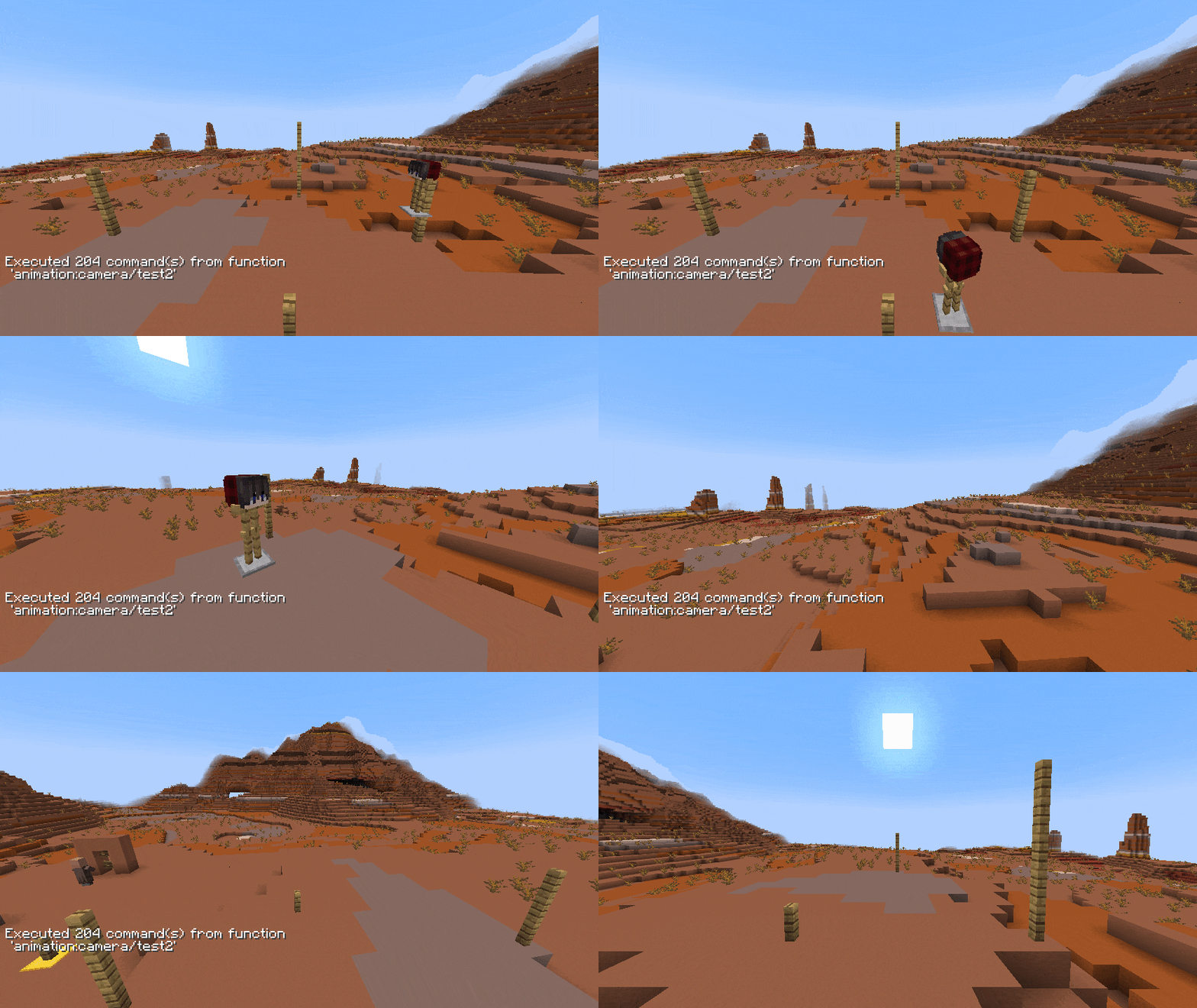
为任意类型的实体创建平滑动画。这可用于摄像机路径(强烈建议为一个盔甲架设置动画并强制玩家旁观该盔甲架,这将极大提升动画的流畅度),也可用于精细的显示实体动画。你可以设置为自动循环。
注意 - 渲染后,可通过数据包在不依赖插件的情况下使用/播放该动画
指南
首先输入 /animation new 开始新的设置。现在,你可以根据需要通过 /animation add 添加任意数量的控制点来操控动画。新添加的点即为你当前位置,且至少需要 3 个点才能创建正确的插值效果。使用 /animation remove-last 移除不需要的点位。要完成或测试你的动画,请使用 /animation render <loop> <ticks> <target> 进行渲染(loop:true 会将最后一个点与第一个点连接起来,ticks 是每两个点之间的动画时间,target 是一个给定的选择器)。渲染完成后,你可以继续修改动画,或通过 /animation print <target> <name> 将其打印为可用的数据包函数(name 代表函数名称,嵌套路径请使用空格代替斜杠,例如 "camera/island/front"
方块更新开关
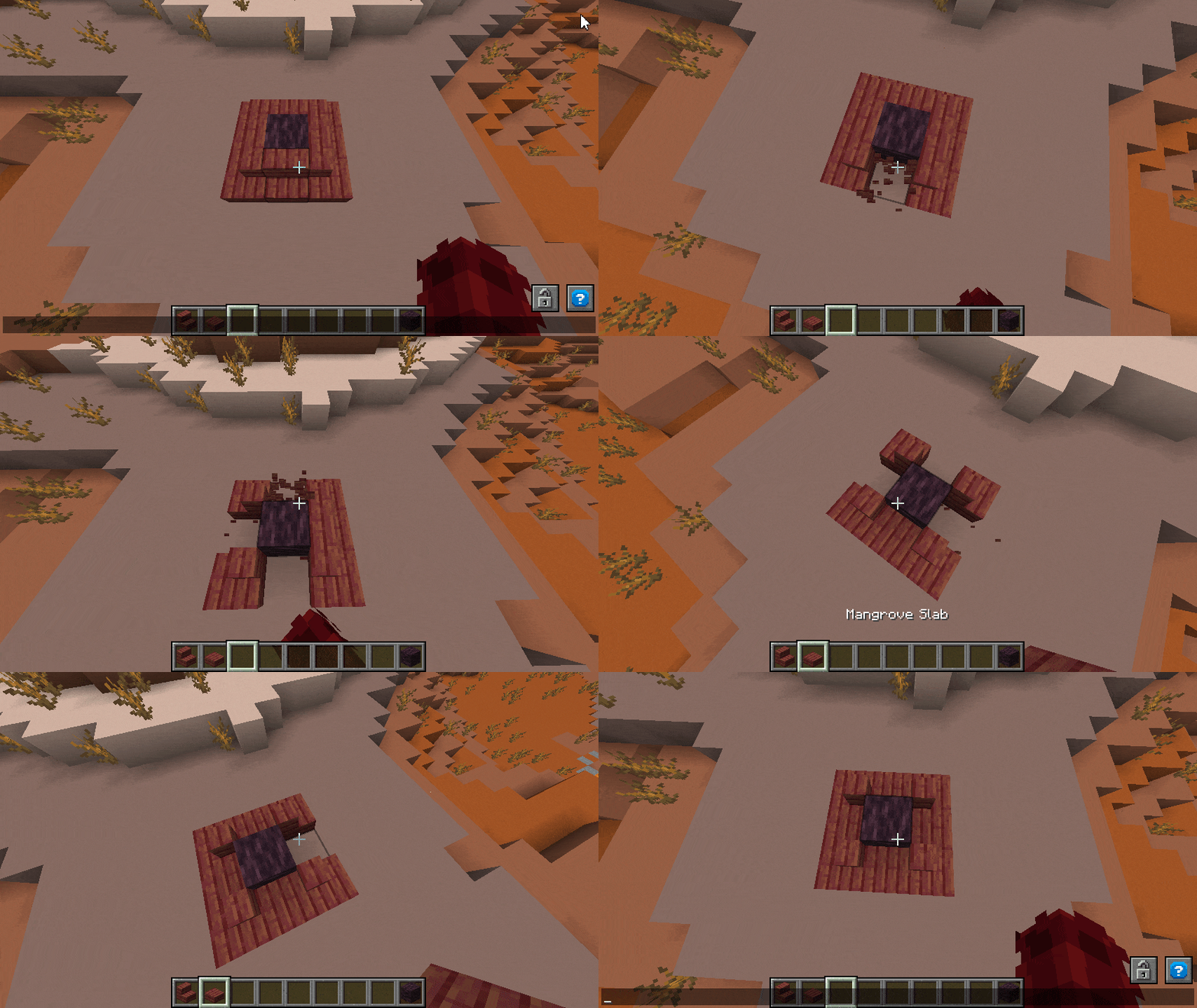
受够了楼梯自动连接?沙子不断掉落?在放置或破坏方块时禁用所有方块更新。别忘了稍后重新开启它!(移除插件也会启用方块更新)
指南
使用 /block-update toggle 来开启或关闭放置/破坏方块时的更新效果。
命令工具绑定
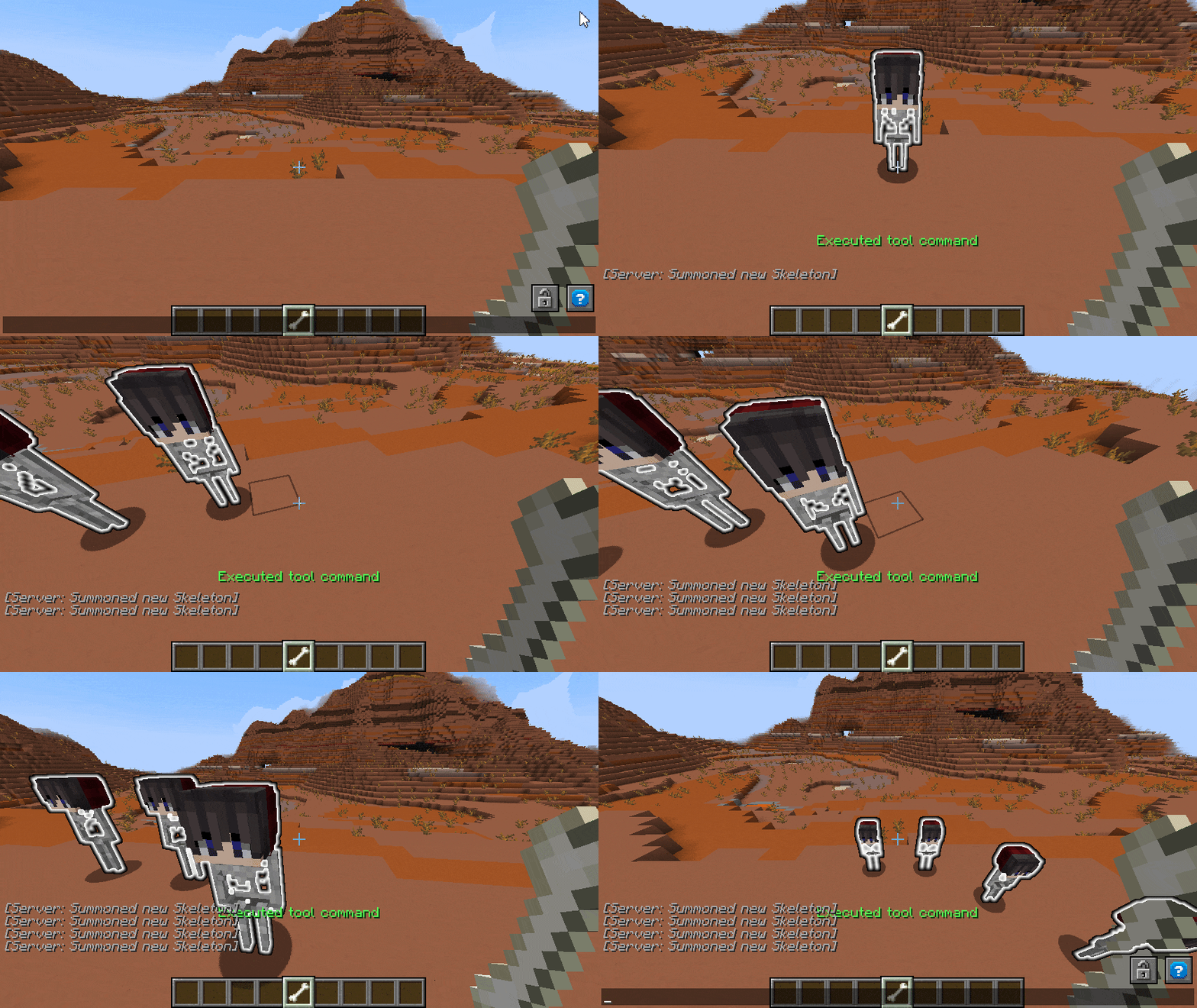
不想多次输入同一个命令?将任意命令绑定到你喜欢的物品上,并用它在方块上点击以在该位置执行此命令。如果没有瞄准任何方块,命令将在你所在的位置执行。命令物品在重启后依然保留。
指南
手持一个物品,然后输入 /commandtool command <command> 为其应用任意命令。使用 /commandtool clear 再次移除它
方块转显示实体
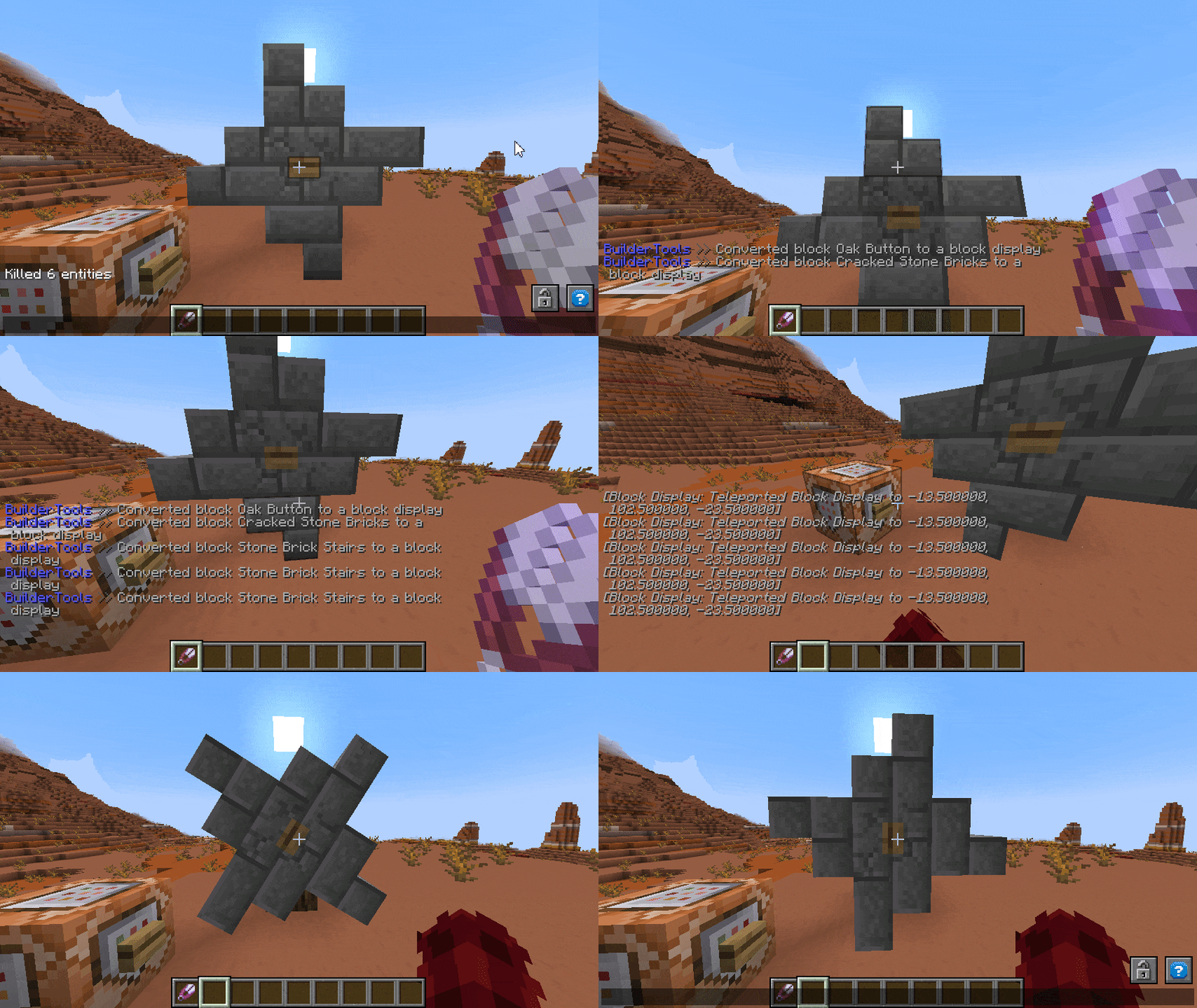
将方块转换为非实体状态的方块显示实体。通过方块显示实体,你可以轻松地对任何结构或单个方块进行缩放、旋转、重组和移动。与掉落物相比,方块显示实体对客户端和服务器的性能消耗要小得多,因此你可以在一个区域内使用多达约 1,000 个显示实体而不会造成明显的性能影响。
指南
要转换单个方块,请使用 /blockify <position> <tag> <scale> [origin](tag 将作为标签应用于创建的实体,scale 是方块的最终缩放比例,1 为默认值,origin 是源位置 -> 适用于应该旋转的多方块结构)。为了更方便地使用,可以通过 /blockify-tool <scale> <tag> [origin] 获取工具,然后点击任意方块进行转换
任意碰撞盒
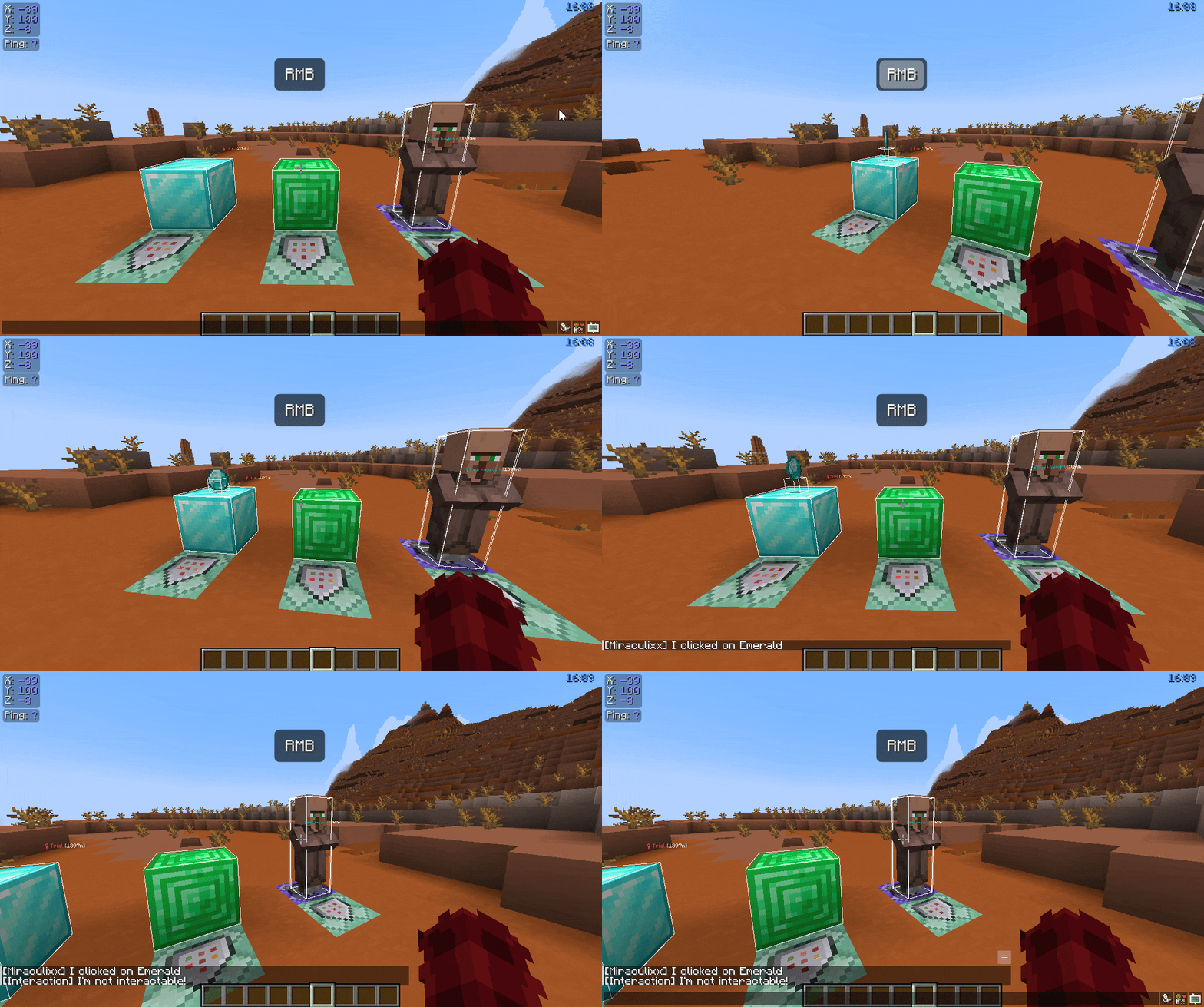
想要在某些方块或实体上进行自定义交互?或者只是完全避免与之交互?为该目标自动包裹一个碰撞盒(交互区域),其大小会自动调整为方块/实体的碰撞盒大小。现在你可以检测对该碰撞盒的左键或右键点击(或两者兼有)。
指南
要为任意实体或方块包裹一个交互碰撞盒,请输入 /interaction spawn <target> [tag] [space](target 可以是方块或选择器,tag 将作为标签应用于该交互,space 是相对于源碰撞盒大小的额外尺寸增量,单位为方块)。为了更方便地使用,可以通过 /interaction tool <tag> 获取工具,然后点击任意方块或实体
拴绳栅栏
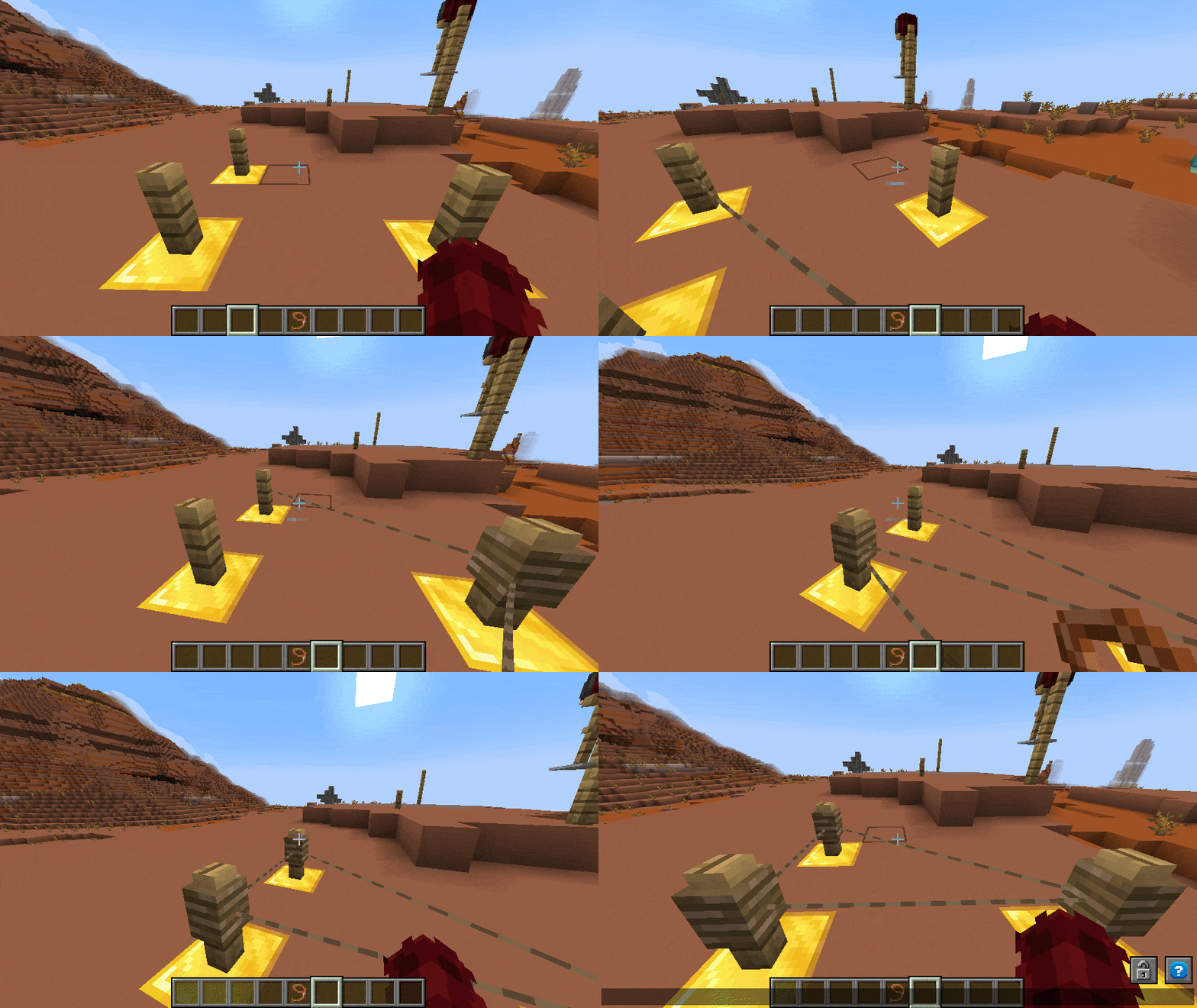
终于可以用拴绳将栅栏与其他栅栏连接起来了。就是这样。为什么这不是原版特性?
指南
手持拴绳并点击任意栅栏(墙壁不适用,请使用实体块)。接着在不手持拴绳的情况下点击另一个栅栏以将它们连接。或者使用 /leash <from> <to> 来连接两个栅栏。
方块标记
对任意实体执行操作很容易。但方块呢?使用新的标记工具通过标记实体来标记它们(标记不会发送给客户端,因此没有性能影响),然后使用你设置的标签来实现任何你想要的功能!
指南
要获取标记工具,请输入 /marker-tool <tag>(该标签将作为标签应用于标记实体)。现在你可以右键点击任意方块以添加标记,左键点击以移除标记。标记没有任何碰撞箱,因此为了再次找到它们,你可以使用 /marker-finder <range>(范围单位为方块)来高亮显示周围所有区域并生成绿色粒子效果。
多目标工具(类似于针对实体的 WorldEdit)
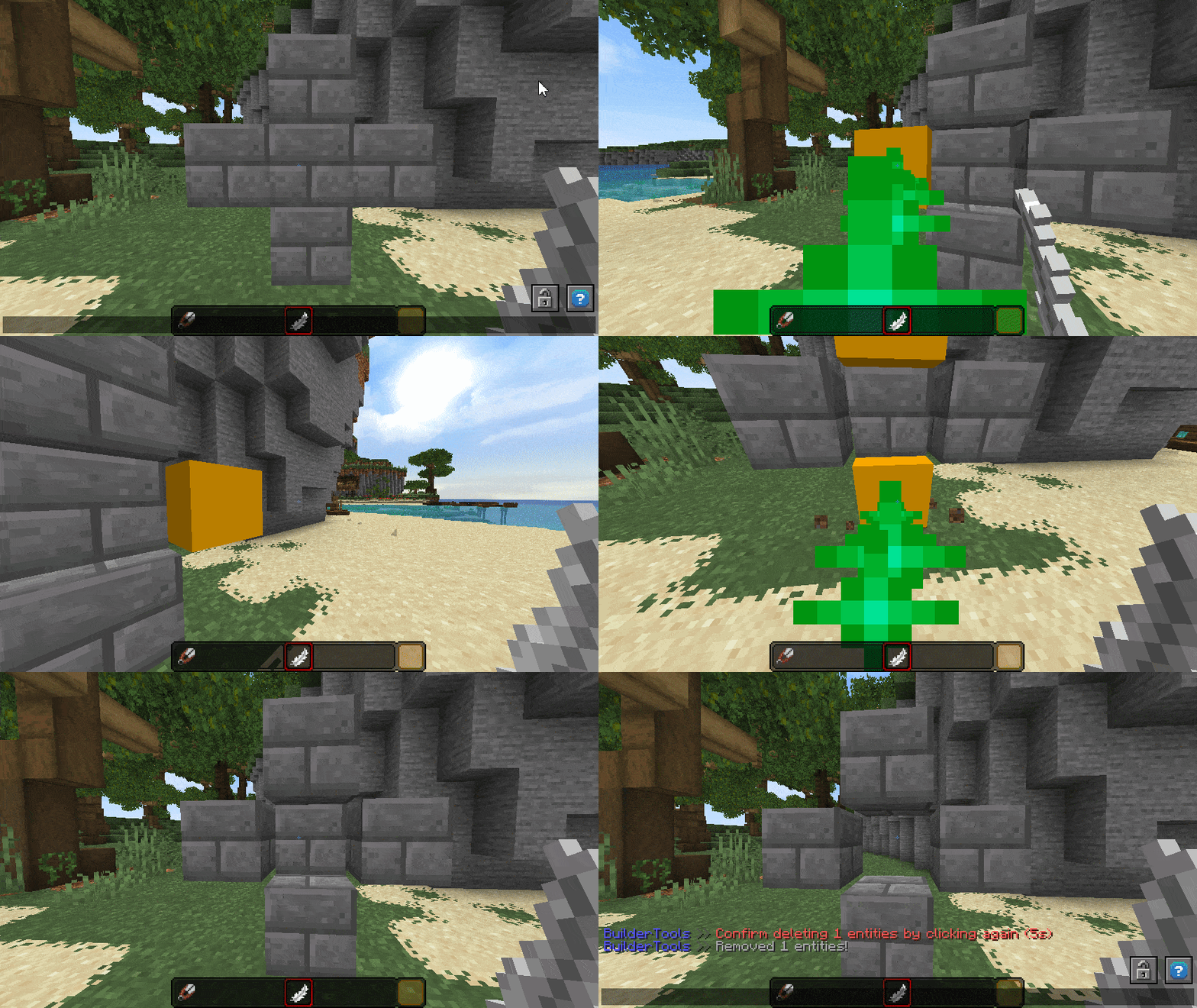
多目标工具允许你轻松编辑世界中的任意实体,但它主要是为展示实体设计的。选择你的目标实体类型,并选择任意数量的目标。现在你可以通过注视某个方向来移动和旋转它们,或者直接删除所有目标。你还可以为选区内的每个实体执行命令。每种实体类型都会通过绿色粒子/发光进行高亮显示,而方块展示则会接收黄色覆盖层以便更好地可视化。
指南
多目标工具非常复杂,你可能需要一些时间来适应它。使用 /multitool get <entity> <radius> <vector> 获取一个(实体仅根据你的选区定位实体,半径是光束搜索实体的方块数量,向量是你选区移动/旋转的方块数/角度)。你可以在工具描述中找到所有热键。要切换移动和旋转模式,请输入 /multitool mode <move/rotate>,或直接使用 /multitool rotate-by/move-by <vector> 移动/旋转你的选区,或使用 /multitool range 更改光束范围。
精美名称标签
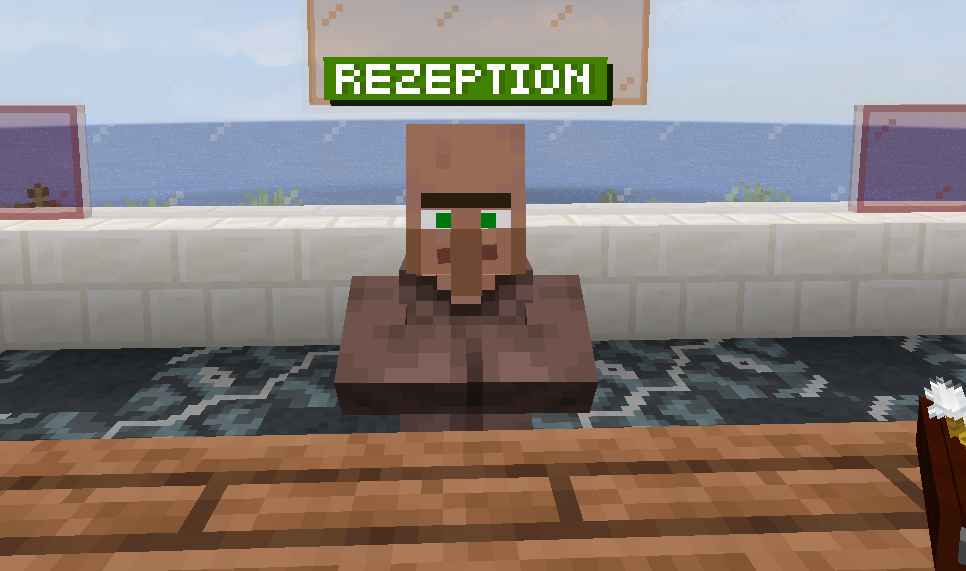
在某些服务器上见过那些精美的名称标签或排名标签吗?为什么不为我们自己轻松创建这些标签呢?只需输入任何文本(目前支持 A-B、0-9、.:,;-_?!#)以及所有所需的十六进制颜色(支持透明度)。现在将生成一个新的图像,绑定到一个唯一的字符上,创建后你会被提示复制该字符。别忘了保存它 :)
指南
要创建这些自定义名称标签,只需输入 /nametag <text> <main> <shadow> <char-shadow> [char](文本必须是字母数字字符,包含少量额外字符如 #-.,:;?!)。除文本外的所有参数都是支持透明度的十六进制颜色。例如 #ffffff 代表白色,而 #ffffff7f 代表带有 7f(约 50%)透明度的白色。生成新图像后,它将被添加到定义的 resource pack 中,并附带一个新生成的字符,你可以从聊天栏中复制它。你必须从服务器重新加载资源包才能看到它!
动画消息
会说话的 NPC?讲故事?发送一大段文字并不令人愉悦。为什么不通过动态速度和自定义暂停让你的消息动起来,帮助玩家跟随阅读!你可以输入一个始终可见的前缀以及逐渐显示的文本(两者都支持 MiniMessage)。如果你需要完整的对话,Map Tools 允许你创建一个 JSON 文件,其中包含前缀+消息的列表,该列表将被解析。所有消息都会打印到数据包中,并且可以在不使用插件的情况下使用。
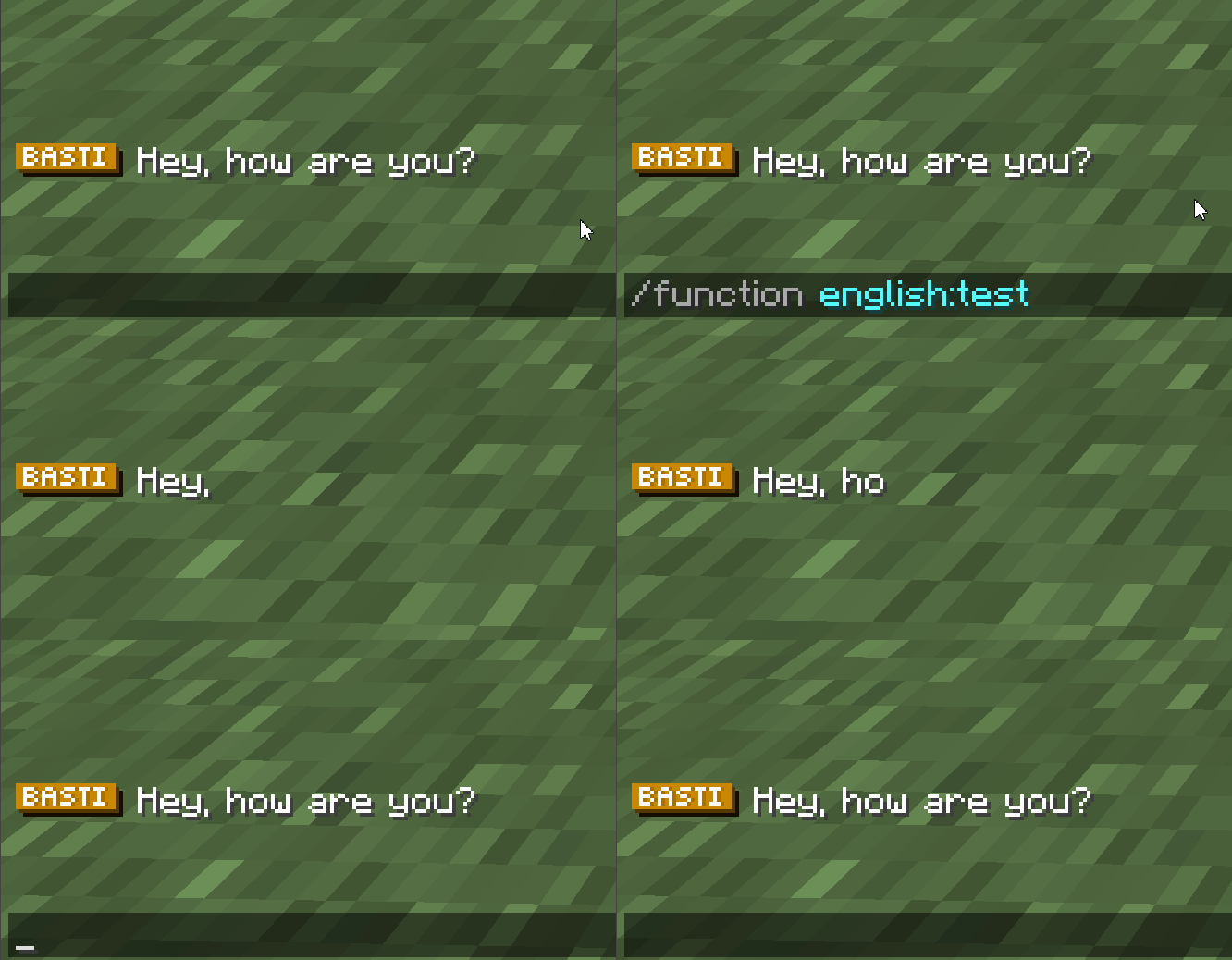
指南
要创建单个动画消息,请输入 /message new <prefix> <message> <target> <name>(前缀始终可见,消息将动画显示 - 使用 ① ⑤ ⑳ 符号表示暂停,名称是函数名 - 路径使用 " ")。所有暂停符号都可以从 /message symbols 复制。要解析对话 JSON,请使用 /message conversation <path>(conv.json 的路径,从函数文件夹开始)。所需语法如下:
{
    "target": "@a",
    "content": [
        {
            "prefix": "<red>Miraculixx</red>: ",
            "text": "Hey,⑤ what's up?"
        },
        {
            "prefix": "<yellow><b>You</b></yellow>: ",
            "text": "Nothing really,⑤ just reading those docs..."
        }
    ]
}
自定义实体寻路与脚本
⠀
寻路是我们创建自定义动画或路径查找的最强大工具。从简单的几条命令序列(每条命令延迟一 tick 执行)到自定义实体移动,这里只受你的想象力限制。
你可以在脚本中添加以下内容:command(简单地执行给定的命令作为脚本目标)、delay(继续之前等待 x ticks)、repeat(与 command 类似,但在延迟每 tick 重复 x 次)、position(将脚本目标从起始位置移动到输入的位置,速度为 x。如果接触地面且不太快,则播放行走动画)。
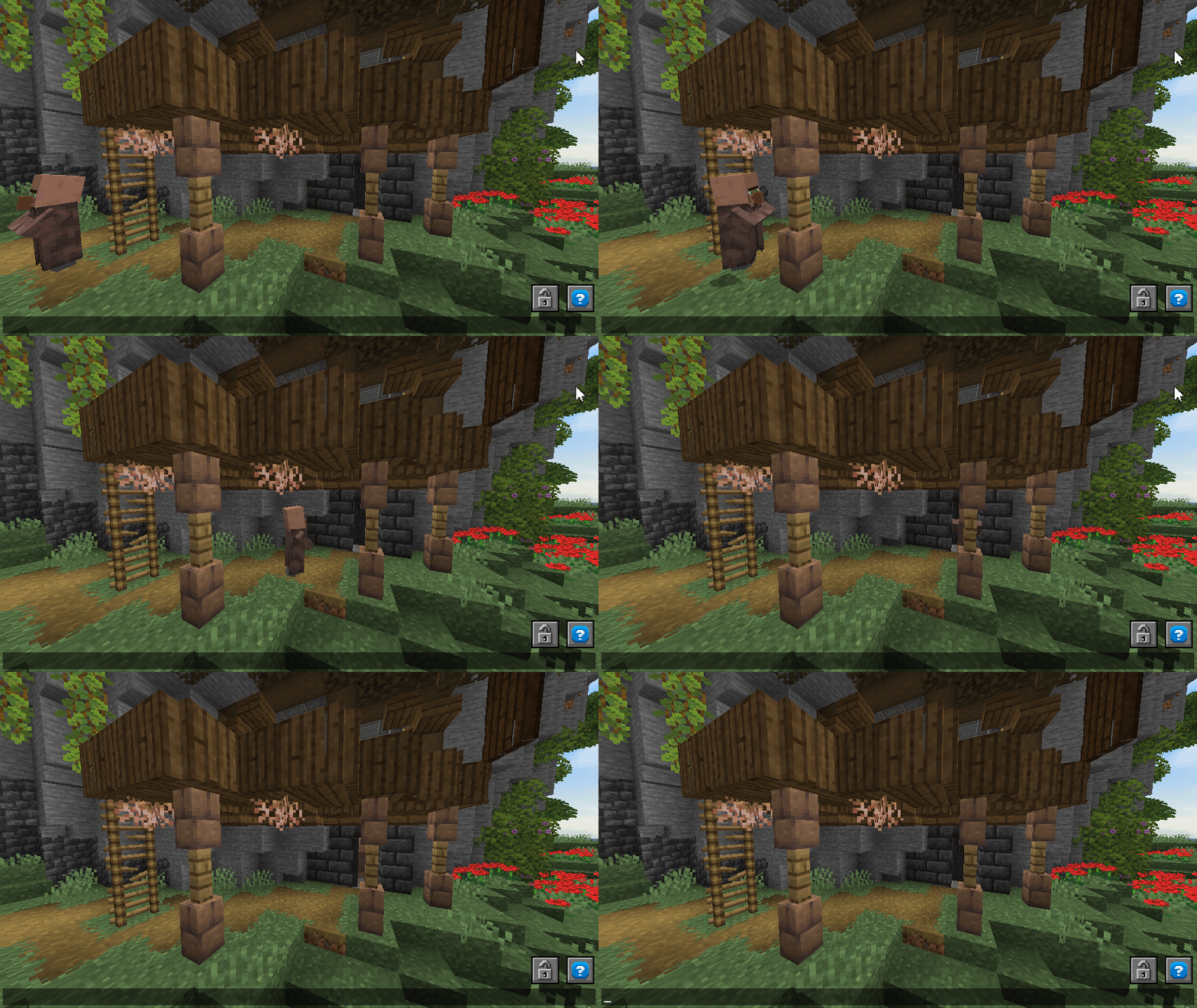
指南
要开始一个新的路径脚本,请输入 /pathing new <target>。现在你可以向脚本中添加任何内容,例如 /pathing add-position <position> <speed>(速度单位为每秒方块数)、/pathing add-command <command>、/pathing add-delay <delay>(延迟单位为刻)。若要移除不需要的步骤,请输入 /pathing remove-last。现在你可以通过 /pathing play 播放路径(起始位置可能不准确),或者通过 /pathing print <name> 将其打印到数据包中(名称即函数路径)。同时,会创建一个同名的 json 配置文件,以便你可以随时修改并通过 /pathing reprint <name> 重新打印脚本。当然,你也可以不使用游戏内命令,而是直接通过以下语法创建这些 json 文件:
{
    "target": "@e[tag=test]",
    "actions": [
        {
            "type": "REPEAT",
            "time": 100.0,
            "script": "particle minecraft:cloud ~ ~-0.2 ~ 0 0 0 0.04 3"
        },
        {
            "type": "CONTROL_POINT",
            "location": "{\"world\":\"world\",\"x\":4.5,\"y\":139.5,\"z\":-8.1,\"yaw\":10.0,\"pitch\":35.5}",
            "time": 0.1
        },
        {
            "type": "DELAY",
            "time": 20.0
        },
        {
            "type": "RUN_SCRIPT",
            "script": "say test finished"
        }
    ]
}
标签工具
为实体添加、移除或获取所有标签是制作(冒险)地图的关键操作。但为什么每次都要为每个实体输入命令呢?只需拿起标签工具并点击任意实体,即可添加/移除所有指定的标签,或检查标签是否已应用。
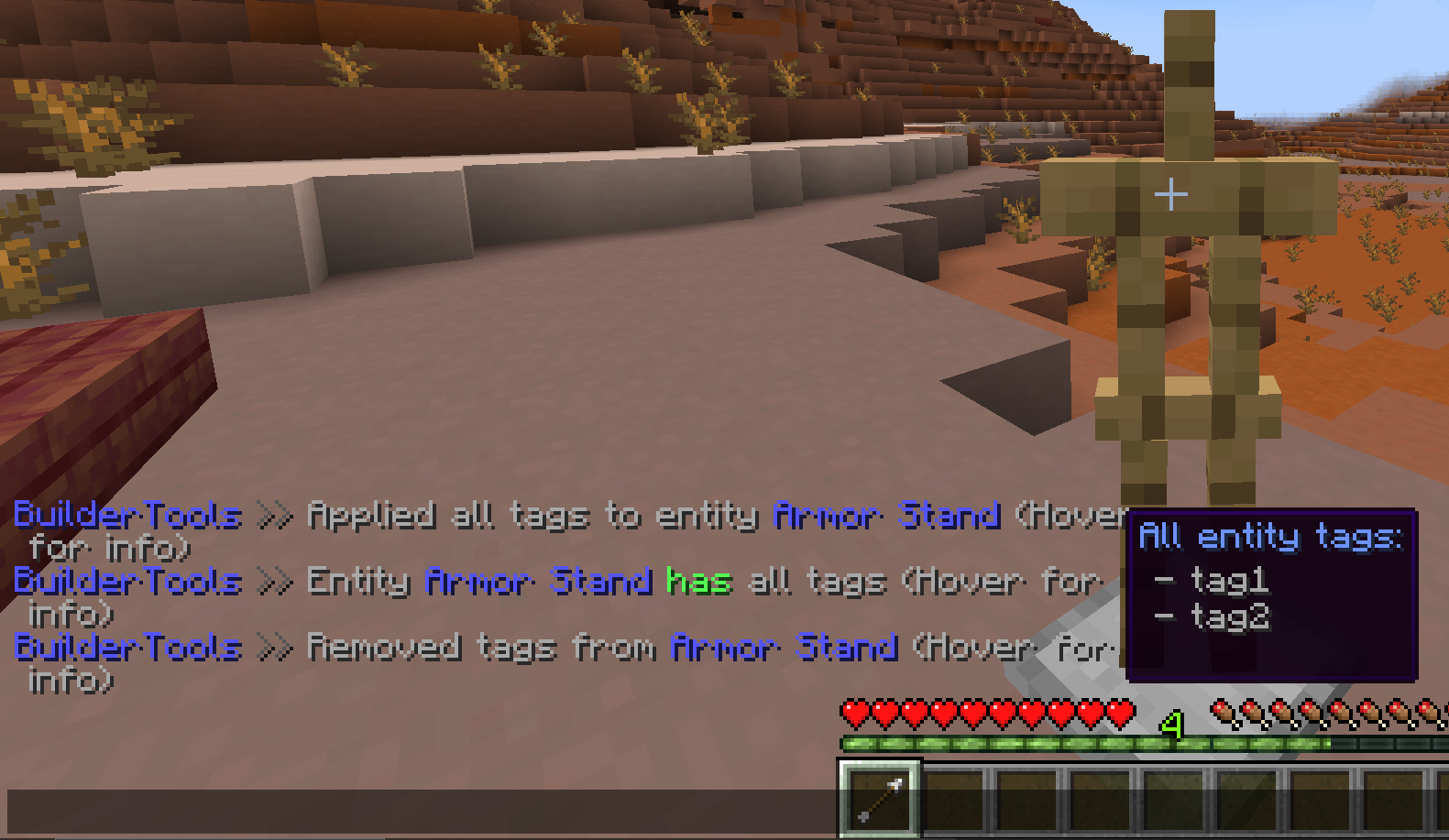
指南
要获取标签工具,请输入 /tag-tool <tags> [entity-type] [radius](tags 是要添加/移除/检查的所有标签——对于多个标签请使用 "tag1 tag2 tag3";可选的 entity-type 用于筛选目标;radius 是针对没有碰撞箱的实体的选择半径,单位为方块)。将所有鼠标悬停在工具物品上即可查看所有快捷键。
自动资源包
创建服务器/世界特定的资源包可能会非常令人头疼,尤其是在协作工作时。MapTools 简化了这一过程,你只需要在服务器上拥有所有资产即可!任何人都可以在任何文件夹中安全地编辑它们,并通过游戏内命令请求它们。MWeb 会将你资源包文件夹中发现的所有资产构建并发送给你。你还可以配置多个组,例如在使用不同版本/地点时,并在加入时自动加载它们。
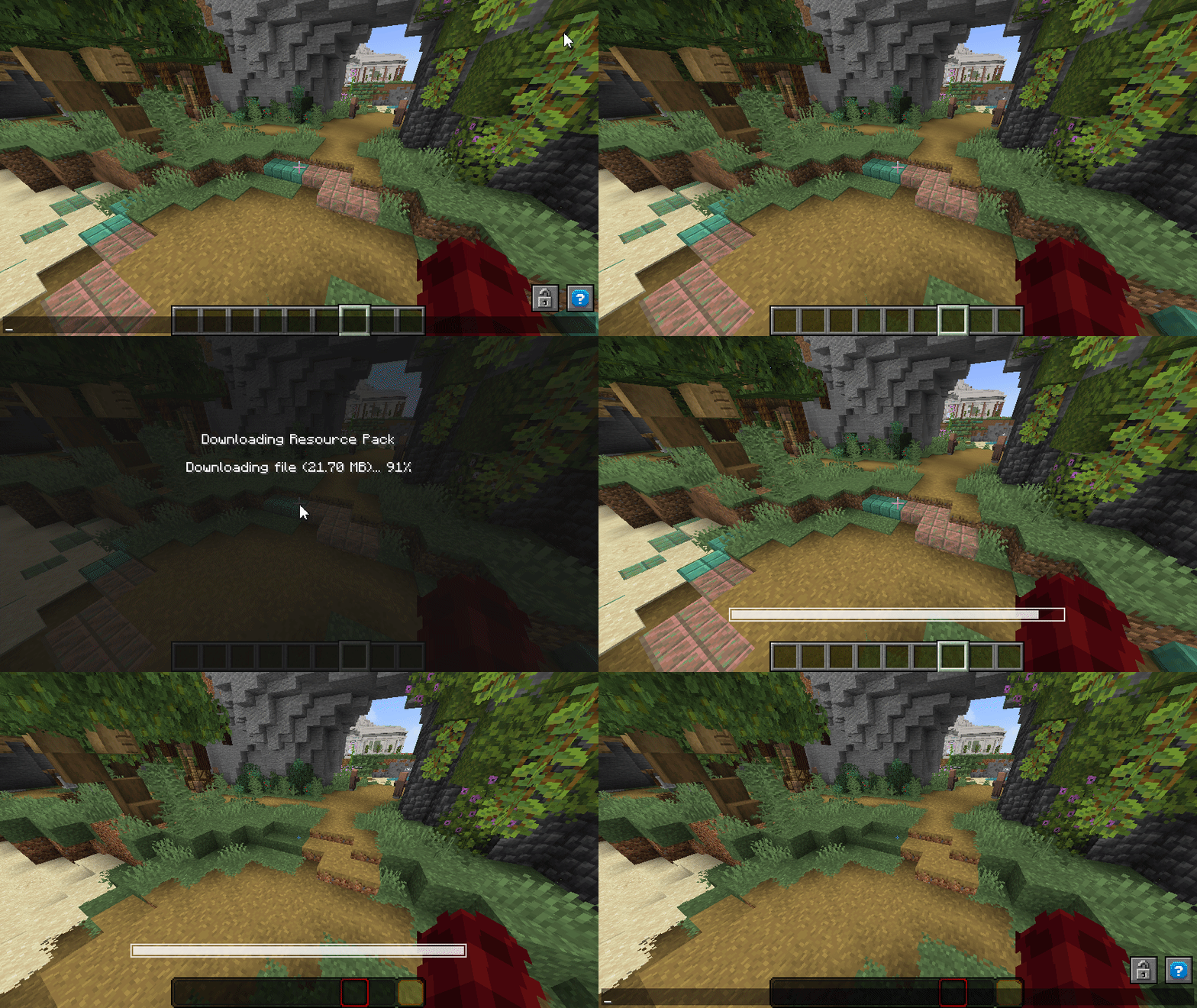
指南
需要 MWeb。主资源包文件夹和组可以在 settings.yml 内部进行配置。如果你将 texturepack 定义为主文件夹,你可以将任何资源包放入此文件夹中(解压状态)。以 . 开头的文件夹将被排除,而命名与组相同的文件夹仅在请求该组时才会加载。通过 /resourcepack <group> 手动请求资源包,或通过 /tag @s add <group> 在加入时自动请求。示例文件夹结构如下,设置项为 texturepack-folder: "texturepack" 和 texturepack-groups: ["guis","optifine-entities"]:
Server Folder
|- texturepack
   |- .test-icons   //将被排除
   |- blocks   //始终加载
   |- guis   //仅在请求 guis 时加载
   |- optifine-entities //仅在请求 optifine-entities 时加载
其中每个文件夹都需要经典的资源包结构:
blocks
|- pack.mcmeta  //仅需一次
|- assets
   |- minecraft
      |- <content>
位置保存器
你建造了一些东西,但不想下次再寻找它?只需用一个好名字保存位置,并随时传送过去。可以使用如 location、loc、position、pos 等关键词。
指南
要保存新位置,请输入 /pos new <name>,要传送则输入 /pos tp <name>。你也可以删除一个或所有(重置)已保存的位置。
命令检查器 - 防止危险命令
⠀
创建特定的实体和显示可能需要大量时间,但永久删除它们只需一条命令……MapTools 会扫描你输入的所有命令,并检查它将修改多少实体(搜索类似 @e[...] 的选择器)。如果一条命令将修改超过配置数量(默认为 10)的实体,它将不会被执行,你会收到警告。仍然想要输入它吗?通过在聊天中点击 here 或在同一行连续执行两次来确认。/kill @e 被完全阻止。(真希望有人在我之前做过这个……)
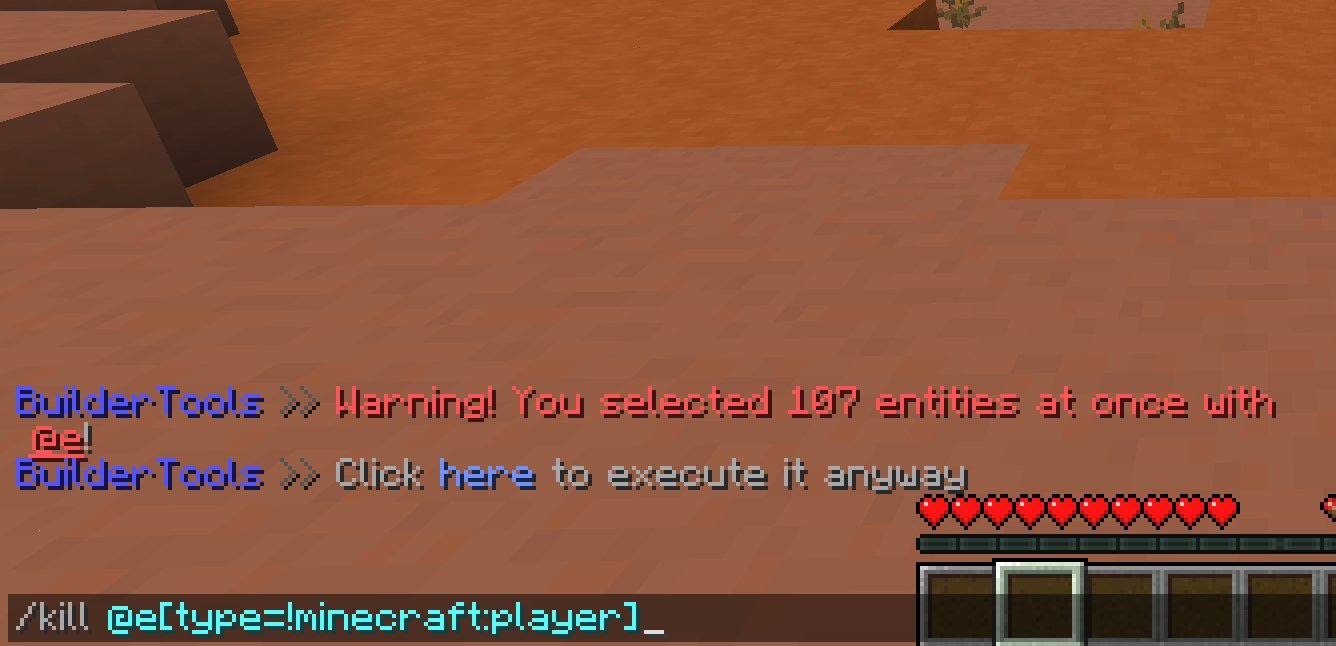
指南
这里没什么需要你做的。尽管如此,请小心你输入的内容。MapTools 仅检查原版的命令样式。一些插件倾向于使用遗留的命令系统或自己的样式,这可能无法被 MapTools 识别。
文本样式化 - MiniMessage
在所有地方使用简单的 MiniMessage 文本样式!好吧,至少是在铁砧和告示牌上,如果你有其他觉得有用的地方,请告诉我!
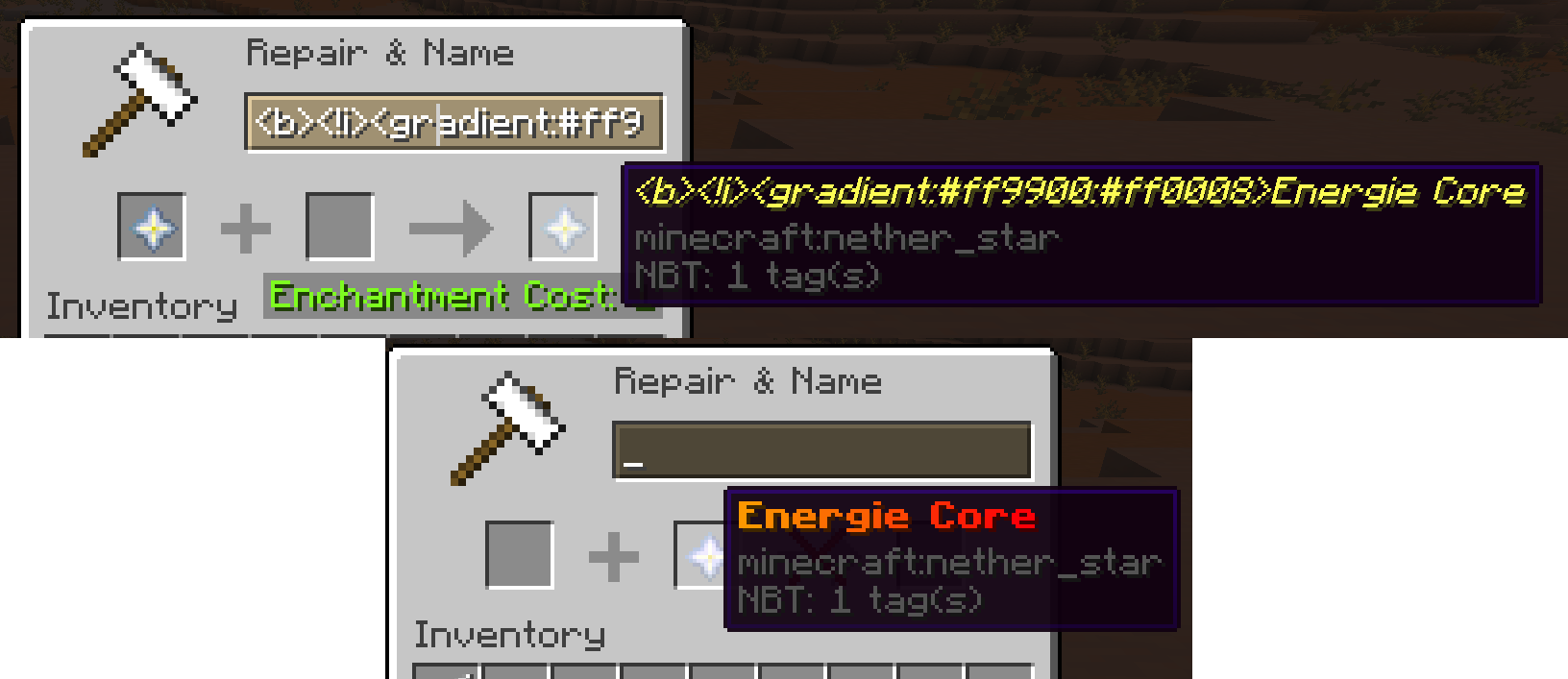
指南
如果你不熟悉 MiniMessage,它是一种极其易于使用的格式,可以利用文本提供的所有功能(如颜色、翻译、渐变、分数等)。阅读文档 在这里
核心功能 - 点击展开
有一些核心功能无法关闭。其中最实用的功能是 /reload-dp 命令,它仅重新加载数据包而不重启整个服务器。在 1.20.2 版本下使用该功能可大幅加快处理速度。
实验性功能与即将推出的功能 - 点击展开
结构调整大小(带动画效果)
想将你的建筑缩小成迷你结构吗?想在巨大的房间中体验渺小的感觉,或者利用它创造创意谜题吗?现在,你可以轻松地为房间添加平滑的缩放动画。
注意——此功能会将所有受影响的方块转换为显示实体!请勿将房间设置得过大!
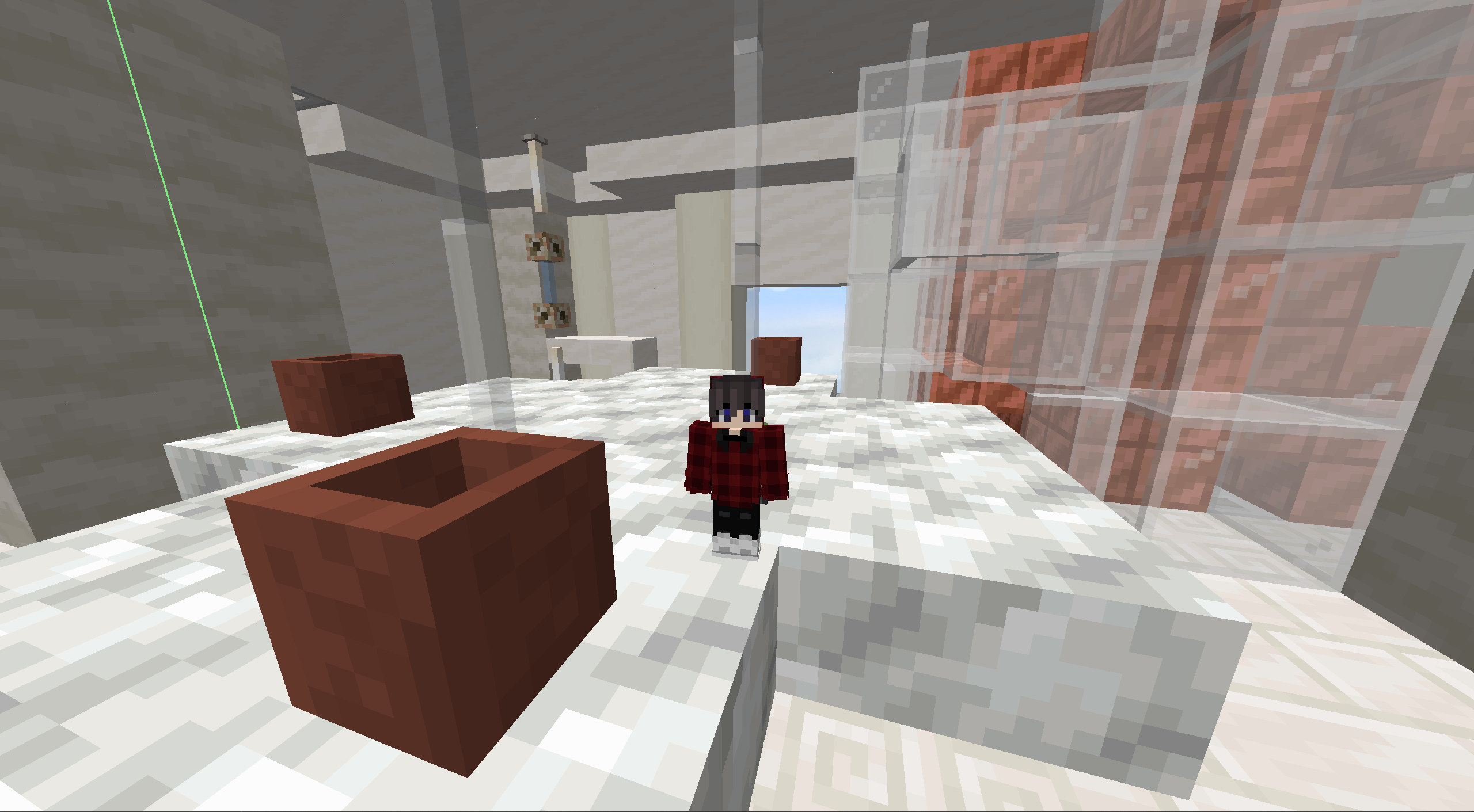
使用指南
要创建缩放动画,请输入 /scaling <from> <to> <origin> <name> <time> <scale> <tag>(origin 定义缩放的中心位置,name 为函数名称——路径请使用 " ",time 以刻为单位指定动画持续时间,scale 为最终缩放比例——建议使用偶数或平方数,如 2, 4, 6,... 或 0.5, 0.25,...)
简易任务书
这是一个非常特定的模块,主要用于个人用途。它允许你使用本地化输入来创建动态任务书(因此需要资源包支持)。它还提供了一个提示系统,适用于解谜地图或类似场景。未来可能会增加更多功能和更好的自定义选项。如果这对您有用,请告诉我!
⚙️ 支持与权限
需要帮助进行整体配置?对特定模块有疑问?或有对未来功能的想法?
加入我的 Discord 服务器 MCreate!
每个工具和命令都需要 OP 权限或特定的权限。请在官方文档中阅读有关所有权限的更多信息(预计 ~05.12 更新)。
Q: 命令 XY 不存在/显示为红色?
A: 可能是添加该命令的模块被禁用了。你可以通过 /maptools module <module> enable 启用它。
Q: 模块无法启用?
Q: 如何编辑生成的函数头文件?
A: 某些模块和编辑头文件需要支持版。你可以从我的 Ko-Fi 获取。
Map Tools
Map Tools helps you to create various things in Minecraft Maps. All features are seperated modules, that can be toggled off/on at anytime.
Everything created with Map Tools will work 100% vanilla without any plugins installed.
Map Tools saves you countles hours of work if you...
- ...work with display entites like blocks to create details or animations
- ...need smooth camera paths, transitions or entity animations (datapack)
- ...need custom npc/entity pathing, e.g. for adventure maps (datapack)
- ...want fancy styled or even animated messages or titles (datapack & resource pack for nametags)
- ...quick load and constantly change resource packs
- ...and more!
Watch the video to see everything! (Or scroll down to read about every module in detail)
Coming Soon - I hate cutting...
(meanwhile enjoy this gif)
? Module Breakdown
Every module can be toggled on or off via /maptools module <module> <enable/disable>. If toggled off all interactions and commands instantly disappear but already saved creations will still work.
A few modules are only useable if you supported me on KoFi. If you think Map Tools saved you some hours of work worth a coffe, i would appreciate any support ❤️
All Modules - Click to unwrap
Smooth Animations
Create smooth animations for entities any type. This can be used for camera paths (i highly recommend to animate an armorstand and force the player to spectate it, this highly increase the animation smoothness) but also for detailed display animations. You can set it up to auto loop.
NOTE - After printing, the animation can be used/played without the plugin via datapack
Guide
Start with entering /animation new to begin a new setup. Now you can add as many new control points as you want to manipulate the animation with /animation add. The added point is your current location and you need at least 3 to create proper interpolation. Remove unwanted positions with /animation remove-last. To complete or test your animation render it with /animation render <loop> <ticks> <target> (loop:true will connect the last point with the first, ticks is the animation time between each point and target a given selector). After rendering you can either continue modifying your animation or print it to a usable datapack function via /animation print <target> <name> (name represents the function name, use " " for nested paths e.g. "camera/island/front"
Block Update Toggler
Annoyed by stairs auto connecting? Sand is falling away? Disable all block updates when placing or breaking blocks. Don't forget to turn it on later on! (Removing the plugin will also enable block updates)
Guide
Use /block-update toggle to turn any updating on block placing/breaking.
Command Tool Binding
Don't want to enter a command multiple times? Bind any commands to your favorite item and click with it on a block to execute this command at the clicked position. If you don't target any block, the command will be executed on your position. Command items persists through restarts.
Guide
Take an item in your hand and enter /commandtool command <command> to apply any command to it. Use /commandtool clear to remove it again
Block To Display
Turn blocks into their non solid state - Block Displays. With block displays you can easily animate any structure or single blocks by scaling, rotating, reforming and moving it around. In comparison to falling blocks, block displays are way more soft for client and server so you can use up to ~1.000 displays in one area without much performance impact.
Guide
To convert a single block use /blockify <position> <tag> <scale> [origin] (tag will be applied as tag to the created entity, scale is the final scale of the block where 1 is default, origin is the source location -> useful multi-block structures that should rotate). For easier use get the tool with /blockify-tool <scale> <tag> [origin] and click on any blocks to convert them
Hitbox Anything
You want custom interactions on certain blocks or entities? Or just want to avoid any interaction with it at all? Wrap a hitbox (interaction) around that automatically adjust its size to the blocks/entities hitbox size. Now you can detect either left or right clicks (or both) on the hitbox.
Guide
To wrap an interaction hitbox around any entity or block enter /interaction spawn <target> [tag] [space] (target can be a block or selector, tag will be applied as tag to the interaction, space is the extra amount of size relativ to the source hitbox size in blocks). For easier use get the tool with /interaction tool <tag> and click on any block or entity
Leash Fences
Finaly you can connect fences with other fences with leashes. Thats it. Why is this not a vanilla feature?
Guide
Take a leash in your hand and click on any fence (not walls, use block entities for them). Now click on another fence without the leash in hand to connect them. Otherwise use /leash <from> <to> to connect two fences
Block Marker
Its easy to execute an action on any entities. But what about blocks? Mark them with the new marker tool (using marker entities - markers does not get sent to the client -> no performance impact) use your set tag to do anything you want!
Guide
To get the marker tool enter /marker-tool <tag> (tag will be applied as tag to the marker entity). Now you can right click any blocks to add the marker and left click to remove it again. Markers do not have any hitbox so to find them again you can use /marker-finder <range> (range in blocks) to highlight all around you with green particles"
Multi Tool (like WorldEdit for entities)
The multi tool allows you to easily edit any entity in your world but it was mostly designed for display entities. Choose your target entity type and select as many targets as you want. Now you can move & rotate them by looking into a direction or simply delete all. Also you can execute commands for every entity in your selection. While every entity type gets highlighted by green particles/glow, block displays instead recieve a yellow overlay for better visualization.
Guide
The multi tool is very complex and you might need some time to get used to it. Get one with /multitool get <entity> <radius> <vector> (entity only targets entities by your selection, radius is the amount in blocks the beam search for entities, vector is the amount in blocks/degrees your selection will be moved/rotated). You find all hotkeys in the tool description. To switch between move and rotate mode enter /multitool mode <move/rotate> or move/rotate your selection directly with /multitool rotate-by/move-by <vector> or change the beam range with /multitool range
Fancy Name Tags
Seen those fancy name tags or rank tags on some servers? Why not easily creating those for our own! Simply input any text (currently supports A-B, 0-9, .:,;-_?!#) and all needed colors in hex (supports transparency). Now a new image will be generated bound to a unique new character that you are prompted to copy after creation. Don't forget to save it :)
Guide
To create those custom name tags simply enter /nametag <text> <main> <shadow> <char-shadow> [char] (text must be alphanumeric with a few extras like #-.,:;?!). All arguments (except text) are hex colors that support transparency. For example #ffffff represents white and #ffffff7f represents white with 7f (~50%) transparency. After generating the new image it will be added to the defined resource pack with a new generated char that you can copy from chat. You NEED to reload your pack from the server to see it!
Animated Messages
Talking NPC's? Story telling? Sending just a wall of text isn't very pleasing. Why not animate your messages with dynamic speed and custom pauses to help to player reading along! You can input a prefix that will always be visible from the start and the text that animates in (both supporting MiniMessage). If you need a full conversation, Map Tools allows you to create a json file containing a list of prefix+message that will be parsed. All messages are printed to datapack and can be used without the plugin.
Guide
To create a single animated message enter /message new <prefix> <message> <target> <name> (prefix always visible, message will be animated - use ① ⑤ ⑳ symbols for pauses, name is the function name - use " " for paths). All pause symbols can be copied from /message symbols. To parse a conversation json use /message conversation <path> (path of the conv.json starting by the function folder). The required syntax is as follows:
{
    "target": "@a",
    "content": [
        {
            "prefix": "<red>Miraculixx</red>: ",
            "text": "Hey,⑤ what's up?"
        },
        {
            "prefix": "<yellow><b>You</b></yellow>: ",
            "text": "Nothing really,⑤ just reading those docs..."
        }
    ]
}
Custom Entity Pathing & Scripting
⠀
Pathing is our most powerful tool for creating custom animations or pathing finding. From a simple order of a few commands that will be executed each one tick delayed to custom entity movement only your imagination is limiting here.
You can add the following things to your script: command (simply executing given command as the script target), delay (wait x ticks before continuing), repeat (similar as command but repeating x times on tick delayed each), position (moves the script target from start position to entered position with x speed. Plays walk animation if touching ground & not too fast).
Guide
To start a new pathing script enter /pathing new <target>. Now you can add anything to the script e.g. /pathing add-position <position> <speed> (speed in blocks per second), /pathing add-command <command>, /pathing add-delay <delay> (delay in ticks). To remove unwanted enter /pathing remove-last. Now you can either play the pathing with /pathing play (start position might not be accurate) or print it to datapack with /pathing print <name> (name is the function path). Along with the function, a json config with the same name will be created so you can modify and reprint the script at anytime with /pathing reprint <name>. Ofcourse you can only create those json files instead of using ingame commands with following syntax:
{
    "target": "@e[tag=test]",
    "actions": [
        {
            "type": "REPEAT",
            "time": 100.0,
            "script": "particle minecraft:cloud ~ ~-0.2 ~ 0 0 0 0.04 3"
        },
        {
            "type": "CONTROL_POINT",
            "location": "{\"world\":\"world\",\"x\":4.5,\"y\":139.5,\"z\":-8.1,\"yaw\":10.0,\"pitch\":35.5}",
            "time": 0.1
        },
        {
            "type": "DELAY",
            "time": 20.0
        },
        {
            "type": "RUN_SCRIPT",
            "script": "say test finished"
        }
    ]
}
Tag Tool
Adding, removing or just getting alls tags from entities is a key action for (adventure) map creating. But why entering the commands everytime for every entity? Just grab the tag tool and click on any entity to add/remove all given tags or check if the tags are already applied.
Guide
To get a tag tool enter /tag-tool <tags> [entity-type] [radius] (tags are all tags that will be added/removed/checked - use "tag1 tag2 tag3" for multiple tags, optional entity-type to filter targets, radius is the selection radius in blocks for entities without hitboxes). All keybinds are visible by hovering over the tool item.
Auto Resource Pack
Creating server/world specific resource packs can be very annoying, specially when working together. MapTools simplifies this process for you by only needing to have all assets on your server! Edit them safely in any folder by anyone and request them ingame via command. MWeb will build and send all assets found in your resourcepack folder to you. You can also configure multiple groups e.g. when working with different versions/places and auto load them on joining.
Guide
Requires MWeb. The main pack folder and groups can be configured inside the settings.yml. If you defined texturepack as your main folder, you can put any resource packs inside this folder (unziped). Folders starting with a . will be excluded and folders named like a group will only be loaded if the group is requested. Manually request RPs by /resourcepack <group> and auto request on joining by /tag @s add <group>. Example folder structure for settings texturepack-folder: "texturepack" and texturepack-groups: ["guis","optifine-entities"]:
Server Folder
|- texturepack
   |- .test-icons   //will be excluded
   |- blocks   //always loads
   |- guis   //only loads on requesting guis
   |- optifine-entities //only loads on requesting optifine-entities
Where each folder needs classic resource pack structure:
blocks
|- pack.mcmeta  //ONLY needed ONCE
|- assets
   |- minecraft
      |- <content>
Position Saver
You build something and don't want to search it the next time? Just save the position with a good name and teleport to it at anytime. Can be used with keywords like location, loc, position, pos
Guide
To save a new position enter /pos new <name> and to teleport enter /pos tp <name>. You can also delete one or all (reset) saved positions.
Command Checker - Prevent Danger Commands
⠀
Creating specific entities and displays can take a lot time but deleting them forever takes only one command... MapTools scans all your entered commands and check how many entities will be modified by it (searches for selectors like @e[...]). If more then a configured amount (default 10) entities will be modified by a command, it will not be executed and you receive a warning. Still want to enter it? Confirm it by either hitting here in chat or execute it twice in row. /kill @e is blocked completely. (I wish someone had made this before me...)
Guide
Nothing for you to do here. Still, be careful what you enter. MapTools only checks vanilla styled commands. Some plugins tend to use a legacy command system or their own styling that may not be recognized by MapTools.
Text Styler - MiniMessage
Use easy MiniMessage text styling everywhere! Well, at least in Anvils and Signs, if you have ideas where it would be also useful just let me know!
Guide
If you are not familiar with MiniMessage, it's an insane easy to use format to write text using all features text has to offer (like colors, translations, gradients, scores, ...). Read the docs here
Core Features - Click to unwrap
There are some core features that cannot be toggled off. The most useful feature is the /reload-dp command to only reload datapacks and not the entire server. Using 1.20.2 highly speeds up this process.
Experimental & Coming Features - Click to unwrap
Structure Resizer (Animated)
Want shrink down your building into a mini structure? Want to feel very small inside a huge room or even create creative puzzles with it? Well, at least you can easily resize rooms now with a smooth animation.
NOTE - This converts all affective blocks into display entities! Do NOT make your room too big!
Guide
To create a resize animation enter /scaling <from> <to> <origin> <name> <time> <scale> <tag> (origin defines the center position for the scaling, name is the function name - use " " for paths, time the time in ticks the animation takes, scale is the final re-scale - use even/squared numbers like 2,4,6,... or 0.5,0.25,...)
Simple Quest Book
This is a very specific module mostly used for personal use. It lets you create dynamic quest books using localization for input (so resource pack required). It also provides a hint system useful for puzzle maps or similar. Might receive more functions and better customization in the future. Let me know if it would be useful for you!
⚙️ Support & Permissions
You need help setting everything up? Questions to a specific module? Ideas for future features?
Join my Discord Server MCreate!
Every tool and command requires OP or a specific permission. Read more about all permissions in the official documentation (soon ~05.12).
Q: The command XY does not exist/is red?
A: Probably the module is disabled that adds your command. You can enable it via /maptools module <module> enable.
Q: The module cannot be enabled?
Q: How do i edit the generated functions header?
A: Some modules and editing headers requires the support version. You can get it from my Ko-Fi.

 插件

 插件

 插件
 插件
 插件
 插件
评论 0
登录后参与评分
还没有评论,来抢沙发吧