
简介
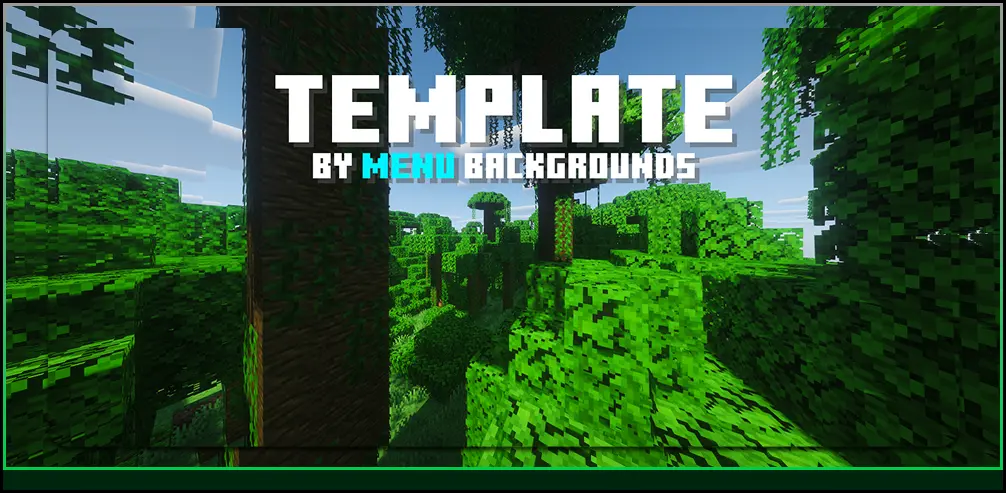
Menu Backgrounds 将 Minecraft 原版菜单背景替换为自定义的 PNG 图片。此资源包/材质包仅更改你的背景 GUI,不会改变其他任何内容。
如果你喜欢我的作品,可以查看我的个人资料 这里 或这个 组织 以浏览更多背景图片。
自定义 [将背景图片更改为自定义图片]
1 | 首先,打开文件管理器并找到你下载的资源包所在位置。(通常在你的“下载”文件夹中)
2 | 右键点击压缩文件夹,找到“全部提取”并点击它,等待解压完成。
3 | 接着,点击刚刚解压出来的文件夹,打开它并进入路径 [assets > minecraft > textures > gui > title > background]。你会在 background 文件夹中看到 panorama_overlay 文件。
4 | 选择一张你喜欢的图片作为 Minecraft 菜单背景并安装它。然后找到该图片并将其重命名为 panorama_overlay,确保其扩展名为 .png(例如 panorama_overlay.png),否则将无法正常工作。
5 | 将你的图片拖入或粘贴进去,然后点击“替换目标中的文件”。
6 | 在游戏中测试该资源包并享受乐趣 :D [如果你不知道如何将资源包安装到你的资源包文件夹中,请参阅下一节]
安装 [逐步安装资源包]
1 | 首先,安装该资源包。请确保资源包版本与你的 Minecraft 版本一致。
2 | 接下来,进入 resourcepacks 文件夹。你可以通过按下 WIN + R 并粘贴以下命令来定位它:
%appdata%.minecraft\resourcepacks
3 | 然后,将你下载的资源包粘贴到 resourcepacks 文件夹中。你可以通过复制粘贴或直接拖拽的方式完成。
4 | 最后,启动 Minecraft,进入选项 > 资源包,然后选择你想使用的资源包。

Introduction
Menu Backgrounds replaces the regular Minecraft vanilla menu background with a alternative png image. This resrouce/texture pack does not change anything else except your background gui.
If you like what i do you can view my profile here or this organization to browse on more backgrounds.
Customize [Changing the image of the background to a custom image]
1 | Firstly, go into your file explorer and locate where ever the downloaded resource pack is.(usually in your downlaods)
2 | Right-click on the zipped flder and find "Extract all" and click on it and wait for it to extract.
3 | After, click on the unzipped folder which you have just extracted open it and go to [assets > minecraft > textures > gui > title > background]. You will see a panorama_overlay in the background folder.
4 | Choose a image of your choice to be the Minecraft menu background install it. Then, locate the image and rename it to panorama_overlay and make sure its end has a .png like this panorama_overlay.png or else it wont work.
5 | Drag or paste your image inside and then click on Replace the file in destination.
6 | Test the resource pack in game and have fun :D [If you do not know how to install a resource pack in your resource apck folder see the next section]
Installation [Installing the resource pack step by step]
1 | Firstly, install the resource pack. Make sure the resource pack is the same version as your Minecraft version.
2 | Next, go into your resourcepacks folder, you can locate it by pressing WIN + R and pasting this command.
%appdata%.minecraft\resourcepacks
3 | After, paste the resource pack you downloaded into the resourcepack folder you can do that by either copying and pasting or dragging it in.
4 | Lastly, you can launch Minecraft go to Options > Resource Packs and then choose the resource pack you want to use.


 资源包

 资源包

 资源包

 资源包

 资源包

 资源包

评论 0
登录后参与评分
还没有评论,来抢沙发吧