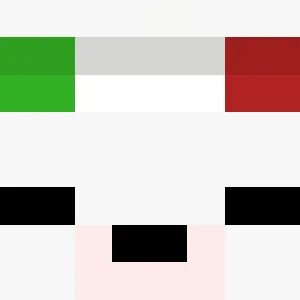
Prot 6 Overlay
概述:
Prot6Armor 资源包通过视觉方式突出显示附魔了 Protection 6(保护 VI) 的 全套下界合金盔甲。当任何一件下界合金盔甲部件(头盔、胸甲、护腿、靴子)被附魔 Protection 6 时,其纹理会变为亮绿色覆盖层,提供对其附魔状态的即时视觉提示。
在 PvP 中的实用性:
在 PvP 中,快速识别对手——或自己——装备的附魔等级往往是决定战斗胜负的关键。此资源包让你能够:
- 增强态势感知:立即判断敌人是否穿戴了满级防御装备。
- 优化策略:仅凭视觉信息调整战斗决策——在竞技场景中,瞬间发现一名拥有完全保护的敌人可能改变战局。
要求:
- OptiFine:启用自定义物品纹理(CIT)所必需。
- CIT Resewn(适用于 Fabric):允许根据附魔等级动态更改纹理。
安装说明:
适用于 OptiFine:
- 访问 OptiFine 官网并下载与你的 Minecraft 版本兼容的版本。
- 运行下载的文件以安装 OptiFine。
适用于 Fabric(CIT Resewn):
- 前往 Modrinth 上的 CIT Resewn 页面,下载与你的 Minecraft 版本匹配的版本。
- 将下载的
.jar文件放入你的 Minecraftmods文件夹中。
? 定位资源包文件夹
- 打开你的 Minecraft 启动器并启动游戏。
- 导航至主菜单,然后点击 选项 > 资源包。
- 点击 打开资源包文件夹。
- 将纹理包
.zip文件拖入此文件夹,然后激活它。

你是这个资源的作者?登录后可认领此资源。
相似资源
 资源包

Golden Days Base
PoeticRainbow
Golden Days 是一款 Minecraft 资源包,旨在重现早期版本(如 Beta)中的旧纹理、光照、名称和音效。需要启用内置的 Programmer Art 资源包。
音效方块
39
 资源包

Doggy Talent - Dog TP(现已停用)
SilverstarShiro
Doggy Talents 的 16x16 资源包
模组适配16x
37
 资源包

Unique Dark
amongstreality
带有独特纹理的功能性方块深色 GUI。80 个模组的深色模式
16x界面
33
 资源包

全新动作
IthanMendoza
这是 EMF Player Animation 资源包。它为玩家实体添加了精美的动画。兼容其他模组的动画,例如 Quark 的表情动作、Parcool 的技巧以及 Not Enough Animations。
16x装备
31
 资源包

Bedrock Buttons
proskurin
《基岩版》风格的极简 GUI 和 HUD
界面主题
28
 资源包

灵动生物Fresh Animations
FreshLX
让你的游戏画面就像宣传片一样!动态动画实体,为你的 Minecraft 体验增添新鲜感。
实体微调
24
评论 0
登录后参与评分
还没有评论,来抢沙发吧