
展示
概览
此资源包允许实体在纹理中内置动画光影效果。在许多方面,它是 Entity Texture Features 模组的原版友好版本。
本资源包旨在与其他添加带有动画效果纹理的资源包配合使用。光影数据嵌入到纹理文件中,当 VESE 光影读取该纹理文件时,它将显示编码的效果。由于编码的特性,纹理文件可以有一个静态的备用纹理,如果用户选择不启用 VESE,则会向用户显示该备用纹理。
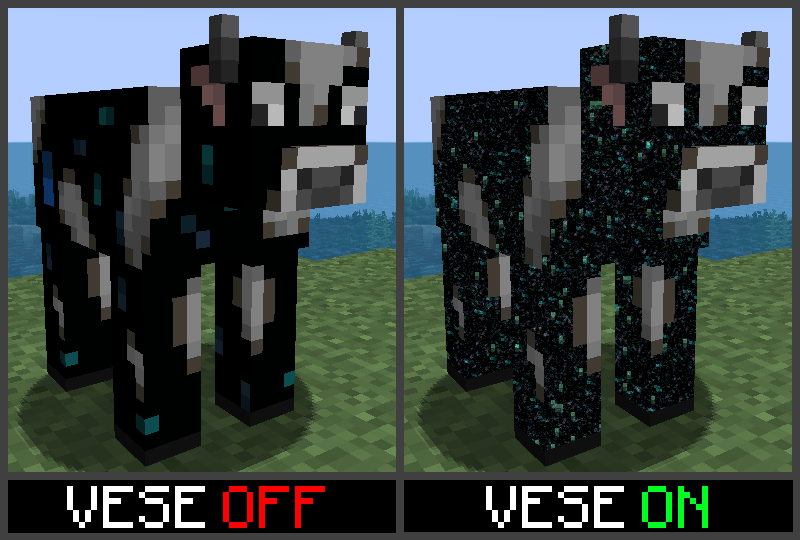
例如,以下纹理是为添加了 虚空奶牛 的资源包准备的。为游戏添加虚空奶牛的资源包会在玩家未启用 VESE 时显示左侧的纹理,而在启用时会显示右侧的纹理:
VESE 同样适用于玩家皮肤!如果你更新皮肤以使用 VESE 效果,对于未启用 VESE 的其他玩家来说,它仍将渲染为普通皮肤,但对于启用了 VESE 的玩家则会显示效果。
纹理编辑器 Webapp
可以使用 Texture Animator Webapp 向纹理中添加光影效果。为了展示其工作原理,我将创建一个带有发光眼睛和从尾巴到头逐渐变黑的身体的柴郡猫(Cheshire Cat)动画纹理。
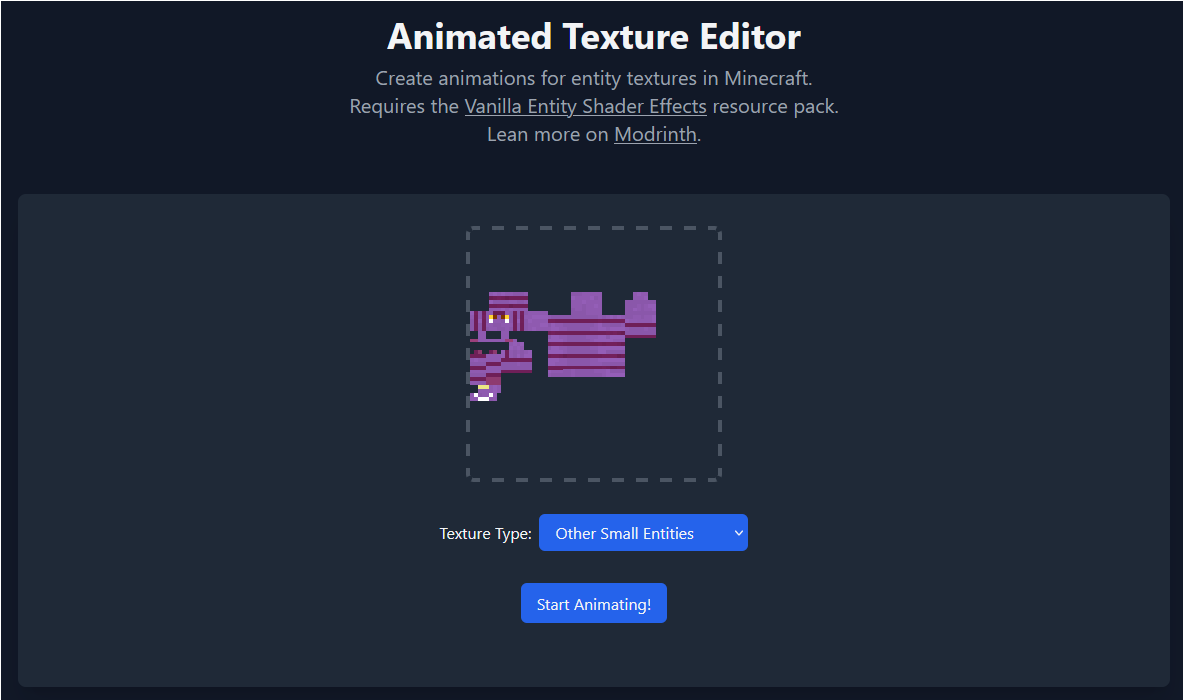
首先,上传希望向未启用 VESE 的用户显示的基准纹理。Webapp 将检测纹理尺寸并提供一系列纹理类型选项。如果特定实体不在可用选项中列出,请为给定的纹理尺寸选择“其他”选项:
 点击“开始动画制作”以打开编辑器。编辑器主要有三个区域——左侧的颜色调色板、右侧的程序调色板以及中间的主体纹理。
点击颜色调色板中的像素以编辑其颜色。这些颜色稍后可供程序调色板中的程序引用:
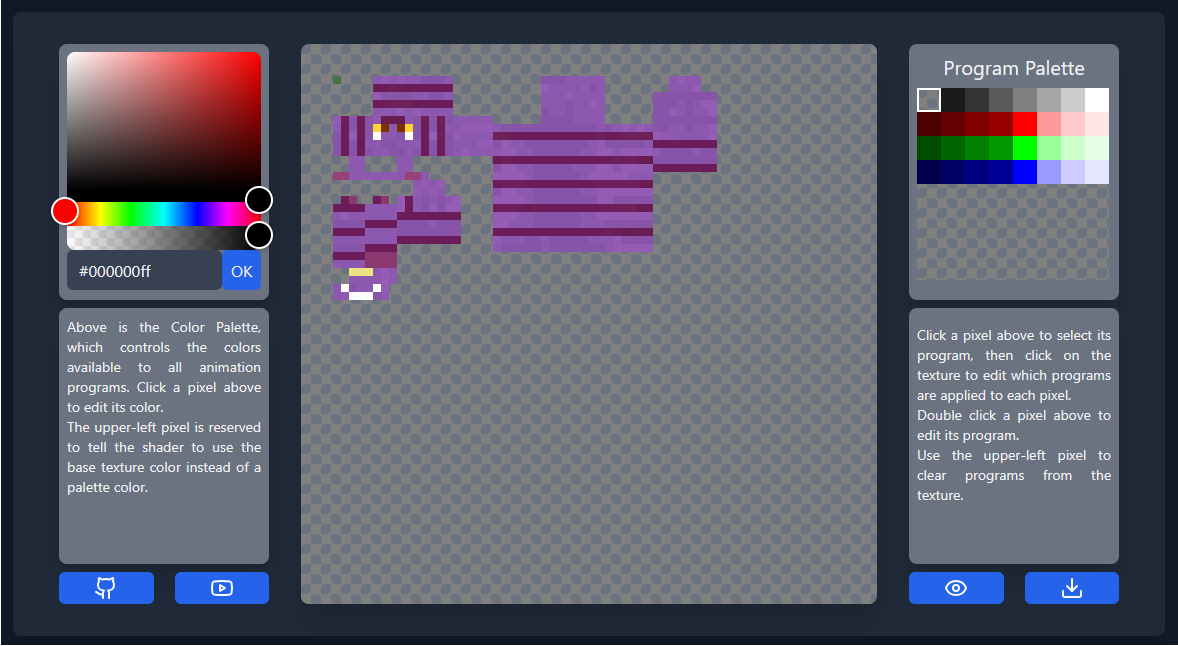
对于大多数实体,你可以使用 31 种颜色,而玩家皮肤可以使用 63 种。随着你编辑颜色,你应该会看到它们出现在纹理的一个未使用区域中。调色板左上角的像素不可编辑,它指示程序使用来自纹理的基础颜色。
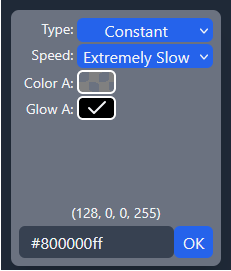
双击程序调色板中的像素以编辑其程序。这些程序随后可以应用于纹理上的任何像素。我们要创建的第一个程序用于发光的眼睛。通过选择“常量”作为程序类型并勾选标有“Glow A”的复选框,我们将创建一个仅使现有颜色发光的程序:
点击“确定”以完成程序设置,然后点击主纹理上的像素以应用该程序。使用程序调色板左上角的像素来清除纹理上的程序。
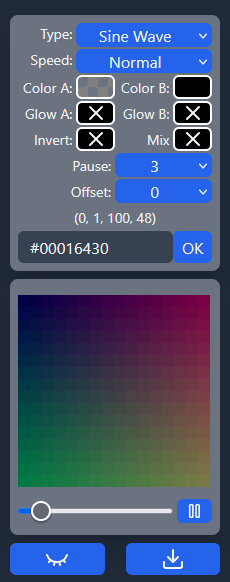
我们的第二个程序将周期性地在我们备用颜色和纯黑色之间渐变。双击第二行的第一个程序像素。对于这个程序,我们选择“正弦波”和“正常速度”,然后对于颜色 B,从颜色调色板中选择纯黑色。将暂停时间设置为“3”,偏移量保持为“0”。生成的颜色代码应为 '#00016430'。复制此值,然后点击“确定”。程序编辑器下方的预览应显示一组颜色与黑色相互渐变的网格。
编辑该行中的其余程序,每次递增偏移量。这将导致每个后续程序的渐变稍后开始。
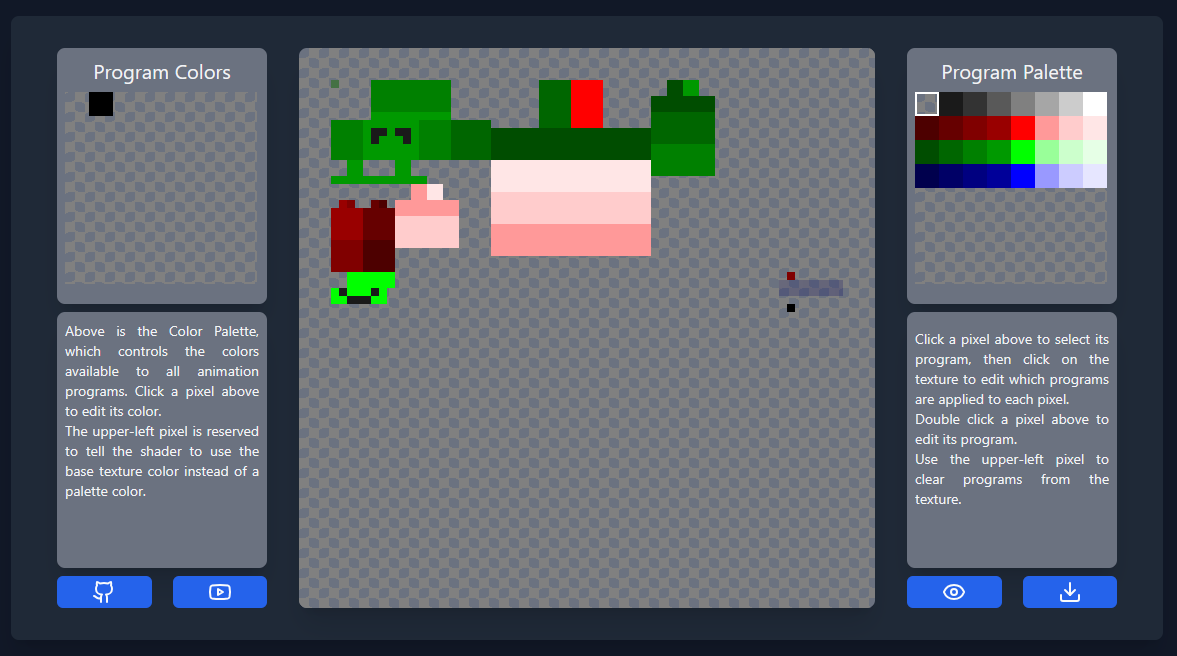
现在,从尾巴开始,将程序添加到像素中。由于猫的体型较长,我们将相同的程序应用到每 4 个像素上。最终结果应类似如下:
 如果需要,点击右下角的眼睛图标,可以在没有程序覆盖的情况下查看实际纹理的外观。使用右下角的下载按钮下载纹理。
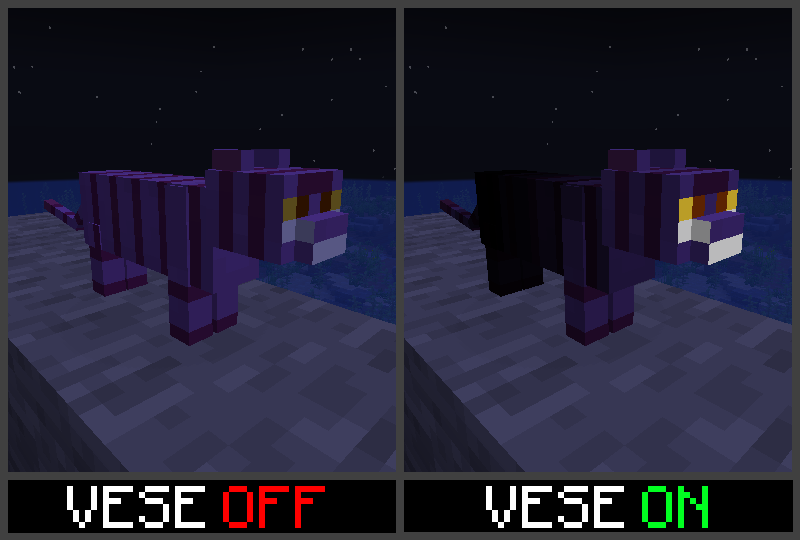
将新纹理加载到我们世界中,我们可以看到启用和禁用 VESE 时的效果:
Showcase
Overview
This resource pack allows entities to have animated shader effects baked into their texture. In many ways, it's a vanilla-friendly version of the Entity Texture Features mod.
This pack is designed to be used in conjunction with other resource packs that add textures with animated effects. Shader data is embedded into a texture file, and when the VESE shader reads that texture file, it will display the encoded effects. Because of the nature of the encoding, texture files can have a static fallback texture that can be displayed to the user if they opt not to turn on VESE.
For example, the textures below are for a resource pack that adds void cows. The resource pack that adds void cows to the game shows the texture on the left if the player does not have VESE enabled, while it shows the texture on the right if it is:
VESE also works with player skins! If you update your skin to use VESE effects, it will still render as a normal skin to other players without VESE enabled, but will show the effects to anyone who does have it enabled.
Texture Editor Webapp
Shader effects can be added to textues with the with the Texture Animator webapp. To show how it works, I'll be creating an animated Cheshire Cat texture with glowing eyes and a body that fades to black from tail to head.
To begin, upload the base texture that you want displayed to users that don't have VESE enabled. The webapp will detect the texture size and provide a list of options for texture types. If the specific entity isn't listed in the available options, selecte the 'other' option for the given texture size:
Click 'Start Animating' to open the editor. The editor has three main regions - the Color Palette on the left, the Program Palette on the right, and the main texture in the center.
Click a pixel in the Color Palette to edit its color. These colors can be referenced later on by programs in the Program Palette:
For most entities, you have access to 31 colors, though players have access to 63. As you edit the colors, you should see them appearing on the texture in an unused region. The upper left color in the palette is not editable, and tells the program to use the base color from the texture.
Double click a pixel in the Program Palette to edit its program. These programs can later be applied to any pixel in the texture. The first program we'll create is for the glowing eyes. By selecting 'constant' as the program type and checking the box that says "Glow A", we'll create a program that does nothing but make the existing color glow:
Click 'OK' to finalize the program, then click pixels on the main texture to apply the program. Use the upper left pixel in the program palette to clear programs from the texture.
Our second program will periodically fade between our fallback color and solid black. Double click the first program pixel on the second row. For this program, we'll select 'Sine Wave' and 'Normal Speed', then for color B select the solid black from our color palette. Set pause to '3' and leave offset at '0'. The resulting color code should be '#00016430'. Copy this value, then click 'OK'. The preview beneath the program editor should show a grid of colors fading to and from black.
Edit the rest of the programs in the row, incrementing the offset each time. This will cause the fade on the program to start slightly later for each subsequent program.
Now, starting with the tail, add the programs to the pixels. Because of the length of the cat, we'll apply the same program to every 4 pixels. The end result should look something like this:
If you want, click the eye in the lower right corner to get a view of what the actual texture will look like without the program overlay. Download the texture with the download button in the lower right corner.
Loading the new texture into our world, we can see what it looks like with and without VESE enabled:

下载 Vanilla Entity Shader Effects
下载 Vanilla Entity Shader Effects
下载 Vanilla Entity Shader Effects
下载 Vanilla Entity Shader Effects
需要联机服务器吗?
稳定流畅、一键部署,几分钟即可和朋友联机开服
最低仅需 8 元/月 即可畅快联机
下载 Vanilla Entity Shader Effects
下载 Vanilla Entity Shader Effects
下载 Vanilla Entity Shader Effects
下载 Vanilla Entity Shader Effects
下载 Vanilla Entity Shader Effects
下载 Vanilla Entity Shader Effects
需要联机服务器吗?
稳定流畅、一键部署,几分钟即可和朋友联机开服
最低仅需 8 元/月 即可畅快联机
暂无更新日志
关于这个资源的讨论、问题反馈与使用心得
还没有讨论,来发第一帖吧
你是这个资源的作者?登录后可认领此资源。
相似资源
 资源包

Golden Days 是一款 Minecraft 资源包,旨在重现早期版本(如 Beta)中的旧纹理、光照、名称和音效。需要启用内置的 Programmer Art 资源包。
 资源包

Doggy Talents 的 16x16 资源包
 资源包

带有独特纹理的功能性方块深色 GUI。80 个模组的深色模式
 资源包

这是 EMF Player Animation 资源包。它为玩家实体添加了精美的动画。兼容其他模组的动画,例如 Quark 的表情动作、Parcool 的技巧以及 Not Enough Animations。
 资源包

《基岩版》风格的极简 GUI 和 HUD
 资源包

让你的游戏画面就像宣传片一样!动态动画实体,为你的 Minecraft 体验增添新鲜感。
评论 0
登录后参与评分
还没有评论,来抢沙发吧