文字说明
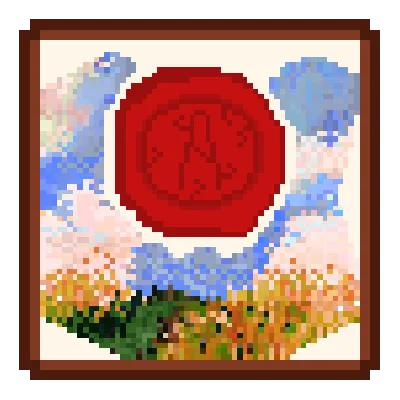
Artistry Live 为游戏添加了自定义画作,你可以和朋友一起创作。你可以使用颜色或方块进行绘制,并添加和美化图像。
该模组的设计理念是提供一种简单的方式来用你自己的画作装饰世界,而无需不必要的方块或复杂的操作。
该模组添加了两种物品:
- 海报 (Poster)
- 横幅 (Banner)
区别在于,横幅大小为 2x2,而海报大小为 1x1。
可以通过使用空白实例和包含内容的实例来复制海报或横幅;无论是从海报复制到横幅,还是反之,效果没有区别。
复制后,你将获得一个用于合成的实例的副本,而不是原来的空白实例。被复制的实例在过程中不会消失。
你可以在合成横幅时使用带有内容的海报,从而直接获得已包含该内容的横幅。
海报和横幅有三种状态:
- 空白
- 有内容
- 已签名
已签名的海报无法编辑或复制。
要悬挂海报或横幅,需要按住 Shift + 右键点击。
首次使用海报或横幅时,你需要选择画布大小。无论你是否手持该物品,或者它已经放置在世界中,都可以对其进行编辑。但画布大小只能选择一次。
提供两种调色板:方块和颜色。在颜色或方块的集合中,有一个较大的主色块,用于左键点击绘制;其左侧有一个较小的辅色块,用于右键点击绘制。在主色块下方是最近使用的三种颜色或方块的历史记录。你可以点击历史记录中的项目来选择该方块或颜色。点击辅色块或颜色会交换主色和辅色。在方块调色板中,右键点击可以选择辅色方块(它会以橙色边框显示),而左键点击调色板中的方块则会以白色边框显示,将其指定为主色。颜色调色板仅支持左键点击,但你稍后可以交换主色和辅色。
提供完整的颜色调色板,并支持输入 HEX 代码。
工具栏提供了画笔、橡皮擦、取色器、插入图像、调整工具大小以及给海报或横幅签名的按钮。
添加图像后,你可以点击它以进入图像编辑模式。在此模式下,你可以移动、调整大小或对图像应用像素化滤镜。要调整图像大小,请点击并按住其一个角并拖动;图像的最小尺寸为 3x3。点击“X”按钮删除图像,而点击第二个按钮(带有网格图标)则应用像素化滤镜,可以切换开启和关闭。要退出图像编辑模式,只需点击图像外部的任意位置即可。
左键点击工具大小按钮会增加 1,右键点击会减少 1,尺寸范围为 1 到 5。
对海报或横幅进行签名后,它将锁定以防止进一步编辑,并显示签名玩家的昵称。
图像可以移动、拼贴、堆叠、调整和像素化。像素化的程度取决于图像在画布上的大小以及画布本身的大小。也就是说,如果你制作一个小图像,它会更具像素化感。画布尺寸也是如此:较小的尺寸会产生更多的像素化效果。
你可以和朋友们在同一张海报或旗帜上一起绘画!你能看到其他玩家的鼠标光标以及他们正在创作的图像,但如果某位玩家正在编辑一张图片,其他人则无法干扰。你的 Ctrl+Z 和 Ctrl+Shift+Z 操作不会破坏共享画布的历史记录,也不会覆盖其他玩家的笔触。同时,未参与该海报或旗帜的其他玩家会实时看到变化,你所绘制的内容会立即出现在海报上。显示速度可根据你世界的优化情况在模组配置中进行调整。当多人同时在海报或旗帜上工作时,系统会切换至多人模式。此时会显示每位玩家的彩色光标——每种颜色唯一对应一位玩家——并用相同颜色高亮显示该玩家当前正在操作的图像轮廓。在多人模式下,当你编辑某张图片时,其他图片会以半透明形式呈现,这有助于你了解画布上有哪些图片及其当前的层级顺序(例如,若其他玩家添加新图片或选中已有图片,使其置于最前端)。当你正在绘图时,其他玩家正在操作的图片会变得更为透明,让你能清晰地看到自己在其下方所绘制的内容。
该模组提供了一个小型配置文件,主要侧重于性能优化。
batchIntervalMs — 绘画客户端向服务器发送像素更改的频率(毫秒) cursorIntervalMs — 光标位置发送给房间内其他玩家的频率(毫秒) worldSyncIntervalMs — 未打开画框时,画框为世界内观看它的玩家更新画面的频率(毫秒) imageBytesPerSecond — 每位玩家的图像上传速度限制
posterViewDistance — 画框和横幅保持渲染的距离,以方块为单位(仅客户端)重要提示!此设置可能会被 Sodium 模组的相关设置覆盖。
本模组兼容 Mod Menu、Catalogue 及其他类似模组,并提供一个设置界面。 在单人模式中,所有设置均可用。在服务器上,仅可访问客户端设置,服务端设置需直接在配置文件中定义。
该模组提供了三个命令,均为管理员专属: /artistry reload – 热重载配置设置。
/artistry images – 显示 Artistry Live 图片文件夹的存储大小。
/artistry benchmark posters/banners/mixed/clear <count> [<canvasSize>] [<images>] – 在玩家面前生成一个具有指定参数的大型墙壁,用于性能测试;按 F6 切换分析器以运行基准测试。(在使用独特内容且每个元素包含两张图片的情况下,两个 1024x1024 的墙壁搭配 32x32 的海报和横幅可维持 60 FPS)。此命令在生产版 JAR 文件中不可用;你必须直接从 GitHub 项目使用以下命令自行构建:gradlew buildBenchmark
Text description
Artistry Live adds custom paintings to the game that you can create with your friends. You can paint on them using colors or blocks, and add and stylize images.
The idea behind the mod is to provide a simple way to decorate the world with your own paintings, without unnecessary blocks or complications.
The mod adds two items:
- Poster
- Banner
The difference is that a banner is 2x2, while a poster is 1x1.
Posters or banners can be copied by using a blank instance and an instance containing content; it makes no difference whether you copy from a poster to a banner or vice versa.
After copying, instead of an empty instance, you receive a copy of the instance that was used in the crafting process. The instance you copied does not disappear in the process.
You can use a content poster while crafting the banner to obtain a banner that already features that content.
Posters and banners have three states:
- Empty
- With content
- Signed
Signed posters cannot be edited or copied.
To hang a poster or banner, you need to press Shift + Right-Click.
When you first use the poster or banner, you will need to select the canvas size. You can edit the poster or banner whether you are holding it or it is placed in the world. However, the canvas size is selected only once.
Two palettes are available: Blocks and Colors. In the set of colors or blocks, there is a large primary square for drawing with the left mouse button, and to its left, a small square for drawing with the right mouse button. Below the secondary color is a history of the last three colors or blocks used. You can click on an item in the history to select that block or color. Clicking on the secondary color or block swaps the primary and secondary ones. You can select the secondary block in the block palette by right-clicking (it will be outlined in orange), while left-clicking a block in the palette outlines it in white, designating it as the primary color. Only the left mouse button works for the color palette, but you can swap the primary and secondary colors later.
A full color palette is available, with the option to enter a HEX code.
The toolbar provides access to a brush, eraser, color picker, image insertion, tool size adjustment, and a button for signing the poster or banner.
After adding an image, you can click on it to enter image editing mode. In this mode, you can move, resize, or apply a pixelation filter to the image. To resize the image, click and hold one of its corners and drag; the minimum image size is 3x3. Clicking the "X" button deletes the image, while clicking the second button (with the grid icon) applies a pixelation filter, which can be toggled on and off. To exit image editing mode, simply click anywhere outside the image.
Left-clicking the tool size button increases the size by 1, while right-clicking decreases it by 1, sizes range from 1 to 5.
Signing a poster or banner locks it against any further editing and displays the nickname of the player who signed it.
Images can be moved, collaged, stacked, resized and pixelized. The level of pixelation depends on the size of the image on the canvas and the size of the canvas itself. That is, if you make a small image, it will be more pixelated. The same applies to canvas dimensions: smaller sizes produce more pixelation.
You can draw together with friends on the same poster or banner! You can see other players' cursors and the images they are working on, however, if one player is working on an image, others cannot interfere. Your Ctrl+Z and Ctrl+Shift+Z actions do not break the shared canvas history or overwrite other players' strokes. Meanwhile, other players outside the poster or banner see the changes in real-time, everything you draw appears on the poster immediately. The display speed can be adjusted in the mod's configuration based on your world's optimization. When multiple people are working on a poster or banner, the system switches to multiplayer mode. It displays player cursors - each with a unique color - and outlines the image a player is currently interacting with using that same color. In multiplayer mode, while working on an image, you will see the other images as semi-transparent, this helps you understand which images are on the canvas and their current z-order (for instance, if another player adds a new image or selects an existing one, thereby bringing it to the foreground). When you are drawing, images being manipulated by other players become even more transparent, allowing you to clearly see what you are drawing behind them.
The mod provides a small configuration file focused primarily on optimization.
batchIntervalMs — how often a painting client sends its pixel changes to the server (ms) cursorIntervalMs — how often cursor position is sent to others in the room (ms) worldSyncIntervalMs — how often the poster updates for players watching it in the world without opening it (ms) imageBytesPerSecond — per-player image upload speed limit
posterViewDistance — how far away posters and banners keep rendering, in blocks (client-side only) Important! This setting may be overridden by settings from Sodium mods
The mod works with Mod Menu, Catalogue, and other similar mods. A settings screen is provided. In single-player mode, all settings are available. On a server, only client-side settings are accessible, server-side settings are defined directly in the configuration file.
The mod provides three commands, all of which are admin-only: /artistry reload – hot-reloads the configuration settings. /artistry images – displays the storage size of the Artistry Live images folder. /artistry benchmark posters/banners/mixed/clear <count> [<canvasSize>] [<images>] – generates a massive wall in front of the player with the specified parameters for performance testing; F6 toggles the profiler to run benchmarks. (60 FPS is maintained with two 1024x1024 walls featuring 32x32 posters and banners—using unique content and two images per element). This command is not available in the production JAR file; you must build it yourself directly from the GitHub project using the command: gradlew buildBenchmark
下载 Artistry Live
需要联机服务器吗?
稳定流畅、一键部署,几分钟即可和朋友联机开服
最低仅需 8 元/月 即可畅快联机
下载 Artistry Live
需要联机服务器吗?
稳定流畅、一键部署,几分钟即可和朋友联机开服
最低仅需 8 元/月 即可畅快联机
下载 Artistry Live
需要联机服务器吗?
稳定流畅、一键部署,几分钟即可和朋友联机开服
最低仅需 8 元/月 即可畅快联机
下载 Artistry Live
下载 Artistry Live
需要联机服务器吗?
稳定流畅、一键部署,几分钟即可和朋友联机开服
最低仅需 8 元/月 即可畅快联机
下载 Artistry Live
需要联机服务器吗?
稳定流畅、一键部署,几分钟即可和朋友联机开服
最低仅需 8 元/月 即可畅快联机
下载 Artistry Live
需要联机服务器吗?
稳定流畅、一键部署,几分钟即可和朋友联机开服
最低仅需 8 元/月 即可畅快联机
下载 Artistry Live
下载 Artistry Live
下载 Artistry Live
需要联机服务器吗?
稳定流畅、一键部署,几分钟即可和朋友联机开服
最低仅需 8 元/月 即可畅快联机
Artistry Live 1.2.3 是一个小型的修复更新。现在选择一张位于另一张图片下方的图片时,它会立即在世界中的海报上重新排序,而不再需要重新打开才生效。即使服务器仍然将该图片计为属于你,你也可以在重新连接后再次选择它。在 Fabric 上,编辑图片的玩家断开连接后,该图片不再保持锁定状态。网络协议未作更改,因此 1.2.2 和 1.2.3 版本的客户端与服务器可以互操作。
关于这个资源的讨论、问题反馈与使用心得
还没有讨论,来发第一帖吧
你是这个资源的作者?登录后可认领此资源。
相似资源
 模组

可定制的鞘翅模组,支持装饰纹饰、旗帜图案等更多功能!
 模组

适用于 MC 1.18+ 的 Effekseer 加载器
 模组

新增 50+ 个独特生物群系,为你的世界增添新树木、花卉等更多元素!
 模组

基于 GTCEu 1.12.2 的现代 GregTech
 模组
让你能够在世界中的任何位置定位结构。
 模组

添加睡袋和吊床,分别用于便携性和昼夜转换,同时不会设置新的出生点。共有16种颜色可选!
评论 0
登录后参与评分
还没有评论,来抢沙发吧