
⚙️ 核心功能
- Axis 是一个全能的原版工具集,用于轻松便捷地实时编辑世界。

? ToLongDieReading - 如果你更喜欢实际的文本和截图
?️ 工具和命令
大量工具和命令可加快你的建造过程
ℹ️ 你将在游戏内维基中找到工具和命令的完整列表及其用途。
?工具
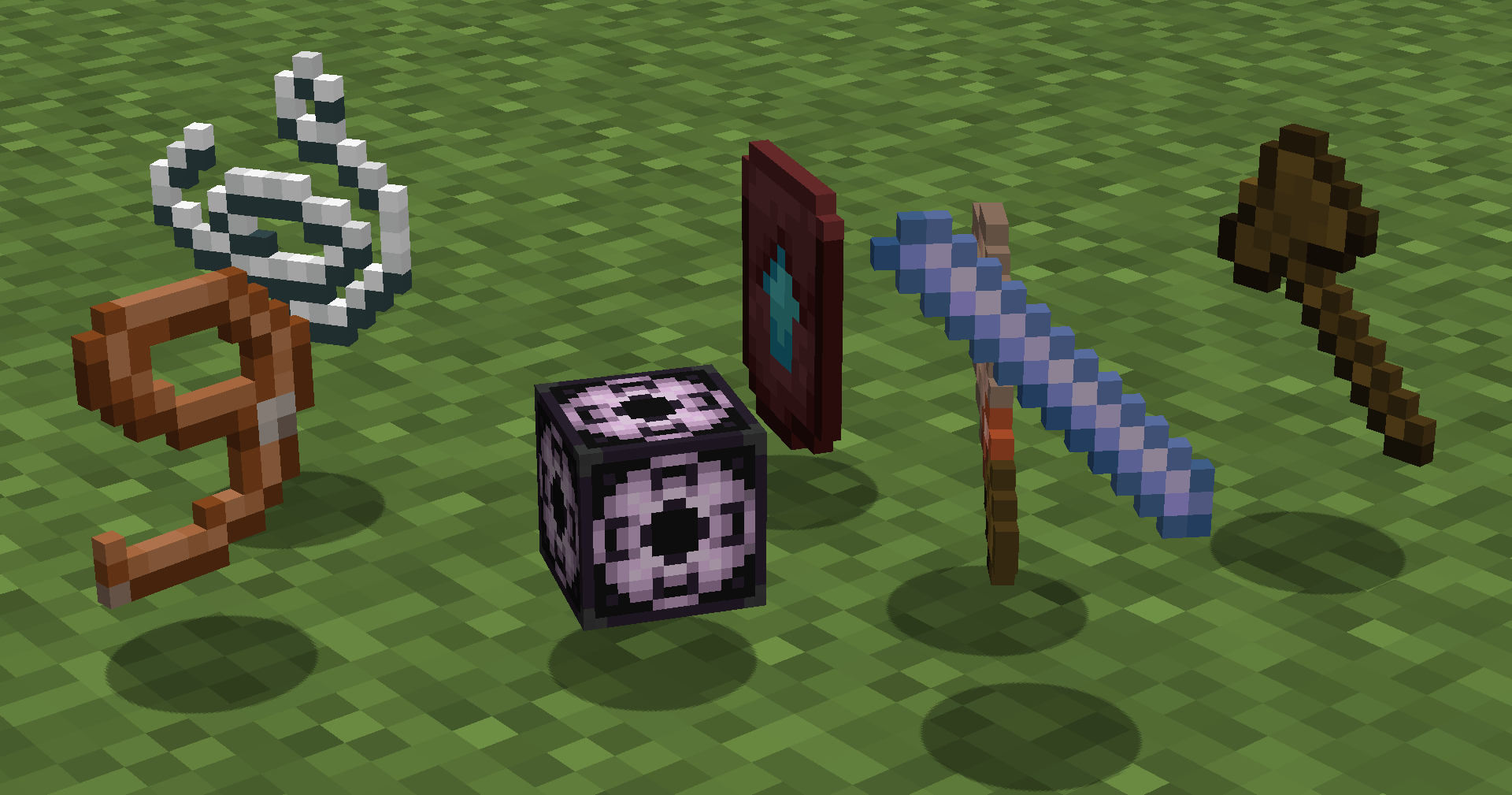
根据你的操作自动运行函数。每个工具有多种模式。投掷(默认:Q)切换模式,放入副手(默认:F)切换工具。
如何使用 (X) 工具?
查看物品提示框,或使用 /function we:help 打开详细文档。
| 工具 | 模式 | 描述 |
|---|---|---|
| 选择器 (斧) | 射线检测 空中 15 空中 10 空中 5 | 左键和右键点击设置区域的两个角点。 |
| 调整大小 | 1 10 双倍 套索 | 左键和右键点击沿你面对的方向调整区域大小。 |
| 绳索 | 射线检测 空中 30 空中 20 空中 10 | 通过点击鼠标左键和右键来测量距离。 |
| 粘贴笔刷 | 填充粘贴 (10/20/30/Ray) 替换粘贴 (10/20/30/Ray) | 右键点击将选定的区域粘贴(克隆)到任何其他位置。 |
| 方块笔刷 | 直径 1 直径 3 直径 5 直径 7 | 左键点击拾取方块,右键点击涂抹。 |
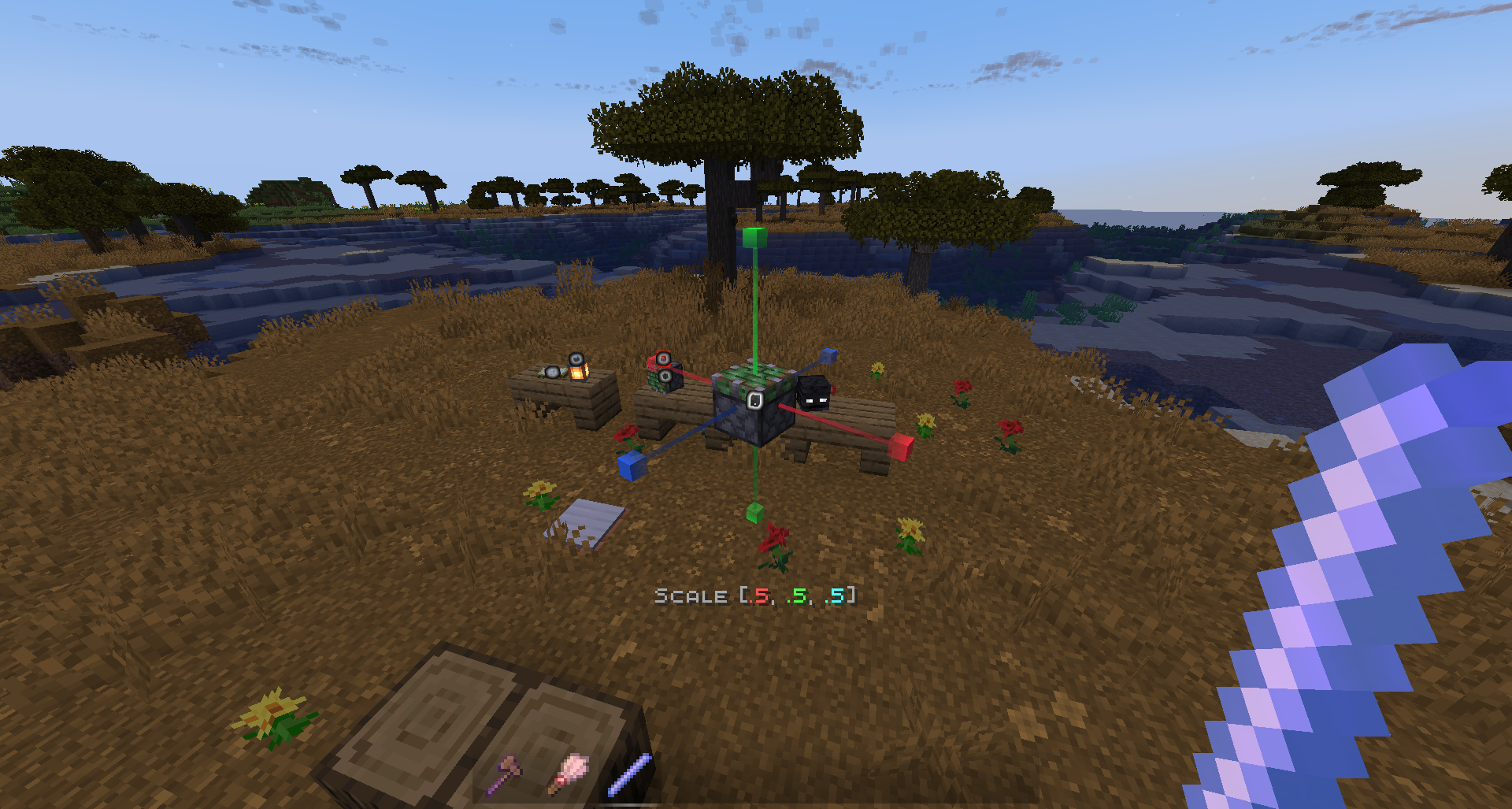
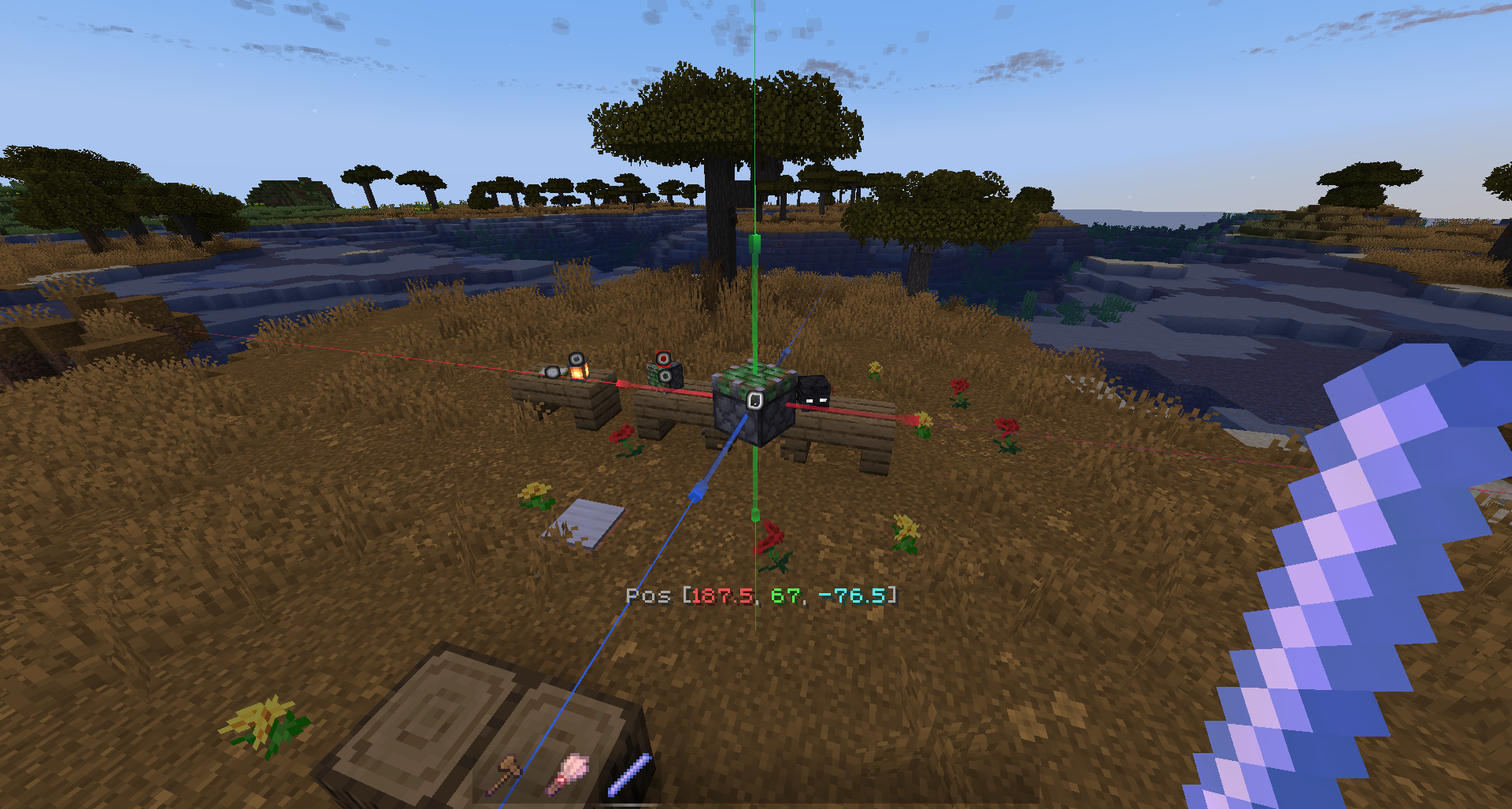
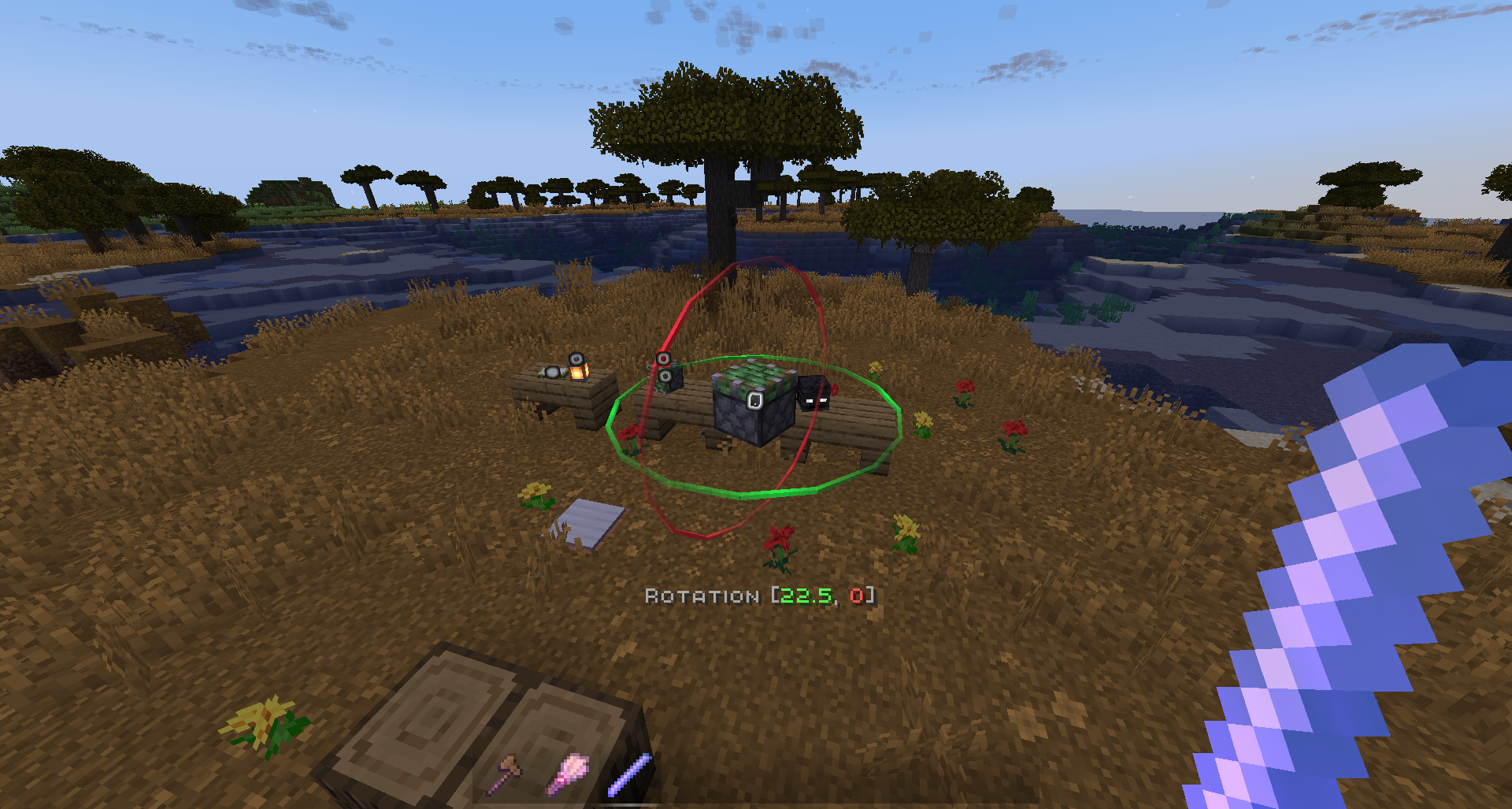
| 显示修改 | 缩放 - 0.5, 0.125, 0.015625 移动 - 0.5, 0.125, 0.015625 旋转 - 22.5, 5.625, 1.40625 |
? 命令
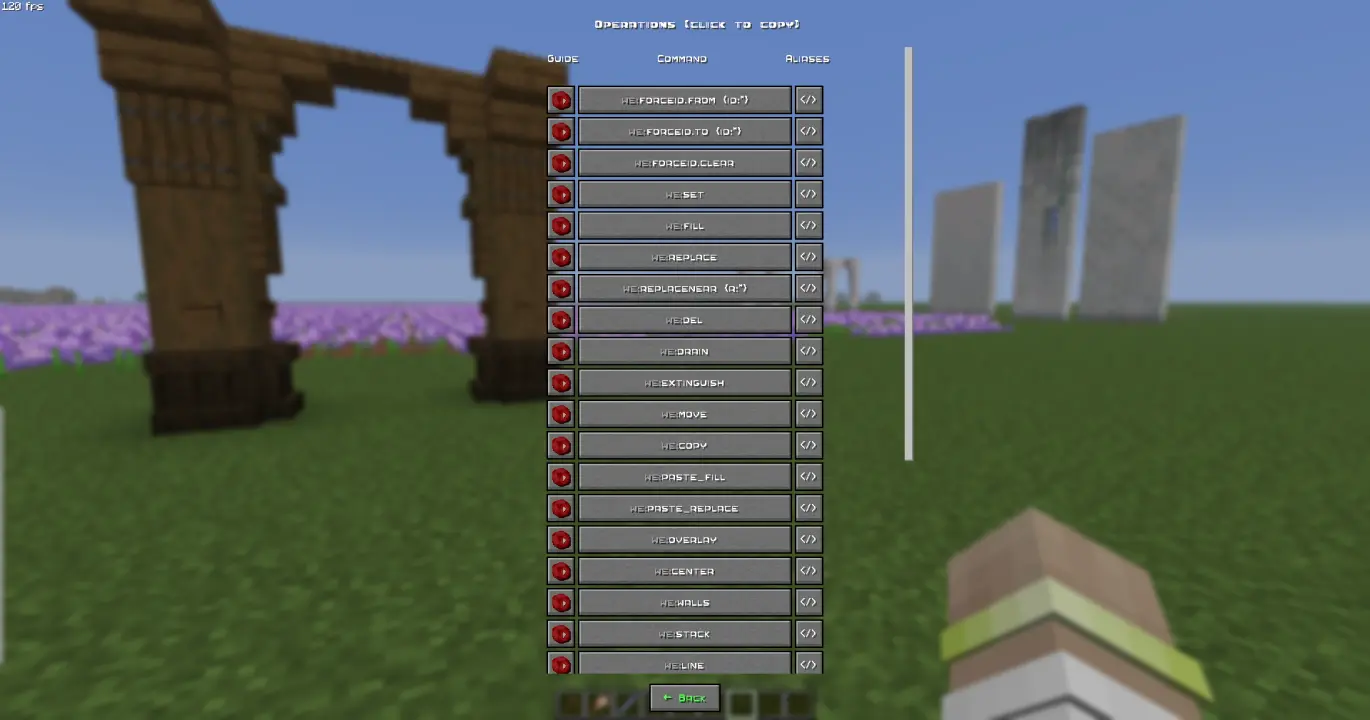
手动使用。输入 /function we:help 获取更多信息。
如何使用 (X) 命令?
所有用户命令均可在路径 /function we: 下找到。要查看每个命令的描述,请运行 /function we:help。你需要在使用该数据包的世界中拥有操作员权限。
基础
| 命令 | 别名 | 描述 |
|---|---|---|
| help | h | 打开帮助页面 |
| settings | config | 打开设置页面 |
| wand | w get | 给你一把用于选择区域的工具。你可以从创造模式的物品栏中取出木斧,它将变成法杖。 点击鼠标左键设置区域的第一个点,点击鼠标右键设置区域的第二个点。这两个点之间会形成一个区域。 阅读提示框以获取更多关于使用工具和模式的信息。 |
| uniwand | 打开包含所有工具的 UI 供你选择 | |
| flight | 打开飞行设置菜单 | |
| pin | 允许你将多达 10 个自定义命令固定在 Axis 聊天菜单上方,并通过鼠标点击使用它们。格式:/function we:pin {slot:2,cmd:'say Hello World!'} <-- "cmd" 不带斜杠 (/) | |
| uninstall | unins | 打开数据包卸载菜单 |
区域
| 命令 | 别名 | 描述 |
|---|---|---|
| 1 | 设置区域的第一个点。这两个点之间会形成一个区域 | |
| 2 | 设置区域的第二个点。这两个点之间会形成一个区域 | |
| expand | 沿你面对的方向将区域扩展 1 个方块。你也可以使用调整大小工具代替 | |
| contract | 沿你面对的方向将区域收缩 1 个方块。你也可以使用调整大小工具代替 | |
| clear | c | 清除所有选定的点和区域 |
操作
| 命令 | 别名 | 描述 |
|---|---|---|
| forceid.from {id:*} | From = 通常从左手获取的方块。允许在执行所有需要方块 ID 的命令时强制指定方块 ID,包括方块状态。 | |
| forceid.to {id:*} | To = 通常从右手获取的方块。允许在执行所有需要方块 ID 的命令时强制指定方块 ID,包括方块状态。 | |
| forceid.clear | Clear = 从两个存储中移除强制 ID。允许在执行所有需要方块 ID 的命令时强制指定方块 ID,包括方块状态。 | |
| set | 将区域内的所有方块替换为你主手持有的方块。如果指定槽位中没有方块,则视为空气。 | |
| fill | 用你主手持有的方块填充区域内所有的空气方块。如果指定槽位中没有方块,则视为空气。 | |
| replace | 将区域内所有由你副手持有的方块替换为你主手持有的方块。如果指定槽位中没有方块,则视为空气。 | |
| replacenear | 以玩家为中心,在半径 ({r:1} 或 {r:5} 等) 范围内,将所有由你副手持有的方块替换为你主手持有的方块。如果指定槽位中没有方块,则视为空气。 | |
| delete | del | 删除区域内的所有内容 |
| drain | 移除选定区域中的液体 | |
| extinguish | 移除选定区域中的火焰 | |
| move | 将你面向的方向上的区域移动 1 个方块 | |
| copy | 将选定区域保存到缓冲区。与 paste 配合使用。复制/粘贴缓冲区不同于 clonebrush,因为它可以在维度之间进行。构建结果与你使用 copy 时完全一致。另一方面,clonebrush 是实时从位置 1 克隆到位置 2。 |
|
| paste.fill | 将缓冲区中保存的区域粘贴到玩家位置,并与现有的方块/地形融合。需与 'copy' 配合使用 | |
| paste.replace | 将缓冲区中保存的区域粘贴到玩家位置,并删除路径上的所有方块/地形。需与 'copy' 配合使用 | |
| overlay | 用你主手持有的方块覆盖选择中的所有方块 | |
| center | 找到区域的中心,并在该处放置 1 到 8 个你主手持有的方块。如果指定槽位中没有方块,则视为玻璃。如果区域中心已有实心方块,则仅显示粒子效果。 | |
| walls | 将区域内的所有轮廓方块替换为你主手持有的方块。如果指定槽位中没有方块,则视为空气。 | |
| stack | 沿你面向的方向堆叠区域 | |
| line | 从点 1 到点 2 建造一条由你主手持有的方块组成的线。如果指定槽位中没有方块,则视为玻璃。 | |
| rotate | 按指定的度数旋转区域。会影响实体。 | |
| freerotate | 无尺寸或角度限制地旋转区域(支持对角线旋转)。不影响实体。 | |
| flip | 沿视角方向镜像所选区域。会影响实体。 | |
| cut | 将区域复制到剪贴板并将其切除 | |
| circle | 绘制一个指定半径 ({r:1} 或 {r:5} 等) 的圆形 | |
| hcircle | 类似于 we:circle,但绘制的是空心圆而非实心圆。 |
|
| triggerupdates | upd | 触发选中区域内所有方块的更新 |
| setnoise.perlin | 用柏林噪声替换所选区域。噪声可以由两种方块组成:你左手持有的方块和你右手持有的方块。如果其中一只手为空,则该方块视为空气。 | |
| setbiome | 为选定区域设置指定的生物群系。 | |
| fillbiome | 用指定的生物群系填充选定区域。 | |
| regenerate | regen | 根据世界种子,将选择框内的所有内容恢复到其原始状态。 |
历史
| 命令 | 别名 | 描述 |
|---|---|---|
| undo | 取消上一步操作 | |
| redo | 重做上一步操作(在 Undo 之后使用) | |
| clearhistory | 删除所有之前保存的操作并清除历史记录缓冲区。建议在建造过程中创建“检查点”时清除历史记录,以免意外撤销/重做你不想要的旧操作。 |
画笔
| 命令 | 别名 | 描述 |
|---|---|---|
| b/wand | b/w b/get | 给你画笔工具。你可以从创造模式物品栏中取出普通画笔,它会变成画笔工具。左键点击选择方块,右键点击涂抹。阅读工具提示以获取更多关于使用工具和模式的信息。 |
显示
ℹ 使用快速菜单来修改显示比手动输入这些命令要方便得多。要打开菜单,请手持显示修改工具(/function we:d/w)并选择所需的显示。
| 命令 | 别名 | 描述 |
|---|---|---|
| d/wand | d/w | 给予一个显示修改工具 |
| d/create_block_display | 从你主手持有的物品创建一个方块显示实体。如果所选物品没有方块状态,将召唤空显示(大小为 0,0 且无视觉效果的现有实体) | |
| d/create_item_display | 从你主手持有的物品创建一个物品显示实体。如果所选物品没有物品状态,将召唤空显示(大小为 0,0 且无视觉效果的现有实体) | |
| d/duplicate | 创建选中显示实体的完全副本 | |
| d/billboard/center | 显示将在两个轴向上自动面向玩家旋转 | |
| d/billboard/fixed | 显示不会自动面向玩家旋转 | |
| d/billboard/horizontal | 显示将在 X 和 Z 轴向上自动面向玩家旋转 | |
| d/billboard/vertical | 显示将在 Y 轴向上自动面向玩家旋转 | |
| d/brightness/block | 设置显示的方块亮度(光照等级)覆盖 | |
| d/brightness/sky | 设置显示的天空亮度(光照等级)覆盖 | |
| d/culling/height | 设置显示碰撞箱的高度。设置裁剪碰撞箱允许在实体位于屏幕边界外时不渲染该显示实体。用于优化目的 | |
| we:d/culling/width | 设置显示碰撞箱的宽度。设置裁剪碰撞箱允许在实体位于屏幕边界外时不渲染该显示实体。用于优化目的 | |
| we:d/culling/range | 设置相对于玩家实体渲染距离的最大距离(默认值=1),在此距离内将渲染该实体。(不是以方块为单位!如果玩家的实体渲染距离 = 8 个区块 -> 值 1 = 8 个区块,值 0.5 = 4 个区块,以此类推) | |
| d/glow_color | 更改发光效果轮廓的颜色。十进制格式 | |
| d/interpolation_ticks | 设置在游戏刻中从 state1 插值到 state2 所需的刻数(状态 = 缩放、旋转等)(1 秒 = 20 游戏刻) | |
| d/teleportation_ticks | 设置在游戏刻中从 pos1 插值到 pos2 所需的刻数(位置 = xyz 坐标)(1 秒 = 20 游戏刻) | |
| d/reset_brightness | 重置方块和天空亮度覆盖 | |
| d/reset_culling | 重置裁剪宽度、高度和视距 | |
| d/reset_glow | 重置发光颜色并移除发光轮廓 | |
| d/reset_interpolations | 重置插值和传送持续时间 | |
| d/reset_position | 重置位置 / 将实体吸附到方块网格 | |
| d/reset_rotation | 重置旋转。(仅重置实体格式的旋转,而非四元数格式的旋转) | |
| d/reset_scale | 重置缩放 | |
| d/remove | delete | 删除选中的显示实体 |
? 智能强制加载
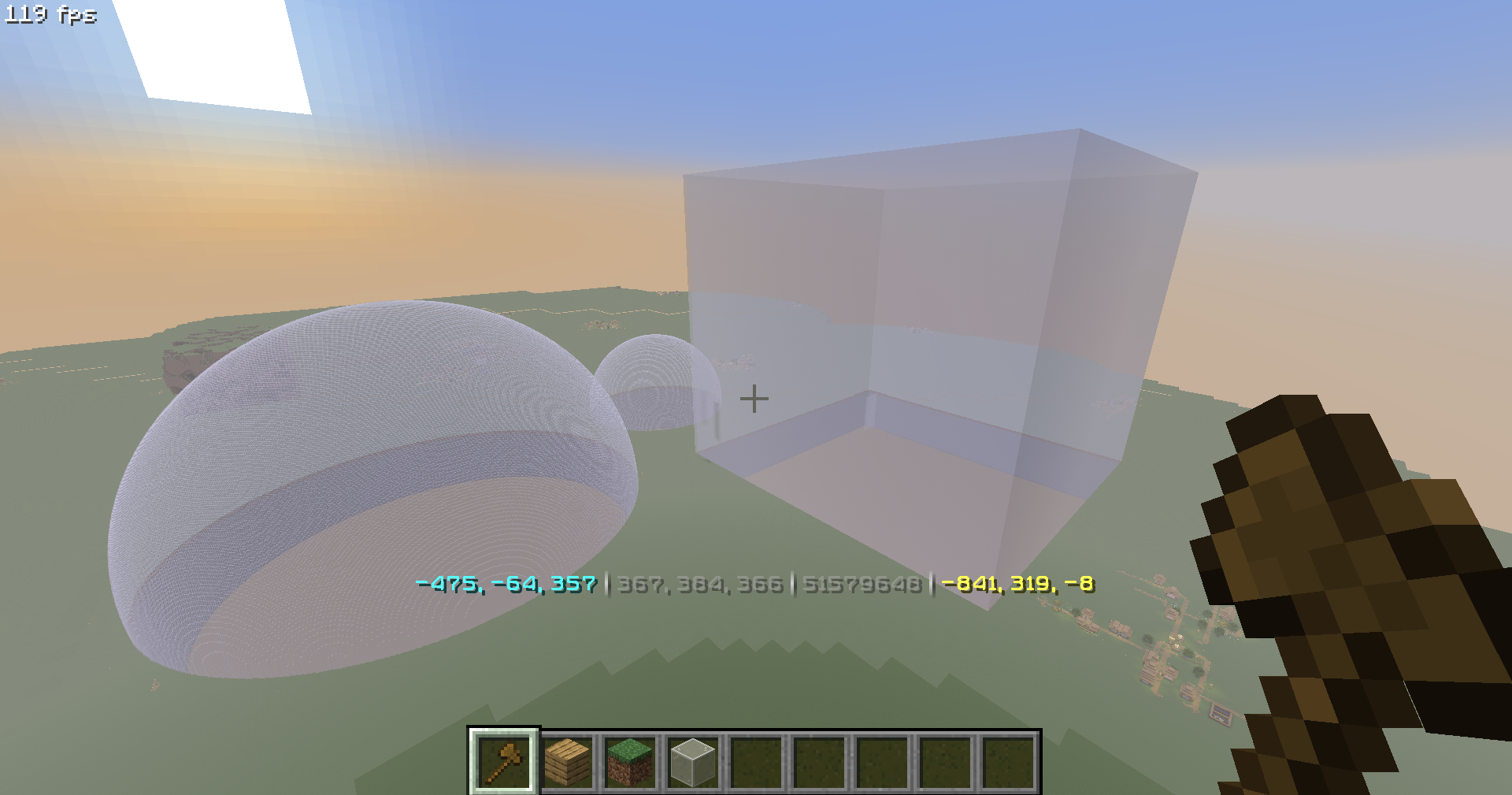
智能强制加载 - 即使在未加载的区块中也能安全地编辑数百万个方块。
成功替换超过 5000 万个方块(一次性完成)
? 撤销 / 重做
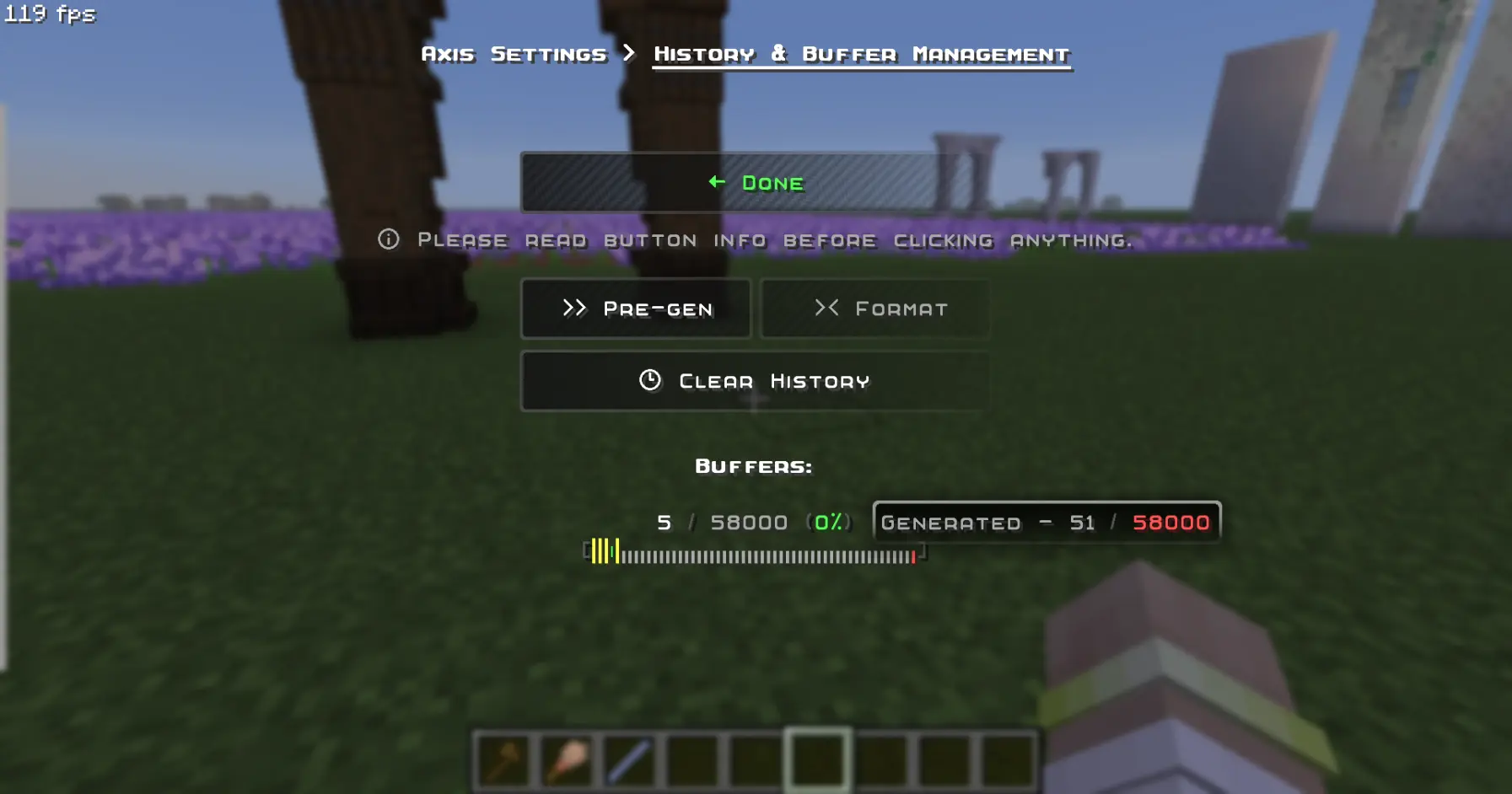
撤销 / 重做 - 你可以最多撤销 58,000 个操作。(连续执行)
? 自定义与模组支持
每个命令都支持自定义与模组化的方块、生物群系和维度。
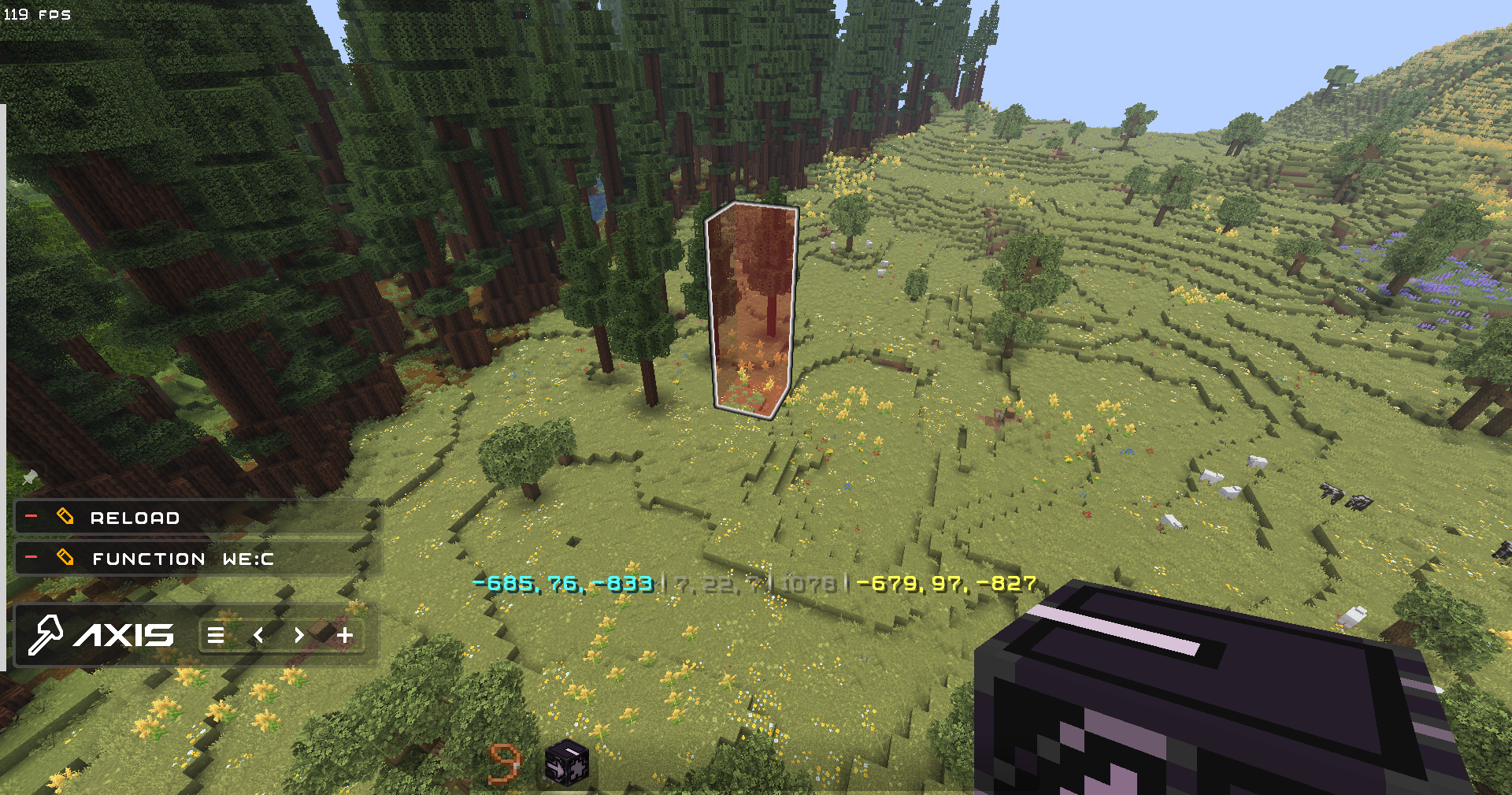
使用 PasteBrush 工具粘贴来自 Biomes O Plenty 模组的树木(由模组方块组成):
✨ 便利性 (QOL)
- 设置:可以禁用你不喜欢的所有功能,以及包含数据包中每个功能和命令描述的帮助菜单
- 幽灵飞行和加速飞行创造模式能力
- 聊天固定命令:一键将命令固定到聊天栏以便后续使用!
- 快速输入:通过聊天菜单进行快速输入 - 无需每次都要写 "/function:we" - 只需点击 1 个按钮!
- 多快捷栏:快速切换 9 个独立的快捷栏
- 热重载:按下快捷键组合即可立即执行
/reload:对数据包制作者和地图制作者非常有用
? 视觉效果与声音
- 色彩主题 - 使用预设或 HEX 代码颜色自定义界面外观
- 使用文本显示对标记(实体)进行高亮显示
- 动作拥有悦耳的音效和视觉预览
? 本地化
请勿在构建时并行使用 Google!
- English (en_us) - GamerGoBC (非母语)
- Deutsch (de_de) - Corrwinn (母语)
- Русский (ru_ru) - GamerGoBC (母语)
- Українська (uk_ua) - GamerGoBC (机器辅助)
- Español Uruguay (es_uy) - GamerGoBC (机器辅助)
- Español España (es_es) - GamerGoBC (机器辅助)
- Português Brasil (pt_br) - GamerGoBC (机器辅助)
- Português Portugal (pt_pt) - GamerGoBC (机器辅助)
- 简体中文 (zh_cn) - GamerGoBC (机器辅助)
- 更多语言即将推出... 如果您想提供帮助,请加入 Discord 服务器。
? 指南
? 安装
视频教程
逐步教程
1. 查看屏幕右上角并点击“Download”(下载)。
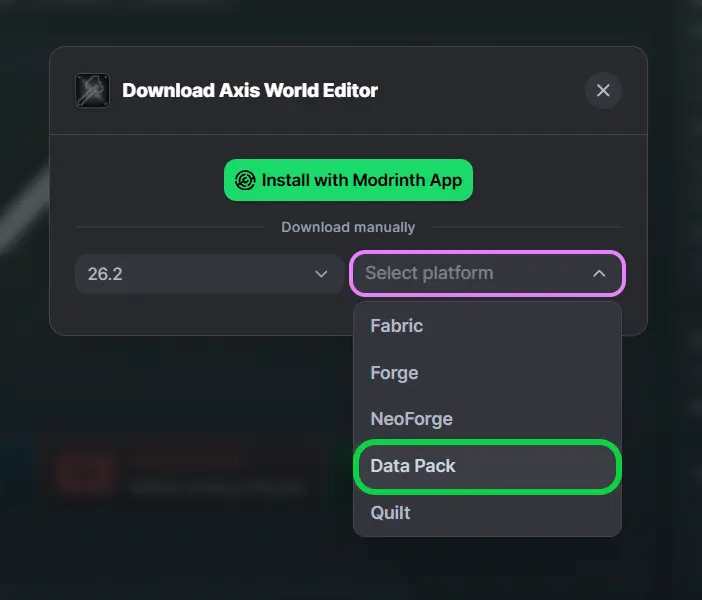
2. 选择您的游戏版本和平台“Datapack”(数据包)。
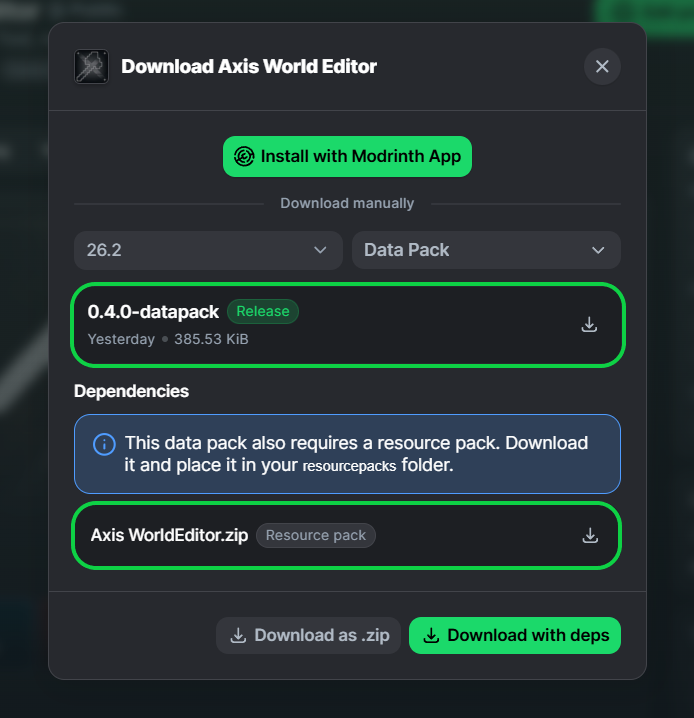
3. 您将看到两个可供下载的文件:Datapack(数据包)和 Resourcepack(资源包)——请下载它们。
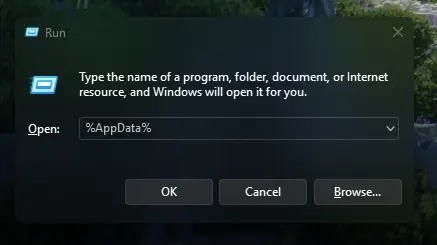
4. 按 [Win] + [R],在搜索框中输入 %AppData% 然后点击 [OK](确定)。
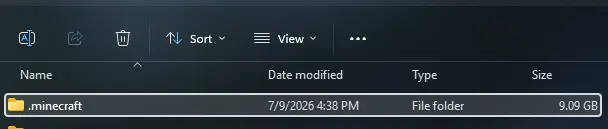
5. 找到 .minecraft 文件夹并打开它。
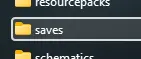
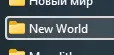
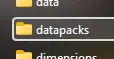
6. 将 Datapack(数据包)放入 saves\YourWorld\datapacks(存档\你的世界\data packs)。
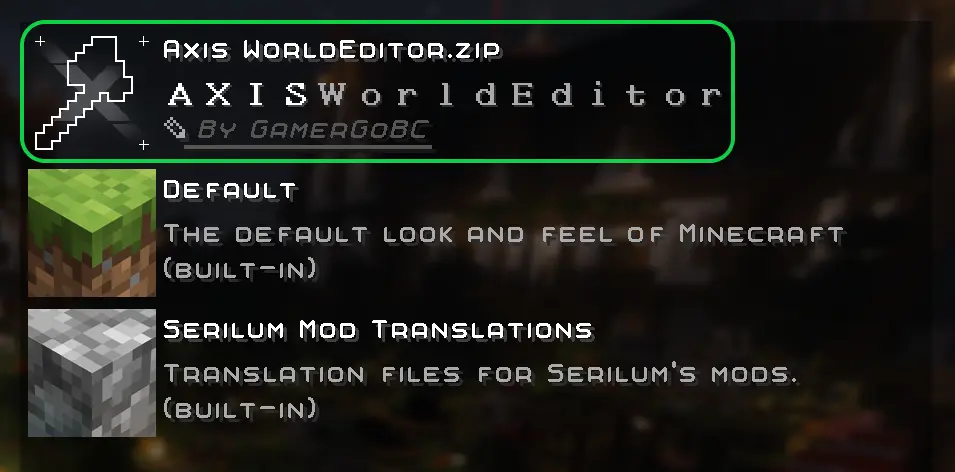
7. 将 Resourcepack(资源包)放入 resourcepacks 并在游戏中选择它:(ESC > 设置 > 资源包)。

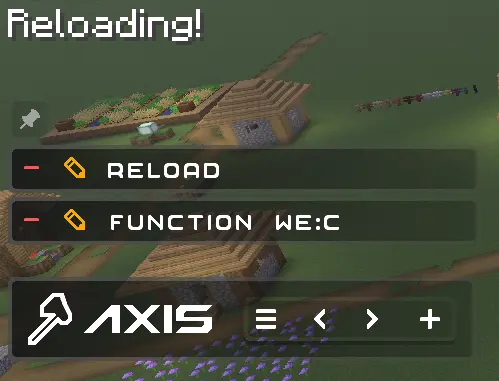
8. 重新加入你的世界或在聊天中输入 /reload。

⚙️ Core Features
- Axis - is all-in-one vanilla toolset for easy and convenient real-time world editing.
? ToLongDieReading - If you prefer Actual text & screenshots
?️ Tools and Commands
Tons of Tools and Commands for speeding up your building process
ℹ️ You will find a complete list of tools and commands, as well as their purposes, in the in-game wiki.
?Tools
Automatically run functions based on your actions. Each tool has several modes. Throw (default:Q) to change mode, put in offhand (default:F) to change tool.
How to use (X) tool?
Look at the item tooltip, or open the detailed documentation using /function we:help.
| Tool | Modes | Description |
|---|---|---|
| Selector (Axe) | Raycast Mid air 15 Mid air 10 Mid air 5 | Left and Right-mouse clicks to set both region corners. |
| Resize | 1 10 Double Lasso | Left and Right-mouse clicks to resize region in the direction you are facing. |
| String | Raycast Mid air 30 Mid air 20 Mid air 10 | Use it to measure distance by clicking LMB and RMB. |
| Paste brush | Fill-paste (10/20/30/Ray) Replace-paste (10/20/30/Ray) | Right-mouse click to paste (clone) selected region to any other place. |
| Block brush | Diameter 1 Diameter 3 Diameter 5 Diameter 7 | Left-mouse click to pick block, Right-mouse click to paint. |
| Display Modification | Scale - 0.5, 0.125, 0.015625 Move - 0.5, 0.125, 0.015625 Rotate - 22.5, 5.625, 1.40625 |
? Commands
Manual use. /function we:help for more info.
How to use (X) command?
All the user commands are available on the path /function we:. To view each command description, run /function we:help. You need OPerator rights in the world where you want to use the datapack.
Basic
| Command | Aliases | Description |
|---|---|---|
| help | h | Opens help page |
| settings | config | Opens settings page |
| wand | w get | Gives you tool for selecting regions. You can take wooden axe from your creative inventory and it will become wand. Click left mouse button to set the first point of the region, Click right mouse button to set the second point of the region. Both points create a region between them. Read tooltips for more info about using tools and modes. |
| uniwand | Opens UI with all the tools for you to choose | |
| flight | Opens the flight settings menu | |
| pin | Allows you to pin up to 10 custom commands above the Axis chat menu, and use them with a mouse click. Format: /function we:pin {slot:2,cmd:'say Hello World!'} <-- "cmd" without backslash (/) | |
| uninstall | unins | Opens the datapack uninstall menu |
Regions
| Command | Aliases | Description |
|---|---|---|
| 1 | Set the first point of the region. Both points create a region between them | |
| 2 | Set the second point of the region. Both points create a region between them | |
| expand | Expands the region by 1 block in the direction you are facing. You can use resize tool unstead | |
| contract | Expands the region by 1 block in the direction you are facing. You can use resize tool unstead | |
| clear | c | Clears all selected points and regions |
Operations
| Command | Aliases | Description |
|---|---|---|
| forceid.from {id:*} | From = the block that is normally taken from the left hand. Allows you to force the block ID, including the blockstate, when executing all commands that require a block ID. | |
| forceid.to {id:*} | To = the block that is normally taken from the right hand. Allows you to force the block ID, including the blockstate, when executing all commands that require a block ID. | |
| forceid.clear | Clear = removes the Force ID from both storages. Allows you to force the block ID, including the blockstate, when executing all commands that require a block ID. | |
| set | Replaces all blocks in the region with the one you are holding in main hand. If you have no blocks in specified slot, it will be considered as air | |
| fill | Fills all air blocks in the region with the one you are holding in main hand. If you have no blocks in specified slot, it will be considered as air | |
| replace | Replaces all blocks in the region from the one you are holding in off hand with the one you are holding in main hand. if you have no blocks in specified slot, it will be considered as air | |
| replacenear | Replaces all blocks in radius ({r:1} or {r:5}, etc.) around player from the one you are holding in off hand with the one you are holding in main hand. if you have no blocks in specified slot, it will be considered as air | |
| delete | del | Deletes everything in the region |
| drain | Removes liquids from the selected region | |
| extinguish | Removes fire from the selected region | |
| move | Moves the region by 1 block in the direction you are facing | |
| copy | Saves selected area to the buffer. Use together with paste. Copying/Pasting buffer differs from clonebrush, as you can do it between dimensions. The build pastes exactly like it was when you used copy. On the other side, clonebrush clones it from place 1 to place 2 in real time |
|
| paste.fill | Pastes saved area from buffer to the player and blends it with blocks/terrain. Use together with 'copy' | |
| paste.replace | Pastes saved area from buffer to the player and deletes all the blocks/terrain on the way. Use together with 'copy' | |
| overlay | Overlays all blocks in your selection with one you are holding in main hand | |
| center | Finds a center of your region and places 1 to 8 blocks of you are holding in main hand. If you have no blocks in specified slot, it will be considered as glass. If there are already solid blocks in the cetnter of the region, only particles will be displayed | |
| walls | Replaces all outline blocks in the region with the one you are holding in main hand. If you have no blocks in specified slot, it will be considered as air | |
| stack | Stacks the region in the direction you are facing | |
| line | Builds a line of block you are holding in main hand from point 1 to point 2. If you have no blocks in specified slot, it will be considered as glass | |
| rotate | Rotates the region by the specified number of degrees. Affects entities | |
| freerotate | Rotates the region without size or angle restrictions (diagonal rotation is possible). Does not affect entities. | |
| flip | Mirrors the selected area in the direction of view. Affects entities | |
| cut | Copies a region to the clipboard and cuts it out | |
| circle | Draws a circle with the specified radius ({r:1} or {r:5}, etc.) | |
| hcircle | Similar to we:circle, but draws a hollow circle instead of a filled one. |
|
| triggerupdates | upd | Triggers updates of all blocks in the selected region |
| setnoise.perlin | Replaces the selected area with Perlin noise. The noise can consist of two blocks: the one you hold in your left and one you hold in your right hand. If one of your hands is empty, the block will be considered as air. | |
| setbiome | Sets the specified biome to the selected region. | |
| fillbiome | Fills the selected region with the specified biome. | |
| regenerate | regen | Reverts everything within the selection box to its original state based on the world seed. |
History
| Command | Aliases | Description |
|---|---|---|
| undo | Cancels previous action | |
| redo | Redoes previous action (use after Undo) | |
| clearhistory | Deletes all previously saved actions and clears history buffers. Clearing history is recommended when you want to make a 'checkpoint' during building, so you don't accidently undo/redo old actions you don't want to |
Brushes
| Command | Aliases | Description |
|---|---|---|
| b/wand | b/w b/get | Gives you brush tool. You can take regular brush from your creative inventory and it will become brush tool. Left-click to choose block, Right-click to paint. Read tooltips for more info about using tools and modes. |
Displays
ℹ This is much more convenient to use the quick menu to modify displays than to write these commands manually. To open the menu, take the display modification tool (/function we:d/w) and select the desired display.
| Command | Aliases | Description |
|---|---|---|
| d/wand | d/w | Gives a display modification tool |
| d/create_block_display | Creates a block display entity from the item in your main hand. If the chosen item doesnt have a block state, null display (existing entity with size 0,0 and no visuals) will be summoned | |
| d/create_item_display | Creates an item display entity from the item in your main hand. If the chosen item doesnt have an item state, null display (existing entity with size 0,0 and no visuals) will be summoned | |
| d/duplicate | Creates the exact copy of the selected display entity | |
| d/billboard/center | Display will automatically rotate towards the player on both axes | |
| d/billboard/fixed | Display will NOT automatically rotate towards the player | |
| d/billboard/horizontal | Display will automatically rotate towards the player on X and Z axes | |
| d/billboard/vertical | Display will automatically rotate towards the player on Y axis | |
| d/brightness/block | Sets block brightness (light level) override for display | |
| d/brightness/sky | Sets sky brightness (light level) override for display | |
| d/culling/height | Sets display hitbox height. Setting the culling hitbox allows not to render the display entity if it is outside the border of the screen. For optimization purposes | |
| we:d/culling/width | Sets display hitbox width. Setting the culling hitbox allows not to render the display entity if it is outside the border of the screen. For optimization purposes | |
| we:d/culling/range | Sets the maximum distance from player in proportion to player's entity rendering distance (default=1) at which the entity will be rendered. (Not in blocks! If the player's entity rendering distance = 8 chunks -> the value 1 = 8 chunks, the value 0.5 = 4 chunks, etc.) | |
| d/glow_color | Changes the color of the glow effect outline. Decimial format | |
| d/interpolation_ticks | Sets the amount of ticks needed to interpolate from state1 to state2 in game ticks (State = scale, rotation, etc.) (1 second = 20 game ticks) | |
| d/teleportation_ticks | Sets the amount of ticks needed to interpolate from pos1 to pos2 in game ticks (Pos = xyz position) (1 second = 20 game ticks) | |
| d/reset_brightness | Resets block and sky brightness overrides | |
| d/reset_culling | Resets culling width, height, and view range | |
| d/reset_glow | Resets glow color and removes the glow outline | |
| d/reset_interpolations | Resets interpolation and teleportation duration | |
| d/reset_position | Resets position / snaps entity to the block grid | |
| d/reset_rotation | Resets rotation. (resets only the entity format rotation, not the quaderion format rotation) | |
| d/reset_scale | Resets scale | |
| d/remove | delete | Deletes the selected display entity |
? Smart Forceloading
Smart Forceloading - edit millions of blocks even in unloaded chunks safely.
50+ Million blocks successfully replaced (in one go)
? Undo / Redo
Undo / Redo - so you could revert up to 58.000 actions. (in a row)
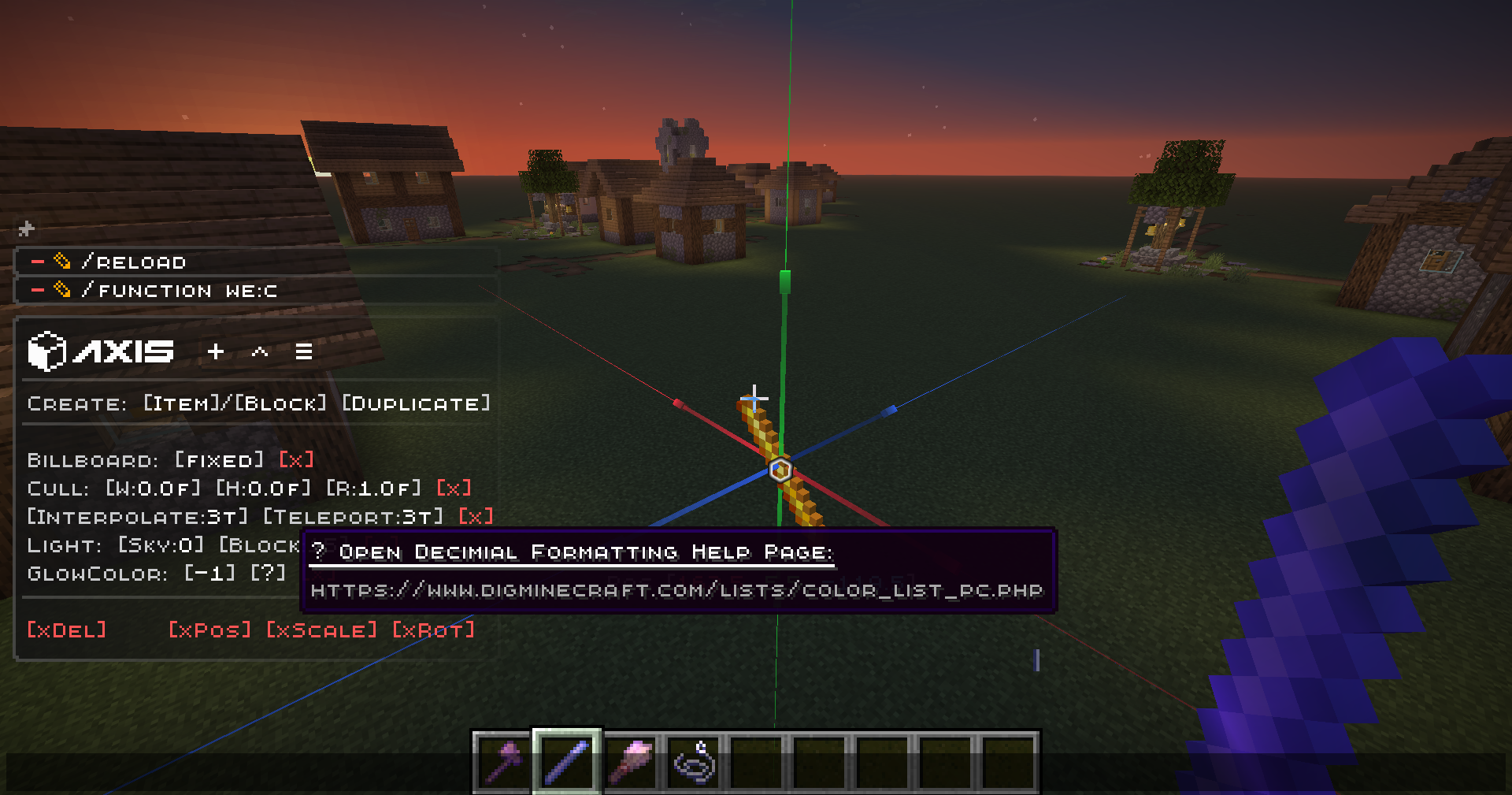
? Display-Entity Modification
Display-Entity Modification - Create and edit models directly in-game.
? Custom & Modded Support
Every command Supports Custom & Modded blocks, biomes, and dimensions.
Pasting trees from Biomes O Plenty mod, consisting of modded blocks, using the PasteBrush tool:
✨ QOL
- Settings to disable all the features you don't like, and Help Menu containing descriptions for every feature and command in the datapack
- Ghost-Flight and Boost-Flight creative abilities
- Pinning Commands to the chat for further use in 1 click!
- Fast-Typing via chat-menu - you don't have to write "/function:we" every time - just click 1 button!
- Multi-Hotbar - quickly swap 9 independent hotbars
- Hot-Reload - Press key combination for instant /reload: useful for datapackers and mapmakers
? Visuals & Sounds
- Color-Themes - Customize the interface appearance with presets or HEX-code colors
- Highlighting Markers (entities) with text displays
- Nice Sound Effects & Visual Previews for actions
? Localizations
Don't use Google in parallel with building!
- English (en_us) - GamerGoBC (Non-Natvie)
- Deutsch (de_de) - Corrwinn (Native)
- Русский (ru_ru) - GamerGoBC (Native)
- Українська (uk_ua) - GamerGoBC (Machine-Assisted)
- Español Uruguay (es_uy) - GamerGoBC (Machine-Assisted)
- Español España (es_es) - GamerGoBC (Machine-Assisted)
- Português Brasil (pt_br) - GamerGoBC (Machine-Assisted)
- Português Portugal (pt_pt) - GamerGoBC (Machine-Assisted)
- 简体中文 (zh_cn) - GamerGoBC (Machine-Assisted)
- More coming soon... join the Discord server if you want to help!
? Guides
? Installation
Video
Step-by-Step
1. Look at the top right corner of the screen and click "Download".
2. Select your game version, and platform "Datapack".
3. You will see two files for downloading: Datapack and Resourcepack - download them.
4. Press [Win] + [R] and type %AppData% in the search box and click [OK]
5. Look for the .minecraft folder and open it.
6. Put Datapack in saves\YourWorld\datapacks
7. Put Resourcepack in resourcepacks and choose it in - game: (ESC>settings>resourcepacks)
8. Rejoin your world or type /reload in chat

下载 Axis World Editor
需要联机服务器吗?
稳定流畅、一键部署,几分钟即可和朋友联机开服
最低仅需 8 元/月 即可畅快联机
下载 Axis World Editor
需要联机服务器吗?
稳定流畅、一键部署,几分钟即可和朋友联机开服
最低仅需 8 元/月 即可畅快联机
下载 Axis World Editor
需要联机服务器吗?
稳定流畅、一键部署,几分钟即可和朋友联机开服
最低仅需 8 元/月 即可畅快联机
下载 Axis World Editor
需要联机服务器吗?
稳定流畅、一键部署,几分钟即可和朋友联机开服
最低仅需 8 元/月 即可畅快联机
下载 Axis World Editor
需要联机服务器吗?
稳定流畅、一键部署,几分钟即可和朋友联机开服
最低仅需 8 元/月 即可畅快联机
下载 Axis World Editor
需要联机服务器吗?
稳定流畅、一键部署,几分钟即可和朋友联机开服
最低仅需 8 元/月 即可畅快联机
下载 Axis World Editor
需要联机服务器吗?
稳定流畅、一键部署,几分钟即可和朋友联机开服
最低仅需 8 元/月 即可畅快联机
下载 Axis World Editor
需要联机服务器吗?
稳定流畅、一键部署,几分钟即可和朋友联机开服
最低仅需 8 元/月 即可畅快联机
下载 Axis World Editor
需要联机服务器吗?
稳定流畅、一键部署,几分钟即可和朋友联机开服
最低仅需 8 元/月 即可畅快联机
下载 Axis World Editor
需要联机服务器吗?
稳定流畅、一键部署,几分钟即可和朋友联机开服
最低仅需 8 元/月 即可畅快联机
⚙️技术
- 移植至 26.1
?开发者说明
- 部分 Toast(提示框)的图标可能不正确——这将在下一个版本中修复
⚙️技术改进
- 新增翻译:
- 乌克兰语 (uk_ua)
- 新的数据驱动颜色主题系统
- 数据包中的所有文本格式现在已预烘焙为宏,包含所有必要参数,可将文本字符串长度缩减至原来的 1/4,同时解析成本与之前完全相同。
- 所有自定义 UI 元素已升级至新的基于宏的 UI 系统
- 所有自定义 UI 元素现分为 4 个颜色层,支持自定义设置
- “上帝模式”实用设置
- 在创造模式下,防止因 The_Void、/kill 或其他可能间接影响生命条的因素导致死亡。
- “触发更新”实用设置
- 默认情况下,为提高性能,操作期间的方块更新已被禁用。如果默认行为导致问题,请启用此设置。
- “挖掘距离”实用设置
- 在创造模式下可放置或破坏方块的最大距离。原版值为 5。
- 整理资源包结构和文件路径。大多数 UI 纹理现在使用自定义的“Axis”目录,而非 Minecraft 原生目录。
- 大多数设置的状态变更现通过复用 uniswitch 函数实现,而非为每个设置(值)编写独立的硬编码函数。
- 重组并重命名部分文件和目录,以清理混乱结构
- 垃圾回收器、操作完成器、队列处理器和聊天菜单显示模块已合并为 Flush 服务
- “日志”和“Toast”模块现在在整个项目中共享同一检查机制,而非为每个实例单独设置
- 优化 printer/randomset 系统:每 10 万块从 8.709 秒降至 0.817 秒
- 优化部分命令算法
- 包含翻译键的文件已重新组织;删除了大量冗余行,并将内容拆分为模块化片段,便于译者处理。(每个文件减少约 1 万个字符。)
?️视觉改进
- 颜色主题现高度可定制——提供 4 个独立图层,可使用 HEX 值分别着色:背景、边框、强调色、文本。此外,现已完整支持亮色主题,即当文本出现在浅色背景上时,会自动反转其颜色!以下功能均额外支持新的自定义主题:
- 对话框
- 动作栏
- Toast(提示框)
- 工具提示
- 工具名称及工具模式名称
- 世界内选择视觉效果
- 更新按钮视觉效果
- 更新工具提示视觉效果
- Toast(提示框)仅在命令执行成功后显示
- 在带验证功能的函数中,加载条仅在全部条件满足时才出现,而非失败时闪烁
- 位置预览实体若接触任意方块,将以主题的“强调色”高亮显示;位于地下时呈灰色;在半空中时,将完全失去发光轮廓。
- 在工具提示或动作栏中,左键点击、右键点击和鼠标滚轮控制不再以文字形式写出,而是以图标显示。
- 对大量函数添加了详细注释
- 从蓝图菜单中移除“粘贴”按钮:现在只需点击蓝图名称即可粘贴,类似于固定命令的运行方式
- 在动作栏区域信息处添加细微注释
- 在主菜单对话框中添加 Modrinth 横幅
?️修复
- “活动调试控制台”警告在 /reload 后不再消失
- 幽灵飞行开关偶尔失效的问题已修复
- Toast(提示框)背景在屏幕上缩放错误的问题已修复
- 修复一个长期存在的 bug:即使位置预览实体并非实际处于地下,但只要距离玩家足够远或角度过陡,就会错误切换为“地下”颜色
- 修正翻译文件中多处拼写错误
- 修复玩家在切换到幽灵飞行后,位置预览和交互实体仍残留的问题:这可能导致玩家作为旁观者进入虚空时被传送到虚空
- “基础”Wiki 页面缺少 Pin(固定)命令
- 修复某些本地化下部分 Toast(提示框)文本不可见的问题
- 修复首次安装后建议命令无法固定的问题
- 修复部分情况下版本变更时 AxisUpdater UI 不出现的问题
?特别感谢
- thederdiscohund
- Ubsje
- Corrwinn
?️修复
- 生存玩家不再会在 Axis Updater 界面被软锁(感谢 Weltschmerz 提交错误报告!)
- 在数据包更新时不再触发 NeoForge 模式验证,但在实际方块操作时会进行验证
关于这个资源的讨论、问题反馈与使用心得
还没有讨论,来发第一帖吧
你是这个资源的作者?登录后可认领此资源。
相似资源
 模组

一个用于收集生物掉落物的多区块模组。
 模组

可定制的鞘翅模组,支持装饰纹饰、旗帜图案等更多功能!
 模组

显示你正在注视的方块的信息。(适用于 Minecraft 1.16+ 的 Hwyla/Waila 分支)
 模组

查看物品与配方
 模组

原版世界生成优化模组
 模组
在游戏画面角落显示附近世界地形、玩家、生物和实体的地图。可创建路径点,帮助你找到标记过的位置。
评论 0
登录后参与评分
还没有评论,来抢沙发吧