Batty's Coordinates PLUS! 模组适用于 Forge
公告
在尝试升级到 1.17.x 版本的过程中,我遇到了许多技术问题。我几乎决定让这个模组就此消亡,但这很可惜,因为它已经运行了很长时间。
最终,我决定发布一个精简版的 1.17.1 版本。
该版本移除了以下功能:移除
a) 整个信息面板(显示 FPS、光照等级和月相)
b) 将坐标复制到剪贴板的选项
c) BatHeart 标志(通常显示在坐标面板内)
这些功能在 1.18.x 中也缺失,直到我宣布已修复这些问题之前,情况都会如此。
注意:此模组需要 Minecraft Forge 才能运行。
如果你想要一个无需 Forge 即可运行的版本,请参阅此页面。
整合 Batty's Coordinates 与秒表计时器
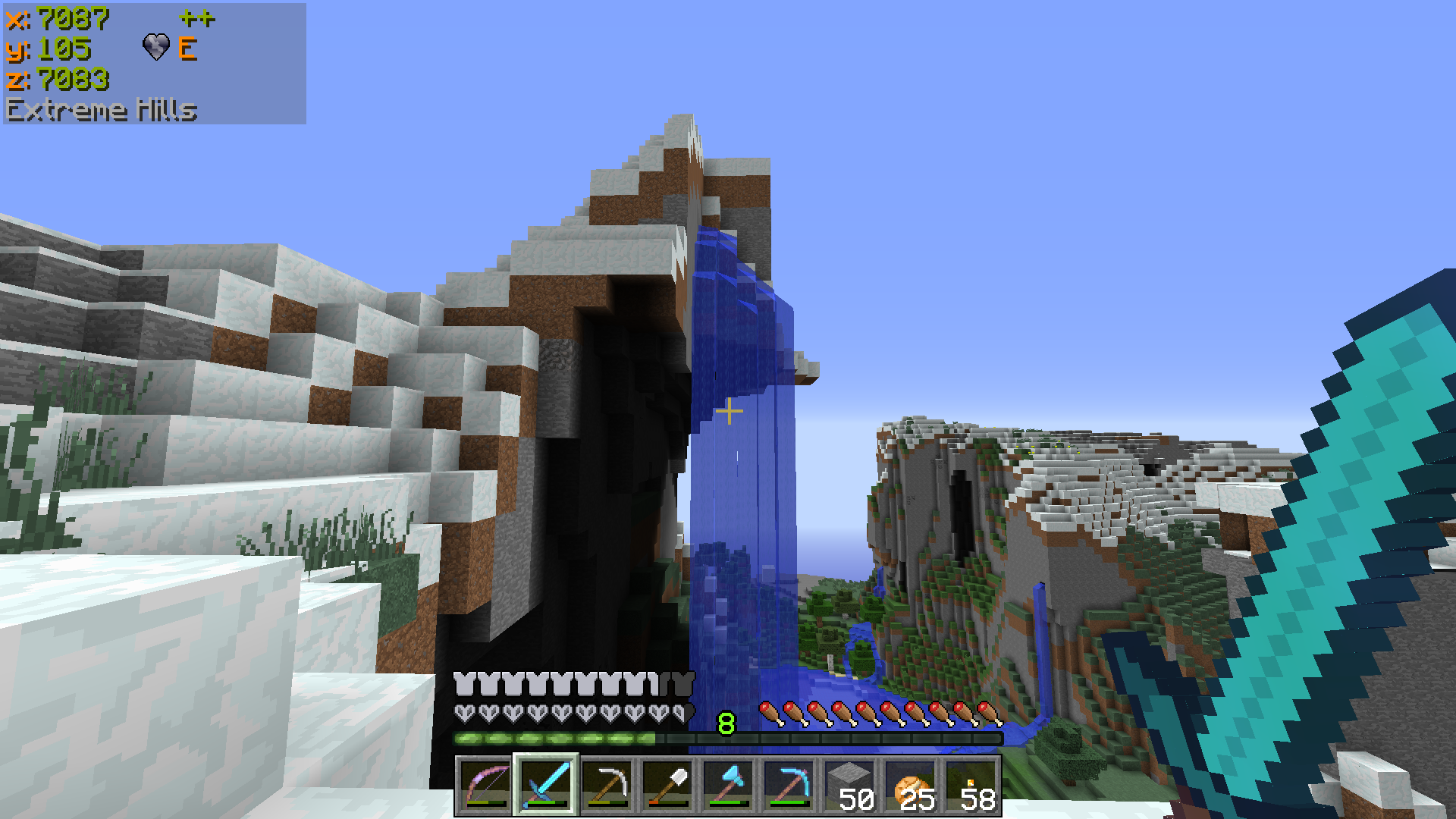
Batty's Coordinates
定位玩家在世界中的位置的 X、Y 和 Z 坐标通常显示在 F3 调试屏幕上。
本模组具有多种显示模式,以 discreetly(隐蔽地)在主游戏屏幕的一角展示这些信息及其他内容,这样你就不必保持 F3 界面开启即可查看。
在模式 0中,坐标被隐藏。
模式 1显示 X、Y 和 Z 坐标,并以指南针方向术语指示你所面对的方向。
模式 2增加了指示功能,告知你如果朝当前面向方向移动,X 和 Z 坐标是会增加还是减少。
模式 3还显示你当前所在的生物群系,显示在坐标下方。
模式 4添加了 Minecraft 天数计数器,显示为 'dy'。
模式 5用区块(Chunk)信息替换了正常的 X、Y 和 Z 坐标:
这显示了你所处的区块编号,以及在该区块内的具体方块位置。
显示界面中,区块(Chunk)以“c”表示,方块(Block)以“b”表示,例如:
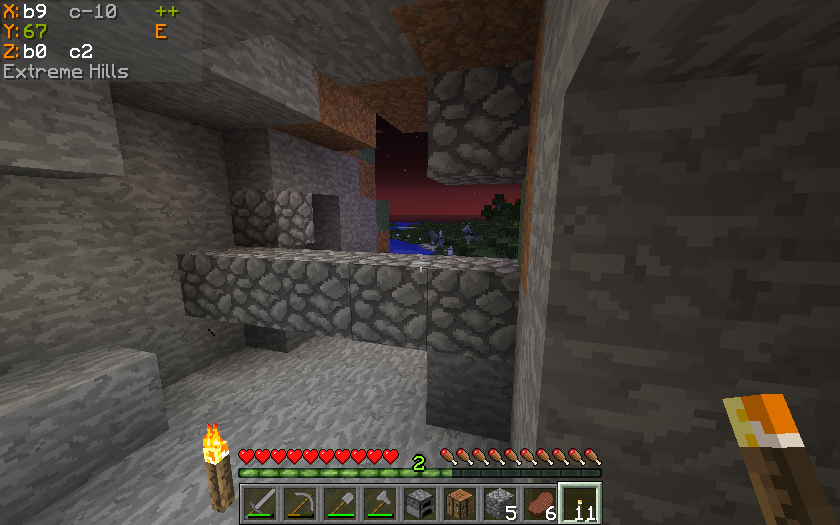
“-” 表示:
- X = 第 -10 个区块内的第 9 个方块
- Z = 第 2 个区块内的第 0 个方块
Batty's Stopwatch Timer
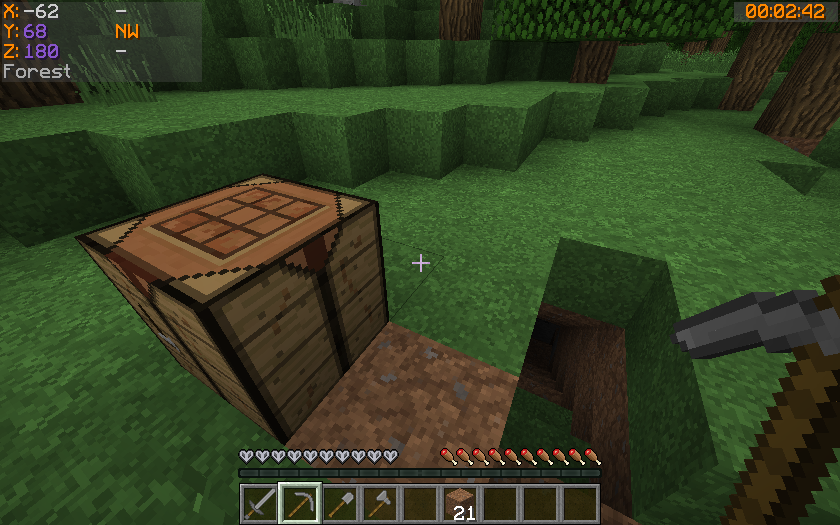
一个隐藏在屏幕角落的计时器,你可以通过按键来隐藏、重新显示、暂停、开始和归零。
可用于记录游戏内活动的时间。对于速通挑战非常有用。
显示经过的小时、分钟和秒数。
采用颜色编码,让你一眼就能看出它是处于停止还是运行状态。
Info Panel
此显示界面可显示 FPS、方块光照等级或月相。你可以通过按下按钮在这些选项之间切换。
FPS Display
游戏当前的每秒帧数(FPS)会显示在屏幕的一个角落。
Block Light-level
显示玩家脚下方块的光照等级(即到达该方块的方块光源亮度)。
Moon phase
显示一个图标,表示当前的月相。
Video Spotlight
由 TheMobCave 的 EddCase 和 OddyC 制作的模组亮点介绍(涵盖我所有模组的各个版本)。
Controls
从版本 1.7.2_1.4.0 开始,控制键设置已全面重构
所有控制键均使用小键盘上的按键(请确保 NumLock 已开启!)
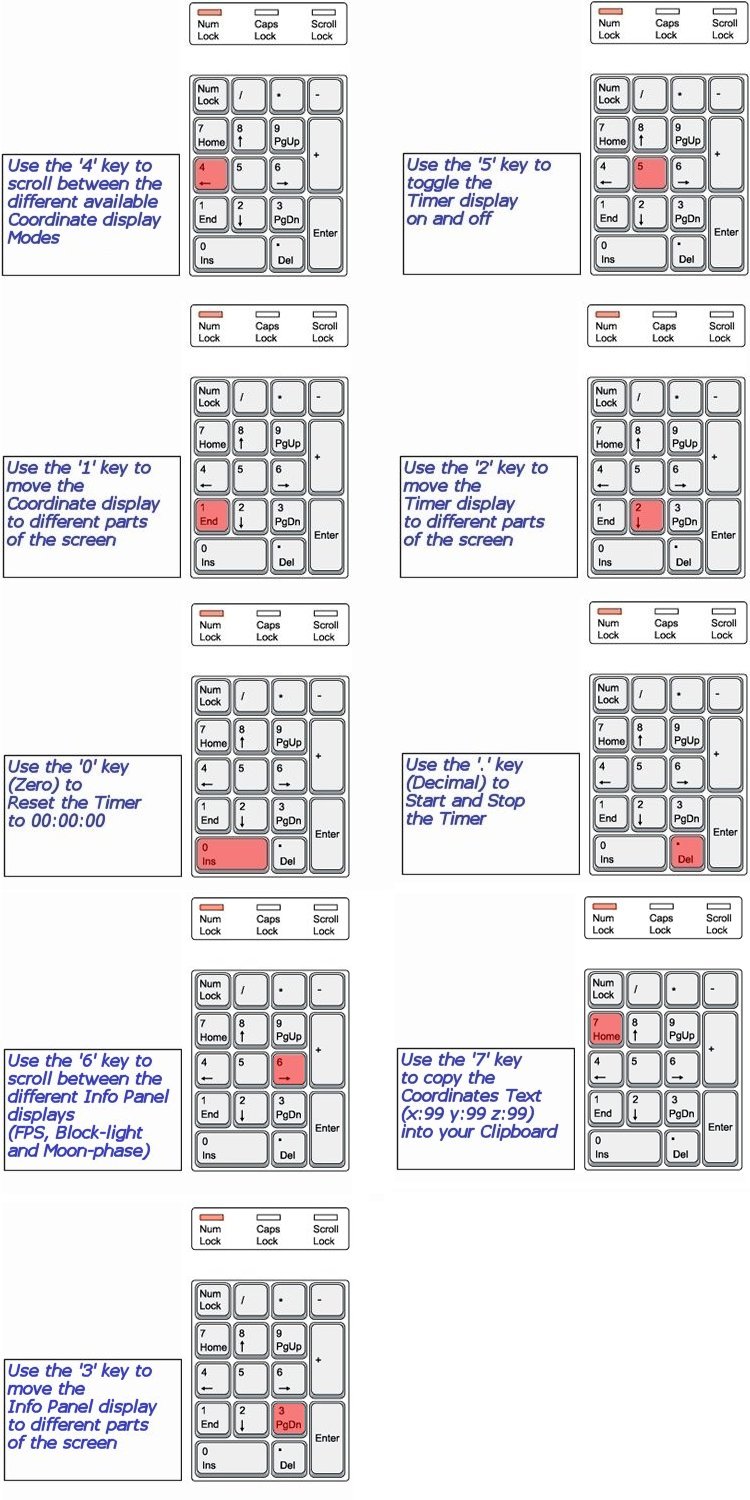
NOTE 1 坐标可以出现在:
NOTE 2 计时器可以出现在:
NOTE 3 信息面板可以出现在:
NOTE 4 所有控制键均可通过游戏内的选项菜单进行完全自定义配置
注意 5 退出 Minecraft 时,屏幕位置和显示模式会被记住
自定义颜色
重要提示
在 1.11.2_003 至 1.15.2-0.1.0 版本中,用于 Forge 的 Batty's Coordinates PLUS Mod 使用 Forge 配置系统,允许通过游戏内的 模组选项 界面自定义颜色。对于这些版本,不使用下文描述的 BatMod.properties。
模组选项设置存储在 /config 文件夹中的 Forge 配置文件里。该文件名为 coordinatesplusmod.cfg。
[注:在 1.14 版本中,此文件名再次更改。现在为 coordinatesplusmod-client.toml]
从 1.16.1_0.2.0 版本开始,配置方式恢复为下文所述的 BatMod.properties。
您可以自定义 Batty's Coordinates 和 Timer 在屏幕上显示的颜色。
这通过在您的 .minecraft 文件夹中创建一个名为 BatMod.properties 的小文件来实现。
如果不存在此文件,所有显示项将使用默认颜色。
文件中允许以下行:
- Coords.shade = <true 或 false>
- Coords.chars.Increase = <任意字符>
- Coords.chars.Decrease = <任意字符>
- Coords.colours.TitleText = <列表中的颜色>
- Coords.colours.PosCoordText = <列表中的颜色>
- Coords.colours.NegCoordText = <列表中的颜色>
- Coords.colours.PosChunkText = <列表中的颜色>
- Coords.colours.NegChunkText = <列表中的颜色>
- Coords.colours.CoordText = <列表中的颜色>
- Coords.colours.CompassText = <列表中的颜色>
- Coords.colours.ChevronText = <列表中的颜色>
- Coords.colours.BiomeText = <列表中的颜色>
- Coords.copy.tpFormat = <true 或 false>
- Timer.shade = <true 或 false>
- Timer.colours.Stopped = <列表中的颜色>
- Timer.colours.Running = <列表中的颜色>
- Info.shade = <true 或 false>
- Info.colours.FPS = <列表中的颜色>
- Info.colours.Bright = <列表中的颜色>
- Info.colours.Dim = <列表中的颜色>
- Info.colours.Moon = <列表中的颜色>
注意 1: PosCoordText 和 NegCoordText 可用于通过赋予不同颜色来区分正坐标和负坐标。
注意 2: 您仍可使用 CoordText,这将覆盖您在 PosCoordText 和 NegCoordText 中设置的任何内容。
注意 3: 您可以选择指示 X 或 Z 方向坐标是增加还是减少的字符。默认为 '+' 和 '-',但通过使用 Coords.chars.Increase 或 .Decrease,您可以替换为其他字符。
注意 4: 您可以选择区块坐标(正数和负数)显示的颜色。
注意 5:您可以决定将坐标以标准格式 "x=999, y=99, z=999" 复制到剪贴板,还是以 /tp 命令格式 "999 99 999" 复制,这由 Coords.copy.tpFormat 参数决定。将其设置为 true 将使用 /tp 命令格式。
注意 6:Info.colours.Dim 选择光照等级为 7 及以下时显示的颜色,而 Info.colours.Bright 选择光照等级为 8 及以上时显示的颜色。
完整的支持颜色列表:

(*注意* 您必须完全按照此处显示的输入所有条目——包括大写和小写——否则它们将被忽略,游戏将使用默认颜色。)
兼容性
用于 Forge 的 Batty's Coordinates PLUS! 旨在运行于 Minecraft Forge 之下。因此,它将在 Forge 的规则结构内与您加载的其他 Forge 模组兼容。
安装方法
确保已安装 Forge:下载并运行最新的推荐版 Forge 安装程序。
下载用于 Forge 的 Batty's Coordinates PLUS! .jar 文件,并将其放入 /.minecraft/mods 文件夹中。(%appdata%/.minecraft/mods)
如果 /mods 文件夹尚不存在,请创建它。
在 Minecraft 启动器或 MagicLauncher 中选择最新的 Forge 配置文件。
检查 Batty's Coordinates PLUS! for Forge 是否已被识别为外部模组。
从启动器运行 Minecraft。
Batty's Coordinates PLUS! Mod for Forge
Announcement
I have had many technical problems trying to upgrade to 1.17.x. I almost decided to let the mod die at this point, which would be a shame since it has been running for so long.
In the end I decided to release a cut-down version for 1.17.1.
It has these features removed:
a) The entire Info Panel (that showed FPS, Light Levels and Moon Phases)
b) The Copy Coords to Clipboard option
c) The BatHeart logo (normally shown within the Coords Panel)
They are also missing for 1.18.x and this will be the case until I announce that I have fixed it.
NOTE: This mod runs with Minecraft Forge.
If you want a version that runs without Forge, see this page.
Combines Batty's Coordinates & Stopwatch Timer
Batty's Coordinates
The X, Y and Z coordinates that locate the player's position in the world are normally displayed on the F3 Debug screen.
This mod has a number of display modes that present this information, and more, discreetly in a corner of the main game screen, so you don't have to leave F3 open to see them.
In Mode 0 the Coordinates are hidden.
Mode 1 shows the X, Y and Z coordinates, and it also indicates the direction that you are facing, in compass-direction terms.
Mode 2 adds an indication whether your X and Z coordinates will Increase or Decrease if you move in the direction you are facing.
Mode 3 also shows the Biome that you are currently in, displayed below the coordinates.
Mode 4 adds the Minecraft Day counter, shown as 'dy'.
Mode 5 replaces the normal X, Y and Z coordinates with Chunk information:
This shows which Chunk you are in, and which Block within that Chunk
The display appears with the Chunk being denoted by a 'c' and the Block by a 'b', for example:
- means:
- X = Block 9 within Chunk -10
- Z = Block 0 within Chunk 2
Batty's Stopwatch Timer
A discreet timer tucked away in a corner of the screen, that you can hide, reappear, stop, start and zero using key presses.
Can be used to time activities in-game. Useful for speed challenges.
Shows the time passed in hours, minutes and seconds.
Colour-coded so you know at a glance if it is stopped or running.
Info Panel
This display will show either the FPS, the Block Light-level or the Moon phase. You can switch between these at the press of a button.
FPS Display
The Frames per Second that the game is running at is displayed in a corner of the screen.
Block Light-level
The block light (i.e. artificial light reaching this block) of the block the player is standing on is displayed
Moon phase
An icon, showing the current phase of the moon, is displayed.
Video Spotlight
A Mod Spotlight (covering all variations of my mods) by EddCase and OddyC of TheMobCave.
Controls
From version 1.7.2_1.4.0 the Controls have been completely revamped
All controls use keys from the NumPad (Be sure to have NumLock set on!)
NOTE 1 Coordinates can appear:
- Top Left
- Top Right
- Bottom Right
NOTE 2 Timer can appear:
- Top Left
- Top Centre
- Top Right
- Bottom Right
- Bottom Left
NOTE 3 The Info Panel can appear:
- Top Left
- Top Centre
- Top Right
- Bottom Right
NOTE 4 All of the Control Keys are fully reconfigurable via the Options Menu in-game
NOTE 5 Screen locations and display modes are remembered when you quit Minecraft
Custom Colours
Important
From versions 1.11.2_003 through to 1.15.2-0.1.0, Batty's Coordinates PLUS Mod for Forge used the Forge configuration system, allowing the colours to be customised by going to the Mod Options screen in-game. For these versions the BatMod.properties - described below - was not used.
The Mod Options settings are stored in a Forge configurations file in the /config folder. This file is called coordinatesplusmod.cfg.
[N.B. in 1.14 this filename has changed again. It is now coordinatesplusmod-client.toml]
From version 1.16.1_0.2.0 configuration has reverted to the BatMod.properties as described below.
You can customise the colours in which Batty's Coordinates and Timer appear on the screen.
This done by creating a small file called BatMod.properties in your .minecraft folder.
If this file is not present, the displays all appear in the default colours.
The following lines are permitted in the file:
- Coords.shade = <true or false>
- Coords.chars.Increase = <any character>
- Coords.chars.Decrease = <any character>
- Coords.colours.TitleText = <colour from the list>
- Coords.colours.PosCoordText = <colour from the list>
- Coords.colours.NegCoordText = <colour from the list>
- Coords.colours.PosChunkText = <colour from the list>
- Coords.colours.NegChunkText = <colour from the list>
- Coords.colours.CoordText = <colour from the list>
- Coords.colours.CompassText = <colour from the list>
- Coords.colours.ChevronText = <colour from the list>
- Coords.colours.BiomeText = <colour from the list>
- Coords.copy.tpFormat = <true or false>
- Timer.shade = <true or false>
- Timer.colours.Stopped = <colour from the list>
- Timer.colours.Running = <colour from the list>
- Info.shade = <true or false>
- Info.colours.FPS = <colour from the list>
- Info.colours.Bright = <colour from the list>
- Info.colours.Dim = <colour from the list>
- Info.colours.Moon = <colour from the list>
NOTE 1: PosCoordText and NegCoordText can be used to distinguish positive and negative coordinates from each other by giving them different colours
NOTE 2: You can still use CoordText, and this will override anything you put in PosCoordText and NegCoordText
NOTE 3: You can choose the character that indicates whether your coordinates are increasing or decreasing in the X or Z directions. By default these are '+' and '-', but by use of Coords.chars.Increase or .Decrease you can substitute another character.
NOTE 4: You can choose the colours that the Chunk Coordinates display, positive and negative
NOTE 5: You can decide to copy the Coordinates to your clipboard in standard format "x=999, y=99, z=999" or in /tp command format "999 99 999" by the Coords.copy.tpFormat parameter. Setting this to true will make it use the /tp command format.
NOTE 6: Info.colours.Dim chooses the colour that light-levels of 7 and below will display, while Info.colours.Bright chooses the colour that light-level of 8 and above will display.
The full list of recognised colours:
(*Note* that you must type all of the entries exactly as they appear here - capitals and lowercase - or they will be ignored and the default colours will be used by the game)
Compatibility
Batty's Coordinates PLUS! for Forge is designed to run under Minecraft Forge. It will therefore be compatible with other Forge mods that you load, within the rules structure of Forge.
Installing
Make sure you have Forge installed: download and run the latest recommended Forge installer.
Download Batty's Coordinates PLUS! for Forge .jar file and place it in your /.minecraft/mods folder. (%appdata%/.minecraft/mods)
Create the /mods folder if it does not already exist.
Select the latest Forge profile in the Minecraft Launcher, or MagicLauncher.
Check that Batty's Coordinates PLUS! for Forge has been recognised as an External Mod.
Run Minecraft from the Launcher.


 模组

 模组
 模组

 模组
 模组
 模组
评论 0
登录后参与评分
还没有评论,来抢沙发吧