
Create: Bits 'n' Tracks Community Edition
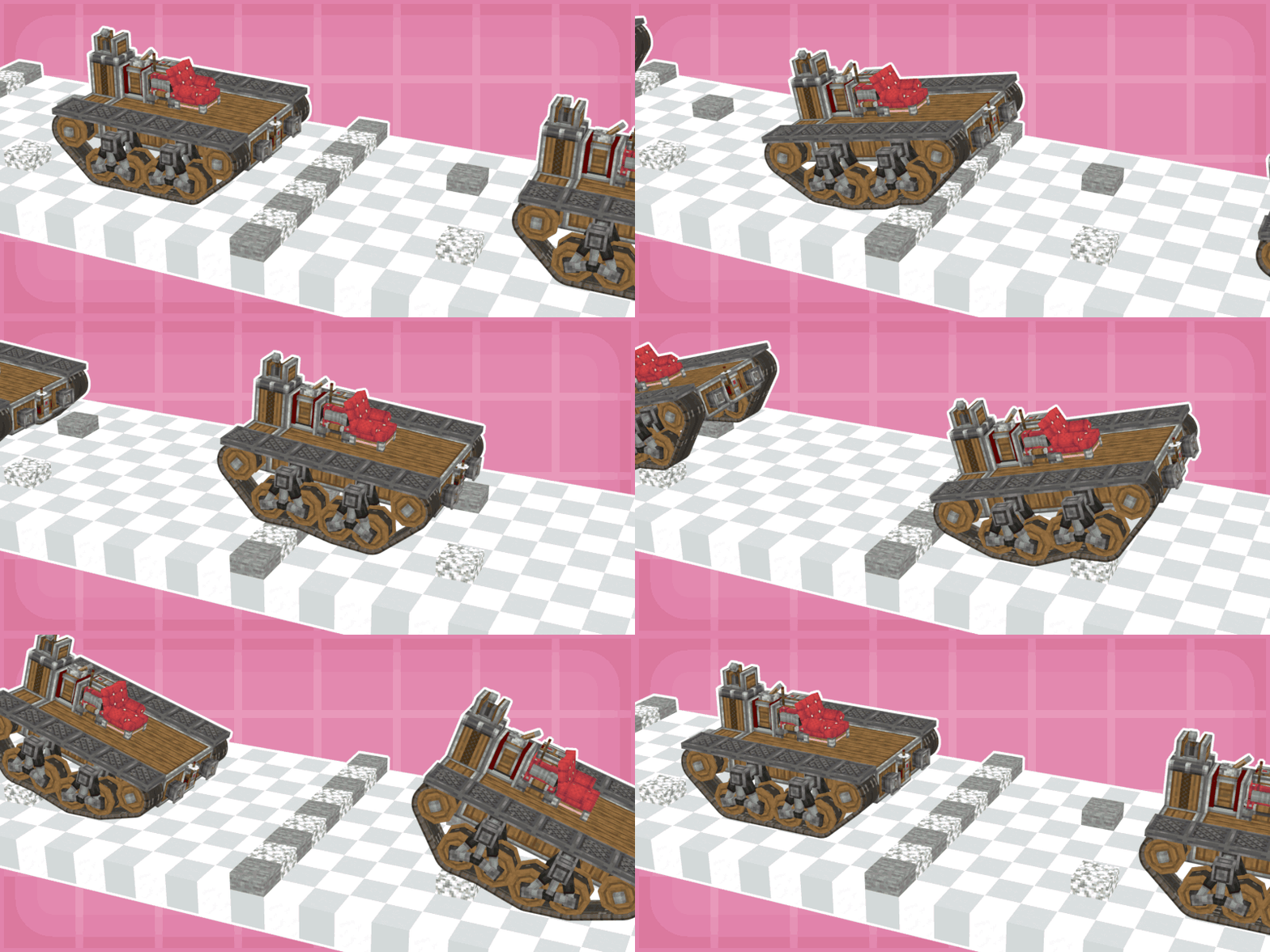
在 Create 中构建可工作的坦克履带。 带轮缘的齿轮带动皮带或履带环绕其运行,在 Sable 载具上,履带抓地前行并跨越所经之物。
这是由 qwxon 创作的 Bits 'n' Tracks 的社区延续版,在原作停止开发后接手了后续开发工作。
依赖要求
- Minecraft 1.21.1 与 NeoForge 21.1.228 或更高版本
- Create 6.0.10 或更高版本
- Sable 2.0.x
- Create: Bits 'n' Bobs 2.3.5 或更高版本(及其自身依赖)
- Create Aeronautics 1.3.1 或更高版本(用于组装载具以及悬挂部件配方中的弹簧)
模组内容
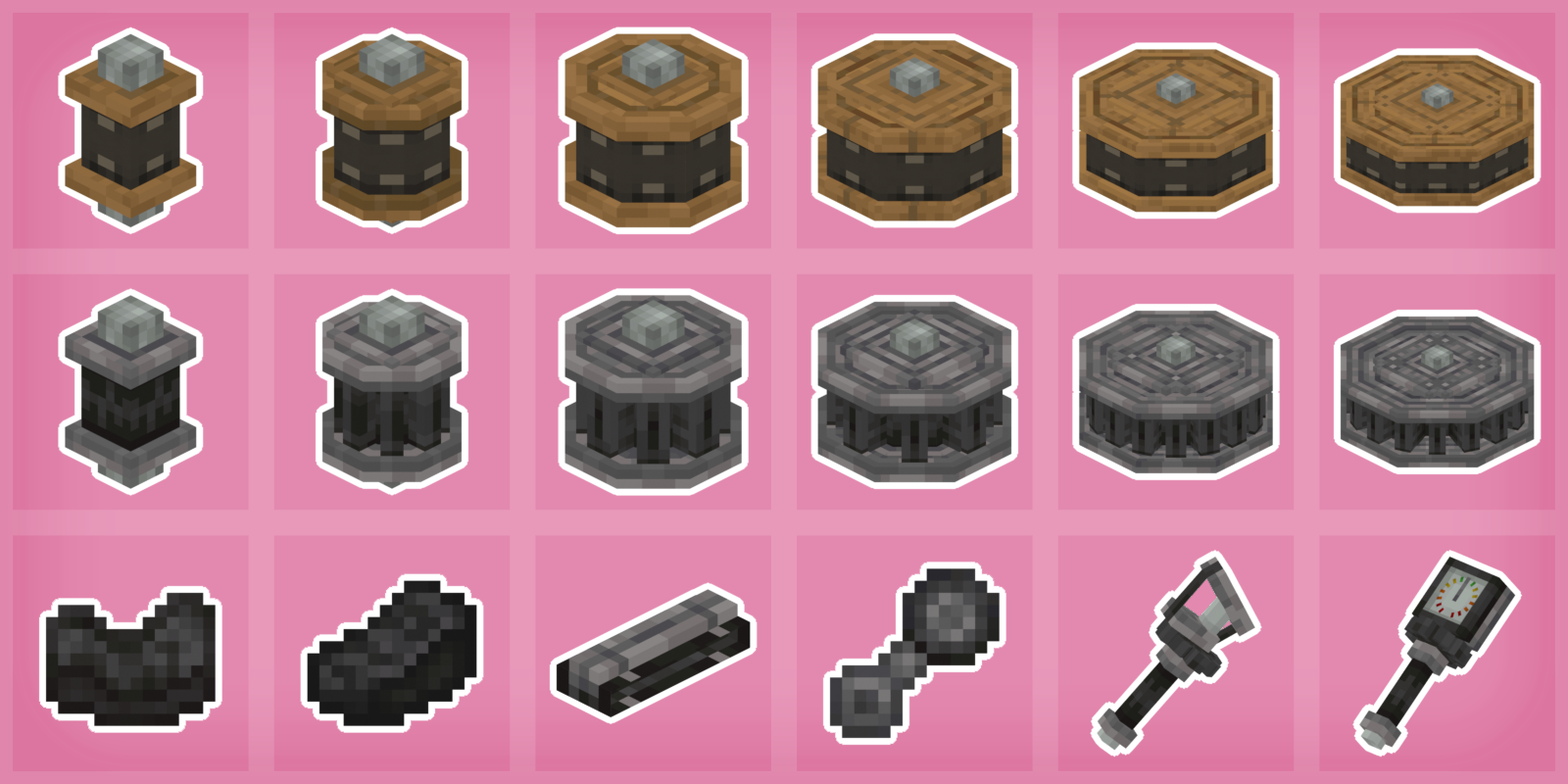
- 六种尺寸的带轮缘齿轮:普通款与工业款,用于承载履带
- 三种履带:Create 自带的皮带、工业皮带和坦克履带,此外还有用于皮带的防滑钉(grousers)
- 悬挂部件(Suspension Pieces):用于安装摆动臂和转向架
- 两种工具:齿轮对齐杠杆(Cog Alignment Lever)用于塑造履带轨迹,悬挂工具(Suspension Tool)用于调校行驶性能
带轮缘的齿轮
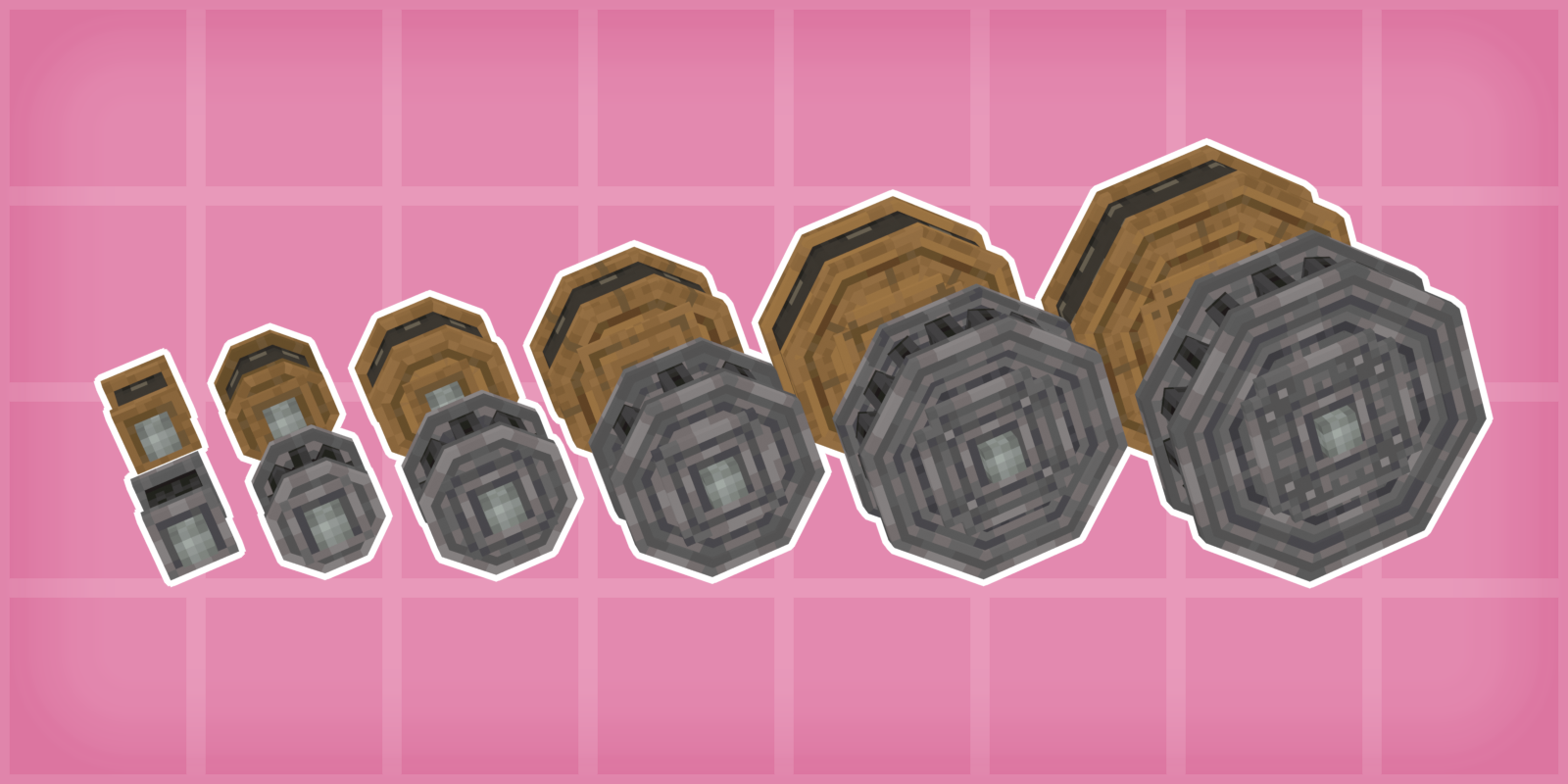
六种尺寸:微小、中间、小、中、中大和大,每种均有普通款和工业款。 工业款模型基于 Create: Gears n' Kinetics 中的工业齿轮。
放置后的齿轮会驱动其履带并通过轴心旋转。 使用齿轮对齐杠杆开启物理效果后,它将成为 Sable 载具的一个车轮:它会接触地面,阻挡玩家和其他实体,并且可以承载悬挂部件。
履带
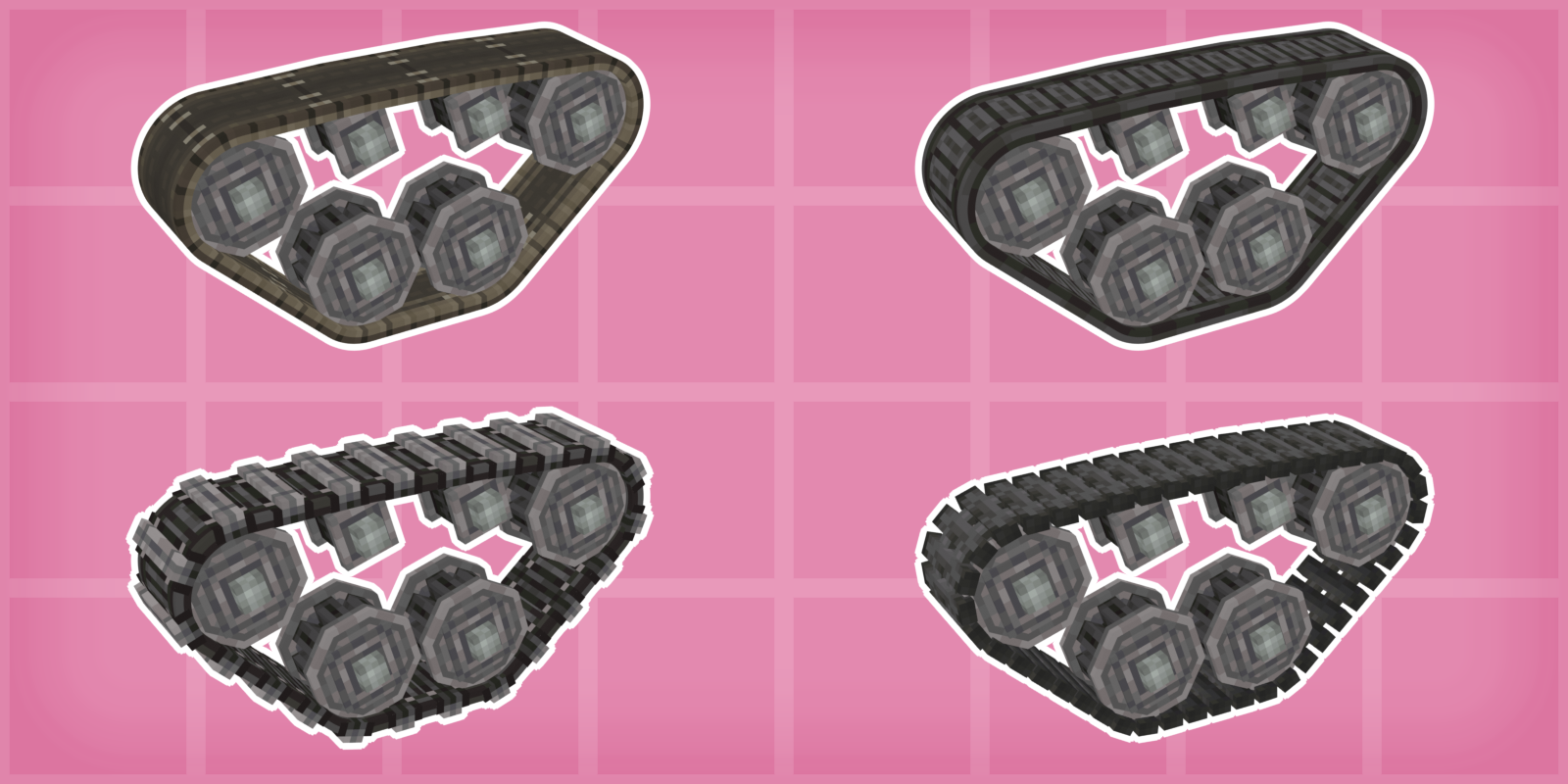
每条履带都像 Bits 'n' Bobs 的链条一样串接在齿轮之间。
- Create 的皮带:使用皮带连接器即可直接构成履带,无需额外合成。
- 工业皮带:模组自有的皮带,由皮带连接器和铁粒合成。
- 坦克履带:通过机械工作台合成的板式履带,在松软地面上抓地力更好,但在硬质地面上抓地力稍弱。
- 防滑钉(Grousers):右键点击任意一种皮带即可在其上安装防滑钉。带有防滑钉的皮带在冰面、雪地和泥地上抓地力显著提升,但在硬质地面上抓地力略有下降。
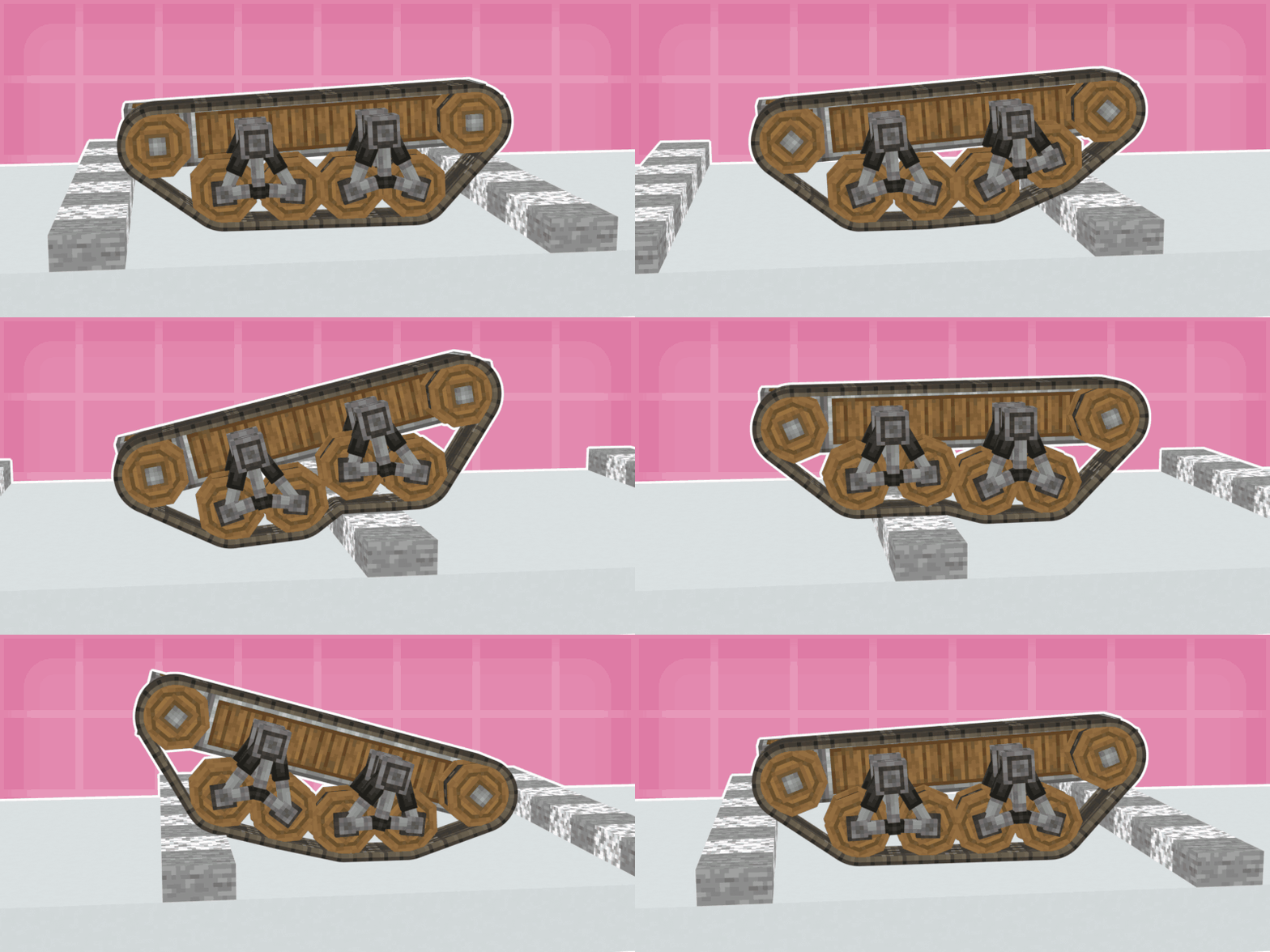
履带的抓地力取决于压在上面的重量,且在泥土、沙子、砾石、黏土、雪地和泥地上的抓地力不如石头。 数据包可以更改任何方块的抓地力属性。 齿轮之间的履带段会随地形下垂,使载具能够越过障碍物。
行驶原理
履带的运行速度由其链节速度决定,而链节速度又由齿轮的尺寸和旋转速度设定,并推动载具与之匹配。 其最大推力受限于履带对地面的抓地力以及其所包裹齿轮带来的应力影响。 因此,少数或小尺寸齿轮驱动的沉重载具加速缓慢且爬坡吃力,而更多或更大尺寸的齿轮则能提供更大的推力。 “每点应力影响的驱动力”(Drive Force per Stress)设置决定了每个单位的应力影响能产生多少推力,设为 0 则移除该限制。 刹车和在斜坡上保持静止仅取决于抓地力。 对履带上任意一个齿轮施加红石信号即可制动整条履带。
通过让两侧履带以不同速度运行来转向,例如减速、停止或反转一侧。 载具的转弯速率由速度差决定,但受以下两个限制约束:
- 移动时,转弯半径不会小于履带侧向抓地力所能维持的范围,因此高速车辆会向外漂移而非原地打转。
- 原地转向时,转速不会超过“最大转弯速率”(Max Turn Rate)设置,默认为每秒 120 度。
超出这些限制时,履带会在原地滑动而非强行改变载具方向。 当履带重新直线运行时,首先会消除载具的侧滑,然后恢复其前进速度。
宽轮
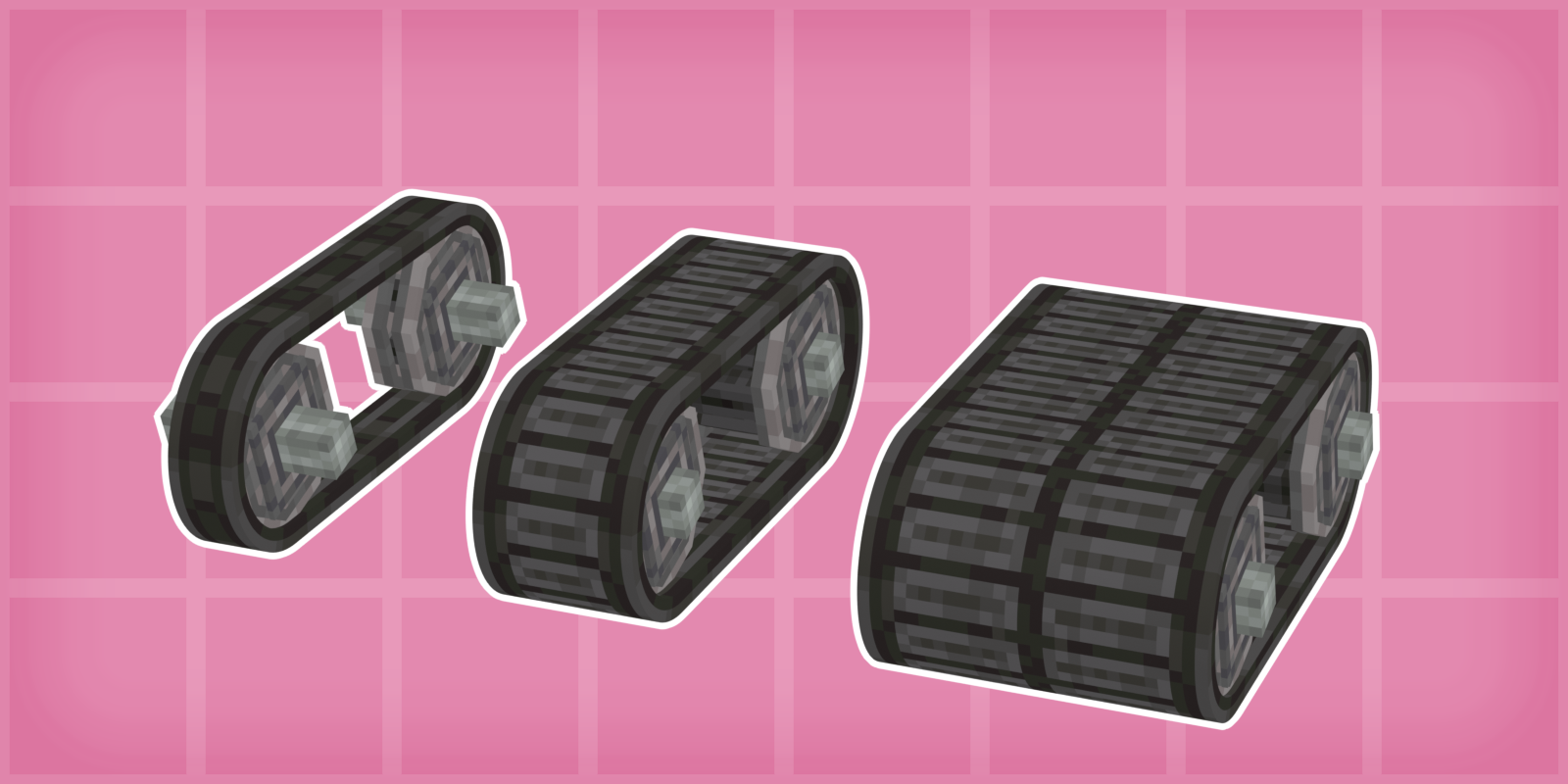
将同尺寸、同风格的另一个齿轮沿轴心紧挨着放置,两者将合并为一个宽轮,履带宽度也会随之加宽。 放置时按住潜行键可使它们保持分离。 杠杆的“宽度”(Width)模式每次可将齿轮宽度缩小四分之一,而履带宽度始终与其最宽齿轮保持一致。
路径规划
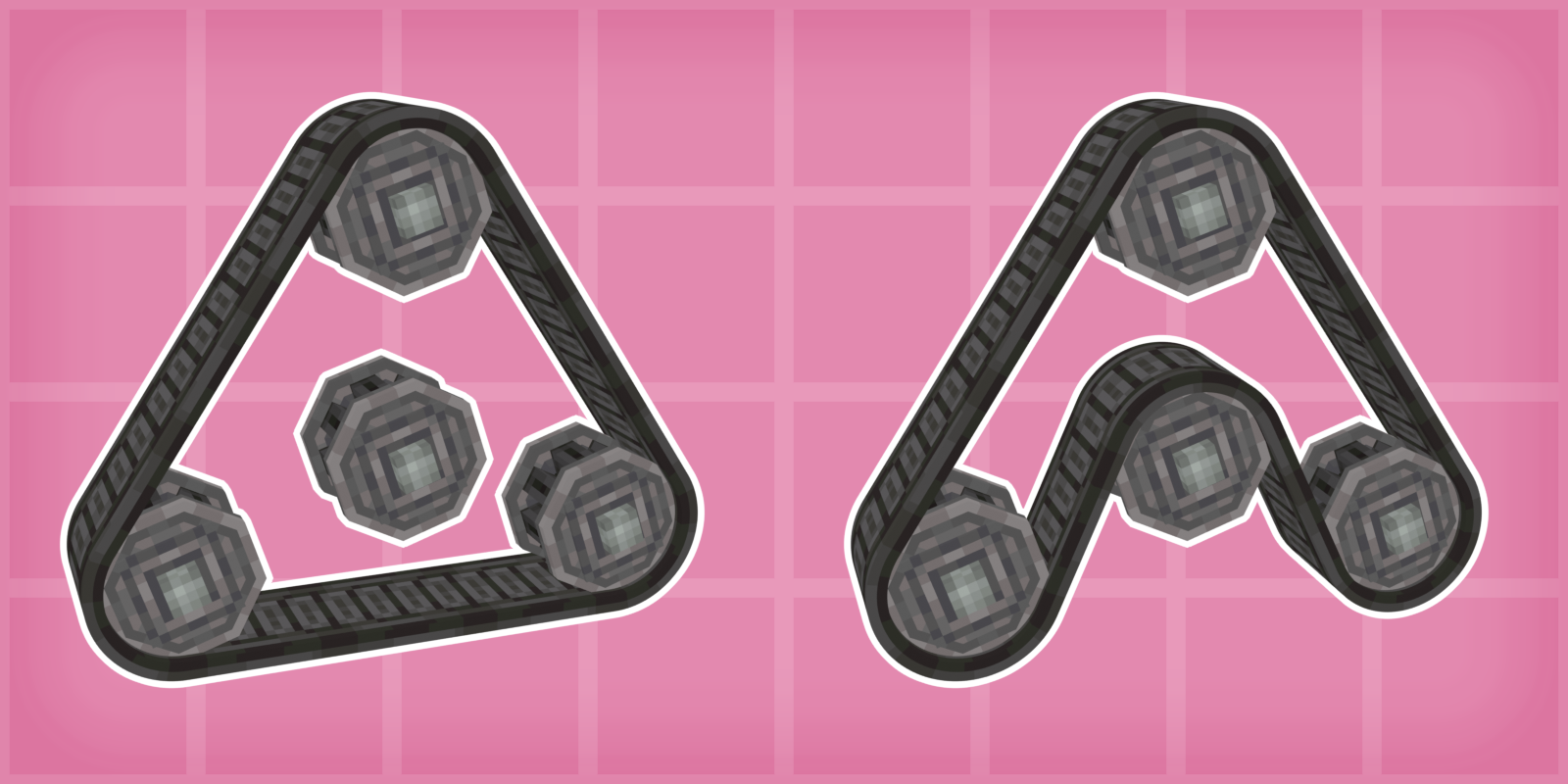
轨道像真实轨道坐在路轮上那样,环绕着它的齿轮。 在轨道无法触及的回路内部有一个齿轮,被其包围,并自由旋转直到轨道碰到它。
使用杠杆的路线模式,让远处的轨道段绕过任何齿轮。 那个齿轮然后以相反方向转动,就像皮带跨过一个滑轮一样。
悬挂系统
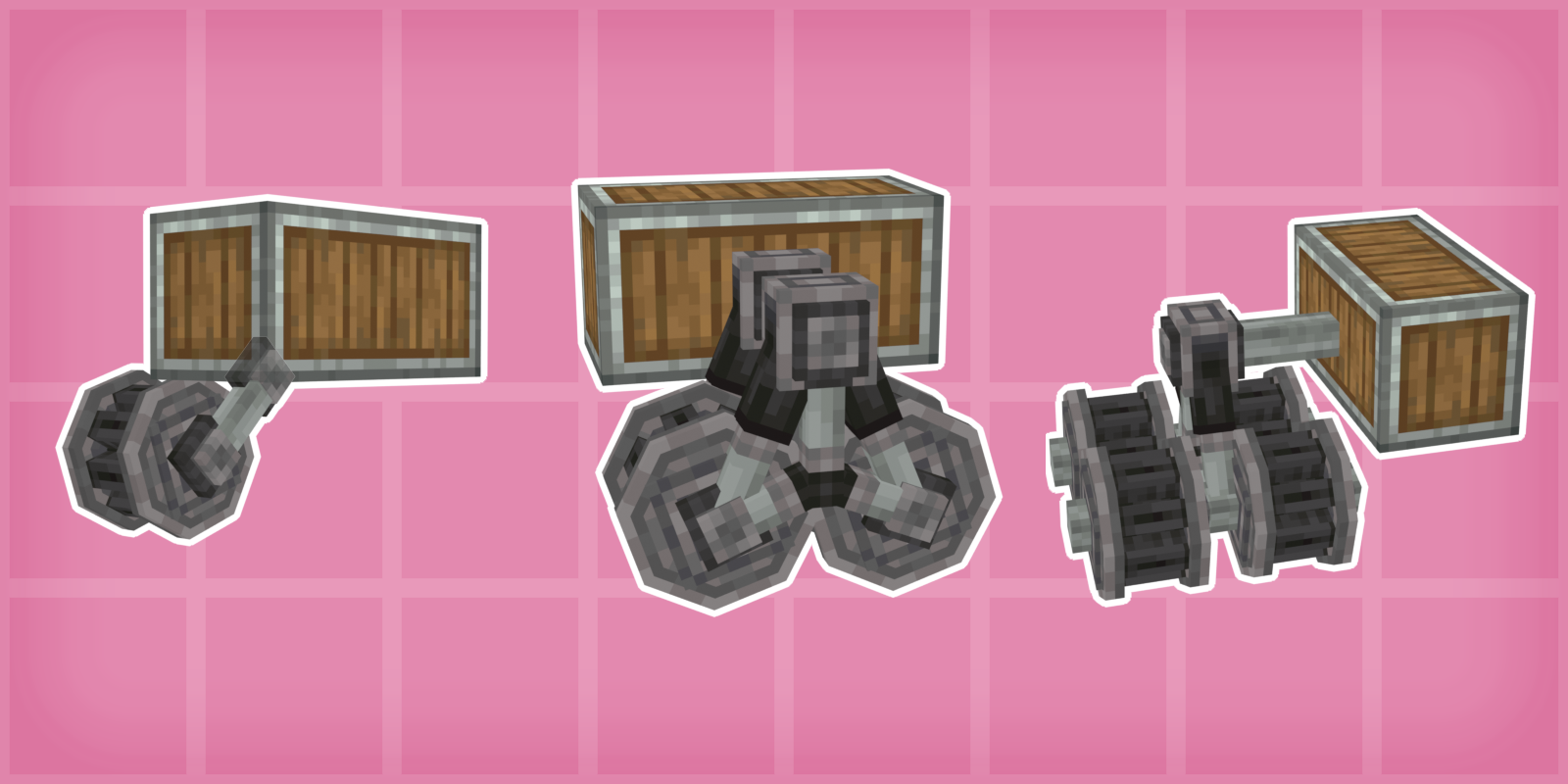
悬挂件给物理齿轮提供弹簧安装座。
- 臂: 右键点击任意大小的物理齿轮进行选择,然后在旁边查看并将绿色预览适合的位置右键点击。臂围绕齿轮的顶部角落枢转,这需要沿着轴线接触的一个方块,并且杠杆的枢轴模式可以移动这个铰链。如果两侧的方块都能支撑它,则挂载在你面对的一侧。使用一个部件。
- 转向架: 选择一个小、中或微型物理齿轮,然后右键点击旁边相同大小的另一个齿轮。转向架悬挂在一个直接位于任一齿轮上方的方块上,或者沿轴线在该位置旁边的方块上,并且可以有方块坐在上面。使用两个部件。
- 宽转向架: 在两个宽的小、中或微型齿轮之间,每对通过中间的转向架变成两个独立的轮子。使用两个部件。
空手 Shift + 右键点击齿轮以卸下部件或转向架。 如果支撑块被移除,挂载会掉落其部件。
入门指南
模组的每个部分都有一个 Ponder 场景。 将 Ponder 键(默认为 W)悬停在带法兰的齿轮、轨道、齿轮对齐杠杆、悬挂件或悬挂工具上。 这些场景展示了从放置和驱动齿轮到调整悬挂系统的履带车辆的构建过程。
齿轮对齐杠杆
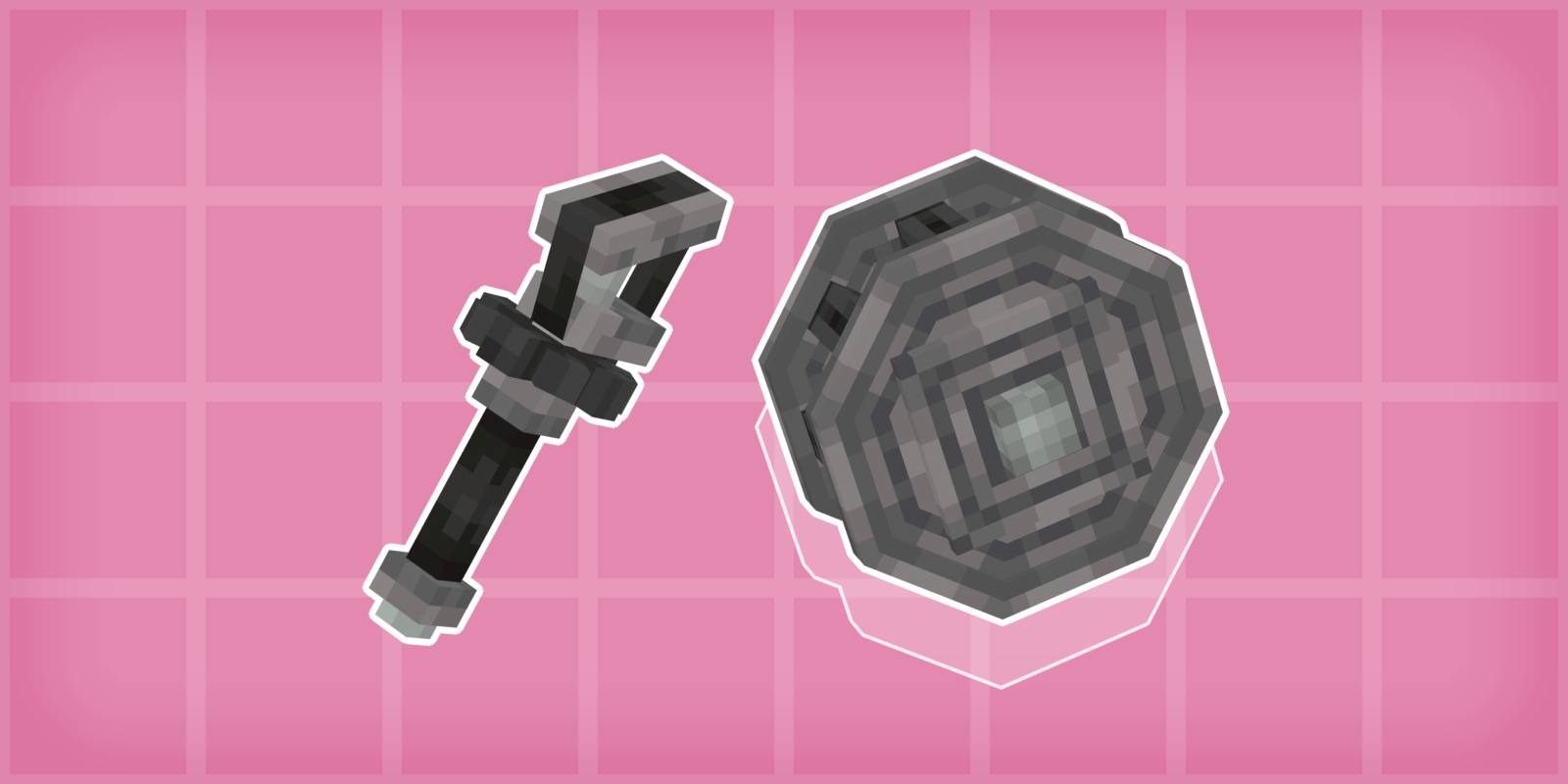
模组的主要工具。 它在放置后调整齿轮,缩小或隐藏它们,路由和张紧轨道,并开启或关闭物理效果。 它仅作用于 Bits 'n' Tracks 齿轮及其上的轨道,并正常破坏其他方块。 当你持有它时,热键栏旁边的面板显示当前模式、你正在处理的内容的值以及需要点击或滚动的内容。 按住 Alt(Create 的工具菜单键)并滚动以切换模式。 如果没有滚轮,请在控制设置中将 Bits 'n' Tracks 下的 Next 和 Previous Tool Mode 以及 Scroll Up 和 Down 绑定;它们适用于这两种工具。
- 偏移: 右键点击齿轮进行选择,然后滚动以每次移动一个像素。Shift + 滚动选择轴:沿轴线、横向或上下。最后一行,轨道,在整个轨道跟随其齿轮和保持直线之间切换:一条直行的轨道在其齿轮中间运行并加宽以覆盖所有齿轮,因此它们可以在下面的轴上滑动,如交错的路轮所需。在直行轨道上,另一行,拟合,使选定的齿轮不在该宽度和中心内,以便更薄的交错轮可以坐在由两端轮子定尺寸的轨道内。
- 枢轴: 右键点击悬挂臂或转向架的铰链进行选择,然后滚动以每次移动一个像素,最多每个方向一个方块。Shift + 滚动选择轴。向上、向下或横向移动臂的铰链会改变臂的长度和角度,从而改变其车轮行驶的路径。向上或向下移动转向架的铰链会改变其臂的角度,横向移动则整体移动转向架及其车轮。沿轴线移动只会改变它与挂载的连接点。
- 路由: 右键点击面以使远处的轨道段绕过齿轮,这样点击顶部会使底部轨道绕其上方,并反转其旋转。居中将其路由恢复自动。
- 张紧: 右键点击轨道进行选择,然后滚动以收紧它,使其保持线条,或放松它,使其下垂并跟随地面。
- 可见性: 右键点击齿轮以显示或隐藏它。
- 物理: 右键点击齿轮以开启或关闭其物理效果。
- 宽度: 右键点击齿轮以每次缩小四分之一,Shift + 右键点击以扩大它。轨道与其最宽的齿轮一样宽。
- 轴: 右键点击齿轮的一端以隐藏或显示其轴。隐藏的轴不连接任何东西,因此没有轴的齿轮只随其轨道转动。
- 重置: 双击齿轮以重置对齐、铰链、轨道和拟合行、可见性、轨道路由和悬挂调整。
Ctrl + 左键点击在单个齿轮和整个轨道之间切换偏移、枢轴、宽度、轴和重置。在整个轨道上,偏移仅移动共享点击齿轮的物理设置的齿轮。
悬挂工具

悬挂工具读取和调整携带悬挂件的齿轮。 它有四个设置,刚度、阻尼、行程和弹簧强度,每个设置在 1 到 15 级别上,类似于红石信号,默认值为 8。 它与杠杆使用相同的控制面板,每种设置一个模式。
- 观察悬挂的齿轮: 面板和拨号盘显示其级别。
- 按住 Alt 并滚动: 切换设置。
- 右键点击悬挂的齿轮: 选择它。
- 滚动: 在选定的齿轮上将选定的设置提高或降低一个级别。
- Ctrl + 左键点击: 在调整单个齿轮和轨道上每个悬挂的齿轮之间切换。
配置
物理设置是每个世界独立的:悬挂、齿轮几何体、驱动方式、摩擦力、皮带、应力和音效。
打开一个世界,并使用模组列表中的配置按钮进行编辑;将 bits_n_tracks-server.toml 放入 defaultconfigs/ 文件夹,即可让所有新创建的世界使用相同的值。
客户端设置涵盖 Flywheel 渲染、轨道重新计算形状的频率,以及停止动画的距离阈值。
光影包开箱即用。 推荐搭配 Colorwheel 与 Iris 一起使用,因为它能在开启光影时保持 Flywheel 渲染正常运作。
帮助与反馈
请在 问题追踪器 报告 Bug,或在 Discord 提问或分享构建版本。 当有开发版领先于最新正式版发布时,它们会作为预发布版本列在 Releases 页面。
从源码构建
Gradle 需要 JDK 21。
./gradlew build           # jar 文件生成于 build/libs/
./gradlew runClient       # 启动开发环境客户端
许可与致谢
GPL-3.0-only。 详见 LICENSE。
原版模组及所有原始代码由 qwxon 制作。 社区版由 Atmerek 和 Alesrr 维护,并有 Cubester 和 ShioUmiusi 的贡献;俄语翻译由 Hanahaki 完成,美术由 CloverKeep 制作。
用心打造。
Create: Bits 'n' Tracks Community Edition
Build working tank tracks in Create. Flanged cogwheels carry a belt or tread around them, and on a Sable vehicle the track grips the ground, drives it along and rides over what it crosses.
This is a community continuation of Bits 'n' Tracks by qwxon, picking up development where the original left off.
Requirements
- Minecraft 1.21.1 with NeoForge 21.1.228 or newer
- Create 6.0.10 or newer
- Sable 2.0.x
- Create: Bits 'n' Bobs 2.3.5 or newer, with its own dependencies
- Create Aeronautics 1.3.1 or newer, for assembling vehicles and for the spring in the Suspension Piece recipe
What's inside
- Flanged cogwheels in six sizes, plain and industrial, that carry a track
- Three tracks: Create's own belt, the Industrial Belt and the Tank Tread, plus grousers for the belts
- Suspension Pieces that mount swinging arms and bogies
- Two tools, the Cog Alignment Lever to shape a track and the Suspension Tool to tune its ride
Flanged cogwheels
Six sizes: tiny, intermediate, small, medium, medium-large and large, each in a plain and an industrial style. The industrial models are based on the Industrial Cogwheels from Create: Gears n' Kinetics.
A placed cogwheel drives its track and turns through its axle. Switch physics on with the Cog Alignment Lever and it becomes a wheel of its Sable vehicle: it stands on the ground, blocks players and other entities, and can carry a Suspension Piece.
Tracks
Every track is strung between cogwheels like a Bits 'n' Bobs chain.
- Create's belt: a belt connector makes a track right away, no extra crafting needed.
- Industrial Belt: the mod's own belt, made from belt connectors and iron nuggets.
- Tank Tread: a plated track made in a Mechanical Crafter, which bites into soft ground better and grips a little less on hard ground.
- Grousers: right-click either belt with them to fit them along it. A belt with grousers grips much better on ice, snow and mud and a little worse on hard ground.
A track grips by the weight resting on it, and less on dirt, sand, gravel, clay, snow and mud than on stone. Datapacks can change the grip of any block. The run of track between cogwheels drapes over terrain and carries the vehicle over obstacles.
Driving
A track runs at the speed of its links, set by the size and rotational speed of its cogwheels, and pushes the vehicle to match it. How hard it can push is limited by its grip on the ground and by the stress impact of the cogwheels it wraps. A heavy vehicle on few or small cogwheels therefore speeds up slowly and struggles up slopes, while more or bigger cogwheels on a track push harder. The Drive Force per Stress setting sets how much push each point of stress impact gives, and 0 removes that limit. Braking and holding still on a slope only depend on grip. A redstone brake on any of a track's cogwheels brakes the whole track.
Steer by running the tracks at different speeds, for example by slowing, stopping or reversing one side. The vehicle turns at the rate that speed difference asks for, within two limits:
- While moving, it turns no tighter than its tracks' sideways grip can hold, so a fast vehicle runs wide instead of spinning out.
- In place, it spins no faster than the Max Turn Rate setting, 120 degrees per second by default.
Past those limits the tracks slip on the ground instead of turning the vehicle harder. When the tracks run straight again, they first stop the vehicle sliding sideways, then speed it back up.
Wide wheels
Place a cogwheel beside another of the same size and style along its axle and they join into one wide wheel, with the track widening to match. Sneak while placing to keep them apart. The lever's Width mode narrows a cogwheel a quarter at a time, and a track is always as wide as its widest cogwheel.
Routing
The track wraps around its cogwheels the way a real track sits on its road wheels. A cogwheel inside the loop that the track cannot reach is enclosed by it, and turns freely until the track touches it.
With the lever's Route mode, bring the far run of track around any cogwheel instead. That cogwheel then turns the other way, like a belt crossed over a pulley.
Suspension
A Suspension Piece gives a physics cogwheel a sprung mount.
- Arm: right-click a physics cogwheel of any size to select it, then look beside it and right-click where the green preview fits. The arm pivots on the cogwheel's top corner, which needs a block touching it along the axle, and the lever's Pivot mode can move that hinge. If blocks on both sides could hold it, it mounts on the side you are looking toward. Uses one piece.
- Bogie: select a small, intermediate or tiny physics cogwheel, then right-click the one of the same size next to it. The bogie hangs from a block right above either cogwheel, or one next to that spot along the axle, and blocks can sit on top of it. Uses two pieces.
- Wide bogie: the same between two two-wide small, intermediate or tiny cogwheels, each pair turning into two separate wheels with the bogie between them. Uses two pieces.
Shift + right-click the cogwheel with an empty hand to take a piece or bogie back off. A mount whose supporting block is removed drops its pieces.
Getting started
Every part of the mod has a Ponder scene. Hold the Ponder key (W by default) over a flanged cogwheel, a track, the Cog Alignment Lever, a Suspension Piece or the Suspension Tool. The scenes walk through building a tracked vehicle, from placing and powering the cogwheels to tuning its suspension.
The Cog Alignment Lever
The main tool of the mod. It adjusts cogwheels after they are placed, narrows or hides them, routes and tensions the track, and switches physics on or off. It only acts on Bits 'n' Tracks cogwheels and the tracks running on them, and breaks other blocks as normal. While you hold it, a panel beside the hotbar shows the current mode, the values of what you are working on, and what to click or scroll. Hold Alt (Create's tool menu key) and scroll to switch modes. Without a scroll wheel, bind Next and Previous Tool Mode and Scroll Up and Down with a Tool under Bits 'n' Tracks in Controls; they work with both tools.
- Offset: right-click a cogwheel to select it, then scroll to move it one pixel at a time. Shift + scroll picks the axis: along the axle, across, or up and down. The last row, Track, switches the whole track between following its cogwheels and staying straight: a straight track runs down the middle of its cogwheels and widens to cover all of them, so they can slide along their axles beneath it, as interleaved road wheels need. On a straight track, one more row, Fit, leaves the selected cogwheel out of that width and centre, so thinner interleaved wheels can sit inside a track sized by the wheels at its ends.
- Pivot: right-click the hinge of a suspension arm or bogie to select it, then scroll to move it one pixel at a time, up to a block each way. Shift + scroll picks the axis. Moving an arm's hinge up, down or across changes the arm's length and angle, and so the path its wheel travels. Moving a bogie's hinge up or down changes the angle of its arms, and moving it across shifts the whole bogie with its wheels. Moving either along the axle only shifts where it meets its mount.
- Route: right-click a face to bring the far run of track around the cogwheel, so clicking the top wraps the bottom track over it, and reverses its spin. The centre puts its routing back to automatic.
- Tension: right-click a track to select it, then scroll to tighten it, so it holds its line, or slacken it, so it sags and follows the ground.
- Visibility: right-click a cogwheel to show or hide it.
- Physics: right-click a cogwheel to switch its physics on or off.
- Width: right-click a cogwheel to narrow it a quarter at a time, and Shift + right-click to widen it. A track is as wide as its widest cogwheel.
- Shaft: right-click either end of a cogwheel to hide or show its shaft there. A hidden shaft connects to nothing, so a cogwheel without shafts only turns with its track.
- Reset: right-click a cogwheel twice to reset alignment, hinges, the Track and Fit rows, visibility, track routing and suspension tuning.
Ctrl + left-click switches Offset, Pivot, Width, Shaft and Reset between one cogwheel and the whole track. On the whole track, Offset only moves the cogwheels that share the clicked one's physics setting.
The Suspension Tool
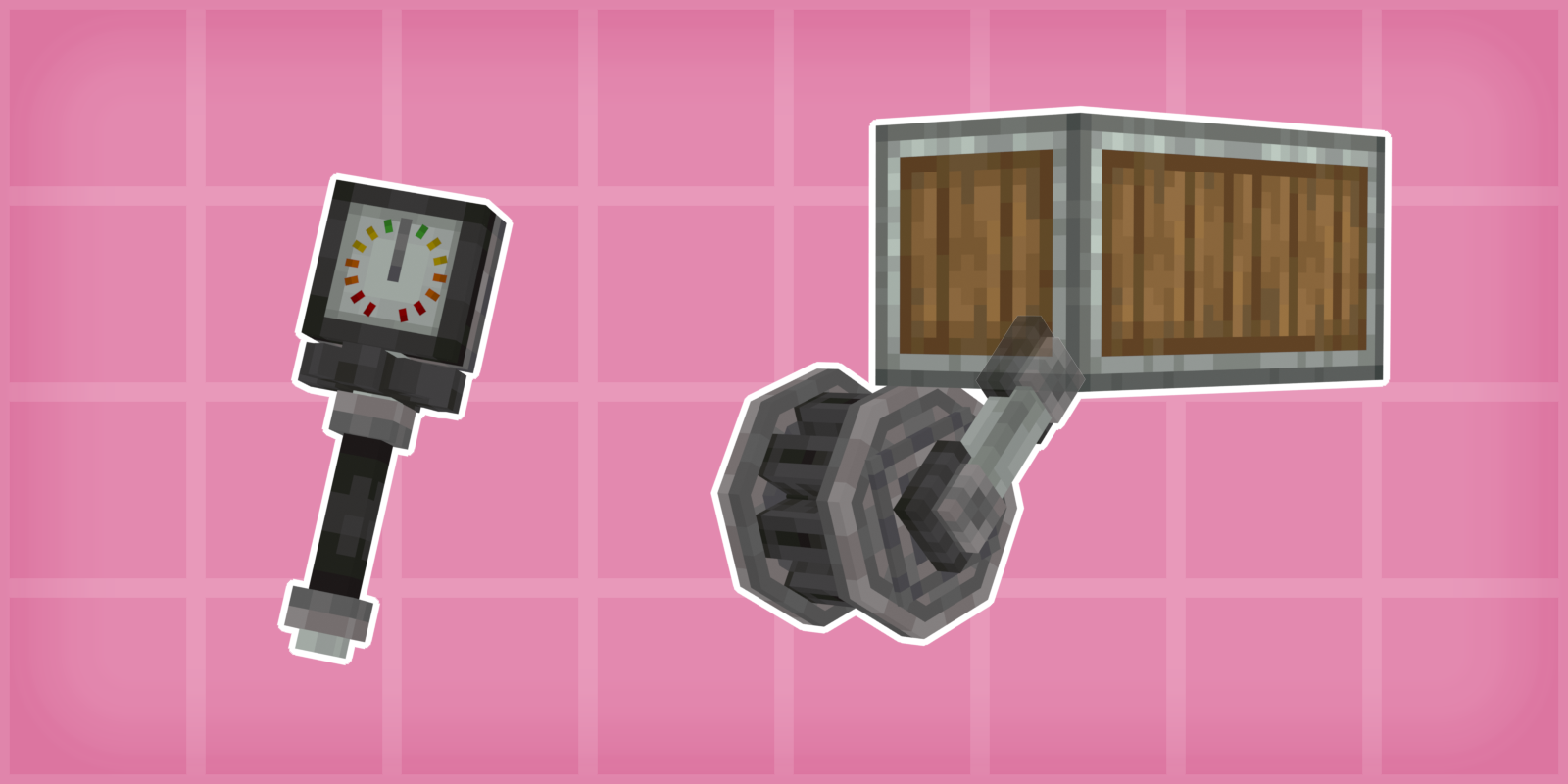
The Suspension Tool reads and tunes cogwheels that carry a Suspension Piece. It has four settings, stiffness, damping, travel and spring strength, each on levels 1 to 15 like a redstone signal, with 8 as the default. It uses the same panel as the lever, with one mode per setting.
- Look at a suspended cogwheel: the panel and the dial show its levels.
- Hold Alt and scroll: switches setting.
- Right-click a suspended cogwheel: selects it.
- Scroll: raises or lowers the selected setting on the selected cogwheel by one level.
- Ctrl + left-click: switches between tuning one cogwheel and every suspended cogwheel on the track.
Configuration
Physics settings are per world: suspension, cogwheel geometry, drive, friction, the belt, stress and sounds.
Open a world and use the Config button in the mod list to edit them, and drop a bits_n_tracks-server.toml into defaultconfigs/ to give every new world the same values.
Client settings cover Flywheel rendering, how often tracks recompute their shape, and the distance past which they stop animating.
Shader packs just work. Colorwheel is recommended alongside Iris, since it keeps Flywheel rendering on with shaders.
Help and feedback
Report bugs on the issue tracker, and ask questions or share builds on Discord. Development builds, when one is out ahead of the latest release, are listed as pre-releases on the releases page.
Building from source
Gradle needs JDK 21.
./gradlew build           # jar lands in build/libs/
./gradlew runClient       # launch a dev client
License and credits
GPL-3.0-only. See LICENSE.
Original mod and all original code by qwxon. Community Edition by Atmerek and Alesrr, with contributions from Cubester and ShioUmiusi, the Russian translation by Hanahaki and art by CloverKeep.
Made with love.

下载 Create: Bits 'n' Tracks Community Edition
需要联机服务器吗?
稳定流畅、一键部署,几分钟即可和朋友联机开服
最低仅需 8 元/月 即可畅快联机
下载 Create: Bits 'n' Tracks Community Edition
需要联机服务器吗?
稳定流畅、一键部署,几分钟即可和朋友联机开服
最低仅需 8 元/月 即可畅快联机
下载 Create: Bits 'n' Tracks Community Edition
需要联机服务器吗?
稳定流畅、一键部署,几分钟即可和朋友联机开服
最低仅需 8 元/月 即可畅快联机
下载 Create: Bits 'n' Tracks Community Edition
需要联机服务器吗?
稳定流畅、一键部署,几分钟即可和朋友联机开服
最低仅需 8 元/月 即可畅快联机
下载 Create: Bits 'n' Tracks Community Edition
需要联机服务器吗?
稳定流畅、一键部署,几分钟即可和朋友联机开服
最低仅需 8 元/月 即可畅快联机
下载 Create: Bits 'n' Tracks Community Edition
需要联机服务器吗?
稳定流畅、一键部署,几分钟即可和朋友联机开服
最低仅需 8 元/月 即可畅快联机
下载 Create: Bits 'n' Tracks Community Edition
新增
- 齿轮对齐杠杆的枢轴模式,可移动悬挂臂或转向架的铰链。
- 在杠杆的偏移模式中新增“轨道”行,使轨道沿齿轮正中间笔直延伸,宽度足以覆盖齿轮,适用于交错排列的负重轮。“贴合”行则会将单个齿轮排除在该宽度和中心之外。
- 车辆重量现在产生影响:轨道施加的推力仅受其齿轮应力影响的限制,因此重型车辆加速和爬坡更慢。新的“每单位应力的驱动力”设置用于调整此效果。
更改
- 履带车辆的模拟和渲染时间大幅减少,尤其在静止或不可见时最为明显。
- 履带车辆在高速转弯时不再失控甩尾,而是向外侧扩展行驶。
- 原地转向受到新的“最大转向速率”设置限制,默认值为每秒 120 度。
- 车辆从转弯状态恢复时,会在重新加速前停止侧滑。
- 由于本模组已取代原版 Create: Bits 'n' Tracks,因此在 Modrinth 和 CurseForge 上标记为与该模组不兼容。
修复
- 切换物理引擎或移动齿轮后,轨道不再穿过位于两个较小齿轮之间的大型齿轮组。
- 当两个齿轮移动到同一位置且同时转动时,轨道不再折叠成尖刺状。
更改
- 创造模式标签页中的横幅现在显示资源包的插槽轮廓,而非固定的白色轮廓。
修复
- 安装了 ModernFix 后,“Bits 'n' Tracks” 创造模式标签页不再在其物品周围显示空行。
- 两个在旋转源之间来回传递旋转的动力方块(例如来自 Create Aeronautics: Transmission & Linkage 的链接万向节)现在会破碎,而不会导致服务器崩溃。
- 轨道上的抓取和抛射粒子作用于旋转物理对象的上表面,而不仅仅是旋转前朝上的面。
- 车轮现在会爬上其他物理对象,而不是陷入其中;轨道则会覆盖其上,而非松垮下垂。
- 当载具停在方块边缘、仅由轨道承载或车轮完全下垂时,不再出现抖动或弹跳现象。
新增
- 添加了用于切换工具模式和滚动工具的按键,以便在没有滚轮的情况下进行操作。这些按键默认未绑定,可在“Bits 'n' Tracks”控制设置中找到。
- 当坦克履带和带有防滑齿的轨道在打滑或落在石头、金属及其他镐类可破坏方块上时,会迸发火花,并混合部分地面粒子效果。相关方块列在
bits_n_tracks:sparks方块标签中。 - 下雨时,松软地面的抓地力会降低,此效果由新增的“潮湿松软地面抓地力”(Wet Soft Ground Grip)设置控制。
- 当轨道转速超过限速时,会在断裂前三秒冒出黑烟并迸发火花;在此期间减速可避免其断裂。
- 新增了 26 个进度,归类于独立的“Bits 'n' Tracks”选项卡中,涵盖建造轨道、使用工具、保存或拆除超速轨道、在自己建造的轨道上行驶 10,000 格距离以及收集团队头像等内容。
- 新增了团队头像的合成配方,分别通过 Create 模组的机械合成、序列组装、混合、压缩、部署和风扇清洗六种方式制作。
更改
- “Bits 'n' Tracks”现在拥有独立的创造模式物品栏,位于“Bits 'n' Bobs”物品栏之后,顶部显示横幅,团队头像上方还有一道额外的横幅。
- 悬挂部件现在会提示无法安装的原因:物理引擎关闭、无悬挂点、轴被隐藏、尺寸不匹配或有其他部件阻挡。
- 当手持悬挂部件时,若齿轮的物理引擎处于关闭状态,该齿轮会以红色轮廓高亮显示;若无悬挂点,臂架或转向架预览也将以红色显示。
- 悬挂工具的面板现在会提示当前瞄准的齿轮是否关闭了物理引擎或缺少悬挂部件。
- 轨道粒子现在从皮带与地面接触处生成,且侧向滑行的轨道会沿其全长向侧面抛出粒子。
- 在路线模式下,若轨道无法到达齿轮的某一侧,该侧将以红色标记,点击时会显示提示信息。
- 在路线模式下,除了直接瞄准齿轮外,还可以瞄准齿轮边缘或轴心来选择侧面;返回自动模式的中心按钮变小,使得小齿轮更容易瞄准。
- 路线模式的侧面标记现在位于齿轮轮廓内部,因此瞄准标记即可选中该侧面。“高亮半径”(Highlight Radius)设置已被移除。
- 若驱动网络中存在轨道且发生卡死,将立即破坏一个方块(与 Create 模组行为一致),而不是先尝试停止并重新启动轨道最多三次。
- “通电轨道”(Powering Tracks)的 ponder 场景已重新制作,包含所有六种尺寸的齿轮,并涵盖速度、应力、限速及超速警告等内容。
修复
- 防滑齿现在在轨道上和物品栏中以正确的方向显示纹理。
- 宽度为 2 格的微型齿轮的中心不再出现拉伸纹理。
- 经过 Colorwheel 渲染时,轨道不再闪烁拉伸的黑色面板。
- 路线模式现在可以将轨道环绕到任何可达的齿轮侧面,包括位于两个其他齿轮中间的齿轮,而不仅仅是朝向最近路径的那一侧。
- 添加到轨道运行路径但未直接接触轨道的齿轮,不再将该段轨道拉直:它仍保持原有的下垂弧度并贴合地面。
- 当齿轮加入或离开轨道时,轨道会自动调整长度,而不是维持旧长度直到张力发生变化。
- 移动、重路由或修改轨道上的齿轮后,轨道不再短暂出现下垂、翻转或在两种形状间闪烁的现象。
- 通过图纸炮驱动的轨道打印效果现与原版本一致,且打印出的臂架和转向架会保留在原位,直到它们所悬挂的方块被放置。
新增
- 花吐症的头部。
更改
- 粗人(Grousers)拥有新的模型和材质,并在物品栏中显示为该模型。
- 工业腰带(Industrial Belt)和坦克履带(Tank Tread)的新物品图标。
- 贡献者头部在物品栏槽位中位置更高。
修复
- 在没有轨道的齿轮上,载具不再无限滑动:裸露的齿轮可以自由滚动,侧向放置时会锁定,并在接收到制动信号时停止。
需要 NeoForge 21.1.228 或更高版本,Create Aeronautics 1.3.1 或更高版本以及 Bits 'n' Bobs 2.3.5 或更高版本。
从 2.x 升级
- 物理齿轮不再自带悬挂系统。如果没有悬挂件(Suspension Piece),物理齿轮就是一个刚性轮子,因此在安装悬挂件之前,现有车辆将没有悬挂效果行驶。悬挂件需要通过其轴与齿轮接触的方块来悬挂。
- “已移除”下列出的悬挂设置已消失,其中设置的任何值都会被忽略。现在使用悬挂工具(Suspension Tool)针对每个齿轮调整悬挂。
- 齿轮对齐杆(Cog Alignment Lever)现在仅适用于 Bits 'n' Tracks 齿轮。
- 加载 2.x 世界时,启用了物理的齿轮会进行转换。启用了物理的 Bits 'n' Bobs 或 Design n' Decor 齿轮会变成相同尺寸的 Bits 'n' Tracks 齿轮。
- Bits 'n' Tracks 齿轮不再带动旁边的方块转动,也不会被旁边的方块带动。请通过其轴或轨道驱动它们。
- 齿轮对齐杆现在支持多种模式,按住 Alt 并滚动鼠标滚轮可切换模式。取代其旧点击控制的功能列在“已更改”部分。
- 抓地力设置经过重新设计。在轨道抓地力(Track Grip)和滚动阻力(Rolling Resistance)中设置的值会重置为新默认值,“已移除”下列出的设置会被忽略。
- 启用了物理但没有轨道的 Bits 'n' Tracks 齿轮不再抓地,因此仅停在这种齿轮上的车辆会自由滚动和滑动。
新增
- 双宽轨道轮。当相同尺寸和材质的两个齿轮沿其轴相邻放置时,它们会合并为一个宽轮,轨道也会相应加宽。放置时潜行可使它们保持分离。
- 轨道现在像真实轨道坐在路轮上一样包裹住齿轮。如果轨道无法触及环路内的某个齿轮,该齿轮会被轨道包围而不是使其变形,并且可以自由旋转直到轨道接触到它。
- 轨道布线。在齿轮对齐杆的“路由”(Route)模式下,右键点击齿轮面会使轨道绕过该齿轮并反转其旋转方向,右键点击中心则恢复自动模式。
- 齿轮间的轨道段现在接触地面。它会覆盖地形,承载车辆越过障碍,并在其长度范围内抓地和驱动。
- 轨道张力。在齿轮对齐杆的“张力”(Tension)模式下,右键点击轨道以选中它,然后滚动鼠标滚轮收紧或放松轨道。
- 齿轮宽度。在齿轮对齐杆的“宽度”(Width)模式下,右键点击齿轮可每次将其变窄四分之一,最窄可达半块(单个轮)或一块二分之一(双宽轮),按住 Shift + 右键点击可将其加宽。轨道的宽度等于其跨越的最宽齿轮的宽度。
- 可隐藏的轴。在齿轮对齐杆的“轴”(Shaft)模式下,右键点击齿轮的两端之一可隐藏或显示其轴。隐藏的轴不连接任何东西,因此没有轴的齿轮仅随轨道转动。持有悬挂件的轴无法隐藏。
- 坦克履带(Tank Tread),一种由机械工作台(Mechanical Crafter)制作的板状轨道,像工业皮带一样串联在齿轮之间。
- 防滑齿(Grousers),由工业铁块制成。用它们右键点击皮带轨道即可沿轨道安装,每格轨道安装一个。瞄准轨道时会显示所需数量,并从背包的任何位置消耗。装有防滑齿的皮带在冰、雪和泥地上抓地力更好,在硬地上稍差。扳手会在拆除轨道本身之前先取下防滑齿,并且在轨道拆除时会掉落。坦克履带不能安装防滑齿。
- 中间物理凸缘齿轮(Intermediate Physical Flanged Cogwheel)和中间工业凸缘齿轮(Intermediate Industrial Flanged Cogwheel),尺寸介于微小和小号之间。
- 中大物理凸缘齿轮(Medium-Large Physical Flanged Cogwheel)和中大工业凸缘齿轮(Medium-Large Industrial Flanged Cogwheel),尺寸介于中型和大型之间。
- 悬挂件(Suspension Piece),可在物理齿轮上安装摆动臂,或在两个相同尺寸的小号、中间或微型齿轮(包括双宽轮)上安装转向架。它与 Create Aeronautics 中的弹簧一起制作。
- 悬挂工具(Suspension Tool),用于读取和调整单个齿轮或整条轨道的悬挂刚度、阻尼、行程和弹簧强度,共 15 个等级。
- 按住 Ctrl + 左键点击齿轮对齐杆,可在“偏移”、“宽度”、“轴”和“重置”模式之间切换,作用于单个齿轮或整条轨道。在整条轨道模式下,“偏移”仅移动共享点击齿轮物理设置的齿轮。
- 齿轮对齐杆和悬挂工具的界面面板,在手持任一工具时显示。它显示当前模式、正在操作的齿轮或轨道的值,以及点击或滚动说明。
- 齿轮对齐杆和悬挂工具在切换模式、调整值、切换设置以及操作被拒绝时的音效。
- 物理齿轮和轨道在滚过地面时会扬起灰尘,原地空转或打滑时扬起更多,落地时会激起一阵尘土。
- 凸缘齿轮、轨道、齿轮对齐杆、悬挂件和悬挂工具的 Ponder 场景。
- 模组创作者和贡献者的装饰性头像。
- 启用物理的齿轮现在会阻挡玩家和其他实体。
- 设置:新增“皮带”部分,用于配置轨道如何接触地面及其长度和张力的行为;软土地面压力、滑动抓地力、悬挂平滑、调试日志;中间和中等大小编号的几何和应力设置;以及客户端关于 Flywheel 渲染、轨道更新率和动画距离的设置。
- 波兰语翻译。
已更改
- 为每种带法兰的齿轮添加了新模型,由 qwxon 制作。
- 新的模组图标。
- 当 Flywheel 激活时,齿轮和轨道通过 Flywheel 进行渲染,且轨道的可见距离延伸至渲染距离,而非之前的 64 格。
- Bits 'n' Bobs 模组中的链条在 Bits 'n' Bobs 齿轮上完全交由 Bits 'n' Bobs 处理,因此其路由、外观和驱动效果与未安装 Bits 'n' Tracks 时保持一致。
- 齿轮对齐杠杆(Cog Alignment Lever)现在有八种模式:偏移(Offset)、路由(Route)、张力(Tension)、可见性(Visibility)、物理(Physics)、宽度(Width)、轴(Shaft)和重置(Reset)。在偏移模式下,右键点击一个齿轮以选中它,滚动滚轮可每次移动一格像素,按住 Shift + 滚动可选择轴向,而不再是点击其表面的不同部位。在各自的模式中,通过右键点击来切换可见性和物理模式,而不再是通过右键点击中心并左键点击其他部分。
- 使用齿轮对齐杠杆进行重置时,需在重置模式下对齿轮连续右键点击两次,同时也会重置悬挂调校。
- 齿轮对齐杠杆现在可以正常破坏除 Bits 'n' Tracks 齿轮以外的方块。
- 工业皮带的配方现在需要两个皮带连接器和三个铁粒,并产出两条皮带。
- 带法兰齿轮的配方随尺寸缩放:两个齿轮和一个工业皮带可制作两个小型齿轮,一个齿轮和两个皮带可制作一个中型齿轮,一个大齿轮和三个皮带可制作一个大号齿轮。工业版本则用工业铁块替代皮带。
- 轨道抓地力增强,且仅轨道具有抓地力:没有轨道的齿轮可以自由滚动。抓地力取决于压在轨道上的重量;高速急转弯时轨道可能打滑,且打滑后抓地力会降低;轨道上任意齿轮的红色stone刹车会使整个轨道制动,且保持制动的能力取决于轨道的抓地力。
- 轨道在泥土、沙子、砾石、黏土、雪和泥地上的抓地力低于在石头上的抓地力。坦克履带比工业皮带更好地咬合松软地面,但在坚硬地面上抓地力略低。在松软地面上,较宽、较长或负载较轻的轨道因压力较小,抓地力反而更好。数据包可以通过
bits_n_tracks:ground数据映射表更改任何方块的抓地力。 - 轨道和悬挂组件会增加车辆的重量:无论长度如何,工业皮带增加 0.25,坦克履带增加 0.5,每个悬挂组件增加 0.25。
- 更新了俄语翻译,由 Hanahaki 完成。
已移除
- 设计 n' 装饰(Design n' Decor)齿轮不能再用于轨道中。
- 设置项:齿轮悬挂、轨道悬挂、基础强度、弹簧比例、阻尼比例、齿轮弹簧、轨道弹簧、齿轮阻尼、轨道阻尼、齿轮脉冲限制,以及四个悬挂复位设置。
- 设置项:驱动牵引力、刹车牵引力、侧向牵引力和齿轮抓地力。
已修复
- 轨道会穿透齿轮,驱动从未触及的齿轮,并可能在会话之间从动能网络中断开。
- 开启或关闭某个齿轮的物理模式会重置其对齐方式和可见性,并使工业齿轮变成木质。
- Create 模组的结构图会将启用了物理模式的工业齿轮变为木质,并丢失所有齿轮的对齐和可见性设置。
- 启用了物理模式的工业齿轮发出的声音如同木质齿轮。
- 启用了物理模式的齿轮在无动力滚动时不发出任何声音。
- 用手以外的工具破坏启用了物理模式的齿轮会掉落普通木质齿轮而非实际放置的齿轮,而使用斧头或镐破坏则会同时掉落两者。
- 在使用光影包时,轨道看起来湿润且有光泽,并且被错误地渲染为面向天空。
- 紧贴墙壁的车轮失去抓地力,仿佛处于空中。
- 在斜坡上的车辆可能会侧向漂移。
- 作为独立结构构建并与船体连接的轨道(例如安装在万向轴承或其旋转所依赖的轴承上),无法支撑车辆。
- 接触多个方块的车轮可能会从错误的方块获取抓地力。
- 齿轮对齐杠杆无法接触到从其方块向外延伸绘制的齿轮,例如悬挂在悬挂装置上的齿轮。
- Bits 'n' Bobs 的链条和绳索可以被放置在启用了物理模式的齿轮上。
- 关闭 Bits 'n' Bobs 的非专用链传动设置会破坏所有 Bits 'n' Tracks 齿轮上的轨道。
- 从链条中移除齿轮可能导致游戏崩溃。
- 从旋转的结构图中粘贴的轨道和链条,或使用机械装置旋转时,其旋转角度会比周围方块多出两倍。
- 拆解曾发生转向的车辆会损坏其轨道。
- 齿轮对齐偏移量不会随旋转的结构图、机械装置或拆解的车辆一同旋转。
- 齿轮对齐杠杆在物品展示框中以错误的大小显示。
- 小型物理带法兰齿轮在背包中比其他齿轮显示得更大,且在物品展示框中的旋转方式不同。
- 齿轮对齐杠杆堆叠上限提升至 64。
- 启用了物理模式的齿轮不会为其所在车辆增加任何重量。
- 安装了某些纹理动画模组时,创造模式标签页的横幅在悬停时被拉伸。
关于这个资源的讨论、问题反馈与使用心得
还没有讨论,来发第一帖吧
你是这个资源的作者?登录后可认领此资源。
相似资源
 模组

一个用于收集生物掉落物的多区块模组。
 模组
在游戏画面角落显示附近世界地形、玩家、生物和实体的地图。可创建路径点,帮助你找到标记过的位置。
 模组
AE2:一款流行的自动化与存储模组
 模组
添加全屏世界地图,显示你在世界中已探索的区域。与 Xaero's Minimap 搭配使用效果极佳。
 模组

基于 GTCEu 1.12.2 的现代 GregTech
 模组
让你能够在世界中的任何位置定位结构。
评论 0
登录后参与评分
还没有评论,来抢沙发吧