选定的方块坐标可以在客户端使用自定义高亮、边框和半透明显示进行标记——所有操作均可通过直观的游戏内 GUI 轻松管理。它适用于标记位置、机械陷阱或方块放置。
HUD 切换 - N,编辑模式 - I,管理器 GUI - M
工作原理
编辑模式
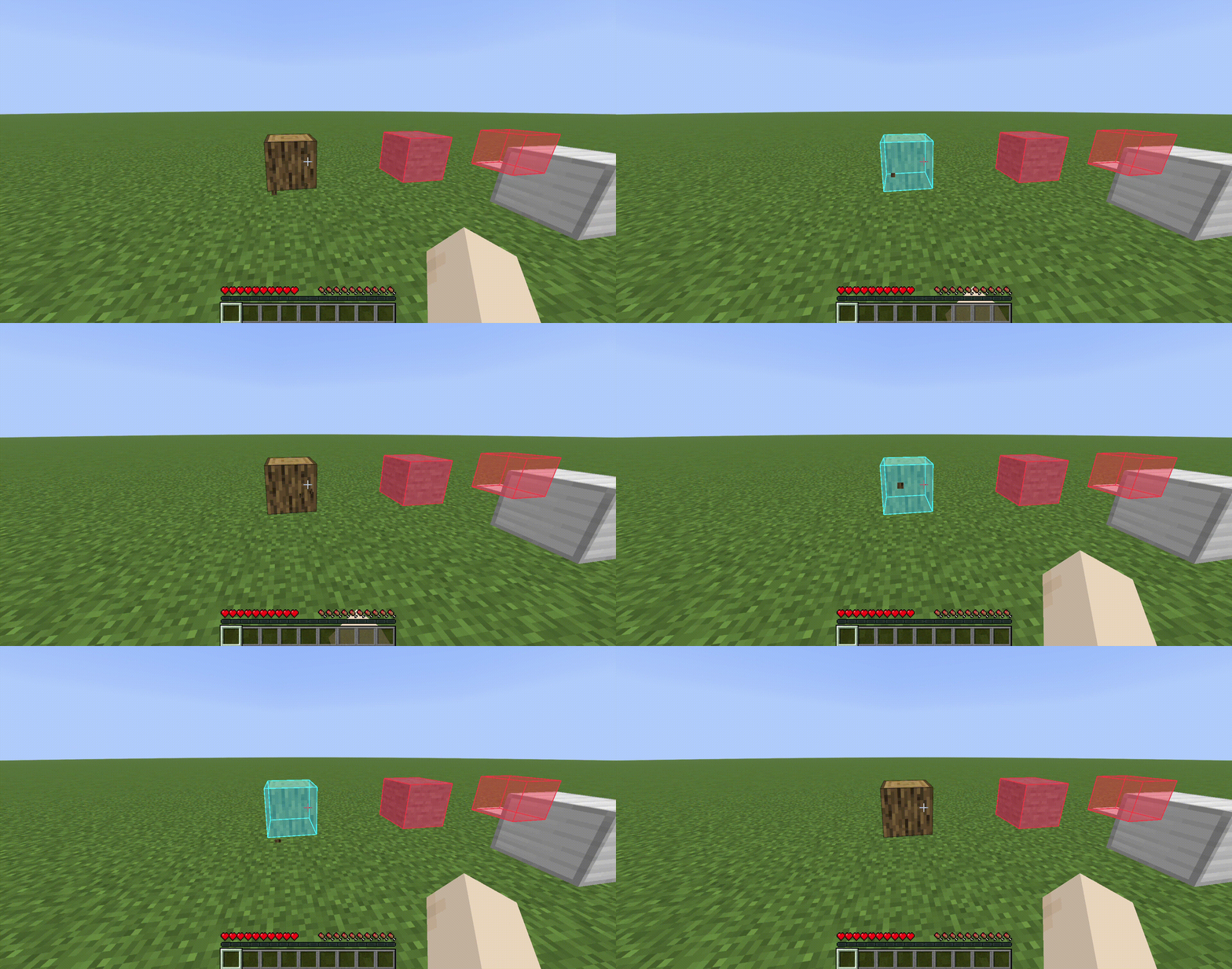
按 I 切换编辑模式。激活时,左击任意方块将在其上放置彩色高亮,而非挖掘该方块。再次左击已高亮的方块可将其移除。当编辑模式开启或关闭时,聊天栏会发送确认消息。按 I 退出编辑模式以恢复正常游戏——你的高亮标记仍会保持可见。

管理器 GUI
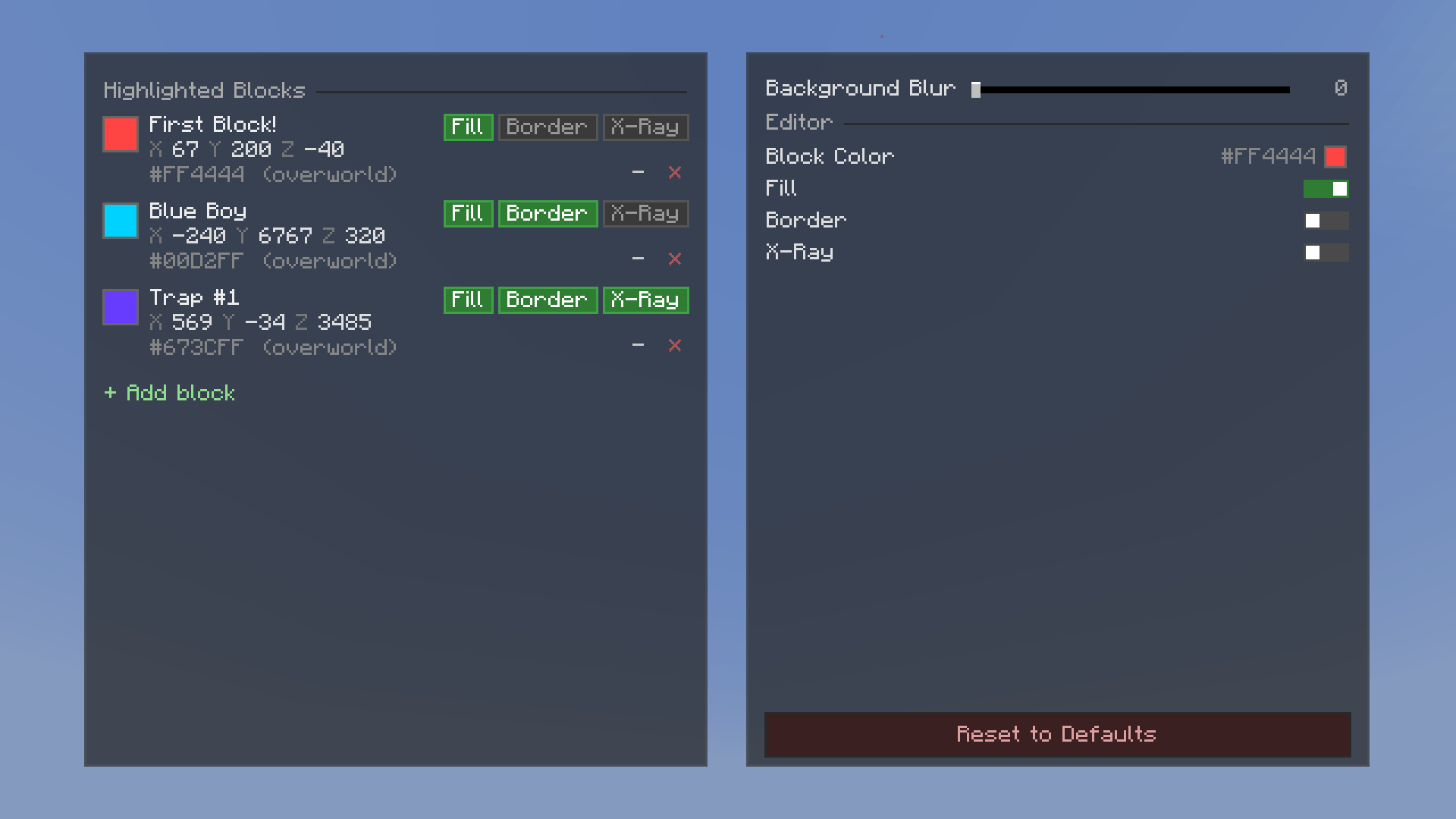
按 M 打开标记管理器,这是一个分屏式游戏内界面,你可以在此查看和管理所有已高亮的方块。
- 标记列表(左侧面板) — 浏览所有已保存的标记。每个条目均显示方块的坐标、维度、颜色色块以及可选名称。你可以搜索、滚动、重命名、重新着色、切换半透明 X-Ray 模式、在填充框或线框 轮廓 之间切换、隐藏/显示、编辑坐标或删除任何标记。
- 设置(右侧面板) — 更改新标记的默认高亮颜色、调整背景模糊强度,并管理已保存的颜色预设。你还可以将所有设置重置为默认值。
颜色选择器
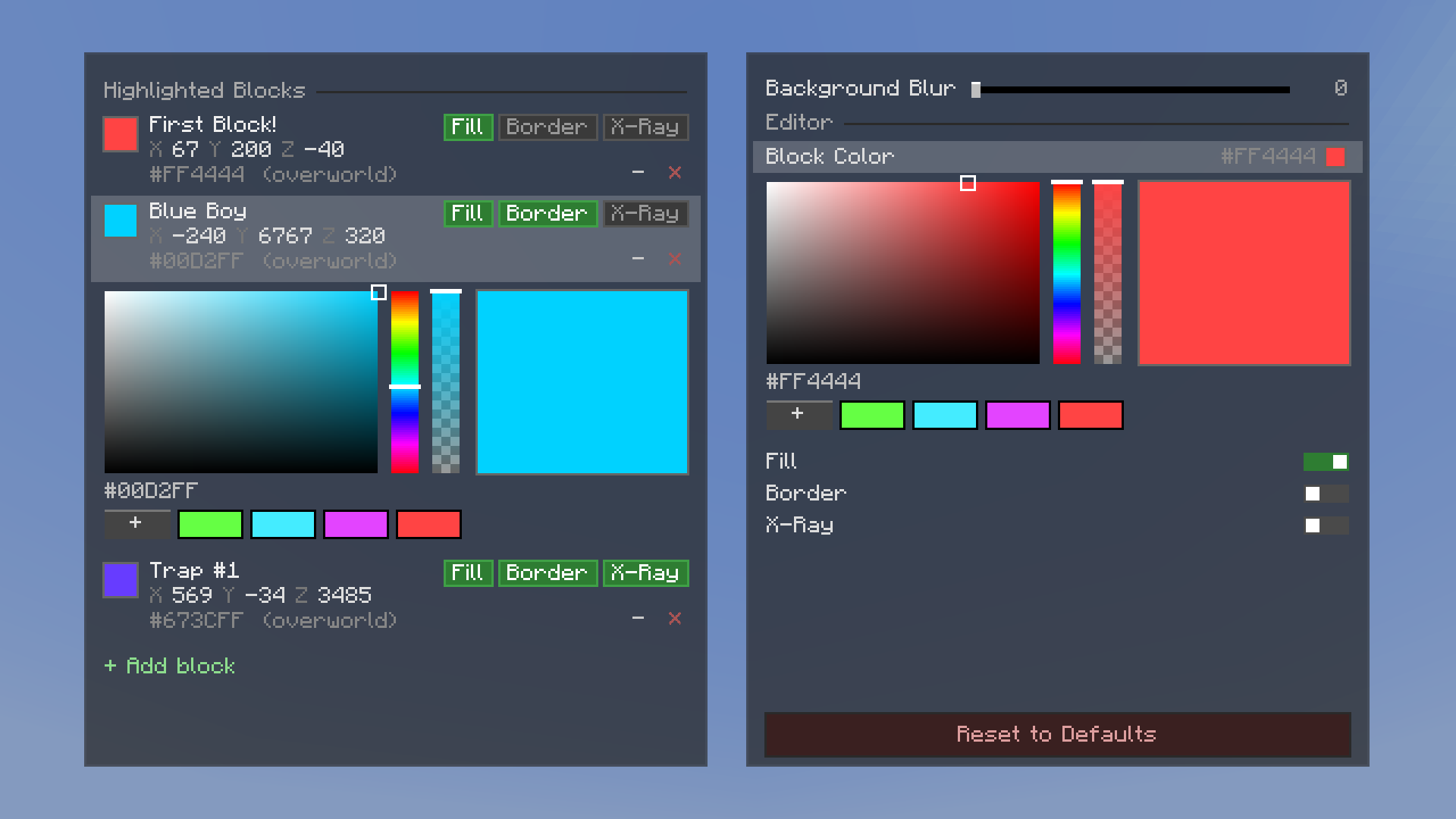
每个标记都可以拥有自己的颜色。颜色选择器提供完整的 HSV(色相-饱和度-明度)选择器以及十六进制输入字段,以实现精确控制。你还可以将颜色保存为预设,以便在所有标记中快速重复使用。
持久化
所有标记和设置均保存至 Minecraft 配置目录中的 JSON 文件。你的高亮标记和颜色预设会在游戏重启、世界重载和服务端重连后保持不变。
维度感知
标记与其所在维度绑定——主世界、下界和末地的标记分别追踪。仅渲染当前维度内的标记。
Selected block coordinates can be marked client-side with custom highlights, borders, and a see-through display—all easily managed via an intuitive in-game GUI. It's useful for marking locations, mechanical traps, or block placements.
HUD Toggle - N, Edit Mode - I, Manager GUI - M

How It Works
Edit Mode
Press I to toggle edit mode. While active, left-clicking any block will place a colored highlight on it instead of mining it. Left-click a highlighted block again to remove it. A chat message confirms when edit mode is toggled on or off. Exit edit mode with I to resume normal gameplay — your highlights stay visible.

Manager GUI

Press M to open the Marker Manager, a split-panel in-game screen where you can view and manage all your highlighted blocks.
- Marker list (left panel) — Browse all saved markers. Each entry shows the block's coordinates, dimension, color swatch, and optional name. You can search, scroll, rename, recolor, toggle see-through X-Ray mode, switch between filled box or wireframe Outlines, hide/show, edit coordinates, or delete any marker.
- Settings (right panel) — Change the default highlight color for new markers, adjust background blur strength, and manage your saved color presets. You can also reset all settings to defaults.
Color Picker

Every marker can have its own color. The color picker gives you a full HSV (Hue-Saturation-Value) selector with a hex input field for precise control. You can also save colors as presets for quick reuse across all your markers.
Persistence
All markers and settings are saved to JSON files in your Minecraft config directory. Your highlights and color presets persist across game restarts, world reloads, and server reconnects.
Dimension-Aware
Markers are tied to their dimension — Overworld, Nether, and End markers are tracked separately. Only markers in your current dimension are rendered.
评论 0
登录后参与评分
还没有评论,来抢沙发吧