Chimage 是一款 Minecraft 模组,允许你直接在游戏聊天栏中粘贴、预览和分享图片。
旨在支持从 1.16.5 开始的每个 Minecraft 版本上的 Fabric 和 Forge。
使用方法
使用 Chimage 非常简单。你有三种方式将图片附加到你的聊天消息中:
- 剪贴板:在聊天栏打开时,只需按下
CTRL + V。(剪贴板中有图片或图片文件)
- 拖放:在聊天打开时,直接从电脑中将图片文件拖入 Minecraft 窗口。
- URL 加载:在聊天中输入
!(your_url),或者简单地输入 ! 并在有图片链接的情况下按下 CTRL + V。Chimage 会自动从网络上直接获取它!
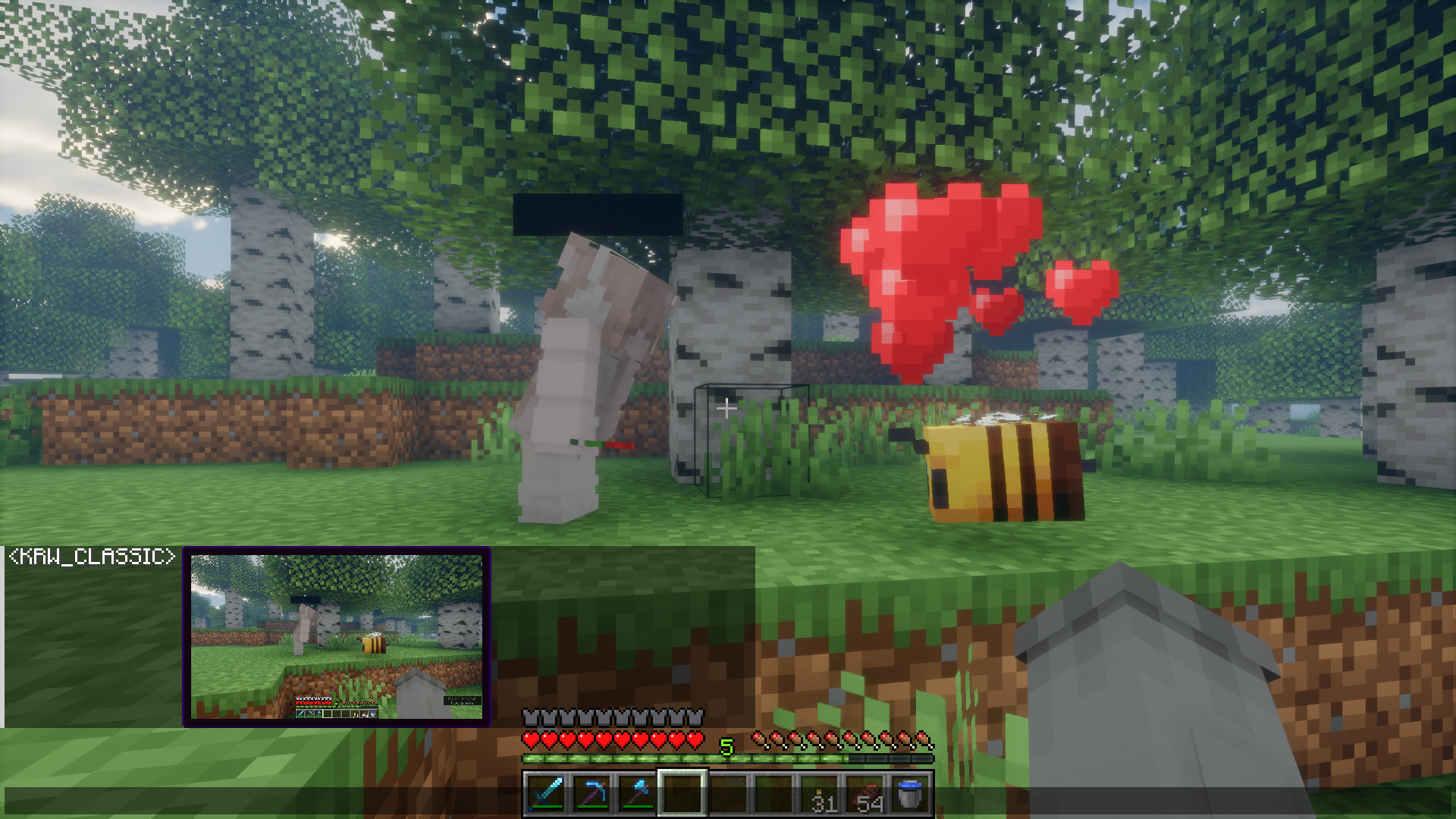
一旦你附加了图片,一个小的预览窗口会出现在你的聊天栏上方。这让你可以在发送之前确认图片。
功能列表
- 剪贴板粘贴:在聊天打开时按下
CTRL + V 以发送来自剪贴板的图片。
- 拖放:在聊天打开时,直接从电脑中将图片文件拖入游戏窗口。
- URL 加载:通过粘贴链接或输入
!(url) 即时获取图片、GIF 和画廊链接(如 Imgur、Tenor 和 Klipy)。
- 附件抽屉:随时打开附件抽屉,从电脑中选择图片、附加 F2 截图或开始空白画布。
- 实时预览:查看图片的预览窗口以在发送前进行确认,上传冷却期间会有动画边框指示器。
- 聊天内渲染:直接在聊天框中查看其他玩家发送的图片。
- 全屏查看器:点击聊天中的任何图片,即可全屏查看并支持缩放。
- 混用按钮:点击其他玩家发送的图片上的“混用”按钮,将其在编辑器中打开,修改后发送你自己的版本。
- 私聊支持:在私聊(
/msg、/tell 等)中直接分享图片,支持可配置的命令。
- 图片元数据:悬停在图片上并按住
SHIFT 可查看其详细信息。
- 快速下载:在图片上按住
SHIFT 并左键单击,将其保存到电脑。
- 快速复制:在图片上按住
CTRL 并左键单击,直接复制到剪贴板。
- 剧透标记:将图片标记为剧透,使其在聊天中保持模糊,直到悬停或点击。
- 原版兼容性:原版客户端可以通过可点击的回退链接查看图片(如果服务器启用此功能)。
- 客户端侧降采样:强制执行分辨率限制,自动降低大型传入图片的分辨率,从而减少内存使用并提高性能。
- 高度可配置:调整最大图片尺寸、渲染限制、行为等。
- 内置图像编辑器:在发送图片之前绘制、擦除、拾取颜色、裁剪和调整大小。
- Immersive Paintings 集成:将编辑后的图片直接导出到世界中作为自定义画作或涂鸦!
图像编辑器
Chimage 具备强大的内置图像编辑器,允许你在发送图片之前在聊天中快速修改图片。
功能包括:
- 画笔与橡皮擦:使用可自定义的画笔大小直接在图片上绘制或擦除。
- 颜色选择器:功能齐全的 RGB/HSL/HSV & Alpha 颜色选择器,可选择所需的精确颜色。
- 调整大小:放大或缩小图片,可选择锁定宽高比。
- 裁剪:快速裁剪出图片中的重要部分。
- 撤销 / 重做:犯错了?使用
Ctrl+Z 和 Ctrl+Y 撤销或重做操作。
查看编辑器截图
(截图即将推出)
Immersive Paintings 集成
如果你安装了 Immersive Paintings 模组并与 Chimage 一起运行,图像编辑器内会出现一个新的导出按钮!
此功能允许你将编辑器中的任何图片或任何绘图立即转换为自定义画作或涂鸦物品。然后你可以将其放置在 Minecraft 世界的任何地方!
命令
/chimage config - 直接在聊天中管理客户端和服务端配置。/chimage server - 管理内置 HTTP 服务器的命令(status、start、stop、getActiveFiles、getLatestLog 等)。/chimage access - 管理访问列表(mode、add、remove、list),以控制确切允许发送图片的人员。/chimage debug - 触发测试下载或启用开发者叠加选项(viewBoundingBoxes、verbose)。/chimage version - 检查模组版本、游戏版本和加载器类型。
服务器兼容性
原版服务器
该模组在原版服务器上被禁用。为了上传和分享图片,服务器也必须安装该模组。
原版客户端(基于链接的回退)
如果未安装模组的玩家连接,他们仍然可以通过基于链接的回退“看到”图片!服务器会将上传的图片转换为可点击的网络链接,供原版客户端在浏览器中打开。(注意:服务器所有者必须自行配置此功能)。
服务器与 Web 查看器设置
Chimage 包含一个内置 HTTP 服务器,允许原版客户端或游戏外用户通过简洁的用户界面直接在浏览器中查看上传的图片!
1. 提取 Web 文件
在补充资源(Supplementary resources)中找到随模组 JAR 包提供的 ImageHost.zip。将此 zip 文件直接解压到 Minecraft 服务器的根文件夹中(即包含 mods 文件夹、server.properties 等文件的同一目录)。解压后必须生成一个确切名为 ImageHost 的文件夹。
示例路径: /path/to/server/ImageHost/index.html
2. 配置设置
打开你的 config/chimage-server.json 文件(或者直接使用游戏内模组菜单 -> Chimage -> Hosting 选项卡),并调整以下设置:
"enableClickableLinks": true - 允许模组在聊天中发送网页链接,而不是在玩家未安装该模组时回退到原始数据。"clickableLinkUrlPlaceholder": "http://images.yoursite.com/" - 提供给玩家的基础 URL。请确保包含末尾的斜杠!如果你没有域名或反向代理,也可以使用你的 IP 和端口,例如 "http://1.2.3.4:8080/"。"enableBuiltInHostServer": true - 启用内置 HTTP 服务器。"builtInHostServerPort": 8080 - 服务器运行的端口号(如果 8080 已被占用,请更改此值)。
3. 可选:Nginx 反向代理
如果你想使用域名(如 images.yoursite.com)而不暴露端口,可以使用 Nginx 将流量反向代理到 Chimage。
server {
    listen 80;
    server_name images.yoursite.com;

    location / {
        proxy_pass http://localhost:8080;
        proxy_set_header Host $host;
        proxy_set_header X-Real-IP $remote_addr;
    }
}
你可以通过安装 Certbot 并运行 certbot --nginx -d images.yoursite.com 轻松为此配置 HTTPS!(如果这样做,记得将你的 clickableLinkUrlPlaceholder 更改为 "https://images.yoursite.com/")
4. 测试服务器
你可以检查内置 HTTP 服务器是否正在运行,并使用以下命令在游戏内直接管理它:
/chimage server status - 检查 HTTP 服务器是否正在运行并查看其当前运行时间。/chimage server start 或 stop - 手动开启或关闭内置 HTTP 服务器。/chimage server getActiveFiles - 查看当前存储并正在提供服务的已上传图片数量。/chimage server getLatestLog - 直接在聊天窗口中查看最新的 HTTP 服务器访问日志。/chimage server getWebsitePath - 验证服务器提供 HTML 文件的目录路径。
开发版构建
你可以直接从官方网站下载该模组最新的开发版版本:
(警告:这些版本处于积极开发中,可能不稳定!)
计划中的功能 (TODO)
1.3.1
- 纵横比按钮(裁剪、扩展,并在解绑比例时使用调整大小功能,而非尺寸滑块)
- 可展开的顶部工具栏文本工具,例如支持文本背景选项
- 编辑器中更多的原生纹理(用泥土栏和石头按钮纹理替换顶部工具栏和颜色小部件)
1.4.X
- 添加配置绘图工具鼠标轮询率的选项
- 修复 ~1.16.5 根据某些设置(如原版模式)更新旧消息的问题
- 画廊(保存图片和 GIF)
- 带提示框的编辑器使用教程(如何移动、快捷键等)
- 如果用户是管理员(OP),在世界加入时显示“有可用更新”提示框(服务器端也在聊天中向所有操作员广播)
- 多图片支持??? 1.3.X | 箭头键循环浏览附加的图片(自动循环浏览图片配置)
- 允许图像编辑器用于 GIF,但排除绘图工具
- 图层
- 视频支持(1.3.X/1.4.X)
- 下载进度条
- 范围版本支持(支持 1.16.x 而不仅仅是 1.16.5)
未知
- 使 Renderium 兼容(并从渲染大量预处理器块切换)
- 完成编写 BaLLib 并切换出使用 Cloth Config(因为要在不同 Cloth 版本间保持功能对等)
- Discord 聊天插件(Discord 与 MC 聊天之间的消息和图片互通)
查看编辑器截图
(截图即将推出)
Immersive Paintings 集成
如果你安装了 Immersive Paintings 模组并与 Chimage 一起使用,图像编辑器内将出现一个新的导出按钮!
此功能允许你将编辑器中制作的任何图片或绘画即时转换为自定义画作或涂鸦物品。然后你可以在 Minecraft 世界的任何地方放置它们!
命令
/chimage config - 直接在聊天中管理客户端和服务器的配置。/chimage server - 管理内置 HTTP 服务器的命令(status、start、stop、getActiveFiles、getLatestLog 等)。/chimage access - 管理访问列表(mode、add、remove、list),以精确控制谁被允许发送图片。/chimage debug - 触发测试下载或启用开发者覆盖层选项(viewBoundingBoxes、verbose)。/chimage version - 检查模组版本、游戏版本和加载器类型。
服务器兼容性
Vanilla Servers
该模组在纯净服务器上被禁用。为了上传和分享图片,服务器也必须安装该模组。
Vanilla Clients (基于链接的回退)
如果玩家在没有安装模组的情况下连接,他们仍然可以通过基于链接的回退机制“看到”图片!服务器会将上传的图片转换为点击式网页链接,供纯净客户端在浏览器中打开。(注意:服务器管理员必须自行配置此功能)。
服务器与网页查看器设置
Chimage 包含一个内置 HTTP 服务器,允许纯净客户端或游戏外用户直接在浏览器中查看上传的图片,并拥有流畅的用户界面!
1. 提取网页文件
在“补充资源”中找到随模组 JAR 文件提供的 ImageHost.zip。将此压缩包直接解压到 Minecraft 服务器的根文件夹中(即包含 mods 文件夹、server.properties 等文件的同一目录)。它必须创建一个确切名为 ImageHost 的文件夹。
示例路径: /path/to/server/ImageHost/index.html
2. 配置设置
打开你的 config/chimage-server.json 文件(或直接在游戏内通过 Mod Menu -> Chimage -> Hosting 选项卡)并调整以下设置:
"enableClickableLinks": true - 允许模组在聊天中发送网页链接,而不是在玩家未安装该模组时回退到原始数据。"clickableLinkUrlPlaceholder": "http://images.yoursite.com/" - 提供给玩家的基准 URL。请务必包含末尾的斜杠!如果你没有域名或反向代理,也可以使用你的 IP 和端口,例如 "http://1.2.3.4:8080/"。"enableBuiltInHostServer": true - 启用内置 HTTP 服务器。"builtInHostServerPort": 8080 - 服务器运行的端口(如果 8080 已被占用,请更改此值)。
3. 可选:Nginx 反向代理
如果你想使用域名(如 images.yoursite.com)而不暴露端口,可以使用 Nginx 将流量反向代理到 Chimage。
server {
    listen 80;
    server_name images.yoursite.com;

    location / {
        proxy_pass http://localhost:8080;
        proxy_set_header Host $host;
        proxy_set_header X-Real-IP $remote_addr;
    }
}
你可以通过安装 Certbot 并运行 certbot --nginx -d images.yoursite.com 轻松地为此配置 HTTPS!(如果你这样做,请记住将 clickableLinkUrlPlaceholder 更改为 "https://images.yoursite.com/")
4. 测试服务器
你可以检查内部 HTTP 服务器是否正在运行,并使用以下命令在游戏内直接管理它:
/chimage server status - 检查 HTTP 服务器是否正在运行并查看其当前运行时间。/chimage server start 或 stop - 手动开启或关闭内置 HTTP 服务器。/chimage server getActiveFiles - 查看当前存储并提供服务的上传图像数量。/chimage server getLatestLog - 在你的聊天中查看最近的 HTTP 服务器访问日志。/chimage server getWebsitePath - 验证服务器提供 HTML 文件的目录。
开发版构建
你可以直接从官方网站下载最新的开发版模组版本:
(警告:这些版本处于积极开发阶段,可能不稳定!)
计划中的功能 (TODO)
1.3.1
- 纵横比按钮(裁剪、扩展和调整大小,当取消链接比例时使用而非尺寸滑块)
- 可展开的顶部工具栏文本工具,例如支持文本背景选项
- 编辑器中更多的原生纹理(用泥土条和石头按钮纹理替换顶部工具栏和颜色小部件)
1.4.X
- 添加用于配置绘图工具鼠标轮询率的选项
- 修复 ~1.16.5 基于某些设置(如原版模式)更新旧消息的问题
- 画廊(保存图像和 GIF)
- 带 Toast 提示的编辑器使用教程(如何移动、快捷键等)
- 加入世界时显示“有可用更新”的 Toast 提示(如果是 OP 用户)(服务器也会在聊天中向所有操作员发送通知)
- 多图像支持??? 1.3.X | 箭头键循环浏览附加图像(自动循环浏览图像配置)
- 允许对排除绘图工具的 GIF 使用图像编辑器
- 图层
- 视频支持 (1.3.X/1.4.X)
- 下载进度条
- 范围版本支持 (1.16.x 而不是 1.16.5)
未知
- 使 Renderium 正常工作(并从渲染大量预处理器块的方式切换)
- 完成编写 BaLLib 并切换出使用 Cloth Config(因为要在不同 Cloth 版本间保持功能对等)
- Discord 聊天插件(Discord 与 MC 聊天之间的消息和图片互通)
Chimage is a Minecraft mod that lets you paste, preview, and share images directly in the in-game chat.
Aiming to support both Fabric and Forge on every Minecraft version from 1.16.5 onwards.
How to use
Using Chimage is straightforward. There are three ways to attach an image to your chat message:
- Clipboard: Simply press
CTRL + V while the chat bar is open. (With image or image file in clipboard)
- Drag & Drop: Drag an image file from your computer directly into the Minecraft window while the chat is open.
- URL Loading: Type
!(your_url) in the chat, or simply type ! and press CTRL + V with an image link. Chimage will automatically fetch it directly from the web!
Once you've attached an image, a small preview window will appear above your chat bar. This lets you confirm the image before sending it.
Features List
- Clipboard Paste: Press
CTRL + V while the chat is open to send images from your clipboard.
- Drag & Drop: Drag image files from your computer directly into the game window while the chat is open.
- URL Loading: Fetch images, GIFs, and gallery links (like Imgur, Tenor, and Klipy) instantly by pasting links or typing
!(url).
- Attachment Drawer: Open the attachment drawer at any time to pick images from your computer, attach F2 screenshots, or start a blank canvas.
- Real-Time Preview: See a preview window of your image to confirm before sending, with an animated border indicator during upload cooldowns.
- In-Chat Rendering: View images sent by other players directly within the chat box.
- Fullscreen Viewer: Click any image in chat to view it in fullscreen with zoom support.
- Remix Button: Click the Remix button on an image sent by another player to open it in the editor, modify it, and send back your own version.
- Private Message Support: Share images directly in private messages (
/msg, /tell, etc.) with configurable command support.
- Image Metadata: Hold
SHIFT while hovering over an image to see its details.
- Quick Download: Use
SHIFT + Left Click on an image to save it to your computer.
- Quick Copy: Use
CTRL + Left Click on an image to copy it straight to your clipboard.
- Spoilers: Mark images as spoilers to keep them blurred in chat until hovered or clicked.
- Vanilla Compatibility: Vanilla clients can view images via clickable fallback links (if enabled by the server).
- Client-Side Downscaling: Enforce a resolution limit to automatically downscale large incoming images, reducing memory usage and improving performance.
- Highly Configurable: Adjust maximum image sizes, rendering limits, behaviours, and more.
- Built-in Image Editor: Draw, erase, pick colors, crop, and resize images before sending them.
- Immersive Paintings Integration: Export your edited images directly into the world as custom paintings or graffiti!
Image Editor
Chimage features a robust built-in Image Editor, allowing you to quickly modify images right before sending them in chat.
Features include:
- Pen & Eraser: Draw or erase directly on the image with customizable brush sizes.
- Color Picker: A fully-featured RGB/HSL/HSV & Alpha color picker to select the exact color you need.
- Resize: Scale the image up or down, optionally locking the aspect ratio.
- Crop: Quickly crop out the important parts of the image.
- Undo / Redo: Made a mistake? Use
Ctrl+Z and Ctrl+Y to undo or redo your actions.
View Editor Screenshots
(Screenshots coming soon)
Immersive Paintings Integration
If you have the Immersive Paintings mod installed alongside Chimage, a new export button will appear inside the Image Editor!
This feature allows you to take any image or any drawing you've made inside the editor and instantly convert it into a custom painting or graffiti item. You can then place it anywhere in your Minecraft world!
Commands
/chimage config - Manage your Client and Server configurations directly from chat./chimage server - Commands to manage the Built-in HTTP Server (status, start, stop, getActiveFiles, getLatestLog, etc)./chimage access - Manage the Access List (mode, add, remove, list) to control exactly who is allowed to send images./chimage debug - Trigger test downloads or enable developer overlay options (viewBoundingBoxes, verbose)./chimage version - Check the mod version, game version, and loader type.
Server Compatibility
Vanilla Servers
The mod is disabled on vanilla servers. In order to upload and share images, the server must also have the mod installed.
Vanilla Clients (Link-based fallback)
If a player connects without the mod installed, they can still "see" the images via link-based fallbacks! The server converts uploaded images into clickable web links for vanilla clients to open in their browser. (Note: Server owners must configure this feature themselves).
Server & Web Viewer Setup
Chimage includes a built-in HTTP server that allows vanilla clients or out-of-game users to view uploaded images directly in a browser with a sleek UI!
1. Extract Web Files
Find the ImageHost.zip provided alongside the mod JAR under Supplementary resources. Extract this zip directly into the root folder of your Minecraft server (the same folder that contains your mods folder, server.properties, etc.). It must create a folder exactly named ImageHost.
Example path: /path/to/server/ImageHost/index.html
2. Configure Settings
Open your config/chimage-server.json file (or simply use the in-game Mod Menu -> Chimage -> Hosting tab) and adjust the following settings:
"enableClickableLinks": true - Allows the mod to send web links in chat instead of falling back to raw data if a player doesn't have the mod."clickableLinkUrlPlaceholder": "http://images.yoursite.com/" - The base URL given to players. Make sure to include the trailing slash! If you do not have a domain or reverse proxy, you can also use your IP and port like "http://1.2.3.4:8080/"."enableBuiltInHostServer": true - Turns on the built-in HTTP server."builtInHostServerPort": 8080 - The port the server will run on (change this if 8080 is already used).
3. Optional: Nginx Reverse Proxy
If you want to use a domain name (like images.yoursite.com) without exposing the port, you can use Nginx to reverse-proxy traffic to Chimage.
server {
    listen 80;
    server_name images.yoursite.com;

    location / {
        proxy_pass http://localhost:8080;
        proxy_set_header Host $host;
        proxy_set_header X-Real-IP $remote_addr;
    }
}
You can easily secure this with HTTPS by installing Certbot and running certbot --nginx -d images.yoursite.com! (If you do this, remember to change your clickableLinkUrlPlaceholder to "https://images.yoursite.com/")
4. Testing the Server
You can check if the internal HTTP server is running and manage it directly in-game using the following commands:
/chimage server status - Check if the HTTP server is running and see its current uptime./chimage server start or stop - Manually turn the built-in HTTP server on or off./chimage server getActiveFiles - Check how many uploaded images are currently stored and being served./chimage server getLatestLog - View the most recent HTTP server access logs right in your chat./chimage server getWebsitePath - Verify the directory from which the server is serving your HTML files.
Bleeding Edge Builds
You can download the newest, bleeding-edge versions of the mod directly from the official website:
(Warning: These versions are in active development and might be unstable!)
Planned Features (TODO)
1.3.1
- Aspect ratio buttons (crop, expand, and resize when unlinked ratio instead of a size slider)
- Text tool expandable top toolbar with e.g. text background option
- More native textures in editor (swap top toolbar and color widget with dirt bar and stone button texture)
1.4.X
- Add an option to configure mouse polling rate for drawing tools
- Fix ~1.16.5 updating older messages based on some settings like vanilla mode
- Gallery (saving images and gifs)
- Editor use tutorial with toasts (how to move, shortcuts etc.)
- "Update available" toast on world join if user is OP (Server to all operators on chat too)
- Multiple images support??? 1.3.X | arrows to cycle thru attached images (auto cycle thru img config)
- Allow Image Editor for gifs with drawing tool excluded
- Layers
- Video support (1.3.X/1.4.X)
- Download progress bar
- Range version support (1.16.x instead of 1.16.5)
Unknown
- Make Renderium (and switch from rendering with spam of preprocessor blocks)
- Finish writing BaLLib and switch from using Cloth Config (because of feature parity across cloth versions)
- Discord Chat addon (messages and images between discord and mc chat)
View Editor Screenshots
(Screenshots coming soon)
Immersive Paintings Integration
If you have the Immersive Paintings mod installed alongside Chimage, a new export button will appear inside the Image Editor!
This feature allows you to take any image or any drawing you've made inside the editor and instantly convert it into a custom painting or graffiti item. You can then place it anywhere in your Minecraft world!
Commands
/chimage config - Manage your Client and Server configurations directly from chat./chimage server - Commands to manage the Built-in HTTP Server (status, start, stop, getActiveFiles, getLatestLog, etc)./chimage access - Manage the Access List (mode, add, remove, list) to control exactly who is allowed to send images./chimage debug - Trigger test downloads or enable developer overlay options (viewBoundingBoxes, verbose)./chimage version - Check the mod version, game version, and loader type.
Server Compatibility
Vanilla Servers
The mod is disabled on vanilla servers. In order to upload and share images, the server must also have the mod installed.
Vanilla Clients (Link-based fallback)
If a player connects without the mod installed, they can still "see" the images via link-based fallbacks! The server converts uploaded images into clickable web links for vanilla clients to open in their browser. (Note: Server owners must configure this feature themselves).
Server & Web Viewer Setup
Chimage includes a built-in HTTP server that allows vanilla clients or out-of-game users to view uploaded images directly in a browser with a sleek UI!
1. Extract Web Files
Find the ImageHost.zip provided alongside the mod JAR under Supplementary resources. Extract this zip directly into the root folder of your Minecraft server (the same folder that contains your mods folder, server.properties, etc.). It must create a folder exactly named ImageHost.
Example path: /path/to/server/ImageHost/index.html
2. Configure Settings
Open your config/chimage-server.json file (or simply use the in-game Mod Menu -> Chimage -> Hosting tab) and adjust the following settings:
"enableClickableLinks": true - Allows the mod to send web links in chat instead of falling back to raw data if a player doesn't have the mod."clickableLinkUrlPlaceholder": "http://images.yoursite.com/" - The base URL given to players. Make sure to include the trailing slash! If you do not have a domain or reverse proxy, you can also use your IP and port like "http://1.2.3.4:8080/"."enableBuiltInHostServer": true - Turns on the built-in HTTP server."builtInHostServerPort": 8080 - The port the server will run on (change this if 8080 is already used).
3. Optional: Nginx Reverse Proxy
If you want to use a domain name (like images.yoursite.com) without exposing the port, you can use Nginx to reverse-proxy traffic to Chimage.
server {
    listen 80;
    server_name images.yoursite.com;

    location / {
        proxy_pass http://localhost:8080;
        proxy_set_header Host $host;
        proxy_set_header X-Real-IP $remote_addr;
    }
}
You can easily secure this with HTTPS by installing Certbot and running certbot --nginx -d images.yoursite.com! (If you do this, remember to change your clickableLinkUrlPlaceholder to "https://images.yoursite.com/")
4. Testing the Server
You can check if the internal HTTP server is running and manage it directly in-game using the following commands:
/chimage server status - Check if the HTTP server is running and see its current uptime./chimage server start or stop - Manually turn the built-in HTTP server on or off./chimage server getActiveFiles - Check how many uploaded images are currently stored and being served./chimage server getLatestLog - View the most recent HTTP server access logs right in your chat./chimage server getWebsitePath - Verify the directory from which the server is serving your HTML files.
Bleeding Edge Builds
You can download the newest, bleeding-edge versions of the mod directly from the official website:
(Warning: These versions are in active development and might be unstable!)
Planned Features (TODO)
1.3.1
- Aspect ratio buttons (crop, expand, and resize when unlinked ratio instead of a size slider)
- Text tool expandable top toolbar with e.g. text background option
- More native textures in editor (swap top toolbar and color widget with dirt bar and stone button texture)
1.4.X
- Add an option to configure mouse polling rate for drawing tools
- Fix ~1.16.5 updating older messages based on some settings like vanilla mode
- Gallery (saving images and gifs)
- Editor use tutorial with toasts (how to move, shortcuts etc.)
- "Update available" toast on world join if user is OP (Server to all operators on chat too)
- Multiple images support??? 1.3.X | arrows to cycle thru attached images (auto cycle thru img config)
- Allow Image Editor for gifs with drawing tool excluded
- Layers
- Video support (1.3.X/1.4.X)
- Download progress bar
- Range version support (1.16.x instead of 1.16.5)
Unknown
- Make Renderium (and switch from rendering with spam of preprocessor blocks)
- Finish writing BaLLib and switch from using Cloth Config (because of feature parity across cloth versions)
- Discord Chat addon (messages and images between discord and mc chat)


 模组

 模组

 模组
 模组
 模组
 模组
评论 0
登录后参与评分
还没有评论,来抢沙发吧