Minecraft 中的物品展示框(Item Frames)在其设计用途上表现不错,如果没有它们,游戏本身也会逊色不少。与此同时,它们也有许多方面限制了其潜力的发挥。
这就是 Display Notches 的用武之地!它代表了对物品展示框的重新构想,解决了其中的许多缺点,同时仍保留了一些特定用途,以免完全取代它们。
以下是关于 Display Notches 功能的详细描述,底部附有优缺点的简短总结。
获取方法
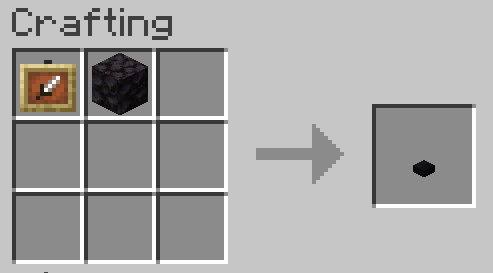
Display Notches 可以通过将 1 个物品展示框(或发光物品展示框)与 1 块黑石以任意方向组合来合成。
使用方法
- 它们可以放置在方块的所有六个面上,并可以使用物品对其右击以插入内容物。使用空手或其他物品再次右击则会取出其内容物。Display Notch 朝向的方向也会影响物品的显示效果。
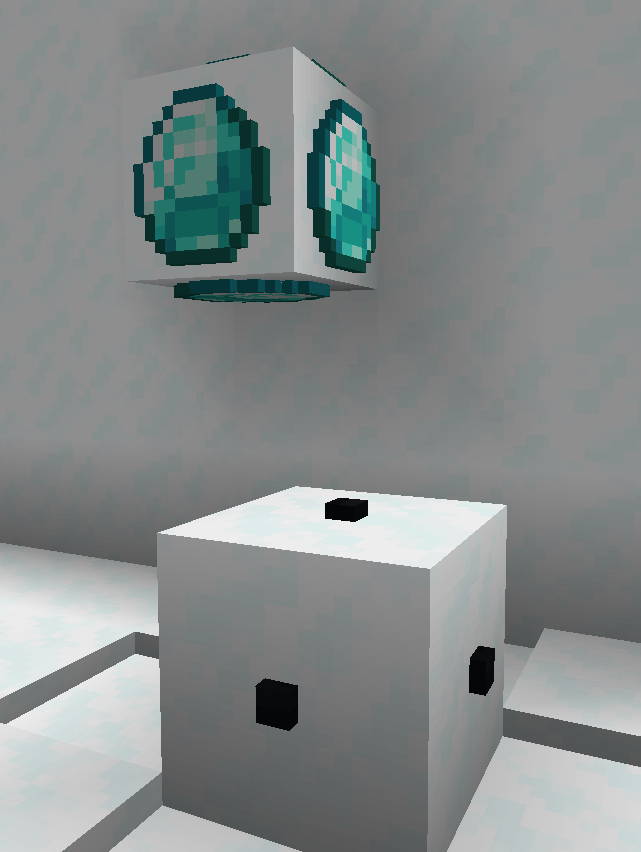
- 2D 显示物品的尺寸设置为与方块的像素大小匹配。这意味着任何 16x16 像素的物品都将完全覆盖方块的面(参见下方的红玻璃板作为示例)。
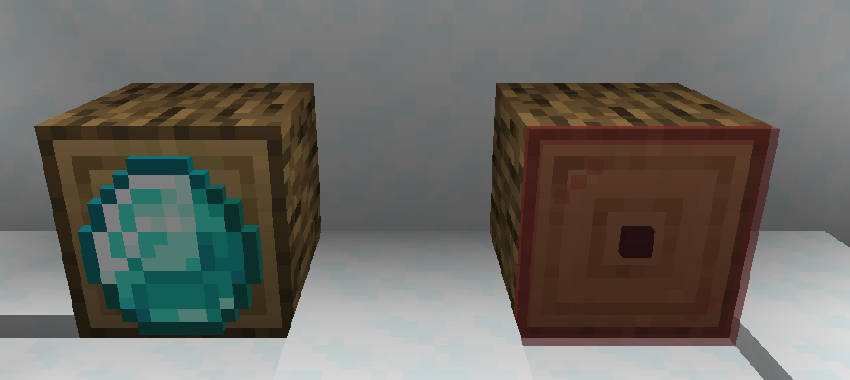
- 对于方块类物品,其尺寸为原比例的八分之一(1:8)。
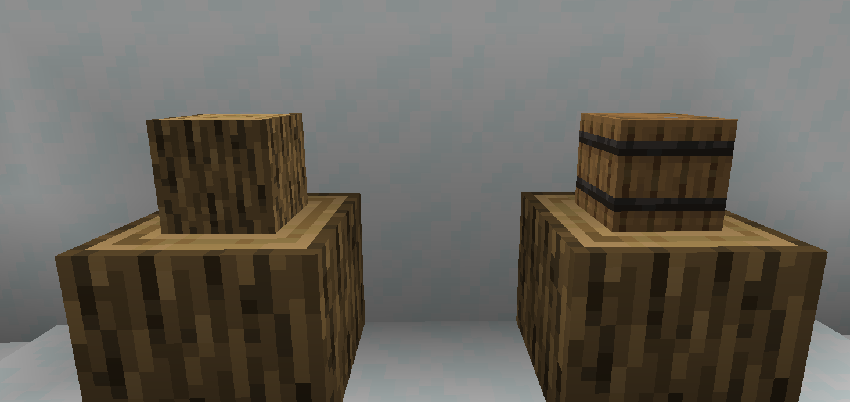
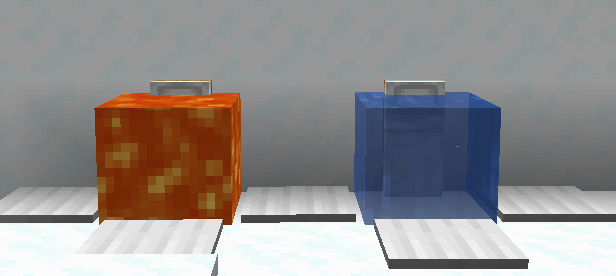
- Display Notches 可以被水淹没,甚至可以被岩浆淹没。
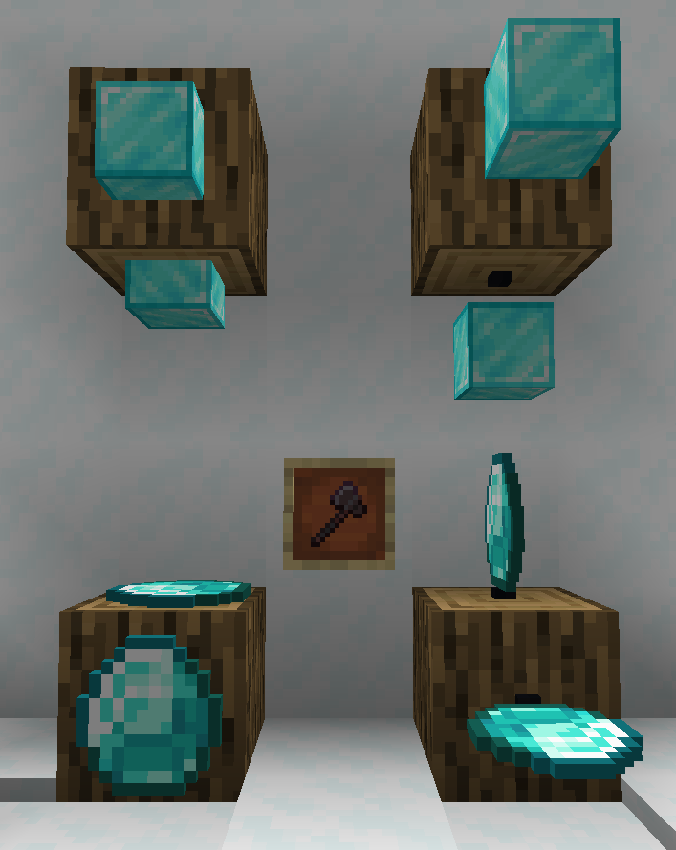
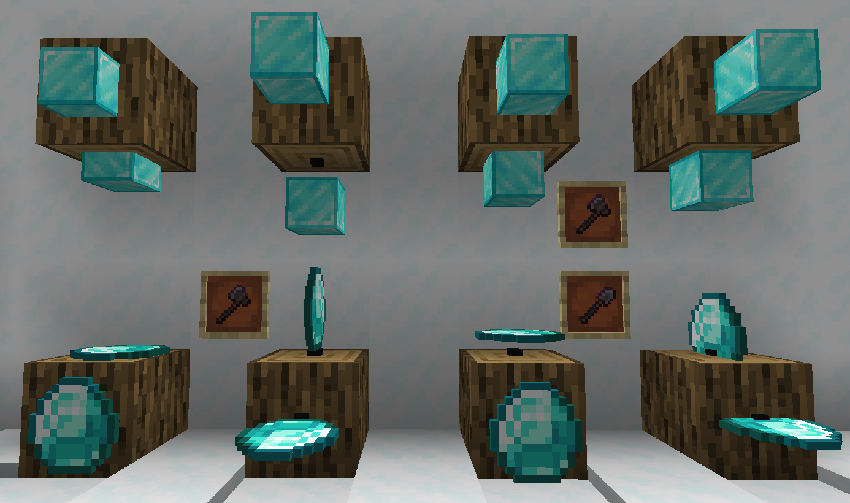
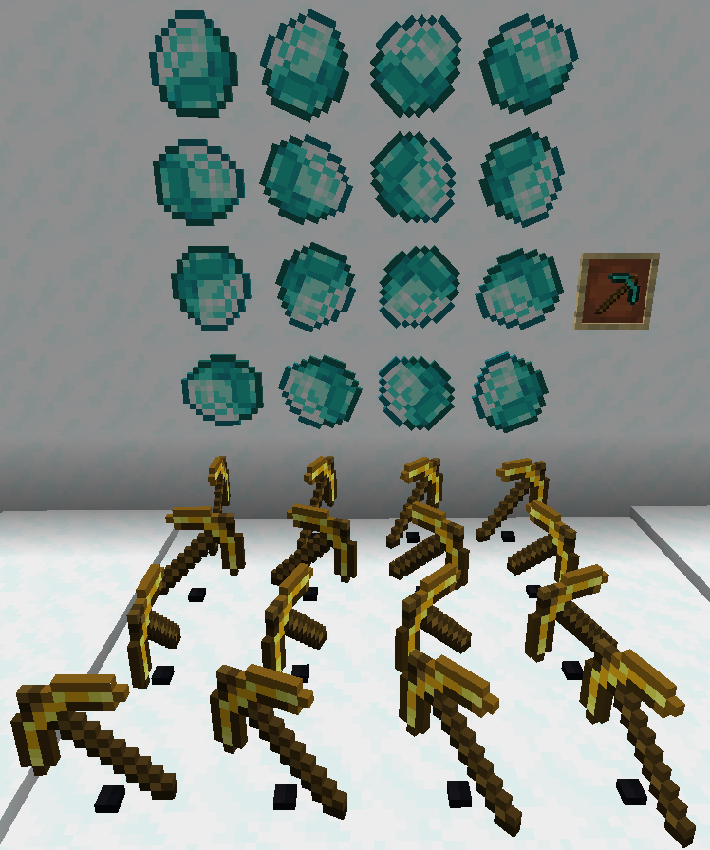
- 使用镐子右击可以将物品的旋转角度更改为 16 种不同的选项(与物品展示框相同)。如果物品是竖立的,旋转轴也会相应改变。旋转角度还可以通过比较器读取,并输出为红石信号。
- 使用发光墨囊右击会使显示的物品发光。这是一种视觉效果,Display Notch 本身并不会发出光线。
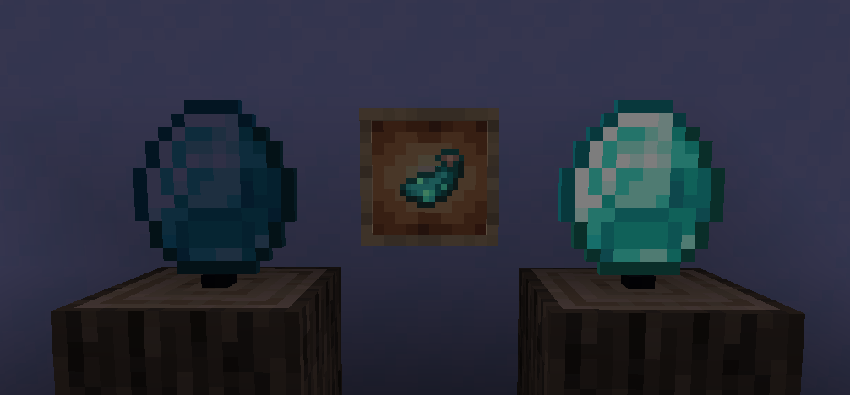
- 使用染料右击会将 Display Notch 本身变为相应的颜色。这对显示的物品没有影响。
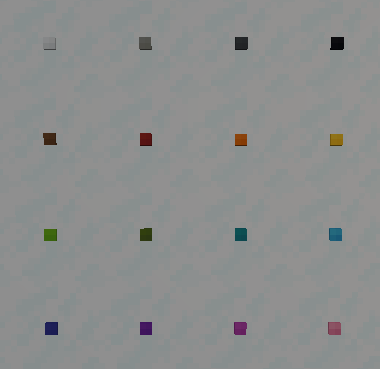
- (截至 1.0.1 版本)使用幻翼膜右击将使 Display Notch 不再具有实体碰撞体积。
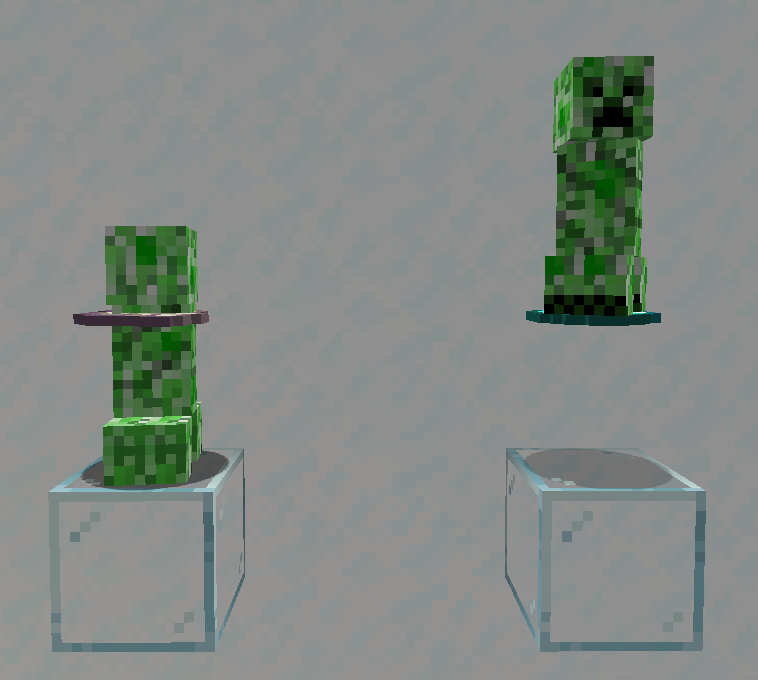
- 使用玻璃方块右击将使 Display Notch 本身变得隐形。这对显示的物品没有影响。
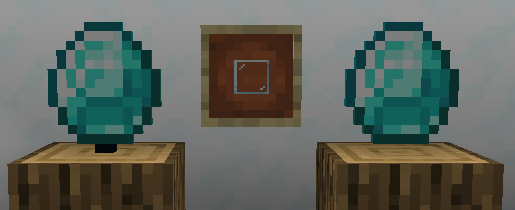
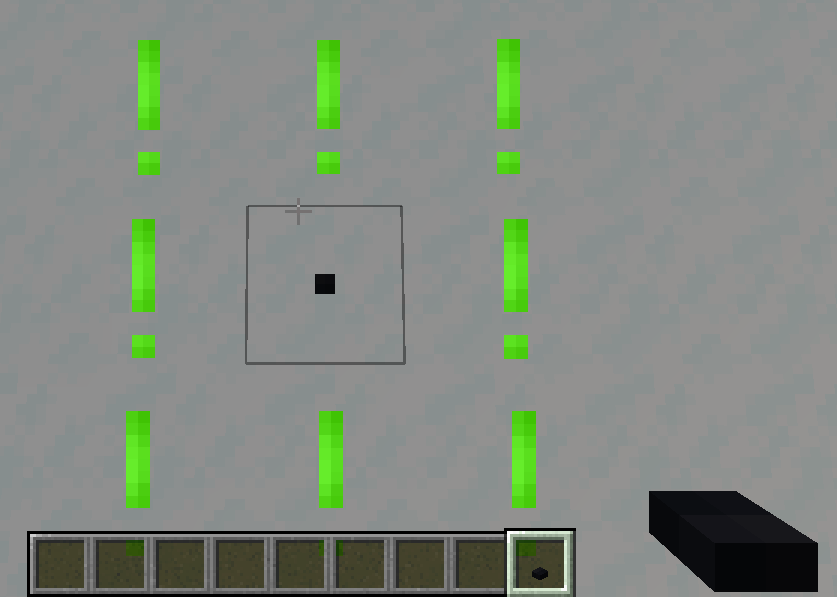
- 一旦取出了物品,可能很难找到隐形的 Display Notch。为了解决这个问题,你只需手持一个 Display Notch,它就会标记出周围所有的隐形 Display Notch。
-
(截至 1.0.2 版本)使用绊线钩右击将锁定 Display Notch,阻止任何更改,直到将其破坏或使用绊线钩再次解锁。此操作不影响红石行为。
-
Display Notches 会对红石信号通电做出反应,并开始自动旋转显示的物品。
-
最后,Display Notches 可以与漏斗和发射器交互(尽管大多数情况下模组添加的管道等无法正常工作)。
与物品展示框的优缺点对比
优点
- 在物品的显示方式上具有更高的可定制性
- 显示媒介的外观有更多选项
- 物品的比例更适配环境
- 通常性能更好(因为它们是非 ticking 的方块实体)
- 不受实体伤害因素的影响
- 可选的实心碰撞箱,使得自定义平台、楼梯等成为可能
- 无需方块支撑(即使附着的方块被移除,它们也不会消失)
- 可与红石、漏斗和发射器互动
缺点
- 在同一方块内只能放置一个 Display Notch,而物品展示框最多可以有 6 个
- 无法与投射物或实体互动(显示的 item 不会弹出)
- 地图不会显示其内容
鸣谢
感谢以下人员:
- GizmoTheMoonPig 对本模组提供的帮助。请务必浏览他所有精彩的作品!
- Toblerone 在 Display Notches 开发期间持续提供的反馈。
Item Frames in Minecraft are great for what they are, and the game itself would be worse off without them. At the same time, they have quite a few aspects that really hold them back from achieving their potential.
This is where Display Notches come in! They represent a reimagined version of Item Frames, that solve many of their shortcomings, while still leaving a couple niche uses, as to not entirely undermine them.
Below is a detailed description of what Display Notches can do and at the bottom of it, a short summary of Pros and Cons.
How To Obtain
Display Notches can be crafted from one Item Frame (or Glow Item Frame) and one Blackstone, in any orientation.
How To Use
- They can be placed on all six sides of a block and can be right-clicked with an Item to insert it. Right-clicking with an empty hand or another item will then take out its contents. The direction the Display Notch is facing will affect the item's display as well.
- The size of 2D displayed items are set to match the pixel sizes of a block. That means that any item that is 16x16 pixels will fully cover the face of a block (See Red Glass Pane below as an example).
- When it comes to block-items, they are sized at a one-eight (1:8) scale.
- Display Notches can be waterlogged and even lavalogged.
-
Once an Item has been inserted, then it becomes possible to manipulate how it is displayed (NOTE: An empty Display Notch cannot be manipulated, but also, taking an item out and placing a new one in will not delete any prior changes made). There are 7(+2) ways to do so: Right-Clicking with an Axe, a Shovel, a Pickaxe, a Glow Ink Sac, Dyes, (Phantom Membrane, Tripwire Hook) or some Glass; and using a Redstone Signal. None of these interactions use durability or consume the item.
-
Right-clicking with an Axe will change between the item laying down flat or standing up.
- Right-clicking with a Shovel sinks or elevates the item.
- Right-clicking with a Pickaxe, the rotation of the item can be changed to 16 different options (same as an Item Frame). If the item is standing up, the axis of rotation will also be changed. The rotation can also be read with a Comparator and outputted as a redstone signal.
- Right-clicking with a Glow Ink Sac will make the displayed item glow. This is a visual change, the Display Notch will not actually give off light.
- Right-clicking with a Dye will change the Display Notch itself to the corresponding color. It does not have any effect on the displayed item.
- (As of version 1.0.1) Right-clicking with a Phantom Membrane will make it so the Display Notch no longer has a solid collision.
- Right-clicking with a Glass block will turn the Display Notch itself invisible. It does not have any effect on the displayed item.
- It might be difficult to find an Invisible Display Notch once the item has been removed. To solve this, you can simply hold a Display Notch in your hand, and that will mark all invisibles ones around you.
-
(As of version 1.0.2) Right-clicking with a Tripwire Hook will lock the Display Notch, stopping any changes until broken or unlocked again with the Tripwire Hook. Redstone behaviours are not affected by this.
-
Display Notches will react to being powered by a Redstone Signal, and will start automatically rotating the displayed item.
-
Lastly, Display Notches can interact with Hoppers and Droppers (though modded pipes and such will not work in most cases).
Pros and Cons Compared To Item Frames
Pros
- More customizability when it comes to how the item is displayed
- More options for how the displaying medium looks
- Items are better scaled to the environment
- Generally better performance (as they are non-ticking block entities)
- Aren't affected by entity damaging factors
- Optional solid hitbox, making custom platforms, stairs etc. possible
- No need for block support (they will not disappear if the block they are attached to is removed)
- Interaction with redstone, hoppers and droppers
Cons
- You can only have one Display Notch within the same block, compared to the possibe 6 with Item Frames
- No interaction with projectiles or entities (displayed item won't pop out)
- Maps will not display their contents
Credits
Thanks to:
- GizmoTheMoonPig for help with the mod. Make sure to check out all of his wonderful projects!
- Toblerone for his continued feedback during the development of the Display Notches.


 模组

 模组

 模组
 模组

 模组
 模组
评论 0
登录后参与评分
还没有评论,来抢沙发吧