| ⓘ 注意 |
此数据包附带一个必需的资源包! 点击下载你需要的版本,然后向下滚动到补充文件部分进行下载。
对于模组版本则无需执行此操作,因为它已经同时包含了数据包和资源包。 |
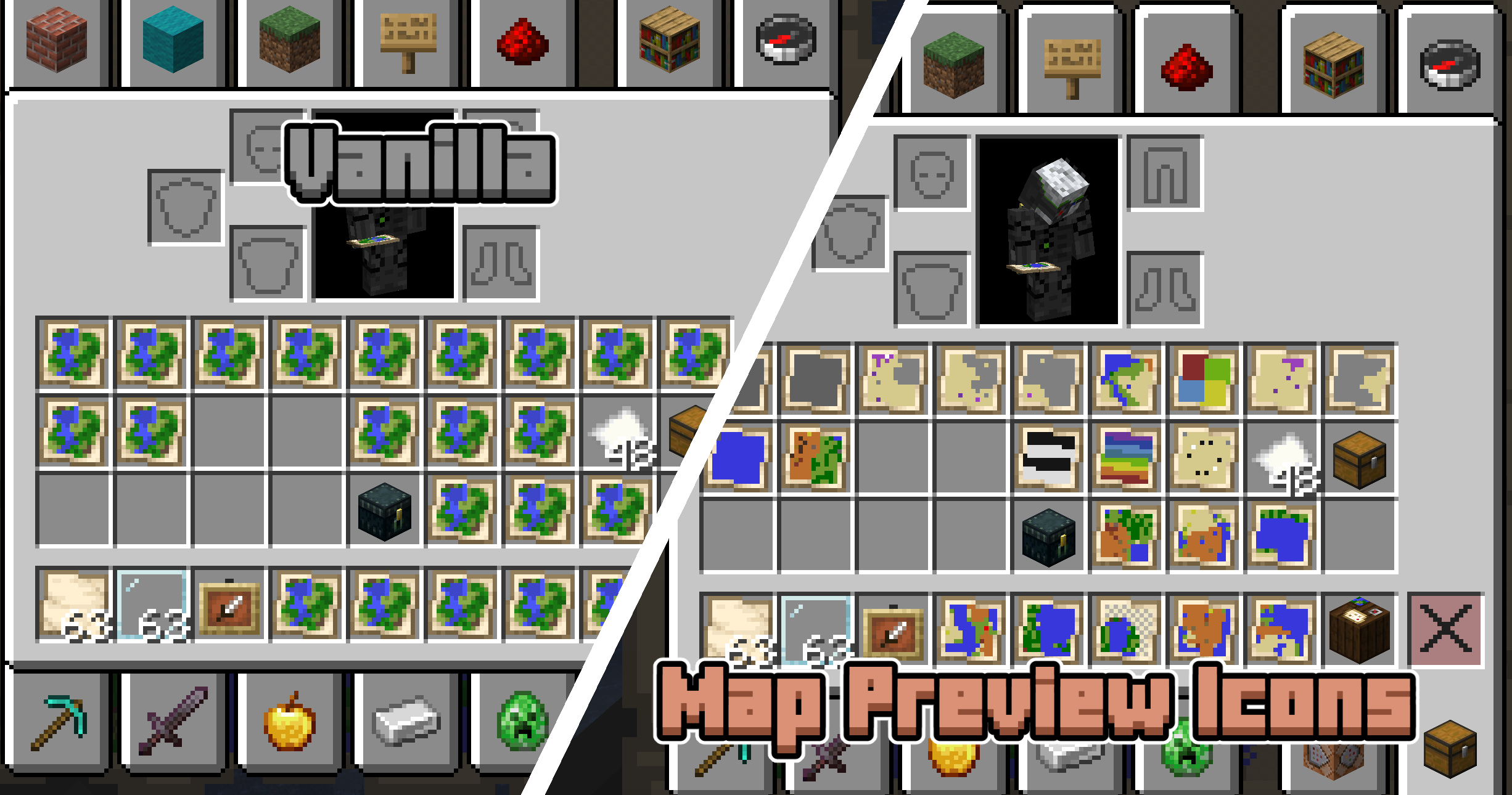
如果你曾在 Minecraft 中使用过地图,你可能遇到过这样的问题:你的物品栏里有几十张地图,现在你需要逐一持有它们才能找到正在寻找的那一张。有了 Map Preview Icons,这一切都成为过去式!地图物品图标现在会显示地图的一小部分预览,让你一眼就能分辨出它们。
工作原理与限制
本项目同时使用了一个数据包和一个资源包。资源包将地图物品的模型设置为由一堆像素组成的复合体,这些像素可以通过自定义模型数据单独着色。当你手持地图时,数据包会扫描你周围的方块,以在自定义模型数据上设置正确的颜色。
数据包的一个技术限制是它们无法读取地图数据。Map Preview Icons 试图通过一个自定义系统来追踪每张地图的创建位置,从而规避这个问题。当你创建新地图时,你的位置会被记录并存储;当你使用制图台时,系统会监控你的物品栏变化。
这种工作方式存在一些限制!首先,在安装此包之前制作的任何地图都不会显示预览,因为当时该包尚未存在以记录你制作地图的过程。此外,在某些罕见的边缘情况下,对制图台的监控可能无法给出正确结果。这两个问题都可以通过手动设置地图的元数据来解决。你可以使用快速操作(默认快捷键:G)并按照弹出的说明进行操作。
还有一个注意事项:此数据包禁用了原版在合成台中扩展(缩小比例)地图的合成配方。现在你只能在制图台中扩展地图。
| ⓘ Note |
This datapack comes with a required resourcepack! Download it by clicking the version you want and scrolling down to the supplementary files section.
For the mod version you don't need to do this, as it already contains both the datapack and resourcepack. |
If you've ever used maps in Minecraft, you've probably ran into the issue where you have dozens of maps in your inventory, and now you need to hold them one by one to find the one you're looking for. With Map Preview Icons, that's a thing of the past! Map item icons now show a little preview of the map, so you can tell them apart at a glance.
How it works + limitations
This project uses both a datapack and a resourcepack. The resource pack makes the map item model a composite of a bunch of pixels that can individually be coloured through custom model data. When you're holding a map, the datapack scans the blocks around you to set the right colours on that custom model data.
One technical limitation of Datapacks is that they cannot read map data. Map Preview Icons tries to circumvent this issue by tracking where each map was made with a custom system. The moment you create a new map your position is recorded and stored, and when you use a Cartography Table your inventory is monitored for changes.
This way of doing things has some limitations! First of all, any maps you made before installing this pack will not show a preview, since the pack was not there to record you making the map. Also, in some rare edge cases the monitoring of the Cartography Table may not give correct results. Both of these issues can be fixed by manually setting the map's metadata. You can do this by using the Quick Actions (default keybind: G) and following the instructions that pop up.
One more note: this datapack disables the vanilla recipe to extend (zoom out) maps in the Crafting Table. You can now only extend maps in the Cartography Table.


 模组

 模组

 模组
 模组

 模组
 模组
评论 0
登录后参与评分
还没有评论,来抢沙发吧