MyNPC
MyNPC 1.1 用户指南
要求
- Minecraft
1.20.1
- Forge
47.x
- MyNPC
1.1
安装
- 将 MyNPC jar 文件放入实例的
mods 文件夹中。
- 启动游戏一次。
- 模组会自动创建配置文件夹。
重要文件夹:
config/npc_types 存储 NPC 定义 JSON 文件。config/mynpc_custom_assets/textures 存储自定义 NPC 皮肤纹理。config/mynpc_custom_assets/sounds 存储自定义 NPC 声音文件。config/mynpc_custom_assets/lang 可用于添加额外的语言条目。
默认向导 NPC
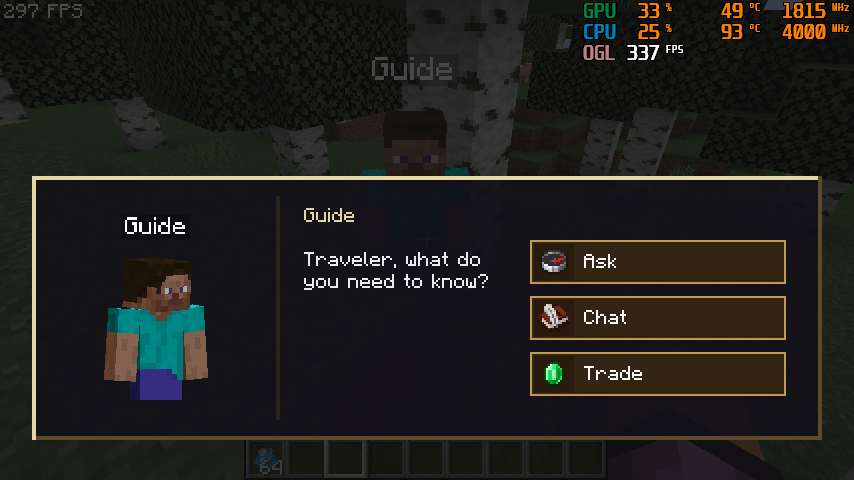
内置向导 NPC 为 village_guide。
默认情况下,该向导:
- 会在原版村庄中生成。
- 当村庄生成检查成功时,生成概率为 100%。
- 每个村庄区域最多生成一个向导。
- 知道一组随机的结构。
- 可以出售结构位置指引和传送卷轴。
- 可以与敌对生物战斗,在被攻击时进行反击,并避开苦力怕。
- 会停留在其所属的村庄附近,而不是自由游荡。
如果在更新前已经生成了默认配置,请删除 config/npc_types/village_guide.json 并重新启动游戏以重新生成最新的默认版本。
NPC 管理器
在游戏中按下 H 打开 NPC 管理器。
主要操作:
+ 从默认模板创建一个新的 NPC。- 从左侧列表中选择 NPC 以编辑它。
- 使用 NPC 条目旁边的小框进行多选。
Save(保存)保存当前更改。Copy(复制)复制选定的 NPC。副本保留大多数设置,但会获得唯一的 ID。Cancel(取消)丢弃当前的编辑会话。Delete(删除)在确认后移除选定的 NPC 定义。Reset(重置)将选定的 NPC 恢复为内置默认向导设置。
选项卡:
Look(外观):皮肤、名称、实体 ID 和声音。Behavior(行为):生成结构、生成概率以及最小/最大生成数量。Structure(结构):已知结构和结构提示行为。Trade(交易):传送卷轴交易和自定义物品交易。Chat(聊天):随机聊天语句以及与结构相关的对话。
自定义皮肤
- 将 PNG 格式的皮肤文件放入
config/mynpc_custom_assets/textures。
- 按
H 打开 NPC 管理器。
- 选择一个 NPC。
- 进入
Look(外观)。
- 使用自定义皮肤按钮选择纹理。
- 保存 NPC。
皮肤应使用标准的 Minecraft 玩家皮肤布局。
自定义声音
- 将声音文件放入
config/mynpc_custom_assets/sounds。
- 按
H 打开 NPC 管理器。
- 选择一个 NPC。
- 进入
Look(外观)。
- 为交互、受伤、死亡或环境音效槽位选择声音。
- 使用预览按钮测试声音。
- 保存 NPC。
结构选择
结构列表支持:
- 按关键字搜索。
- 点击结构名称进行单选。
- 点击小框进行多选。
- 当列表长于面板时滚动查看。
结构名称尽可能使用语言键。未知的结构回退到可读的基于 ID 的名称。
交易
NPC 可以提供:
- 已知结构的传送卷轴交易。
- 结构位置指引交易。
- 自定义物品交易。
对于每种结构交易,您可以配置:
- 结构名称。
- 用作货币的物品。
- 所需的物品数量。
- 是否禁用该结构交易。
聊天与提示
NPC 可以拥有通用聊天语句和针对特定结构的提示文本。
结构提示文本可以使用:
{structure} 表示翻译后的结构名称。{direction} 表示方向文本。
示例:
If my memory serves, {structure} lies somewhere to the {direction}.
刷怪蛋
刷怪蛋生成的 NPC 使用与自然生成 NPC 相同的基础初始化逻辑:
- 可以生成默认的已知结构。
- 生成时设置家位置。
- 分配随机装备。
- 启用战斗行为。
故障排除
如果自定义皮肤显示为缺失纹理:
- 检查文件是否在
config/mynpc_custom_assets/textures 内。
- 确保它是有效的 PNG 文件。
- 重新打开选择器并再次保存 NPC。
如果自定义声音无法播放:
- 检查文件是否在
config/mynpc_custom_assets/sounds 内。
- 使用
Look(外观)选项卡中的声音预览按钮。
- 如果是首次创建资源包,请重启游戏。
如果默认向导设置看起来过时:
- 删除
config/npc_types/village_guide.json。
- 重启游戏。
- 模组将重新生成最新的默认配置。
——————————————————————————
MyNPC 1.2 更新指南
本指南涵盖 MyNPC 1.2 中添加或更改的主要工作流程。
打开 NPC 管理器
- 按
H 打开自定义 NPC 管理器。
- 使用左侧的 NPC 列表选择 NPC。
- 使用 NPC 列表下方的搜索框过滤 NPC。
- 使用搜索框旁边的
+ 按钮创建新 NPC。
- 选定的 NPC 现在会在列表中显示为按下状态,与选中的页面选项卡相匹配。
NPC ID 与默认值
- 内置向导 NPC 仍使用显示名称
village_guide。
- 其内部 ID 现在为
npc。
- 新的自定义 NPC 使用类似
npc1、npc2 和 npc3 的 ID。
- 重置功能会恢复共享的默认向导设置,同时为被编辑的 NPC 保留安全的唯一 ID。
刷怪蛋
- MyNPC 刷怪蛋现在位于其独立的创造模式标签页中。
- 使用
/mynpc egg <npc_id> 为特定 NPC 创建刷怪蛋。
- 命令支持补全建议,因此您可以输入 NPC ID 的一部分并从命令列表中选择。
命令
/mynpc egg <npc_id>
给予玩家选定 NPC 定义的刷怪蛋。
示例:
/mynpc egg npc
给予默认向导 NPC 的刷怪蛋。
/mynpc egg npc1
为 ID 为 npc1 的自定义 NPC 提供生成蛋。
该命令支持 Minecraft 风格的补全建议。输入部分 NPC ID,然后使用命令补全列表选择正确的 NPC,无需输入完整的 ID。
当整合包包含大量自定义 NPC,且你希望避免每个生成蛋混入常规创造模式物品栏的工作流程时,此功能非常有用。
外观页面
- 设置 NPC 显示名称和实体 ID。
- 从自定义资源文件夹中选择自定义皮肤。
- 在需要时将皮肤重置为史蒂夫(Steve)。
- 配置交互、受伤、死亡和环境音效。
行为页面
- 使用
Spawn Structures(生成结构)编辑 NPC 可以自然生成的位置。
- 每条生成规则包含:
- 在生成规则屏幕中使用搜索字段和
+ 按钮添加结构。
结构页面
结构页面现已简化。
View Known(查看已知)打开已知结构规则列表。Random known max(随机已知最大值)控制为自然生成的 NPC 选中的已知结构的最大数量。Random known min(随机已知最小值)控制为自然生成的 NPC 选中的已知结构的最小数量。
已知结构规则可用于控制 NPC 能够知晓哪些结构,以及每个结构被选中的可能性。
交易页面
- 使用自定义交易列表添加和管理普通物品交易。
- 自定义交易在右键点击交易 GUI 中优先于滚动交易显示。
- 使用传送卷轴价格列表配置结构卷轴交易。
- 物品 ID 字段可以手动输入,或通过物品图标按钮选择。
- 交易文本可自定义,包括交易前和交易后的消息。
聊天页面
- 旧的独立
Add Text(添加文本)按钮已被移除。
- 使用
View Text(查看文本)管理聊天行。
- 在文本列表编辑器中,可从一处添加、编辑或删除聊天行。
- 使用结构文本工具配置与结构相关的对话。
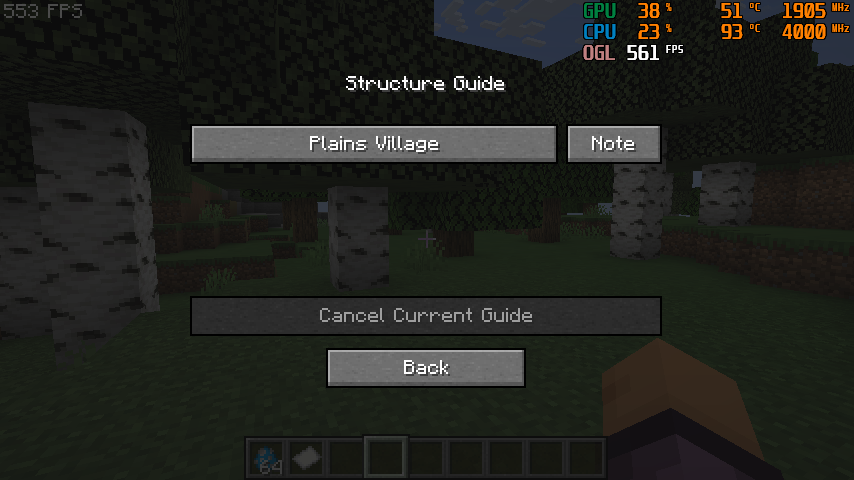
结构指南
- 按
G 键打开结构指南。
- 当玩家到达已追踪的结构时,指南条目会标记为已访问。
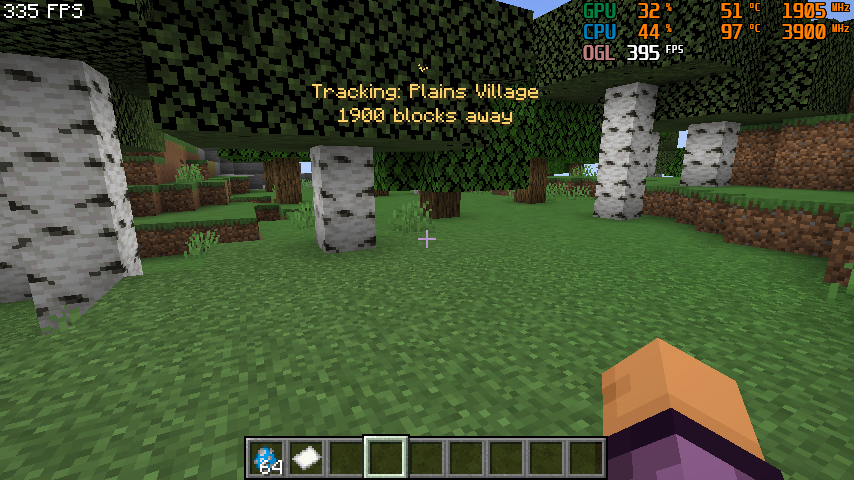
- 可通过配置选项显示已追踪结构的名称和距离。
自定义资源
自定义皮肤和音效从 MyNPC 配置区域下的自定义资源文件夹加载。
- 将纹理放入 texture 文件夹。
- 将音效放入 sound 文件夹。
- 重新打开相关的选择器屏幕以刷新并选择资源。
整合包作者须知
- 现有的 NPC JSON 文件不会自动删除。
- 新安装使用
npc.json 作为默认指南定义。
- 旧版
village_guide.json 文件保持兼容。
- 对于大型 NPC 整合包,请使用
/mynpc egg 命令和专用的 MyNPC 生成蛋创造模式标签页,以避免造成混乱。
MyNPC
MyNPC 1.1 User Guide
Requirements
- Minecraft
1.20.1
- Forge
47.x
- MyNPC
1.1
Installation
- Put the MyNPC jar into your instance
mods folder.
- Start the game once.
- The mod will create config folders automatically.
Important folders:
config/npc_types stores NPC definition JSON files.config/mynpc_custom_assets/textures stores custom NPC skin textures.config/mynpc_custom_assets/sounds stores custom NPC sound files.config/mynpc_custom_assets/lang can be used for extra language entries.
Default Guide NPC
The built-in guide NPC is village_guide.
By default, the guide:
- Spawns in vanilla villages.
- Has a 100% spawn chance when the village spawn check succeeds.
- Spawns at most one guide per village area.
- Knows a random set of structures.
- Can sell structure location help and teleport scrolls.
- Can fight hostile mobs, retaliate when attacked, and avoid creepers.
- Stays near its home village instead of wandering freely.
If the default config was already generated before updating, delete config/npc_types/village_guide.json and restart the game to regenerate the latest default version.
NPC Manager
Press H in game to open the NPC manager.
Main actions:
+ creates a new NPC from the default template.- Select an NPC from the left list to edit it.
- Use the small box beside NPC entries for multi-select.
Save saves current changes.Copy duplicates the selected NPC. The copy keeps most settings but gets a unique id.Cancel discards the current edit session.Delete removes selected NPC definitions after confirmation.Reset restores selected NPCs to the built-in default guide settings.
Tabs:
Look: skin, name, entity id, and sounds.Behavior: spawn structures, spawn chance, and min/max spawn count.Structure: known structures and structure hint behavior.Trade: teleport scroll trades and custom item trades.Chat: random chat lines and structure-related dialogue.
Custom Skins
- Put PNG skin files into
config/mynpc_custom_assets/textures.
- Open the NPC manager with
H.
- Select an NPC.
- Go to
Look.
- Use the custom skin button to choose a texture.
- Save the NPC.
The skin should use the normal Minecraft player skin layout.
Custom Sounds
- Put sound files into
config/mynpc_custom_assets/sounds.
- Open the NPC manager with
H.
- Select an NPC.
- Go to
Look.
- Choose sounds for interaction, hurt, death, or ambient slots.
- Use the preview button to test sounds.
- Save the NPC.
Structure Selection
Structure lists support:
- Search by keyword.
- Clicking the structure name for single selection.
- Clicking the small box for multi-selection.
- Scrolling when the list is longer than the panel.
Structure names use language keys where available. Unknown structures fall back to a readable id-based name.
Trading
NPCs can offer:
- Teleport scroll trades for known structures.
- Structure location hint trades.
- Custom item trades.
For each structure trade, you can configure:
- The structure name.
- The item used as currency.
- The required item count.
- Whether the structure trade is disabled.
Chat And Hints
NPCs can have general chat lines and structure-specific hint text.
Structure hint text can use:
{structure} for the translated structure name.{direction} for the direction text.
Example:
If my memory serves, {structure} lies somewhere to the {direction}.
Spawn Eggs
Spawn egg NPCs use the same base initialization as naturally spawned NPCs:
- Default known structures can be generated.
- Home position is set when spawned.
- Random equipment can be assigned.
- Combat behavior is enabled.
Troubleshooting
If a custom skin shows as missing texture:
- Check that the file is inside
config/mynpc_custom_assets/textures.
- Make sure it is a valid PNG.
- Reopen the selector and save the NPC again.
If a custom sound does not play:
- Check that the file is inside
config/mynpc_custom_assets/sounds.
- Use the sound preview button in the
Look tab.
- Restart the game if the asset pack was just created for the first time.
If the default guide settings look old:
- Delete
config/npc_types/village_guide.json.
- Restart the game.
- The mod will regenerate the latest default config.
——————————————————————————
MyNPC 1.2 Update Guide
This guide covers the main new workflows added or changed in MyNPC 1.2.
Opening the NPC Manager
- Press
H to open the custom NPC manager.
- Use the NPC list on the left to select an NPC.
- Use the search box under the NPC list to filter NPCs.
- Use the
+ button beside the search box to create a new NPC.
- The selected NPC now appears pressed in the list, matching the selected page tabs.
NPC Ids and Defaults
- The built-in guide NPC still uses the display name
village_guide.
- Its internal id is now
npc.
- New custom NPCs use ids like
npc1, npc2, and npc3.
- Reset restores the shared default guide settings while keeping a safe unique id for the edited NPC.
Spawn Eggs
- MyNPC spawn eggs are now placed in their own creative tab.
- Use
/mynpc egg <npc_id> to create a spawn egg for a specific NPC.
- The command supports suggestions, so you can type part of an NPC id and pick it from the command list.
Commands
/mynpc egg <npc_id>
Gives the player a spawn egg for the selected NPC definition.
Examples:
/mynpc egg npc
Gives the default guide NPC spawn egg.
/mynpc egg npc1
Gives the spawn egg for the custom NPC with the id npc1.
The command supports Minecraft-style suggestions. Type part of an NPC id, then use the command suggestion list to choose the correct NPC without typing the full id.
This is useful when a pack contains many custom NPCs and you do not want every spawn egg mixed into the normal creative inventory workflow.
Appearance Page
- Set the NPC display name and entity id.
- Choose a custom skin from the custom asset folder.
- Reset the skin back to Steve when needed.
- Configure interaction, hurt, death, and ambient sounds.
Behavior Page
- Use
Spawn Structures to edit where an NPC can naturally spawn.
- Each spawn rule contains:
- Structure id
- Minimum spawn count
- Maximum spawn count
- Spawn chance
- Use the search field and
+ button in the spawn rule screen to add structures.
Structure Page
The Structure page is now simplified.
View Known opens the known-structure rule list.Random known max controls the maximum number of known structures selected for a naturally spawned NPC.Random known min controls the minimum number of known structures selected for a naturally spawned NPC.
Known-structure rules can be used to control which structures an NPC can know about and how likely each structure is to be selected.
Trade Page
- Use the custom trade list to add and manage normal item trades.
- Custom trades are shown before scroll trades in the right-click trade GUI.
- Use the teleport scroll price list to configure structure scroll trades.
- Item id fields can be typed manually or selected with the item icon button.
- Trade text can be customized for before-trade and after-trade messages.
Chat Page
- The old separate
Add Text button has been removed.
- Use
View Text to manage chat lines.
- In the text list editor, add, edit, or delete chat lines from one place.
- Use the structure text tools to configure structure-related dialogue.
Structure Guide
- Press
G to open the structure guide.
- When the player reaches a tracked structure, the guide entry is marked as visited.
- The guide can show the tracked structure name and distance using the config options.
Custom Assets
Custom skins and sounds are loaded from the custom asset folders under the MyNPC config area.
- Put textures in the texture folder.
- Put sounds in the sound folder.
- Reopen the relevant picker screen to refresh and select the asset.
Notes for Modpack Authors
- Existing NPC JSON files are not deleted automatically.
- New installs use
npc.json for the default guide definition.
- Older
village_guide.json files remain compatible.
- For large NPC packs, use the
/mynpc egg command and the dedicated MyNPC spawn egg creative tab to avoid clutter.


 模组
 模组

 模组
 模组

 模组

 模组

评论 0
登录后参与评分
还没有评论,来抢沙发吧