Tactile 是一套正在开发中的模组套件,旨在让 Minecraft 的世界更加沉浸,并增强玩家互动的触感体验。
目前可用的模组:
Tactile:Blocks
Tactile:Ore
更多模组即将推出,均秉持 Tactile 的精神。
简介
Tactile 对功能性方块(工作台、附魔台、铁砧、箱子等)进行了全面重构。
每个方块都采用了更精细的模型进行重新设计,同时尽可能保留了原版纹理。
这些方块不再拥有图形用户界面(GUI),而是直接与玩家进行互动。
某些方块,如附魔台、高炉或铁砧,更进一步地直接改变了游戏玩法机制。
新方块
熔炉:
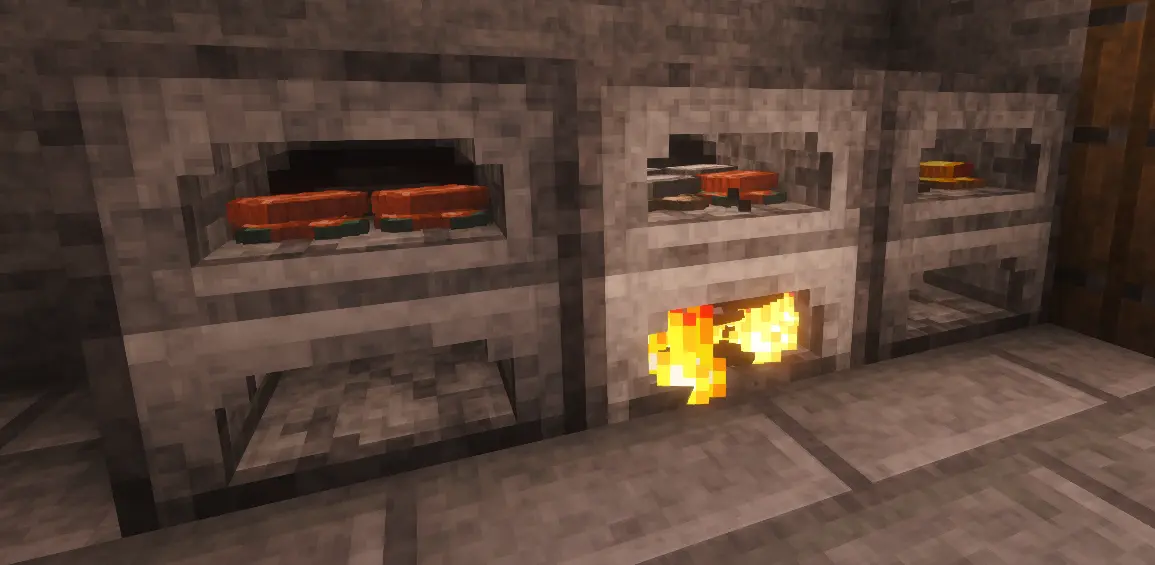
熔炉的行为与原版类似。其界面被两个隔间取代:上方用于放置原料,下方用于放置燃料。
上方隔间可容纳四种不同类型的物品,总计最多 64 个。生成的熟制或冶炼物品排列在堆叠网格上,提供总共八个槽位,每个槽位可容纳 128 个物品。
燃料隔间需要使用火源点燃。
无论原料隔间的状态如何,燃料都会持续燃烧。
这引入了一个新物品:手钻。
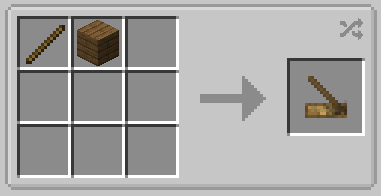
按住右键并对准燃料隔间使用。
熔炉不再支持漏斗。
烟熏炉:
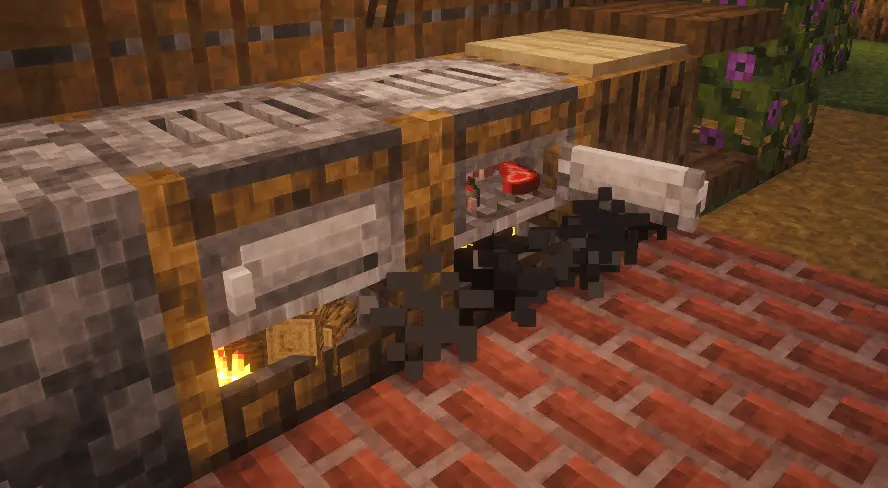
烟熏炉类似于烤箱。
它配备了一扇门,必须打开门才能放入原料。
如果门保持打开状态,烟熏炉会从前方异常冒出烟雾,且食物将停止烹饪。
酿造台:
酿造台保留了原版的机制,但其界面完全被替换为与方块本身的直接交互。
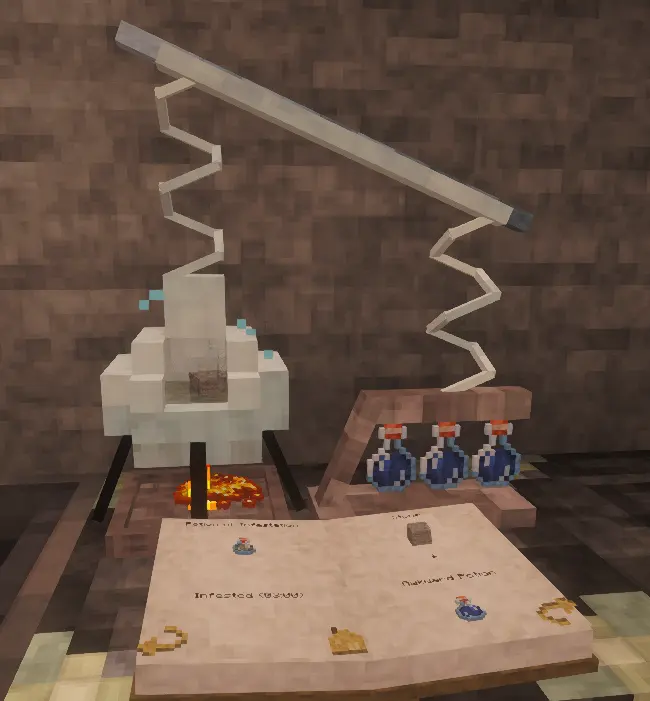
酿造台下方的隔间用于存放燃料(烈焰粉)。正上方是原料的蒸馏室。右侧是三个药水瓶的支架。原料室还需要供水(右键点击水瓶)。
前方提供了一本交互式书籍;其中包含目录,允许你点击药水直接跳转到对应的配方页面。
当设置好有效配方后,水开始沸腾,并根据使用的原料改变颜色。
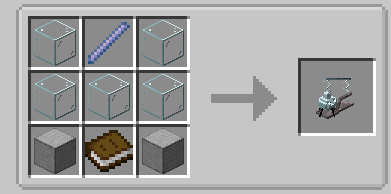
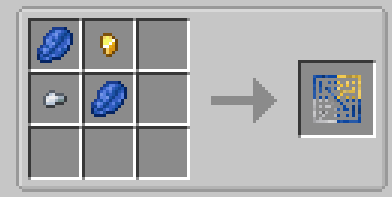
酿造台的新配方:
铁砧
铁砧的功能被一分为二。
单独的铁砧仅允许你修复或合并物品。
只需将需要修复的物品放下,然后将修复材料或融合物品放在其上。
然后,右键点击锻造锤,直到修复完成(通过声音和粒子效果提示)。
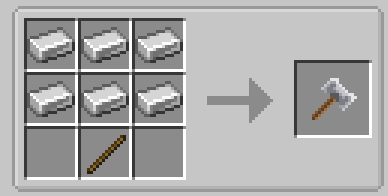
若要重命名或合并附魔书,则需要添加“雕刻桌”扩展(位于左侧)。
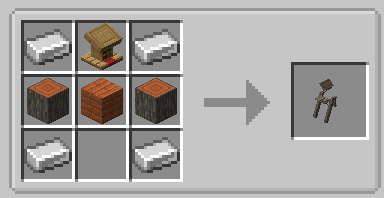
要重命名,右键点击工具并在出现的文本字段中输入名称。
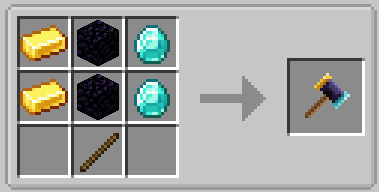
要附魔,手持书本右键点击雕刻桌;书本将被放置在前方的讲台上。然后,用附魔锤敲击它,直到过程完成(通过声音和粒子效果提示)。附魔后的书本会变回普通书本。
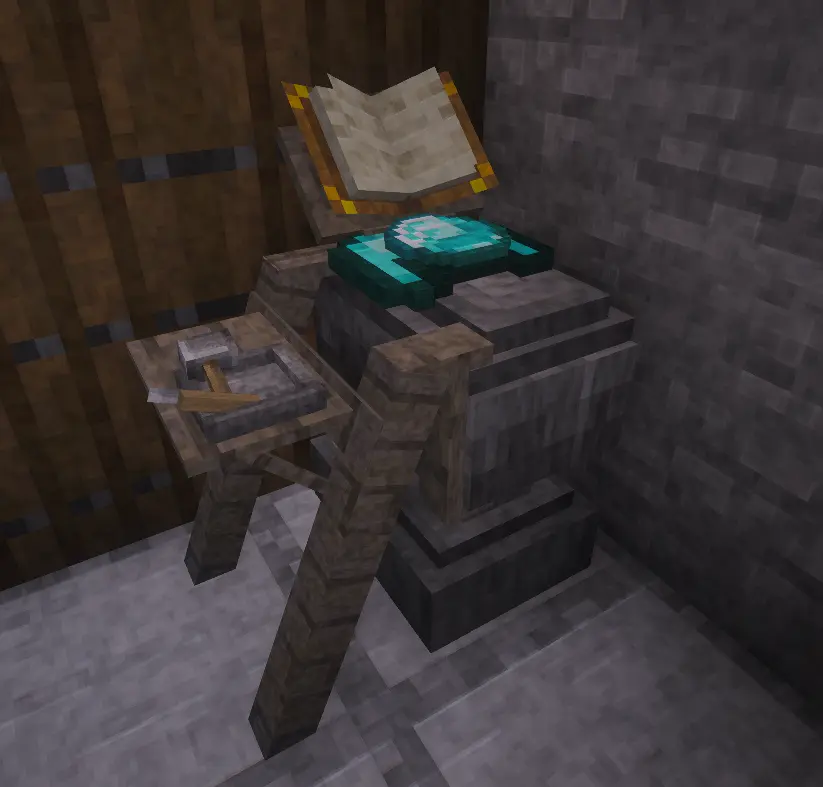
磨石
砂轮仍可用于修复或解除物品的附魔。
修复不需要材料,但会消耗少量经验值。
完全损坏物品的修复时间为 30 秒。
每秒修复上限降低 0.05%。要移除上限,必须使用铁砧。
解除附魔免费且耗时极短。
靠近砂轮时按住鼠标右键即可使用。
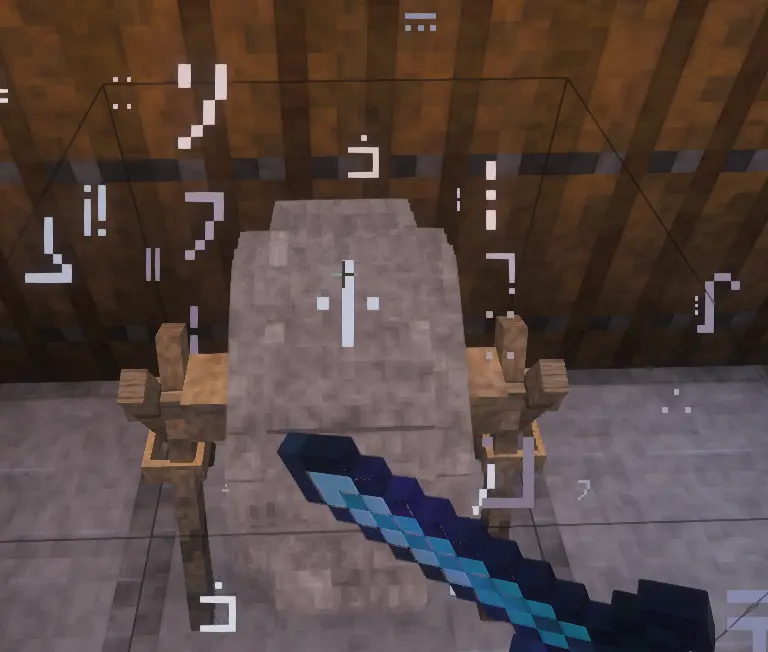
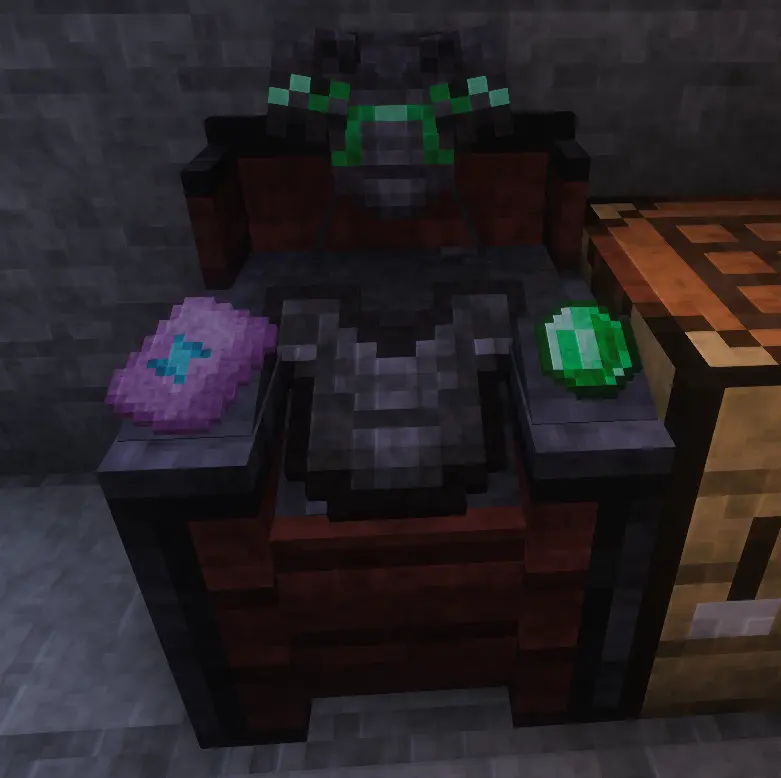
锻造台
锻造台方块经过全面重构,以替换其旧界面。
将需要修改的物品放在中间。将锻造模板放在左侧。将材料放在右侧。面向玩家的正面可见预览效果。
要确认配方,右键点击锻造锤,直到过程完成。
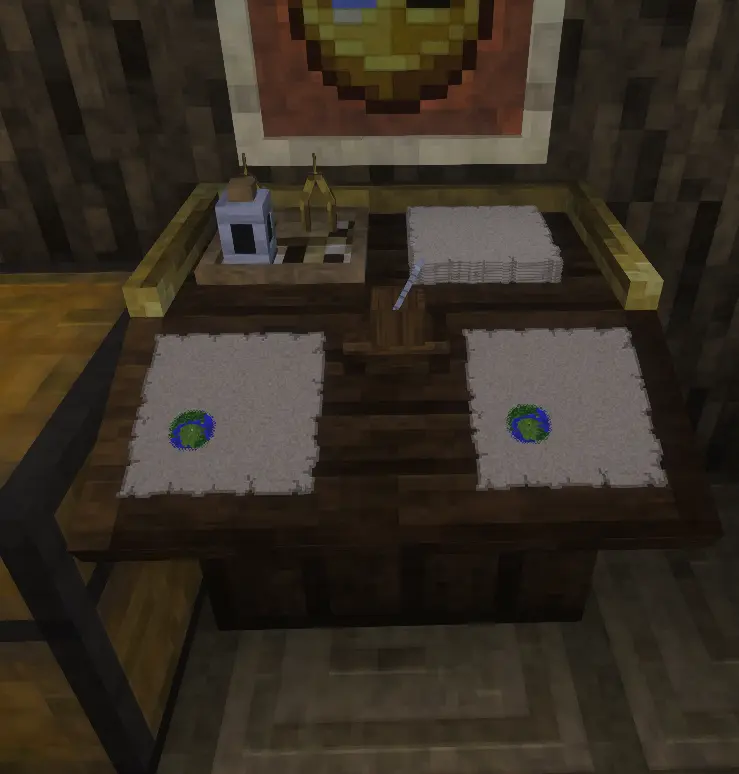
制图师
制图台正在进行一些修改:地图放大配方已被制图台本身的使用所取代。空白地图只能使用制图台激活。
使用该设备会消耗墨水和羽毛笔(地图放大除外)。
左侧的槽位用于主地图;如果使用空白地图,右键点击羽毛笔即可显示出来。
右侧的槽位用于复制;在那里放置一张空白地图,然后右键点击羽毛笔以复制左侧槽位中的地图。
右后方的插槽用于存放空白地图,以便扩大主插槽中的地图(每次扩大需要 8 张)。右键点击指南针(左后方)以扩大地图。
使用墨囊右键点击墨水瓶可将其装满墨水。使用羽毛右键点击羽毛笔架可重新装填羽毛笔。
附魔台
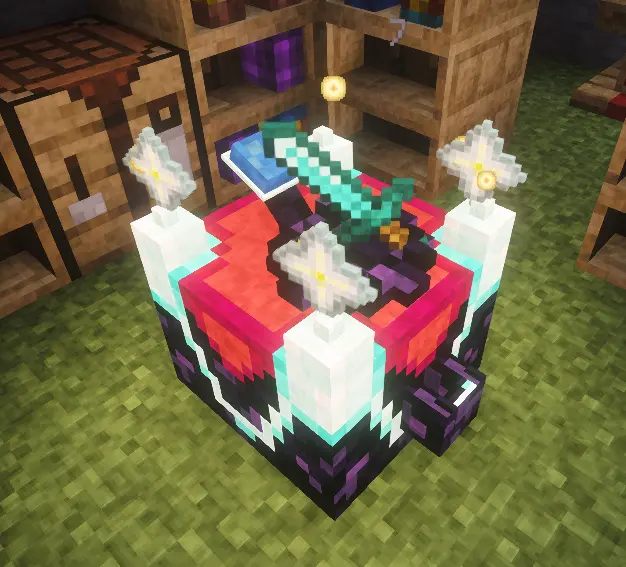
附魔台已被重新设计为一个小型祭坛,你可以直接与其互动。
所有操作均在《魔法书》中进行,《魔法书》是一本你手持并在面前打开以阅读和做出选择的书籍。
获取附魔依赖于三个由你自己管理的要素:力量(决定附魔的强度)、燃料(每次附魔时消耗)以及青金石(用于刷新可用选项)。
设置物品与基本原则
将需要附魔的物品放置在中央基座上。
后方的容器用作青金石的储存池;使用青金石右键点击该容器即可填充。
前方的漏斗用于投入经验值;使用空手右键点击可转移你的等级。每投入一个等级都会增加附魔台的力量。
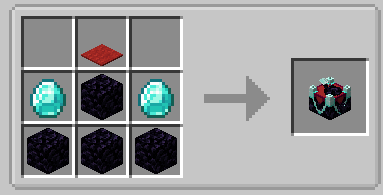
力量:四根天线
投入的经验值会永久存储在位于附魔台四个角落的四根天线中。这决定了其力量:你投入得越多,提供的附魔就越强大,直至原版游戏的最大限制。在最高等级(32 级)时,诅咒附魔将不再提供。光球环绕每根天线并随着充能而变大;整个附魔台的发光强度也根据其充能水平而变化。这种投入是永久且持久的;执行附魔时你不会失去它。
燃料:书架与知识之书
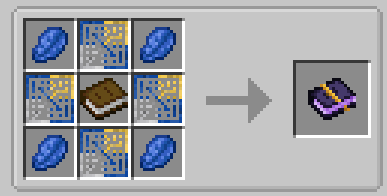
标准书架被替换为一种自定义模型,最多可容纳四本书。只有“知识之书”可作为燃料;每次附魔会消耗一定数量的知识之书,这些书从围绕附魔台排列的书架中抽取。知识之书在讲台上制作(讲台取代了标准讲台):将普通书放在上面并右键点击一次。此过程消耗 2 个经验等级,并将书转化为知识之书。随后可将它们存入书架以为你的附魔提供燃料。知识之书可以被消耗以恢复一个等级。
《魔法书》:界面
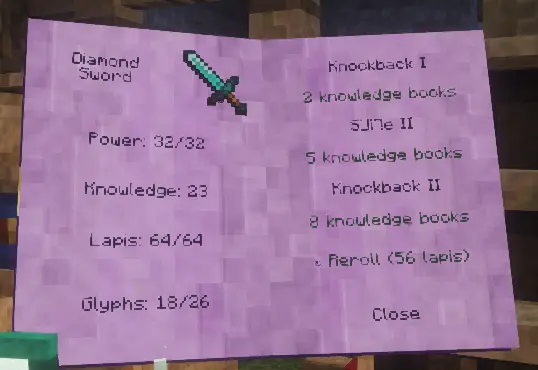
手持《魔法书》并在有效的附魔台附近右键点击即可打开它;一本书籍会出现在你面前。
左页显示上下文信息:你正在附魔的物品、当前力量、可用的知识数量及青金石储量,以及已学习的符文数量。右页列出三个附魔选项,每个选项都标有其所需的知识之书数量。
点击某个选项以应用它(消耗相应的知识之书),或使用刷新选项以青金石为代价更改这三个选择。在《魔法书》打开期间,右键点击不会与世界进行交互;通过按钮或远离附魔台来关闭它。
附魔名称使用标准银河字母书写。每次执行附魔,你会学会其中的一些字母,随着知识的积累,《魔法书》会逐渐翻译为可读文本。
附魔书
你也可以在附魔台上附魔普通书或知识之书;两者都会转化为标准(原版)附魔书。由于书非常容易附魔,它们会消耗更多资源:普通书的成本是两倍,知识之书的成本是一倍半。
满级:下界之星
一旦你的天线完全充满能量,三个选项中有一定概率出现超过标准限制的满力量附魔;它会以金色显示并带有“+”号。要获得它,你必须向附魔台提供一颗下界之星:使用星星右键点击一根天线以放置它(总共最多四颗,每根天线一颗)。满力量附魔会消耗一颗星星。
箱子
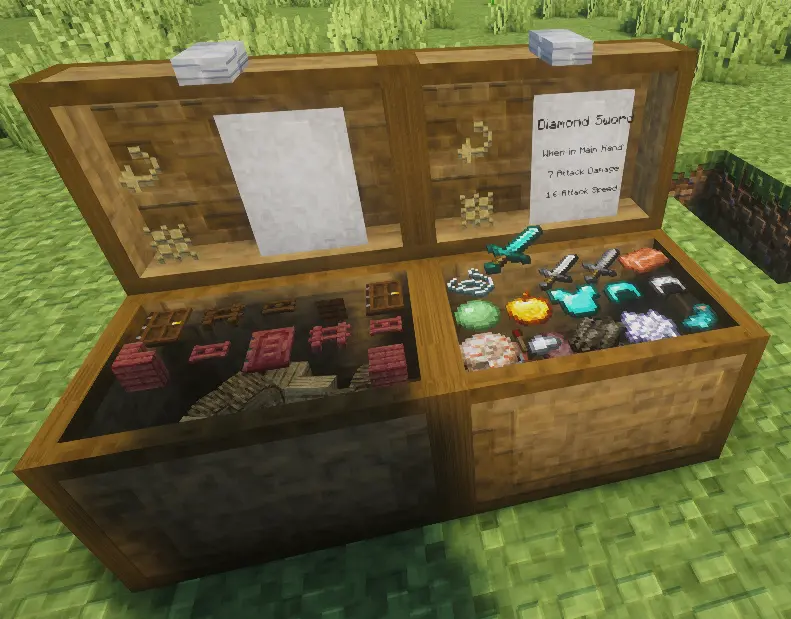
箱子现在具有两种不同的状态,直到玩家与之互动才会改变:关闭:可破坏。打开:不可破坏。
当箱子处于打开状态时,会出现几个元素。
箱子顶部可见一个物品网格。右键点击放置物品;按住右键点击放置整组物品。左键点击取出物品;按住右键点击取出整组物品。
Shift + 左键点击可取出所有与当前手持物品匹配的物品。Shift + 右键点击可放置所有与目标物品匹配的物品。
物品可以直接丢到箱子上以自动存储。
存储的物品在网格下方可见;这些是第二个存储网格的内容。
箱子顶部有两个按钮:
交换(切换到另一个存储网格)。整理当前网格(Shift + 点击以整理整个箱子)。
高炉
高炉的行为与原版相同。
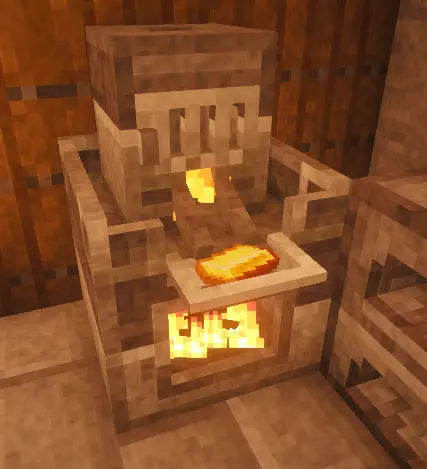
底部隔间用于燃料,顶部隔间用于原矿,前方的小隔间用于收集冶炼后的矿石。
Tactile is a suite of mods currently in development that aims to make the world of Minecraft more immersive and player interactions more tactile.
Currently available mods:
Tactile:Blocks
Tactile:Ore
More mods are coming soon, all in the same spirit as Tactile.
Introduction
Tactile is an overhaul of functional blocks (crafting tables, enchanting tables, anvils, chests, etc.).
Each block has been redesigned with a more detailed model while retaining the vanilla texture as much as possible.
These blocks no longer feature a GUI; instead, they interact directly with the player.
Certain blocks, such as the enchanting table, blast furnace, or anvil, go further by directly altering gameplay mechanics.
The new blocks
Furnace :
The furnace behaves similarly to the vanilla version. Its interface is replaced by two compartments: an upper one for ingredients and a lower one for fuel.
The upper compartment can hold four different types of items, up to a total of 64. The resulting cooked or smelted items are arranged on a stacked grid, providing a total of eight slots capable of holding 128 items.
The fuel compartment must be lit using a fire source.
Fuel continues to burn regardless of the state of the ingredient compartment.
This introduces a new item: the hand drill.
Hold down the right-click button while targeting the fuel compartment.
The furnace no longer supports hoppers.
Smoker :
The smoker is similar to an oven.
It is equipped with a door that must be opened to insert the ingredients.
If the door is left open, the smoker will emit smoke abnormally from the front, and the food will stop cooking.
Brewing Stand :
The brewing stand retains its vanilla mechanics, but its interface is entirely replaced by direct interaction with the block itself.
A compartment beneath the stand holds the fuel (Blaze Powder). Directly above that is the distillation chamber for the ingredient. To the right is the holder for the three potions. The ingredient chamber also requires a water supply (right-click with a water bottle).
An interactive book is provided at the front; it features a table of contents, allowing you to click on potions to jump straight to their recipe pages.
When a valid recipe is set, the water begins to boil and changes color based on the ingredient used.
The new recipe of brewing stand :
Anvil
The anvil's functionality has been split in two.
The anvil on its own allows you only to repair or merge items.
Simply place the item to be repaired down, and place the repair ingredient or fusion item on top of it.
Then, right-click with the forging hammer until the repair is complete (indicated by sound and particles).
To rename or merge an enchantment book, you need to add the "engraving bench" extension (on the left side).
To rename, right-click on the tools and type the name into the text field that appears.
To enchant, right-click on the engraving bench while holding the book; it will be placed on the lectern in front. Then, strike it with the enchantment hammer until the process completes (indicated by a sound and particles). The enchanted book reverts to a normal book.
Millstone
The grindstone can still be used to repair or disenchant items.
Repairing requires no ingredients, but does take a small amount of XP.
The repair time for a completely broken item is 30 seconds.
The repair cap decreases by 0.05% every second. To remove the cap, using an anvil is necessary.
Disenchanting is free and takes very little time.
Hold down the right mouse button while near the grindstone to use it.
Smithing Table
The smithing table block has been completely overhauled to replace its old interface.
Place the item to be modified in the center. Place the smithing template on the left. Place the material on the right. A preview is visible facing the player.
To confirm a recipe, right-click with the smithing hammer until the process is complete.
Cartographer
The Cartograph is receiving some modifications: map enlargement recipes are being replaced by the use of the Cartograph itself. Blank maps can only be activated using the Cartograph.
Using the device consumes ink and quills (except when enlarging a map).
The slot on the left is for the main map; if using a blank map, right-click the quill to reveal it.
The slot on the right is for copying; place a blank map there, then right-click the quill to copy the map from the left slot.
The slot at the back right holds the blank maps required to enlarge the map in the main slot (8 are needed per enlargement). Right-click the compasses (back left) to enlarge a map.
Right-click the ink bottle with an ink sac to refill it. Right-click the quill holder with a feather to refill it.
Enchanting Table
The enchanting table has been redesigned as a small altar that you interact with directly.
Everything takes place within the Grimoire, a book you hold and open in front of you to read and make your choices.
Obtaining an enchantment relies on three elements that you manage yourself: power (which determines the strength of the enchantments), fuel (consumed with each enchantment), and lapis lazuli (used to refresh the available options).
Setting up the item and basic principles
Place the item to be enchanted on the central pedestal.
The receptacle at the back serves as a reservoir for lapis lazuli; right-click it with lapis lazuli to fill it.
The chute at the front allows you to invest experience; right-click with an empty hand to transfer your levels. Each invested level increases the table's power.
Power: the four antennae
Invested experience is permanently stored in the four antennae located at the corners of the table. This determines its power: the more you invest, the more powerful the offered enchantments become, up to the base game's maximum limit. At the maximum level (32), curses are no longer offered. Orbs of light orbit each antenna and grow larger as they charge; the entire table glows more intensely depending on its charge level. This investment is permanent and lasting; you do not lose it when performing enchantments.
Fuel: bookshelves and Knowledge Books
Standard bookshelves are replaced by a custom model capable of holding up to four books. Only "Knowledge Books" serve as fuel; each enchantment consumes a certain amount, drawn from the bookshelves arranged around the table. Knowledge Books are crafted at the lectern (which replaces the standard lectern): place a regular book on it and right-click once. This process costs 2 experience levels and transforms the book into a Knowledge Book. You can then store them in bookshelves to fuel your enchantments. Knowledge Books can be consumed to regain a level.
The Grimoire: The Interface
Hold the Grimoire in your hand and right-click near a valid table to open it; a book appears before you.
The left page shows the context: the item you are enchanting, current power, available knowledge and Lapis Lazuli, and the number of learned glyphs. The right page lists three enchantment options, each with its cost in Knowledge Books.
Click an option to apply it (consuming the corresponding Knowledge Books) or use the refresh option to change the three choices in exchange for Lapis Lazuli. Right-clicking does not interact with the world while the Grimoire is open; close it using the button or by moving away.
Enchantment names are written in the Standard Galactic Alphabet. Each enchantment you perform teaches you a few of its letters, and the Grimoire gradually translates into readable text as your knowledge grows.
Enchanting Books
You can also enchant a regular book or a Knowledge Book at the table; both transform into a standard (vanilla) enchanted book. Since books are very easy to enchant, they consume more resources: a regular book costs twice as much, and a Knowledge Book costs one and a half times as much.
Maxing the Level: Nether Stars
Once your antennas are fully powered, there is a small chance that one of the three options will be a maximum-power enchantment exceeding the standard limit; it appears in gold with a "+" sign. To obtain it, you must provide a Nether Star to the table: right-click an antenna with a star to place it (up to four in total, one per antenna). A maximum-power enchantment consumes one star.
Chest
The chest now has two distinct states that persist until the player interacts with it: Closed: Breakable. Open: Unbreakable.
When the chest is open, several elements appear.
An item grid is visible at the top of the chest. Right-click to place an item; hold right-click to place the entire stack. Left-click to retrieve an item; hold right-click to retrieve the entire stack.
Shift + left-click to retrieve all items matching the one currently held. Shift + right-click to place all items matching the one being targeted.
Items can be dropped directly onto the chest to store them automatically.
Stored items are visible beneath the grid; these are the contents of the second storage grid.
There are two buttons at the top of the chest:
Swap (switch to the other storage grid). Sort the current grid (Shift + click to sort the entire chest).
Blast Furnace
The blast furnace behaves just like the vanilla version.
The bottom compartment is for fuel, the top compartment is for raw ore, and the small compartment at the front is for collecting the smelted ore.


 模组

 模组
 模组

 模组

 模组

 模组

评论 0
登录后参与评分
还没有评论,来抢沙发吧