WebDisplays 模组(此模组由 ds58 和 Lyzantra 的 WebDisplays (Forge) 移植而来,原版 WebDisplays 模组亦由 ds58 和 Lyzantra 创作!!!) - 已实现功能
?️ 核心显示
网页屏幕方块 - 可放置在世界中的方块,通过 MCEF(Chromium 嵌入式框架)显示网页
多人游戏支持 - 屏幕数据(URL、尺寸、旋转角度)同步给所有玩家;每位玩家通过各自的 MCEF 实例本地加载页面
纹理广播(实验性功能) - 屏幕拥有者的浏览器纹理每 500 毫秒捕获并广播给其他玩家,以实现内容一致
? 方块与物品
键盘方块(左键 & 右键) - 右键可在屏幕上打字,可使用链接工具将其与屏幕连接
屏幕配置器 - 右键点击屏幕以打开设置 GUI,用于创建/删除屏幕面、设置 URL、调整大小和旋转
链接工具 - 点击屏幕进行选择,然后点击键盘方块将它们连接在一起
创造模式标签页 - 所有物品均归类于 Web Displays 创造模式标签页下
? 交互操作
鼠标交互 - 基于射线检测的光标追踪,用于在屏幕表面进行点击和滚动(按 Tab 键切换光标显示)
键盘输入 GUI - 专用的输入界面,用于在浏览器页面上打字
? 网络同步
网络同步 - 自定义数据包系统,用于处理屏幕操作(添加/删除/调整大小/旋转/URL 更改)
⚙️ 渲染与稳定性
OpenGL 状态保护 - Mixin 用于在 MCEF 纹理更新后重置 GL_UNPACK_ROW_LENGTH/SKIP_PIXELS/SKIP_ROWS,防止视觉损坏
像素存储重置 - Mixin 用于在 MCEF 纹理更新后重置 GL 像素存储状态,以防止渲染伪影
? 命令
/screen 命令 - 通过命令获取物品:
/screen screen
/screen configurator
/screen linker
/screen kb_left
/screen kb_right
!!!!!!!!!!!!!!!!!!!!!!!!!!!!!!!!!!!!!!!!!!!!!!!!!!!!!!!!!!!!!!!!!!!!!!!!!!!!!!!!!!!!!!!!!!!!!!!
使用方法?
使用 /screen 命令获取屏幕方块、配置器、连接器及键盘。
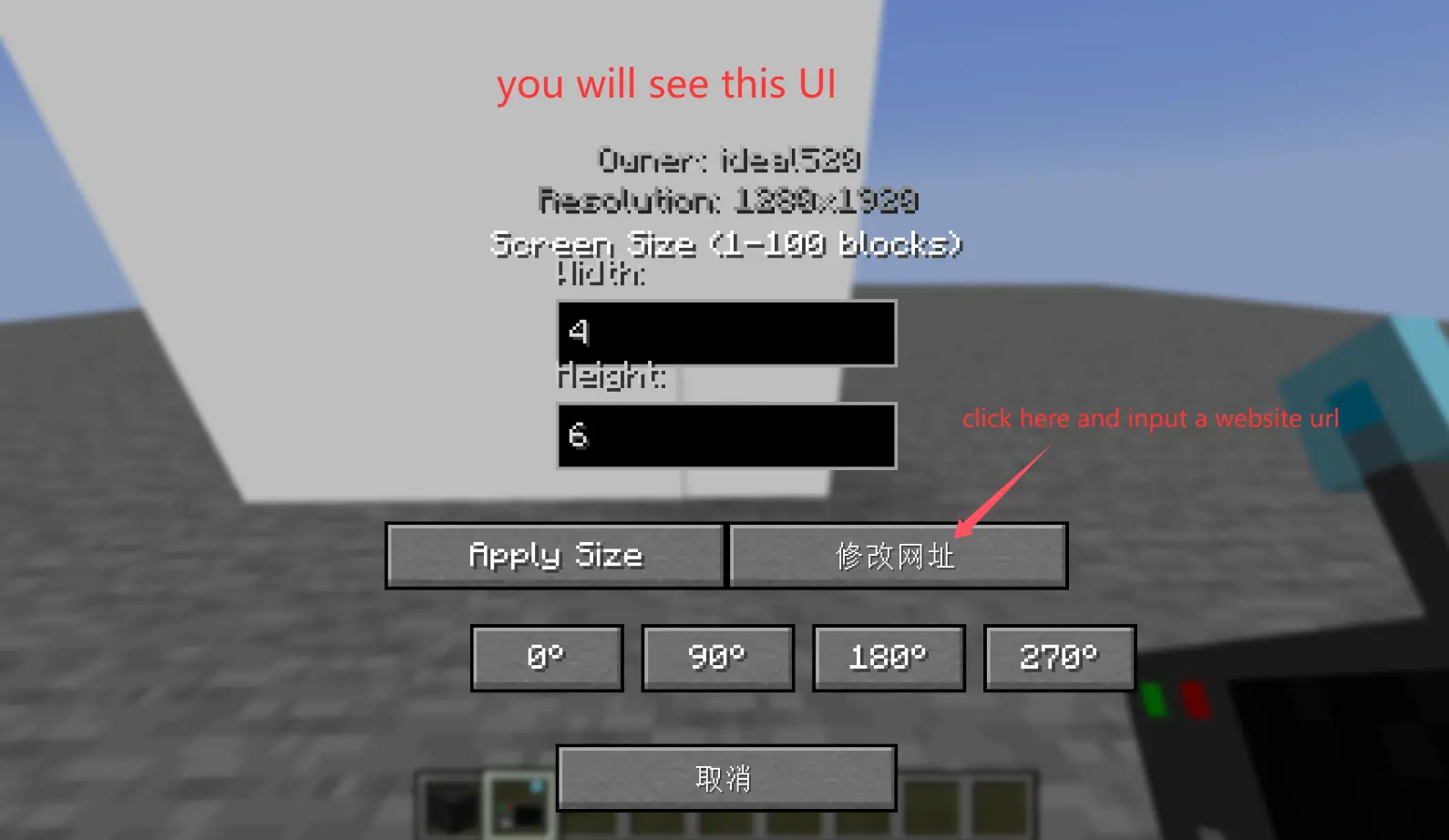
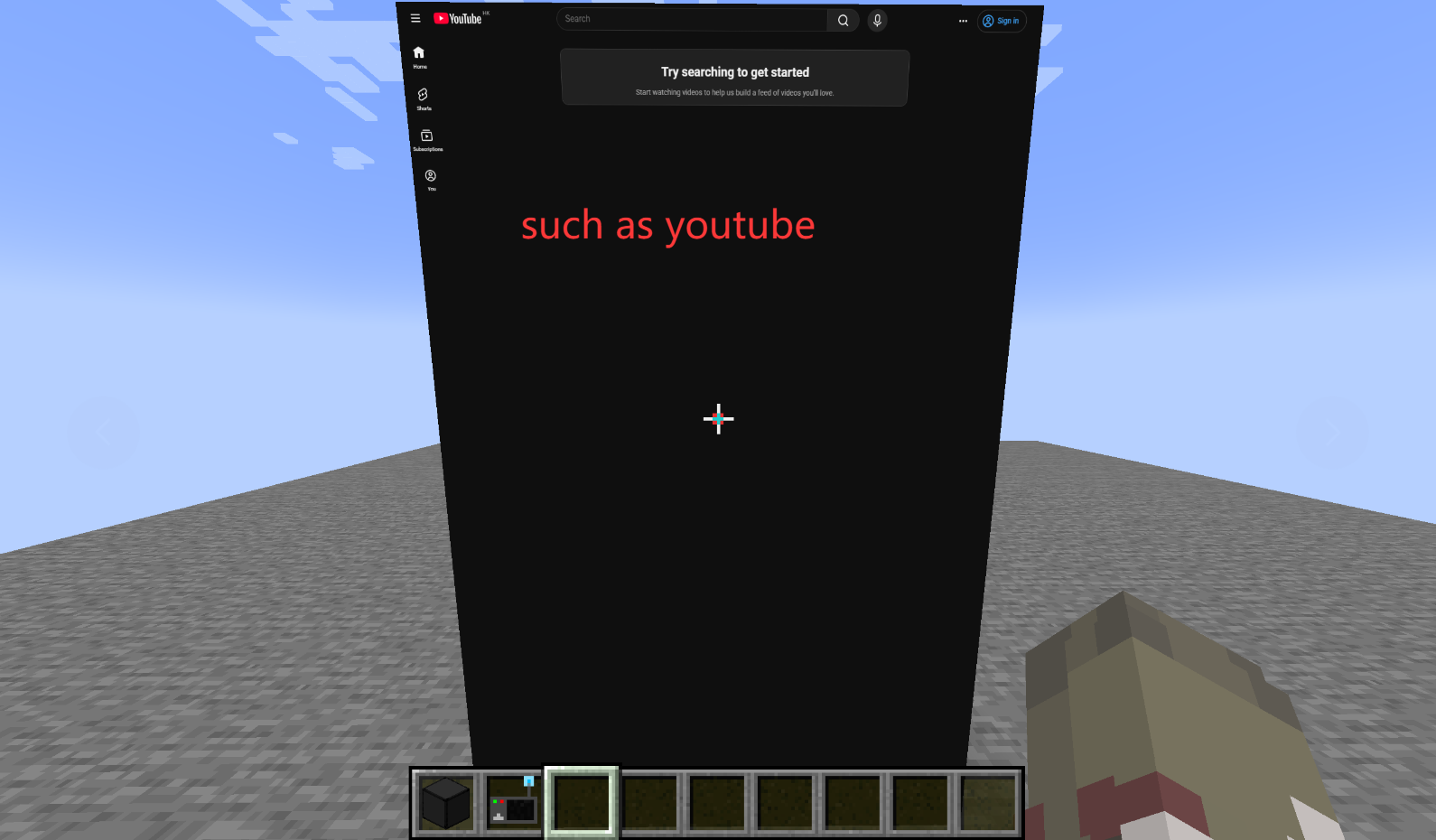
放置屏幕方块。使用配置器右键点击屏幕方块以创建屏幕。再次右键点击可调整屏幕比例、URL 等。
左键点击的功能等同于普通浏览器中的左键点击。
Shift + 滚轮的功能等同于普通浏览器中的滚动。
Ctrl + 滚轮的功能等同于普通浏览器中的缩放。
按 Tab 键隐藏红色指针。
按 F6 键隐藏屏幕。
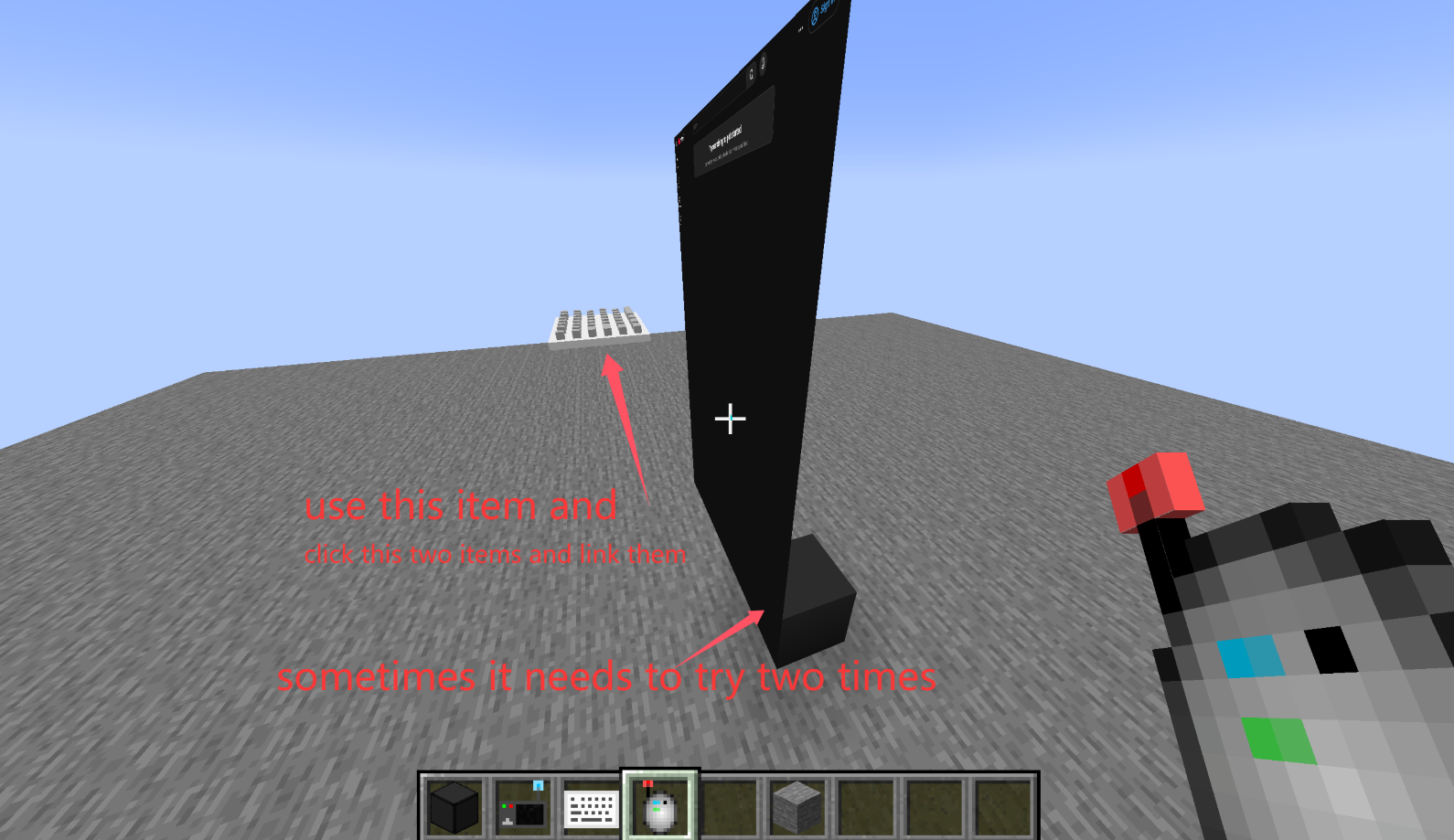
放置键盘。使用连接器分别右键点击屏幕方块和键盘方块以连接它们。
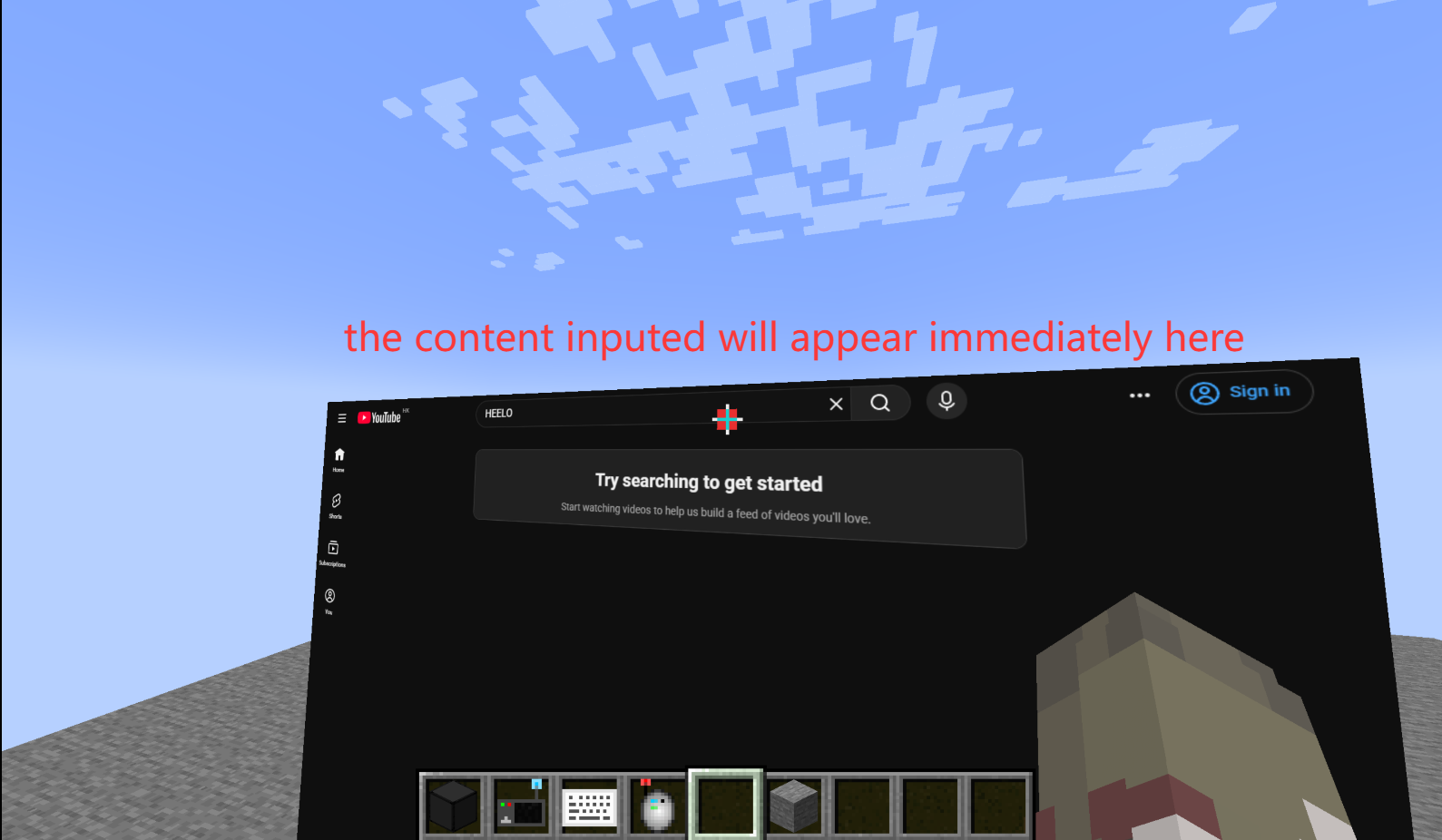
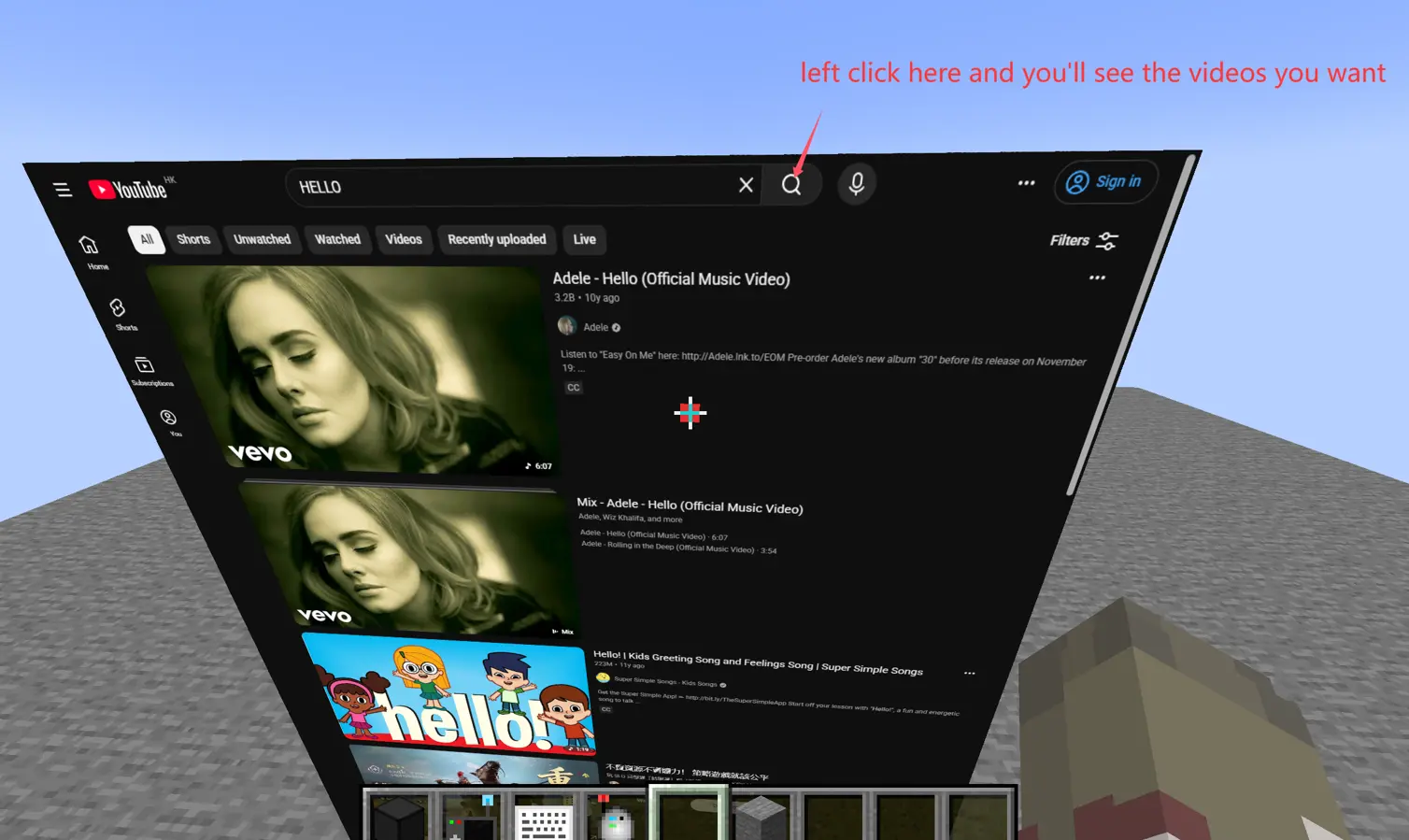
点击屏幕上的输入框进入输入模式。
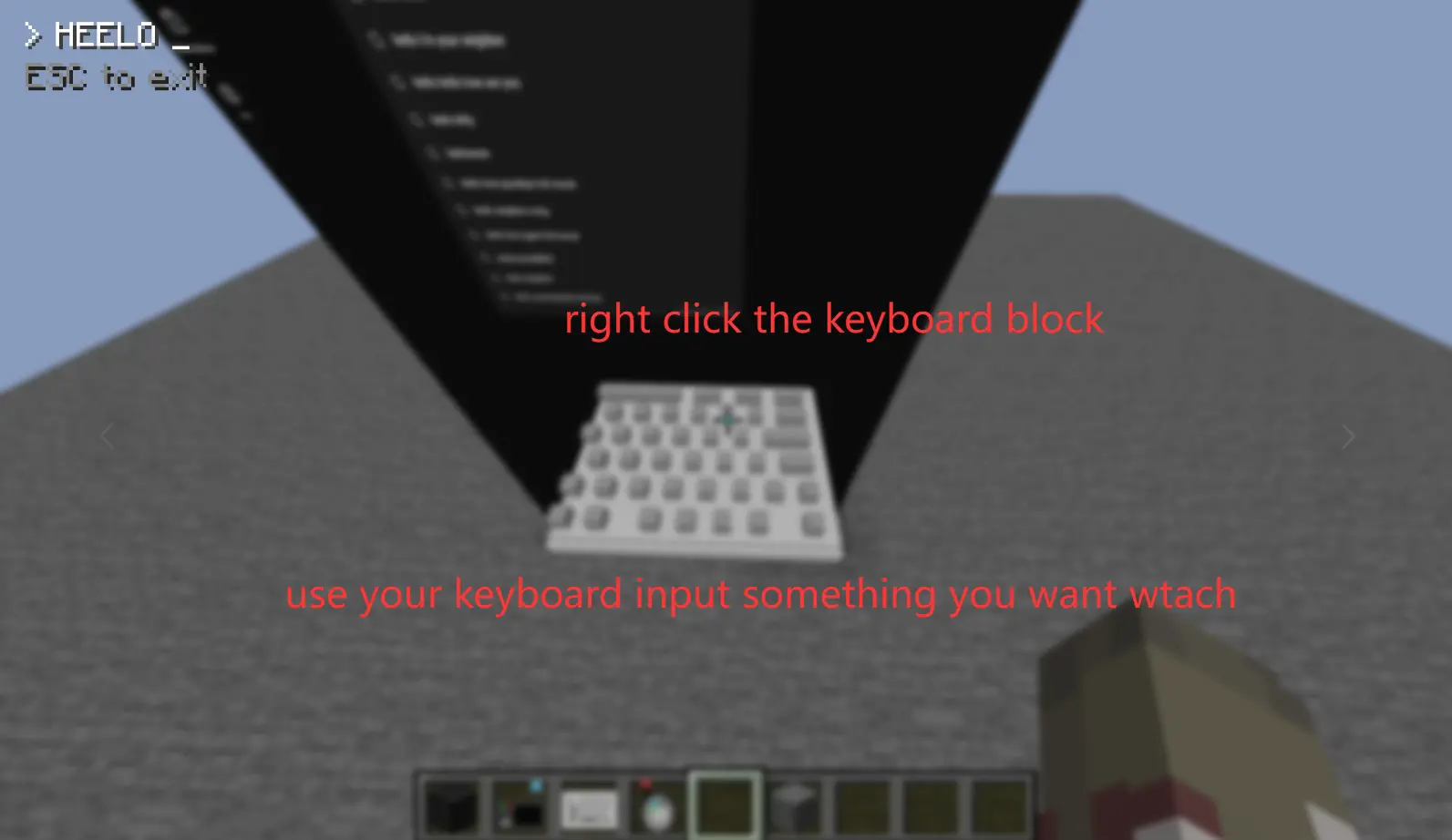
右键点击键盘即可像在普通浏览器中一样打字(直接将输入内容映射到浏览器)。
按 Esc 键退出。
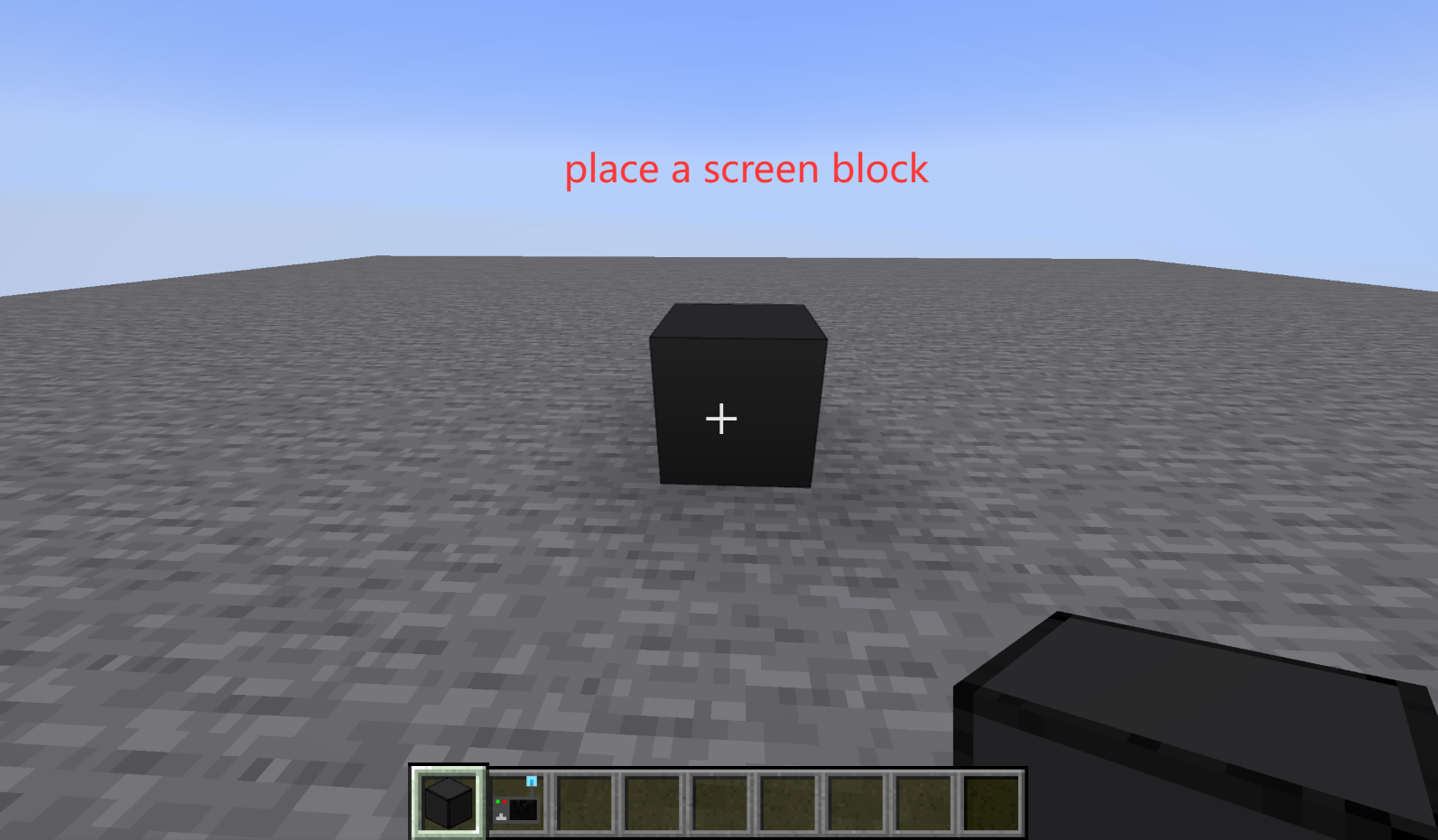
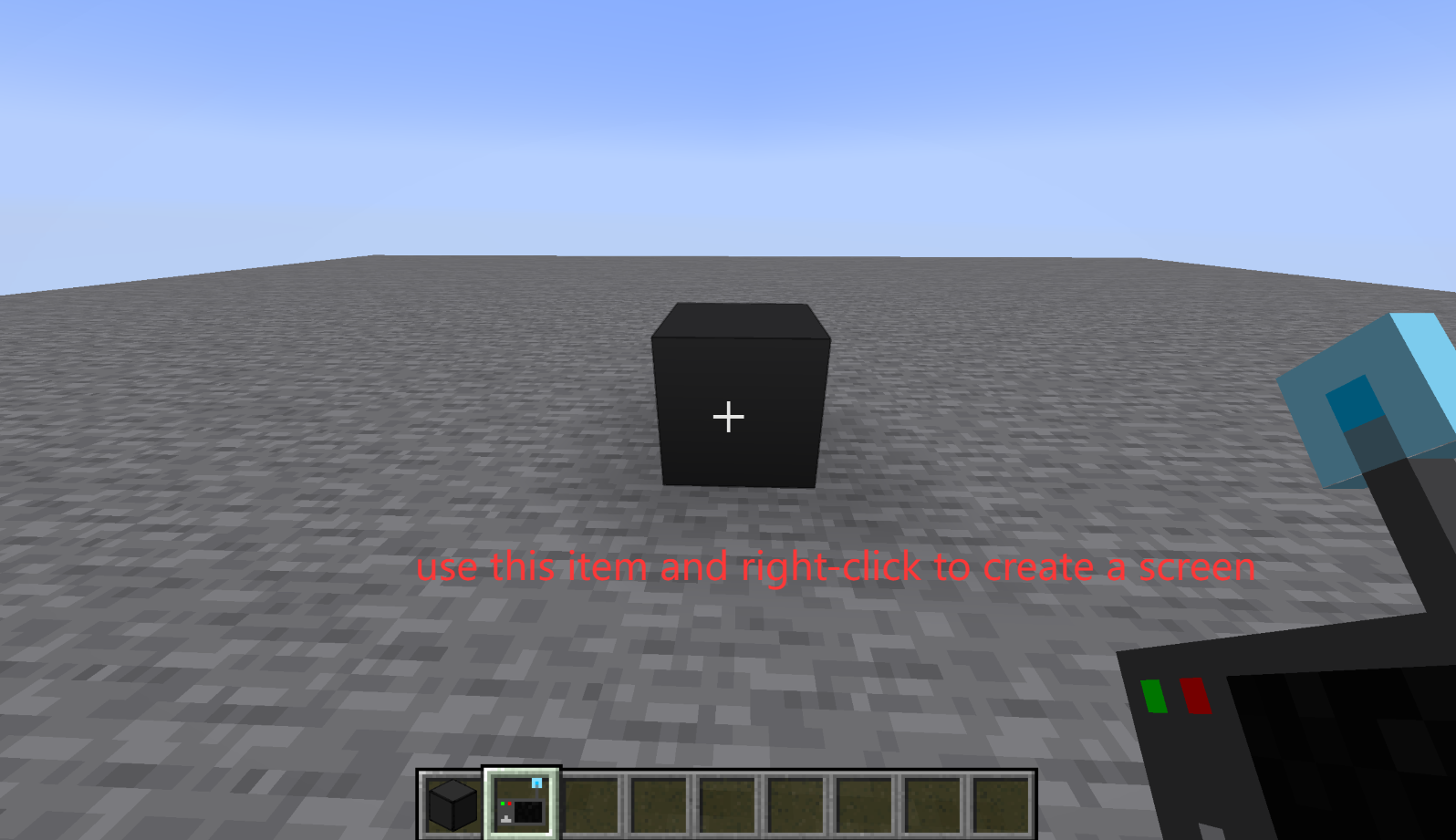
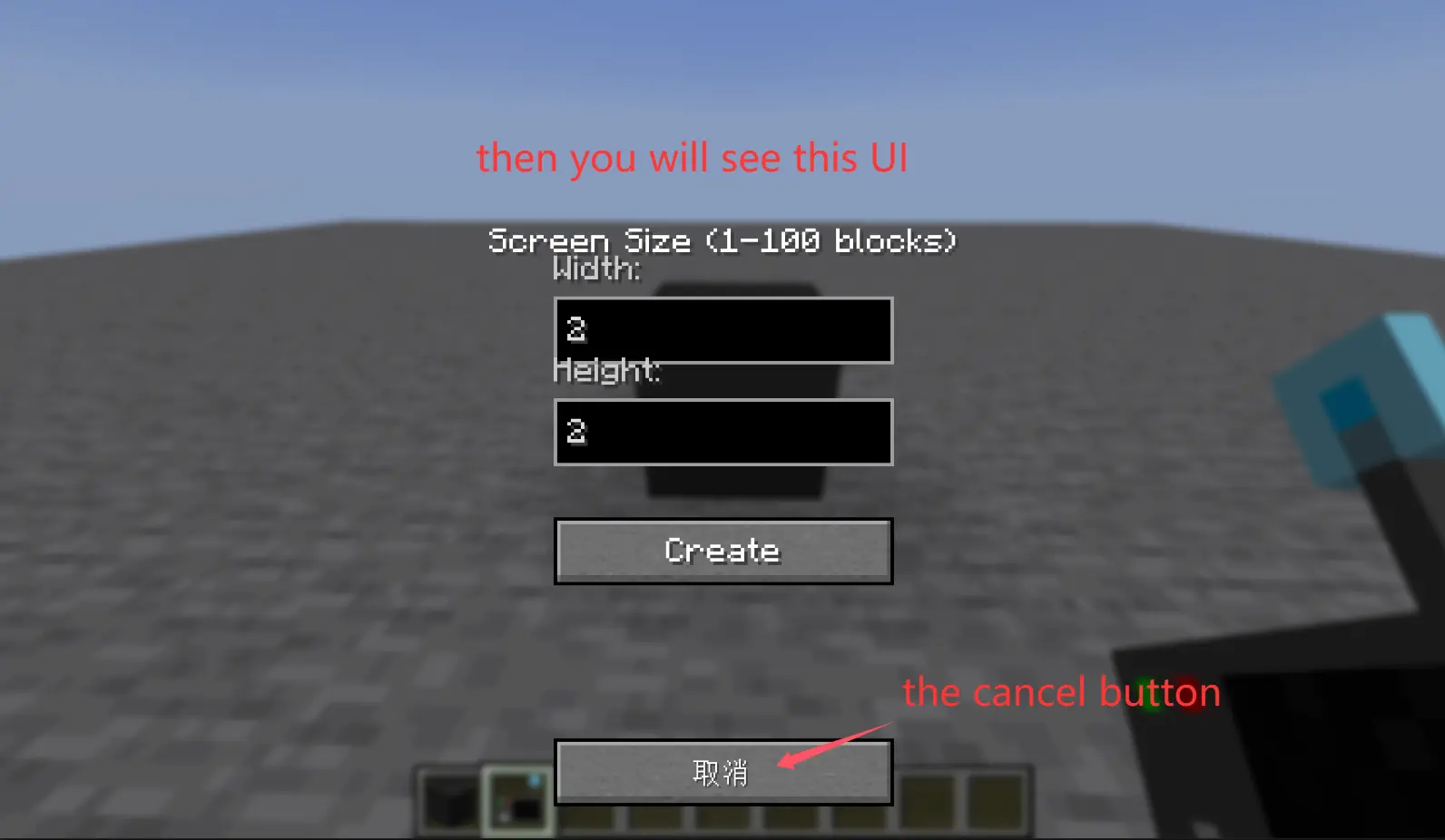
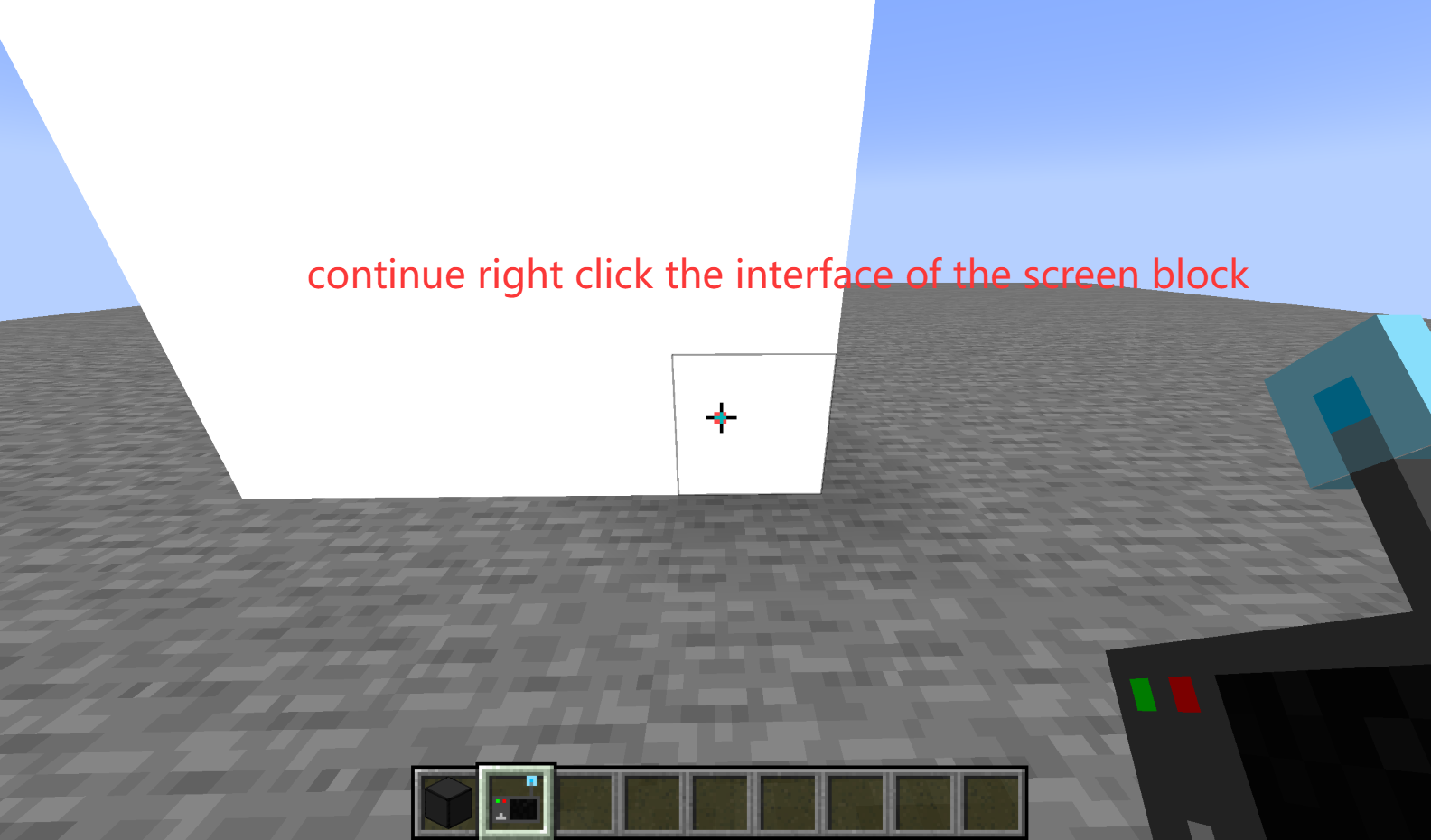
 首先右键点击屏幕方块!!8
WebDisplays Mod(This mod is ported from ds58 and Lyzantra's WebDisplays(forge)and yhe original mod WebDisplays is by the authors ds58 and Lyzantra!!! ) - Implemented Features
?️ Core Display
Web Screen Block - Placeable in-world block that displays web pages via MCEF (Chromium Embedded Framework)
Multiplayer Support - Screen data (URL, size, rotation) synced to all players; each player loads pages locally via their own MCEF instance
Texture Broadcasting (Experimental) - Screen owner's browser texture captured and broadcast to other players every 500ms for identical content
? Blocks & Items
Keyboard Blocks (Left & Right) - Right-click to type on screen, linkable to screens using Linking Tool
Screen Configurator - Right-click screen to open settings GUI for creating/removing screen faces, setting URL, resizing, and rotating
Linking Tool - Click screen to select, then click keyboard to link them together
Creative Tab - All items grouped under Web Displays creative tab
? Interaction
Mouse Interaction - Raycast-based cursor tracking for clicking and scrolling on screen surfaces (Tab to toggle cursor)
Keyboard Input GUI - Dedicated input screen for typing on browser pages
? Network
Network Sync - Custom payload system for screen actions (add/remove/resize/rotate/URL changes)
⚙️ Rendering & Stability
OpenGL State Protection - Mixin to reset GL_UNPACK_ROW_LENGTH/SKIP_PIXELS/SKIP_ROWS after MCEF texture updates, preventing visual corruption
Pixel Store Reset - Mixin to reset GL pixel store state after MCEF texture updates to prevent rendering artifacts
? Commands
/screen Command - Give items via command:
/screen screen
/screen configurator
/screen linker
/screen kb_left
/screen kb_right
!!!!!!!!!!!!!!!!!!!!!!!!!!!!!!!!!!!!!!!!!!!!!!!!!!!!!!!!!!!!!!!!!!!!!!!!!!!!!!!!!!!!!!!!!!!!!!!
How to use?
Use the /screen command to obtain the screen block, configurator, connector, and keyboard.
Place the screen block. Right-click the screen block with the configurator to create a screen. Right-click again to adjust the screen ratio, URL, etc.
Left-click functions the same as a left-click in a normal browser.
Shift + scroll wheel functions the same as scrolling in a normal browser.
Ctrl + scroll wheel functions the same as zooming in and out in a normal browser.
Press Tab to hide the red pointer.
Press F6 to hide the screen.
Place the keyboard. Use the connector to right-click the screen block and the keyboard respectively to connect them.
Left-click on the input field on the screen to enter input mode.
Right-click on the keyboard to type as you would in a normal browser (directly mapping the input content to the browser).
Press Esc to exit.
right click the screen block first!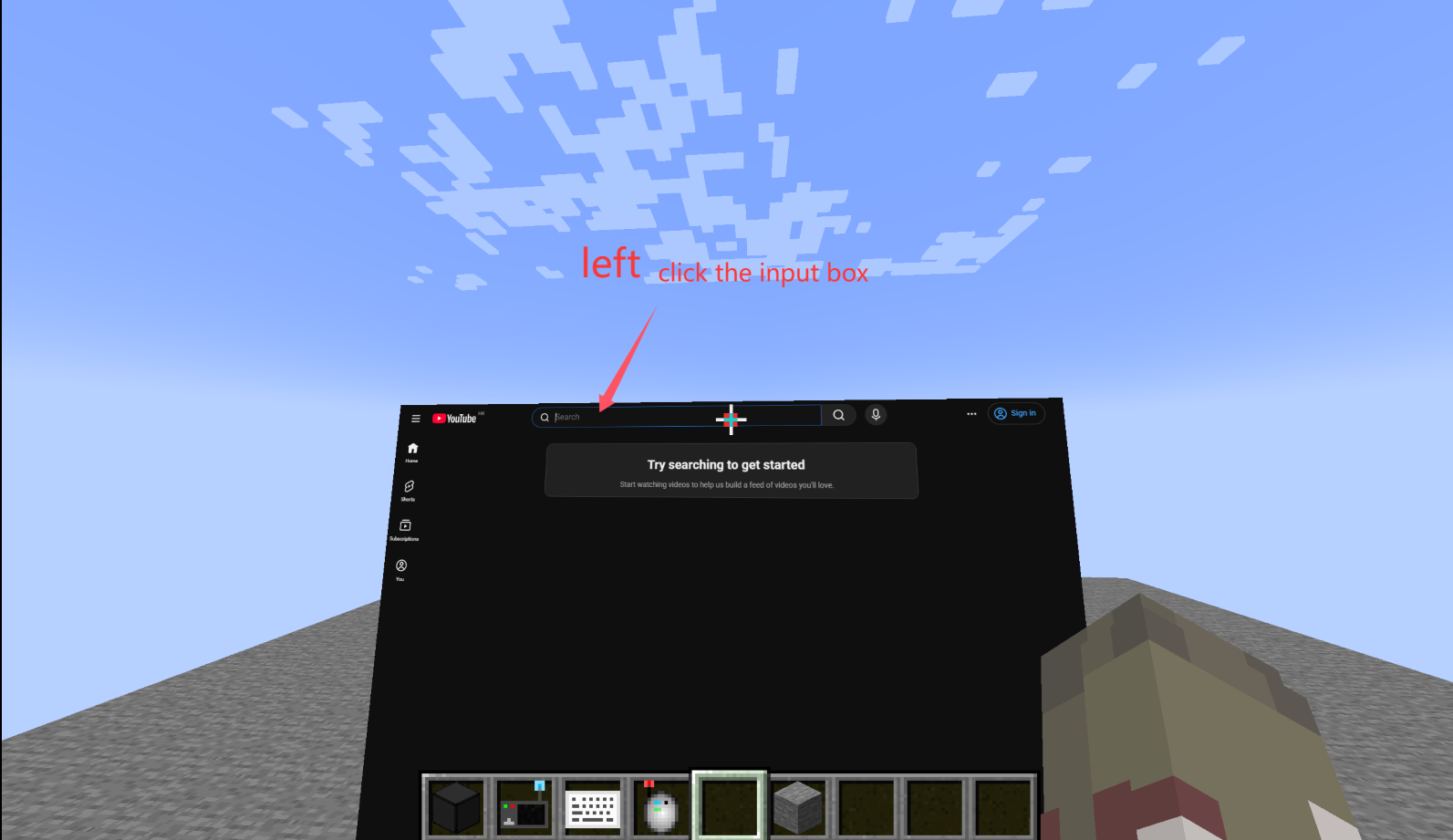


 模组

 模组

 模组
 模组

 模组
 模组
评论 0
登录后参与评分
还没有评论,来抢沙发吧