

ChatNotify
当你的名字被提及时播放提示音,并支持创建自定义警报。
功能
- 自定义触发器——再也不用担心错过任何消息!
- 从内置和资源包音效中选择通知声音。
- 针对每条通知单独调整音量和音调。
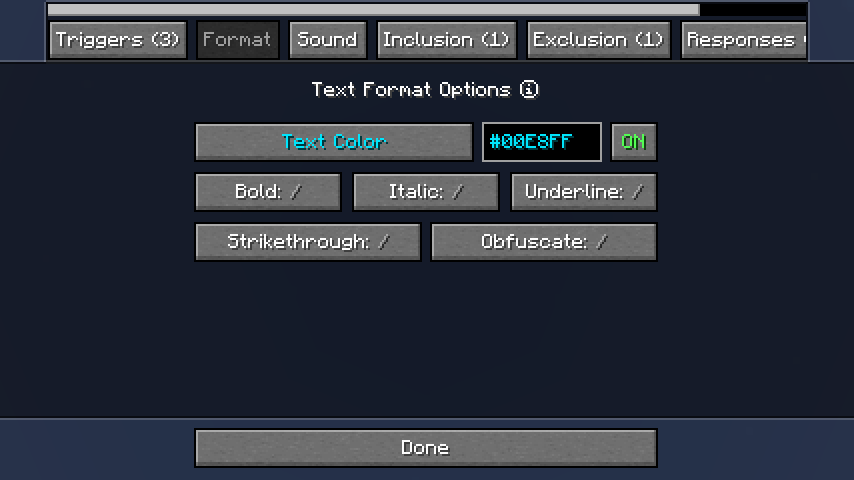
- 使用颜色选择器和格式控件来自定义消息高亮样式。
- 使用正则表达式模式、包含和排除触发器进行精细控制。
- 添加自动回复消息或触发 CommandKeys 宏。
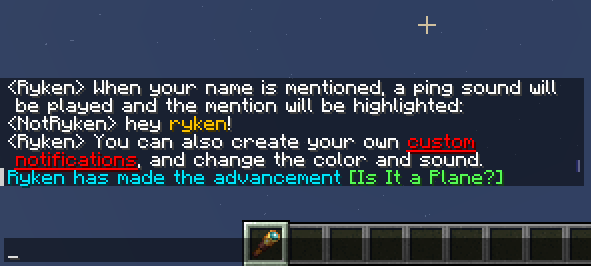
工作原理
- ChatNotify 拥有一个
Notifications(通知)列表,每个通知包含一个或多个Triggers(触发器)。 - 当聊天中出现新消息时,ChatNotify 开始检查每个通知的触发器。
- 如果触发器与聊天消息匹配,相应的通知将被激活。默认情况下:
- 消息会被编辑以高亮显示激活该通知的触发词。
- 会播放提示音。
- 你可以通过选项屏幕创建和自定义自己的通知,在 Fabric 上可通过 ModMenu 打开,或在 NeoForge 上通过模组列表打开。
设置
当你打开选项屏幕时,你会看到通知列表。你可以在这里设置通知触发器、颜色和声音。
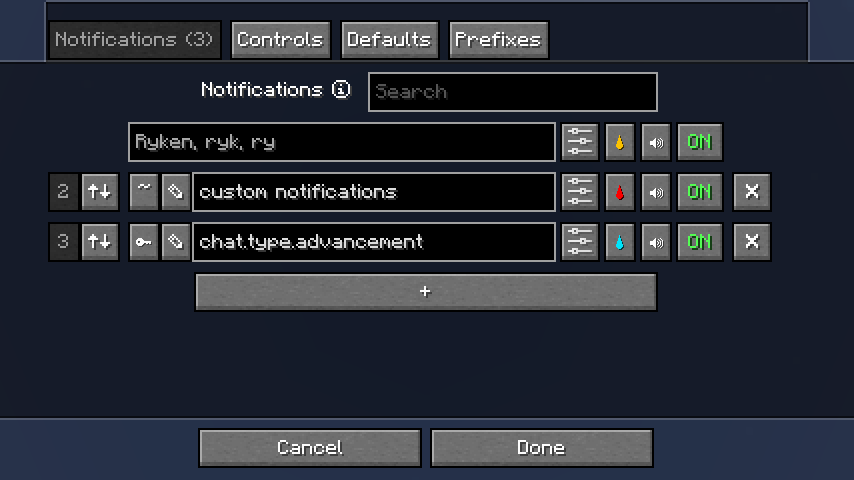
触发器类型
要更改触发器类型,请点击文本字段左侧的 ~ 按钮。
- Normal(普通)
- 这大概是你一开始想要使用的类型。普通触发器不区分大小写(因此触发词
hello将匹配包含HELLO的消息),且不匹配部分单词(因此触发词rock将匹配rock!但不匹配rocket或rock932)。
- 这大概是你一开始想要使用的类型。普通触发器不区分大小写(因此触发词
- Key(键)
- 在原版中,每种类型的聊天消息都有不同的翻译键(例如
chat.type.text或chat.type.advancement.task)。你可以使用键类型触发器来匹配所有该类型的消息。 - 注意:许多服务器会从消息中移除键,这将导致此类型的触发器无法工作。要检查消息是否包含键,请使用触发器编辑器(见下文)。
- 在原版中,每种类型的聊天消息都有不同的翻译键(例如
- Regex(正则表达式)
- 如果你想要更精确的控制,可以切换到此类型并在文本字段中输入正则表达式模式。
- 建议配合使用触发器编辑器(见下文)和/或像 regex101 这样的工具来帮助创建正则表达式模式。
触发器编辑器
点击文本字段左侧的 ✎ 按钮以打开触发器编辑器。
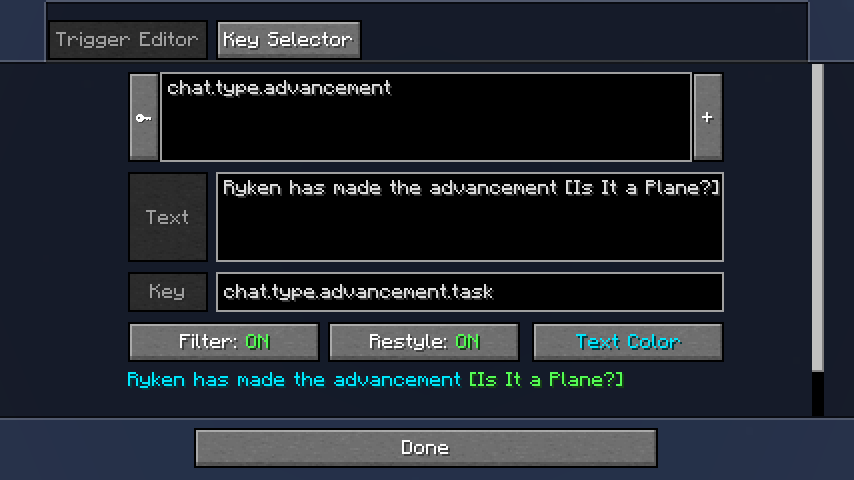
在触发器编辑器中,最近的聊天消息将以列表形式显示(最新的在前)。使用 Filter(过滤)和 Restyle(重设样式)按钮预览你的触发器效果。
点击某条消息可查看其文本和翻译键(如果有),以便复制。
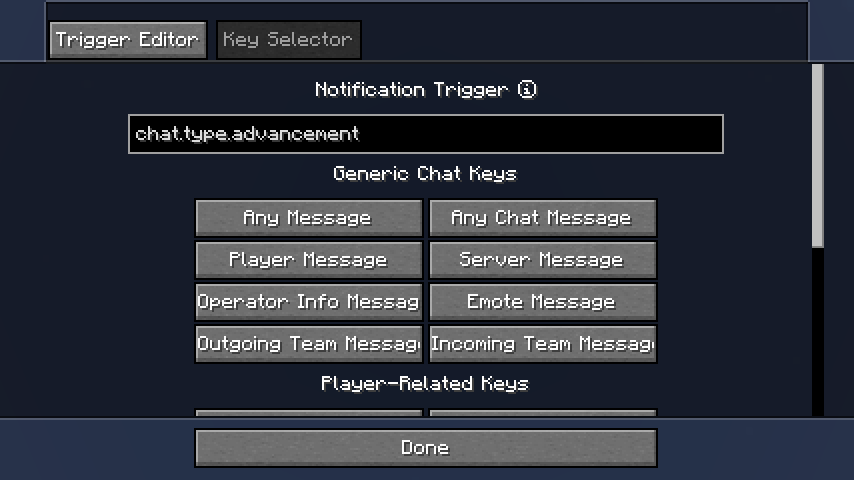
此外,Key Selector(键选择器)中还提供了一些常用键供选择。
触发器列表
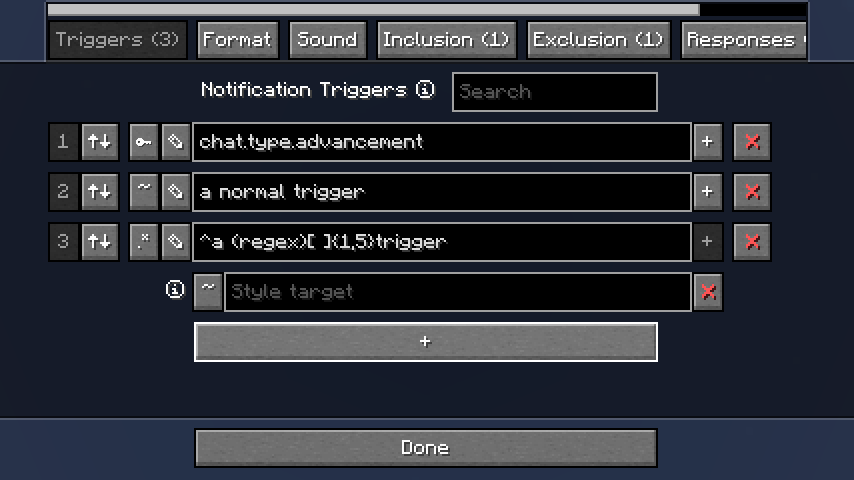
如果你想添加更多触发器,请返回到 Notifications(通知)并点击颜色按钮左侧的选项按钮。现在你将看到一个触发器列表,可以根据需要对其进行编辑。
样式目标
有时对于键类型和正则表达式类型的触发器,你可能希望高亮显示消息中与触发词匹配的部分不同的其他部分。
添加样式目标允许你指定消息的哪一部分应该被高亮显示。如果样式目标与消息不匹配,则触发器将按正常方式工作。
格式
声音
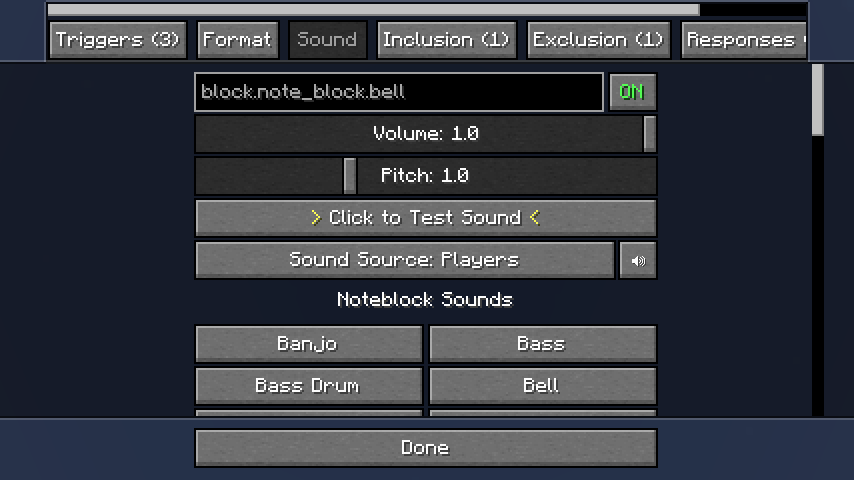
可以使用所有内置和资源包声音(点击文本字段)。此外,还提供了一些声音供快速选择。
声音源控制除了此处提供的音量控制滑块外,Minecraft 的哪些音量控制滑块会影响通知声音。
包含
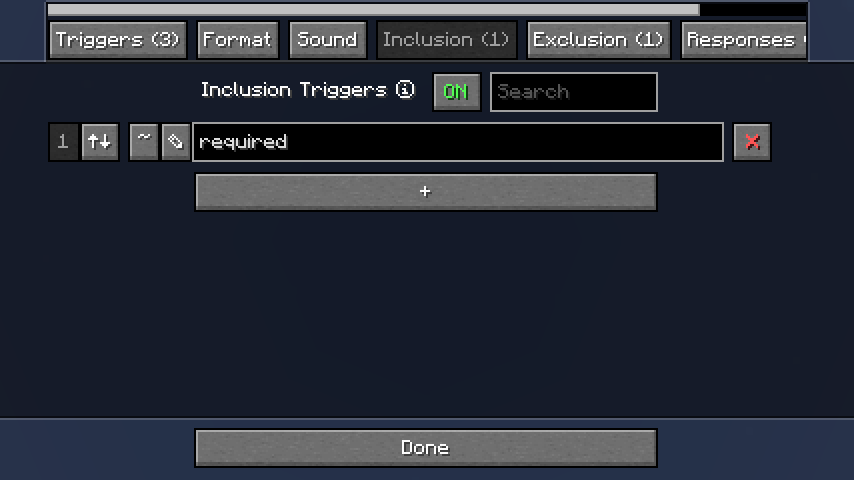
包含触发器本身不起作用,但如果 Triggers(触发器)列表中的某个触发器匹配了消息,ChatNotify 将检查此列表中的所有触发器,并且仅当它们全部匹配时才激活通知。
排除
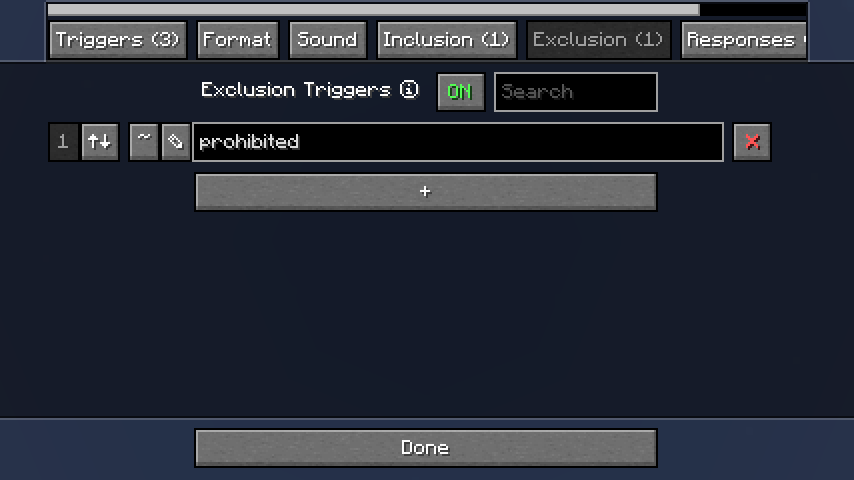
排除触发器是 Inclusion(包含)触发器的反向操作;在激活通知之前,ChatNotify 将检查此列表中的所有触发器,并且仅当没有任何一个触发器与消息匹配时才会继续激活。
回复
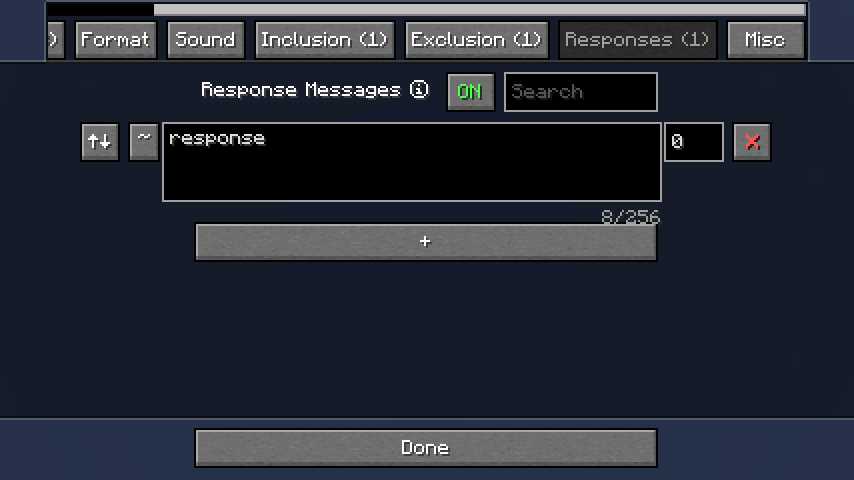
当通知被激活时,回复消息将被发送到聊天中。
谨慎使用,因为你很容易让通知发送一条回复,从而再次触发该通知形成循环,这将刷屏并最终导致游戏崩溃。
自定义消息
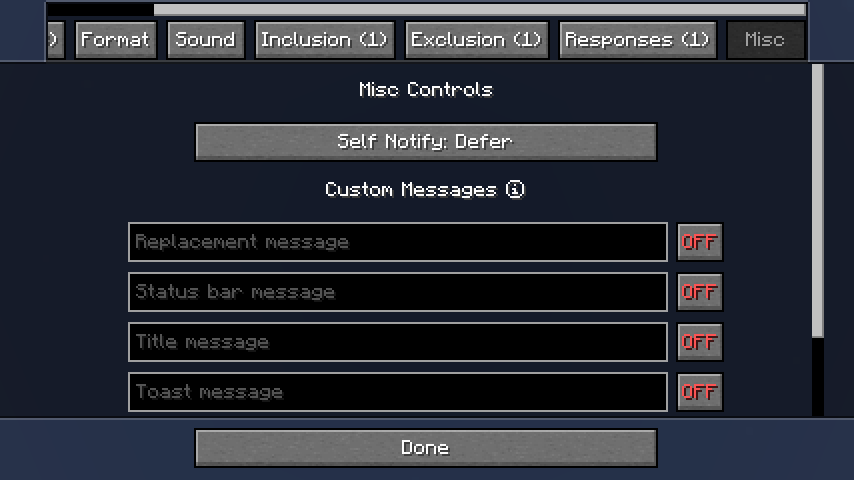
这些是显示通知的特殊方式,作为对“播放声音并高亮消息”这一常规方式的替代。
控制
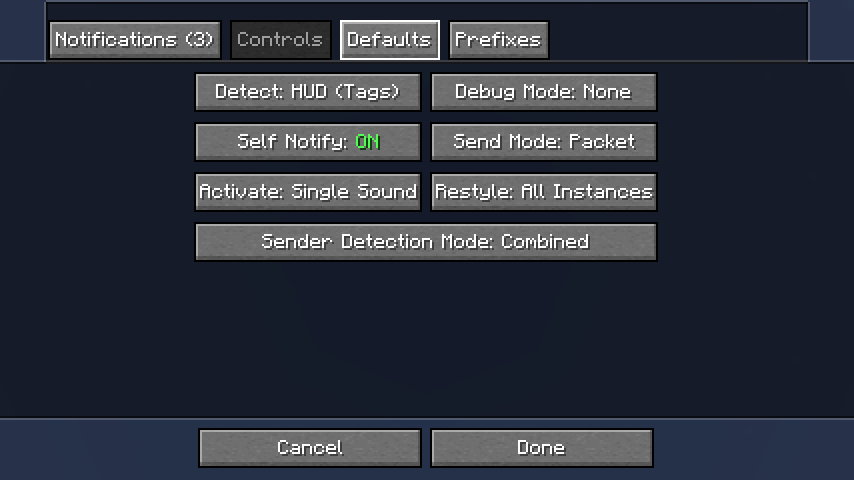
这些选项适用于所有通知,并控制 ChatNotify 行为的各个方面。通常你不需要更改它们(当然,如果你想改也可以),但在与其他模组冲突的某些情况下,Detect(检测)和 Send Mode(发送模式)选项可能非常有用。
默认值
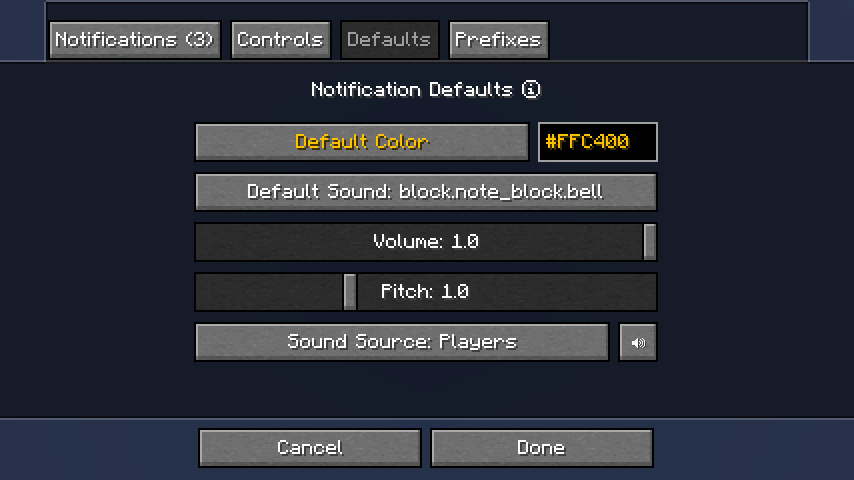
如果你希望新通知具有特定的颜色或声音作为默认设置,可以在这里进行配置。
前缀
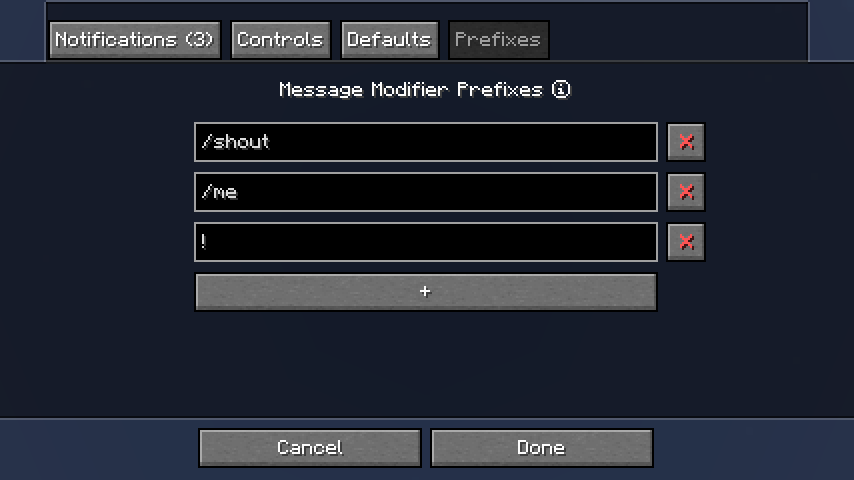
当 ChatNotify 未使用 Chat Heads 来检测消息发送者时,它会存储你发送的消息,并将其与传入的消息进行比较,以确定哪些消息是由你发送的。如果你所在的服务器会修改你的消息,该机制可能无法正常工作,此时前缀功能可以提供帮助。
如果你仍然收到对自己发送的每一条消息的通知(因为其中包含你的名字),请尝试安装 Chat Heads,并在 Controls(控制)选项卡中将 Sender Detection Mode(发送者检测模式)设置为 Combined(组合)。
GUI 调整
特殊控件
ChatNotify 使用了一系列自定义 GUI 控件,其行为与普通 Minecraft 不同。
- 选项屏幕上的颜色 (
?) 和声音 (?) 状态按钮支持右键单击以切换状态。 - 文本字段已修改,支持双击、三击或点击并拖动来选择文本。
- 文本字段还支持
CTRL+Z撤销和CTRL+Y重做编辑操作。请注意,每当 GUI 刷新时(这通常发生在你点击其他控件时),编辑历史记录将被清除。 - 全屏覆盖控件(如颜色选择器和下拉文本字段)支持点击外部区域以取消并关闭。
聊天高度滑块
- ChatNotify 修改了聊天高度滑块(位于 Minecraft 的
Chat Settings(聊天设置)中),将最大值增加到500px。 - 除非你决定更改,否则现有的设置保持不变。
依赖项
Fabric: Fabric API, ModMenu
NeoForge: 无
兼容性
如果遇到任何问题,请在 Discord 或 GitHub 上报告。
联系方式
ChatNotify
Plays a ping sound when your name is mentioned, with options to create custom alerts.
Features
- Custom triggers - never worry about missing a message again!
- Choose notification sounds from the full range of built-in and resourcepack sound effects.
- Adjust sound volume and pitch per-notification.
- Customize message highlighting with a color picker and format controls.
- Use regex patterns, inclusion and exclusion triggers for fine-grained control.
- Add automatic response messages or trigger CommandKeys macros.
How it Works
- ChatNotify has a list of
Notifications, each of which has one or moreTriggers. - When a new message arrives in chat, ChatNotify starts checking the triggers of each notification.
- If a trigger matches the chat message, the corresponding notification will be activated. By
default;
- The message will be edited to highlight the trigger that activated the notification.
- A sound will be played.
- You can create and customize your own notifications via the options screen, which can be opened via ModMenu on Fabric, or the mod list on NeoForge.
Setup
When you open the options screen, you'll see a list of notifications. You can set the notification trigger, color and sound here.
Trigger types
To change the trigger type, click the ~ button to the left of the text field.
- Normal
- This is what you probably want to use at first. Normal triggers aren't case-sensitive (so a
trigger
hellowill match messages containingHELLO), and they don't match partial words (so a triggerrockwill matchrock!but notrocketorrock932).
- This is what you probably want to use at first. Normal triggers aren't case-sensitive (so a
trigger
- Key
- In vanilla, each type of chat message has a different translation key (such as
chat.type.textorchat.type.advancement.task). You can use a key-type trigger to match all messages of that type. - Note: Many servers remove keys from messages, which will prevent this type of key from working. To check if a message has a key, use the trigger editor (see below).
- In vanilla, each type of chat message has a different translation key (such as
- Regex
- If you want more precise control, you can switch to this type and enter a regex pattern in the text field.
- Consider using the trigger editor (see below) and/or a tool such as regex101 to help create regex patterns.
Trigger editor
Click the ✎ button to the left of the text field to open the trigger editor.
In the trigger editor, recent chat messages will be displayed in a list (most recent first). Use the
Filter and Restyle buttons to preview the effect of your trigger.
Click on a message to view the text and translation key (if any) so you can copy them.
Additionally, some common keys are available for selection in the Key Selector.
Trigger List
If you want to add more triggers, go back to Notifications and click on the options button to the
left of the color button. You'll now see a list of triggers, which you can edit as desired.
Style target
Sometimes for key-type and regex-type triggers you may want to highlight a different part of the message to what the trigger matches.
Adding a style target allows you to specify what part of the message should be highlighted. If the style target doesn't match the message, the trigger will be used as normal.
Format
Sound
All built-in and resourcepack sounds can be used (click on the text field). Additionally, some sounds are available for quick selection.
The sound source controls which of Minecraft's volume control sliders will affect the notification sound, in addition to the volume control slider provided here.
Inclusion
Inclusion triggers do nothing by themselves, but if a trigger from the Triggers list matches a
message, ChatNotify will check all the triggers in this list and only activate the notification if
they all match.
Exclusion
Exclusion triggers are the reverse of Inclusion triggers; before activating a notification,
ChatNotify will check all the triggers in this list and only proceed with activation if none of them
match the message.
Response
Response messages will be sent in chat when the notification is activated.
Use with caution, as you can easily make a notification send a response which triggers the notification again in a loop, which will spam chat and then crash the game.
Custom Messages
These are special ways of showing notifications, as an alternative to the normal 'play a sound and highlight the message'.
Controls
These options apply to all notifications, and control various aspects of ChatNotify's behavior. You
should not generally need to change them (you can if you want, of course), but the Detect and
Send Mode options can be useful in certain cases of conflict with other mods.
Defaults
If you want new notifications to have a particular color or sound by default, you can set that here.
Prefixes
When ChatNotify is not using Chat Heads to detect the message sender, it will store your sent messages and compare them to incoming messages to determine which messages were sent by you. If you're on a server that modifies your messages, that system may not work properly, so prefixes can help.
If you're still being notified on every message that you send (because it contains your name) try
installing Chat Heads and setting Sender Detection Mode
to Combined in the Controls tab.
GUI Tweaks
Special Widgets
ChatNotify uses a range of custom GUI widgets which behave differently to normal Minecraft.
- Color (
?) and sound (?) status buttons on the options screen support right-click to toggle status. - Text fields have been modified to support double-clicking, triple-clicking or clicking and dragging to select text.
- Text fields have also been modified to support
CTRL+Zto undo andCTRL+Yto redo edits. Note that edit history will be erased whenever the GUI is refreshed, which often happens when you click on a different widget. - Fullscreen overlay widgets such as the color picker and drop-down text field support clicking outside to cancel and close.
Chat Height Slider
- ChatNotify modifies the chat height slider (in Minecraft's
Chat Settings) to increase the maximum value to500px. - Your existing setting will stay the same unless you decide to change it.
Dependencies
Fabric: Fabric API, ModMenu
NeoForge: None
Compatibility
If you encounter issues, please report on Discord or GitHub.
Contact

下载 Chat Notify
下载 Chat Notify
下载 Chat Notify
下载 Chat Notify
下载 Chat Notify
需要联机服务器吗?
稳定流畅、一键部署,几分钟即可和朋友联机开服
最低仅需 8 元/月 即可畅快联机
下载 Chat Notify
需要联机服务器吗?
稳定流畅、一键部署,几分钟即可和朋友联机开服
最低仅需 8 元/月 即可畅快联机
下载 Chat Notify
下载 Chat Notify
下载 Chat Notify
需要联机服务器吗?
稳定流畅、一键部署,几分钟即可和朋友联机开服
最低仅需 8 元/月 即可畅快联机
下载 Chat Notify
- 修复了与 ChatHeads 的兼容性问题
关于这个资源的讨论、问题反馈与使用心得
还没有讨论,来发第一帖吧
你是这个资源的作者?登录后可认领此资源。
相似资源
 模组

显示你正在注视的方块的信息。(适用于 Minecraft 1.16+ 的 Hwyla/Waila 分支)
 模组

查看物品与配方
 模组
在游戏画面角落显示附近世界地形、玩家、生物和实体的地图。可创建路径点,帮助你找到标记过的位置。
 模组
使用 JavaScript 编辑配方、添加自定义物品、编写世界事件!
 模组
添加区块认领和玩家组队功能,并与 Xaero's Minimap 和 World Map 集成
 模组
添加全屏世界地图,显示你在世界中已探索的区域。与 Xaero's Minimap 搭配使用效果极佳。
评论 0
登录后参与评分
还没有评论,来抢沙发吧