
Minecraft 世界的云同步功能!
在多个设备之间同步并备份你的世界!与 Minecraft 客户端深度集成,在加载、保存和从云端下载世界时提供无缝体验。
工作原理?
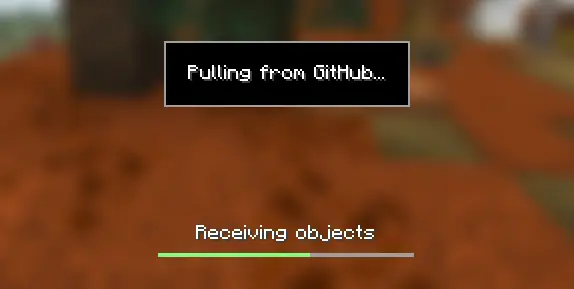
你选定的世界将作为仓库上传到你选择的 Git 托管平台。每次退出到主菜单时,都会创建一个当前世界状态的提交(commit)并推送到远程仓库。每当加载世界时,模组会检查云端是否有新的世界版本,如果有,则会下载到你的设备上。
由于该模组内部使用 Git,这意味着每次只会上载和下载你在世界存档文件夹中修改过的文件,从而节省存储空间和网络带宽。
如何设置?
设置此模组需要几个步骤,包括为你所选的 Git 服务创建个人访问令牌(Personal Access Token),以及选择你要为 MineGIT 启用的世界。
视频教程:
首次设置
有许多选项可用于托管你的远程世界存储,包括 GitHub、GitLab、Codeberg,甚至自行托管 Gitea 或 Forgejo 实例!对于初学者,我建议使用 GitHub 作为首选服务。假设你使用的是 GitHub,你需要通过以下步骤生成个人访问令牌:
- 如果你还没有 GitHub 账号,请先创建一个
- 导航至 创建个人访问令牌的页面
- 点击
Generate new token(生成新令牌) - 在
Token name(令牌名称)下输入任意名称(例如 MineGIT) - 滚动到
Expiration(过期时间)并将其设置为No expiration(永不过期)(这样你就不必在令牌过期后重复此过程) - 在
Repository access(仓库访问权限)下选择All repositories(所有仓库) - 在
Permissions(权限)下,点击Add permissions(添加权限)并选择Administration(管理)和Contents(内容) - 将
Administration和Contents行的Access(访问权限)设置为Read and write(读写) - 按下
Generate token(生成令牌)并将生成的令牌复制下来,以便稍后粘贴到 Minecraft 中(生成的令牌应以github_pat_开头,后跟一长串字母和数字)
在游戏中设置
安装模组并进入游戏后,执行以下步骤将你的 GitHub 账号与模组关联:
- 在世界创建或世界选择屏幕的左下角点击云朵按钮(如果按钮未出现,说明你之前已经关联过账号;请参阅下文题为“重新配置账号关联”的部分)
- 在出现的新页面上输入你的 GitHub 用户名和上一步创建的个人访问令牌(PAT)
- 按下标有
Test credentials(测试凭据)的按钮,确保你输入的信息正确无误 - 你现在可以退出该屏幕,并继续为某个世界启用同步或克隆现有世界
重新配置账号关联
如果你之前已经设置了账号关联,并且想要更改设置,可以通过以下几种方式回到配置界面:
- 通过 ModMenu 配置: 如果你安装了 ModMenu,只需在模组列表中找到该模组并从那里打开配置界面
- 从世界克隆屏幕: 在世界克隆屏幕的右上角有一个按钮,可以打开配置界面
- 从世界选择屏幕: 按住 Alt 键并点击世界选择屏幕左下角的世界同步按钮,即可回到配置界面
为世界启用同步
你需要为每个希望同步到你的 Git 托管平台的世界单独启用世界同步。要为一个世界启用同步,请执行以下操作:
- 在世界选择屏幕上选择一个世界
- 按下屏幕左下角标有
Enable world sync(启用世界同步)的云朵按钮 - 在下一个屏幕上确认你的决定
此过程将在你的账号上创建一个名为 minegit_[world folder name] 的新仓库,在你的世界存档文件夹中初始化一个 Git 仓库,并将其当前状态推送到云端。从此以后,加载世界将从你的 Git 托管平台拉取最新更改,而退出世界则会将更改推送出去。
你现在可以在另一台设备上下载此世界,以便通过下一步操作——克隆——在设备间有效同步更改。
在其他设备上下载世界(克隆)
克隆世界将下载世界上次保存到云端时的确切状态。假设你使用的是 GitHub,请使用以下步骤克隆世界:
- 在 Web 浏览器中导航至 github.com
- 点击右上角的个人资料图片,然后选择
Repositories(仓库) - 找到与你想要克隆的世界对应的仓库,并复制其名称
- 返回 Minecraft,点击世界选择屏幕或世界创建屏幕左下角标有向下箭头图标的按钮
- 粘贴你之前复制的仓库名称并按下
Clone(克隆) - 你现在可以像往常一样加载世界,并在你的设备间同步更改了!
技巧与提示
- 如果你想在退出世界时不将其推送到云端(例如,如果你想重启 Minecraft 并加载相同的世界,而不必等待更改被推送),你可以在点击“保存并退出到标题”的同时按住
Alt键。这将跳过推送步骤。 - 你可以从编辑菜单中回滚到你世界的先前版本!这是因为 Git 会在你每次保存并退出时记录世界的所有更改。
- 如果你想节省因 Git 仓库大小占用的存储空间,或者让其他设备更快地克隆这个世界,请使用编辑世界菜单中的“清理世界”按钮。这将删除你世界的所有旧版本,仅保留最新版本。
报告问题
如果遇到 Bug、崩溃或有任何改进模组的建议,请随时在模组的 问题追踪器 上提交一个 Issue!
提交问题时,请包含当前的 Minecraft 版本、Fabric 版本、模组版本以及任何相关的游戏日志。
Cloud sync for Minecraft worlds!
Sync and back up your worlds between multiple devices! Fully integrated into the Minecraft client for a seamless experience when loading, saving, and downloading worlds from the cloud.
How does it work?
Worlds that you select are uploaded to a Git host of your choice as repositories. Every time you quit to the title screen, a commit of the current state of your world is created and pushed to the remote repository. Whenever the world is loaded, the mod will check if any new versions of the world are available in the cloud, and if so, they will be downloaded to your device.
Since this mod uses Git internally, it also means that only the files in your world save folder that you modify will be uploaded and downloaded each time, saving storage space and internet bandwidth.
How do I set it up?
There are several steps to setting up this mod, which include creating a personal access token for your chosen Git service, as well as choosing the worlds you would like to enable MineGIT for.
Video guide:
First-time setup
Many options are available to host your remote world storage, including GitHub, GitLab, Codeberg, or even self-hosting a Gitea or Forgejo instance! For beginners, I would recommend using GitHub as your service of choice. Assuming you're using GitHub, you will need to generate a personal access token through the following steps:
- Create an account on GitHub if you do not have one already ()
- Navigate to the page to create a personal access token
- Click
Generate new token - Enter any name (such as MineGIT) under
Token name - Scroll to
Expirationand set it toNo expiration(so that you do not have to repeat this process when the token expires) - Under
Repository accesschooseAll repositories - Under
Permissions, clickAdd permissionsand selectAdministrationandContents - Set
Accesson theAdministrationandContentslines toRead and write - Press
Generate tokenand copy the generated token to be pasted into Minecraft later (the generated token should start withgithub_pat_and be followed by a long string of letters and numbers)
Setting up in-game
Once the mod is installed and you are in-game, do the following steps to link your GitHub account with the mod:
- Click on the cloud button on the bottom left corner of the world creation or world selection screen (If the button does not appear, you have already previously linked your account; see the section below entitled 'Reconfiguring account linking')
- Enter your GitHub username and personal access token (PAT) that you created in the previous step on the new page that appears
- Press the button labeled
Test credentialsto make sure you've entered the information properly - You may now exit the screen and proceed to either enable sync for a world or clone an existing one
Reconfiguring account linking
If you have already previously set up account linking and would like to change settings afterwards, you have a couple of options to get back to the configuration screen:
- Configure through ModMenu: If you have ModMenu installed, simply find the mod in the mods list and open the configuration from there
- From the world clone screen: There is a button in the top right corner of the world cloning screen that will open the configuration screen
- From the world selection screen: By holding alt and clicking on the world sync button on the bottom left of the world selection screen, you will be brought back into the configuration screen
Enabling sync for a world
World syncing needs to be enabled individually for each world you would like to sync to your Git host. To enable sync for a world, do the following:
- Select a world on the world selection screen
- Press the cloud button in the bottom left of the screen labeled
Enable world sync - Confirm your decision on the next screen
This process will create a new repository named minegit_[world folder name] on your account, initialize a Git repository in your world save folder, and push its current state to the cloud. From this point forward, loading the world will pull the latest changes from your Git host, and exiting the world will push changes.
You can now download this world on another device to effectively sync changes between them through the next step: cloning.
Downloading a world on a different device (Cloning)
Cloning a world will download the exact state of the world as it was last saved to the cloud. Use the following steps to clone a world, assuming you are using GitHub:
- Navigate to github.com in a web browser
- Click on your profile picture in the top right corner and then
Repositories - Find the repository corresponding to the world you would like to clone and copy its name
- Back in Minecraft, click on the button with an arrow pointing downwards labelled in the bottom left corner of either the world selection screen or world creation screen
- Paste the name of the repository you copied earlier and press
Clone - You are now able to load the world like normal and have changes be synced across your devices!
Tips & Tricks
- If you want to exit a world without pushing it to the cloud (for example, if you wanted to restart Minecraft and load the same world without having to wait for changes to be pushed), you can hold
Altwhile clickingSave and Quit to Title. This will skip the pushing step. - You can roll back to previous versions of your world from the edit menu! This works because Git keeps a list of all of the world's changes every time you save and quit.
- If you want to save some storage space taken up by the size of the Git repository on your computer, or make the world quicker to clone on other devices, use the
Prune Worldbutton in the edit world menu. This will delete all of the old versions of your world, leaving only the most recent one.
Report an issue
If you run into bugs, crashes, or simply have a suggestion on how to improve the mod, please feel free to open an issue on the mod's issue tracker!
Please include the current Minecraft version, Fabric version, mod version, and any relevant game logs when submitting an issue.

下载 MineGIT
下载 MineGIT
需要联机服务器吗?
稳定流畅、一键部署,几分钟即可和朋友联机开服
最低仅需 8 元/月 即可畅快联机
下载 MineGIT
需要联机服务器吗?
稳定流畅、一键部署,几分钟即可和朋友联机开服
最低仅需 8 元/月 即可畅快联机
下载 MineGIT
下载 MineGIT
需要联机服务器吗?
稳定流畅、一键部署,几分钟即可和朋友联机开服
最低仅需 8 元/月 即可畅快联机
下载 MineGIT
下载 MineGIT
下载 MineGIT
需要联机服务器吗?
稳定流畅、一键部署,几分钟即可和朋友联机开服
最低仅需 8 元/月 即可畅快联机
下载 MineGIT
下载 MineGIT
需要联机服务器吗?
稳定流畅、一键部署,几分钟即可和朋友联机开服
最低仅需 8 元/月 即可畅快联机
- 添加了一个菜单,允许将世界回退到任意过去的提交版本
- 添加了选项:当模组检测到世界不同步时,允许在世界选择界面进行推送操作
- 添加了 Codeberg 作为 Git 服务选项
- 对于使用自签名证书的自建 Git 实例,添加了忽略 SSL 证书验证的选项
- 修复了 Cherished Worlds 模组的星标在创建世界界面与克隆按钮重叠的问题
- 修复了在全局启用了 GPG 签名时世界推送失败的问题
- 修复了云同步无法在名称中包含空格或特殊字符的世界中启用的问题
- 翻译支持以下语言:
- English (Upside Down)
- French
- Spanish(感谢 @jaumevalerom13)
- Catalan(部分,感谢 @jaumevalerom13)
- LOLCAT(部分)
- Pirate English(部分)
- Russian(部分,感谢 @playgame1435)
- 添加了菜单,可将世界还原到任意历史提交
- 添加了选项:当模组检测到世界不同步时,允许在世界选择界面执行推送操作
- 新增了 Codeberg 作为 Git 服务选项
- 针对使用自签名证书的自建 Git 实例,添加了忽略 SSL 证书验证的选项
- 修复了 Cherished Worlds 模组的星标图标在世界创建界面与克隆按钮重叠的问题
- 修复了当用户全局启用了 GPG 签名时,世界推送失败的问题
- 修复了名称中包含空格或特殊字符的世界无法启用云同步的问题
- 翻译支持以下语言:
- English (Upside Down)
- French
- Spanish(感谢 @jaumevalerom13)
- Catalan(部分翻译,感谢 @jaumevalerom13)
- LOLCAT(部分翻译)
- Pirate English(部分翻译)
- Russian(部分翻译,感谢 @playgame1435)
关于这个资源的讨论、问题反馈与使用心得
还没有讨论,来发第一帖吧
你是这个资源的作者?登录后可认领此资源。
相似资源
 模组

显示你正在注视的方块的信息。(适用于 Minecraft 1.16+ 的 Hwyla/Waila 分支)
 模组

查看物品与配方
 模组
在游戏画面角落显示附近世界地形、玩家、生物和实体的地图。可创建路径点,帮助你找到标记过的位置。
 模组
使用 JavaScript 编辑配方、添加自定义物品、编写世界事件!
 模组
添加区块认领和玩家组队功能,并与 Xaero's Minimap 和 World Map 集成
 模组
添加全屏世界地图,显示你在世界中已探索的区域。与 Xaero's Minimap 搭配使用效果极佳。
评论 0
登录后参与评分
还没有评论,来抢沙发吧