Server Notify
Server Notify 是一款 Minecraft 模组,允许你向加入服务器的玩家显示通知。你可以使用命令轻松设置通知,支持纹理、文本或基于 URL 的图片通知。
客户端和服务器端都需要安装!
通知类型
- 纹理通知:显示来自任何已加载资源包的纹理。
- 纯文本通知:显示简单的消息。
- URL 图片通知:显示指定 URL 中的图片。
快速开始
- 基于命令:所有功能均通过游戏内的命令访问。
- 命令:输入
/server-notify 查看可用选项。
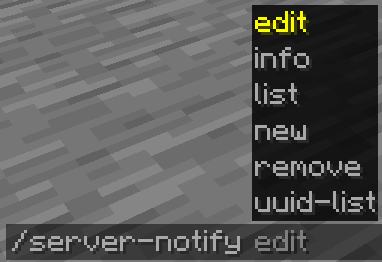
命令选项:
- Edit(编辑):修改通知的属性。
- Info(信息):查看特定通知的详细信息。
- List(列表):显示所有通知。
- New(新建):创建新通知。
- Remove(删除):删除通知。
- UUID-List(UUID 列表):显示所有通知及其 UUID。
创建通知
使用命令 /server-notify new type "Notification Name" 创建通知,将 "Notification Name" 替换为你喜欢的名称,并将 type 替换为 texture(纹理)、text(文本)或 url(URL)。
通知类型及命令
纯文本通知
文本通知允许你将任意消息显示为通知。
示例命令如下:
/server-notify new text "Notification Name" <sound_namespace> <sound_path> <message> <dismissButton> <dismissMessage> <alwaysShow>
"Notification Name" 可以是任意内容,但必须用引号括起来。它用于你在稍后识别该通知。
<sound_namespace> 是你希望在显示通知时播放的声音的名称空间。
<sound_path> 是你希望在显示通知时播放的声音的路径。
<message> 是你的消息内容,需用引号括起来。
<dismissButton> 在屏幕上显示一个“关闭”按钮。
<dismissMessage> 在屏幕底部显示“按 ESC 键关闭”的文字。
<alwaysShow> 即使玩家已经看过该通知,也在他们加入时再次显示。
另一个文本通知示例:
/server-notify new text "Notification Test" minecraft "ambient.cave" "hey, testing" false true true
URL 图片通知
图片通知允许你显示来自任意 URL 的图片。
示例命令如下:
/server-notify new url "Notification Name" <sound_namespace> <sound_path> <url> <width> <height> <dismissMessage> <alwaysShow>
"Notification Name" 可以是任意内容,但必须用引号括起来。它用于你在稍后识别该通知。
<sound_namespace> 是你希望在显示通知时播放的声音的名称空间。
<sound_path> 是你希望在显示通知时播放的声音的路径。
<url> 是你的图片 URL,需用引号括起来。
<width> 是你图片的宽度(你可能需要使用缩放后的分辨率以适应 Minecraft 的 GUI 缩放比例,例如对于一张 1920x1080 的图片,在保持宽高比的同时缩小尺寸应为 480x270)。
<height> 是你图片的高度(你可能需要使用缩放后的分辨率以适应 Minecraft 的 GUI 缩放比例,例如对于一张 1920x1080 的图片,在保持宽高比的同时缩小尺寸应为 480x270)。
<dismissMessage> 在屏幕底部显示“按 ESC 键关闭”的文字。
<alwaysShow> 即使玩家已经看过该通知,也在他们加入时再次显示。
另一个图片通知示例:
/server-notify new url "Image Test" minecraft "ambient.cave" "https://some_direct_image_url" 480 270 true true
Server Notify
Server Notify is a Minecraft mod that lets you display notifications to players joining your Minecraft server. Easily set up notifications using commands, with options for texture, text, or URL-based notifications.
Required on Client and Server!
Notification Types
- Texture Notifications: Display textures from any loaded resource pack.
- Text-only Notifications: Display simple messages.
- Image from URL: Display images from a specified URL.
Getting Started
- Command-based: All features are accessed via commands in-game.
- Commands: Type
/server-notify to view available options.
Command Options:
- Edit: Modify a notification's properties.
- Info: View details of a specific notification.
- List: Display all notifications.
- New: Create a new notification.
- Remove: Delete a notification.
- UUID-List: Show all notifications with their UUIDs.
Creating Notifications
Use the command /server-notify new type "Notification Name" to create a notification, replacing "Notification Name" with your preferred name and type with texture, text, or url.
Notification Types and Commands
Text-only Notification
A text notification lets you display any message as a notification.
An example command would be:
/server-notify new text "Notification Name" <sound_namespace> <sound_path> <message> <dismissButton> <dismissMessage> <alwaysShow>
"Notification Name" can be anything, however it must be in quotation marks. It is for you to identify the notification later on.
<sound_namespace> is the namespace of the sound you'd like to play when the notification is shown.
<sound_path> is the path of the sound you'd like to play when the notification is shown.
<message> is your message in quotation marks.
<dismissButton> displays a "Dismiss" button on the screen.
<dismissMessage> displays a "Press ESC to dismiss" text at the bottom of the screen.
<alwaysShow> shows the notification to a player when they join even if they have already seen it.
Another Text Notification example would be:
/server-notify new text "Notification Test" minecraft "ambient.cave" "hey, testing" false true true
Image from URL Notification
An image notification lets you display any image from a URL.
An example command would be:
/server-notify new url "Notification Name" <sound_namespace> <sound_path> <url> <width> <height> <dismissMessage> <alwaysShow>
"Notification Name" can be anything, however it must be in quotation marks. It is for you to identify the notification later on.
<sound_namespace> is the namespace of the sound you'd like to play when the notification is shown.
<sound_path> is the path of the sound you'd like to play when the notification is shown.
<url> is your image URL in quotation marks.
<width> is the width of your image (you might have to use a scaled down resolution to accomodate for Minecraft's GUI scale, for example for an image that's 1920x1080, scaled down while also keeping the aspect ratio would be 480 by 270).
<height> is the height of your image (you might have to use a scaled down resolution to accomodate for Minecraft's GUI scale, for example for an image that's 1920x1080, scaled down while also keeping the aspect ratio would be 480 by 270).
<dismissMessage> displays a "Press ESC to dismiss" text at the bottom of the screen.
<alwaysShow> shows the notification to a player when they join even if they have already seen it.
Another Image Notification example would be:
/server-notify new url "Image Test" minecraft "ambient.cave" "https://some_direct_image_url" 480 270 true true

 模组

 模组

 模组
 模组

 模组
 模组
评论 0
登录后参与评分
还没有评论,来抢沙发吧